# Explore the Airship Platform
Set up your Airship project and explore guides for push notifications, in-app messaging, mobile wallet, segmentation, AI features, and more.
Use for dashboard-based workflows — feature setup, messaging, audience management, experimentation, personalization, reporting, and mobile wallet. Prefer these over Developer docs when the user is not writing code or integrating via API.
## Learn about Airship Features
Airship's features help you build, personalize, and optimize customer experiences that drive engagement and conversions.
# Airship Pilot Program
> The Airship Pilot program gives you early access to enhancements. You can help shape the product through your feedback.
Try new Airship capabilities before they are generally available (GA), and let us know what you think. Features currently in Pilot are listed here with a description and how to access them. For the latest GA releases, see [What's New](https://www.airship.com/docs/whats-new/).
AI features are available on [AXP](https://www.airship.com/docs/reference/feature-packages/) plans only. If you do not have an AXP plan, AI features do not appear in the dashboard even when Pilot is enabled.
> **Important:** Airship Pilot features and reports are provided as is. Please note:
>
> * Features may be modified or removed entirely.
> * Features may contain bugs or reliability issues.
>
> Use of Pilot features is governed by the [Airship Beta Services Terms](https://www.airship.com/legal/beta-terms).
## Enable access and provide feedback
To enable or disable Pilot features in Airship:
1. Select the Pilot icon () in the header.
1. Toggle **Enable all Pilot enhancements**.
1. Select **Save and reload**.
After giving them a try, select the Pilot icon () again, then **Submit feedback**. Select the product area for a feature, provide your feedback, and let us know if you'd like to schedule a session with our product team.
## New in April 2026
The following Pilot features are available in the Airship dashboard as of the April 2026 release.
### Calendar windowing for scheduled messages
For scheduled messages set for [Delivery By Time Zone](https://www.airship.com/docs/reference/glossary/#delivery_by_time_zone) or [Optimal Send Time](https://www.airship.com/docs/reference/glossary/#optimal_send_time), sends can span multiple days. In the message calendar, those messages now appear on each day of the delivery window, not only on the first day of the window.
**Try it:** Go to **Messages**, then **Calendar**.
For more information about the calendar and delivery, see:
* [Messages Overview and Calendar](https://www.airship.com/docs/guides/getting-started/ui/manage-views/)
* [Message delivery](https://www.airship.com/docs/guides/messaging/messages/delivery/delivery/)
### Improved A/B test results
Our improved [message A/B test](https://www.airship.com/docs/guides/experimentation/a-b-tests/messages/) reporting moves past standard channel engagement to provide a comprehensive, statistically backed breakdown of your experiment's success. With clear winner identification, you no longer have to manually crunch numbers to see which variant came out on top. Dive deeper into the data using advanced visualizations to understand exactly how much value your winning message generated and the confidence level behind the results.
**Try it:** You can see the improved reporting in completed or currently running message A/B tests. Go to **Experiments**, then **Message Experiments**, select the more menu icon () for an A/B test in the list, then **View results**. You can also select the name of a test from the list and then go to **Results**.
Check out the new additions in the results:
* The Experiment Summary shows the test status.
* A data table shows you the Probability to Be Best, Expected Loss, and Conversion Rate vs Top Performing Variant.
* Charts and graphs for Probability to Be Best, Conversion Lift Compared to Others, and Likelihood of Variant Success help you evaluate the statistical confidence of each variant.
## Additional features
Learn about other features currently in Pilot.
### Customizable Home page reports view
In the Home page [reports view](#home-page-reports-and-calendar), you can customize which tiles and filters appear, the page title, and more.
**Try it:** First, select Home, and the reports view should open by default. Then select **Customize** to edit. The library of tiles and filters opens in a drawer. You can make the following changes:
* Select the delete icon () to remove current tiles or filters.
* Add tiles or filters from the drawer. You can enter a custom name for any tile.
* Select the more menu icon () to access export and import options. Exported layouts will work in any Home page reports view, not just your own. Select **Reset page** to remove any customizations.
When done, select **Save changes**. You can change the page title from the default “Home” before applying the changes.
### Intelligent Rollouts
[AXP](https://www.airship.com/docs/reference/feature-packages/)
Intelligent Rollouts identify and distribute your best-performing message variant automatically. This eliminates the manual effort of A/B testing and minimizes exposure to less effective variants. They are powered by reinforcement learning ([multi-armed bandit](https://en.wikipedia.org/wiki/Multi-armed_bandit)) to dynamically optimize for the winning variant.
Setting up an Intelligent Rollout is the same as an A/B test, but with two differences:
* **Variant allocation** — In the Audience step, you do not set variant allocation. Instead, the system handles distribution based on live engagement, dividing your audience into sequential batches and using engagement data from each batch to intelligently adjust the distribution of the next batch.
* **Scheduling** — There is an added Schedule step, where you determine when to start the test and set a send window. By learning from user engagement in real time during the send window, the system shifts your audience toward the winning variant, maximizing performance so more users see your most effective content.
With Pilot enabled, you can access both A/B tests and Intelligent Rollouts by going to **Experiments**, then **Message Experiments**.
**Try it:**
1. First, select the **Create** dropdown menu (
), then **Intelligent Rollout**. Or you can go to **Experiments**, then **Message Experiments**, select **Add experiment**, and then **Intelligent Rollout**.
1. Set up your variants and audience as you would for an A/B test, except without the variant allocation step. See [Create a message A/B test](https://www.airship.com/docs/guides/experimentation/a-b-tests/messages/#create-a-message-ab-test).
1. Go to **Schedule** and set a send window of between 6 and 24 hours, and then determine whether to start the experiment immediately or at a specific date and time.
1. Select **Start** to launch your experiment.
Go to **Results** to view variant distribution during the send window, conversion rates, and the Probability to Be Best (PTBB) to understand the statistical confidence of the rollout.
### Branching support for the Native Experience AI Agent
[AXP](https://www.airship.com/docs/reference/feature-packages/) [Agentic & Generative AI](https://www.airship.com/docs/guides/features/intelligence-ai/ai/)
Create sophisticated, non-linear experiences in seconds! Instead of manually mapping [Branching](https://www.airship.com/docs/reference/glossary/#branching) paths, the Native Experience AI Agent can do it for you.
Define your "if-then" scenarios in plain language, and the agent handles the structural heavy lifting to ensure every user receives a personalized, responsive interaction. For example, you can describe an NPS survey that triggers specific follow-up questions based on a user's rating.
**Try it:** See [Create AI-generated screens](https://www.airship.com/docs/guides/messaging/editors/native/about/#create-ai-generated-screens) in *Native Experience editor*. Branching support for the Native Experience AI Agent is available only when creating new Scenes.
### Personality-based copywriting for the Native Experience AI Agent
[AXP](https://www.airship.com/docs/reference/feature-packages/) [Agentic & Generative AI](https://www.airship.com/docs/guides/features/intelligence-ai/ai/)
Use conversational prompts with the Native Experience AI Agent to produce high-quality [Scene](https://www.airship.com/docs/reference/glossary/#scene) copy that feels authentic to your brand. Specify a personality in your [brand guidelines](https://www.airship.com/docs/guides/messaging/features/brand-guidelines/), and the agent will generate and refine your messaging.
**Try it:** See [Create AI-generated screens](https://www.airship.com/docs/guides/messaging/editors/native/about/#create-ai-generated-screens) in *Native Experience editor*.
### Accessibility agent version snapshots
[AXP](https://www.airship.com/docs/reference/feature-packages/)
The system automatically generates a version snapshot after each [accessibility agent](https://www.airship.com/docs/guides/messaging/editors/native/about/#accessibility-agent) fix, ensuring you can revert a Scene to its previous state if the AI adjustments require manual correction.
**Try it:** When editing Scene content, including [layouts](https://www.airship.com/docs/guides/messaging/editors/native/custom-layouts/), apply suggestions from the accessibility agent. To revert, select **Snapshots** and choose a previous version. To remove a version from the list, select the delete icon ().
### Native Message Center
[AXP](https://www.airship.com/docs/reference/feature-packages/) [iOS SDK 20.4+](/docs/docs/developer/sdk-integration/apple/ios-changelog/#20.4.0) [Android SDK 20.3+](/docs/docs/developer/sdk-integration/android/changelog/#20.3.0)
Compose Message Center messages using the Native editor to create richer, more accessible experiences. Native Message Center messages support all the same features as Scenes, including survey questions, [Story](https://www.airship.com/docs/reference/glossary/#story) mode, email and phone number collection, and more.
**Try it:** First, create your content as a template:
1. Go to **Content**, then **Templates**.
1. Create a new template, and select **Native Experience** as the channel.
1. Complete all required fields and save the template.
Then, when configuring your Message Center content, select **Native editor**, and then select the template you created.
To change your content before sending, edit the template and then return to your draft message.
### Home page reports and calendar
Display reports or your message calendar on your project Home page.
**Try it:** Select Home, and you'll see reports as the default view. Select the calendar icon () and the reports icon () to toggle the views.
### Audience Pulse recommendation to Scene
[AXP](https://www.airship.com/docs/reference/feature-packages/) [Agentic & Generative AI](https://www.airship.com/docs/guides/features/intelligence-ai/ai/)
Generate a draft Scene from [Audience Pulse](https://www.airship.com/docs/reference/glossary/#audience_pulse) strategy recommendations at the click of a button. You must have already generated tiers before you can generate AI insights and Scenes.
**Try it:**
1. Go to **Audience**, then **Audience Pulse**, and select ** AI Insights**.
1. Select a recommendation, and then ** Generate Scene**.
### Goal attribution for Scenes
[AXP](https://www.airship.com/docs/reference/feature-packages/)
Stop guessing if your in-app experiences are working. Now you can see if a [Goal](https://www.airship.com/docs/reference/glossary/#goals) is attributed to a Scene and measure exactly how your interactions contribute to your overall success.
**Try it:**
1. Go to **Messages**, then **[Messages Overview](https://www.airship.com/docs/reference/glossary/#messages_overview)**, and select the report icon (
) for a Scene.
1. Under **Performance**, search for a Goal.
1. Set the time range and event expiration window.
Goal events that occur within the event expiration window after a Scene impression are attributed to that Scene. Select **Channel ID** or **Named User** to display data tracked at each level.
### Conversational mapping for Journeys
[AXP](https://www.airship.com/docs/reference/feature-packages/) [Agentic & Generative AI](https://www.airship.com/docs/guides/features/intelligence-ai/ai/)
Make edits to a Journey using a conversational agent. Available for Journeys containing only Sequences.
**Try it:** Go to **Journeys**, select a Sequence-based Journey, and then select ** AI Journey Assistant**.
### AI Email templates
[AXP](https://www.airship.com/docs/reference/feature-packages/) [Generative AI](https://www.airship.com/docs/guides/features/intelligence-ai/ai/)
Generate professional email templates by uploading an image or HTML file and letting AI do the rest.
**Try it:** Go to **Content**, then **Templates**, and select **Generate with AI**.
### Centralized access control
Add or remove team members from multiple projects on one unified page.
**Try it:** Select the Account menu icon () in the header, then **Team Management**. From there, select **Try out our new Team Access page** to switch to the new experience. To return to the original view, select the Account menu icon () and **Team Management** again.
### Learn about Airship messaging and engagement features
Airship supports push notifications, in-app messages, SMS/MMS/RCS, email, Message Center, and more. Learn what each channel is, when to use it, and what makes it unique.
# Push notifications
> Send push notifications to your App and Web channels.
## About push notifications
Push notifications are banner alerts that can contain many other kinds of data such as images, sounds, badge updates, buttons, and more. App push notifications target mobile devices, while web push notifications target users' web browsers.
Mobile app push notifications help you:
* Alert users when they are not in the app
* Pass extra data to users for marketing/segmentation use
* Keep users engaged with your app
**Use cases:**
* Breaking news
* Score updates
* Transaction confirmation
* Social interactions
* New content available
You can combine mobile app push notification with an [In-App Message](https://www.airship.com/docs/reference/glossary/#in_app_message) and/or [Message Center](https://www.airship.com/docs/reference/glossary/#message_center) message. When combining a push notification and Message Center, Airship sends the Message Center message to both opted-in and opted-out devices.
Reach users on the web without developing an app. Any user with access to a web browser can receive your notifications. If you do have an app, however, you can use web as an additional channel to engage your audience.
Airship supports web push notifications on:
Desktop: Google Chrome, Mozilla Firefox, Microsoft Edge, Opera, and Safari (v16 and above)
Android Mobile: Google Chrome, Mozilla Firefox, Opera
iOS and iPadOS Mobile: Safari (iOS and iPadOS 16.4 and above, as a standalone web app)
### Silent push notifications
A *silent push notification* is a message that wakes a mobile app for processing without appearing on the device or producing sound or vibration. Silent push notifications are useful for performing background tasks such as sending custom keys, updating the app's badge icon, fetching remote content, and enabling new features.
For more information, see [Silent Notifications](https://www.airship.com/docs/developer/sdk-integration/apple/push-notifications/getting-started/#silent-notifications) for iOS and [Silent Notifications](https://www.airship.com/docs/developer/sdk-integration/android/push-notifications/getting-started/#silent-notifications) for Android.
You can send silent push notifications using Sequences and the Message and Automation composers. You cannot combine a silent push notification with any other message type.
> **Note:** When targeting Android devices, Airship sends messages to both opted-in and opted-out devices. Regular notifications are sent to opted-in devices and silent push notifications are sent to opted-out devices. Both silent and alerting sends appear in the message report.
## Appearance and behavior
App and web push notifications are displayed upon receipt and require text content and support adding buttons, a title, and media. Details and differences are described for each in the next sections.
### App push notifications
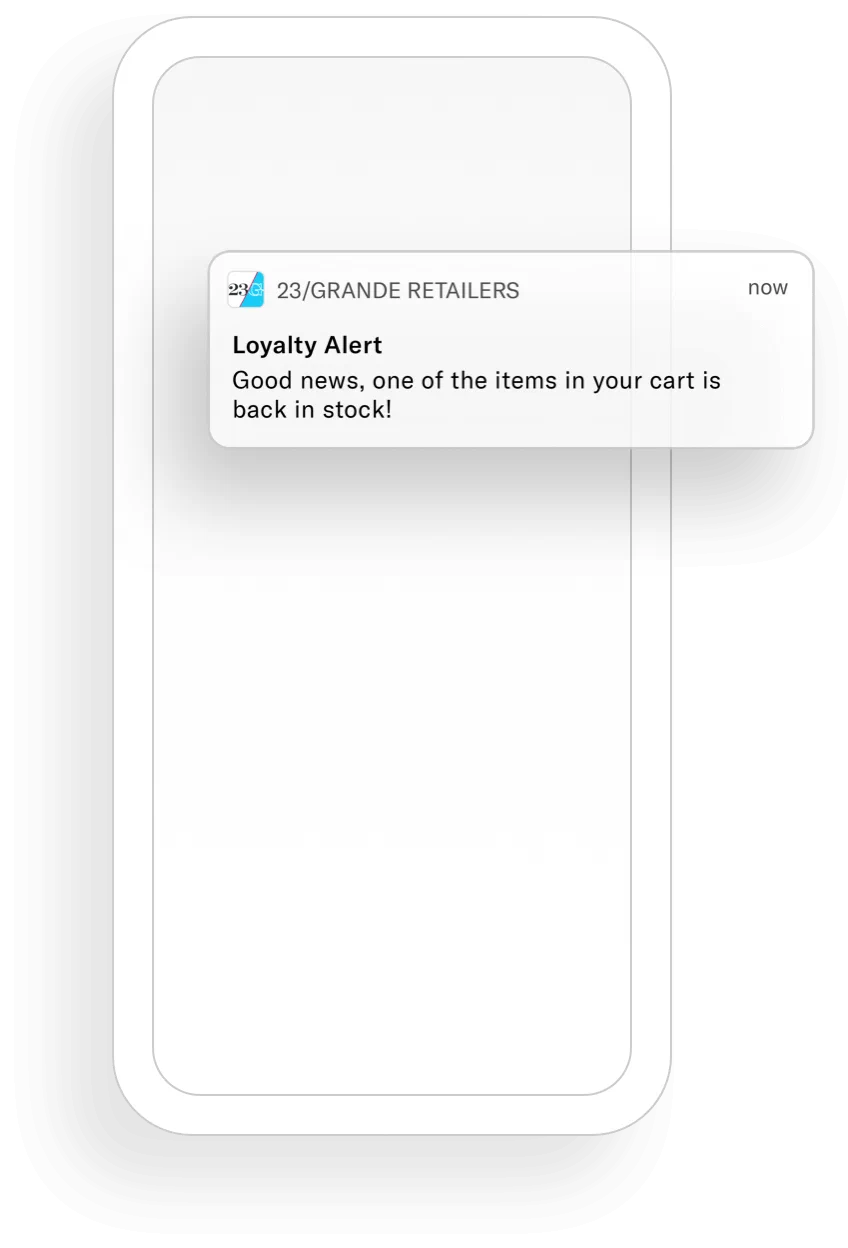
*A mobile app push notification*
Push notifications are in banner format and can appear on any screen on a device. They are not [Persistent](https://www.airship.com/docs/reference/glossary/#persistent).
Every push notification requires text, and you can also add optional features:
* **Buttons** — You can add one or two buttons.
* **Title** — This is a heading that appears above the notification text in:
* iOS Notification Center
* Apple Watch Looks
* Android and Fire OS Notification Area/Drawer
* **Media** — See [Push notifications](https://www.airship.com/docs/reference/messages/media-guidelines/#push-notifications) in *Media guidelines*.
* **Summary** — This is supplemental text displayed with the notification. The position varies per platform.
### Web push notifications
A web push notification appears as a toast, sliding into the top right or bottom left corner of your audience's web browser (depending on the browser). Depending on the operating system, they may also be delivered to the OS Notification Center. For example, on macOS all web notifications are visible from within the Notification Center, regardless of which browser they come from.
They are displayed upon receipt as long as the browser is open. Safari web notifications are handled by macOS, so they may also be handled by Notification Center preferences.
On a mobile device, web push notifications appear and behave similarly to a mobile push notification.
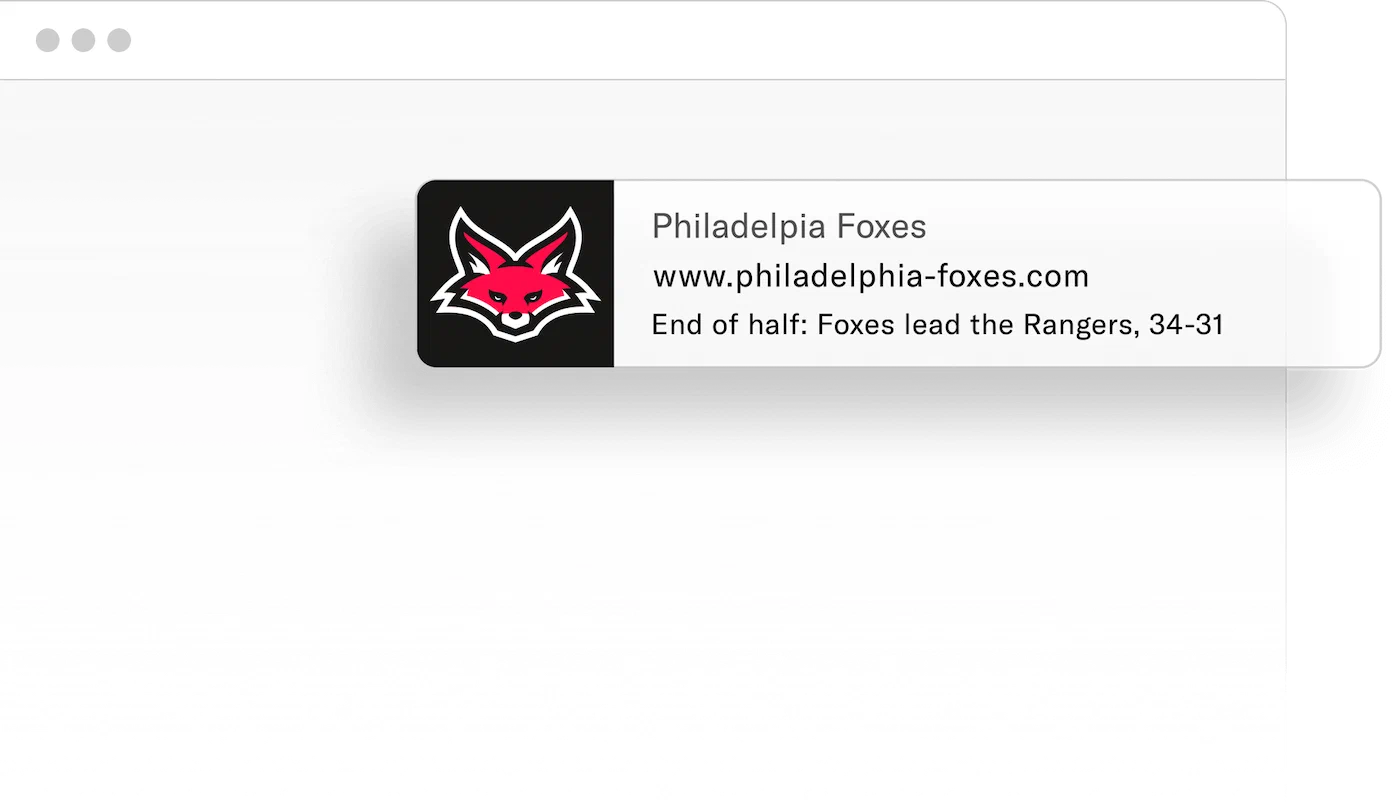
*A web push notification*
Every web push notification requires text, and you can also add optional features:
* **Buttons** — You can add one or two buttons.
* **Title** — This heading appears above the notification text in:
* iOS Notification Center
* Android and Fire OS Notification Area/Drawer
You define a default title for all of your project's web messages when configuring the web channel for your project, and you can override the title per message.
* **Media** — Add an image that will appear in web messages in Chrome and Opera browsers on Windows and Android platforms.
* **Icon** — This image is included in all web messages. You define a default icon for all of your project's web messages when configuring the web channel for your project, and you can override the icon per message.
## Getting started with push notifications
Follow these steps to start using mobile app push notifications with Airship:
* **Configure mobile channels in your project settings** See [Configuring Mobile Channels](https://www.airship.com/docs/guides/getting-started/developers/configure-channels/) in the Getting Started guide.
* **Integrate the Mobile SDK with your app** See [SDK setup](https://www.airship.com/docs/sdk-topics/setup/) for mobile apps in our developer documentation.
Follow these steps to start using web push notifications with Airship:
* **Configure the Web channel in your project settings.**
* **Integrate the Web SDK with your website.**
See [Getting Started for the Web SDK](https://www.airship.com/docs/developer/sdk-integration/web/getting-started/) in our developer documentation.
Once your project is set up, you can start creating [mobile app push notification content](https://www.airship.com/docs/guides/messaging/messages/content/app/push-notifications/) and [Web push notification content](https://www.airship.com/docs/guides/messaging/messages/content/web/).
# Message Center
> {{< glossary_definition "message_center" >}}
## About Message Center
In reporting and other areas of Airship, a Message Center message may be referred to as a **rich page**.
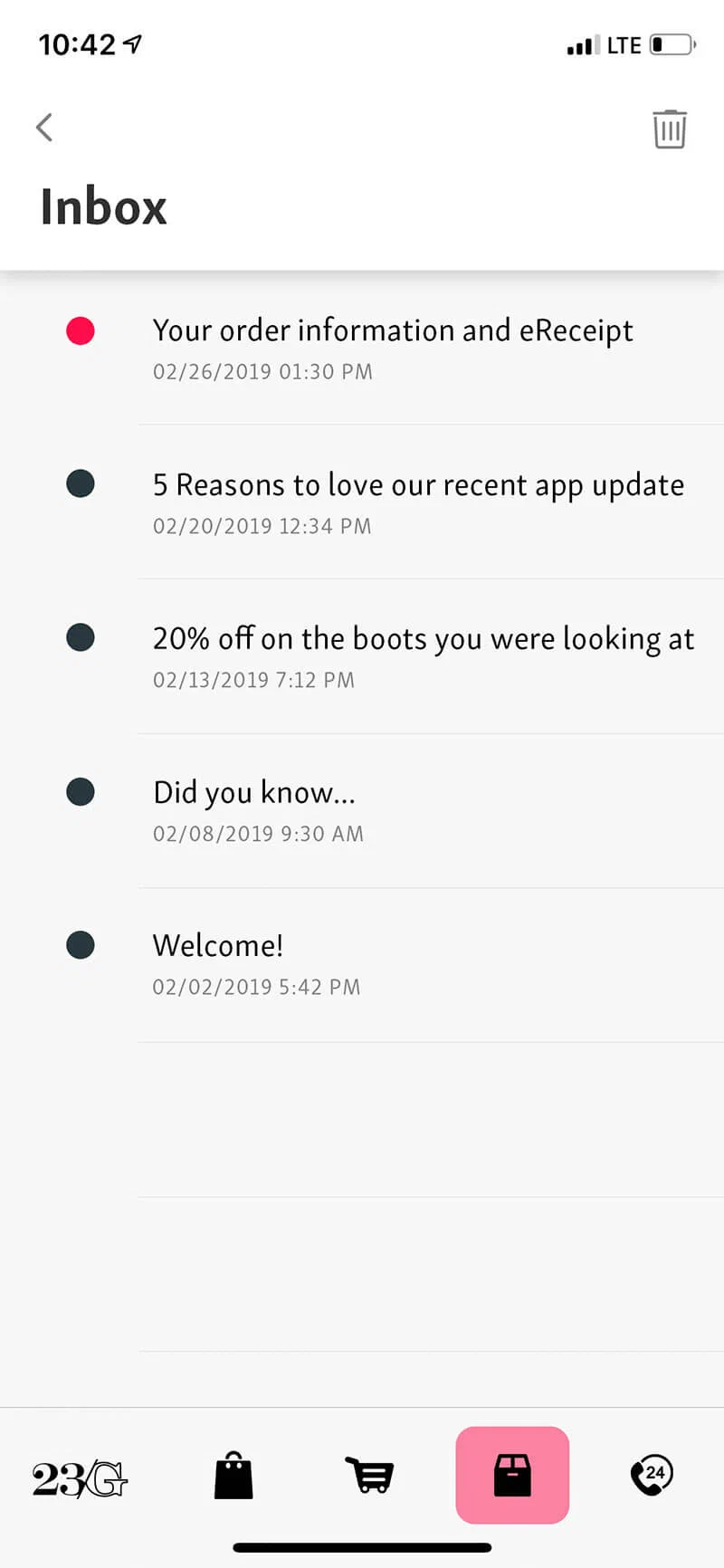
*A Message Center inbox*
* **Reach opted-out users** — Message Center messages are not push notifications, but you can use push notifications to alert users that new rich content is available. Because Message Center messages do not require a user to opt in to push notifications, you can reach your opted-out audience with Message Center.
* **More opportunities to engage** — When users interact with Message Center, e.g., read, delete, tap a button, Airship tracks the interactions and makes them available via our analytics offerings, [Real-Time Data Streaming](https://www.airship.com/docs/reference/glossary/#rtds) and [Performance Analytics](https://www.airship.com/docs/reference/glossary/#pa).
By providing engaging content and facilitating interactions via Message Center, you can also trigger other [Actions](https://www.airship.com/docs/reference/glossary/#action) such as adding a tag, or triggering a follow-up notification.
* **Theming** — Change your Message Center colors, fonts, backgrounds, and icons to match your branding.
* **Airship hosting** — Your message content is hosted by Airship.
* **More benefits**:
* Persistent inbox
* Customized per user, according to how you target individual users
* Tracking of message state per user: Read, unread, deleted, etc.
* Customize UI, or use out-of-the-box
* Data/Reporting
* JavaScript Bridge
You can combine a Message Center message with a [Push Notification](https://www.airship.com/docs/reference/glossary/#push_notification) and/or [In-App Message](https://www.airship.com/docs/reference/glossary/#in_app_message) message.
When combining a push notification and Message Center, Airship sends the Message Center message to both opted-in and opted-out devices.
## Appearance and behavior

*Message Center messages*
Users access Message Center messages from the Message Center inbox in your app. Messages are **fullscreen**, with navigation back to the inbox at the top of the screen. You can configure a push notification or in-app message to open a Message Center message.
* Inboxes are limited to 250 messages. Exceeding the limit deletes the oldest messages first.
* Messages remain in the inbox until expired or deleted.
* Messages expire after one year or according to individual message expiration setting.
To create the message content, you can either upload your own HTML or design using drag-and-drop. Airship supplies several default layouts. You can also create and save your own layouts for use in new messages.
* **Inbox preview** — The inbox supports a message *preview* of a thumbnail image and one or two lines of text
* **Expiration** and you can specify an expiration date, when the message is removed from the inbox.
* **Custom templates** — Airship can create and add custom message templates for you. Contact your Airship account manager if you are interested in adding custom templates to your project.
Theming your Message Center requires changes to the configuration file in your iOS or Android/Fire OS project. See [Message Center](https://www.airship.com/docs/developer/sdk-integration/apple/message-center/getting-started/) for iOS and [Message Center](https://www.airship.com/docs/developer/sdk-integration/android/message-center/getting-started/) for Android.
## Getting started with Message Center
Follow these steps to start using Message Center with Airship:
* **Configure mobile channels in your project settings** See [Configuring Mobile Channels](https://www.airship.com/docs/guides/getting-started/developers/configure-channels/) in the Getting Started guide.
* **Integrate the Mobile SDK with your app** See [SDK setup](https://www.airship.com/docs/sdk-topics/setup/) for mobile apps in our developer documentation.
* **Install and theme your Message Center** See [Message Center](https://www.airship.com/docs/sdk-topics/message-center/) in our developer documentation.
Once your project is set up, you can start creating [Message Center content](https://www.airship.com/docs/guides/messaging/messages/content/app/message-center/).
# Landing pages
> Direct users to a landing page when they interact with your message.
## About landing pages
A landing page is a page within your app that can include rich content, such as HTML and video, without requiring any additional UI customization to enable the view or to provide an inbox to store the messages.
You can configure a [Push Notification](https://www.airship.com/docs/reference/glossary/#push_notification) or [In-App Message](https://www.airship.com/docs/reference/glossary/#in_app_message) to open a landing page when a user taps the message. In reporting and other areas of Airship, a landing page may be referred to as a *rich page*.
## Appearance and behavior
Landing pages appear as an overlay, with an X icon (
) to close/delete. They open when a user taps a push notification or in-app message. Landing pages are not [Persistent](https://www.airship.com/docs/reference/glossary/#persistent).
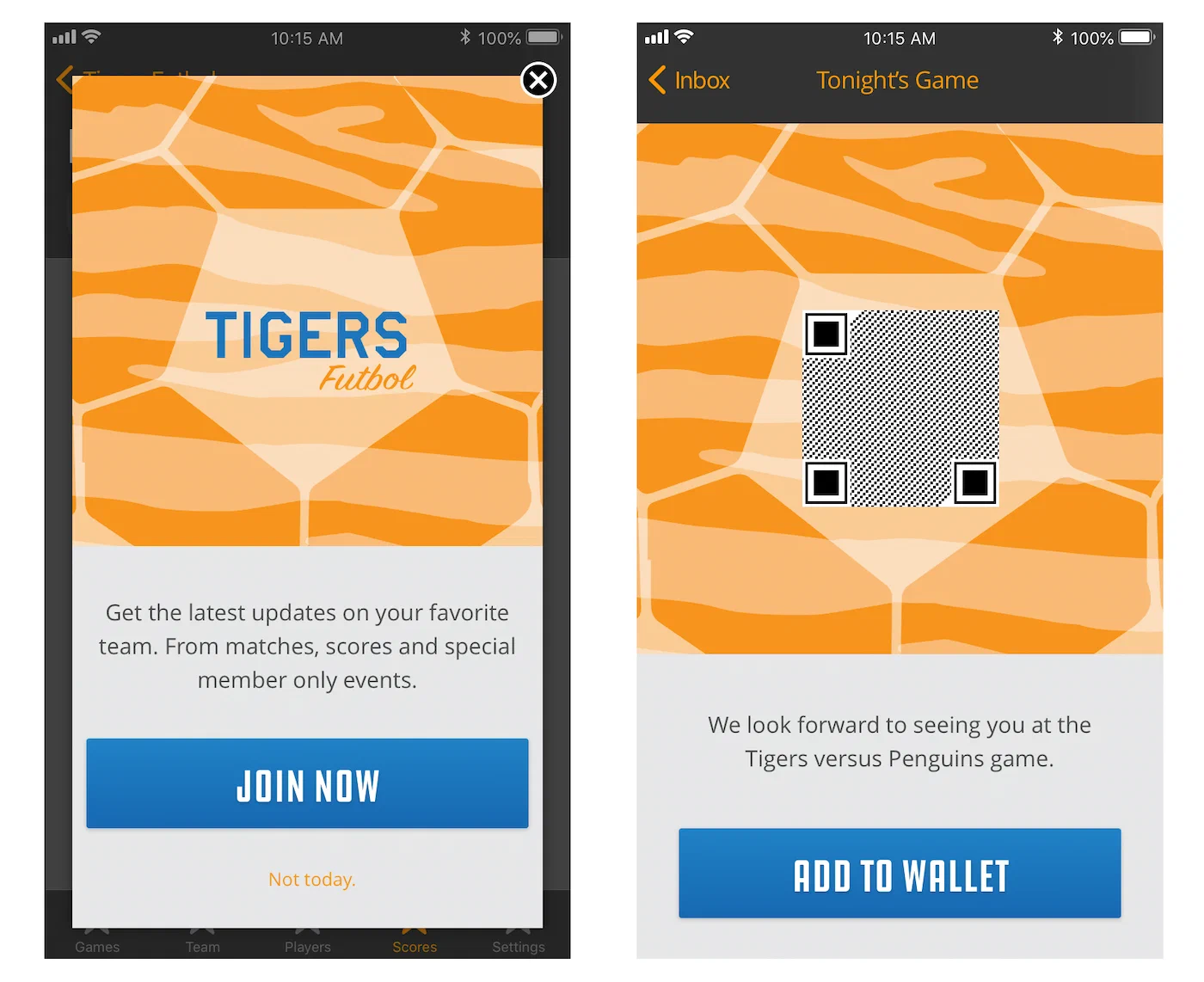
*A landing page overlay compared to fullscreen Message Center message*
You can create landing page content using these methods:
* **Self-hosting** — Store content on your own server and provide an HTTPS URL for the content when creating a message. URLs support [personalization](https://www.airship.com/docs/guides/personalization/content/personalize-actions/#web-page-and-landing-page-actions).
* **Upload** — Upload your own HTML.
* **Drag-and-drop** — Design using the drag-and-drop option in the Interactive editor. Airship supplies several default layouts, and you can save the layouts you create.
Also, Airship can create custom landing page templates for you. Contact your Airship account manager if you are interested in adding custom templates to your project.
## Getting started with landing pages
Follow these steps to start using landing pages with Airship:
* **Configure mobile channels in your project settings** See [Configuring Mobile Channels](https://www.airship.com/docs/guides/getting-started/developers/configure-channels/) in the Getting Started guide.
* **Integrate the Mobile SDK with your app** See [SDK setup](https://www.airship.com/docs/sdk-topics/setup/) for mobile apps in our developer documentation.
Once your project is set up, you can start creating [landing page content](https://www.airship.com/docs/guides/messaging/messages/content/app/landing-pages/).
# Email
> Send messages to registered email addresses.
## About email
You can send email to your registered users. Email features include:
* Registration and unsubscribe capabilities
* Aggregate dashboards for real-time updates
* [Performance Analytics](https://www.airship.com/docs/reference/glossary/#pa) support to view send and deliverability metrics
* [Real-Time Data Streaming](https://www.airship.com/docs/reference/glossary/#rtds) support to send deliverability metrics to a central data lake
### Use cases
* **Multi-channel transactional messaging**
* Urgent transactional message directed to multiple channels, e.g., send notification via both push and email
* **Notification-style email**
* Promotional blast messaging: great for Retail, Sports/Entertainment, and Travel verticals
* Breaking news alerts for the Media industry
* Promotional mobile wallet delivery, such as coupons and loyalty cards
* **Priority channel**
* Allow users to set their preferred delivery channel as email for certain types of messaging, so as not to alert them on multiple channels, e.g., app and web, for the same content
**Industry examples:**
* **Retail** — Send an email for app re-acquisition if a user churns, onboarding, coupon and loyalty pass delivery, and more.
* **Media** — Send highly-segmented news updates.
* **Travel and Hospitality** — Send boarding passes, day of travel updates, and reservation reminders.
## Appearance and behavior
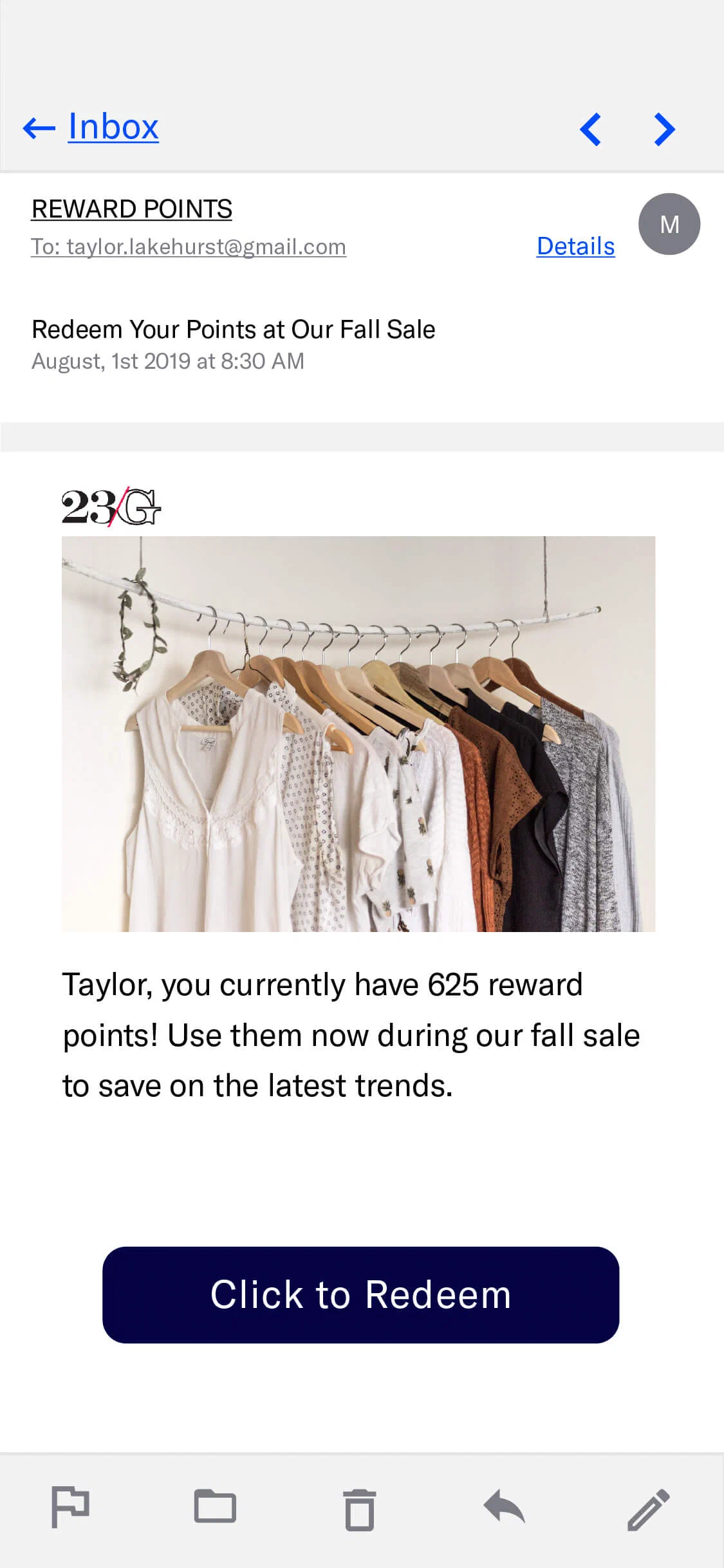
*Email in a mobile device inbox*
Email appears in the recipient's inbox and is displayed upon opening the message. Email is [Persistent](https://www.airship.com/docs/reference/glossary/#persistent), remaining viewable until deleted by the user.
Components of an email:
* **Subject** — [Preheader text](#preheader-text) is optional.
* **Message body** — HTML is optional, plain text is required. Users who cannot receive HTML emails will receive the plain text version. See also: [Media guidelines](https://www.airship.com/docs/reference/messages/media-guidelines/).
An **unsubscribe link** is required within the message body for commercial email. You can also provide unsubscribe links for messages sent to [Subscription Lists](https://www.airship.com/docs/reference/glossary/#subscription_list). See: [Email unsubscribe links](https://www.airship.com/docs/guides/messaging/messages/content/email/email-unsubscribe-links/).
For the HTML body, you can either provide your own HTML or design using drag-and-drop in the [Interactive Editor](https://www.airship.com/docs/guides/messaging/editors/interactive/about/). The drag-and-drop option produces HTML that is compatible with any email client that accepts HTML emails, making sure that your audience sees the best version of your message.
As new versions of Outlook and other clients are released, we make sure your HTML will work with them too. You can choose one of Airship's default layouts to get started or you can design your own. You can also save layouts you design and reuse them for other messages.
### Preheader text
*Preheader text* is a short line of text that displays after or below an email subject line in an inbox. You can also have the text appear in the message body. Preheader text is an easy way to expand on your subject line and improve email open rates. Not all email clients support preheader text. These examples show preheader text following the subject "Undock is Launching":

*Preheader text in browser inbox*
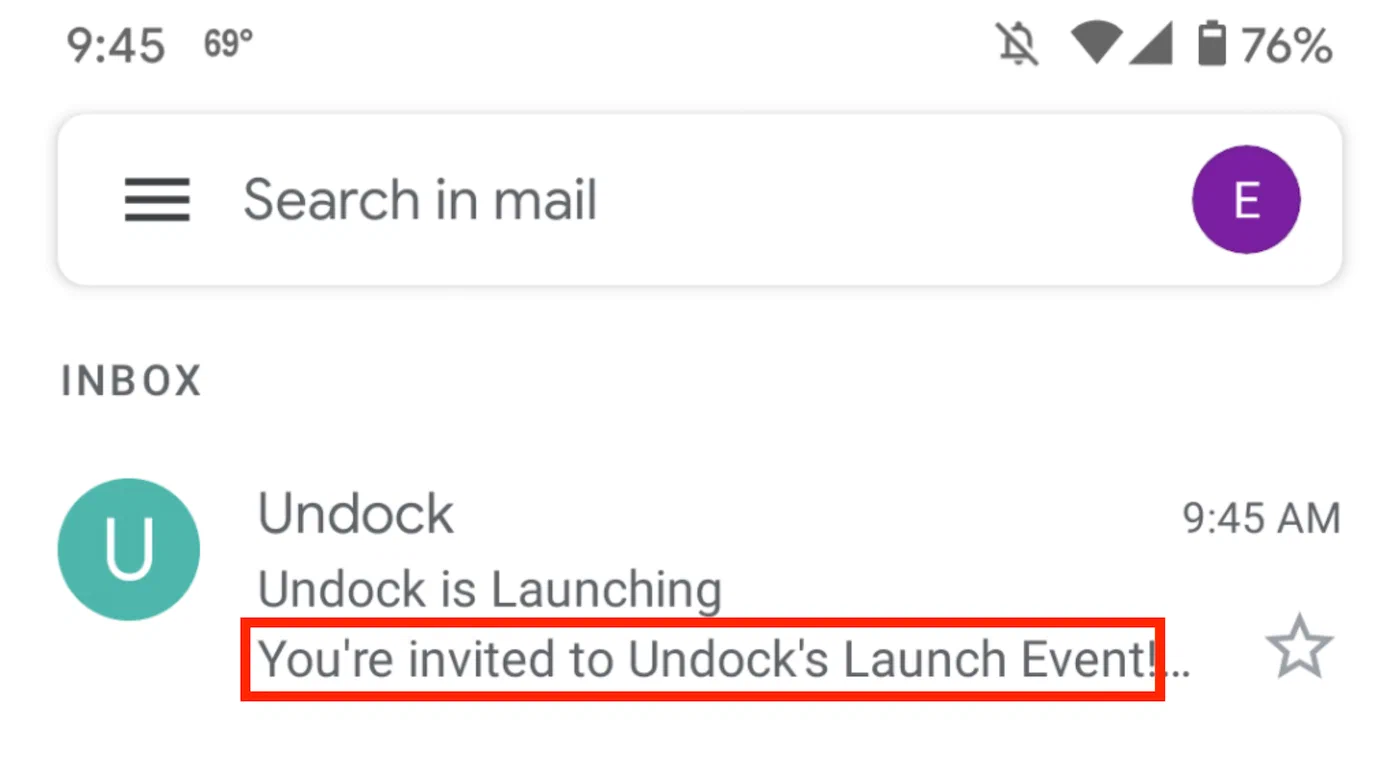
*Preheader text in mobile inbox*
### Disabling click tracking
When creating a message, you can set click tracking behavior in its sender information. When tracking is enabled, you can override the setting and disable tracking for message specific links and actions.
See [Disabling click tracking for specific links
](https://www.airship.com/docs/guides/messaging/messages/content/email/email/#disabling-click-tracking-for-specific-links) in *Email content*.
## Plain text generation
When editing your HTML content in the dashboard, Airship prompts you to automatically generate a plain text version when you save your changes. Your HTML content, including links, is converted and populated into the **Plain text body** field. You can then edit the plain text version as needed. The prompt appears when saving pasted or uploaded HTML and when saving changes to layouts in the Interactive editor.
Having a complete plain text body for your email helps support the following:
- **Better deliverability** — Email providers favor messages with both HTML and plain text versions.
- **Accessibility** — Users with visual impairments benefit from plain text content that is easily consumable by assistive technologies such as screen readers.
- **Fallback support** — Email clients unable to render HTML default to displaying the plain text version.
The auto-generated plain text maintains the structure and links from your HTML content, which you can then review and customize as needed.
## Inbox previews
Before sending your message, you can preview what it will look like in various email clients. After adding the HTML body in a message or template, you can select **Inbox preview** and choose from a list of browser, desktop, and mobile clients. 90+ different client and device combinations are supported.
Inbox previews must be enabled for your account. Contact your Airship account manager if they do not appear for your projects.
See [Inbox previews](https://www.airship.com/docs/guides/messaging/messages/content/email/email/#inbox-previews) in *Email content*.
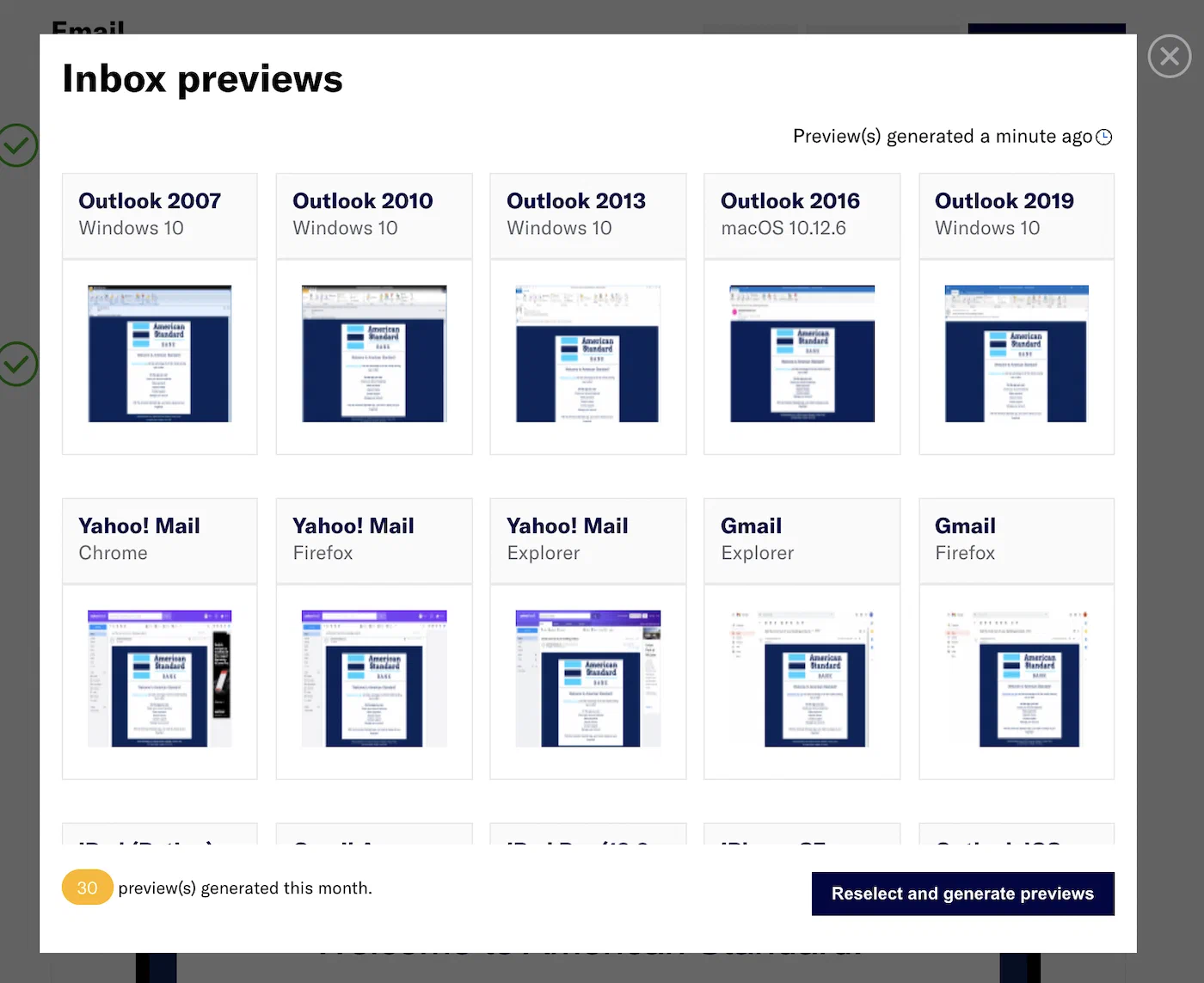
*Email inbox previews*
## Link names
Name your email links to better understand their performance. When users follow links in an email, the URLs and related metrics appear in the Performance section of a message report. Link names also appear in [Real-Time Data Streaming](https://www.airship.com/docs/reference/glossary/#rtds).
Use cases:
* **Differentiation** — In an email containing three links with identical URLs for a login page, you could differentiate them by specifying their location within the message by using link names "Login header," "Login body", and "Login footer".
* **Grouping** — In an email with multiple links in different languages that all go to the same localized home page, you could use link names "English (US)" and "English (Germany)" for URLs `https://www.example.com/en_us/home` and `https://www.example.com/en_de/home`. But if you wanted to see a total count for all links to the homepage, you could use the same "Homepage" link name for all the links instead of naming them for each locale.
* **Segmentation** — Create a [Segment](https://www.airship.com/docs/reference/glossary/#segment) of users who followed links by specifying the link name for the `email_click` event. Link names are easier to work with than dynamic or localized URLs when building Segments for retargeting users.
See [Link names](https://www.airship.com/docs/guides/messaging/messages/content/email/email/#link-names) in *Email content*.
## URL parameters
URL parameters are variables you can automatically append to all link URLs in emails. They function as tags for tracking campaign performance, both on the web and in an app. You can use platforms like Google Analytics to track user behavior after they've followed a link. Add your own custom parameters and/or supply values for [UTM parameters](https://en.wikipedia.org/wiki/UTM_parameters) defined in Airship.
See [URL parameters](https://www.airship.com/docs/guides/messaging/messages/content/email/email/#url-parameters) in *Email content*.
## HTML minification
Reducing message size can help with deliverability and avoiding message truncation by email clients. When using the the drag-and-drop option in the Interactive editor for an email HTML body, you can reduce the overall size of your content by up to 25% by compressing code spacing and removing unused class names and CSS styles. You must request enabling this feature for your projects.
For details, see [Size limit and HTML minification
](https://www.airship.com/docs/guides/messaging/messages/content/email/email/#size-limit-and-html-minification) in *Email content*.
## Blind carbon copies (BCC)
Contact your Airship account manager to enable blind copy (BCC) capabilities for your emails. Because emails can contain personal information about your audience, you must register the addresses that you want to use for blind copies with Airship.
## Unsubscribe events
Airship reflects [unsubscribe events in the Real-Time Data Stream](https://www.airship.com/docs/developer/rest-api/connect/schemas/email-compliance-events/#unsubscribe). When users unsubscribe, Airship also assigns them `commercial_opted_out` or `transactional_opted_out` values based on the type of email they unsubscribed from.
## Preference Centers
A *Preference Center* is a page where users can manage their opt-in statuses for the Subscription Lists in your project. Preference Centers are presented within your app or website or as an Airship-hosted web page.
Design a web page in the Airship dashboard and select a Preference Center to appear on the page. After saving, you can copy the web page link and include it in your email to a [Subscription List](https://www.airship.com/docs/reference/glossary/#subscription_list). No development work is required.
See [About Preference Centers](https://www.airship.com/docs/guides/messaging/features/preference-centers/).
## Getting started with Email
Follow these steps to start using Email with Airship:
* **Add the Email channel to your project** Contact Airship Sales to provision your project for Email.
* **Register users** See [Getting Started](https://www.airship.com/docs/developer/api-integrations/email/getting-started/) for Email integration in our developer documentation.
Once your project is set up, you can start creating [Email content](https://www.airship.com/docs/guides/messaging/messages/content/email/email/).
# In-App Automation
> Trigger messages automatically when users meet specific conditions or perform certain actions.
## About In-App Automation
In-app messages appear regardless of a user's opt-in/out status for notifications. In-App Automation refers to messages cached on users' devices and displayed when users meet certain conditions within your app, such as viewing a particular screen or opening the app a certain number of times. While standard in-app messages appear as banners, in-app automation messages have various style and layout options.
In-app automation is designed to be highly contextual and displayed immediately in response to user behaviors, e.g., the user opens the app a specific number of times, views a specific screen, adds an item to their cart, makes a purchase, or views a video. Respond to user behaviors instantly with customizable messages, giving you precise control of the user experience. Benefits include:
* **Real-time display** — In-app automation uses our on-device automation framework, which means they can respond to a series of events in real time (e.g., multiple game level changes, a sequence of screens, additions to a shopping cart) without round-trips to a server.
* **Dashboard management** — Control all aspects of the message, including branding, using the Airship dashboard.
You cannot combine in-app automation with other channels or message types, however you can trigger a [Sequence](https://www.airship.com/docs/reference/glossary/#sequence) when a specific in-app automation displays for a user.
## Use cases
Welcome messages — Communicate the value of your app and highlight key features.
Push and location opt-in prompts — Explain the value of your notifications to drive opt-in rates.
Feature education — Drive adoption of critical/new features that promote retention.
Onboarding messages — A series of messages educate users about the app over time.
App reviews — Prompt users to rate your app after positive experiences.
Registration/login — Drive registrations and logins to your loyalty program or account.
Profile enhancement — Promote the benefits of a completed profile, and provide a link to the relevant page in your app. Encourage your users to take a second to personalize their experience, and increase engagement and retention.
App updates — Send your users an in-app message highlighting your app’s newest features, or encourage users on older versions to update the app. If you just added a new page or have some new content, make sure to include a Deep Link so that they can find it quickly.
Ongoing promotions — If you have a promotion that users can take advantage of at any time — such as a discount for inviting a friend or for taking a survey — an in-app message serves as a convenient reminder.
These use cases are also true for standard in-app messages, however, using in-app automation, you can trigger your message to display based on specific scenarios. For example:
* Display a "Welcome" message **when users first open your app**.
* Display a "Tip" message **when a new feature is added to your app**.
* Ask a user to rate your app **after they have opened it for the 6th time**.
These experiences are typically hard-coded by app developers and cannot be updated without custom development and app store updates. With in-app automation, you create and update these in the Airship dashboard, without custom development.
## Appearance and behavior
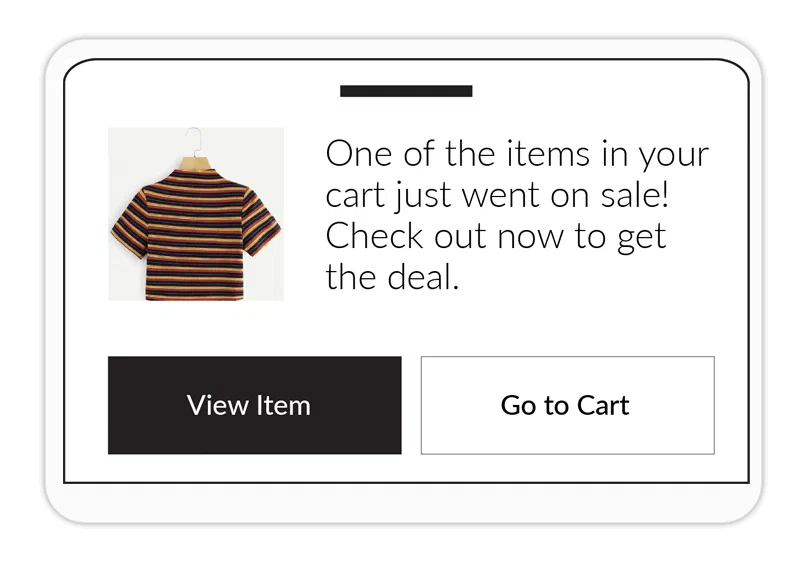
*Banner with media and buttons*
Multiple message [styles](#styles) (banner, modal, fullscreen, and custom HTML) are supported, as well as various [layouts](#layouts) for each style.
You will configure the message content based on the requirements for your selected style and layout:
* **Text** — Add text to header, body, and footer fields.
* **Media** — See [In-App Automation](https://www.airship.com/docs/reference/messages/media-guidelines/#in-app-automation) in Media guidelines.
* **Buttons** — Different styles support a different number of buttons, and you must associate an action for each. If more than one button is added, you may choose a button layout: *Separate*, *Joined*, or *Stacked*.
In-App Automation use intelligent caching to balance performance with real-time capabilities. Our SDK downloads and refreshes the entire message list upon next app open. Up to 50 messages can be pre-loaded onto the device at a time. SDK versions prior to iOS SDK 16.6 and Android SDK 16.4 use background push to perform these actions.
In-app automation is not [Persistent](https://www.airship.com/docs/reference/glossary/#persistent), and display **duration** varies by message style:
* Modal and fullscreen messages appear on screen until the user interacts with them, either by clicking one of the main buttons or dismissing the message.
* Banner messages disappear automatically after 15 seconds but will disappear sooner if the user clicks any button or dismisses the message.
### Styles
There are four styles:
[Banner](#style-banner),
[Modal](#style-modal),
[Fullscreen](#style-fullscreen), and [Custom HTML](#custom-html).
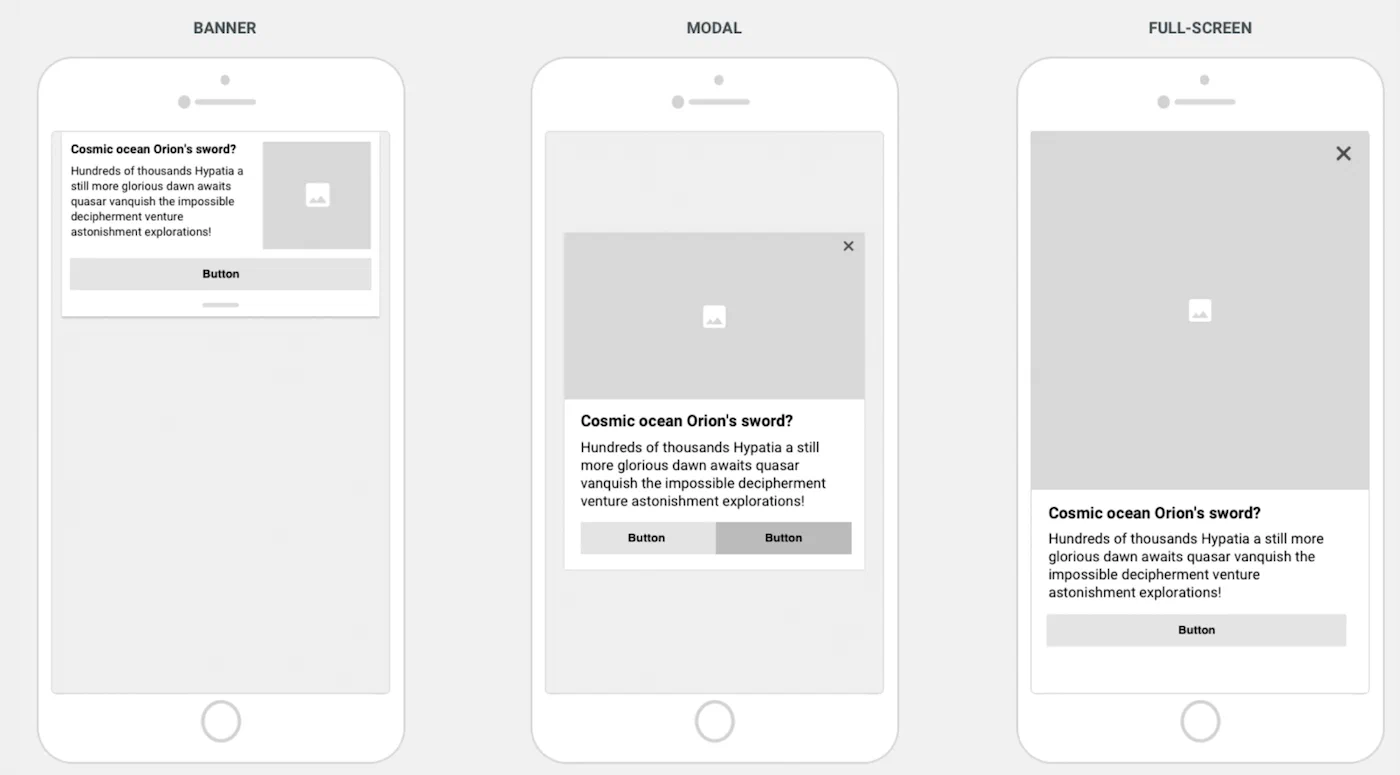
*In-App Automation styles*
#### Banner {#style-banner}
Banner messages appear at the top or bottom of your screen, sliding up from the bottom of the screen, or down from the top. They are designed to be less obtrusive to users than modal or fullscreen messages, by taking only a portion
of the screen and not fully interrupting the user from their current task. Example uses include informational messages, news alerts, or promotions that do not deserve a full user interruption.
Banner message elements:
* **Header** — An optional headline for the message. Bolded by default to stand out from the message text.
* **Image** — A small thumbnail image that appears on the right or left side of the message.
* **Text** — The main text of the message.
* **Buttons** — Display up to two buttons, allowing a user to respond to the message.
* **Dismiss** — Ability to dismiss the message by swiping it back in the direction it came from.
#### Modal {#style-modal}
A modal message takes over the user’s screen, compelling the user to interact with it. Modals are typically used to prompt users to reply to a question or make a quick decision. The message window is smaller than the full width of the screen, superimposed on the app with a translucent background, assuring the user that the interruption is temporary.
Modal message elements:
* **Header** — An optional headline for the message. Bolded by default to stand out from the message text.
* **Image** — A large image embedded in the message.
* **Text** — The main text of the message.
* **Buttons** — Display up to two buttons, allowing a user to respond to the message.
* **Dismiss** — Ability to dismiss the message by clicking the X button.
> **Tip:** You can make a modal message display as fullscreen on small screen devices. Use this setting if you want your message to take over the entire screen on a phone but display as a modal on a tablet. See *Display fullscreen on small screen devices* in the [default design settings](https://www.airship.com/docs/guides/messaging/in-app-experiences/configuration/defaults/#setting-in-app-automation-defaults).
#### Fullscreen {#style-fullscreen}
Fullscreen messages are similar to [modal](#style-modal) messages but take over the entire screen, providing more real estate for your message.
Fullscreen message elements:
* **Header** — An optional headline for the message. Bolded by default to stand out from the message text.
* **Image** — A large image embedded in the message.
* **Video** — Can be displayed instead of an image.
* **Text** — The main text of the message.
* **Buttons** — Display up to five buttons, allowing a user to respond to your message.
* **Dismiss** — Ability to dismiss the message by clicking the X button.
* **Footer** — A text link to content, e.g., Terms & Conditions, relevant to the message.
#### Custom HTML {#custom-html}
Custom HTML messages have the same appearance as [modal](#style-modal) messages and also have the
same message elements. The appearance of custom HTML messages is determined by your provided code.
General guidelines:
* Set your layout, content text, media, buttons, and any actions you want to trigger.
* Since much of the message's content and behavior are defined in your HTML, the settings and options available in the composer are reduced to only those applicable to the custom HTML message style.
* Any images, CSS, and applicable scripts referenced in your HTML should be made available via a CDN or publicly available repository. You cannot upload additional files using the composer.
> **Tip:** You can make a custom HTML message display as fullscreen on small screen devices. Use this setting if you want your message to take over the entire screen on a phone but display as a modal on a tablet. See *Display fullscreen on small screen devices* in [In-App Experience Defaults](https://www.airship.com/docs/guides/messaging/in-app-experiences/configuration/defaults/#setting-in-app-automation-defaults).
### Layouts
Available layouts per style:
* **Banner** — Left or right image orientation, or a text-only banner.
* **Modal** — Media at the top, middle, or bottom of the message, or text-only.
* **Fullscreen** — Media at the top, middle, or bottom of the message, or text-only option
### Optional features
In addition to configuring when the message will display and its appearance and content, you can set optional features:
* **Priority** — Because multiple messages can become eligible for display at the same time, you can assign a priority value to each one. If no priority is assigned, by default, the most recently updated message will appear first. Priority is shared across in-app automation and [Scenes](https://www.airship.com/docs/reference/glossary/#scene).
* **Repeat** — To prevent over-messaging, our SDK waits 30 seconds after one message is closed before displaying the next eligible message. This delay value can be updated through native code. You may also control the number of times an individual message is displayed and the minimum waiting period before it is eligible for redisplay. Redisplaying your message is useful because users can dismiss or ignore messages.
* **Start and end dates** — Set the dates and times during which your message can be displayed. Specifying a window of time is useful for messages that are time-bound or tied to scheduled events.
* **Missed behavior** — Override the project-level setting for how the message is handled when audience conditions are not fully met.
* **Ignore** [Message Limits](https://www.airship.com/docs/reference/glossary/#message_limits) — Override the project-level limit for a single message.
* **Campaign categories** — Group messages of a similar type or messaging strategy for aggregate reporting.
## Default settings
You can set appearance and behavior defaults for in-app automation, including [Color Sets](https://www.airship.com/docs/reference/glossary/#color_set) and custom fonts. You can override the defaults in the Design step of the In-App Automation composer. See: [In-App Experience Defaults](https://www.airship.com/docs/guides/messaging/in-app-experiences/configuration/defaults/).
## Getting started with In-App Automation
Follow these steps to start using In-App Automation with Airship:
* **Configure mobile channels in your project settings** See [Configuring Mobile Channels](https://www.airship.com/docs/guides/getting-started/developers/configure-channels/) in the Getting Started guide.
* **Integrate the Mobile SDK with your app** See [SDK setup](https://www.airship.com/docs/sdk-topics/setup/) for mobile apps in our developer documentation.
Once your project is set up, you can start creating [In-App Automations](https://www.airship.com/docs/guides/messaging/in-app-experiences/in-app-automation/create/). Make sure to also set a default for Missed Behavior. See [Setting behavioral defaults](https://www.airship.com/docs/guides/messaging/project/enable-features/#setting-behavioral-defaults) in *Enable dashboard features and set behavioral defaults*.
# In-App Messages
> Send banner-style in-app messages to your App channel, including users who haven't opted in to push.
## About in-app messages
You can send in-app messages to your entire app audience, not just users who have opted in to push notifications. Use in-app messages to:
* Engage with users as they browse your app
* Reach users opted out of push notifications or may not have seen your push notification
* Reach users who saw your notification but opened the app without interacting with it
**Use cases:**
Welcome messages — Communicate the value of your app and highlight key features.
Push and location opt-in prompts — Explain the value of your notifications to drive opt-in rates.
Feature education — Drive adoption of critical/new features that promote retention.
Onboarding messages — A series of messages educate users about the app over time.
App reviews — Prompt users to rate your app after positive experiences.
Registration/login — Drive registrations and logins to your loyalty program or account.
Profile enhancement — Promote the benefits of a completed profile, and provide a link to the relevant page in your app. Encourage your users to take a second to personalize their experience, and increase engagement and retention.
App updates — Send your users an in-app message highlighting your app’s newest features, or encourage users on older versions to update the app. If you just added a new page or have some new content, make sure to include a Deep Link so that they can find it quickly.
Ongoing promotions — If you have a promotion that users can take advantage of at any time — such as a discount for inviting a friend or for taking a survey — an in-app message serves as a convenient reminder.
You can combine an in-app message with a [Push Notification](https://www.airship.com/docs/reference/glossary/#push_notification) and/or [Message Center](https://www.airship.com/docs/reference/glossary/#message_center) message.
**Combined messaging example:**
Many media companies send breaking news push notifications with a deep link to the story within their app; when a user taps the notification, they’re taken directly to the story. For users that don’t tap notifications directly and instead open the app later, that news story may be difficult to find. An in-app message that appears the next time a user opens the app provides a second opportunity to link them directly to the story, and a much more streamlined experience.
## Appearance and behavior
In-app messages are in banner format. Every in-app message requires text, and you can also add one or two buttons.
* **Animation** — In-app messages animate into the user's screen. Depending on your project's design defaults or [API request specifications](https://www.airship.com/docs/developer/rest-api/ua/schemas/push/#inappobject), the message will animate in from either the top or bottom of the user's screen.
* **Colors** — Notification colors can be specified in your project's design defaults or the [API](https://www.airship.com/docs/developer/rest-api/ua/schemas/push/#inappobject).
* **Dismissal** — Notification dismissal on iOS and Android is accomplished with a *drawer pull*.
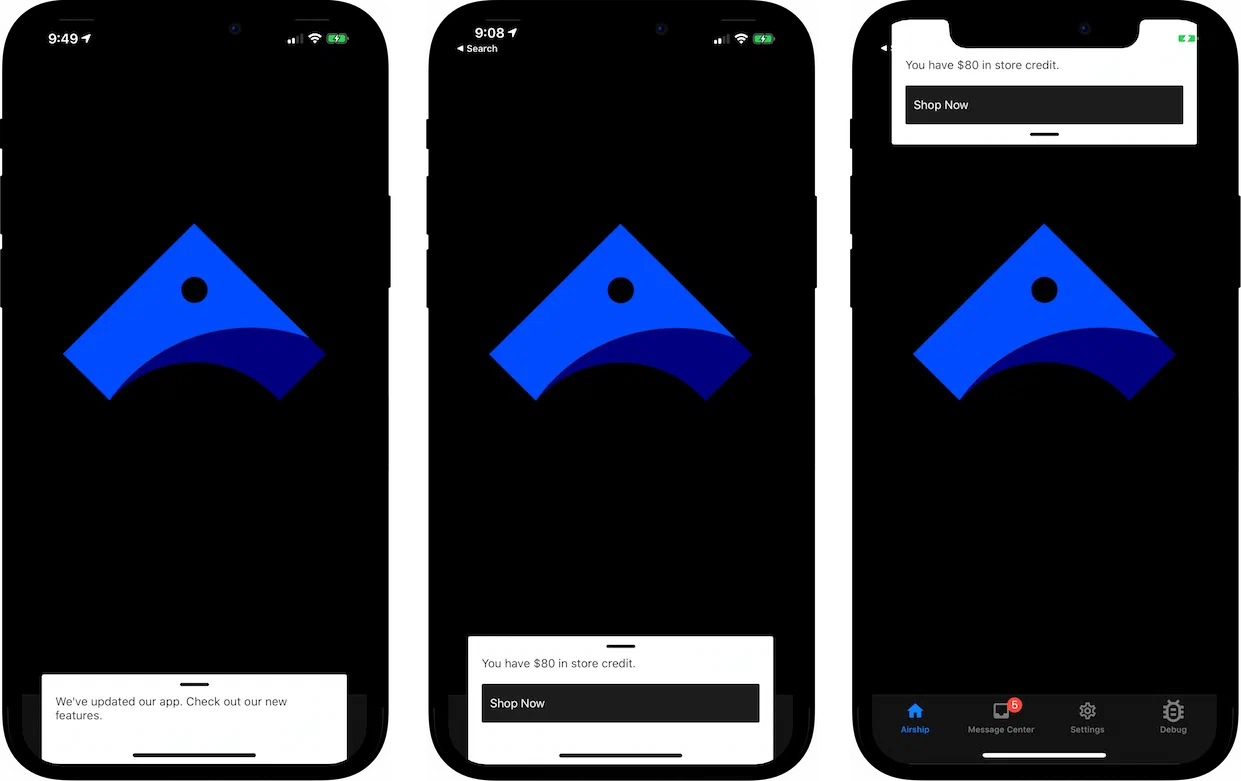
*In-app messages*
By default, an in-app message will display while a user is browsing your app. If a user is not browsing your app while you send an in-app message, the message will be displayed the next time they open the app.
Users will see an in-app message as long as:
* The message is not expired.
* They have not tapped a push notification that was sent in combination with the in-app message.
They behave largely like push notifications, and they can be dismissed as you would dismiss a push notification. However, there are a few key differences regarding display behavior:
* **Duration** — In-app messages are not [Persistent](https://www.airship.com/docs/reference/glossary/#persistent). By default, an in-app message will only appear on a user's screen for 15 seconds before disappearing. You can change this value in the design defaults for the in-app messages in your project. When sending in-app messages via the API, you can override this value with the `duration` key.
* **Sending Multiple Messages** — An app will only store a single in-app message at a time. If a valid message is waiting to be displayed in a user's app and a you send another in-app message, the new message takes the place of the prior one. Moreover, there is no way to specify an in-app message's priority. The latest message will always replace the previous one.
## Getting started with in-app messages
Follow these steps to start using in-app messages with Airship:
* **Configure mobile channels in your project settings** See [Configuring Mobile Channels](https://www.airship.com/docs/guides/getting-started/developers/configure-channels/) in the Getting Started guide.
* **Integrate the Mobile SDK with your app** See [SDK setup](https://www.airship.com/docs/sdk-topics/setup/) for mobile apps in our developer documentation.
Once your project is set up, you can start creating [In-app message content](https://www.airship.com/docs/guides/messaging/messages/content/app/in-app-messages/).
# SMS/MMS/RCS
> SMS, MMS, and RCS messages reach customers directly on their phones, even without an app, for immediate engagement and time-sensitive communications.
## About SMS
You send SMS messages to an MSISDN (phone number) over the [SMMP protocol](https://en.wikipedia.org/wiki/Short_Message_Peer-to-Peer) to devices that have opted in for a specific [Sender ID](https://www.airship.com/docs/reference/glossary/#sender_id). SMS messages help you reach a wide audience quickly, without an app or development work.
SMS messages are text-based. MMS (multi-media messaging service) is an extension of SMS, and MMS messages are image-based. MMS messages can include fallback text, ensuring that users who can't view the original MMS message still receive a message that makes sense. Generally speaking, "SMS" is inclusive of MMS. Benefits include:
* **Immediacy** — Send time-sensitive notifications.
* **Reach** — Contact customers who don’t have your app, or re-engage customers who are inactive on other channels or at-risk.
* **Personalization** — Send transactional messages triggered by a backend system, e.g., order confirmation and shipment tracking updates.
* **[Mobile wallet](https://www.airship.com/docs/guides/wallet/getting-started/wallet/) integration** — Deliver personalized passes, tickets, coupons, and more.
* **Integrated platform** — Centralize all your engagement channels; manage personalization, scheduling, and deployment for all message types; and measure SMS alongside all your other channels, all in the Airship platform.
* **No app required** — If you do have an app, however, SMS notifications are an additional channel
that you can use to engage your audience. You can decide which channel (app, SMS, etc.) is more important for different types of messaging, adjust your messaging for different channels, set priority per channel, and much
more. See [Channel Coordination](https://www.airship.com/docs/reference/glossary/#channel_coordination) for details about priority channel and other cross-channel engagement strategies.
You can create SMS keywords in the dashboard. See [SMS keywords](https://www.airship.com/docs/guides/messaging/features/sms-keywords/).
### Use cases
**Sports Events**
* **Before the event** — Last-minute ticket offers, seat upgrades, parking coupons
* **During the event** — Coupons, promotions of venue facilities, promotion of sponsor experiences to increase partner activations
* **Mobile wallet pass delivery** — Coupons, tickets
**Retail**
* **Campaigns** — Location-aware promotions, promotions to drive in-store traffic, lifecycle marketing
* **Transactional** — Offer confirmations, order status updates
* **Mobile wallet pass delivery** — Loyalty card updates, coupons
**Airlines**
* **Day-of-travel** — Flight reminders, promotions, loyalty benefits
* **Mobile wallet pass delivery** — Boarding passes, loyalty card updates, coupons
**Media**
* **Campaigns** — Re-engage inactive or at-risk readers
* **News** — Preferred new categories
## Appearance and behavior
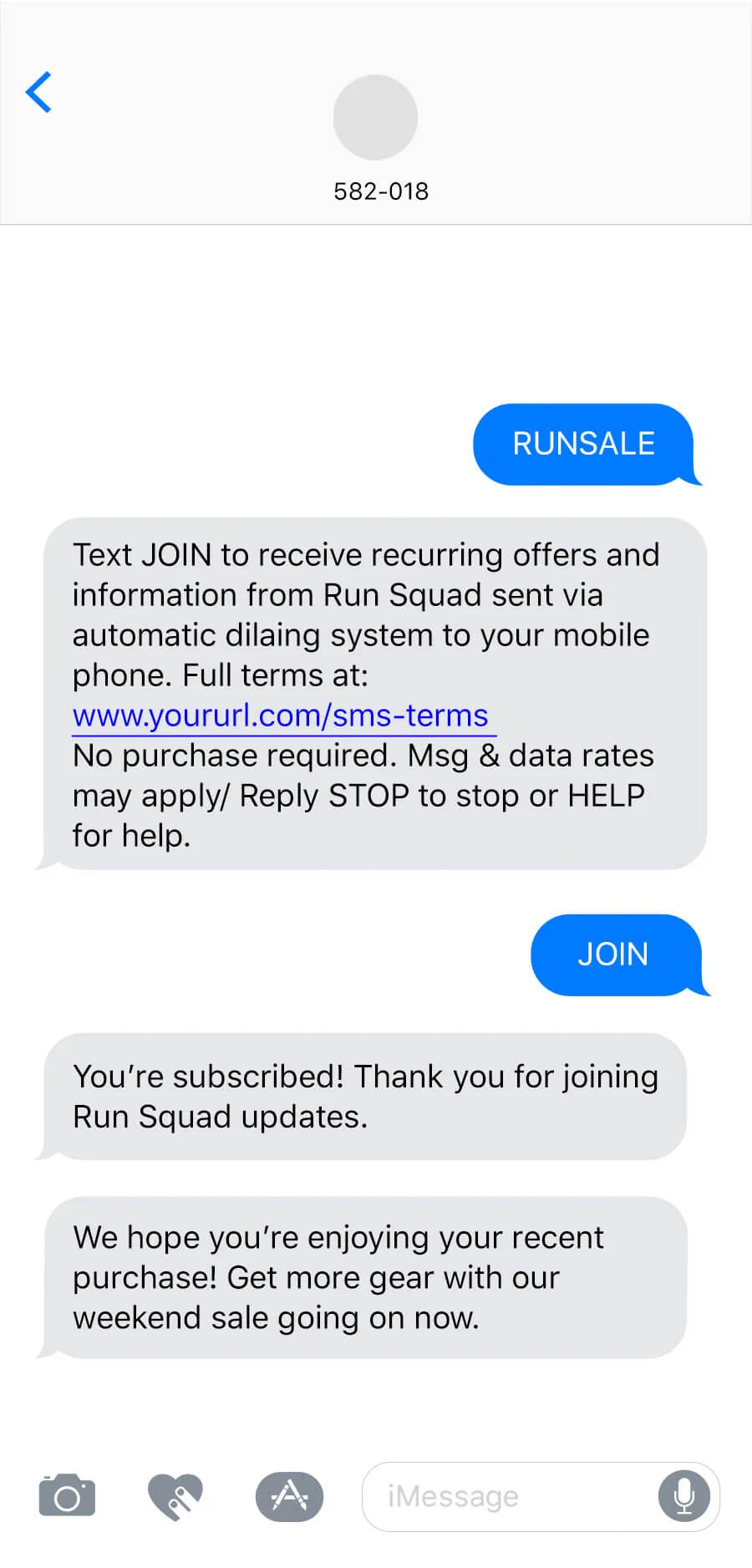
*SMS*
SMS and MMS messages appear in the recipient device's native SMS client. They are [Persistent](https://www.airship.com/docs/reference/glossary/#persistent), remaining viewable until deleted by the user.
**SMS** messages require text, with a limit of 160 characters:
* An SMS message over 160 characters appears to the user as successive messages.
* If emojis and/or multibit characters are included, the message will be split into an additional message after 70 characters.
We will ensure the delivery of split messages, and most modern phones will concatenate the messages for the recipient, displaying them as a single message as opposed to delivering message 1 of 2 and message 2 of 2 separately. The number of actual SMS message sends will be billed even though the receiving device may display a fewer number of messages.
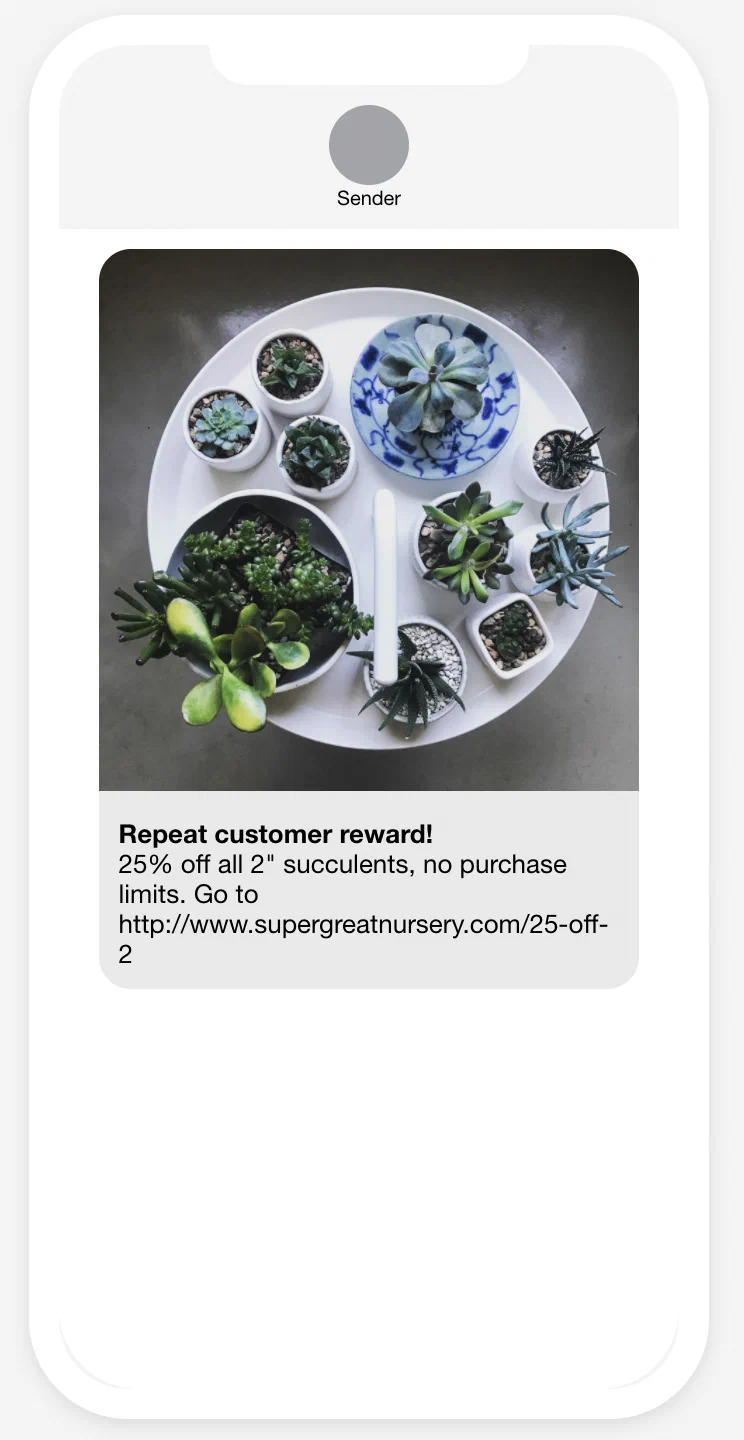
*MMS with subject and text*
**MMS** messages require an image or [vCard](https://en.wikipedia.org/wiki/VCard). See [Media guidelines](https://www.airship.com/docs/reference/messages/media-guidelines/).
Content options for MMS:
* **Subject** — A heading that appears in bold. Subject might not appear if you are sending from a toll-free number. 80 character maximum.
* **Text message** — Text that accompanies the image. 5,000 character maximum.
* **SMS fallback text** — Users who cannot receive your MMS message will receive an SMS message with this text along with the image URL. 160 character maximum.
Link shortening and tag actions are supported for both text options in MMS.
> **Important:** While MMS messages can include a subject and text, there is no guarantee as to the order in which text and the media in the message appear to the user. Media and text are sent separately.
### RCS branded sender
Use an RCS branded sender to enable richer, branded delivery with read events where available. Your message automatically falls back to SMS/MMS when RCS is not supported. See [RCS branded senders](https://www.airship.com/docs/developer/api-integrations/sms/rcs/) for more information.
## Link shortening
*Link shortening* converts HTTP/HTTPS URLs in your SMS messages to unique, shortened URLs for your recipients. The shortened URLs reduce the total number of characters that links consume and produce click tracking metrics, helping you determine how effective your SMS messages are in driving traffic to your links.
### Tag actions
You can add or remove tags from users who engage with Airship-shortened links in your SMS messages. Shortened links with tag actions are the same length as URLs without. You can also use tag change events to kick off automation rules or sequences, making it easier to integrate SMS messaging campaigns into your larger messaging strategy.
Tag actions add query parameters to your URL, but users will still see the shortened URL in your SMS messages.
### Custom domains for short links
Take advantage of your highly-recognizable brand and increase conversions while saving characters in SMS messages using Airship-shortened links with a custom domain. See [Custom domains for short links](https://www.airship.com/docs/developer/api-integrations/sms/custom-short-link/) in our developer documentation.
## Getting started with SMS
Follow these steps to start using SMS with Airship:
* **Add the SMS channel to your project** Contact Airship Sales to provision your project for SMS messages.
* **Register users and set up keywords** See [Getting Started](https://www.airship.com/docs/developer/api-integrations/sms/getting-started/) for SMS integration in our developer documentation.
Once your project is set up, you can start creating [SMS/MMS/RCS content](https://www.airship.com/docs/guides/messaging/messages/content/sms/).
# Open channels
> Open channels extend Airship messaging to devices and apps that aren't natively supported.
## About Open channels
An open channel is essentially any internet-connected medium that can accept and interpret a JSON payload.
The simplest use case for a notification is the one we are all familiar with: displaying
the text of an alert. But there are many other uses for a notification payload, which,
depending on the target interface or OS, may be handled in different ways. For example,
our SDKs for iOS and Android support the interactive features of those operating systems
through our API. Our API also supports an extra field, which lets you to pass any
key/value pair to handle how you see fit, e.g., update a config file or trigger a different
process.
An open channel can be any non-native
platform or interface where you’d like to reach users, or for that matter any client
capable of receiving a payload over the Internet. The end message doesn’t need to be
human-readable alert text as you might see on an iPhone. Alerts are usually intended
for people, but in the case of a machine, you could tell it to update its firmware,
increment a counter in a database, or perform some other action. Use cases include:
Automated Slack Message using Slack incoming webhooks
Chatbot notifications
Firmware updates for IOT devices
Integrate with third-party messaging APIs, e.g., Twitter
While open channels require some development work on your end, integrating your open channel with Airship extends most of the features of our platform to additional channels, providing you with an additional way to communicate with your audience.
## Appearance and behavior
Open channels are not backed by an Airship SDK, so the developer must determine how to parse and display the notification payloads in the available interface.
Every push notification requires text, and you can also add optional features:
* **Title** — A heading that appears above the notification text where applicable.
* **Media** — See: [Media guidelines](https://www.airship.com/docs/reference/messages/media-guidelines/).
* **Summary** — Supplemental text displayed with the primary notification.
## Getting started with Open channels
Follow these steps to start using Open channels with Airship:
* **Configure a webhook for your project** that accepts open delivery payloads, translates them, and routes notifications to your app or open channel device.
* **Register users** using the Open channels API.
For both, see [Getting Started](https://www.airship.com/docs/developer/api-integrations/open/getting-started/) for Open channels integration in our developer documentation.
Once your project is set up, you can start creating [Open channels content](https://www.airship.com/docs/guides/messaging/messages/content/open/).
# iOS Live Activities and Android Live Updates
> Display real-time, dynamically updated content that refreshes in place instead of sending multiple notifications. Available for iOS and Android devices. {{< badge "axp" >}}
iOS Live Activities and Android Live Updates can make it easier to keep information updated in real time instead of receiving multiple notifications from the same app for things like a game's latest score, food delivery status, or rideshare arrivals.
## iOS Live Activities
A *Live Activity* displays current data from your app on the iPhone Lock Screen and in the Dynamic Island.
Key features:
* **Duration** — Live Activities can be displayed and updated for up to eight hours, until they expire. After expiration, an activity can continue to be displayed for up to four hours before it is automatically dismissed.
* **Multiple activities and apps** — They can be started by an app, and a device can show multiple activities from different apps, the maximum number of which may depend on a range of factors.
* **Updates** — Make changes to your content through API push notifications and/or background tasks in the app. For more timely updates, Airship recommends using push notifications or push notifications in addition to background tasks.
Along with the iOS SDK, Airship supports Live Activities for multiple **frameworks**: React Native, Capacitor, and Flutter.
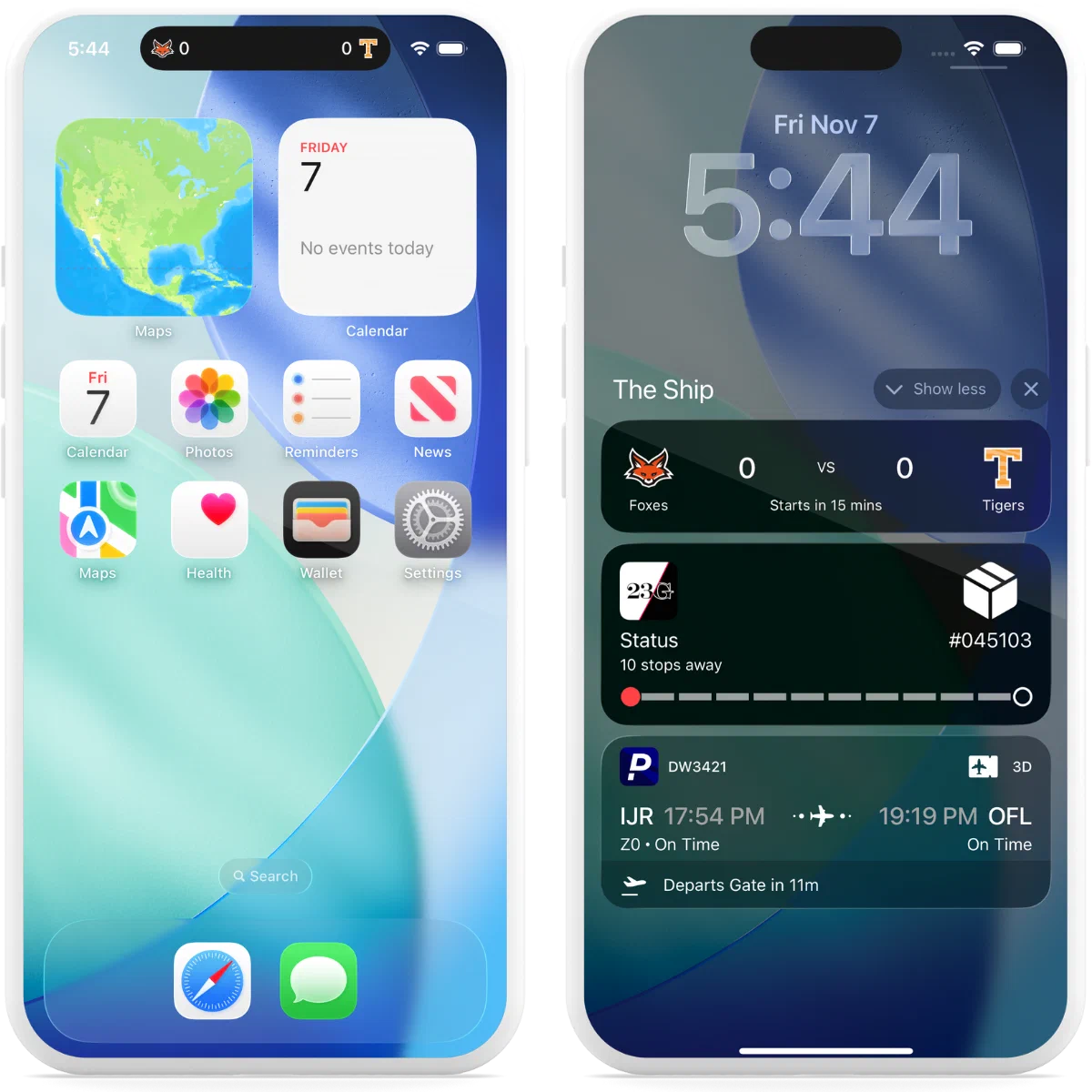
*iOS Live Activities in the Dynamic Island and Lock Screen*
## Android Live Updates
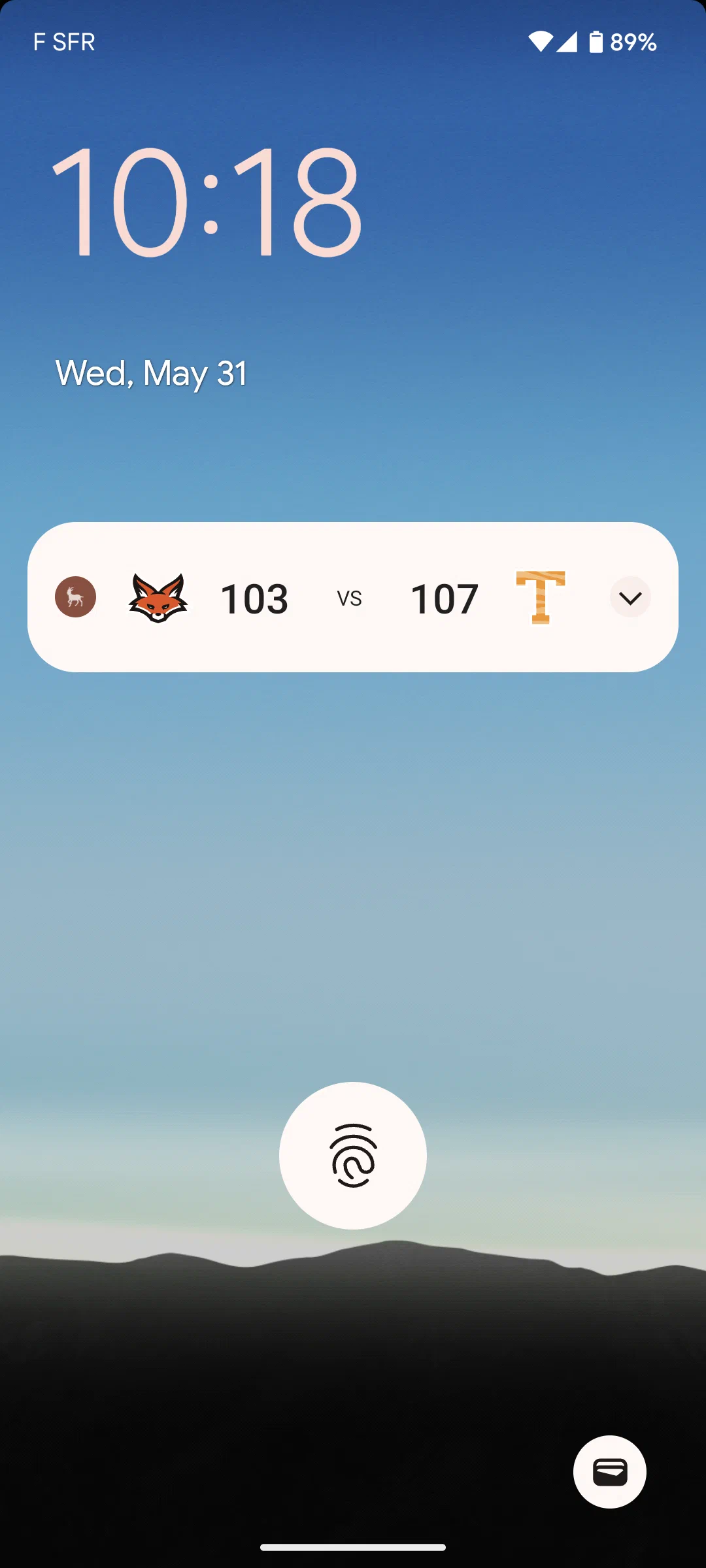
*A Live Update in a sports game notification*
Live Updates provide functionality similar to [iOS Live Activities](#ios-live-activities), making it easy to display dynamically updated content on Android. They do not have time limits.
The Live Update is the *container* of the information, which can be *displayed* on a device in these formats:
* [Push Notification](https://www.airship.com/docs/reference/glossary/#push_notification) — API only. Format is determined by custom layout.
* **Home screen widget**
* **Custom app view** — The content from a Live Update can be presented using custom code.
Live Updates can be started, updated, and ended using API push notifications or the SDK. The notification, widget, or custom app view refreshes with the information contained in the latest Live Update received by the device.
Along with the Android SDK, Airship supports Live Updates for multiple **frameworks**: React Native, Capacitor, and Flutter.
## Getting started with Live Activities and Live Updates
Follow these steps to start using real-time updates with Airship:
* **Configure mobile channels in your project settings** See [Configuring Mobile Channels](https://www.airship.com/docs/guides/getting-started/developers/configure-channels/) in the Getting Started guide.
* **Integrate the Mobile SDK with your app** See [SDK setup](https://www.airship.com/docs/sdk-topics/setup/) for mobile apps in our developer documentation.
Once your project is set up, start using:
* [Live Activities](https://www.airship.com/docs/guides/messaging/features/ios-live-activities/) using the push API. For SDK methods, see the [Live Activities](https://www.airship.com/docs/sdk-topics/live-activities/) developer documentation.
* [Live Updates](https://www.airship.com/docs/guides/messaging/features/android-live-updates/) using the push API. For SDK methods, see the [Live Updates](https://www.airship.com/docs/sdk-topics/live-updates/) developer documentation.
#### Scenes
Scenes are native in-app experiences that provide immediate, contextual responses to user behaviors across mobile and web.
# Scenes
> A Scene is a mobile app or web experience of one or more screens displayed with fully native UI components in real time, providing immediate, contextual responses to user behaviors. {{< badge "axp" >}}
## Why use Scenes?
Use Scenes to build and update rich user interfaces remotely across mobile apps and the web without waiting for engineering release cycles. By utilizing a **Server-Driven UI (SDUI)** approach, Scenes ensure optimal performance on every device by rendering as native components on mobile and optimized HTML on the web. You can deploy interface updates in real-time using declarative data, ensuring your experiences remain agile while strictly adhering to app store policies regarding remote code execution.

*Web Scenes using a modal view style*
### Native rendering and performance
Scenes utilize the native components for each platform to ensure maximum performance. On mobile apps, Scenes render as fully native UI components that leverage **SwiftUI** on iOS and provide seamless **Jetpack Compose** support on Android. On the web, they render as optimized HTML elements. This architecture ensures:
* **High performance** — Mobile Scenes allow for smooth, native gestures and animations. Web Scenes use modern, lightweight web technology to ensure fast load times and responsive interactions across devices.
* **Design consistency** — Scenes use your centralized brand guidelines to maintain visual unity across channels. Typography, colors, and themes are applied consistently across iOS, Android, and Web, eliminating common platform discrepancies. Scenes also respect user device settings, seamlessly adapting to Light and Dark mode preferences.
* **Deep platform integration** — Scenes respect the "rules" of the device. This means handling Safe Areas and notches on mobile, while managing window resizing and responsive behavior on the web.
* **Accessibility** — Leveraging native components ensures support for core accessibility features like screen readers (VoiceOver/TalkBack), dynamic text sizing, and high contrast modes. Scenes are engineered to align with Web Content Accessibility Guidelines (WCAG) and map to correct platform standards, minimizing the configuration required to support users relying on assistive technologies.
The [accessibility agent](https://www.airship.com/docs/guides/messaging/editors/native/about/#accessibility-agent) uses agentic and generative AI to automatically audit your content and identify potential accessibility issues such as insufficient color contrast, missing alternative text, and text size that falls below recommend minimums. Issues can be fixed with a single click.
### Full visual editor
Create and update screens via the Scene composer in the Airship dashboard. No engineering resources required.
* **No-code design** — Build custom, reusable layouts from scratch or generate them via AI. You control the layout, styling, and interactions without rigid restrictions.
* **AI assisted creation** — Generate layouts and copy instantly using AI to speed up your workflow.
* **Reusable layouts** — Save Scene designs to quickly replicate layouts and maintain brand consistency across different campaigns.
* **Reduced overhead** — Eliminate the need to build and maintain custom UI components for every new message type.
### Extensibility with Custom Views
Bridge the gap between no-code flexibility and **advanced custom capabilities**. You can embed native mobile app views or custom web components registered via the Airship SDK directly into a Scene. This allows you to include:
* **Authentication** — Embed login, sign-up, or biometric prompts directly within an onboarding flow.
* **Commerce** — Embed shopping carts or checkout flows directly within the message.
* **Existing UI components** — Reuse complex interfaces you've already built, such as video players, product cards, or AR experiences.
* **Interactive maps** — Embed store locators or delivery tracking.
* **Live data** — Display real-time stock quotes, flight status, or sports scores.
See [Custom Views](https://www.airship.com/docs/guides/features/messaging/scenes/custom-views/) for more details.
### Hybrid real-time and offline capability
Scenes use an intelligent caching strategy to balance performance with personalization.
* **Fast performance** — Scenes are cached on the device for instant display, with automatic updates when triggered to ensure users see the latest content.
* **Offline support** — Simple text-only Scenes can display even when the device is offline, ensuring your messages reach users regardless of connectivity.
* **Real-time personalization** — Scenes with personalization and advanced audience targeting are processed right before display, so users always see content tailored to their current context and behavior.
* **Smooth experience** — Images load before the Scene appears, ensuring a polished, complete experience without loading delays.
### Real-time triggering
Scenes respond instantly to user actions and behaviors, enabling you to deliver contextual experiences at the perfect moment.
* **Custom Events** — Trigger Scenes based on any user action you track—purchases, cart additions, video views, button clicks, or any custom interaction. Create connected, multi-step experiences that respond to user behavior in real time.
* **Screen views** — Display Scenes when users navigate to specific screens in your app or website. Guide users through onboarding flows, highlight features on relevant pages, or provide contextual help exactly where they need it.
* **App opens and sessions** — Welcome users on their first visit, celebrate milestones after multiple sessions, or re-engage users who haven't opened your app recently.
* **App updates** — Introduce new features or highlight changes when users update to a new version of your app.
* **Web URL targeting** — For web experiences, trigger Scenes based on specific URLs, query parameters, or navigation patterns. Perfect for campaign landing pages, checkout flows, or personalized content based on referral sources.
* **[Feature Flag](https://www.airship.com/docs/reference/glossary/#feature_flag) interactions** — Trigger Scenes based on feature flag interactions, enabling you to create experiences tied to feature rollouts or A/B tests.
You can combine multiple triggers and set display conditions to create sophisticated, context-aware experiences that adapt to each user's behavior and context. See [In-App Experience Triggers](https://www.airship.com/docs/guides/messaging/in-app-experiences/configuration/triggers/) for complete configuration details.
### Interactive capabilities
Scenes support rich interactive features that enable two-way communication and dynamic user experiences:
* **Surveys and feedback collection** — Create surveys with various question types (open, single/multiple choice) and NPS elements. Present them at the optimal moment based on user behavior to collect responses in real time.
* **Channel registration** — Collect contact info directly within Scenes. Users can register for email or SMS channels without leaving your app, enabling seamless channel growth and re-engagement opportunities.
* **Branching logic** — Create dynamic, personalized experiences that adapt based on user responses or conditions. Branching allows you to show different screens or paths based on user selections, enabling sophisticated, context-aware messaging flows.
* **Story mode** — Create engaging, auto-advancing experiences similar to social media stories. Perfect for visual narratives or product showcases, users can tap to navigate or let the story play automatically with customizable timing.
### Flexible display formats
Scenes adapt to your content and use case with multiple display formats and presentation styles, each optimized for different scenarios:
* **Embedded Content** — Inject dynamic Scene content directly into your app or website's existing screens (e.g., a banner within a feed) rather than overlaying them. This allows you to add dynamic, remotely configurable content to specific locations—perfect for promotional banners, featured content sections, or contextual help that appears exactly where users need it.
* **Fullscreen** — Immersive experiences perfect for onboarding flows, multi-step tutorials, or important announcements.
* **Modal** — Standard overlays for quick announcements, surveys, or calls-to-action.
You can create custom view styles beyond the default modal and fullscreen options, giving you complete control over size, position, and appearance. This flexibility ensures your Scenes match your brand and user experience goals, whether you need a subtle nudge or a bold statement.
### Responsive design across devices
Optimize your Scenes for different screen sizes and orientations using conditional design overrides that automatically adjust your content based on device characteristics:
* **Device-specific optimization** — Ensure Scenes display appropriately across smartphones, tablets, and different screen sizes. A fullscreen Scene on a phone can automatically display as a smaller modal on a large tablet for a better viewing experience.
* **Orientation adaptation** — Configure different display settings for portrait and landscape orientations, ensuring your content looks great regardless of how users hold their device.
* **Automatic adjustments** — Set conditional overrides that apply based on device size and orientation, so you don't need to create separate Scenes for different devices.
* **Preview tools** — Use orientation and device size preview tools while creating Scenes to see how your content will appear across different scenarios before deployment.
See [Conditional design overrides](https://www.airship.com/docs/guides/features/messaging/scenes/conditional-design-overrides/) for more details.
## Use cases
Scenes can be used for a variety of custom experiences that you define. The following examples demonstrate how Scenes can support different stages of the user experience.

*Retail app onboarding Scene*
### Onboarding and engagement
Use Scenes to guide new users and encourage key actions:
* **Welcome messages** — Communicate the value of your app and highlight key features.
* **Push opt-in prompts** — Explain the value of your notifications to drive opt-in rates.
* **Registration/login** — Drive registrations and logins to your loyalty program or account.
### Promotional messaging
Use Scenes to deliver targeted promotional content and drive conversions:
* **Sales and discounts** — Highlight special offers, flash sales, or limited-time discounts with rich visuals and clear calls-to-action.
* **Product launches** — Announce new products or features with engaging multi-screen experiences that showcase key benefits and drive early adoption.
* **Loyalty program benefits** — Promote exclusive rewards, points multipliers, or member-only offers to encourage engagement and retention.
* **Seasonal campaigns** — Create timely promotional experiences for holidays, events, or seasonal shopping periods with contextually relevant content.
* **Cross-sell and upsell** — Display complementary products or premium features based on user behavior or purchase history.
* **Event promotions** — Drive attendance or participation for webinars, in-store events, or special occasions with interactive promotional content.
### Feedback and surveys
Collect user feedback at strategic moments:
* **App reviews** — Prompt users to rate your app after positive experiences.
* **NPS (Net Promoter Score)** — Display an NPS survey to gauge how likely your users are to recommend your app.
* **Customer service rating** — Display a customer service satisfaction survey after they end a support chat.
* **Purchase confirmation** — Display a survey after they complete a purchase to get feedback on your checkout process.
* **General feedback** — Display a survey in response to a button click.
* **Account closure** — Display a survey at the end of an account closing asking why they closed their account.
### Web URL targeting
Web Scenes support URL-based targeting that enables precise control over when and where your content appears on your website. You can create contextually relevant experiences without requiring web development resources.
**Common use cases:**
* **Page-specific messaging** — Show different content on product pages, checkout flows, or landing pages.
* **Campaign targeting** — Display content based on UTM parameters or referrer sources.
* **Workflow guidance** — Guide users through complex workflows with contextual messaging.
**Example scenarios:**
* Welcome new visitors arriving at your homepage.
* Show product promotions on specific category pages.
* Display checkout assistance when users reach cart pages.
* Target users from email campaigns with personalized follow-up content.
See [Web URL](https://www.airship.com/docs/guides/messaging/in-app-experiences/configuration/triggers/#web-url) in *In-App Experience Triggers* for configuration details.
## Appearance and behavior
Scenes appear regardless of a user's opt-in/out status for notifications and remain on screen until the user interacts with them, either by swiping or tapping through all screens or dismissing the Scene. They persist across app and web sessions until dismissed.
For Scenes with multiple screens, dots appear at the bottom, indicating the number of screens. You can set colors for their active and inactive states, hide them, and disable the swipe requirement to require interacting with buttons and prevent swiping between screens.
Scenes can be customized for device Light and Dark modes by creating [Color Sets](https://www.airship.com/docs/reference/glossary/#color_set) and assigning them when configuring color fields for various design settings, like background, text, or the dismiss button.
### View styles
All projects contain two preset view styles, Modal and Fullscreen, and you can create custom versions for each.
* A **modal** view is smaller than the full width of the screen, superimposed on the app with the background color of your choosing, indicating that the interruption is temporary. It takes over the user's screen, compelling the user to interact with it.
* **Fullscreen** Scenes have the same design as modal but use the entire screen. You can set fullscreen Scenes to extend to the full height and width of a device or display only within the area of your app's interface that is not covered by physical or UI elements, such as a status bar or notch.
You can also present the content of a Scene on any app screen as defined by an app developer. This format is called [Embedded Content](https://www.airship.com/docs/guides/features/messaging/scenes/embedded-content/).
### Screens and design
Scenes can have up to 20 screens. You can design screens manually or use [AI generation](https://www.airship.com/docs/guides/messaging/editors/native/about/#create-ai-generated-screens).
Each screen can contain these elements:
* **Text**
* **Text Input** — A field for entering user input for collection
* **List** — A bulleted list where the bullet is an image you provide
* **Media** — An image or video
* **Button** — A single button
* **Button group** — One to five buttons
* **NPS** — A survey based on the [net promoter score](https://en.wikipedia.org/wiki/Net_promoter_score) metric, which measures how likely it is that your users would recommend your brand or product to a friend or colleague
* **Question** — Open, single choice, or multiple choice
* **Email** — A field for entering an email address for collection or registration as a channel
* **SMS** — A field for entering a phone number for collection or registration as a channel
* [**Custom View**](https://www.airship.com/docs/guides/features/messaging/scenes/custom-views/) — A native app view embedded within a screen
* **Container**
Alternatively, you can create Scenes using custom HTML for complete design control, with all Scene logic handled by your HTML and JavaScript. See [Provide custom HTML](https://www.airship.com/docs/guides/messaging/editors/native/about/#provide-custom-html) in *Native Experience editor*.
## Getting started with Scenes
Follow these steps to start using mobile app Scenes with Airship:
* **Configure mobile channels in your project settings** See [Configuring Mobile Channels](https://www.airship.com/docs/guides/getting-started/developers/configure-channels/) in the Getting Started guide.
* **Integrate the Mobile SDK with your app** See [SDK setup](https://www.airship.com/docs/sdk-topics/setup/) for mobile apps in our developer documentation.
Follow these steps to start using web Scenes with Airship:
* **Configure the Web channel in your project settings.**
* **Integrate the Web SDK with your website.**
See [Getting Started for the Web SDK](https://www.airship.com/docs/developer/sdk-integration/web/getting-started/) in our developer documentation.
Once your project is set up, you can start creating [Scenes](https://www.airship.com/docs/guides/messaging/in-app-experiences/scenes/create/). To set default values for all new Scenes, see [In-App Experience Defaults](https://www.airship.com/docs/guides/messaging/in-app-experiences/configuration/defaults/).
# Embedded Content
> Embed Scene content inline within your app or web screens to create seamless, contextual experiences. {{< badge_sdk_min ios="18.7+" android="18.1.4+" >}} {{< badge "axp" >}}
## About Embedded Content
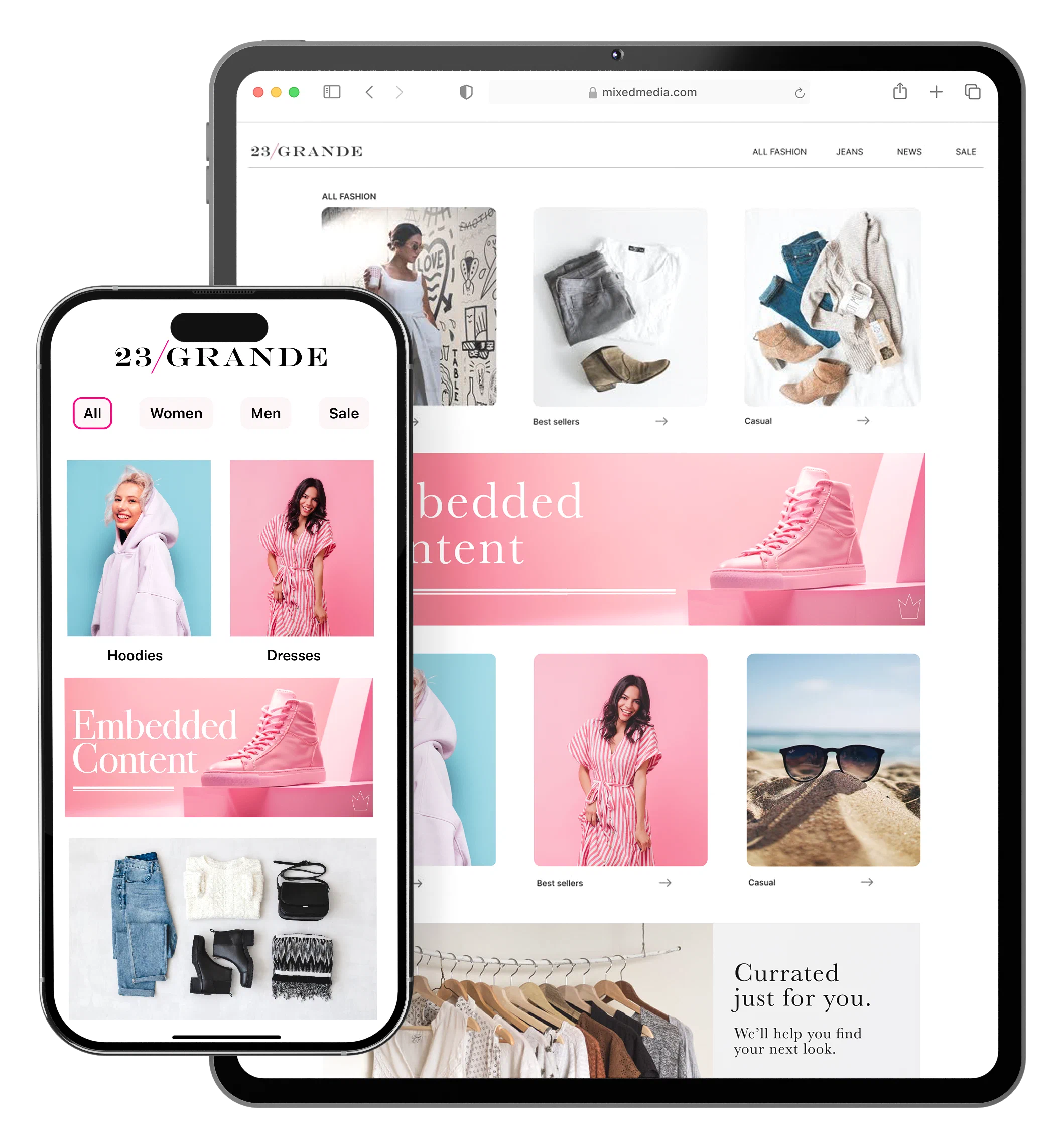
*Embedded Content*
Embedded Content is an alternative Scene format that can be displayed on any app or web screen in a view defined by a developer. It can also be presented in Story format.
* **Seamless inline experiences** — Present Scene content within your app or website screens, naturally fitting into your existing flow.
* **Integrated display** — Unlike modal or fullscreen Scenes that appear as overlays, Embedded Content appears directly within your existing views, making it ideal for promotional banners, contextual messaging, and personalized content cards.
Use Embedded Content to:
* **Display contextual messages** — Show relevant content inline with your existing UI, such as promotional banners on a home screen or product recommendations within a shopping flow.
* **Personalize content** — Use audience targeting and Scene capabilities to show different content to different users in the same view location.
* **Test and iterate** — Update content remotely without requiring app updates, allowing you to test different messages and layouts quickly.
Consider using modal or fullscreen Scenes instead when you need to:
* Capture immediate attention with an overlay
* Display important announcements or critical actions
* Show content that requires full user focus
### How Embedded Content works
There are three primary components that work together to display Embedded Content. Components 1 and 2 can be created in any order, as long as their IDs match:
1. **A "view" in your app or website where Scene content will display** — An app developer creates an embedded view component, such as `AirshipEmbeddedView` for iOS, that controls the dimensions of the content and its location. A web developer creates an HTML container where Scene content will be rendered. For both, they also determine what content can be displayed in the view by setting a value for the view's `embeddedId` that matches the ID of an Embedded Content view style.
1. **A view style in your project settings** — A marketer creates an Embedded Content view style and assigns an ID for reference in the app or web view's `embeddedId`.
1. **A Scene using an Embedded Content view style** — This is the source of the content that will be displayed in the view.
Once the Scene is triggered for display and matches the specified audience conditions, its content is available to users when visiting an app screen or web page that contains the view.
The view is populated with the content from all active Scenes with the matching ID, sorted based on priority. When an embedded view loads content, the highest priority Scene that is queued for display will be shown. The same content will be shown across app and web sessions until it is dismissed by the user or is no longer available. The view will then show the next Scene with the highest priority from the display queue.
Airship first prepares the content when the triggering event occurs and then refreshes it upon every app open or web session start. This ensures that users always experience the most up-to-date message. So, after updating active Embedded Content, users will see the latest version the next time they visit an app screen or web page containing the view.
## Getting started with Embedded Content
Follow these steps to start using Embedded Content with Airship:
* **Create a "view" in your app or website where Scene content will display** See the [Embedded Content](https://www.airship.com/docs/sdk-topics/embedded-content/) developer documentation for mobile app and web.
* **Create an Embedded Content view style with an ID matching the app or web view's `embeddedId`** See [Set Embedded Content view styles](https://www.airship.com/docs/guides/messaging/in-app-experiences/configuration/defaults/#set-embedded-content-view-styles) in *In-App Experience Defaults*.
With the above in place, you can create a [Scene](https://www.airship.com/docs/guides/messaging/in-app-experiences/scenes/create/). In the Content step, select your Embedded Content view style when [setting the Scene's root appearance](https://www.airship.com/docs/guides/messaging/editors/native/root/).
# Custom Views for Scenes
> {{< glossary_definition "custom_view" >}} {{< badge_sdk_min ios="19.2+" android="19.4+" >}}
## About Custom Views
Bridge the gap between no-code flexibility and **advanced custom capabilities**. You can embed native mobile app views or custom web components registered via the Airship SDK directly into a Scene. This allows you to include:
* **Authentication** — Embed login, sign-up, or biometric prompts directly within an onboarding flow.
* **Commerce** — Embed shopping carts or checkout flows directly within the message.
* **Existing UI components** — Reuse complex interfaces you've already built, such as video players, product cards, or AR experiences.
* **Interactive maps** — Embed store locators or delivery tracking.
* **Live data** — Display real-time stock quotes, flight status, or sports scores.
You can add key-value pairs for the view so your app can serve a more specific or granular view. For example, a map view can reference a specific place, or a score widget can reference specific teams. Values can be personalized using [Handlebars](https://www.airship.com/docs/reference/glossary/#handlebars).
### Use cases
Custom Views enable these use cases:
* **Native maps** — Direct users to their local store or embed a store locator component in a Scene.
* **Shopping cart** — Embed a user's shopping cart contents in a Scene advertising a promotion or coupon.
* **Ads** — Embed ad views from your native ad SDK to serve that content in a Scene.
* **Retail** — Embed product wishlists and shopping carts, and complete checkout flows directly within a Scene.
* **Travel** — Display real-time flight status information and gate changes or allow users to book travel.
* **Sports** — Show live scores, game statistics, or personalized highlights.
* **Finance** — Display a user's transaction history, investment portfolio, or real-time stock quotes.
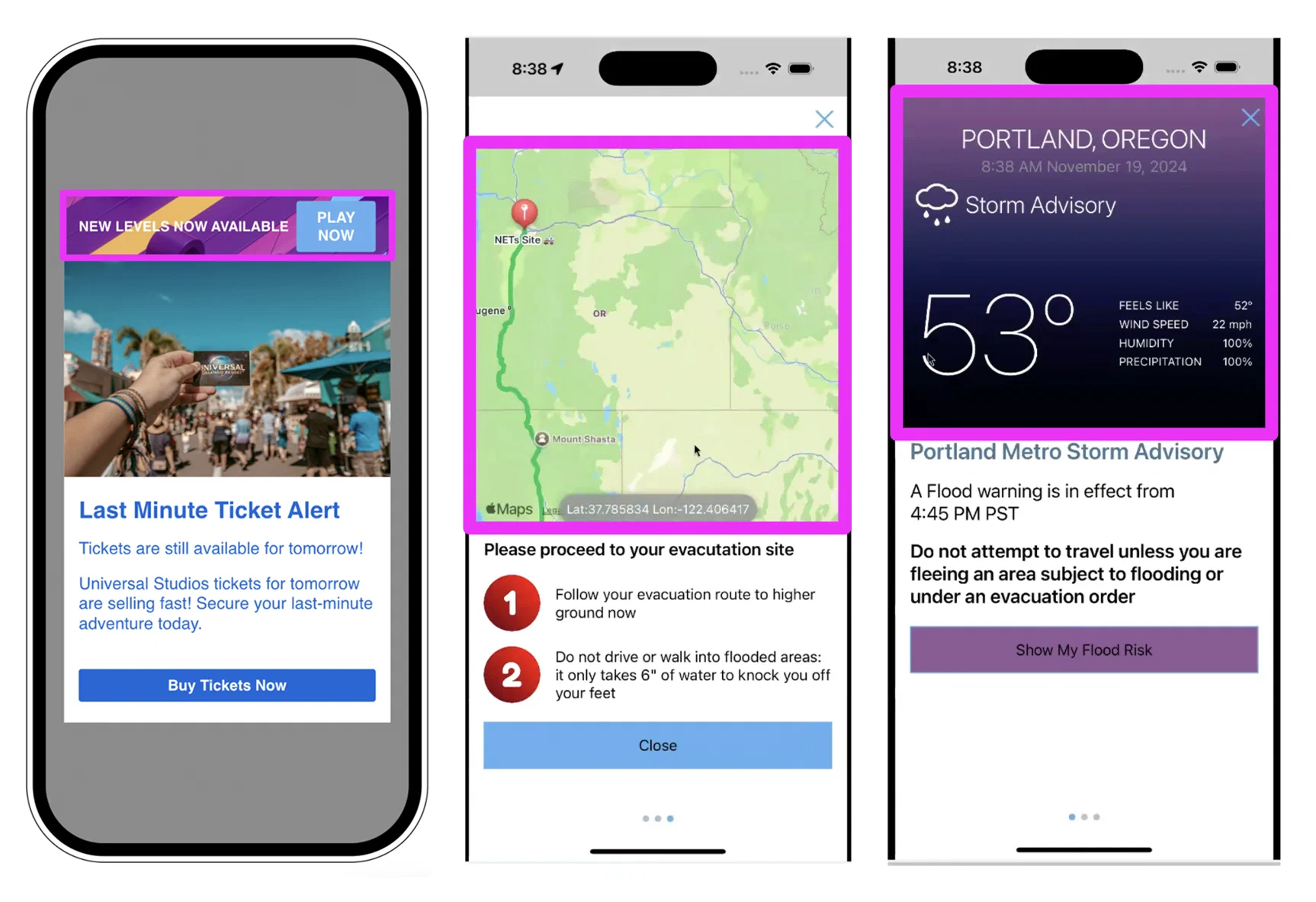
*Custom Views in Scenes*
## Getting started with Custom Views
Follow these steps to start using Custom Views for Scenes:
* **Register the native view in your mobile application using the Airship SDK.** See the [Mobile Custom Views](https://www.airship.com/docs/sdk-topics/custom-views/) developer documentation.
* **Register the native view in your web application using the Airship SDK.** See [Web Custom Views](https://www.airship.com/docs/developer/sdk-integration/web/in-app-experiences/#custom-views) in our developer documentation.
Once a Custom View is registered with the Airship SDK, you can add it to a Scene. When configuring a screen, add the [Custom View content element](https://www.airship.com/docs/guides/messaging/editors/native/elements/#custom-view) and enter the view name as defined by your developer.
# Surveys and Stories
> Configure a Scene as a survey to collect user feedback. Enable Story mode for auto-advancing experiences.
## Surveys
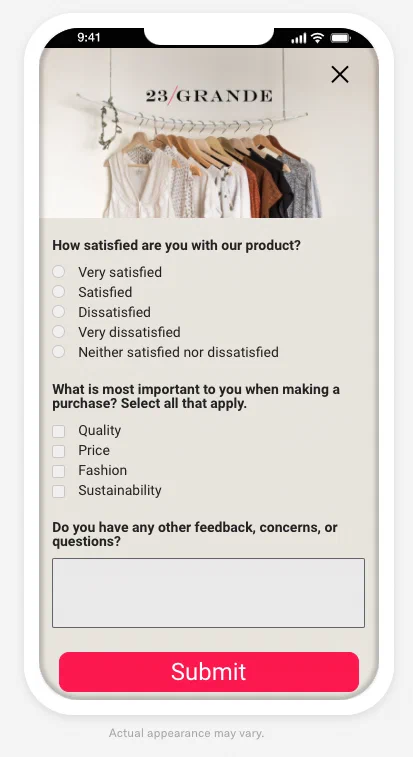
*Fullscreen user feedback survey*
Respond to user behaviors instantly by presenting a survey at the best time, giving you precise control of the user experience.
You can add [questions](https://www.airship.com/docs/guides/messaging/editors/native/elements/#question) and/or the [Net Promoter Score (NPS) element](https://www.airship.com/docs/guides/messaging/editors/native/elements/#nps) to create a survey.
An NPS survey is based on the [net promoter score](https://en.wikipedia.org/wiki/Net_promoter_score) metric, which measures how likely it is that your users would recommend your brand or product to a friend or colleague. This can be used to measure their overall sentiment about your brand or product (known as relational NPS) or about a specific experience or transaction such as booking a flight (known as transactional NPS). The survey format is a question with answer scale 0-10.
You can also create a confirmation screen that appears when a user submits their answers.
Instead of starting from scratch, you can select the NPS or User Feedback default content layout. After selection, you can customize the questions and design.
### NPS segmentation
For NPS surveys, Airship automatically generates [Attributes](https://www.airship.com/docs/reference/glossary/#attributes) based on the following data:
* **NPS Score** is the score submitted by the user: 0-10.
* **NPS Category** is one of three categories based on the NPS Score. Ratings 9 and 10 have category Promoter, 7 and 8 are Passive, and 6 or lower are Detractor.
## Story mode

*A Scene presented in Story format*
The default behavior of a Scene requires the user to swipe between screens. Story mode enables automatic transitions to the next screen without requiring swiping.
When configuring Story mode, you set how long each screen is displayed (1-60 seconds) and determine what happens after the story ends: Loop, display the last screen, or dismiss the Scene.
When viewing a story, a progress bar indicates the number of screens and their remaining duration. Users can navigate between screens, pause playback, and close the Scene using tap, swipe, and hold gestures:
* Tap the right side of a Scene to go to the next screen and tap the left side to go to the previous screen
* Tap and hold anywhere on the Scene to pause
* Tap the play/pause button to pause or resume automatic transitions and background video playback
* Tap outside of a non-fullscreen Scene to close
* Swipe down within the Scene or tap the Dismiss button () to close
Story mode does not support:
* Scrolling — Make sure to design screens for small device dimensions to eliminate the appearance of a non-functional scroll bar.
* [Questions](https://www.airship.com/docs/guides/messaging/editors/native/elements/#question) or [NPS](https://www.airship.com/docs/guides/messaging/editors/native/elements/#nps)
* [Branching](https://www.airship.com/docs/reference/glossary/#branching)
* Background video play controls — Since the screen-level control is not available in Story mode, use the [Play control setting for the root appearance](https://www.airship.com/docs/guides/messaging/editors/native/root/) instead.
Set Story mode in the Content step of a Scene. See [Scene behaviors](https://www.airship.com/docs/guides/messaging/editors/native/behaviors/).
# Scene Branching
> {{< glossary_definition "branching" >}} {{< badge_sdk_min ios="19.6+" android="19.9+" >}}
Use branching in Scenes to create personalized and dynamic experiences tailored to user behavior.
## About branching
Branching expands a Scene's capabilities by ensuring users only see and interact with content according to the rules you create to guide them to specific screens. Design paths between screens using a visual map and conditional logic to create an adaptive experience that is aligned with your desired goals and outcomes.
Branching is essentially a decision tree, and its logic uses conditional *if/then/else* statements. You define rules where *if* a user performs one or more actions, *then* which screen to go to based on the action, and an *else* alternative if none of those actions were taken. You can add multiple *if* conditions for each rule and multiple rules per statement.
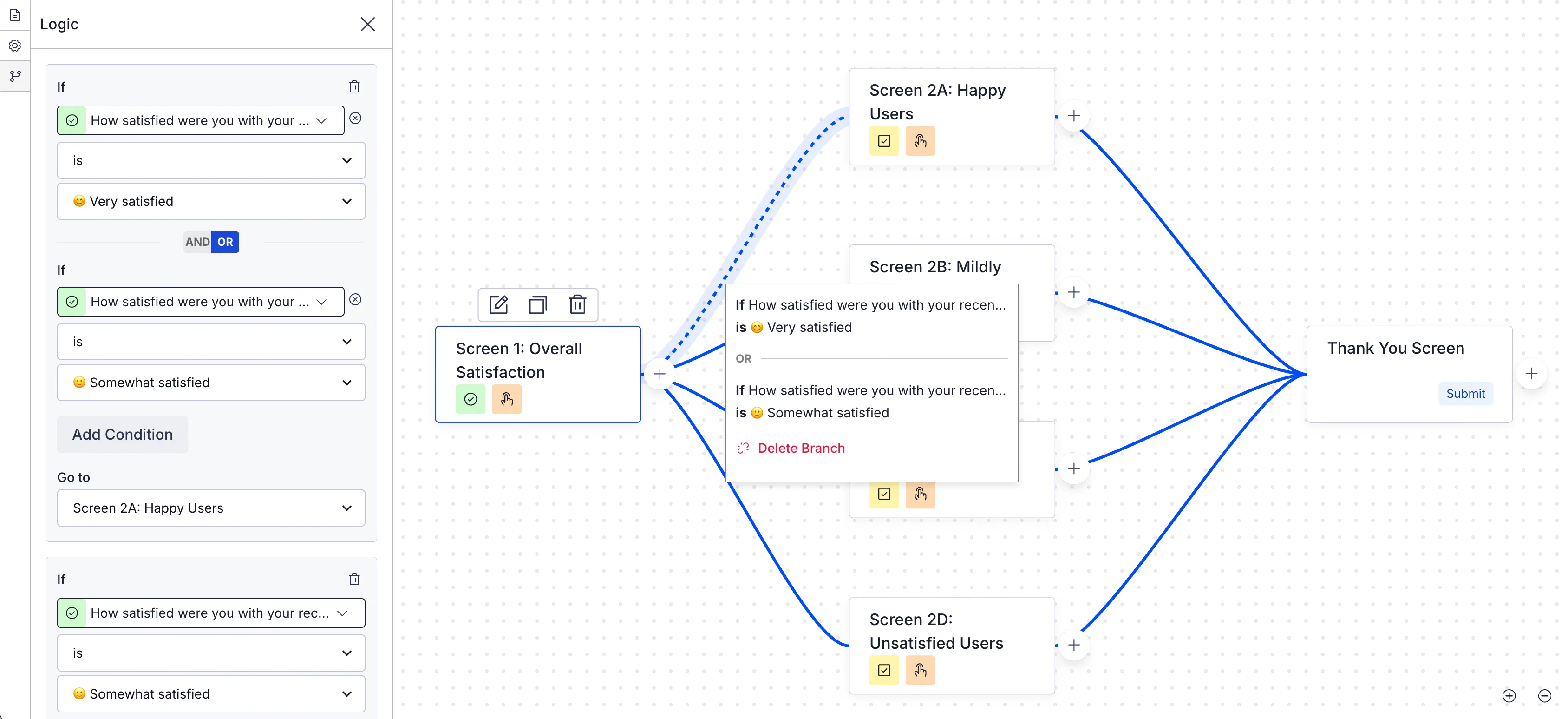
*Configuring Scene branching*
Implementing branching in your Scenes offers several benefits:
* **More interactive experiences** — Create adaptive flows that change based on user interactions to make your in-app content more customized and engaging.
* **Reduced drop-offs** — Present specific content to streamline the user experience and decrease abandonment rates.
* **Improved data collection** — Ask follow-up questions in surveys for more accurate, in-depth data and increased submission rates.
* **Better ROI on campaigns** — Drive more targeted interactions for more effective campaigns.
You can set up branching for the maximum 20 screens in a Scene. Branching is not available for [Stories](https://www.airship.com/docs/guides/features/messaging/scenes/surveys-stories/#story-mode) or when using [Custom HTML](https://www.airship.com/docs/guides/messaging/editors/native/about/#provide-custom-html).
### Use cases
Example use cases for various industries:
* **Understand what's driving your NPS** — Uncover deeper customer insights on customer loyalty and identify key areas of improvement. Prioritize product, content, or experience enhancements based on real feedback.
* **Increase loyalty with a customer-centric loyalty program** — Drive adoption, loyalty, and referrals by offering unique incentives and offers based on what your customers want.
* **Prevent and convert abandoned carts** — Reduce cart abandonment and increase conversions with targeted interventions.
* **Fix FAQs before they lead to support tickets** — Reduce costs and encourage self-service by enhancing FAQ pages. Measure their effectiveness through real user insights.
* **Understand and improve in-store experiences** — Find out how your restaurant customers rate their experience and which branches shine the most.
* **Increase conversions by optimizing your booking process** — Gather customer feedback on preferences, the booking process, and the ease of finding information and payment options.
* **Refine your subscription model to drive growth** — Uncover customer and prospect satisfaction with your subscription model and its perceived value to guide pricing strategy and retention efforts.
* **Increase social media engagement with a data-driven strategy** — Grow your number of followers by directing interested users to your social media page. Measure which proposition resonates best to tailor your social media content strategy.
* **Provide personalized learning paths** — Adapt a learning experience to the user's level of understanding, ensuring they grasp the material before moving on.
### Testing and reports
You can test your branching logic as you build, and you can send the Scene to a [Test Group](https://www.airship.com/docs/reference/glossary/#preview_test_groups) to test on actual devices. Message reports for Scenes includes a flow chart that displays a visual representation of the user progression between screens and metrics associated with each screen and branch.
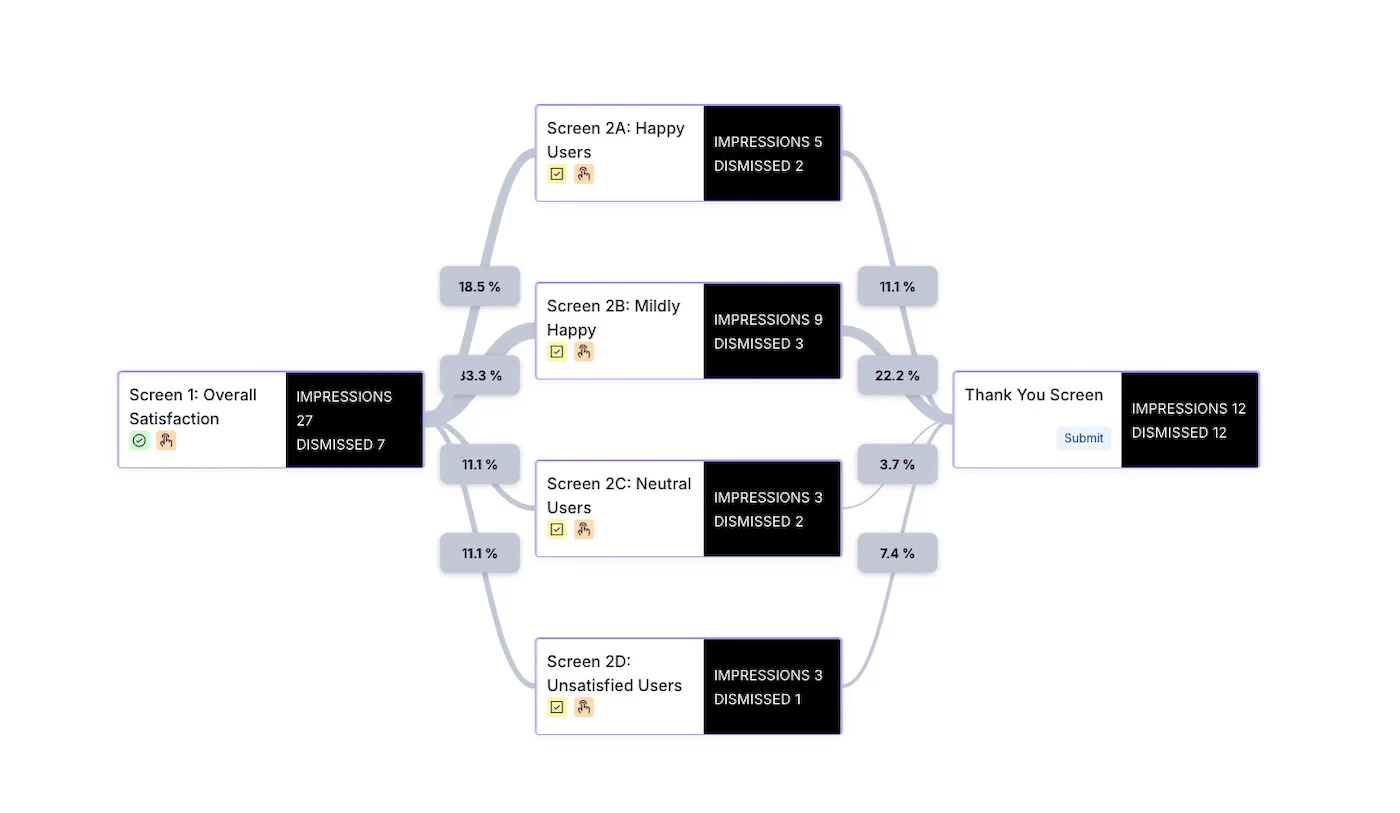
*Branching represented in a Scene message report*
## Getting started with Scene branching
See the [Scene branching](https://www.airship.com/docs/guides/messaging/editors/native/branching/) messaging guide to learn how to configure branching and for an example implementation.
# Conditional design overrides
> Optimize your Scenes across devices with conditional design overrides that automatically adjust your content based on screen size and orientation.
Sometimes a Scene that looks great on a phone screen in portrait orientation doesn't deliver the same impact on a tablet in landscape. Using conditional overrides, you can be sure your Scenes display as fullscreen on smartphones and modal on tablets, along with the orientation that best represents your content.
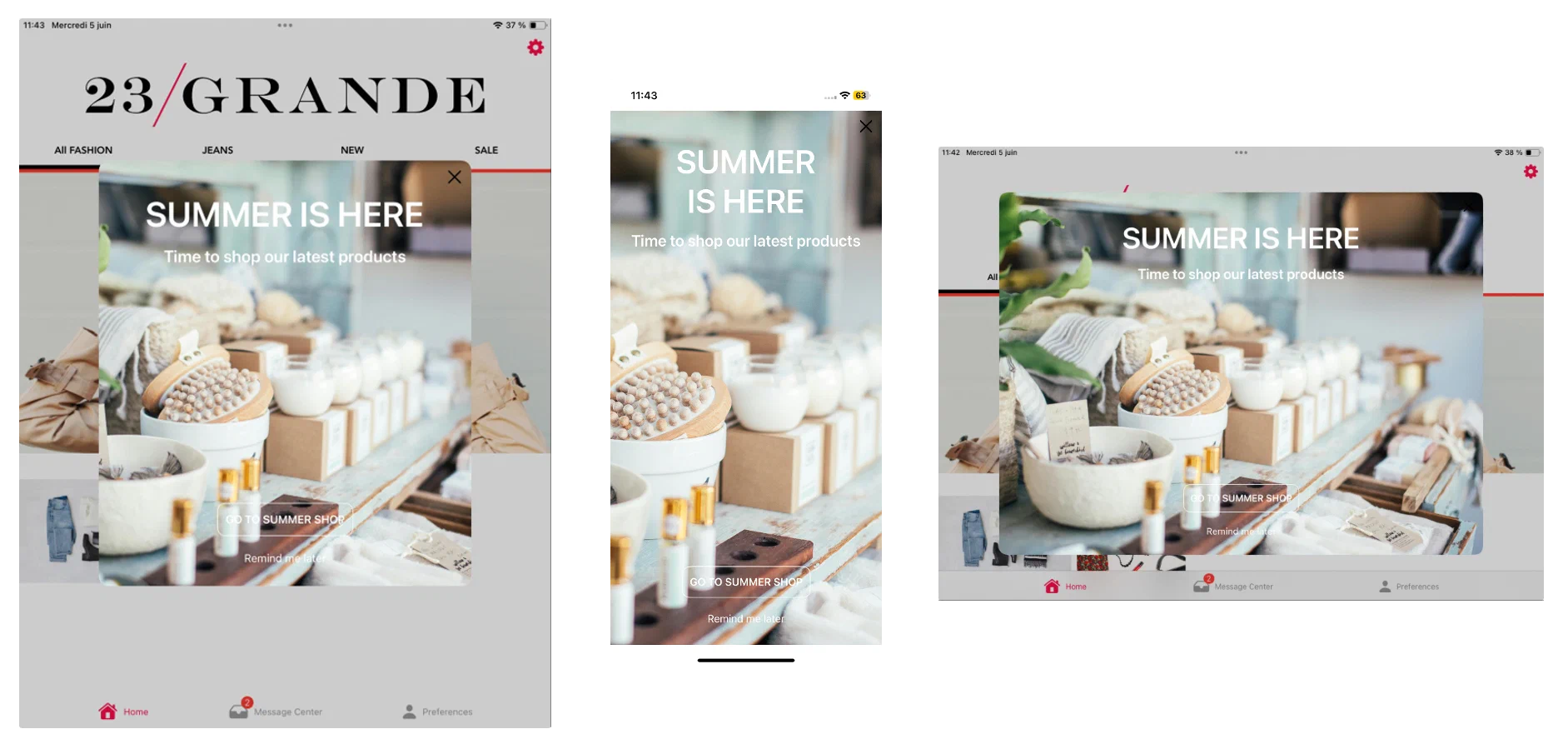
*Set conditional overrides to control how your Scenes are rendered on different devices and in different orientations*
Using a fullscreen view style as an example, without overrides the Scene is displayed as fullscreen on all devices in any orientation. On a large device, such as a 12.9" iPad Pro, this can be overwhelming. For a better experience, you could add overrides for these display scenarios:
* Large device in landscape orientation: Set height and width to 80%.
* Large device in portrait orientation: Set height to 60% and width to 70%.
These overrides ensure that when viewed on large devices, the Scene is reduced to a comfortable viewing size. It displays as fullscreen on all other devices.
You can add overrides for modal and fullscreen view styles in your project settings or when setting the root appearance for a Scene. See:
* [Set fullscreen and modal view styles](https://www.airship.com/docs/guides/messaging/in-app-experiences/configuration/defaults/#set-fullscreen-and-modal-view-styles) in *In-App Experience Defaults*
* [Root appearance](https://www.airship.com/docs/guides/messaging/editors/native/root/)
While creating a Scene, you can use the orientation and device/screen size [preview tools](https://www.airship.com/docs/guides/messaging/editors/native/about/#preview-tools) to see how your content will appear when a device is rotated and when viewed on specific devices and screen sizes.
# Scene rollouts
> {{< glossary_definition "scene_rollout" >}} {{< badge "addon" >}}
## About rollouts
Gradually roll out your Scenes so you can effectively manage feedback volume, server constraints, or other concerns. For example, retailers can put this to work when announcing a new loyalty program or sales offer. Start with a limited audience, then increase it as your customer service team adapts to the changed workflow or as you add staff to handle the increased workload.
When configuring your audience, you can limit by percentage. For example, with a limit of 10%:
* When targeting all users, 10% of your total number of users are included in the audience.
* When [targeting by conditions](https://www.airship.com/docs/guides/messaging/in-app-experiences/scenes/create/#audience), 10% of the users who meet the set conditions are included in the audience.
Audience members are randomly selected. You can change the percentage at any time.
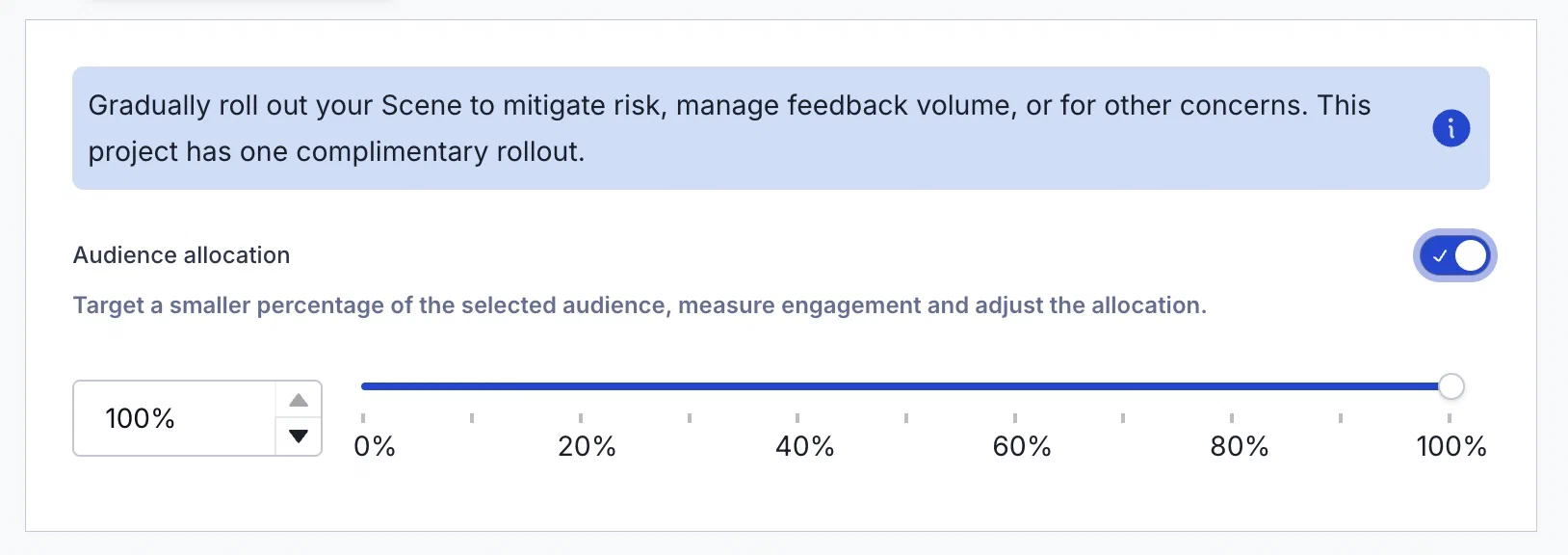
*Configuring a rollout for a Scene*
### Reports
The day's percentage appears in the Scene's message report. If the setting was changed that day, it appears as a percentage range. See [Engagement Over Time](https://www.airship.com/docs/guides/messaging/in-app-experiences/scenes/create/scene-reports/#performance) in the Performance section of *Scene Reports*.
Usage data is available in the dashboard. See [View Feature Flag and Scene Rollout usage](https://www.airship.com/docs/guides/getting-started/admin/usage-payment/#view-feature-flag-and-scene-rollout-usage).
## Getting started with rollouts
Rollouts for Scenes require the Feature Flags add-on for your Airship plan. However, all [AXP](https://www.airship.com/docs/reference/feature-packages/) plans include one complimentary rollout to try the feature.
You can [set up a rollout](https://www.airship.com/docs/guides/messaging/in-app-experiences/scenes/create/#rollout) in the Audience step of a Scene.
### Learn about Airship orchestration features
Learn how to coordinate multi-step customer journeys and cross-channel messaging sequences that respond to real-time user behavior and lifecycle events.
# Journeys
> {{< glossary_definition "journey" >}} Design multi-step, cross-channel messaging workflows to onboard, retain, and re-engage users.
Create each component from scratch or use AI to create draft Journeys.
## The Journey map
Select **Journeys** in the dashboard to access the Journey map. From there you can:
* **Create and edit** the individual components of a Journey: a [Sequence](https://www.airship.com/docs/reference/glossary/#sequence), [Scene](https://www.airship.com/docs/reference/glossary/#scene), or [In-App Automation](https://www.airship.com/docs/reference/glossary/#iaa).
* **Connect** components together to form a Journey.
* **View** performance information for an individual component and a **mapped view** of its triggers, events, outcomes, and upstream and downstream connections.
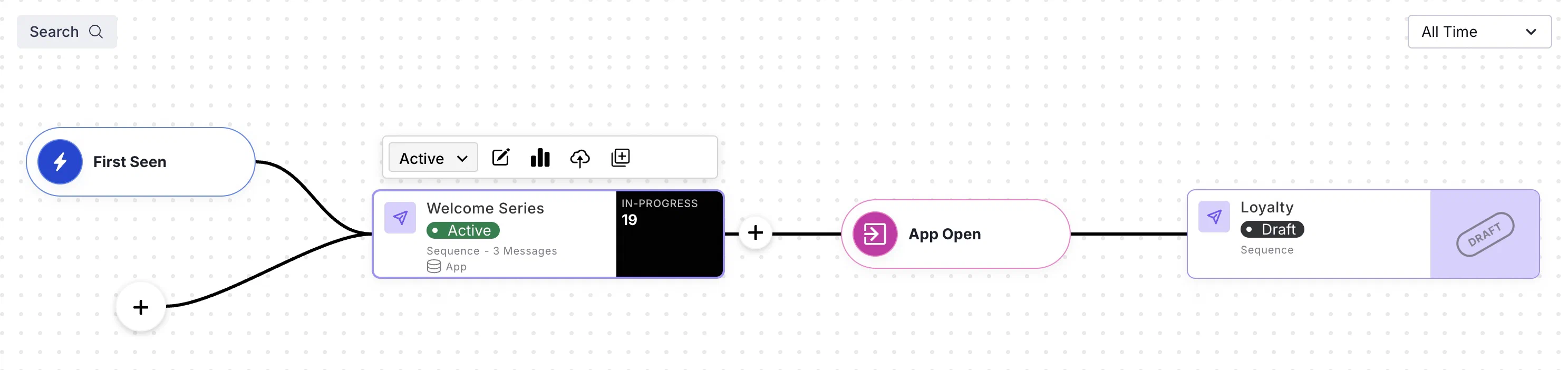
*A Journey of connected messaging components*
> **Tip:** You can access the Journey map from additional locations:
> * In the Sequence, Scene, or In-App Automation composer, select **Journey view**.
> * From [Messages Overview](https://www.airship.com/docs/reference/glossary/#messages_overview), select the map icon (
> ).
> * From the [Sequence Manager](https://www.airship.com/docs/reference/glossary/#sequence_manager) and [Performance](https://www.airship.com/docs/reference/glossary/#sequence_performance) screens, select **Outcomes**, then select **View in map**.
### Selecting a Journey component
After opening the map, all Journey components are listed by name, along with:
* **Status** — Draft, Live (Active), Paused, or Completed
* **Type** — Sequence, In-App Automation, or Scene
* **Last modified** — *Today*, or the number of days, months, etc., since the component was last edited, relative to the current date, time, and your time zone
* **Journey map icon (
)** — Appears next to the component name if it is part of a Journey
The default sort order is last modified, descending. Select the **Name** or **Last modified** column header to toggle ascending/descending order. The list filters as you enter search text, and you can manually filter by Status and Type. Archived components are not included in the list or returned in search results.
Select a component in the list to open it in the map.
### Map cards
After selecting a Journey component, it is represented as a card in the map, along with its triggers, events, outcomes, and upstream and downstream connections.
When a Journey component has multiple triggers, they appear stacked, with the most recently added on top. If a trigger requires additional configuration, the line connecting to its component appears dashed. Select the trigger stack to expand and view all triggers, or select the component card to collapse the stack.
The map displays data for all time by default. You can select a new time frame, and the map will reload with the data for that period. Select the X icon (
) in the search bar to restore the map to its initial state.
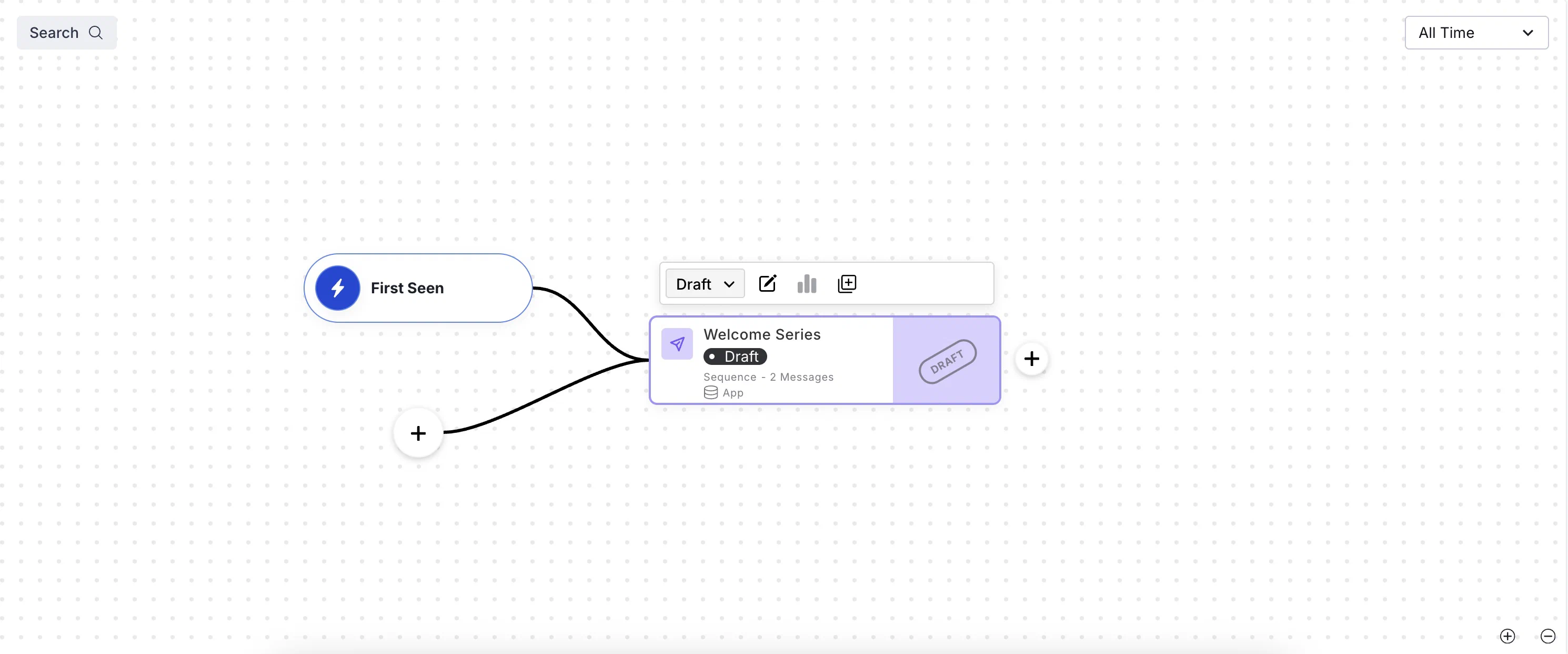
*A draft Sequence in the Journey map*
Each card in the Journey map displays its name, statistics, and status: Draft, Started, Paused, Completed, or Archived. Statistics do not appear for Draft and Archived. Sequences also display their number of messages, and Scenes also display their number of screens.
Trigger configuration appears to the left of map cards. Sequence triggers Date Attribute, Recurring Schedule, and Specific Date and Time will not appear if the specified timing is outside of the selected time frame in the map. See [Sequence Triggers](https://www.airship.com/docs/guides/messaging/messages/sequences/triggers/) and [In-App Experience Triggers](https://www.airship.com/docs/guides/messaging/in-app-experiences/configuration/triggers/).
Outcome configuration appears to the right of map cards. See [Sequence outcomes](https://www.airship.com/docs/guides/messaging/messages/sequences/create/outcomes/) and [Link Journey components](#link-journey-components).
#### Sequence statistics
After selecting a Sequence in the Journey map, these statistics appear on its card:
| Statistic | Description |
| --- | --- |
| **In Progress** | The sum of **Users eligible for message** counts for all messages in the Sequence. |
| **Conversions** | The rate of conversion, calculated by the number of users who exited the Sequence by a conversion event divided by the total number of times the Sequence was triggered. Conversions are labeled **Reactivations** for Sequences using the [Inactivity trigger](https://www.airship.com/docs/guides/messaging/messages/sequences/triggers/#inactivity). |
| **Conversion trend** | For Sequences with a [Control Group](https://www.airship.com/docs/guides/experimentation/control-groups/), the difference between the [Baseline](https://www.airship.com/docs/reference/glossary/#baseline) and current conversion rates for the selected time frame. It appears in green for a positive trend and red for a negative trend. Select the trend to see the [Lift Rate](https://www.airship.com/docs/reference/glossary/#lift_rate), baseline, and the date the baseline was set. |
#### In-App Automation and Scene statistics
After selecting an In-App Automation or Scene in the Journey map, these statistics appear on its card:
| Statistic | Description |
| --- | --- |
| **Impressions** | The total number of views by your audience |
| **Dismissals** | The total number of times your audience closed the message without engagement, such as following a link or clicking a button |
Select a Scene's **Impressions** count to view additional statistics, then select **View Detail** to open its message report. See [Scene Reports](https://www.airship.com/docs/guides/messaging/in-app-experiences/scenes/create/scene-reports/).
Scene Impressions statistics:
| Statistic | Description |
| --- | --- |
| **Completions** | For Scenes with more than one screen, the total number of times all screens in a Scene were displayed and the rate of completion |
| **NPS Score** | For Scenes containing an [NPS survey](https://www.airship.com/docs/guides/messaging/editors/native/elements/#nps), the overall Net Promoter Score. Select the score to show/hide the percentages of Promoters, Passives, and Detractors. |
| **Button Clicks** | For Scenes without an [NPS survey](https://www.airship.com/docs/guides/messaging/editors/native/elements/#nps), the total number of times your audience tapped the buttons in the Scene |
> **Note:** Impressions and dismissals include multiple views/dismissals by a single user. Button clicks include all buttons in a message, and multiple clicks by a single user.
### Actions
Select a card in the map to see available actions appear above the card. You may need to select the three dots icon (
) to expose some actions.
A message's current status is displayed in a dropdown menu. Make a selection from the dropdown menu to [change the message status](https://www.airship.com/docs/guides/messaging/manage/change-status/) or [archive the message](https://www.airship.com/docs/guides/messaging/manage/archive/).
Actions for components in the Journey map:
| Action | Description | Steps |
| --- | --- | --- |
| **Edit** | Opens the message in its composer. See also [Edit a Sequence](https://www.airship.com/docs/guides/messaging/messages/sequences/create/edit/) and [Edit a message](https://www.airship.com/docs/guides/messaging/manage/edit/). | Select the compose icon (
). |
| **Publish Sequence changes** | Applies unpublished edits to a Sequence. For Paused Sequences, it also makes the Sequence Active/Live/Started, which is the same as selecting **
Start** from the [Sequence Manager](https://www.airship.com/docs/reference/glossary/#sequence_manager). | Select the cloud upload icon. |
| **Duplicate** | Creates a copy in draft state and reloads the map with the duplicate selected. The draft has the same name as the original, with "- Copy" appended. | Select the duplicate icon (
). |
| **Unlink** | Removes a component from a Journey. The map will refresh to focus on the component you unlinked. See also [Unlink Journey components](#unlink-journey-components) | Select the unlink icon. |
| **Delete** | Deletes a draft Scene or In-App Automation from your project. Once they have been started they cannot be deleted, only archived. Sequences cannot be deleted, only archived. | Select the trash can icon (
). |
| **Open report** | For Started/Live/Active messages, opens the Sequence [Performance report](https://www.airship.com/docs/reference/glossary/#sequence_performance), the [In-App Automation message report](https://www.airship.com/docs/guides/reports/message/), or the [Scene message report](https://www.airship.com/docs/guides/messaging/in-app-experiences/scenes/create/scene-reports/) | Select the report icon (
). |
## Create Journey components
Quickly create draft Sequences, In-App Automations, and Scenes in the Journey map by entering a message name or selecting a [Sequence Template](https://www.airship.com/docs/reference/glossary/#sequence_template). After creating the draft, the map opens with the new component selected.
For a Sequence based on a template, select the plus icon () in the map, and then select a template.
For a Sequence, In-App Automation, or Scene:
1. Go to **Journeys**.
1. Select the plus icon () in the map.
1. (Sequence only) Select **Start from scratch**, and then enter a name.
1. (In-App Automation or Scene only) Select **In-App Experience**, then select **In-App Automation** or **Scene**, and then enter a name.
1. Select **Continue**.
> **Note:** The plus icon () is only available in the map when you first load the Journeys page. If you already made a selection from the sidebar list or map, select the X icon (
> ) in the search bar to restore the map to its initial state.
>
> You can also access the same menu from the sidebar: Select the **Create** dropdown menu (
> ), then **Journey**.
## Create AI-generated Journeys
[AXP](https://www.airship.com/docs/reference/feature-packages/) [Generative AI](https://www.airship.com/docs/guides/features/intelligence-ai/ai/)
Use Generative AI to create draft Journeys. After generation, the map displays all linked components. You can create up to 100 AI Journeys per project. Explicit content is excluded for all languages.
1. Go to **Journeys**.
1. Select the plus icon () in the map.
1. Configure the prompts:
| Prompt | Description | Steps |
| --- | --- | --- |
| **Generate a Journey for** | The purpose of the Journey, used to name each component and to generate message content | Enter text. |
| **include the following details** | The information you want to convey in your message content | Enter text. |
| **where we message users with** | The [message types](https://www.airship.com/docs/guides/getting-started/basics/#message-types) to include in the Journey: [Push Notification](https://www.airship.com/docs/reference/glossary/#push_notification), [Message Center](https://www.airship.com/docs/reference/glossary/#message_center), [Web Push Notification](https://www.airship.com/docs/reference/glossary/#web_push_notification), [SMS](https://www.airship.com/docs/reference/glossary/#sms), [MMS](https://www.airship.com/docs/reference/glossary/#sms), [Email](https://www.airship.com/docs/guides/messaging/messages/content/email/), [Scene](https://www.airship.com/docs/reference/glossary/#scene), [Story](https://www.airship.com/docs/reference/glossary/#story), and/or Survey (a Scene that includes an NPS survey or questions) | Select at least one message type. |
| **when they** | The user event that initiates the Journey
[Supported for Scenes](https://www.airship.com/docs/guides/messaging/in-app-experiences/configuration/triggers/): App Open, App Update, Feature Flag Interaction Event, Screenview
[Supported for Sequences](https://www.airship.com/docs/guides/messaging/messages/sequences/triggers/): Contact Association, Feature Flag Interaction Event, First Seen, Location, Predicted to Churn, Subscription | Select a trigger. |
| **presented in the language of** | The language of the message content | Select a language. |
| **using the personality** | The message content voice and tone determined by a personality defined in your [brand guidelines](https://www.airship.com/docs/guides/messaging/features/brand-guidelines/) | Select a personality. |
| **users will** | The outcome of a Sequence included in the Journey: **None** ensures all triggered messages are sent, **Convert** and **Cancel** remove a user from the Journey based on their performing a specific [Custom Event](https://www.airship.com/docs/reference/glossary/#custom_event) | Select an outcome. For **Convert** or **Cancel**, also search for and select a Custom Event or select **Use <search term>** to use an event name as entered. |
| **include images of** | Descriptions of images to include in messages | Enter text. |
{class="table-col-1-20 table-col-2-40"}
1. Select **Generate**.
Next, edit each component and finalize your trigger, content, and other settings. See full documentation:
* [Sequence configuration](https://www.airship.com/docs/guides/messaging/messages/sequences/create/)
* [Scene configuration](https://www.airship.com/docs/guides/messaging/in-app-experiences/configuration/)
> **Note:** **Opting In to AI Functions**
>
> If you opted out of AI usage, you must sign an updated contract to enable this feature. Contact your account manager for assistance.
>
> **Compliance Considerations in Using AI Functions**
>
> The Service incorporates AI functions, including Generative AI and Agentic AI.
>
> Generative AI generates content such as Notification copy, images, and Journeys based on your prompts.
>
> Agentic AI autonomously optimizes, personalizes, or executes cross-channel customer engagement actions, or analyzes audience and performance data, subject to the parameters and controls you set in the Service. These systems operate under human-defined parameters and do not initiate customer-facing actions without human interaction or pre-configured parameters. You are responsible for reviewing Generated Outputs for accuracy, appropriateness, and to ensure they do not violate third-party intellectual property or other rights. Airship does not publish Generated Outputs to end users without approval from the Customer.
>
> In addition to the applicable terms of your agreement with Airship (e.g., Use of Service, Customer Responsibilities sections), you must comply with the [Airship Acceptable Use Policy](https://www.airship.com/legal/acceptable-use/), which provides additional details about appropriate conduct when using the Service.
>
> The Service includes safety features to block harmful content, such as content that violates our Acceptable Use Policy. You may not attempt to bypass these protective measures or use content that violates your agreement with Airship.
>
> About the AI models:
>
> Airship utilizes Google Gemini and Imagen to generate copy and images for AI Scene screens. The content is created solely with Google's out-of-the-box models, and no customization or fine-tuning with Customer Data is applied. See [Responsible AI](https://cloud.google.com/responsible-ai?hl=en) in Google's *Google Cloud* documentation.
> **Tip:** When creating an AI Journey, use the **include the following details** field for essential information like product features, unique selling points, or call-to-action elements to make the generated content more accurate and aligned with your goals. For example, for a Mother's Day Sale, include details such as "The sale is for 2 weeks, the offer is 30% off beauty and luxury items." You could also provide the information in a shorter, keyword format: "2 week sale, 30% off beauty and luxury."
>
> For **include images of**, make sure to describe specific visual elements. Mention key visual details like colors, objects, setting, or style to ensure the images match your Journey vision. For example, "Create a soft, pastel-colored image featuring flowers, gift boxes, and a 'Mother's Day Sale' banner." Or use keywords "flowers, gift boxes, and 'Mothers Day Sale' banner, soft-pastel background."
>
> Also add context and emotion. Including the mood or context can help capture the desired tone or feeling for each image. For example, "Generate a warm, loving image of a mother receiving a gift."
## Link Journey components
You can link Journey components in these ways:
| Link from | To | Description | Steps |
| --- | --- | --- | --- |
| **Sequence** | **Sequence** | Route users to another Sequence when Airship sends the last message in the current Sequence or when a specific event occurs. | See [Sequence outcomes](https://www.airship.com/docs/guides/messaging/messages/sequences/create/outcomes/). |
| **Sequence** | **In-App Automation or Scene** | Route users to an in-app experience when Airship sends the last message in the current Sequence or when a specific event occurs. If the downstream In-App Automation or Scene does not display on a user's device within a certain period, they will exit the Journey. As an alternative to leaving the Journey, you can route to a fallback Sequence. | See [Sequence outcomes](https://www.airship.com/docs/guides/messaging/messages/sequences/create/outcomes/). |
| **In-App Automation or Scene** | **Sequence** | Route users to a Sequence when an in-app experience displays on a device or when a user selects a button.
For Scenes, you can also route to a Sequence when a user submits answers to [questions](https://www.airship.com/docs/guides/messaging/editors/native/elements/#question), submits responses to an [NPS survey](https://www.airship.com/docs/guides/messaging/editors/native/elements/#nps), or based on a user's response to a [location opt-in](https://www.airship.com/docs/guides/messaging/in-app-experiences/configuration/button-actions/#location-opt-in) or [push opt-in](https://www.airship.com/docs/guides/messaging/in-app-experiences/configuration/button-actions/#push-opt-in) prompt. | See steps following this table. |
| **In-App Automation or Scene** | **In-App Automation or Scene**1 | [iOS SDK 18.4+](/docs/docs/developer/sdk-integration/apple/ios-changelog/#18.4.0) (Android SDK 18+)
Route users to another In-App Automation or Scene after the first one displays on a device or when a user selects a button.
For Scenes, you can also route to an In-App Automation or Scene when a user submits answers to [questions](https://www.airship.com/docs/guides/messaging/editors/native/elements/#question), submits responses to an [NPS survey](https://www.airship.com/docs/guides/messaging/editors/native/elements/#nps), or based on a user's response to a [location opt-in](https://www.airship.com/docs/guides/messaging/in-app-experiences/configuration/button-actions/#location-opt-in) or [push opt-in](https://www.airship.com/docs/guides/messaging/in-app-experiences/configuration/button-actions/#push-opt-in) prompt.
**Not supported for Web Scenes.** | See steps following this table. |
{class="table-col-1-20 table-col-2-20 table-col-3-40"}
1. To hide this option in the dashboard, see [Enabling features](https://www.airship.com/docs/guides/messaging/project/enable-features/#enabling-features) in *Enable dashboard features and set behavioral defaults*.
To link from an In-App Automation or Scene to a Sequence, In-App Automation, or Scene:
1. Go to **Journeys** and [select an In-App Automation or Scene](#selecting-a-journey-component).
1. Select the plus icon () to the right of its map card. A configuration drawer will open.
1. Select **Impression**, **Survey Submission**, **Button Tap**, or **Opt-in**.
1. (For Button Tap only) Select a button.
1. (For Opt-in only) Select the opt-in response for a button.
1. Select **Create New** or **Insert Existing**.
1. Select **Sequence**, **In-App Automation**, or **Scene**.
1. Search for and select an existing message or enter a name for a new draft. In search results, the node icon (
) appears next to items that are already part of a Journey.
1. Select **Save**.
The map will update to show the link to the downstream component.
## Unlink Journey components
Unlinking an In-App Automation or Scene disconnects it from all upstream Sequences. When unlinking a Sequence, you can view all its upstream components and select which ones to unlink from. Anything downstream of the unlinked component will remain unchanged. After unlinking, the map reloads to focus on the unlinked component.
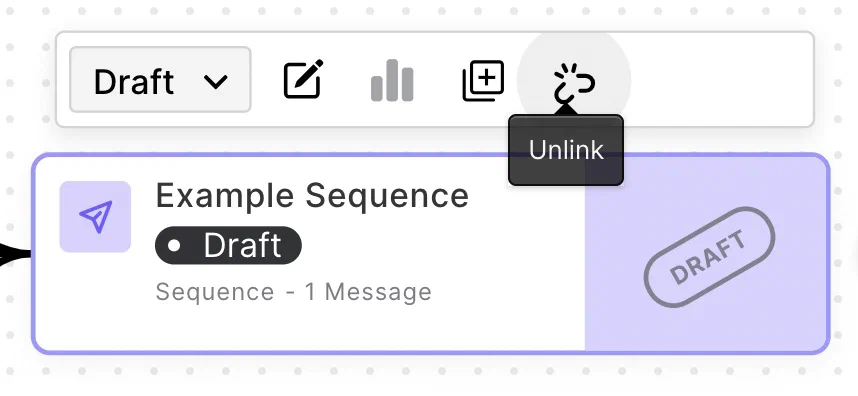
*Unlinking a Sequence from a Journey*
To unlink an In-App Automation or Scene from a Sequence:
1. Go to **Journeys**.
1. [Select an In-App Automation or Scene](#selecting-a-journey-component).
1. Select the three dots icon (
) on its card, then select **Unlink**.
To unlink a Sequence from any Journey component:
1. Go to **Journeys**.
1. [Select a Sequence](#selecting-a-journey-component), and then select the unlink icon. A modal displays a list of upstream components the Sequence is connected to. The top-level list items are each component by name. Under each component name is a list of its connections to the Sequence you want to unlink:
| Component | Connection types |
| --- | --- |
| **In-App Automation or Scene** | Impression, Survey Submission, Button Tap, or Opt-in |
| **Sequence** | Continuation, Conversion, or Cancellation
Conversion and Cancellation are followed by the outcome type (Contact Association or Subscription Event) or the actual Custom Event name or Tag ("<Event name or Tag>"). |
{class="table-col-1-30"}
1. Select which upstream components the Sequence should be unlinked from.
1. Select **Unlink Sequence**.
# Channel Coordination
> {{< glossary_definition "channel_coordination" >}}
Channel Coordination helps you target [Contacts](https://www.airship.com/docs/reference/glossary/#contact) who are opted in to multiple notification channels to maximize engagement. Choose an approach based on your message type, its urgency, and your specific use case.
## How Channel Coordination works
Airship listens for activity such as opens, custom events, and uninstalls, and automatically assigns Tags in the `ua:orchestration` [Tag Group](https://www.airship.com/docs/reference/glossary/#tag_group) to reflect each user's channel activity and availability. Each Tag-based strategy uses one of these Tags to determine message delivery.
When you send a message to a user who is opted in on multiple channels, Channel Coordination determines which channel receives it based on the strategy you've selected.
You can set a strategy in the dashboard or API.
For [Sequences](https://www.airship.com/docs/reference/glossary/#sequence), [Fan Out](#fan-out) is the default behavior when targeting Named Users, and [Originating Channel](#originating-channel) is used for all accounts not enabled for Channel Coordination.
> **Note:** For projects using the [channel-level segmentation system](https://www.airship.com/docs/guides/audience/segmentation/segmentation/#channel-level-segmentation), the strategies target a [Named User](https://www.airship.com/docs/reference/glossary/#named_user), not a Contact, so you must implement Named Users for your project. For [User Preference](#user-preference), you must also set user preference Tags on the Named User. Follow the steps in [Associating Channels with Named Users](https://www.airship.com/docs/guides/audience/named-users/#associate).
## Strategies
Each strategy determines which channel receives your message when a user is reachable on multiple channels.
### Fan Out
*Fan Out* is a Channel Coordination strategy that targets a Contact on all the channels they are opted in to, maximizing the chances they receive your message. This strategy is suitable for highly urgent messages, where the user will not be sensitive to over-messaging. This is the default strategy when a Sequence does not have a triggering channel, e.g., a message sent as a result of a Named User Custom Event or Tag change, which equally applies to all channels.
### Last Active
*Last Active* is a Channel Coordination strategy that targets a Contact on the opted-in channel they used most recently. In many cases user recency is the best indicator of preference. Last Active is supported for App, Web, and Email channels only.
Last Active is based on the following events for each channel:
* **App** — [App open](https://www.airship.com/docs/reference/data-collection/events/#app-open)
* **Web** — [Web session](https://www.airship.com/docs/reference/data-collection/events/#engagement)
* **Email** — [Email open](https://www.airship.com/docs/reference/data-collection/events/#delivery-and-opens), [Email click](https://www.airship.com/docs/reference/data-collection/events/#link-clicks)
A device that is opted-in will have higher priority than an opted-out device even if the opted-out device was active more recently. For example, if the Contact has two devices, iOS and Android, and the iOS device is opted-in while the Android device is opted-out, even if the Android device's app is opened more recently than the iOS device's app has been used, the iOS device will remain the "last active" because it is the only one that is still opted-in.
For example, when a user clicks a link in an email:
* If they are directed to a web page and are registered for web push, Last Active will be Web. Otherwise, it will be Email.
* If they are directed through a deep link to an app and are registered for mobile push notifications, Last Active will be App. Otherwise, it will be Email.
If there is more than one opted-in device for a particular Contact, the device that has most recently had activity will receive any push targeted to the last active device. Examples of possible activities are a registration event, opt-in event, open event, or a custom event.
### Originating Channel
*Originating Channel* is a Channel Coordination strategy that targets a Contact on the channel that triggered a Sequence. Messaging users on the channels they use to engage your brand can help ensure a consistent user experience. This strategy is used for all accounts not enabled for Channel Coordination.
Originating Channel will not work if the triggering behavior is a custom event applied to the Contact. In that case, there is no channel associated with the behavior. Airship will instead use the Fan Out strategy for delivery.
### Priority Channel with Fallback
*Priority Channel* is a Channel Coordination strategy that targets a Contact on the first channel they are opted in to, in the priority order you set. Use this strategy to drive engagement toward one strategic channel, such as directing users to the app to save SMS or email cost. For Sequences, you set priority order for each message.
The priority channel system actively monitors events such as app opens and opt-in status changes to track where your audience is reachable for messaging. However, not all channel state changes are received in real time:
* **Limitation** — On iOS and Android, push providers (APNs and FCM) do not send signals when a user uninstalls an app. Airship only learns of an uninstall when it attempts to send a push notification.
* **Handling** — When an uninstall is detected, Airship automatically redirects the message to the next available channel in the priority list in real time. The Priority Channel Tag is also reassigned at the same time.
> **Note:** For projects using the [channel-level segmentation system](https://www.airship.com/docs/guides/audience/segmentation/segmentation/#channel-level-segmentation), before you can use the Priority Channel strategy, you must set the priority order for your project. This setting determines the default channel order after selecting the Priority Channel strategy. You must have at least two channels configured and enabled.
>
>
Set the priority order of your project’s configured and enabled channels:
>
>
Next to your project name, select the dropdown menu (
> ), then Settings.
>
Under Project settings, select Channel Priority.
>
Enable the channels you want to send the message to.
>
Drag your selected channels into priority order.
>
Select Save.
>
>
> After setting priority order for your project, additional processing time may be required to set the Priority Channel Tag for larger audiences. The Tag will be available for use after several minutes for smaller audiences and up to several hours for audiences of one million or more.
>
>
### User Preference
*User Preference* is a Channel Coordination strategy that targets a Contact on their preferred channel. This is understood to provide the optimal customer experience. This strategy is supported for projects using the [channel-level segmentation system](https://www.airship.com/docs/guides/audience/segmentation/segmentation/#channel-level-segmentation) only and is not supported for [Sequences](https://www.airship.com/docs/reference/glossary/#sequence).
#### Set channel priority
Before using the User Preference strategy, you must first set channel priority in your Airship project. This initializes the Tag class used for User Preference and makes it available to use.
Set the priority order of your project’s configured and enabled channels:
Next to your project name, select the dropdown menu (
), then Settings.
Under Project settings, select Channel Priority.
Enable the channels you want to send the message to.
Drag your selected channels into priority order.
Select Save.
You can then remove the settings and save again or keep them in place if you intend to also use the [Priority Channel with Fallback](#priority-channel-with-fallback) strategy.
#### Apply channel preference Tags
In order to set a preferred channel for a user, they must be opted in on at least two messaging channels, such as iOS and Web. Before you can target users based on their channel preference, you first need to set Tags expressing that preference.
For a user that is opted in on multiple channels and has provided an explicit communication preference, first add a `user_preferred` Tag to the preferred channel, then target that Tag in your messaging.
You will set a `"user_preferred"` Tag in the `"ua:orchestration"` Tag Group on one channel per Named User.
* List all channels for your Named User by using the [Named User Lookup API](https://www.airship.com/docs/developer/rest-api/ua/operations/named-users/).
* Once you parse the results to gather the [Channel IDs](https://www.airship.com/docs/reference/glossary/#channel_id), maintain the `"user_preferred"` Tag on each channel using our [Tags API](https://www.airship.com/docs/developer/rest-api/ua/operations/tags/):
```http
POST /api/channels/tags HTTP/1.1
Authorization: Basic
Accept: application/vnd.urbanairship+json; version=3
Content-Type: application/json
{
"audience": {
"ios_channel": "b8f9b663-0a3b-cf45-587a-be880946e881"
},
"add": {
"ua:orchestration": [
"user_preferred"
]
}
}
```
## Setting a strategy in the dashboard
You can set Channel Coordination in the following locations in the dashboard:
| Strategy | Message composer | Automation composer | Sequence messages | A/B test variants |
| --- | --- | --- | --- | --- |
| **Fan Out** | Yes | Yes | Yes | Yes |
| **Last Active** | Yes | Yes | Yes | Yes |
| **Priority Channel** | Yes | Yes | Yes | Yes |
| **Originating Channel** | No | No | Yes | No |
In the Message composer and A/B test variants, set Channel Coordination in the **Audience** step. In the Automation composer and each message in a Sequence, set it in the **Setup** step. Configuration is the same in all locations:
1. Under **Channel coordination**, select a strategy.
1. Enable the channel types to include in your audience. For Mobile Apps, also select from the available platforms.
1. For Priority Channel, drag the channel types into priority order.
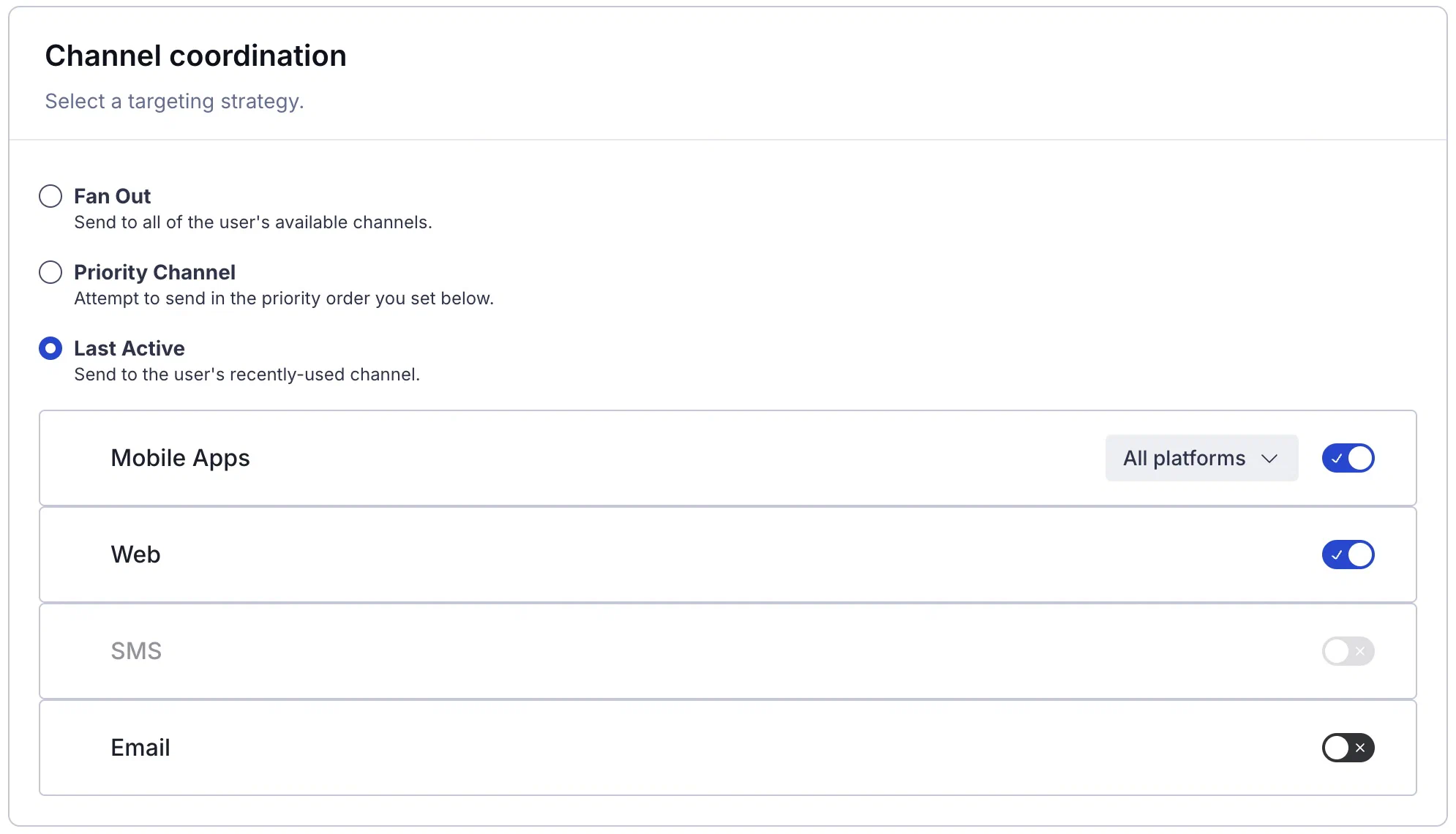
*Setting a Channel Coordination strategy in the Message composer*
### Channel-level segmentation
For projects using the [channel-level segmentation system](https://www.airship.com/docs/guides/audience/segmentation/segmentation/#channel-level-segmentation), you can set Channel Coordination in the following locations in the dashboard:
| Strategy | Message composer | Sequence messages | A/B tests | A/B tests (legacy) | Feature Flag Configurations |
| --- | --- | --- | --- | --- | --- |
| **Fan Out** | Yes | Yes | Yes | Yes | Yes |
| **Last Active** | Yes | Yes | Yes | Yes | Yes |
| **Priority Channel** | Yes | Yes | Yes | Yes | Yes |
| **User Preference** | Yes | No | Yes | Yes | Yes |
| **Originating Channel** | No | Yes | No | No | No |
In the Message composer, A/B tests, legacy A/B tests, and Feature Flag Configurations, configure Channel Coordination in the **Audience** step:
1. Select **Target Specific Users**.
1. (In Feature Flag Configurations only) Select **Segments**.
1. For Fan Out, search for a Named User and select from the listed results.
1. For Last Active, Priority Channel, and User Preference:
1. Search for and select the `Orchestration` Tag Group.
1. Search for the specific tag within the Tag Group:
* `last_active` for Last Active
* `priority_platform` for Priority Channel
* `user_preferred` for User Preference
1. Set the **True** operator to include users for whom the condition is true.
For Sequences, set Channel Coordination after selecting **Add message content** for a new message:
1. Select a strategy.
1. Enable the channel types to include in your audience.
1. For Priority Channel, drag the channel types into priority order.
> **Note:** For Priority Channel, when the App channel is enabled, Airship will send to any iOS, Android, or Fire OS devices that are opted-in to notifications.
In addition to audience configuration, you can also include Tags for Last Active, Priority Channel, and User Preference in a [Segment](https://www.airship.com/docs/reference/glossary/#segment):
1. Search for and select the `Orchestration` Tag Group.
1. Search for the `last_active`, `priority_platform`, or `user_preferred` Tag within the Tag Group.
1. Set the **True** operator to include users for whom the condition is true.
## Setting a strategy using the API
To set [Fan Out](#fan-out) using the API, enumerate all configured messaging platforms using the `device_types` selector.
**Setting the Fan Out strategy**
```http
POST /api/push HTTP/1.1
Authorization: Basic
Content-Type: application/json
Accept: application/vnd.urbanairship+json; version=3
{
"audience": {
"named_user": "ozymandias"
},
"notification": {
"alert": "Look upon which works now?"
},
"device_types": [
"ios",
"android",
"sms",
"web"
]
}
```
To set [Last Active](#last-active), [Priority Channel](#priority-channel-with-fallback), and [User Preference](#user-preference) using the API, use the `last_active`, `priority_platform`, or `user_preferred` Tag in the `ua:orchestration` Tag Group.
**Setting the Last Active strategy**
```http
POST /api/push HTTP/1.1
Authorization: Basic
Content-Type: application/json
Accept: application/vnd.urbanairship+json; version=3
{
"audience": {
"tag": "last_active",
"group": "ua:orchestration"
},
"notification": {
"alert": "Hi, last active!"
},
"device_types": [
"ios",
"android",
"sms",
"web"
]
}
```
### Learn about Airship intelligence and AI features
Explore AI-powered features for automated content generation, predictive send-time optimization, and analytics that surface which behaviors drive conversions.
# AI in Airship
> Airship uses AI to help you create better customer experiences faster. Our AI-powered features enhance efficiency and personalization while maintaining your brand identity and following responsible AI practices.
## Airship's AI principles
Airship's AI capabilities are built on principles of responsible innovation that prioritize trust, transparency, and human oversight. Our approach ensures that while AI enhances your marketing efficiency and personalization capabilities, you maintain complete control over your brand voice and customer interactions. We implement robust security measures and strict data privacy protections, ensuring that customer data is never used to train foundational AI models.
"Human in the Loop" principles are built into the platform by design. Our AI provides intelligent suggestions and starting points, but you always make the final decisions about content, targeting, and campaign execution. We've established comprehensive guardrails to ensure AI-generated content meets safety standards and avoids harmful material, while our continuous monitoring processes help maintain ethical AI practices. As global regulatory requirements develop, Airship remains committed to aligning our services with emerging compliance standards. This approach gives you confidence that our AI-powered solutions support business goals while upholding the highest ethical standards.
For more information about our AI principles, see [AI-Powered Customer Experiences: Airship's Commitment to Responsible Innovation](https://www.airship.com/resources/whitepaper/ai-powered-customer-experiences-airships-commitment-to-responsible-innovation/). See also [Airship Security Measures](https://www.airship.com/legal/security-measures/).
## AI features
AI features are available on [AXP](https://www.airship.com/docs/reference/feature-packages/) plans only.
Airship offers the following features that use generative AI:
* **Brand guidelines** — Ensure consistent brand identity by defining a profile, design elements, and personalities. Design elements automatically apply to specific message types, and you can also select them when creating messages. The profile and personalities are combined to create content for AI-generated Journeys.
See [Set brand guidelines from uploaded sources](https://www.airship.com/docs/guides/messaging/features/brand-guidelines/#set-brand-guidelines-from-uploaded-sources) and [Set personalities](https://www.airship.com/docs/guides/messaging/features/brand-guidelines/#set-personalities) in *Setting brand guidelines*.
* **Generative AI content** — AI-generated content is created from the text you provide. To refine the output, you can select a personality defined in your project's [Brand guidelines](https://www.airship.com/docs/guides/messaging/features/brand-guidelines/), include emojis :sunglasses:, and set the content length. The tool is available for most text fields when composing messages and templates. See [Generative AI content](https://www.airship.com/docs/guides/features/intelligence-ai/ai-content/).
* **AI-generated Journeys** — A Journey is a continuous user experience of connected Sequences, Scenes and/or In-App Automations. You can use Generative AI to create draft Journeys. After generation, the map displays all linked components. See [Create AI-generated Journeys](https://www.airship.com/docs/guides/features/orchestration-experimentation/journeys/#create-ai-generated-journeys) in *Journeys*.
We also provide AI agents that employ generative AI:
* **Campaigns AI agent** — Create or refine a [Campaign](https://www.airship.com/docs/reference/glossary/#campaign) through a conversational chat interface. Generate a campaign overview with your objective, audience, and goals, and draft or update messages from a prompt or by uploading a file. See [Create and refine Campaigns using AI](https://www.airship.com/docs/guides/messaging/features/campaigns/#create-and-refine-campaigns-using-ai) in *Campaigns*.
* **AI-generated screens** — Use the Native Experience AI Agent to quickly create screens for any [Scene](https://www.airship.com/docs/reference/glossary/#scene). You can generate screens based on a prompt, a mockup or wireframe, or both. Modify your current screens by asking for edits or new content. See [Create AI-generated screens](https://www.airship.com/docs/guides/messaging/editors/native/about/#create-ai-generated-screens) in *Native Experience editor*.
* **AI Accessibility agent** — The accessibility agent uses agentic and generative AI to automatically audit your content and identify potential accessibility issues, such as insufficient color contrast, missing alternative text, and text size that falls below recommended minimums. Addressing these issues helps ensure your content is usable by the greatest number of audience members, including those with disabilities. See [Accessibility agent](https://www.airship.com/docs/guides/messaging/editors/native/about/#accessibility-agent) in *Native Experience editor*.
* **AI recommendations** — Apply AI analysis to [Audience Pulse](https://www.airship.com/docs/reference/glossary/#audience_pulse) for deeper insights into audience activities and get actionable recommendations to build more effective, targeted campaigns. [AI recommendations](https://www.airship.com/docs/guides/audience/segmentation/audience-pulse/#ai-recommendations) in *Audience Pulse*.
## AI tools
Airship provides two developer AI tools for working with the platform from AI coding assistants:
* An MCP server gives assistants live access to Airship APIs and documentation.
* Skills are pre-built workflows that guide assistants through common implementation tasks.
For more information, see [AI tools for Airship developers](https://www.airship.com/docs/developer/ai-tools/ai-tools/).
# Generative AI content
> Use AI to create message content faster and according to guidelines you set. {{< badge "axp" >}} {{< badge "ai" "Generative AI" >}}
AI-generated content is created from the text you provide. To refine the output, you can select a personality defined in your project's [Brand guidelines](https://www.airship.com/docs/guides/messaging/features/brand-guidelines/), include emojis :sunglasses:, and set the content length. The tool is available for most text fields when composing messages and templates.
Use AI-generated text for quicker variant creation in A/B tests. See [About A/B testing](https://www.airship.com/docs/guides/experimentation/a-b-tests/about/).
> **Note:** **Opting In to AI Functions**
>
> If you opted out of AI usage, you must sign an updated contract to enable this feature. Contact your account manager for assistance.
>
> **Compliance Considerations in Using AI Functions**
>
> The Service incorporates AI functions, including Generative AI and Agentic AI.
>
> Generative AI generates content such as Notification copy, images, and Journeys based on your prompts.
>
> Agentic AI autonomously optimizes, personalizes, or executes cross-channel customer engagement actions, or analyzes audience and performance data, subject to the parameters and controls you set in the Service. These systems operate under human-defined parameters and do not initiate customer-facing actions without human interaction or pre-configured parameters. You are responsible for reviewing Generated Outputs for accuracy, appropriateness, and to ensure they do not violate third-party intellectual property or other rights. Airship does not publish Generated Outputs to end users without approval from the Customer.
>
> In addition to the applicable terms of your agreement with Airship (e.g., Use of Service, Customer Responsibilities sections), you must comply with the [Airship Acceptable Use Policy](https://www.airship.com/legal/acceptable-use/), which provides additional details about appropriate conduct when using the Service.
>
> The Service includes safety features to block harmful content, such as content that violates our Acceptable Use Policy. You may not attempt to bypass these protective measures or use content that violates your agreement with Airship.
>
> About the AI models:
>
> Airship utilizes Google Gemini and Imagen to generate copy and images for AI Scene screens. The content is created solely with Google's out-of-the-box models, and no customization or fine-tuning with Customer Data is applied. See [Responsible AI](https://cloud.google.com/responsible-ai?hl=en) in Google's *Google Cloud* documentation.
## Generate AI content
For each of your projects, you can generate AI content a maximum of 150 times per day.
For a text field:
1. 
*Select the sparkle icon to access AI content generation*
Select the sparkle icon for the field.
1. 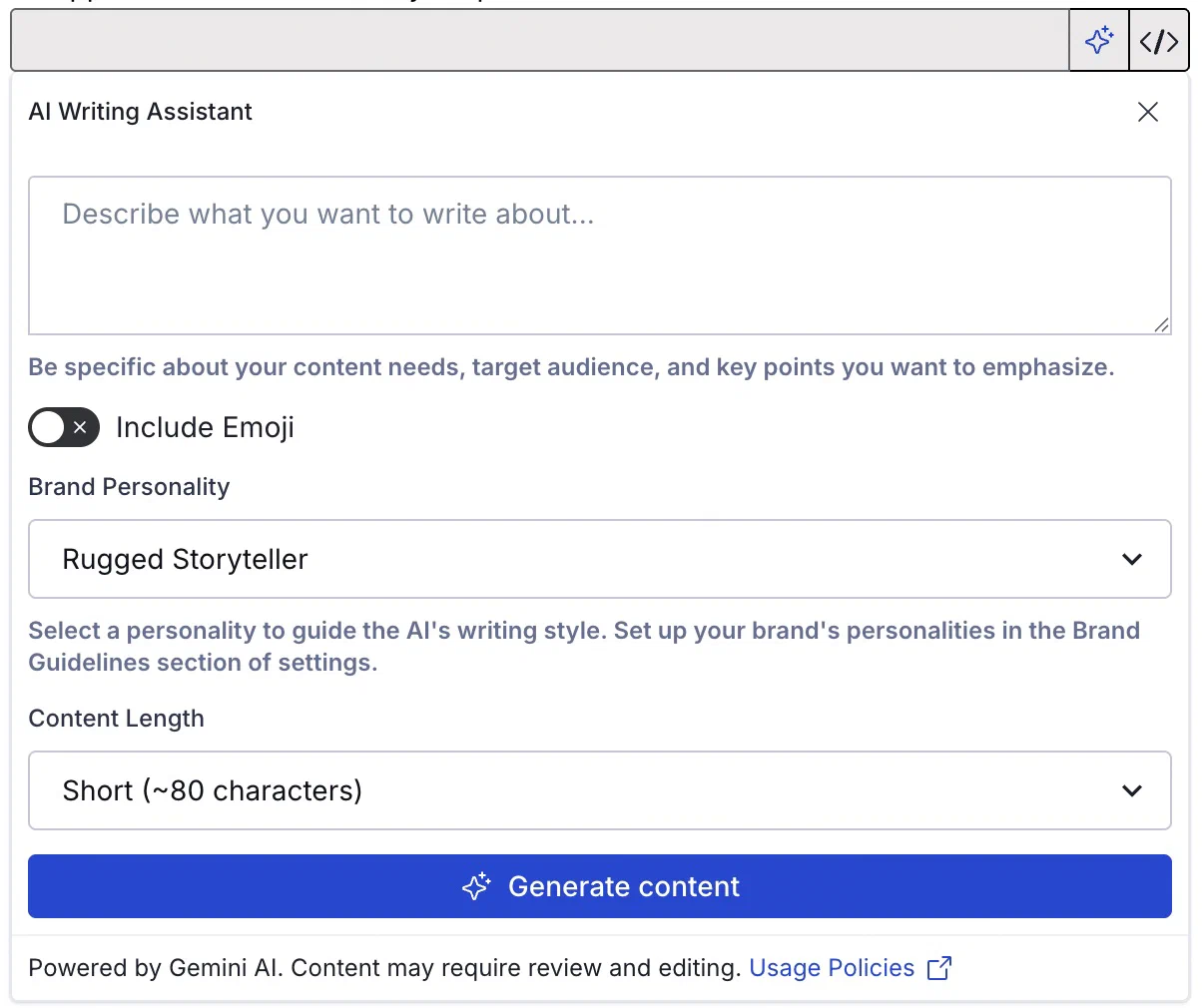
*Generating AI content*
Under **AI Writing Assistant**, enter the information you want to include in your message. This can be a full version of the intended content or just keywords. The text you enter determines the language, but you can specify a different language for the generated content.
Example text for a message: "A persuasive promotional email in Spanish encouraging users to join our new loyalty program and highlighting sign-up bonuses".
1. Make settings selections:
| Setting | Description |
| --- | --- |
| **Include emoji** | Optional. Related emoji will be included in the generated text. |
| **Brand personality** | The message content voice and tone will be determined by a personality defined in your [brand guidelines](https://www.airship.com/docs/guides/messaging/features/brand-guidelines/). If none is selected, voice and tone will be determined only from your provided text. |
| **Content length** | Your message can be Short (~80 characters), Medium (~240 characters), or Long (~400 characters). |
1. Select **Generate content** and review the generated version. If it's not quite right, select **Try again**, edit your provided text, adjust the settings, and then generate content again.
1. Select **Use this text** to transfer the current generated content to the message's text field, where you can refine your text.
> **Note:** Review generated content transferred to text fields before sending a message.
#### Predictive Analytics
Use predictive scores for churn risk and optimal send time to improve campaign performance and audience targeting.
# Predictive Churn
> {{< glossary_definition "predicted_to_churn" >}}
Churn is a natural part of engagement ebb and flow, and while a
certain amount of churn is normal and healthy, there are ways to identify
churn risk factors and take actions to prevent your user base from eroding.
## About Predictive Churn
With Predictive Churn, you can identify app and web users by their likelihood to churn, based on risk profiles Airship generates via machine learning, using [gradient boosted decision tree](https://en.wikipedia.org/wiki/Gradient_boosting) methodology.
Risk factors update weekly and are exposed as [Tags](https://www.airship.com/docs/reference/glossary/#tag) for [segmentation](https://www.airship.com/docs/guides/audience/segmentation/segmentation/) and analysis in [Performance Analytics](https://www.airship.com/docs/reference/glossary/#pa), and exposed as Tag Change events in [Real-Time Data Streaming](https://www.airship.com/docs/reference/glossary/#rtds).
Example use cases for Predictive Churn:
* Target users with offers before they churn.
* Run an A/B Test with a single variant and a control group to measure the message's impact on churn.
* Trigger an automation or [Sequence](https://www.airship.com/docs/reference/glossary/#sequence) based on a change in risk group.
* Send a message in a Sequence based on a change in risk group.
* Create a [Segment](https://www.airship.com/docs/reference/glossary/#segment) that blends risk groups based on the type of messaging and your goals.
### The Predictive Churn model
Predictive Churn belongs to Airship's *Predictive*
suite of products, which uses
[machine learning](https://en.wikipedia.org/wiki/Machine_learning) to
predict user behaviors and optimize engagement strategy for customer
lifecycle marketers.
The model is trained on recency and frequency of notification sends and app opens or website visits for a cross-section of anonymized apps and sites. It runs weekly on Mondays. It detects the most relevant risk factors for a churn outcome and assigns a high, medium, or low churn factor to each user who has been active in the past 60 days. By including your app key as an input, the model tailors its predictions to your audience based on your app or website usage.
Notable terms:
Active User
: An *active user* is a member of your audience that has opened your app, had an active web session, or clicked a web notification in the last 30 days.
Inactive User
: An *inactive user* is a member of your audience that had a predictive tag of high, medium, or low and has not opened your app, had an active web session, or clicked a web notification in the last 30 days.
Churn
: A *churn* outcome occurs when a previously active user becomes inactive, i.e., Airship has not seen any activity (measured in app opens, website visits, or web notification clicks) from a user in the last 30 days. Push opt-in status does not factor into the churn outcome, so it is possible that a user who opted out of notifications could still appear active for churn prediction purposes.
> **Note:** A churned user is not the same as an uninstalled user.
Churn Risk
: Predictive Churn makes a prediction about the likelihood of a future churn
outcome, meaning that a user will go inactive. We assign one of three
measures of risk for such an outcome:
* High — Users most likely to become inactive
* Medium — Users who exhibit signs of potentially becoming inactive
* Low — Users least likely to become inactive
### Tags and change events
A user's churn risk profile is represented as a `high`, `medium`, or `low` [Tag](https://www.airship.com/docs/reference/glossary/#tag) within the `ua_churn_prediction` [Tag Group](https://www.airship.com/docs/reference/glossary/#tag_group). Changes to that tag are represented as `TAG_CHANGE` events.
Tag changes return both the change in tag (`add` or `remove`) and the `current` tag. The `current` tag is the end result of the tag change. There are three scenarios for tag change events:
* **Add prediction** — Adds a new Predictive Churn tag to a channel that did not previously have a prediction. Not all devices begin with a churn prediction; churn prediction is assigned to active users when the Predictive Churn model runs (weekly on Mondays).
* **Prediction change** — Replaces the prediction on a channel.
* **Remove prediction** — Removes the prediction from a channel, typically when a channel becomes inactive.
The following is an example of a Predictive Churn tag change:
```json
{
"id": "e1559cd7-af96-45ab-bb74-a22cd99a01d5",
"offset": "1422600",
"occurred": "2017-01-15T09:26:30.362Z",
"processed": "2017-01-15T16:15:30.048Z",
"device": {
"android_channel": "d5ec96e3-5ced-47b0-a4dd-1b2b6bda442e",
"named_user_id": "job.bob@example.com",
"attributes": {
"locale_variant": "",
"app_version": "312",
"device_model": "LG-H811",
"app_package_name": "com.company.app",
"iana_timezone": "America/Los_Angeles",
"push_opt_in": "true",
"locale_country_code": "US",
"device_os": "6.0",
"locale_timezone": "-28800",
"locale_language_code": "en",
"location_enabled": "true",
"background_push_enabled": "true",
"ua_sdk_version": "6.1.2",
"location_permission": "ALWAYS_ALLOWED"
}
},
"body": {
"add": {
"ua_churn_prediction": [
"medium"
]
},
"remove": {
"ua_churn_prediction": [
"high"
]
},
"current": {
"ua_churn_prediction": [
"medium"
]
}
},
"type": "TAG_CHANGE"
}
```
See the [Tag change event](https://www.airship.com/docs/developer/rest-api/connect/schemas/events/#tag-change) in the [Real-Time Data Streaming](https://www.airship.com/docs/reference/glossary/#rtds) API reference.
## Use Predictive Churn in messaging
Before you can use Predictive Churn for targeting, you must enable it for your project. It is supported for production projects only. If your app and website both use the Airship SDK, you should enable the feature for both.
1. Next to your project name, select the dropdown menu (
), then **Settings**.
1. Under **Project settings**, select **Predictive AI**.
1. Enable **Predictive App Churn** and/or **Predictive Web Churn**.
Tags are assigned the first Monday after enabling the feature.
### Segments
You can include a Predictive Churn risk profile in your [Segments](https://www.airship.com/docs/reference/glossary/#segment). First, search for and select **Predicted to Churn**, and then select an operator and a risk profile.
### Message and experiment audiences
Add a Predictive Churn risk profile as an audience condition for messages and experiments. See **Predicted to Churn** in [Targeting Specific Users](https://www.airship.com/docs/guides/audience/segmentation/target-specific-users/).
You can also specify a risk profile for individual Sequence messages. See **Conditions** in [Add messages to a Sequence](https://www.airship.com/docs/guides/messaging/messages/sequences/create/add-messages/).
### Automation and Sequence triggers
Trigger an [Automation](https://www.airship.com/docs/guides/messaging/messages/sequences/create-automation/) or [Sequence](https://www.airship.com/docs/reference/glossary/#sequence) based on changes to a user's Predictive Churn risk profile. For example, you might set up an automation to send users a special offer when their Predictive Churn risk changes to High, helping retain users at risk of leaving your audience. See **Predicted to Churn** in [Automation and Sequence triggers](https://www.airship.com/docs/guides/messaging/messages/sequences/triggers/). For automation using the API, see the next section.
You can also set a churn risk profile as a trigger condition. For Automations, see **Conditions** in [Create an Automation](https://www.airship.com/docs/guides/messaging/messages/sequences/create-automation/). For Sequences, see **Conditions** in the Trigger step in [Create a Sequence](https://www.airship.com/docs/guides/messaging/messages/sequences/create/create/).
### Audience definition in the API
With the API, use the [audience tag selector object](https://www.airship.com/docs/developer/rest-api/ua/schemas/audience-selection/) to target by the `ua_churn_prediction` Tag Group and Tag values `low`, `medium`, or `high`.
For example, the following is a notification to users of all device types whose current churn prediction is `medium`:
```http
POST /api/push HTTP/1.1
Authorization: Basic
Content-Type: application/json
Accept: application/vnd.urbanairship+json; version=3
{
"audience": {
"tag": "medium",
"group": "ua_churn_prediction"
},
"notification": {
"alert": "me·di·um, n., an agency or means of doing something."
},
"device_types": [
"ios",
"android",
"web"
]
}
```
## Analytics
In [Performance Analytics](https://www.airship.com/docs/reference/glossary/#pa), the [Predictive Dashboard](https://www.airship.com/docs/guides/reports/analytics/definitions/#predictive) helps you track churn risk factors over time. This Dashboard provides a view into Predictive Churn risk groups, distribution of users across risk groups, and the performance of churn mitigation tactics. If you have both Predictive App and Web Churn enabled, you can set the Device Family filter to Web or Mobile to see churn data for either audience.
Predictive tags update every Sunday, and reports default to the most recent update.
**Use cases:**
* Explore added or removed Predictive tags.
* Slice user behavior by churn risk tag.
* Export ad IDs, named users, and channel IDs based on their risk category.
* Export named users and ad IDs based on app opens, uninstalls, and risk category.
* Find churn cohorts and slice by the users' current tags.
* Find churn cohorts, filter, then analyze a funnel of past behavior.
# Optimal Send Time
> Optimal Send Time is an algorithm that determines the best hour for optimal engagement activity — when each individual member of your audience is most likely to receive and act on your message.
Take the guesswork out of scheduling messages and let Airship's
predictive models optimize send times for you.
Send time predictions update weekly and are exposed as [Tags](https://www.airship.com/docs/reference/glossary/#tag) for [segmentation](https://www.airship.com/docs/guides/audience/segmentation/segmentation/) and analysis in [Performance Analytics](https://www.airship.com/docs/reference/glossary/#pa), and exposed as Tag Change events in [Real-Time Data Streaming](https://www.airship.com/docs/reference/glossary/#rtds).
> **Note:** Optimal Send Time is available for iOS, Android, and Fire OS only.
## The Optimal Send Time model
Optimal send time is determined from recent engagement history. To start, app opens are localized to
the user's time zone and aggregated to the hour over the last 60 days of app activity. The best hour
is determined by striking a balance between the user's engagement patterns and a generalized model
of engagement patterns across the app audience. The model also outputs a general best hour, which
is applied to dormant or low-activity users. The general best hour aggregates opens across app users
and selects the best hour based on more frequent opening time for each app platform.
The determined best hour will occur within a three-day window around your selected delivery date. For example, if you choose February 2, the message will be delivered between February 1 and 3.
After enabling the feature, Airship runs the predictive model for your
iOS, Android, and Fire OS audience members, and you can start using the Optimal Send Time model for delivery.
## Optimal Send Time use cases
Schedule notifications without having to guess the optimal time for user engagement. By delivering a message to your users at the best time for them, you can optimize for a higher open rate.
* Send an important update to all users at the time they are most likely to read your message.
* Deliver a coupon to your users at a time when they are most likely to engage.
* Send a long form story to you readers at the best time for them.
* Distribute user engagement across the day to meter traffic flow to the app.
* Compare performance between regular scheduled messages and messages sent using Optimal Send Time.
* Analyze Optimal Send Time user level distribution across hours of the day.
* Analyze correlation between churn risk and user’s best send time.
## Optimal Send Time data and analytics
The Optimal Send Time dashboard in Performance Analytics provides a deeper look into the best time model, including a distribution of best hours across your audience, and the generalized best hour for your audience by platform and day of week.
You can also use Real-Time Data Streaming to observe changes in optimal send time as `TAG_CHANGE` events for the `ua_send_time_prediction` tag group.
## Enable Optimal Send Time
First you must enable Optimal Send Time in the dashboard. Send time prediction supports your production projects only and updates weekly on Wednesdays.
Next to your project name, select the dropdown menu (
), then Settings.
Under Project settings, select Predictive AI.
Enable Optimal Send Time.
## Schedule a message using Optimal Send Time
You can use Optimal Send Time in the Message and A/B Test composers. In the Delivery step:
Select Optimize and enter a date.
OR(Message composer only)
Select Recurring.
Specify the delivery interval by number of hours/days/weeks/months/years.
Set the date for the initial delivery. This is the first time that Airship will send your message.
Select Optimal time.
Airship recommends scheduling your message at least three days in advance due to the combination
of time zones and optimal times. You can reduce the lead time if your audience is more localized, e.g.,
only in the United States or in a certain European region.
> **Note:** When your audience includes users without an optimal send time tag, those users will be dropped from delivery and will not receive the message. Since optimal send time is determined from user behavior over time, new users might not have an optimal send time determined for the first week or two after channel registration.
## Schedule `best_time` messages using the API
In the API, Optimal Send Time is represented as the best time key. To deliver notifications at your users’ optimal times via the API, schedule your message using best_time.
The following example shows two schedules for an upcoming message. The first schedule uses a specific scheduled_time for users with the “earlyBirds” tag, and the second schedule lets the model decide when to send the message, based on the best_time for users with the “normalPeople” tag.
```http
POST /api/schedules HTTP/1.1
Authorization: Basic
Content-Type: application/json
Accept: application/vnd.urbanairship+json; version=3
[
{
"name": "Morning People",
"schedule": {
"scheduled_time": "2018-06-03T09:15:00"
},
"push": {
"audience": {
"tag": "earlyBirds"
},
"notification": {
"alert": "Good Day Sunshine"
},
"device_types": [
"ios",
"android",
"sms",
"web"
]
}
},
{
"name": "Everybody Else",
"schedule": {
"best_time": {
"send_date": "2018-06-03"
}
},
"push": {
"audience": {
"tag": "normalPeople"
},
"notification": {
"alert": "Stay Up Late"
},
"device_types": [
"ios",
"android",
"sms",
"web"
]
}
}
]
```
## Look up a user's Optimal Send Time
You can look up optimal send time for an individual user from the dashboard. See also: [Contact management](https://www.airship.com/docs/guides/audience/contact-management/).
1. Go to *Audience » Contact Management*.
1. Enter a [Channel ID](https://www.airship.com/docs/reference/glossary/#channel_id), [Named User ID](https://www.airship.com/docs/reference/glossary/#named_user), or [Device Token](https://www.airship.com/docs/reference/glossary/#device_token).
1. Click a result to view the named user ID or channel ID page, then click the channel ID and go to the *Tag Groups* tab. The hour tag is listed in the UA_SEND_TIME_PREDICTION tag group.
In the API, the `ua_send_time_prediction` tag group represents Optimal Send Time. You can look up a channel or named user and check the `ua_send_time_prediction` tag group to find the optimal send time for a user. See [Channel Lookup](https://www.airship.com/docs/developer/rest-api/ua/operations/channels/#getchannel) and [Named User Listing or Lookup](https://www.airship.com/docs/developer/rest-api/ua/operations/named-users/#getnameduser) in our API documentation.
## Observe Optimal Send Time in Performance Analytics
The Optimal Send Time dashboard in Performance Analytics provides a deeper look into the best time model, including a distribution of best hours across your audience, and the generalized best hour for your audience by platform and day of week.
Go to the Optimal Send Time dashboard:
1. Go to *Reports » Performance Analytics*.
1. Go to *Spaces » Shared » Predictive* and select *Optimal Send Time*.
## Optimal Send Time events
The `ua_send_time_prediction` tag group contains the send time prediction for each channel. Changes in a user's `ua_send_time_prediction` tag appear as Tag Change Events in the event stream.
### Learn about Airship data and integration features
Connect data from your CDP, data warehouse, and third-party systems to power smarter segmentation, real-time personalization, and unified audience profiles.
# Zero-copy data integration
> Zero-copy data integration with Airship allows direct use of data from external systems, which means data remains in its original location instead of being copied or imported into Airship. You can access the data in real time for segmentation and personalization using Attributes.
A zero-copy data integration offers several benefits. It uses existing data infrastructure and tools, which makes it efficient. It also provides flexibility and control since data stays in its native environment. The data is always as fresh as your data warehouse, with no waiting for imports and no synchronizations job that can fail.
Your externally sourced [Attributes](https://www.airship.com/docs/reference/glossary/#attributes) behave the same as other Airship Attributes. You can use them to build [Segments](https://www.airship.com/docs/reference/glossary/#segment) and personalize content using [Handlebars](https://www.airship.com/docs/reference/glossary/#handlebars).
## How a zero-copy data integration works
The integration works in three steps:
1. **Grant external data access** — You provide Airship with credentials and define the specific data from your external source to be made available.
1. **On-demand data retrieval** — When an external Attribute is required, Airship requests and retrieves that specific data from your source. This information is efficiently transported via temporary, short-lived messages using a [Publish-Subscribe mechanism](https://en.wikipedia.org/wiki/Publish-subscribe_pattern), ensuring only the requested data is transferred.
1. **Data application and purge** — The retrieved data is immediately and temporarily used within Airship for segmentation and personalization, and is not permanently stored.
## Supported data source and types
Zero-copy data integration is supported for [Snowflake](https://snowflake.com/), a fully managed cloud-based data warehouse and analytics service for storing and analyzing data. For security information, see [Continuous Data Protection](https://docs.snowflake.com/en/user-guide/data-cdp) in Snowflake's user guide.
The integration supports the same data type as Attributes from other sources:
* **Text** — String values for personalization and segmentation
* **Number** — Integer, float, or string values for calculations and comparisons
* **Date** — Date and timestamp values for time-based targeting
* **JSON** — Complex structured data for advanced personalization
For more information, see [Attribute types](https://www.airship.com/docs/guides/audience/attributes/about/#attribute-types) in *About Attributes*.
To send Snowflake data to Airship without systems integration, see [Export Lists from Snowflake](https://www.airship.com/docs/integrations/snowflake-export-lists/). To send Airship data to Snowflake, see the [Real-Time Data Streaming integration](https://www.airship.com/docs/integrations/snowflake/).
## Benefits and use cases
Zero-copy data integration provides these benefits:
* **Real-time data access** — Use your most current Snowflake data without data copying or synchronization delays.
* **Data governance** — Maintain control over your data while still leveraging it for personalization and segmentation.
* **SQL expertise** — Leverage your existing SQL knowledge and workflows.
* **Seamless integration** — Access Snowflake attributes alongside Airship attributes in the same interfaces.
Consider these use cases:
* **Customer lifetime value targeting** — Use Snowflake-calculated CLV scores to segment high-value customers.
* **Subscription status targeting** — Target users based on subscription tiers and renewal dates.
* **Geographic segmentation** — Use location-based data for regional campaigns and local offers.
* **Product affinity personalization** — Personalize messages based on product categories and browsing history.
## Configuring the integration
Setup requires configuration by Airship. To get started, contact your Airship account manager or [Support](https://support.airship.com/) to request the integration.
Airship will help you with these steps:
* Setting up the integration for your Airship project
* Identifying the tables and views you want to be able to access in Airship — For example, tables containing customer profile data like demographics, preferences, or subscription status
* Mapping your Snowflake data to [Channel IDs](https://www.airship.com/docs/reference/glossary/#channel_id) and [Attributes](https://www.airship.com/docs/reference/glossary/#attributes)
## Using Attributes in Airship
Once the integration is set up, you can use your Attributes for segmentation and personalization. See:
* [Targeting your audience using Attributes](https://www.airship.com/docs/guides/audience/attributes/targeting/)
* [Personalizing messages using Attributes](https://www.airship.com/docs/guides/personalization/sources/attributes/)
To access a list of Attributes added to your project, go to **Audience**, then **Attributes**. Attributes from zero-copy data integration have badge **External**. You cannot edit or archive Attributes from zero-copy data integration in the dashboard. To make updates, contact your Airship account manager or [Support](https://support.airship.com/). See also [Managing Attributes](https://www.airship.com/docs/guides/audience/attributes/managing/).
## Get Started with Airship
New to Airship? Learn how messaging works, navigate the dashboard, and set up your project to send your first message — no prior experience required.
# 1st Flight App Guide
> Install our ready-to-use app and send messages without writing a single line of code.
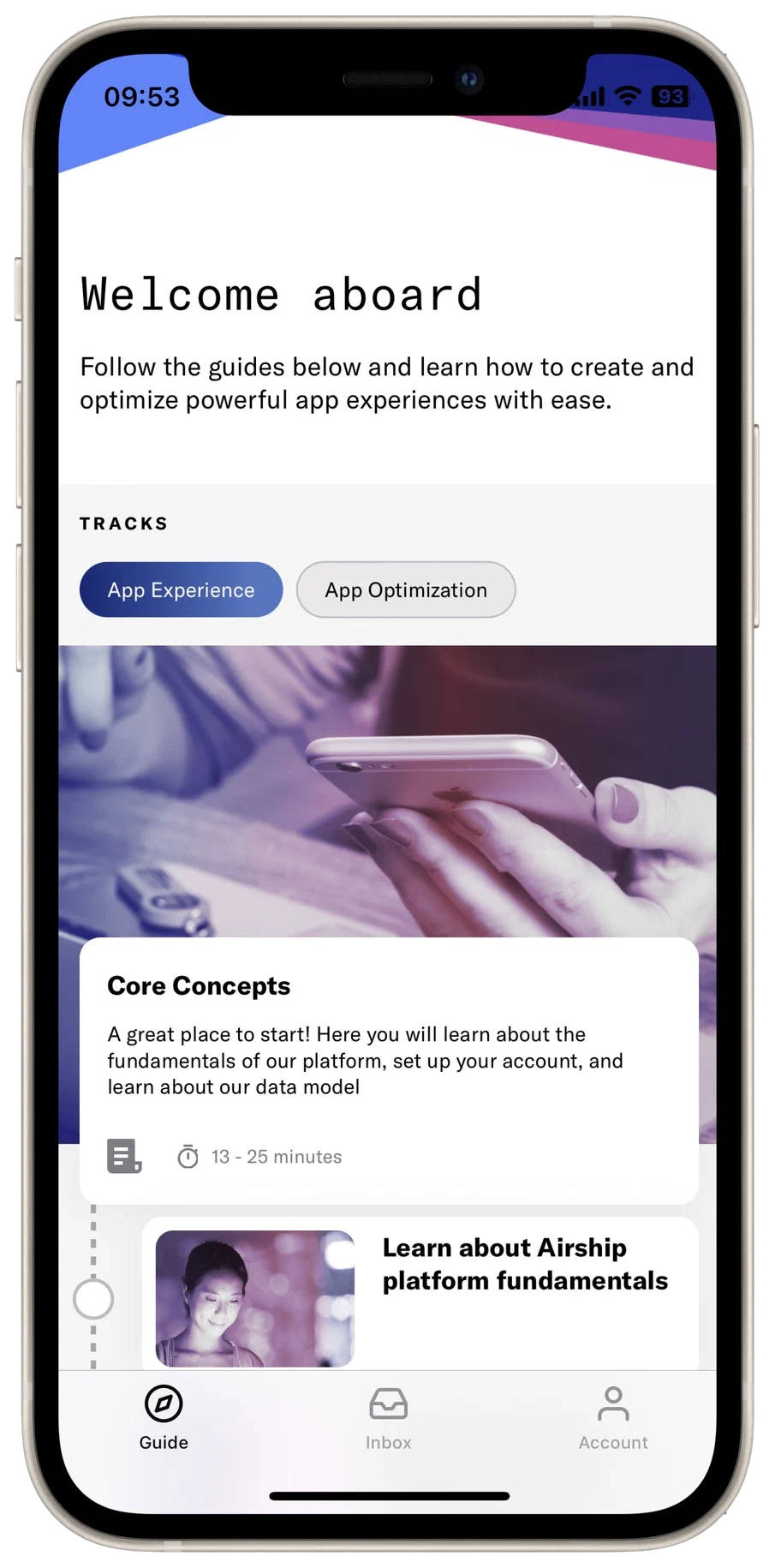
*Airship 1st Flight app*
Airship's 1st Flight app lets you kick the tires (and honk the horn and try the turn signals) immediately.
After installation and connecting to your Airship account, you can start sending messages to your own device.
For a guided experience, follow the app's learning tracks about features, capabilities, and data. You can read an overview of each topic, plus key benefits and use cases. These tracks walk you through completing tasks in the app or in the Airship dashboard, giving you hands-on experience building campaigns and seeing them live on your device.
Sounds good? Let's get you set up.
## Create an account and set up the app
First set up your Airship account, then request a magic link to install the 1st Flight app:
Create an Airship account on go.airship.com or go.airship.eu. Make sure your Region selection matches the location where you want your data to be hosted.
Check your inbox for a verification email from Airship and click Activate account to open the account setup page.
Set up a password.
> **Tip:** After creating an Airship account, you can access [Flight School](https://www.airship.com/blog/fast-track-your-airship-expertise-and-value-creation-with-flight-school/) to take training courses and complete our Certification Track.
>
> Select the question mark icon () in the dashboard header, then **Flight School**. Or you can go directly to [https://flightschool.airship.com/](https://flightschool.airship.com/).
On the next screen, enter your email address and select **Get magic link**. If on a mobile device, scroll to the right to see the field and button.
Perform the next steps **on your mobile device**:
1. Check your email for our message, and tap **Install the app**. Your device's app store will open to the Airship app.
1. Install and open the app.
1. Tap **Connect My App**.
1. Select your region (US or EU) and log in with your Airship username and password. Your Airship account is now associated with the 1st Flight app on your device.
1. For iOS mobile devices, tap **Enable Push** then **Allow** to allow the device to receive push notifications. Push is automatically enabled for **Android**, so this screen will not appear for Android mobile devices.
## Start sending messages
Now that your device is connected with your 1st Flight project in Airship, you're ready to send yourself messages.
### Send a push notification
Send a [Push Notification](https://www.airship.com/docs/reference/glossary/#push_notification) to your mobile device. We'll try out a few features along the way too.
1. Open the 1st Flight project from the [Dashboard](https://www.airship.com/docs/reference/glossary/#dashboard) and select **Create a message**.
> **Tip:** After sending your first message, this screen will display your [Messages Overview](https://www.airship.com/docs/reference/glossary/#messages_overview). Select **Create** to create more messages.
1. Enter a message name and save it.
1. In Audience, select **All Users** and [Fan Out](https://www.airship.com/docs/reference/glossary/#fan_out), and enable **Mobile Apps**. Then, select **Content** in the header.
1. Select **Push Notification**, then **Add content**.
1. Enter your message in the text field. You will see your message appear in the device preview.
1. Select the **Web Page** action and enter a URL.
We recommend
[http://bit.ly/IqT6zt](http://bit.ly/IqT6zt). When your device receives the message and you tap the notification, its web
browser will open the URL entered here.
1. Enable the **Title** option and enter a title in the text field. Notice its position in the preview.
1. Select **Delivery** in the header and then **Send Now**.
1. Select **Review & Send** in the header and review the appearance and content of your message. You can page through the
images in the device preview.
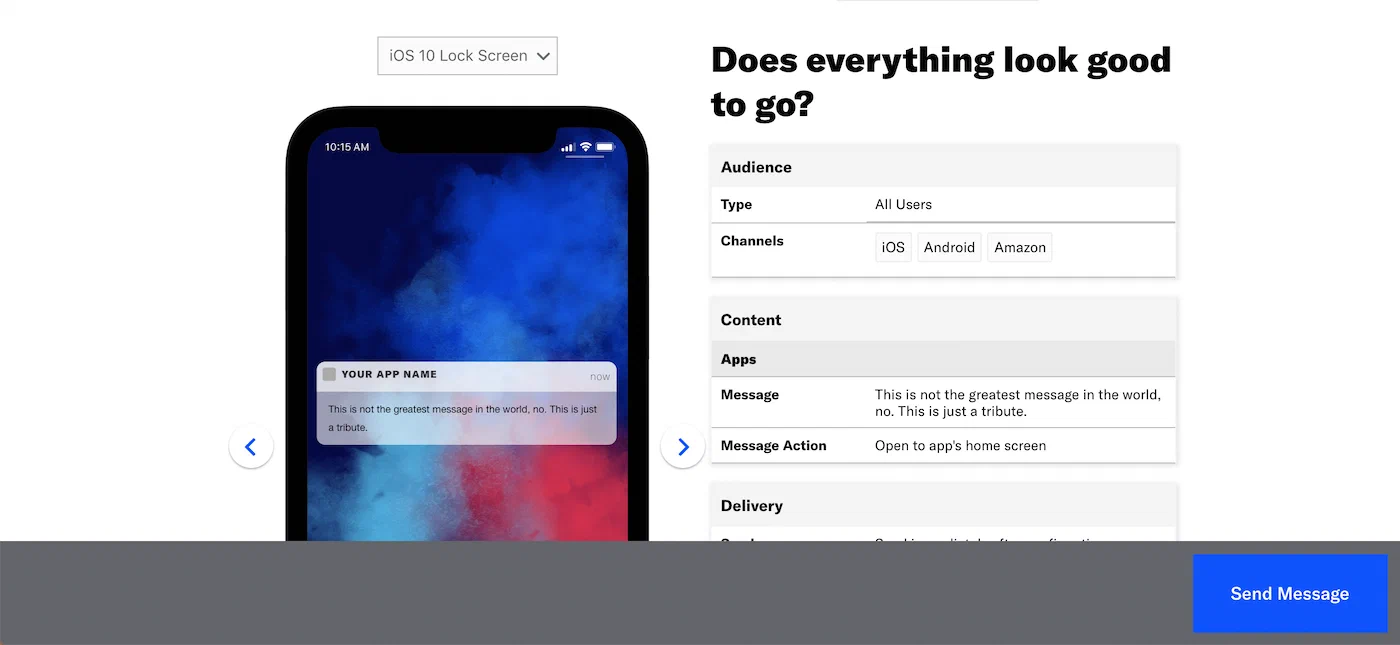
*Reviewing the message summary before sending*
1. Select **Send Message**.
Your push notification should appear momentarily. Tap the message and the device's browser should open the URL you entered when composing your message.
Want to send more messages? Our [Message composer tutorials](https://www.airship.com/docs/guides/messaging/messages/) walk you through all the features and options.
Ready to integrate Airship with your own app? See [Create a messaging project](https://www.airship.com/docs/guides/getting-started/setup/#create-a-messaging-project) and [Configure channels](https://www.airship.com/docs/guides/getting-started/setup/#configure-channels) in *Try Airship*.
### Automate a push notification
After you've sent your first message, try setting up some automated messages. Airship's [Automation](https://www.airship.com/docs/reference/glossary/#automation) features make it easy to send your audience relevant messages based things they do in your app, changes in their preferences, or changes in their location. Learn more in the [Automation and Sequences user guide](https://www.airship.com/docs/guides/messaging/messages/sequences/about/).
**Automate a push notification using the** [Tag Change Trigger](https://www.airship.com/docs/reference/glossary/#tag_change_event_trigger):
1. Follow the steps in the [Automation Composer Tutorial](https://www.airship.com/docs/guides/messaging/messages/sequences/create-automation/), using these settings:
* In the Setup step, select the Tag Change trigger, then enter a tag in the search field (e.g., `heyo`) and select **Create tag**.
* In the Content step, select **Push Notification** as your content type.
1. Set the tag on your Channel ID so you can trigger the message:
1. In the 1st Flight app, go to **Account**, then **Tags**.
1. Select **Tag, you're it!**, then **Set tags**.
1. Enter the tag you used when setting up your automation rule and select **Add**. This simulates how you would assign tags to your audience as they use your app and also demonstrates how you can use tags with your messages. Tags are case-sensitive.
Your push notification should appear momentarily.
### Try In-App Automation
In-App Automation messages are cached in your app, helping you immediately respond to your audience's behaviors with contextual messages. Using In-App Automation, you can even reach users who may have opted out of traditional push notifications.
Learn more in the [In-App Automation feature guide](https://www.airship.com/docs/guides/features/messaging/in-app-automation/).
**Try In-App Automation using the** [App Open (Mobile App), Session Start (Web) Trigger](https://www.airship.com/docs/reference/glossary/#app_open_iaa_trigger):
1. Follow the steps in the [In-App Automation Composer Tutorial](https://www.airship.com/docs/guides/messaging/in-app-experiences/in-app-automation/create/), using these settings:
* In the Behavior step, select the **App Open** trigger and leave the value set to `1`. This triggers your message the next time your audience opens the app.
1. Close and open the 1st Flight app to see your message.
If you don't see your message, go to **Messages**, then **Messages Overview**, and make sure it is listed as Active. After it is Active, reopen the app.
### Create your first Sequence
[Sequences](https://www.airship.com/docs/reference/glossary/#sequence) are a quick and powerful way to encourage your audience to reach a goal with an automated series of messages. You might use a Sequence to encourage your audience to buy items that they left in their shopping cart, or count down to an upcoming event that they have tickets for.
You can set goals to end the Sequence when your audience achieves a desired result. For example, if you start a Sequence when your audience leaves items in their cart, you might end the Sequence when your audience completes a purchase. Learn more in the [Sequences guide](https://www.airship.com/docs/guides/messaging/messages/sequences/).
> **Tip:** To get started without having to create a Sequence from scratch, try a [Sequence Template](https://www.airship.com/docs/reference/glossary/#sequence_template).
**Set up a Sequence using the** [Tag Change Trigger](https://www.airship.com/docs/reference/glossary/#tag_change_event_trigger):
1. Follow the steps in [Create a Sequence](https://www.airship.com/docs/guides/messaging/messages/sequences/create/create/), using these settings:
* For the trigger, select **Tag Change**, then enter a tag in the search field (e.g., `woohoo`) and select **Create tag**.
1. Set the tag on your Channel ID so you can trigger the Sequence:
1. In the 1st Flight app, go to **Account**, then **Tags**.
1. Select **Tag, you're it!**, then **Set tags**.
1. Enter the tag you used when setting up your Sequence and select **Add**. This simulates how you would assign tags to your audience as they use your app and also demonstrates how you can use tags with your messages. Tags are case-sensitive.
Your audience will receive messages in the Sequence according to the schedule and conditions you set. When your audience no longer meets the conditions to continue receiving messages, or achieves a goal of the Sequence (set in [Outcomes](https://www.airship.com/docs/guides/messaging/messages/sequences/create/outcomes/)), they stop receiving messages and their Sequence ends.
> **Tip:** You can test your Sequence now instead of waiting for scheduled messages. Send the Sequence to yourself as a [Named User](https://www.airship.com/docs/reference/glossary/#named_user):
>
> 1. Associate a Named User with your Channel ID:
> 1. In the 1st Flight app, go to **Account**, then **Named User**.
> 1. Select **Say my name**, then **Named User**.
> 1. Enter an ID (e.g., `julia`), then tap **Apply**.
> 1. Follow the steps to [Test a Sequence](https://www.airship.com/docs/guides/messaging/messages/sequences/create/test/#test-a-sequence). When you set up the Test Audience, enter the Named User you set in the 1st Flight app.
### Try Message Center
Message Center is both a place in your app where you can display persistent rich messages, including HTML, video, etc., and a message type. Similar to email, Message Center represents both the medium (the in-app inbox) and the message type (the messages you send to the inbox).
Message Center messages support HTML messages with images and video, helping you keep your audience engaged with creative visuals. You might use the Message Center to send your audience coupons, or notify them of upcoming events, encouraging them to keep returning to your app and services.
See [Message Center content](https://www.airship.com/docs/guides/messaging/messages/content/app/message-center/) to create an HTML message with images and video.
* You can send Message Center messages from the Message, Automation, and Sequence composers.
* You can send a Message Center message by itself, or you can combine it with a push notification and/or in-app message. Interacting with the push notification or in-app message sends your audience to the Message Center.
### Try the API
If you'd like to try out the [Airship API](https://www.airship.com/docs/developer/rest-api/ua/) with your new 1st Flight app, you can use the [Airship Public Workspace](https://www.postman.com/airship-api) on Postman.com.
From the Airship public workspace, select the [Airship 1st Flight](https://www.postman.com/airship-api/workspace/airship-public-workspace/collection/13307663-e55b622e-beeb-42cc-9bf2-e1677fc79db0) collection to get started.
In the upper-right hand corner, choose the Airship 1st Flight environment and populate it with your 1st Flight app key, secret, and other variables to use the Airship API.
> **Tip:** If you use an AI coding assistant, you can connect it to Airship with Skills and an MCP server. See [Airship AI Tools](https://www.airship.com/docs/developer/ai-tools/ai-tools/).
# Messaging basics
> How messaging works, what you can send, and how you can send it
> **Tip:** Throughout our documentation, you will see underlined terms. Hover over a term to see its definition. Most terms also function as links. We also have a full [Glossary](https://www.airship.com/docs/reference/glossary/).
## How messaging works
Before you can send messages, you need:
1. An **app or website** integrated with the Airship software developer kit (SDK).
The SDK enables communication with mobile devices and web browsers. If you are only sending SMS or email notifications, SDK integration is not required. Notifications sent to [Open Channels](#message-types) also do not require SDK integration, but your webhook server must be able to process and interpret a JSON payload.
1. An **audience** of your app's or website's opted-in users. An exception to this is [Apple News](https://www.airship.com/docs/reference/glossary/#apple_news) notifications, which are sent to Apple News subscribers. Apple News audience management is not handled via Airship.
1. A **container** for your messages. In Airship, this container is a *project*.
You will create a project in the [Dashboard](https://www.airship.com/docs/reference/glossary/#dashboard) for each app or website you want to communicate with. Almost everything you do with Airship, including creating messages, happens inside a project. A project is essentially Airship's representation of your app or website. A project:
* Is a record for your app, website, and any other channels you use to communicate with your audience
* Stores your message history, message templates, audience and analytic data, channel configuration, default message configuration settings, and more
* Contains the keys required to talk to various notification services — More about keys:
[The SDKs and APIs: Authentication](https://www.airship.com/docs/guides/getting-started/developers/sdk-api/#authentication)
With the above in place, then:
1. **You create a message** using a [[Composer](https://www.airship.com/docs/reference/glossary/#composer)](#composers) or the API.
1. **Your app or website interprets the message** via the Airship SDK,
**displaying or delivering it to users.** SMS, email, and Apple News notifications are instead interpreted by a native client.
1. **Users see your message.** When and where they see the message depends on message type, delivery settings, and automation.
## Channels
When you read "channel," it could mean one of three things:
* **Engagement** channel — A communication medium supported by the Airship Service. Supported channels include app, web, email, SMS, and Open Channels.
* **Development** channel — An instance representing an entity addressable via the Airship Service, e.g., an iOS device, email address, SMS number, or web browser.
* **Channel ID** — An Airship-specific unique identifier for a development channel instance, e.g., a mobile device, web browser, or email address.
We specify *Channel ID* as such in our documentation. *Engagement* and *development* are generally implied by context. For more information, see [Intro to Channels](https://www.airship.com/docs/guides/getting-started/developers/channels-intro/).
## Message types — *What you can send* {#message-types}
Message type availability varies per engagement channel. Being able to send from the [Dashboard](https://www.airship.com/docs/reference/glossary/#dashboard) or API varies per message type. The next sections describe both. See also [Live Activity](https://www.airship.com/docs/reference/glossary/#live_activity) and [Live Update](https://www.airship.com/docs/reference/glossary/#live_update).
### App
Supported message types for the App channel and whether they can be sent from the [Dashboard](https://www.airship.com/docs/reference/glossary/#dashboard) or API:
| Message type | Description | Dashboard or API support |
| --- | --- | --- |
| **Push notification** | A push notification is a message that can appear on any screen on a mobile device. Push notifications appear as banners. [Learn more](https://www.airship.com/docs/guides/messaging/messages/content/app/push-notifications/) | Dashboard, API |
| **Message Center** | Message Center is both a place in your app where you can display persistent rich messages, including HTML, video, etc., and a message type. Similar to email, Message Center represents both the medium (the in-app inbox) and the message type (the messages you send to the inbox). [Learn more](https://www.airship.com/docs/guides/features/messaging/message-center/) | Dashboard, API |
| **In-app message** | An in-app message is a message that appears inside of your app. You can send in-app messages to your entire app audience, not just users who have opted-in to push notifications. The standard format, as opposed to In-App Automation, is a banner that slides downward or upward from the top or bottom of a device screen. [Learn more](https://www.airship.com/docs/guides/messaging/messages/content/app/in-app-messages/) | Dashboard, API |
| **In-App Automation** | In-App Automation refers to messages cached on users' devices and displayed when users meet certain conditions within your app, such as viewing a particular screen or opening the app a certain number of times. [Learn more](https://www.airship.com/docs/guides/features/messaging/in-app-automation/) | Dashboard |
| **Scene** | A Scene is a mobile app or web experience of one or more screens displayed with fully native UI components in real time, providing immediate, contextual responses to user behaviors. Scenes can be presented in full-screen, modal, or embedded format using the default swipe/click mode or as a Story. They can also contain survey questions. [Learn more](https://www.airship.com/docs/guides/features/messaging/scenes/scenes/) | Dashboard |
| **Story** | A Story is a Scene set to automatically transition to the next screen without swiping or clicking. [Learn more](https://www.airship.com/docs/guides/features/messaging/scenes/surveys-stories/#story-mode) | Dashboard |
| **Embedded Content** | Embedded Content is an alternative Scene format that can be displayed on any app or web screen in a view defined by a developer. It can also be presented in Story format. [Learn more](https://www.airship.com/docs/guides/features/messaging/scenes/embedded-content/) | Dashboard |
### Web
Supported message types for the Web channel and whether they can be sent from the [Dashboard](https://www.airship.com/docs/reference/glossary/#dashboard) or API:
| Message type | Description | API support |
| --- | --- | --- |
| **Web push notification** | A web push notification is a message that appears in the top or bottom right corner of a web browser or in a notification center. On mobile devices, web push notifications appear similar to push notifications. [Learn more](https://www.airship.com/docs/guides/features/messaging/push-notifications/) | Dashboard, API |
| **Scene** | A Scene is a mobile app or web experience of one or more screens displayed with fully native UI components in real time, providing immediate, contextual responses to user behaviors. Scenes can be presented in full-screen, modal, or embedded format using the default swipe/click mode or as a Story. They can also contain survey questions. [Learn more](https://www.airship.com/docs/guides/features/messaging/scenes/scenes/) | Dashboard |
| **Story** | A Story is a Scene set to automatically transition to the next screen without swiping or clicking. [Learn more](https://www.airship.com/docs/guides/features/messaging/scenes/surveys-stories/#story-mode) | Dashboard |
| **Embedded Content** | Embedded Content is an alternative Scene format that can be displayed on any app or web screen in a view defined by a developer. It can also be presented in Story format. [Learn more](https://www.airship.com/docs/guides/features/messaging/scenes/embedded-content/) | Dashboard |
### Email, SMS, and Open channels
Supported message types for the Email, SMS, and Open channels and whether they can be sent from the [Dashboard](https://www.airship.com/docs/reference/glossary/#dashboard) or API:
| Message type | Description | Dashboard or API support |
| --- | --- | --- |
| **Email** | Email is an HTML or plain-text message that you send to registered users. Email notifications appear in recipients' email inboxes. [Learn more](https://www.airship.com/docs/guides/features/messaging/email/) | Dashboard, API |
| **SMS** | An SMS is a message that you can send to an MSISDN (phone number) over the SMMP protocol to devices that have opted in for a specific sender ID (long or short code). SMS messages appear in recipients' native SMS clients. Generally speaking, SMS is inclusive of MMS and RCS. [Learn more](https://www.airship.com/docs/guides/messaging/messages/content/sms/) | Dashboard, API |
| **Open channel** | An Open channel message can be sent to any medium that can accept a JSON payload. [Learn more](https://www.airship.com/docs/guides/features/messaging/open-channels/) | Dashboard, API |
## Composers — *How you can send* {#composers}
You can create a message of any type in the dashboard using a composer. Composers are defined by what you can include and control: message types, delivery, and automation. The following sections describe the composers you can use per channel and which message types are supported for each.
See [Message types](#message-types) above for API support per message type.
### App
These composers support the app channel only and are for sending the single message type they are named for:
* [Apple News](https://www.airship.com/docs/reference/glossary/#apple_news)
* [In-App Automation](https://www.airship.com/docs/reference/glossary/#iaa)
### App and Web
The Scene composer supports the app and web channels for these message types:
* Scene
* Story
* Embedded Content
### All channels
The composers listed in the following table support all channels for these message types:
* Push notification
* In-app message
* Message Center
* Web push notification
* Email
* SMS
* Open channel
They also support combining message types in a single send.
| Composer | Description |
| --- | --- |
| **Message** | Send a single message. [Learn more](https://www.airship.com/docs/guides/messaging/messages/create/) |
| **A/B Test** | Experiment with different variations of a message. [Learn more](https://www.airship.com/docs/guides/experimentation/a-b-tests/messages/) |
| **Automation** | Automatically send a message to users when they meet certain conditions. [Learn more](https://www.airship.com/docs/guides/messaging/messages/sequences/about/) |
| **Sequence** | Automatically send a series of messages to users when they meet certain conditions. [Learn more](https://www.airship.com/docs/guides/messaging/messages/sequences/about/) |
## Reporting
So you've established an audience and sent your messages. Now what? Dig into reporting at every level:
* [Message Reports](https://www.airship.com/docs/guides/reports/message/) evaluate the performance of individual messages. Messages created with the A/B Test higher-level statistical report along with a message report for each variant. For Sequences, the Performance report shows audience behavior compared to the Sequence’s goal and a message report for each message in the Sequence.
* [Scene Reports](https://www.airship.com/docs/guides/messaging/in-app-experiences/scenes/create/scene-reports/)
* [A/B Test Reports](https://www.airship.com/docs/guides/experimentation/a-b-tests/messages/)
* [Sequence Performance](https://www.airship.com/docs/guides/messaging/messages/sequences/performance/)
* [Engagement Reports](https://www.airship.com/docs/guides/reports/engagement/) explain aggregate user engagement activity, response rates, and important high-level statistics such as opt-in/opt-out and uninstall levels by platform.
* [Performance Analytics](https://www.airship.com/docs/reference/glossary/#pa) provides customizable dashboard-style reports using advanced analytics to show and
interpret engagement with your app, website, and across multiple apps.
You can also set up [integrations with Airship partners](https://www.airship.com/docs/integrations/) and use [Real-Time Data Streaming](https://www.airship.com/docs/reference/glossary/#rtds) to send you Airship events to an outside system.
# Set up Airship and send a message
> Create an Airship account and project, configure a channel, and then send your first message to your app or website.
If you already have an Airship account, skip right to
[Create a messaging project](#create-a-messaging-project). If you are creating an Airship account now, you will start on our free plan and can [upgrade to a more feature-rich paid plan at any time](https://www.airship.com/docs/guides/getting-started/admin/company-plan/).
## Set up your account
Create an Airship account on go.airship.com or go.airship.eu. Make sure your Region selection matches the location where you want your data to be hosted.
Check your inbox for a verification email from Airship and click Activate account to open the account setup page.
Set up a password.
> **Tip:** After creating an Airship account, you can access [Flight School](https://www.airship.com/blog/fast-track-your-airship-expertise-and-value-creation-with-flight-school/) to take training courses and complete our Certification Track.
>
> Select the question mark icon () in the dashboard header, then **Flight School**. Or you can go directly to [https://flightschool.airship.com/](https://flightschool.airship.com/).
Now you can enter an email address to request a magic link to install our [1st Flight app](https://www.airship.com/docs/guides/getting-started/1st-flight-app/) or skip. After either choice, your next screen is your [Dashboard](https://www.airship.com/docs/reference/glossary/#dashboard), where you can create a messaging project.
## Create a messaging project
From the top-level dashboard:
1. Select **Create project**, then **Messaging project**.
1. Enter details about your project:
* **Project Name** — You can edit this at any time.
* **Icon (Optional)** — Upload your icon. This does not have to be the same
icon you submit to app marketplaces, but that is the typical practice.
* **Type** — Specify whether this project is live or for testing. If
this is your first time configuring a project for Airship, you
should choose **Test**. **This setting cannot be changed later.**
* **Industry** — Select an industry type and sub-industry. These are used for reporting.
* **Website URL (Optional)** — Enter your homepage URL to provide context for [Audience Pulse](https://www.airship.com/docs/guides/audience/segmentation/audience-pulse/#ai-recommendations) AI recommendations.
> **Tip:** * **Project Name** — If you work in a large organization with multiple projects, keep in mind that other people in your company may need to search for this project, so give it as descriptive a name as
> possible and adopt a naming convention. Examples: "Anytown News iOS —
> Development" or "McDowell's Chicago Android — Production".
>
> * **Live/Test** — Ultimately, you should have both a Test build (development for sending test messages) and a Live build (production for sending messages to customers).
>
> Apple treats the production and development servers separately, so a device token for a testing sandbox will not work in production. See [iOS Channel Configuration](https://www.airship.com/docs/guides/getting-started/developers/configure-channels/#ios-channel-configuration) in *Configuring Mobile Channels*.
1. Select **Create project**. Now you can configure channels for your project.
### Manage projects
After creating a messaging project, you can access its details for integration. You can also edit or delete the project.
Next to your project name, select the dropdown menu (
), then **Project details**. From there you can view the following information:
* Project name
* Industry
* App key
* Secret — Owner, Administrator, or Full access level is required.
* Master Secret — Owner or Administrator access level is required.
To edit your project's [name, icon, or industry](#create-a-messaging-project):
1. Select **Edit project details** and make your changes:
1. Select **Save project details**.
To delete your project, select **Delete project**.
> **Warning:** When you delete a project:
>
> * All messages are deleted, including any scheduled or ongoing messages.
> * All analytics are deleted.
> * All channels are uninstalled.
> * After 90 days, data related to the deleted project is purged.
>
> This action is irreversible.
See also:
* [Access levels](https://www.airship.com/docs/guides/getting-started/admin/teams-messaging/#access-levels) in *Manage Messaging teams and access*
* [App Keys & Secrets: Security](https://www.airship.com/docs/guides/getting-started/developers/app-keys-secrets/)
## Configure channels
After creating a project, configure the channels you want to send messages to. While anyone should be able to follow these instructions and send a push notification, this is a technical process and should be completed by a developer with access to the proper mobile development tools and
credentials for developer programs.
Follow the steps in the documentation for each channel:
* Mobile app [Channel configuration](https://www.airship.com/docs/guides/getting-started/developers/configure-channels/) and [SDK setup](https://www.airship.com/docs/sdk-topics/installation/)
* [Getting Started](https://www.airship.com/docs/developer/sdk-integration/web/getting-started/) for Web
## Create a Test Group
You will send your first notification to a [Test Group](https://www.airship.com/docs/reference/glossary/#preview_test_groups) that contains your [Channel ID](https://www.airship.com/docs/reference/glossary/#channel_id) as a member. Your Channel ID is available after integrating the Airship SDK with your app or website.
To find your Channel ID, you can speak with one of your developers about adding it to a Test Group or do so yourself. See [Find a Channel ID](https://www.airship.com/docs/guides/getting-started/developers/identifiers/#find-a-channel-id) in *Finding identifiers*.
Next, create a Test Group in the Airship dashboard:
1. Go to **Audience**, then **Preview and Test Groups**.
1. Select **Create group**.
1. Enter a name for the group and enable **Test group**.
1. Select **Save and continue**.
1. Select **Add user** and enter your name and app or web Channel ID.
1. Select **Done**.
See [Preview and Test Groups](https://www.airship.com/docs/guides/audience/preview-test-groups/) for caveats and additional information.
## Send your first message
Now you are ready to send your message:
1. In the sidebar, select the **Create** dropdown menu (
), then **Message**.
1. In Audience, select **All Users** and [Fan Out](https://www.airship.com/docs/reference/glossary/#fan_out), and enable **Mobile Apps** or **Web**. Then, select **Content** in the header.
1. 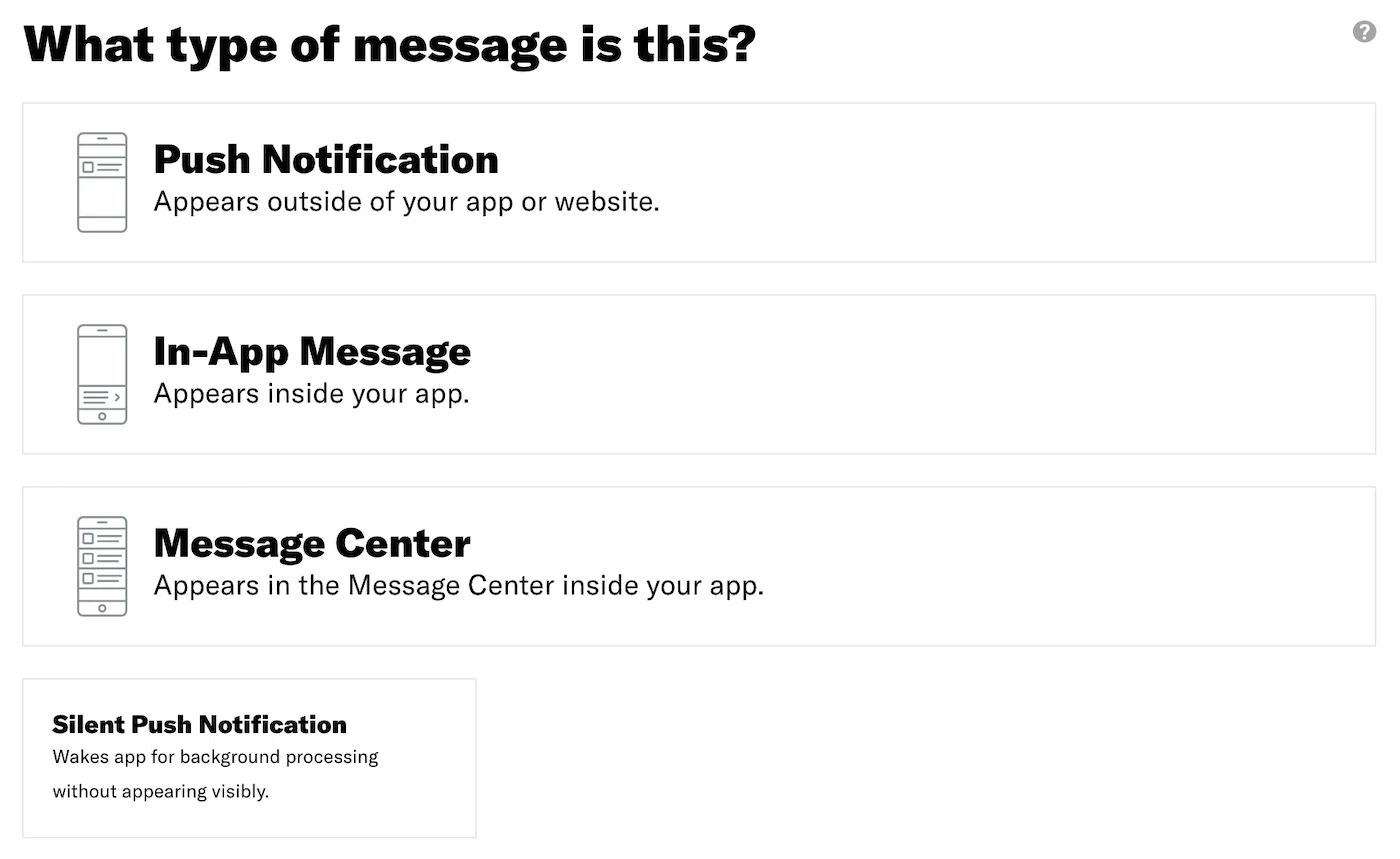
*Selecting the message type*
Select **Content** in the header, then **Push Notification**, then **Add Content**.
1. 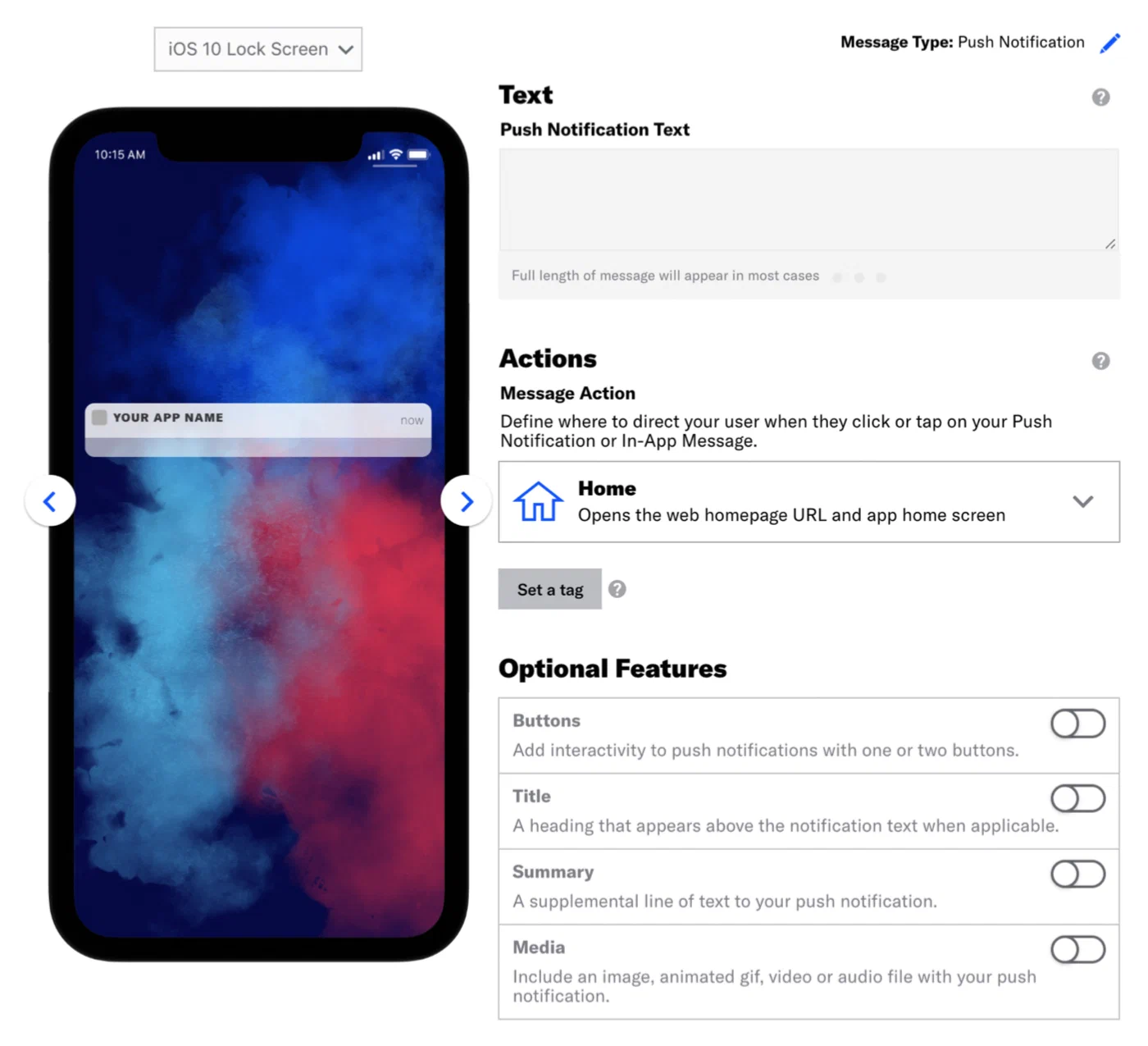
*Entering push notification text*
Enter the text that will display in your message. A preview will display as you type.
1. Select **Delivery** in the header, then **Send Now**.
1. 
*Reviewing the message summary before sending*
Select **Review & Send** in the header, then review the device preview and message summary. Use the arrows to page through the various previews. The channel and display type dynamically update in the dropdown menu above. You can also select a preview directly from the menu.
1. Select **Send Message**.
If all has been configured correctly, you just sent your first push or web push notification! Because the message was sent to Test Users, you should see the push notification appear on the mobile device or web browser for the users defined in your selected Test Group. If this is not the case, review the steps for creating your Test Group and reattempt this procedure.
# Twilio and SendGrid activation
> Enable your Twilio SMS and SendGrid email programs for Airship.
## Prerequisites
Your Airship contract must include Email and/or SMS. Depending on purchase date, your contract may require an amendment. Contact your account manager for details.
To enable Twilio for your Airship SMS channel, you must have a Twilio account or Subaccount. While not required, we recommend using a separate Subaccount within your Twilio account to isolate Airship messaging campaigns and sender configurations from any existing campaigns.
You must also have the following prerequisites in place:
| Prerequisite | Detail | Resource |
| --- | --- | --- |
| **Account SID** | This is a unique key that is used to identify a specific Twilio Parent Account or Subaccount and is a credential that acts as a username. | [What is a Twilio Account SID and where can I find it?](https://help.twilio.com/articles/14726256820123) |
| **Auth Token** | This acts as the password for API authorization requests. The Auth Token must be a Primary or Secondary token, though we recommended using a Secondary token to avoid interference with existing API integrations. | [REST API: Secondary Auth Token](https://www.twilio.com/docs/iam/api/secondary_authtoken) |
| **A registered SMS Sender** | The SMS sender must be one of Short code, Long code, or Alphanumeric code. | [SMS Senders](https://www.airship.com/docs/developer/api-integrations/sms/senders/) |
To enable SendGrid for your Airship Email channel, you must have a SendGrid account or subuser. While not required, we recommend using a separate subuser within your SendGrid account to isolate Airship messaging campaigns and sender configurations from any existing campaigns.
You must also have the following prerequisites in place:
| Prerequisite | Detail | Resource |
| --- | --- | --- |
| **API key** | The key must have Full Access permission. | [API Keys](https://www.twilio.com/docs/sendgrid/ui/account-and-settings/api-keys) |
| **Sending domain** | Domain authentication must already be completed for the sending domain with proper DNS configuration. | [How to Set Up Domain Authentication](https://www.twilio.com/docs/sendgrid/ui/account-and-settings/how-to-set-up-domain-authentication) |
| **Marketing and transactional IP pools** | IP pools may be either shared or dedicated. We recommended provisioning separate pools for commercial marketing messaging and transactional messaging. | [IP Pools: All You Need to Know](https://sendgrid.com/en-us/blog/ip-pools-all-you-need-to-know) |
| **Webhook verification key** | Configure your SendGrid webhook using the Post URL `https://go.urbanairship.com/api/email/twilio/events/`, with all Engagement and Delivery Actions enabled, and with Signature Verification enabled. | [Add an Event Webhook](https://www.twilio.com/docs/sendgrid/for-developers/tracking-events/getting-started-event-webhook#add-an-event-webhook) |
## Request Airship integration
Once your prerequisites are met, contact your Airship account manager or [Support](https://support.airship.com/) and request integrating your Airship account with Twilio.
Then Airship will:
1. Prepare your account for the integration
1. Request that you provide details about your [prerequisites](#prerequisites)
1. Assign a dedicated technical consultant, who will complete the necessary project configuration
1. (For Twilio SMS) Provide a unique Mobile Originated Callback URL to add to your Sender or Messaging Service configuration in Twilio
## Importing your audience
There are several methods available to **import your existing audience** into Airship, and your Airship technical consultant will recommend the best method for your specific needs. A common method is [SFTP upload](https://www.airship.com/docs/guides/audience/segmentation/sftp-upload/). You can upload to Airship using this method after exporting from Segment Engage or another CRM/CDP. See [Download your audience as a CSV file](https://www.twilio.com/docs/segment/engage/audiences#download-your-audience-as-a-csv-file) in Segment's Engage documentation.
You can also **enable email and SMS audience syncing** via Segment integration, which is our recommended method. Synchronization automatically associates audience members to [Named Users](https://www.airship.com/docs/reference/glossary/#named_user) based on your existing track events in Segment.
Our technical consulting team will work with you to import your mobile device IDs using our import API endpoint. See [Register and associate](https://www.airship.com/docs/integrations/segment/#register-and-associate) in our Segment integration documentation.
## Importing templates from Segment Engage
Email and SMS templates built in Engage use a scripting language called Liquid for personalization and dynamic content. Your Airship onboarding team will help with converting your templates to use [Handlebars](https://www.airship.com/docs/reference/glossary/#handlebars) instead of Liquid.
First, export your templates from Segment Engage. Your Airship onboarding team will ask you to copy and paste your template content from Engage to a shared document. Airship will use a script to convert your templates and add them to your Airship projects for you to test and validate.
From there, you can use Airship's [Interactive editor](https://www.airship.com/docs/guides/messaging/editors/interactive/about/) to create new templates or upload your own HTML templates personalized using Handlebars.
## Migrating your Segment email campaigns
The method of migrating your email campaigns from Segment Engage to Airship will depend on the types of campaigns you have configured.
For triggered messaging, recreate the messages as Airship [Journeys](https://www.airship.com/docs/reference/glossary/#journey). You can use many of your existing events and properties already tracked in Segment via our pre-built integration. See [Segment](https://www.airship.com/docs/integrations/segment/#destination-integration) in our integration docs.
For ad hoc or recurring campaigns like newsletters, recreate the messages using the Message [Composer](https://www.airship.com/docs/reference/glossary/#composer) and configure delivery according to your preferred channels and schedule. See [Create a message](https://www.airship.com/docs/guides/messaging/messages/create/).
## Optional: Syncing Opt-Outs or Unsubscribes from Twilio
If you are handling opt-out state outside of Airship, for instance, by using Twilio's Advanced Opt-Out for Messaging Services, you'll need to make sure that Airship remains in sync to avoid messaging users who have unsubscribed. This includes STOP messages and any other unsubscribe signals you receive from users.
For SMS, send these events to the [Opt-out of SMS messages API endpoint](https://www.airship.com/docs/developer/rest-api/ua/operations/sms/#optoutsmschannel). For email, send these events to the [Update an email channel API endpoint](https://www.airship.com/docs/developer/rest-api/ua/operations/email/#updateemailchannel), updating the `commercial_opted_out` channel property. This ensures that Airship has the latest opt-out state for each MSISDN or email address and can suppress messages accordingly.
If you are unable to automate this process through the API for email, you can manage opt-outs by manually uploading a CSV file through the Airship dashboard. This CSV should contain the email addresses of users who have opted out, based on your internal records. See [Setting and removing Text, Number, and Date Attributes](https://www.airship.com/docs/guides/audience/attributes/setting/#setting-and-removing-text-number-and-date-attributes) and follow the steps for the CSV method to provide a date for [Attribute](https://www.airship.com/docs/reference/glossary/#attributes) `ua_commercial_opted_out`.
For individual channels, you can change opt-in status manually in the dashboard. See [Viewing channel details](https://www.airship.com/docs/guides/audience/contact-management/#viewing-channel-details) in *Contact Management*.
Whether using automated or manual sync, it's important to keep Airship's records updated. Airship does not assume responsibility for enforcing opt-outs that have not been communicated through one of these methods.
## Bringing your own RCS branded sender
If you manage your own Twilio Subaccount, you can configure an [RCS](https://www.airship.com/docs/reference/glossary/#rcs) branded sender to use with Airship.
After adding RCS to your Airship plan, we will provide detailed instructions and validate your configuration. At a high level, you will:
* Assign both senders to a Twilio Messaging Service and configure incoming messages to post to Airship
* Share your Messaging Service SID and chosen SMS sender with your Airship representative so we can complete the connection on our side
For more information, see [RCS branded sender](https://www.airship.com/docs/developer/api-integrations/sms/rcs/).
### Learn the Airship UI
Learn how to navigate the Airship dashboard, use composers to create and send messages, and manage your message history with list and calendar views.
# The Airship dashboard
> {{< glossary_definition "dashboard" >}}
The dashboard is where you create and access projects, containers for the settings, certificates, reports, and other details related to your messages and mobile wallet passes.
The dashboard has two levels:
A list of all your messaging and mobile wallet projects.
An individual project after opening it from the list of all projects.
Almost everything you do with Airship happens inside a project, including creating messages and wallet pass templates.
Viewing and finding your projects
At the top level of the dashboard, tiles display each messaging and mobile wallet project. Messaging projects list their name, environment, and channels. Mobile wallet projects list their name and pass type.
*The top-level dashboard in Airship*
If you have more than eight projects, up to four of your most recently accessed projects appear under Recent. Recent projects are not shown when sort, filter, or search are applied.
The default view is sorted by creation date, newest projects first. Select Name or Date Created to sort. Select again to toggle ascending/descending order. You can search for projects by complete or partial name.
Use filters to toggle views:
Filter
Description
Owner/Team
Toggle between projects you own and projects you have non-owner access to. See Managing project access in Manage Messaging teams and access. All mobile wallet projects appear for Owner.
Live/Test
Toggle between projects by environment type. All mobile wallet projects appear for Live.
Channel
Select a channel configured for your account: Mobile apps, Web, SMS, Email, and Mobile wallet. After selecting Mobile apps you can filter again by platform. After selecting Mobile wallet you can further filter by pass type and company.
## Navigating individual projects
From the top-level dashboard, select a tile to open a project, then navigate using the header and sidebar.

*Information and actions in the project dashboard header*
Select the help icon () for links to resources and the account menu icon () for account-related information. Select the sidebar icon in the header to toggle its visibility.
Menus in the sidebar:
| Menu | Description |
| --- | --- |
| **Favorites** | Your [bookmarked dashboard pages](#searching-and-favorites) |
| **Messages** | [Messages Overview](https://www.airship.com/docs/reference/glossary/#messages_overview), calendar, logs, tools, and more |
| **Content** | Web pages for [Preference Centers](https://www.airship.com/docs/reference/glossary/#preference_center), plus reusable content: [Templates](https://www.airship.com/docs/reference/glossary/#template), [Scene](https://www.airship.com/docs/reference/glossary/#scene) [Layouts](https://www.airship.com/docs/guides/messaging/editors/native/custom-layouts/), [Snippets](https://www.airship.com/docs/reference/glossary/#snippet) and the [Media library](https://www.airship.com/docs/guides/messaging/features/media/) |
| **Journeys** | Opens the [Journey Map](https://www.airship.com/docs/reference/glossary/#journey_map) |
| **Audience** | Information about and tools to help you effectively target your users |
| **Experiments** | [Holdout Experiments](https://www.airship.com/docs/reference/glossary/#holdout_experiment), [Feature Flags](https://www.airship.com/docs/reference/glossary/#feature_flag), and the Experimentation Hub |
| **Reports** | Analysis of your project's messaging use |
### Project settings and details
*The messaging project menu*
Select the project dropdown menu (
) to access channel, app, and project settings. You can also go to your [Brand guidelines](https://www.airship.com/docs/guides/messaging/features/brand-guidelines/) and [project details](https://www.airship.com/docs/guides/getting-started/setup/#access-project-details).
To switch to a recently-accessed project, select a name from the list. A link to return to the top-level dashboard is at the bottom of the list.
### Searching and Favorites
Use the search box to find individual pages within the dashboard. To bookmark dashboard pages for quick access:
1. Go to the page you want to bookmark.
1. Select the star icon () in the header.
1. Enter a page name as you want it to appear in the quick access menu.
1. Select **Save**.
Your saved pages are available in the **Favorites** sidebar menu. To change a page name or remove it from Favorites, select the star icon () again.
### Creating messages
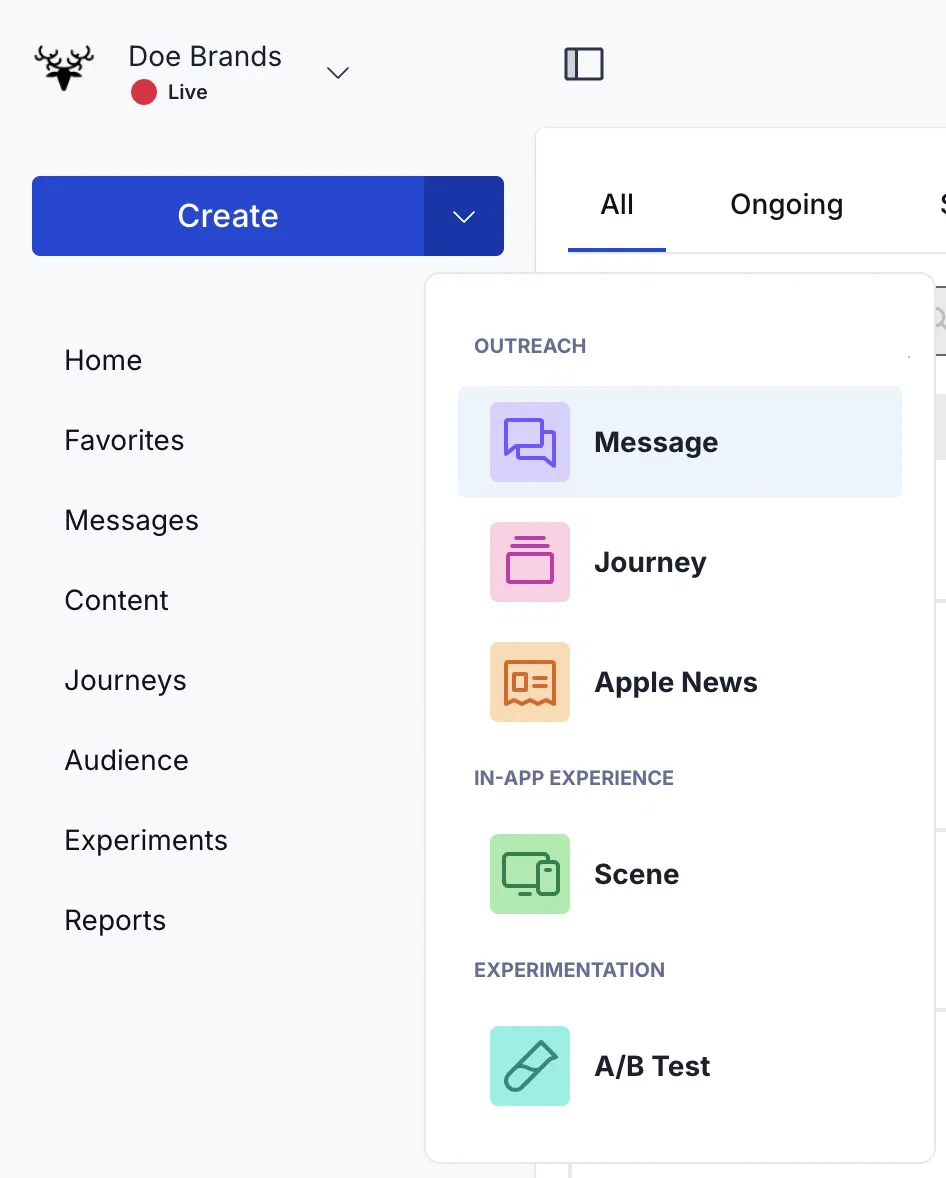
*Sidebar options in a messaging project*
Select the **Create** dropdown menu (
) to choose **Message**, **Journey**, **Apple News**, **Scene**, or **A/B Test**. Select **Create** to access all message creation options and [Composer Favorites](https://www.airship.com/docs/reference/glossary/#composer_favorites).
When the sidebar is collapsed, select the compose icon (
) in the header to access the Create dropdown menu options.
# Composer navigation
> A composer is a tool for creating messages using the dashboard.
To open a composer, select the plus sign icon () in the project dashboard and make a selection.
## Layout
After you open a composer, the layout is generally the same for each. See the image and legend for each part of the composer:
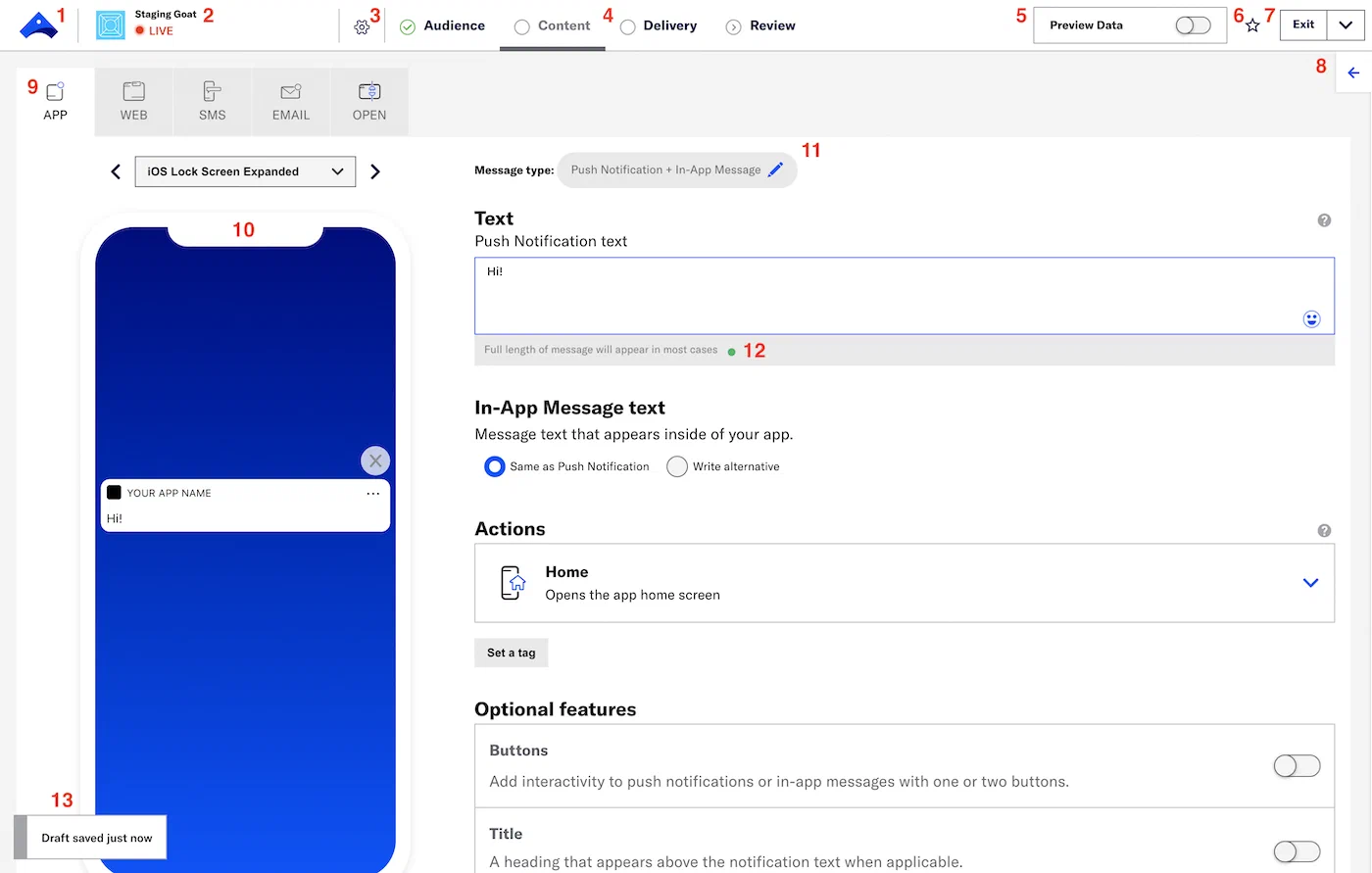
*The content step in the Message composer*
| Number | Description |
| --- | --- |
| 1 | Go to the top-level [Dashboard](https://www.airship.com/docs/reference/glossary/#dashboard). |
| 2 | These are the project's icon, name, and environment type. |
| 3 | [Name a message](https://www.airship.com/docs/guides/messaging/manage/edit/#message-names) or [flag a message as a test](https://www.airship.com/docs/guides/messaging/manage/flag-as-test/). In a [Sequence](https://www.airship.com/docs/reference/glossary/#sequence), the Sequence name and message position appear to the right of the gear icon (). |
| 4 | Progress through the composer steps. For more information, see [Composer progress](#composer-progress) below. |
| 5 | [Preview personalized content](https://www.airship.com/docs/guides/personalization/previewing/). |
| 6 | Create a [Composer Favorite](https://www.airship.com/docs/reference/glossary/#composer_favorites). Available in the Message composer only. |
| 7 | Exit the composer or perform other actions, like reverting an edit. For more information, see [Exit menu](#exit-menu) below. |
| 8 | Select the arrow icon (
) to expose Help & Summary. The Help tab displays information relevant to the current step. Select the question mark icon (
) in the composer and the Help tab will open to that topic. The Summary tab lists your message's current content and configuration. |
| 9 | Select a channel to configure the content in multi-channel messages. For more information, see [Content configuration](#content-configuration) below. |
| 10 | On the Content and Review steps, the device preview updates with your changes. Select the arrows to page through the various device previews. The [Scene](https://www.airship.com/docs/reference/glossary/#scene) composer has various [preview tools](https://www.airship.com/docs/guides/messaging/editors/native/about/#preview-tools). The preview for open channels is a table. |
| 11 | Select a different message type or [Template](https://www.airship.com/docs/reference/glossary/#template). |
| 12 | For App and Web, a color-coded indicator appears below the text box, warning when your message may be truncated on some devices. For SMS, a counter appears above the text box, showing the total number of characters and how many individual SMS messages will be sent. Best practice is to make your message as brief as possible, though some customers find success when a message truncates, teasing their audience to learn more. |
| 13 | Your drafts are saved automatically. To access your draft messages, go to **Messages**, then **Messages Overview**, then **Drafts**. |
{class="table-col-1-compact"}
## Composer progress
In the Message, Automation, A/B Test, and Sequence composers, completed steps are green and a check mark icon (
) indicates you have met the minimum requirements for the current step. An exclamation point icon (
) indicates the minimum requirements are not met. Select a step name to move ahead or to go back and edit.

*A completed Content step in the Message composer*

*An incomplete Content step in the Message composer*
In the In-App Automation and Scene composers, each step is indicated as a dot. Hover over a dot to see its step name appear. Return to any previous step by seelcting its dot. Select the right arrow icon (
) to continue to the next step. The icon will be greyed out and inactive until the step's minimum requirements are fulfilled. In the final step, Select **Finish**.

*The Audience step in the In-App Automation composer*
## Exit menu
When you select **Exit** while composing a message, your message is saved as a draft and you will go to [Messages Overview](https://www.airship.com/docs/reference/glossary/#messages_overview). For messages in a [Sequence](https://www.airship.com/docs/reference/glossary/#sequence), you will go to the [Sequence Manager](https://www.airship.com/docs/reference/glossary/#sequence_manager) instead of Messages Overview. If composing a new message in a Sequence, your message is saved as a draft. If editing a message in a Sequence, your changes are saved.
In a message, select the down arrow icon (
) for more options:
| Option | Description and supported composers |
| --- | --- |
| **Delete** | Deletes a Message, Automation, Scene, In-App Automation, A/B Test, or [Composer Favorite](https://www.airship.com/docs/reference/glossary/#composer_favorites) |
| **Revert** | Cancels edits to a Message, Automation, A/B test, Sequence, or Composer Favorite |
| **Save changes** | Saves edits in a Composer Favorite |
| **Make a copy...** | Makes a copy of a Composer Favorite |
In the Sequence Manager, select the down arrow icon (
) for more options:
| Option | Description |
| --- | --- |
| **Save and exit** | Applies changes to the Sequence and opens the Sequence in the [Journey Map](https://www.airship.com/docs/reference/glossary/#journey_map) — If your Sequence is in progress, select the Sequence in the map, then select **Publish changes** to resume your Sequence with your changes applied. Changes to [outcomes](https://www.airship.com/docs/guides/messaging/messages/sequences/create/outcomes/) are published automatically after saving. |
| **Revert** | Exits the Sequence without saving changes and opens the Sequence in the [Journey Map](https://www.airship.com/docs/reference/glossary/#journey_map) |
| **Archive** | Stops and archives the Sequence — **Archiving a started/active Sequence also cancels its undelivered messages and may affect linked components in a [Journey](https://www.airship.com/docs/reference/glossary/#journey)**. |
## Content configuration
When you select multiple channels in the Message, Automation, A/B test, and Sequence composers, you configure the content on a separate tab for each:
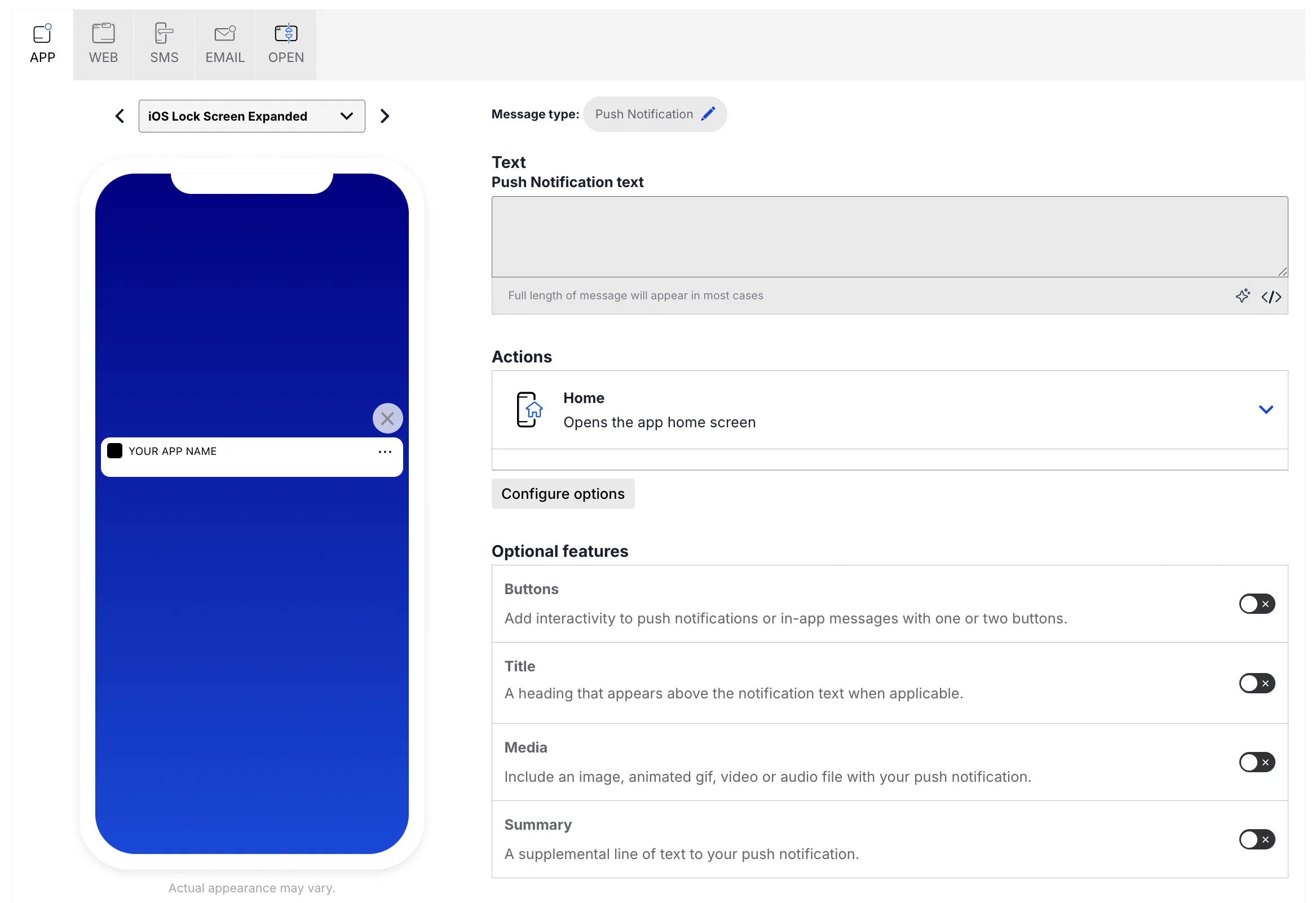
*Configuring App content*
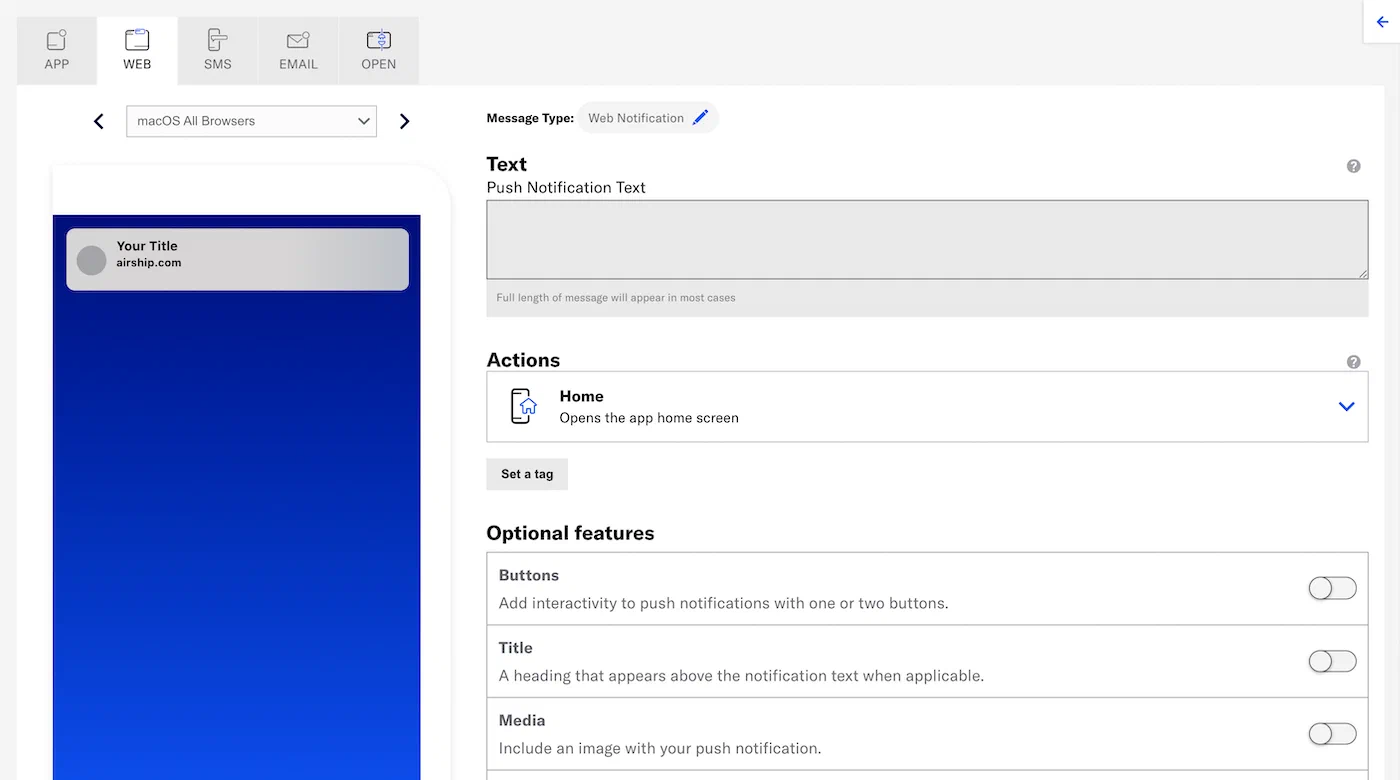
*Configuring Web content*
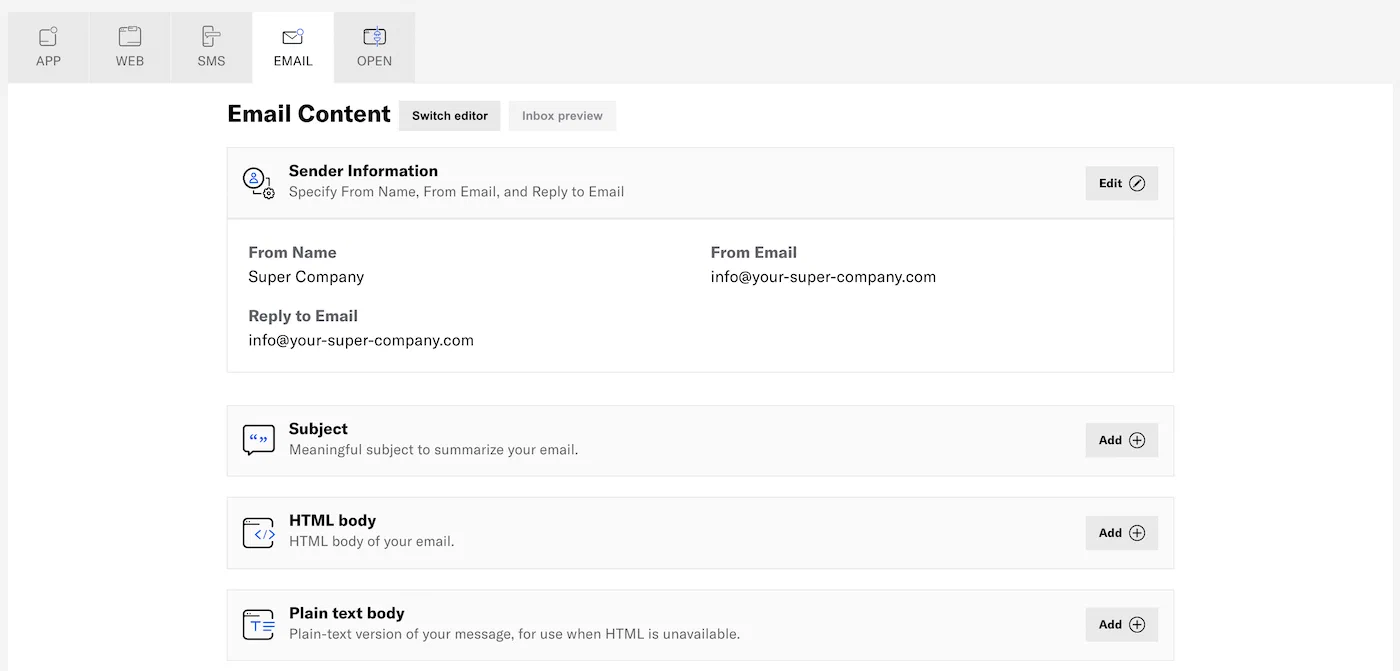
*Configuring Email content*
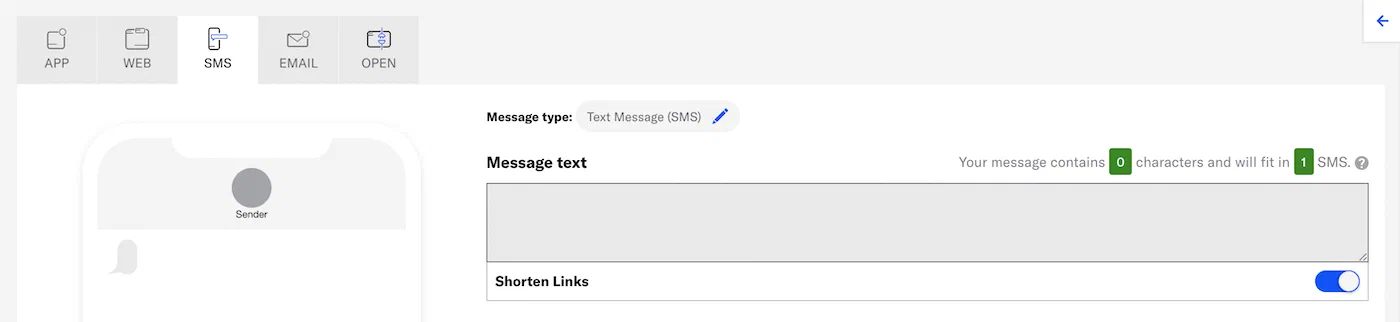
*Configuring SMS content*
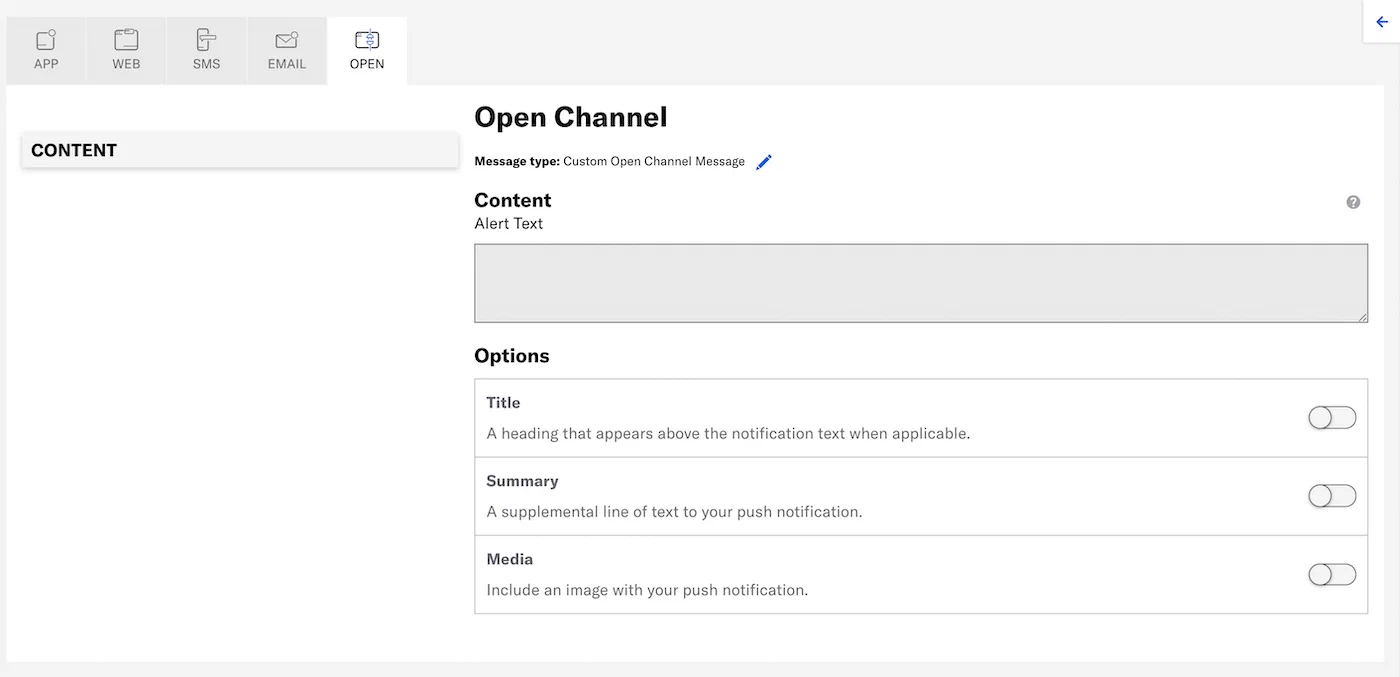
*Configuring Open channel content*
# Messages Overview and Calendar
> List and calendar views organize the messages in your project. You can search, filter, and manage messages from both views.
The list and calendar views show messages based on retention periods that vary by message type:
* [In-App Automations](https://www.airship.com/docs/reference/glossary/#iaa) and [Scenes](https://www.airship.com/docs/reference/glossary/#scene) with a set end date or those that were cancelled appear for 386 days after the end or cancellation date.
* Messages in a Sequence, Automations, and messages with recurring delivery remain visible while active and are removed 12 months after cancellation or a set end date.
## Messages Overview
To view your messages in a list, select **Home** or go to **Messages**, then **Messages Overview**. This is also the first screen you see after opening a messaging project.
### Viewing by status
Your messages are organized into various views you can select from the top of the page:
| View | Origin composer or experiment type | Available messages |
| --- | --- | --- |
| **All** | All composers | All messages |
| **Ongoing** | Message, A/B Test1 | Messages with recurring delivery |
| **Ongoing** | Automation, Sequence, In-App Automation, Scene | Active automated messages, including paused Sequences |
| **Scheduled** | Message, A/B Test1 | Messages with a future delivery date |
| **Drafts** | All composers and A/B Test1 | Messages that are not yet sent, not yet active, or incomplete |
| **History** | All composers and A/B Test1 | Messages that have been sent, stopped, or have reached their end date, including recurring messages and any In-App Automations or Scenes that have been expired or stopped for more than 14 days |
| **Tests** | All composers and A/B Test1 | Messages that were designated as a test, sent to a [Test Group](https://www.airship.com/docs/reference/glossary/#preview_test_groups), or sent using the Send Test feature |
| **Archive** | All composers and A/B Test1 | [Archived messages](https://www.airship.com/docs/guides/messaging/manage/archive/) |
1. Message variants in a [message A/B test](https://www.airship.com/docs/guides/experimentation/a-b-tests/messages/) are listed individually and labeled as originating from the Message composer. The label **A/B Test** refers to a [legacy message A/B test](https://www.airship.com/docs/guides/experimentation/a-b-tests/messages-legacy/), whose messages are contained within the test and are not listed individually in Messages Overview.
Each view displays messages in a table, last updated first, with the following information:
| Column | Description |
| --- | --- |
| **Name** | This is the name entered when creating the message, or "Untitled". If the message is a component in a [Journey](https://www.airship.com/docs/reference/glossary/#journey), the node icon (
) appears next to the name. If the message is a variant in a [message A/B test](https://www.airship.com/docs/guides/experimentation/a-b-tests/messages/), the test name appears above the message name and links to the test. |
| **Text** | When available, this is the message text. It does not appear for A/B Tests, Scenes, or Sequences since they may contain multiple screens or messages. |
| **Channels** | These are the channels selected for delivery. |
| **Audience** | This is the audience selected for delivery. |
| **Delivery** | When available, this is the date and time when the message was sent. Information varies per composer and delivery specification. |
| **Throttle Delivery** | This is the rate of delivery, if [set for the message](https://www.airship.com/docs/guides/messaging/messages/delivery/delivery-options/#throttle-delivery). |
| **Message Details** | This is a summary of data shown for a message in its expanded view. |
Toggle **Expand All Messages** to see a full version of the message information or a summary.
### Filtering and searching the list
Apply filters to update the list:
| Filter type | Description |
| --- | --- |
| **Date** | Use the date filter to apply a predetermined range or enter a custom range. Within a time frame, you can also apply **Last Updated**, **Delivery Date**, and **Creation Date** filters. All dates and times are in UTC. |
| **Tests** | Toggle **Hide Tests** to show/hide messages that were flagged as a test or sent to a test group. This option is not present in the Tests view. |
| **Trigger** | In the Ongoing view, filter by **Automation trigger** for Automations and Sequences or **In-app automation trigger** for In-App Automations and Scenes. |
You can also apply filters when searching. Select a filter next to the search field, then enter a search term or choose from matches available when selecting the search field.
Search filters:
| Search filter | Where search is applied to |
| --- | --- |
| **Campaign Categories** | [Campaign Categories](https://www.airship.com/docs/reference/glossary/#campaign_categories) added when creating a message |
| **Channels** | [Channels](https://www.airship.com/docs/reference/glossary/#channel_engage) configured for your project |
| **Composers** | [Composers](https://www.airship.com/docs/reference/glossary/#composer) available in your project |
| **Created By** | Usernames of message creators |
| **Experience Type** | Scenes of type Branching, Embedded Content, Experiment (A/B test), NPS Survey, Survey (non-NPS), or Story |
| **Message Content** | Text in the body of messages, and message, Sequence, and legacy A/B test names |
| **Message Type** | Push notification, In-App Message (not In-App Automation), and Message Center |
| **Push ID** | [Push IDs](https://www.airship.com/docs/reference/glossary/#push_id) of messages sent from the Airship dashboard |
### Managing messages
At the end of each message row are icons for message management options:
| Option | Description | Steps |
| --- | --- | --- |
| **Edit** | [Opens the message for editing](https://www.airship.com/docs/guides/messaging/manage/edit/) | Select the pencil icon (
). |
| **Duplicate** | [Makes a copy of the message](https://www.airship.com/docs/guides/messaging/manage/duplicate/) | Select the duplicate icon (
). |
| **Archive or unarchive a message** | [Moves the message to or from the Archive view](https://www.airship.com/docs/guides/messaging/manage/archive/) | Select the archive icon (
). |
| **Delete** | [Removes the message from the project](https://www.airship.com/docs/guides/messaging/manage/delete/) | Select the trash can icon (
). |
| **Change status** | [Starts, pauses, or stops ongoing, throttled, and recurring messages](https://www.airship.com/docs/guides/messaging/manage/change-status/) | Select the play icon (
), pause icon (
), or stop icon (
). |
| **View the message in a mapped view** | For Scenes, In-App Automation, and Sequences, opens the message in the [Journey Map](https://www.airship.com/docs/reference/glossary/#journey_map) | Select the node icon (
). |
| **Collapse or expand details** | Displays a full version of the message information or a summary | Select the collapse icon (
) or expand icon (
). |
| **Open its report** | Opens a [message report](https://www.airship.com/docs/guides/reports/message/), [Scene report](https://www.airship.com/docs/guides/messaging/in-app-experiences/scenes/create/scene-reports/), Sequence [Performance report](https://www.airship.com/docs/reference/glossary/#sequence_performance), or [legacy message A/B test report](https://www.airship.com/docs/guides/experimentation/a-b-tests/messages-legacy/) | Select the report icon (
). |
### Viewing automation counts
To view your current number of automations and your project limits, go to the **Ongoing** view and select the info icon ().
* **Active and Total Automations** — The number of active and total (active plus paused) automations, which includes:
* Automations created using the [Automation composer](https://www.airship.com/docs/guides/messaging/messages/sequences/create-automation/)
* Automations created using the [`/pipelines` endpoint](https://www.airship.com/docs/developer/rest-api/ua/operations/automation/)
* Each message in [Sequences](https://www.airship.com/docs/reference/glossary/#sequence)
Archived and draft messages are not included in these counts. Automation limits are determined by your Airship package. See [Automation](https://www.airship.com/docs/reference/feature-packages/#automation) in the *Feature packages reference*.
* **In-App Automation and Scenes** — The total number of active and paused in-app experiences.
See also [Message Limits](https://www.airship.com/docs/reference/glossary/#message_limits).
## Calendar
To view your messages in a calendar, go to **Messages**, then **Calendar**.
The calendar view shows you:
* When messages are scheduled to send
* The duration of messages with start and/or end dates
* How message schedules overlap
* Send history
The calendar does not include drafts or messages designated as a test, sent to a [Test Group](https://www.airship.com/docs/reference/glossary/#preview_test_groups), or sent using the Send Test feature.
### Visual indicators
Colors identify messages by their origin composer. Each color corresponds to a Message Type filter you can use to update the view. The Message, A/B Test, and Automation composers support multiple channels and message types. See [Composers — How you can send](https://www.airship.com/docs/guides/getting-started/basics/#composers) in *Messaging basics*.
These colors correspond to the following filters and composers:
| Color | Message Type filter | Composer |
| --- | --- | --- |
| **Blue** | Message | [Message](https://www.airship.com/docs/guides/messaging/messages/create/), [Automation](https://www.airship.com/docs/guides/messaging/messages/sequences/create-automation/), and [A/B Test](https://www.airship.com/docs/guides/experimentation/a-b-tests/messages/) |
| **Purple** | Sequence | [Sequence](https://www.airship.com/docs/reference/glossary/#sequence) |
| **Green** | In-App Automation and Scene | [In-App Automation](https://www.airship.com/docs/reference/glossary/#iaa) and [Scene](https://www.airship.com/docs/reference/glossary/#scene) |
Color shading indicates message status. These shading styles correspond to the following filters and message statuses:
| Shade | Status filter | Description |
| --- | --- | --- |
| **Solid** | Active | Applicable to recurring messages and active Automations, Sequences, Scenes, and In-App Automations |
| **Solid** | Scheduled | Applicable to messages with a future delivery date |
| **Slashes** | Paused | Applicable to paused Sequences, recurring messages, and any In-App Automations or Scenes that have been expired or stopped for fewer than 14 days |
| **Lighter shade** | Done | Applicable to messages that have been sent, stopped, or have reached their end date, including recurring messages and any In-App Automations or Scenes that have been expired or stopped for more than 14 days |
### Viewing message details
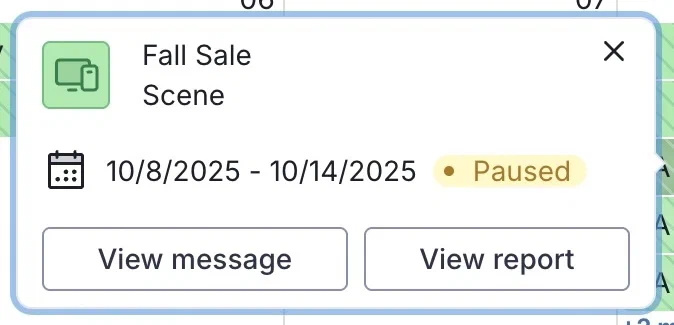
*Viewing a message's details in the project calendar*
Select a message in the calendar to view its details:
* Message name
* Associated Message Type filter
* Send, scheduled, start, and/or end dates, depending on message configuration
* Message status
Following the message details, when available, select **View message** to open the message in its origin composer. Select **View report** to open its [message report](https://www.airship.com/docs/guides/reports/message/), [Scene report](https://www.airship.com/docs/guides/messaging/in-app-experiences/scenes/create/scene-reports/), or Sequence [Performance report](https://www.airship.com/docs/reference/glossary/#sequence_performance).
### Filtering and searching the calendar
Search for a specific message by name. Use the Message Type, Status, or time range filters to update the calendar content. See the [Message Type and Status descriptions](#visual-indicators) in *Visual indicators* above.
These are the formats for the time range filters:
| Filter type | Format |
| --- | --- |
| **Month** | Sunday to Saturday, one week per row |
| **Week** | Sunday to Saturday, one hour per row |
| **Day** | One hour per row |
Select **Back** or **Next** to navigate between time periods. Select **Today** to return to the current date.
In the Month view, when a day contains more messages than can be displayed, select **+ X more** to go to the Day view and see all messages for that day.
### Explore Airship use cases
Follow step-by-step guides for implementing Airship messaging use cases, including abandoned cart sequences, push notification opt-in flows, and more.
# Automated Abandoned Cart
> An Abandoned Cart campaign targets users who added an item to their cart but did not complete their purchase. A few timely reminders can provide effective motivation for your customers to revisit their carts and check out.
Abandoned Cart messages send when specific user behaviors occur. A developer must [set up your app with events](#setting-up-events-in-the-app) for those behaviors, but anyone with access to create messages in the Airship dashboard can [get started now](#setting-up-the-automation).
> **Tip:** With the use of Abandoned Cart messaging in the Airship platform, [JCPenney saw a 40% lift in purchase completion rates and Radisson Hotels saw a 11% lift in completed reservations](https://salestechstar.com/sales-engagement/airship-journeys-powers-massive-conversion-gains-for-brands-across-the-globe/).
## Setting up events in the app
A developer must set up [Custom Events](https://www.airship.com/docs/reference/glossary/#custom_event) in your app or website so they can be used for automation:
| Event Name | Description |
| --- | --- |
| added_to_cart | An item is added to the cart |
| purchased | A user makes a purchase |
| empty_cart | The last or only item is removed from the cart |
Setting up events to send to Airship can be done in the iOS, Android, and Web SDKs with the following calls. Use the below templates to create the events. See also [Custom Event Templates](https://www.airship.com/docs/sdk-topics/custom-events/).
> **Note:** If you use an [integration](https://www.airship.com/docs/integrations/) or your application is already instrumented with Custom Events, you may need to adjust the event names for `purchased` and `added_to_cart`.
Add an event for when a item is added to cart:
#### Android
```java
RetailEventTemplate.newAddedToCartTemplate().createEvent().track();
```
#### iOS Swift
```swift
let retailTemplate = UARetailEventTemplate.addedToCart()
let retailEvent = retailTemplate.createEvent()
retailEvent.track()
```
#### Web
```js
new sdk.CustomEvent.templates.retail.AddedToCartEvent().track()
```
Add an event for when the cart is purchased:
#### Android
```java
RetailEventTemplate.newPurchasedTemplate().createEvent().track();
```
#### iOS Swift
```swift
let retailTemplate = UARetailEventTemplate.purchased()
let retailEvent = retailTemplate.createEvent()
retailEvent.track()
```
#### Web
```js
new sdk.CustomEvent.templates.retail.PurchasedEvent().track()
```
And an event for when the last or only item is removed from a cart:
#### Android
```java
CustomEvent.newBuilder("empty_cart")
.build()
.track()
```
#### iOS Swift
```swift
let event = CustomEvent(name: "empty_cart")
event.track()
```
#### Web
```js
var event = new sdk.CustomEvent("empty_cart")
event.track()
```
## Setting up the automation
You will create a [Sequence](https://www.airship.com/docs/reference/glossary/#sequence) that contains your message and settings for each event. You can set up a Sequence now, even if the events don't yet exist in your app. Once the app is ready, make the Sequence active. In fact, you can enter whatever events you'd like, but be sure to edit the Sequence for the correct events before making it active.
If you're creating the Sequence as a test and don't intend to make it active, you may want to include "Do not start" or similar in the Sequence name as a notice to your team members.
You will configure these Sequence components:
| Component | Associated Event | Description |
| --- | --- | --- |
| **Trigger** | added_to_cart | Users enter the Sequence when this event occurs. |
| **Message** | n/a | Airship sends the message to users who enter the Sequence. |
| **Conversion event** | purchased | Users exit the Sequence when this event occurs. This prevents sending the Abandoned Cart message to a user if they make a purchase. |
| **Cancellation event** | empty_cart | Users exit the Sequence when this event occurs. This prevents sending the Abandoned Cart message to a user if they no longer have any items in their cart. |
> **Tip:** Conversion and cancellation events have the same effect on a Sequence. The different classifications are for reporting and mapping.
### New Sequence
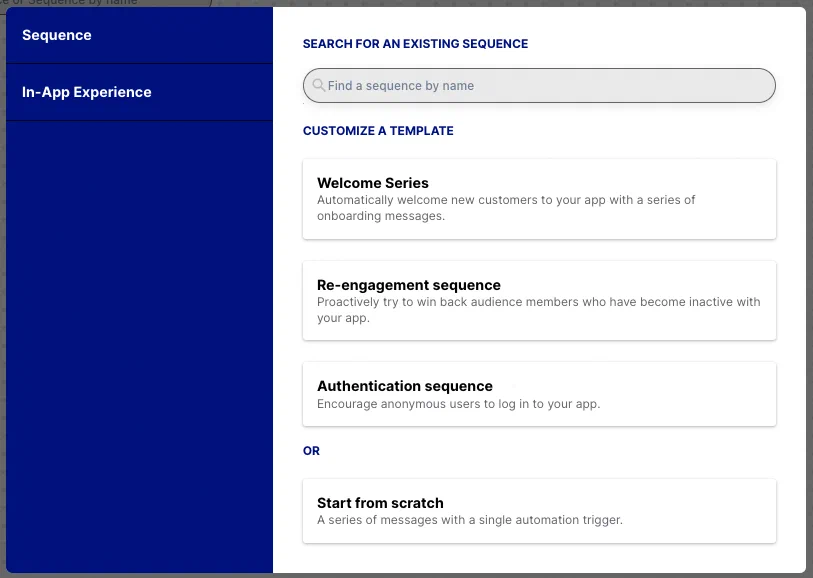
*Creating a new Sequence by selecting Start from scratch*
To get started, create a new Sequence and give it a name:
1. In the sidebar, select the **Create** dropdown menu (
), then select **Sequence**, then **Start from scratch**.
1. Name the Sequence "Abandoned Cart".
1. Select **Continue**.
You will now be in the [Journey Map](https://www.airship.com/docs/reference/glossary/#journey_map), where will you configure the three events.
### Trigger
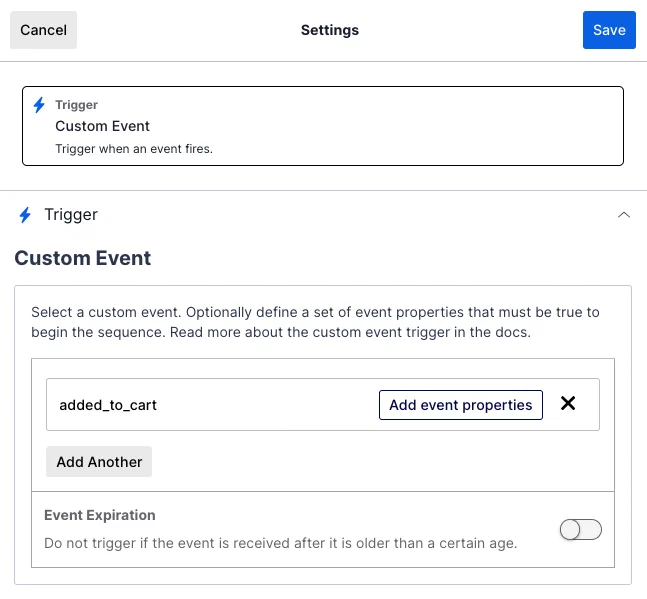
*Configuring the added_to_cart event*
Configure the event that will cause users to enter the Sequence:
1. Select the trigger card in the Journey map, then select the edit icon (
).
1. Select **Custom Event**.
1. Enter "added_to_cart".
1. Select **Save**.
### Conversion event
*Configuring the purchased event*
Configure the event that will cause users to exit the Sequence when they purchase an item:
1. Select the Sequence card in the Journey map, then select the plus icon () to its right.
1. Select **Conversion Event**, then **Custom Event**.
1. Enter "purchased".
1. Select **Save**.
### Cancellation event
*Configuring the empty_cart event*
Configure the event that will cause users to exit the Sequence if they no longer have anything in their carts to purchase:
1. Select the Sequence card in the Journey map, then select the plus icon () to its right.
1. Select **Cancellation Event**, then **Custom Event**.
1. Enter "empty_cart".
1. Select **Save**.
### Your message
While it's possible to set up multiple messages in a Sequence, our example is for a single message. See [Create a Sequence](https://www.airship.com/docs/guides/messaging/messages/sequences/create/create/) for full documentation.
---
*Changing the message delay*
First, set the Message Delay — the time Airship should wait after receiving the triggering event before sending your message. For our example, set it to send one day after the most recent `added_to_cart` event has occurred:
1. Select the Sequence card in the Journey map, then select the compose icon (
). You will now be in the [Sequence Manager](https://www.airship.com/docs/reference/glossary/#sequence_manager).
1. Select the arrow icon (
) next to **Conditions** to close that page section.
1. Under **Message Delay**, select the default value **1 hour** and change it to one day.
1. Select **Save**.
---
Now you can select the audience and define the message to send:
1. Select **Add message content**.
1. In Setup, select [Originating Channel](https://www.airship.com/docs/reference/glossary/#originating_channel) and the channel you set up your Abandoned Cart events for.
1. In Content, select **Push Notification**, then **Add Content**. In the **Text** field, enter a message that tells the customer that they have items remaining in their cart.
1. In Review, verify what your message will look like on an actual device:
1. Select **Send Test**.
1. Under **Test audience**, enter at least one [Named User](https://www.airship.com/docs/reference/glossary/#named_user) or [Test Group](https://www.airship.com/docs/reference/glossary/#preview_test_groups) and select from the results. If your message includes email, you can also search for email addresses. If no matches appear for an address, you can select **Create channel for <address>**, and the channel will be registered for your project and opted in to transactional messaging. Users in an active [Holdout Experiment](https://www.airship.com/docs/reference/glossary/#holdout_experiment) will not receive a test message. You can view a user's current holdout group status and history when [viewing their channel details in Contact Management](https://www.airship.com/docs/guides/audience/contact-management/#viewing-channel-details).
1. (If your message contains [Handlebars](https://www.airship.com/docs/reference/glossary/#handlebars)) Under **Personalization**, select and configure a personalization data source:
| Data source | Description | Steps |
| --- | --- | --- |
| **Test message recipient** | The message will be personalized using information associated with each test audience member. | n/a |
| **Preview Data tool** | The message will be personalized using the data currently entered in the [Preview Data tool](https://www.airship.com/docs/guides/personalization/previewing/). The same values will apply to all test message recipients. You can also manually edit the JSON. | (Optional) Edit the JSON data. |
1. Select **Send**.
The push should appear on test user devices momentarily.
1. Select **Save and continue**, and you'll be back in the Manage screen.
After you confirm the Sequence is working as expected and events are sending for your customers, select **
Start** on the Manage screen to make it available to your audience.
## Next steps
Take your messaging further:
* **Measure performance** — After making a Sequence active, you'll want to know how users respond to your messaging. See [Performance Report](https://www.airship.com/docs/reference/glossary/#sequence_performance).
* **Learn about A/B testing** — Use A/B testing to determine which version of a message has the best impact on your Sequence. See [Sequence A/B Tests](https://www.airship.com/docs/guides/experimentation/a-b-tests/sequences/).
* **Personalize it** — The most successful Abandoned Cart messaging is personalized for the user. See [Personalization](https://www.airship.com/docs/guides/personalization/about/).
* **Learn about Sequence testing** — Since our example was for a single message, the steps above had you send a test for the message itself. We also have a Test Run feature that tests the full Sequence so you can ensure the messages are built correctly as they are delivered to your test devices. Test Runs include a report identical to the [Performance Report](https://www.airship.com/docs/reference/glossary/#sequence_performance), but the data is based on your test audience.
Learn about all Sequence testing options in [Test a Sequence](https://www.airship.com/docs/guides/messaging/messages/sequences/create/test/).
# Boost Push Opt-In with In-App Automation
> Push notifications are key when it comes to communicating with your app users. In order to send your users notifications, they have to opt in. With iOS devices you only get one chance to ask your users to opt-in, which means it is critical to make sure you ask your users at the right time and in a thoughtful way.
Airship’s [In-App Automation](https://www.airship.com/docs/reference/glossary/#iaa) makes it easy to create a soft prompt for a user’s permission, giving you the opportunity to maximize your opt-in rates, no development effort required. Here’s how to get started.
*For more information about each step mentioned here, see: [Create an In-App Automation](https://www.airship.com/docs/guides/messaging/in-app-experiences/in-app-automation/create/).*
## Create an In-App Automation
Our goal is to create a custom in-app message to evaluate whether or not the user is ready to opt in to our push messaging.
To get started, access the In-App Automation composer:
1. Select **Create** in the sidebar.
1. Next to **Build from scratch**, select **View all**.
1. Select **In-App Automation**.
## Pick the right style and layout
When choosing the style of the message, we advise to use modal or fullscreen so you have some room to explain the reasons for your request.
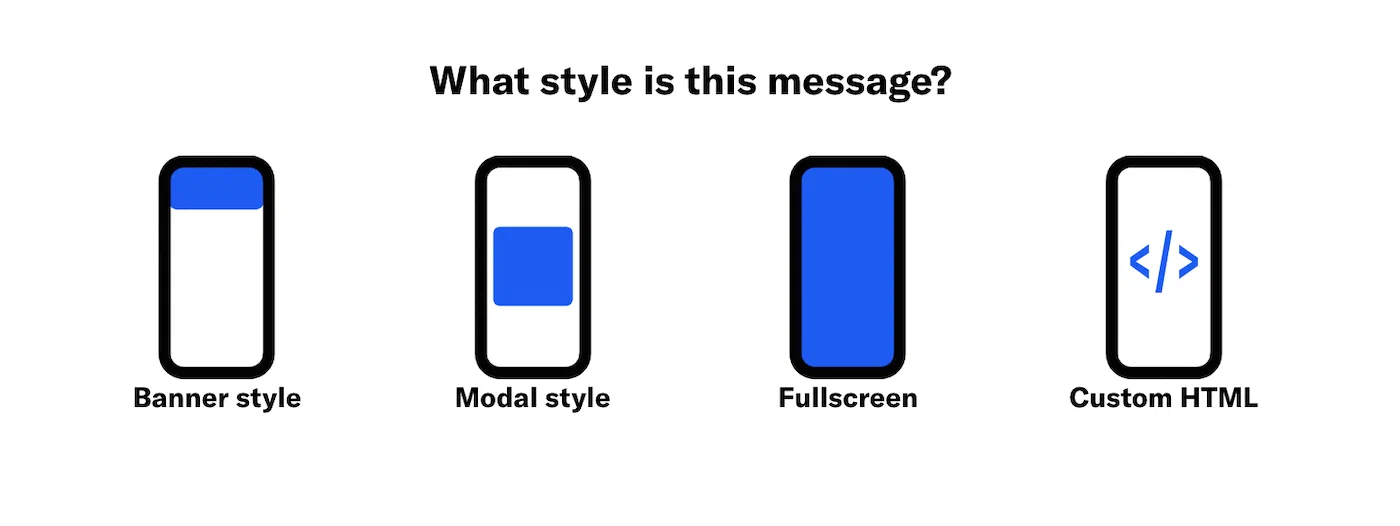
*Selecting a message style for the opt-in prompt*
The layout is really up to you, but it’s known that adding an image will make your message more engaging. For this example we are choosing the *Media | Header | Body* layout for a fullscreen message.
> **Note:** If your account includes Personalization features, you will instead select a layout in the Content step.
## Customize the In-App Automation
The next step, *Settings*, is where you give your message a name and choose among options Airship proposes, for example:
* Set a message priority to make sure users see your opt-in request before other messages.
* Enter a campaign category to make your reporting easier.
* Enable localization so that you can address your global audience in different languages.
In this tutorial, we will not add any options and call our message `Push opt-in request`.
It’s important to choose the right audience for this message. In the *Audience* step, our recommendation is to target by *Push opt-in status* and choose *Opted-out of push notifications*, which will target users who are not yet opted in.
Now you have to set up the content of your in-app message. It should give the user context for what types of notifications they can expect, or what the benefit is to them for opting in (e.g., don't miss updates about your favorite show, or important account transaction notifications, etc.).
Also, it should be designed in a way that if a user says No, no worries, you can still try again later. Create two buttons, with labels `Maybe later` and `Yes please`.
> **Note:** If your account includes Personalization features, first click **Classic** and select a layout, then proceed with configuring the content.
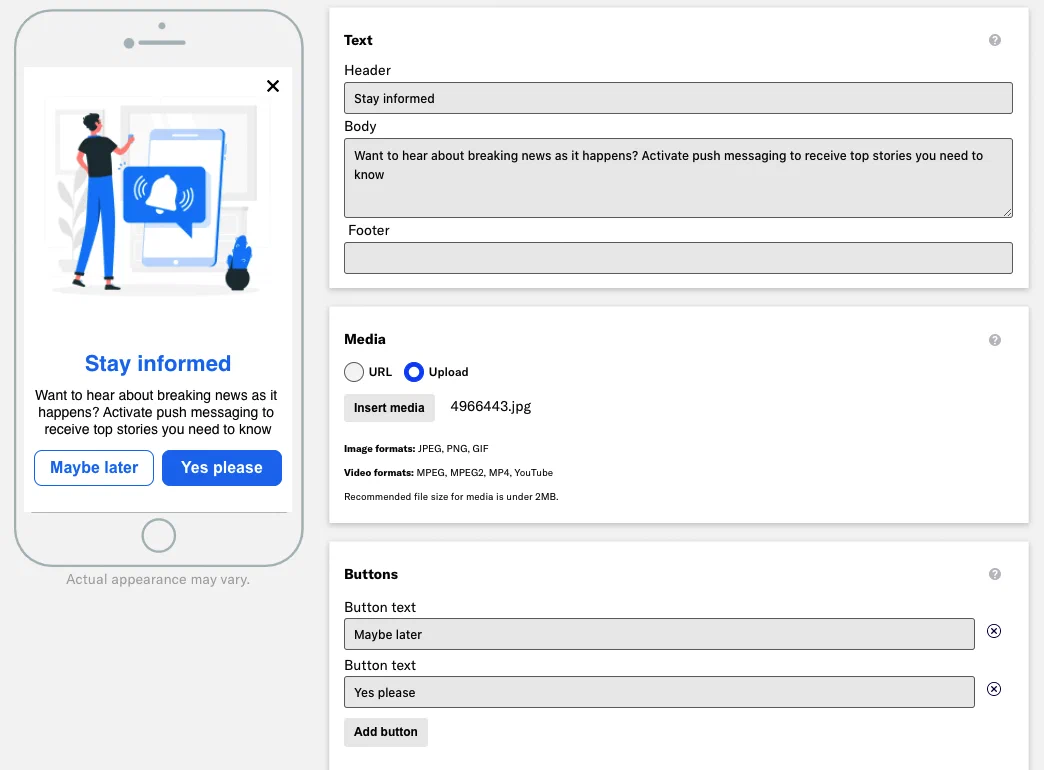
*Configuring the opt-in prompt content and layout*
## Add a call to action to opt-In
In the *Actions* step, you will assign an action for each button. Airship provides an easy way to trigger the system prompt for push notifications opt-in — select *Push Opt-in* for the `Yes please` button.
Also note that we added a tag when the `Maybe later` button is tapped, in case you want to retarget those users.
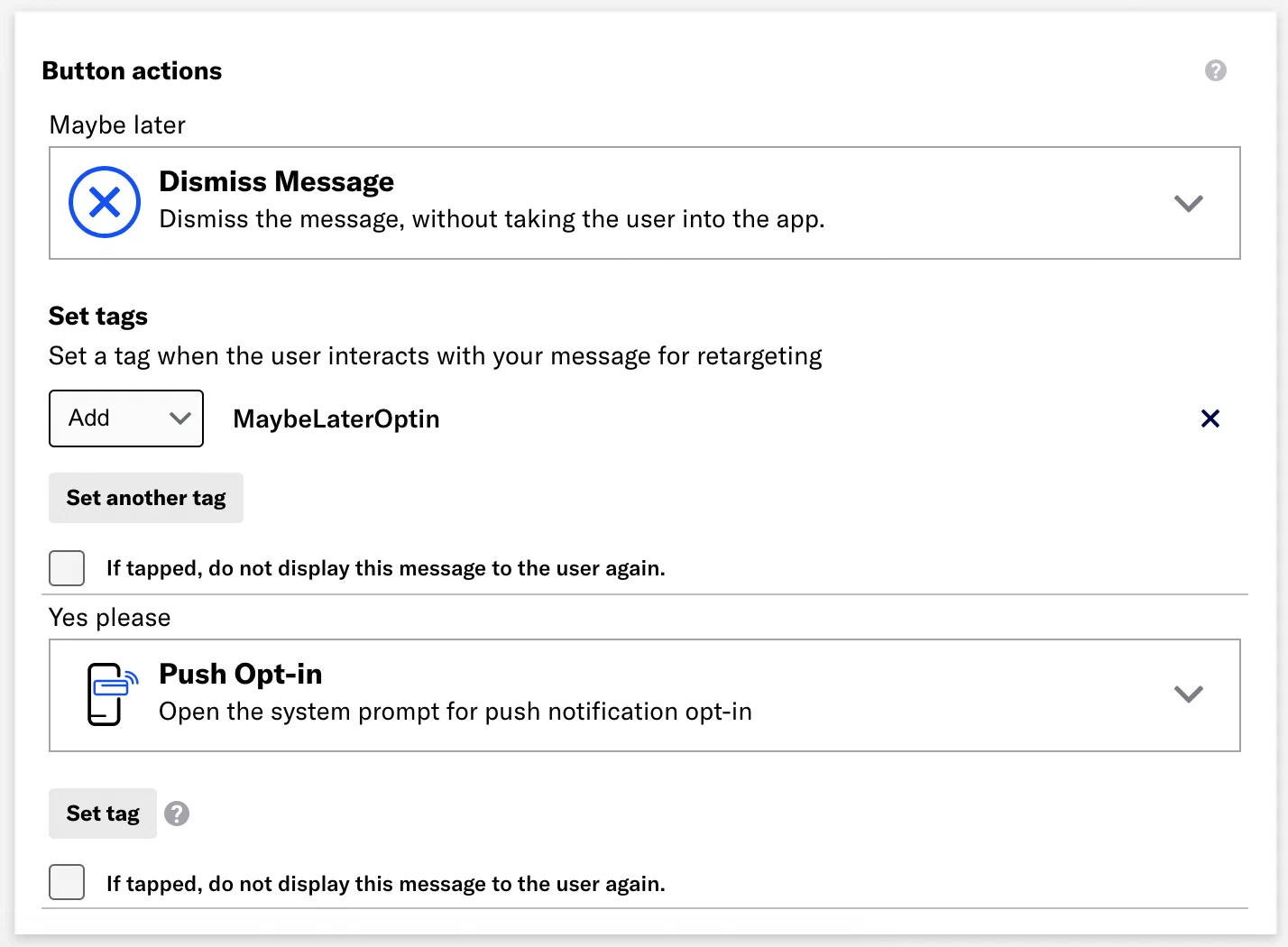
*Configuring button actions for the opt-in prompt*
## Triggering the prompt
Finally, in the *Behavior* step, you need to decide what will trigger your in-app message. A simple and our-of-the-box way to do it is to display the message after the app is opened a certain number of times: select the *App Open* trigger and enter a number.

*Setting an App Open trigger for the opt-in prompt*
Another smart way is to track specific custom events that would be defined in your app. Emphasizing exactly how push notifications will contribute and enhance the user experience based on their unique actions is more likely to sway your users to opt in. Depending on your industry, it can vary, but here are few examples: Viewed item, Articles read, Number of sessions, etc. Select the *Custom Event* trigger, specify an event, then enter the number of times the event must occur before the message will display. You can specify multiple events.
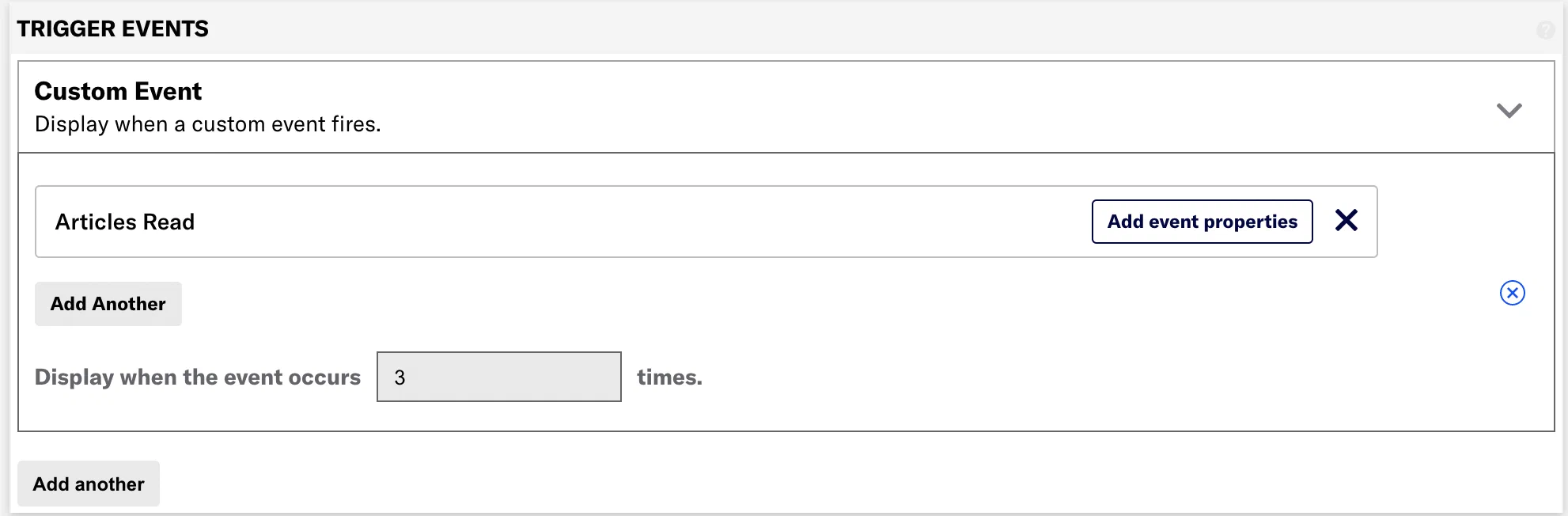
*Setting a Custom Event trigger for the opt-in prompt*
## Review and make active
Once setup is complete, the in-app automation is ready and can be made active. Click **Finish**. 🎉
# Product Recommendations Upsell
> A great way to drive more purchases is to send timely product recommendations based on a customer’s most recent purchase. Use this guide to set up automated product recommendations with Airship Sequences.
## Building a Product Recommendation Upsell Sequence
To get started, identify which behaviors will trigger users into the sequence and which behaviors will exit them out. For a sequence that promotes related products to recent purchases, customers will enter the sequence when they complete a purchase, and exit once they add an item to their cart. Setting up events to send to Airship can be done in the Android or iOS SDK with the following calls.
### Add Retail Events
> **Note:** If you use an [integration](https://www.airship.com/docs/integrations/), or your application is already instrumented with custom events, you may need to adjust the event names for `purchased` and `added_to_cart`.
To enter the user into the sequence, instrument the application with an event when a cart is purchased. Use the following templates to create the `purchased` events:
**Android example**
```kotlin
fun onPurchase() {
RetailEventTemplate.newPurchasedTemplate()
.createEvent()
.track()
}
```
**iOS example**
```swift
func onPurchase() {
let template = RetailEventTemplate.purchasedTemplate()
template.createEvent().track()
}
```
Next, add `added_to_cart` event when an item is added to the cart. This will be used to exit the user from the sequence:
**Android example**
```kotlin
fun onAddToCart(identifier: String, description: String?) {
RetailEventTemplate.newAddedToCartTemplate()
.setId(identifier)
.setDescription(description)
.createEvent()
.track()
}
```
**iOS example**
```swift
func onAddToCart(_ identifier: String, description: String?) {
let template = RetailEventTemplate.addedToCartTemplate()
template.identifier = identifier
template.eventDescription = description
template.createEvent().track()
}
```
### Setup an External Data Feed
Next, set up an external data feed to add personalized product recommendations into the sequence messages. In this example, the feed will be able to look up the customer by an ID, and provide product recommendations as well as an optional coupon code. In this guide, we’ll refer to those data feed objects as `recommendations.0.product_name`, `coupon_value`, and `coupon_code`. Make sure to set up the data feed with a `customer_id` field in order to pull in the customer’s identifier (set as a user attribute), e.g., `http://airship-example.com/products/customer_id={{customer_id}}`.
The `customer_id` needs to be an attribute set on the [Named User](https://www.airship.com/docs/reference/glossary/#named_user). This is generally done when a user logs into the app:
**Android example**
```kotlin
fun onUserLoggedIn(user: ExampleUser) {
// Map your internal user ID to as the named user on Airship
Airship.contact.identify(user.userId)
// Add attributes for personalization
Airship.contact.editAttributes {
setAttribute(Attributes.FIRST_NAME, user.firstName)
setAttribute(Attributes.LAST_NAME, user.lastName)
setAttribute("customer_id", user.userId)
}
}
```
**iOS example**
```swift
func onUserLoggedIn(_ user: ExampleUser) {
// Map your internal user ID to as the named user on Airship
Airship.contact.identifiy(user.identifier)
// Add attributes for personalization
Airship.contact.editAttributes { editor in
editor.set(string: user.firstName, attribute: Attributes.firstName)
editor.set(string: user.lastname, attribute: Attributes.lastName)
editor.set(string: user.identifier, attribute: "customer_id")
}
}
```
### Create the Sequence
Now that your app is set up to send the necessary events, and the data feed is set up to pull in the recommended product details and coupon codes, it’s time to create your sequence.
To get started, create a new Sequence:
1. In the sidebar, select the **Create** dropdown menu (
), then select **Journey**.
1. Select **Sequence**, then **Start from scratch**.
Name the sequence `Product Upsell`, then use `purchased` for the *Custom Event* trigger, and use `add_to_cart` event as the *Conversion event*.
Next, edit the Sequence and choose the delivery time for the first message. In this example, the first message will be delivered 1 day after the most recent `purchased` event has occurred.
*Setting the message delay in a Sequence*
Next, we can define the message that will be delivered. In this case, the message is a push notification. To personalize the message with the related item and coupon code, we’ll pull from the external data feed. We’ll use a template to create the push and add in the personalization fields. The template can be pulled into the sequence when editing the message.
In the example personalized message, we are addressing the customer by their first name and thanking them for their purchase. If the data feed has a coupon code for the customer, then the message will contain the first recommended item (or a default value if there are no recommendations available) along with the coupon code and value.
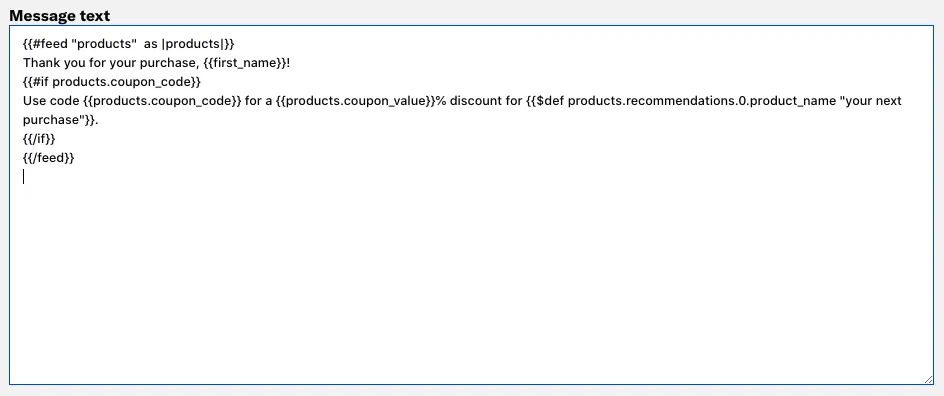
*A personalized product upsell message using an external data feed*
Once setup is complete, the sequence is ready for testing and can be started. We recommend using the [Test Run feature](https://www.airship.com/docs/guides/messaging/messages/sequences/create/test/) to ensure the messages are built correctly as they are delivered to your test devices.
### Get started as an Airship developer
Find everything you need to integrate Airship's SDKs and APIs — channel configuration, authentication credentials, identifier lookups, and a Postman collection.
# Intro to Channels
> Channels represent the various devices, users, and addresses that make up your audience. Channels are a concept fundamental to Airship. Understanding the various applications of channels can help you better understand and target your audience.
> **Important:** **Channels** can also refer to *engagement channels*, a medium for engaging with your users, e.g., app, web, SMS, email.
> See [Disambiguation](#disambiguation) below.
## Origin and Purpose
Airship introduced *channels* in 2014 as a new means of addressing
apps via the *channel ID*. Prior to channels, in order to target a
device for a push notification, we used the *push address*, the identifier
provided by the downstream delivery service for the given mobile OS. For
example, to deliver to an iOS device, we used the *device token* provided by
Apple Push Notification service (APNs).
Because a push address can change without notice, we introduced channel IDs to
abstract the notion of an addressable app from the push address. This change
lessened the burden on our customers of having to store push addresses, e.g.,
device tokens. We simply map the channel ID to a device token if it changes.
Channels also became a useful framework for us to develop new services around
the concept of an addressable entity and to move beyond apps into new
engagement mediums such as web browsers, email, and SMS. We subsequently
introduced [Named Users](https://www.airship.com/docs/reference/glossary/#named_user) as a way
to map multiple channels together, and
[Channel Coordination](https://www.airship.com/docs/reference/glossary/#channel_coordination) features, which rely on
both channels and named users to help you optimize your multi-channel
marketing campaigns.
## Disambiguation {#disambiguation}
You will find that throughout our documentation and in the Airship
[Dashboard](https://www.airship.com/docs/reference/glossary/#dashboard)
we use the term *channel* differently, depending on context: engagement vs. development.
### Engagement Channels {#engagement-channels}
At a high level, we use the term *channel* to denote an **engagement
channel** over which you can reach your end users. We support the following
channels, some of which encompass more than one *platform*, e.g.,
_The iOS platform is a supported **app** channel_.
| Engagement channel | Platform |
| --- | --- |
| App | iOS, Android, Fire OS, Windows, Apple News |
| Web | Chrome, Firefox, Edge, Safari, Opera |
| Email | n/a |
| SMS | n/a |
| Open | *Configurable* |
### Development Channels {#development-channels}
In the development context, a channel describes a **deliverable endpoint**,
such as an email address, SMS number, or iPhone app installation.
The defining property of a development channel is the
[*channel ID*](#channel-ids), but development channels are also associated with other information. This information varies depending on the associated
[engagement channels](#engagement-channels),
and also for the platforms within a type of engagement channel. For
example, an email channel has a `sender_name`, and an SMS
channel has a `msisdn`.
Development channels can further be thought of as one of two basic types: *native* and
*open*. This distinction is largely tied to how you interact with the channels — either via an installed SDK for a native platform, or our channels API for
open platforms. See
[Native vs Open Platforms](#native-open) below.
**Example iOS Channel Object**:
```json
{
"channel": {
"channel_id": "01234567-890a-bcde-f012-3456789abc0",
"device_type": "ios",
"installed": true,
"background": true,
"opt_in": true,
"push_address": "FE66489F304DC75B8D6E8200DFF8A456E8DAEACEC428B427E9518741C92C6660",
"created": "2013-08-08T20:41:06",
"last_registration": "2018-05-01T18:00:27",
"named_user_id": "some_id_that_maps_to_your_systems",
"tags": [
"one_fish",
"two_fish"
],
"tag_groups": {
"fish_colors": [
"red",
"blue"
],
"fish_ages": [
"old",
"new"
]
},
"ios": {
"badge": 0,
"quiettime": {
"start": null,
"end": null
},
"tz": "America/Los_Angeles"
}
}
}
```
## Channel IDs {#channel-ids}
[Development channels](#development-channels) are addressable
via the *channel ID*. A channel ID is a unique identifier generated by
Airship for each channel.
In cases where a downstream service (such as APNs for iOS devices) provides the
[push address](#terminology) for ultimate delivery, the channel
ID maps to that delivery address. This mapping ensures consistency of channel
metadata — information about the channel, such as segmentation information —
even if the mapped service changes its own delivery address, e.g., device
token for iOS or registration token for Android.
## Channels API {#channels-api}
Airship’s
[Channels API](https://www.airship.com/docs/developer/rest-api/ua/operations/channels/)
provides a set of endpoints for the management of
[engagement channels](#engagement-channels) and their
platforms.
You can create, look up, list, and manage channel information, as well as
extend Airship by defining new platforms for use with our core platform
services, e.g., segmentation, scheduling, automation.
> **Tip:** If you use an AI coding assistant, you can connect it to Airship with Skills and an MCP server. See [Airship AI Tools](https://www.airship.com/docs/developer/ai-tools/ai-tools/).
## Native vs Open Platforms {#native-open}
App and web platforms are supported by an
[Airship SDK](https://www.airship.com/docs/guides/getting-started/developers/sdk-api/) and as such are considered *native*.
**Native Platforms**:
| Channel | Platform |
|---------|----------|
| App | iOS |
| App | Android |
| App | Fire OS |
| Web | Chrome |
| Web | Safari |
| Web | Firefox |
| Web | Opera |
| Web | Edge |
Email, SMS, and Open channels are supported by our Channels API for channel registration,
and other operations, e.g., adding tags, opt-out, unsubscribe/uninstall, etc.
Open platforms are not supported by an Airship SDK because the delivery mechanism is not a traditional client application like an app or web browser.
**Open Platforms**:
| Channel | Platform | API reference |
| --- | --- | --- |
| [Email](https://www.airship.com/docs/developer/api-integrations/email/) | n/a | [Email Channels API reference](https://www.airship.com/docs/developer/rest-api/ua/operations/email/) |
| [SMS](https://www.airship.com/docs/developer/api-integrations/sms/) | n/a | [SMS Channels API reference](https://www.airship.com/docs/developer/rest-api/ua/operations/sms/) |
| [Open](https://www.airship.com/docs/developer/api-integrations/open/) | *Configurable* | [Open Channels API reference](https://www.airship.com/docs/developer/rest-api/ua/operations/open-channels/) |
### Channel Registration
For **native platforms**, [channel IDs](#channel-ids) are created and persisted during the registration process: When your app runs for the first time (it may run in the background or when a user opens the app for the first time), our SDK creates a [(development) channel](#development-channels) and maps it to that installation. For example, on iOS it will map a device token to that channel. The channel ID then becomes the primary identifier used to address notifications/messages to the device. If iOS ever changes the device token, we can update the device token behind the scenes without changing the channel.
For **open platforms**, channel registration and manipulation are handled via
our [Channels API](#channels-api), giving you maximum
flexibility to create and update, opt-in or -out, look up, or uninstall
channels, and add or remove tags and other metadata.
Delivery addresses on open platforms can be an IP address, webhook URL, phone number, or email address, depending on the channel type.
## Terminology
Channel (Development)
: A *channel* is an instance representing an entity addressable via the Airship service, e.g., an iOS device, email address, SMS number or web browser. The channel instance or [channel object](/docs/developer/rest-api/ua/#schemas-channelobject) contains all relevant information about a channel, including metadata used for targeting, opt-in status, device-specific information, and, importantly, a unique identifier for the channel, the *Channel ID*.
Channel (Engagement)
: A *channel* is a communication medium supported by the Airship service. Supported channels include app, web, email, SMS, and *Open Channels*. Within some channels there may be specific *platforms* with individual characteristics. Example platforms include Chrome for the web channel and Android for the mobile app channel.
Channel ID
: A *Channel ID* is an Airship-specific unique identifier for a channel instance, e.g., a smartphone, web browser, email address.
Platform
: A *platform* is an external OS or other system to which notifications are delivered. Mobile platforms include iOS and Android, web platforms include Chrome and Firefox, etc. Airship-supported platforms may be either *native platforms*, which require an installed SDK, or *open platforms*, which do not.
Native platform
: A *native platform* is a platform for which an installed SDK is required to register and manipulate channels. Examples: iOS, Chrome.
Open platform
: An *open platform* is a platform for which an SDK is not available, and channel registration and manipulation are handled via the Channels API. Examples: Open Channels, Email.
Push address
: The *push address* is the underlying device identifier that maps to a Channel ID for message delivery. The push address is analogous to a phone number and has the information necessary to locate and authenticate an installation of an app or browser. Because a push address can change, Airship maps push addresses to channels, which do not change. An example of a push address is a *device token* in the case of iOS.
# Finding Channel IDs
> {{< glossary_definition "channel_id" >}}
Follow these methods to find the [Channel ID](https://www.airship.com/docs/reference/glossary/#channel_id) in a mobile app or web browser.
## Find a mobile app Channel ID
You can find a device's Channel ID by accessing it programmatically in your app or using the Channel Capture tool.
### Accessing the Channel ID programmatically
You can access the Channel ID directly through the SDK in your app code:
#### iOS Swift
```swift
let channelID = Airship.channel.identifier
```
#### iOS Objective-C
```objc
NSString *channelID = UAirship.channel.identifier;
```
#### Android Kotlin
```kotlin
val channelId = Airship.channel.id
```
#### Android Java
```java
String channelId = Airship.getChannel().getId();
```
#### React Native
```ts
const channelId = await Airship.channel.getChannelId();
```
#### Flutter
```dart
String channelId = await Airship.channel.identifier;
```
#### Cordova
```js
Airship.channel.getChannelId((channelID) => {
console.log("Channel: " + channelID)
})
```
#### Capacitor
```js
const channelID = await Airship.channel.getChannelId()
```
#### .NET MAUI
```csharp
using AirshipDotNet;
string channelId = Airship.Instance.ChannelId;
```
#### Unity
```csharp
string channelId = UAirship.Shared.ChannelId;
```
For more detailed information about accessing channel IDs, see the platform-specific documentation:
* [iOS Audience Management](https://www.airship.com/docs/developer/sdk-integration/apple/audience/channels/)
* [Android Audience Management](https://www.airship.com/docs/developer/sdk-integration/android/audience/channels/)
* [React Native Audience Management](https://www.airship.com/docs/developer/sdk-integration/react-native/audience/channels/)
* [Flutter Audience Management](https://www.airship.com/docs/developer/sdk-integration/flutter/audience/channels/)
* [Cordova Audience Management](https://www.airship.com/docs/developer/sdk-integration/cordova/audience/channels/)
* [Capacitor Audience Management](https://www.airship.com/docs/developer/sdk-integration/capacitor/audience/channels/)
* [.NET Audience Management](https://www.airship.com/docs/developer/sdk-integration/dotnet/audience/channels/)
* [Unity Audience Management](https://www.airship.com/docs/developer/sdk-integration/unity/audience/channels/)
### Using the Channel Capture tool
The Channel Capture tool is a feature built into the SDK that helps users find their Channel ID. It is valuable for troubleshooting individual device issues in production apps since it can expose the Channel ID to the user, who can then send it to Support. Users can also use it to find their Channel ID for a [Preview or Test Group](https://www.airship.com/docs/reference/glossary/#preview_test_groups).
If the Channel Capture tool is enabled, it will listen for six app foregrounds within 30 seconds. On the sixth app open, the Channel ID will be copied to the user's clipboard with a leading `ua:`.
Paste your Channel ID from the clipboard to your preferred document. If there is no channel, only `ua:` will be present. The Channel ID will remain on the clipboard for 60 seconds on iOS and until cleared on Android.
The Channel Capture tool is enabled by default and can be disabled through the Airship Config options. For information on how to disable it, see the platform-specific documentation linked above.
#### Android Kotlin
```kotlin
val options = AirshipConfigOptions.newBuilder()
// ...
.setChannelCaptureEnabled(false)
.build()
```
#### Android Java
```java
AirshipConfigOptions options = AirshipConfigOptions.newBuilder()
// ...
.setChannelCaptureEnabled(false)
.build();
```
#### iOS Swift
```swift
config.isChannelCaptureEnabled = false
```
#### iOS Objective-C
```objc
config.isChannelCaptureEnabled = NO;
```
#### React Native
```ts
await Airship.takeoff({
...
isChannelCaptureEnabled: false,
})
```
#### Flutter
```dart
Airship.takeOff(
AirshipConfig(
...
isChannelCaptureEnabled: false
)
);
```
#### Cordova
```js
Airship.takeoff({
...
isChannelCaptureEnabled: false,
})
```
#### Capacitor
```js
await Airship.takeoff({
...
isChannelCaptureEnabled: false,
})
```
#### .NET MAUI
```csharp
// Not supported
```
#### Xamarin
```csharp
// Not supported
```
#### Titanium
```js
// Not supported
```
#### Unity
```csharp
// Not supported
```
### Alternative methods
You can also find a device's Channel ID by logging it to the console. You can view the console with these tools:
* **iOS:** [iPhone Configuration Utility](https://support.apple.com/downloads/iphone_configuration_utility) or [Xcode](https://developer.apple.com/xcode/)
* **Android:** [Android Debug Bridge](https://developer.android.com/tools/adb)
If you didn't write the device identifier to the console, you can use the steps here to help retrieve it:
[Using Charles Proxy to profile an Airship Implementation](https://support.airship.com/hc/en-us/articles/213491123-Using-Charles-Proxy-to-profile-an-Airship-Implementation).
> **Tip:** Even if you're comfortable with using Charles Proxy, you may want to speak with your developer before you attempt to retrieve your Channel ID yourself. Your app may have been designed with a hidden feature that allows you to quickly retrieve your ID, saving you the difficulty of working with Charles Proxy.
## Find a web browser Channel ID
Your web Channel ID is only available if you have already [integrated the Airship SDK](https://www.airship.com/docs/developer/sdk-integration/web/getting-started/) with your website. To access your web Channel ID, you will need to open the Developer console in your browser and paste in a small amount of code. Instructions for Google Chrome and Mozilla Firefox are provided.
1. Open the console via keyboard shortcut or the menu.
**Google Chrome**
* **Keyboard Shortcuts:** In macOS you can go directly to the console
with *Cmd+Opt+J*. In Windows, the shortcut is *Ctrl+Shift+J*.
* **Menu:** Select the three dots icon (
), then **More Tools**, then **Developer Tools**, then select the Console tab.
**Mozilla Firefox**
* **Keyboard Shortcuts:** In macOS you can go directly to the console
with *Cmd+Opt+K*. In Windows, the shortcut is *Ctrl+Shift+K*.
* **Menu:** Select the "hamburger" icon, then **More Tools**, then **Web Developer Tools**, and then select the Console tab.
1. Depending on the web SDK version, paste the following code in the console, then hit Enter. If a browser has registered, the resulting line is the Channel ID.
**Version 1**
```javascript
UA.then(sdk => {console.log(sdk.channel.id)})
```

*The Channel ID in a successful console response*
**Version 2 (asynchronous call)**
```javascript
UA.then(sdk=>console.log(sdk.channel.id().then((channel)=>console.log(channel))))
// Or if you are using async/await syntax
(async function getChannel() {
const sdk = await UA;
const channelId = await sdk.channel.id();
console.log(channelId);
})();
```
**Common errors:**
* 
*Response: null*
The SDK will return `null` if the browser is unregistered. Only registered browsers will have a Channel ID. See our documentation on [how to register the current browser with Airship](https://www.airship.com/docs/developer/sdk-integration/web/getting-started/#uasdk).
* 
*Response: UA is not defined*
A `UA is not defined` response can indicate that the SDK snippet is not present within the page. Navigate to a page on your site that does have the SDK snippet and repeat step 2 above.
> **Note:** Ideally, the SDK snippet will be present in every page on your site, as per the [Add JavaScript Snippet section](https://www.airship.com/docs/developer/sdk-integration/web/getting-started/#add-javascript-snippet-to-web-pages) of our Web Getting Started guide. If, for testing or other reasons, you have added the snippet to just one page of your site, you will need to be on that specific page for retrieving your Web Channel ID to be successful.
# Configuring Mobile Channels
> Configure mobile channels and push providers in the Airship dashboard.Configuration information and steps are provided for iOS, Android, and Fire OS.
## iOS channel configuration
To configure an iOS channel, you must configure the Apple Push Notification Service (APNs). To do this, you can either use token or certificate authentication. Use token auth to simplify setup and to avoid having to renew your certificate every year.
### APNs token and certificate authentication
Airship uses token-based authentication for APNs when configured for the iOS channel. When token-based authentication is not configured, Airship uses certificate authentication instead.
The authentication choice depends on what you have configured, not on fallback from token to certificate. If token auth is configured but becomes invalid or stops working, Airship does not automatically use your certificate. As a result, the iOS channel may be disabled until you correct your authentication configuration in the Airship dashboard.
For existing projects:
* Leave your certificate in place while migrating to token-based authentication. If you remove your certificate before token auth is working, you may be unable to send messages until your credentials are valid.
* Once you have confirmed that token auth is working, you may let the certificate expire or revoke it in the Apple Developer Member Center.
### Production versus development projects
When creating your certificate or token, you must choose which environment the application on your device should use. Unlike Android, APNs uses two different environments for push notifications depending on the type of app you are using:
| Environment | Description |
| --- | --- |
| **Sandbox** | The Sandbox environment is intended for applications that are being developed and tested directly off of a computer. |
| **Production** | The Production environment is for applications that are distributed via the App Store or any ad hoc platform like Test Flight. |
When you [create or edit an Airship project](https://www.airship.com/docs/guides/getting-started/setup/#create-a-messaging-project) (and thus its application record on our server), you must select its type, which directly affects which APNS environment it will communicate with:
| Project type | Description | Relationship with APNs environment |
| --- | --- | --- |
| **Test** | Development for sending test messages | A Test project only sends APNs push notifications to the Sandbox environment |
| **Live** | Production for sending messages to users | A Live project only sends APNs push notifications to the Production environment |
Apple treats the production and development servers separately, so a device token for a test project will not work in a production project. Because of this, we suggest creating both Live and Test projects in the Airship dashboard so you can continue to build and develop your application without interrupting your users. Configure the `development` credentials for the test project, and `production` credentials for live project. Then switch between the two credentials using the `inProduction` flag when configuring the Airship SDK.
> **Warning:** * There is no way to change the Test/Live setting after an Airship project has been created. You will need to make a new project to switch environments. When these environments are not aligned, you will see errors in your error console, and typically the Push Address will be removed from the channel.
>
> * Always create a **Live** Airship project first, and
> make sure your application code is pointing to the live project's app
> key. For more tips on what to check before you release your app, see the
> [iOS Production Launch Checklist](https://support.airship.com/hc/en-us/articles/6613974842523-iOS-Production-Launch-Checklist)).
>
> * Test apps use different tokens that, when included in a push to a **Live** app, will fail and in many cases cause all other pushes to fail. While your app's code is pointing to an Airship app key that is set as **Test**, do not:
> 1. Submit to the App Store, or
> 1. Test notifications on an ad hoc build.
### Configure token auth (Recommended)
Apple's token authentication for APNs uses two key types: team-scoped and topic-scoped. Understanding their difference is key for Airship setup:
* **Team-scoped keys: Broad and simple**
* Team-wide access: One key for all your team's apps
* Limited number: Maximum two per environment (Sandbox/Production)
* Simpler setup and easier management
* **Topic-scoped keys: Granular and more secure**
* App-specific access: Key for specific apps/topics only
* Higher number: Up to 200 per environment (Sandbox/Production)
To get started, register a new key:
1. Log in to the [Apple Developer Member Center](https://developer.apple.com/).
1. Go to **Account**, then **Membership details**, then note your **Team ID**.
1. Go to **Program Resources**, then **Certificates, IDs & Profiles**, then **Identifiers**.
1. If you already registered an iOS App ID:
1. Select its name in the list of App IDs.
1. Note the **Bundle ID** for the app.
1. Enable **Push Notifications**.
*Enabling push notifications for an iOS app ID*
1. If Push Notifications was already enabled, select **All Identifiers** at the top of the page to go back. Otherwise, select **Save**.
1. Continue to step 6 below.
1. If you have not already registered an iOS App ID, add one now:
1. Select the plus icon (
), then select **App IDs**.
*Adding an iOS app identifier*
1. Select **Continue**.
1. Fill out the **Register an App ID** form and enable **Push Notifications**. Also note the **Bundle ID** you enter.
*Registering an app ID*
1. Select **Continue**, then **Register**.
1. In the sidebar, select **Keys**.
1. Select the plus icon (
).
1. Enter a unique key name.
1. Enable **Apple Push Notifications service (APNs)**.
1. Select **Configure**.
1. (For team-scoped token auth) Select **Sandbox & Production** for the environment and **Team Scoped (All Topics)** for Key Restriction.
*Configuring a team-scoped key*
1. (For topic-scoped token auth) Select **Sandbox** for development apps or **Production** for production apps in the environment menu and **Topic Specific** for Key Restriction, then:
1. Select the specific apps/topics that this key should be allowed to send notifications to.
*Configuring a topic-scoped key*
1. Select topics you wish to add to your scope, then **Done**.
*Selecting topics*
1. Select **Save**, then **Continue**, then **Register**.
1. Note the **Key ID**, then select **Download** to save the key in .p8 format.
*Getting your key ID and downloading the key*
> **Important:** **For team-scoped keys:** Be sure to save your key in a secure location if you intend to use it across multiple apps or Airship
> projects. Apple only allows **two** team-scoped APNs keys per team, so reaching this limit would require you
> to revoke one of your existing keys before creating a new one, which in turn would require an update for
> any apps previously using the revoked key. Airship will not make your key available for download or
> sharing across projects once it has been uploaded.
>
> **For topic-scoped keys:**
> You may create up to 200 topic-scoped APNs keys per environment. If you want to reuse a key across multiple
> Airship projects or apps, store it securely. Apple will not let you re-download it later, and Airship
> will not make it available for download once uploaded.
Finally, configure your iOS channel in Airship:
1. Next to your project name, select the dropdown menu (
), then **Settings**.
1. Under **Channels**, select **iOS**.
1. For **Token-based authentication**, select **Edit**.
1. Under **Signing key**, upload your .p8 file.
1. Enter your Team, Bundle, and Key IDs.
1. Select **Save**.
### Configure certificate auth
1. Log in to the
[Apple Developer Member Center](https://developer.apple.com/).
1. Go to **Account**, then **Program Resources**, then **Certificates, IDs & Profiles**, then **Identifiers**.
1. If you already registered an iOS App ID, select its name in the list of App IDs, then go to step 5 below.
1. If you have not already registered an iOS App ID, add one now:
1. Select the plus icon (
), then select **App IDs**.

*Adding an iOS app identifier*
1. Select **Continue**.
1. Fill out the **Register an App ID** form and enable **Push Notifications**.

*Registering an app ID*
1. Select **Continue**, then **Register**.
1. Select your app's name in the list of App IDs, then continue to step 5 below.
1. Under **Capabilities**, enable **Push Notifications**, then select **Configure**. The button is labeled **Edit** if it was previously configured.

*Enabling Push Notifications for an App ID*
> **Note:** If the **Configure/Edit** button is not available, you may not be the
> team agent or an admin. The person who originally created the developer
> account is your team agent, and they will have to carry out the remaining
> steps in this section.
1. Select **Create Certificate**:

*Creating a certificate for Push Notifications*
You should now see the **Create a New Certificate** section, where you will generate an Apple Push Notification service SSL (Sandbox & Production) certificate compatible with both the
Production and Development environments:
*Creating a new APNs SSL certificate*
1. Follow Apple's instructions to [create a certificate signing request](https://developer.apple.com/help/account/create-certificates/create-a-certificate-signing-request), then upload the file under **Create a New Certificate**.
1. Select **Continue** after uploading your certificate signing request.
You can now use the newly-created Certificate Signing request to generate
the APNs Push SSL certificate. The next step requires the **Download**
button to be active. You may need to reload the page if it is not yet active.
1. Select **Download** and save the file for use in the next step.
*Downloading your APNs certificate*
1. Open the certificate you downloaded in the previous step.
It should open in the Keychain Access app and be
listed in My Certificates.
*The certificate in Keychain Access*
1. Select the certificate in the list, then from the **File** menu, select
**Export Items...**.
*Exporting the certificate as a .p12 file*
> **Note:** Be sure to select
> **My Certificates** under the Category menu on the lower left-hand side.
> If **My Certificates** is not highlighted, you will not be able to export
> the certificate as a .p12 file.
1. Save the file in the Personal Information Exchange (.p12) format.
*Saving the certificate in .p12 format*
You will be prompted to create a certificate password. Use this password in the Airship dashboard.
Now you can configure the iOS channel for the project in Airship:
1. Next to your project name, select the dropdown menu (
), then **Settings**.
1. Under **Channels**, select **iOS**.
1. For **Certificate-based authentication**, select **Edit**.
1. Enter the certificate password and upload the .p12 file.
1. Select **Save**.
## Android channel configuration
To configure Android channels, you must configure either Firebase Cloud Messaging (FCM) and/or Huawei Mobile Services (HMS). If both push providers are configured, the Airship SDK prioritizes FCM as the push provider if the app and the SDK are set up for both.
### FCM rate limit
The Firebase Cloud Messaging API has a default rate limit of 600,000 requests per minute. If your project reaches that limit, Airship will retry after one minute. You may want to request a rate limit increase if you send to large volume audiences when sending time-sensitive messaging such as breaking news.
* To check your current limit:
1. Log in to the [Google Cloud console](https://console.cloud.google.com/).
1. Select your FCM project, then **APIs & Services**, then **Firebase Cloud Messaging API** then **Quotas & System Limits**, or go directly to https://console.cloud.google.com/apis/api/fcm.googleapis.com/quotas.
1. In the table, see the value for **Send requests per minute**.
* To request a rate limit increase, [contact Firebase Support](https://firebase.google.com/support). See [When to reach out to FCM](https://firebase.google.com/docs/cloud-messaging/scale-fcm#when-reach) in Google's *Best practices when sending FCM messages at scale*.
### Configure FCM token auth
Firebase projects use Google's FCM HTTP v1 API, which uses short-lived access tokens that follow the [OAuth2](https://en.wikipedia.org/wiki/OAuth) security model. In the event of tokens becoming public, they can only be used for about an hour before they expire.
> **Important:** In July 2024, Google replaced the Cloud Messaging API with the FCM HTTP v1 API. This change affected sending Android push notifications. We updated our services to use the new API, but your project cannot start using it until authenticated.
>
> If your Airship project has not yet moved to token-based authentication, complete the setup steps that follow this note. You will enable the Firebase Cloud Messaging API (V1) for your Firebase project, generate a private key and download the file, and upload the file in your Airship project settings.
>
> Your Airship project will immediately switch to using the new API to send Android push notifications. You do not need to update your SDK and/or release a new version of my app. This is a server-side change only.
>
> If you have questions, [contact Airship Support](https://support.airship.com/) or your account manager.
First, enable the Firebase Cloud Messaging API (V1) for your Firebase project:
1. Log in to the [Firebase console](https://console.firebase.google.com/).
1. Either create a new project or select an existing project that you want to configure with Airship.
1. In the sidebar, select the gear icon (), then **Project settings**:
*Selecting Firebase Project settings*
1. Select the **Cloud Messaging** tab.
1. For **Firebase Cloud Messaging API (V1)**, select the three dots icon (
), then **Manage API in Google Cloud Console**, which will open in a new browser window or tab:
*Managing the API*
1. Select **Enable**:
*Enabling the Firebase Cloud Messaging API*
1. Close the Google Cloud Console window or tab.
---
If you are setting up token authentication after previously using server key auth, you must give your Firebase service account the `cloudmessaging.messages.create` permission to send notifications and data messages through the FCM HTTP API and Admin SDK. You can create and assign a custom role for the single permission or you can assign the Firebase Cloud Messaging API Admin role, which includes the permission and other permissions.
For additional information, see Google references:
* [Firebase Cloud Messaging permissions](https://firebase.google.com/docs/projects/iam/permissions/#messaging) in *Firebase IAM permissions*
* [Firebase Cloud Messaging API Admin](https://cloud.google.com/iam/docs/understanding-roles#firebasecloudmessaging.admin)in *IAM basic and predefined roles reference*
* [Custom roles](https://cloud.google.com/iam/docs/roles-overview#custom)in *About IAM access roles: Roles and permissions*
To get your Firebase service account:
1. Go to the [Firebase console](https://console.firebase.google.com/) and select your project.
1. In the sidebar, select the gear icon (), then **Project settings**.
1. Select **Service Accounts**.
1. In the **Firebase Admin SDK** section, see the value under **Firebase service account**. The account has the naming convention `firebase-adminsdk-@.iam.gserviceaccount.com`.
To create and assign a **custom role** for the single permission:
1. Log in to the [Google Cloud console](https://console.cloud.google.com/).
1. Select **IAM & ADMIN**.
1. If you are not viewing the permissions for the correct project, select the correct project from the menu in the header.
1. Create the role:
1. Select **Roles** in the sidebar.
1. Select **() CREATE ROLE**.
1. Add a meaningful title, description, and ID, then select a role launch stage.
1. Select **() ADD PERMISSIONS**.
1. Enter property name `cloudmessaging.messages.create`, check the box for it in the list, then select **ADD**.
*Adding permission to an IAM role.*
1. Select **CREATE**.
1. Assign the role to your service account:
1. Select **IAM** in the sidebar.
1. Under **View by principals**, select the pencil icon (
) next to your Firebase service account.
1. Select **() ADD ROLE** or **() ADD ANOTHER ROLE**.
1. Select the **Select a role** menu, then select your custom role from the Quick Access list or type its name created and select it from the results.
1. Select **Save**.
To assign the **Firebase Cloud Messaging API Admin role** that includes the permission:
1. Log in to the [Google Cloud console](https://console.cloud.google.com/).
1. Select **IAM & ADMIN**.
1. If you are not viewing the permissions for the correct project, select the correct project from the menu in the header.
1. Under **View by principals**, select the pencil icon (
) next to your Firebase service account.
1. If the role "Firebase Cloud Messaging API Admin" is not already listed:
1. Select **() ADD ROLE** or **() ADD ANOTHER ROLE**.
1. Select the **Select a role** menu, then type "Firebase Cloud Messaging API Admin" and select it from the results.
> **Warning:** Be sure to select **Firebase Cloud Messaging *API* Admin**, not **Firebase Cloud Messaging Admin**.
1. Select **Save**.
---
Next, generate a private key:
1. Return to the [Firebase console](https://console.firebase.google.com/) and select your project.
1. In the sidebar, select the gear icon (), then **Project settings**.
1. Select the **Service accounts** tab.
1. Under **Firebase Admin SDK**, select **Generate new private key**, then **Generate key**. The key will download as .json file with a name like `project--4173162SAMPLE949879-firebase-adminsdk-0ddvl-1d0bc7bacb.json`. Make sure to store this file in a secure location.
---
Now you can configure the Android channel for your project in Airship:
1. Next to your project name, select the dropdown menu (
), then **Settings**.
1. Under **Channels**, select **Android**.
1. For **Application ID**, select **Edit**, enter your [application ID](https://developer.android.com/build/configure-app-module), then select **Save**.
1. For **Firebase Cloud Messaging (FCM) Token-based authentication**, select **Edit** and upload your Firebase private key file, then select **Save**.
### Configure HMS
First you need to configure your app information in AppGallery Connect, then you can enter your HMS client ID and secret in Airship.
* If you have not yet configured your app, complete the steps in Huawei's [Configuring App Information in AppGallery Connect](https://developer.huawei.com/consumer/en/doc/HMSCore-Guides/android-config-agc-0000001050170137). In the section [Configuring the Signing Certificate Fingerprint](https://developer.huawei.com/consumer/en/doc/HMSCore-Guides/android-config-agc-0000001050170137#section1159841225116), make sure to copy the values for **Client ID** and **Client secret**.
* If you already configured your app information in AppGallery Connect, get your client ID and secret:
1. Log in to [AppGallery Connect](https://developer.huawei.com/consumer/en/console).
1. Select **My projects**, then select the project that contains the app you configured with Airship, then select the Airship app.
1. Under **App information**, copy the values for **Client ID** and **Client secret**.
*Retrieving the client ID and secret from AppGallery Connect*
These steps are also provided in [Viewing Basic App Information](https://developer.huawei.com/consumer/en/doc/HMSCore-Guides/android-config-agc-0000001050170137#section125831926193110) in *Configuring App Information in AppGallery Connect*.
Now you can configure the Android channel for the project in Airship:
1. Next to your project name, select the dropdown menu (
), then **Settings**.
1. Under **Channels**, select **Android**.
1. Under **Huawei Mobile Services (HMS)**, enter your Huawei client ID and client secret in the **Huawei app ID** and **Huawei app secret** fields.
1. Select **Add Android**.
## Fire OS channel configuration
To configure Fire OS channels, you must configure Amazon Device Messaging (ADM).
> **Note:** While you will not need in-depth knowledge of the ADM platform
> in order to use ADM for push notifications, we recommend that you
> review Amazon's [Overview of Amazon Device Messaging](https://developer.amazon.com/docs/adm/overview.html) before continuing.
### Configure Fire OS
First, follow [Amazon's documentation](https://developer.amazon.com/docs/adm/obtain-credentials.html)
to obtain your OAuth Credentials and API Key.
Then you can configure the Fire OS channel for the project in Airship:
1. Next to your project name, select the dropdown menu (
), then **Settings**.
1. Under **Channels**, select **Fire OS**.
1. Enter your OAuth credentials for the **Client ID** and **Client secret**.
1. Select **Save**.
# The SDKs and APIs
> Airship's SDKs expose messaging and data-gathering functionality on your client devices, and our APIs support messaging mediums that can't use an SDK. Airship has SDKs for iOS, Android/Fire OS, Windows, and Web platforms. The APIs correspond to Airship's engagement (messaging) and real-time event stream products.
## SDK Uses
The SDK registers [channels](https://www.airship.com/docs/reference/glossary/#channel_dev) and interprets
notifications sent from Airship. You must integrate the SDK with your app
or website in order to issue notifications to your mobile and/or web audiences.
Devices that have installed your app and web browsers that have opted-in are
eligible to receive notifications. Refer to your app's
[platform documentation](https://www.airship.com/docs/developer/sdk-integration/) for help integrating and
using the SDK.
## API Uses
Most features are available via the
APIs, however some are available only from the
[Dashboard](https://www.airship.com/docs/reference/glossary/#dashboard).
Dashboard- and API-only exceptions are noted throughout the docs. See
[API vs Dashboard](#api-vs-dashboard)
below for more information.
[Airship API](https://www.airship.com/docs/developer/rest-api/ua/)
: Create and send messages to users, and use advanced messaging features like [Automation](https://www.airship.com/docs/reference/glossary/#automation). This API encompasses the majority of the Airship feature set.
[Data Streaming API](https://www.airship.com/docs/developer/rest-api/connect/)
: Access your app's event stream, helping you gather information about user
interactions with your notifications and app. With [Real-Time Data Streaming](https://www.airship.com/docs/reference/glossary/#rtds), you have access
to the data that will help you maximize the effectiveness of your
communications.
## Channel Registration
Airship's SDK and Airship API are fundamental to the platform, as they are the
mechanisms for registering [channels](https://www.airship.com/docs/reference/glossary/#channel_dev). Channel
registration is a basic requirement for sending notifications; you cannot send
notifications to a channel that is not registered or in the process of becoming
registered.
### SDK vs API
The SDK enables communications with mobile devices and web browsers; it makes
devices and browsers Airship clients. You will bundle the SDK with your
app or website to register and issue notifications to mobile devices and web
browsers.
For an [Open Platform](https://www.airship.com/docs/reference/glossary/#open_platform), you will use our
[Channels API](https://www.airship.com/docs/guides/getting-started/developers/channels-intro/#channels-api)
to register and manage the opt-in/opt-out status of end users.
### Registration Requirements
This table represents the minimum requirements for communicating with the
various channels supported by Airship. A channel must either have
installed the SDK or be registered via the API.
| Channel type | API registration | SDK registration |
| --- | :---: | :---:|
| App | | ✓ |
| Web | | ✓ |
| Email | ✓ | |
| SMS | ✓ | |
| Open Channel | ✓ | ✓ |
## Authentication
All Airship APIs require authentication. Some
endpoints allow multiple authentication schemes. In general, your app should
use Basic App authentication, and server-side implementations should use
Bearer authentication where available. See also:
[App Keys & Secrets: Security](https://www.airship.com/docs/guides/getting-started/developers/app-keys-secrets/).
| Auth type | Value | API | Description |
|-----------|-------|----------|-------------|
| Basic App | App Key and App Secret, Base64 encoded |
Airship
Wallet
| The typical authentication scheme for apps integrating with Airship. Basic App authentication is limited to low-security API endpoints, ensuring that users can't compromise your data with your app in the wild.|
| Basic Master | App Key and Master Secret, Base64 encoded |
Airship
Compliance Data Streaming
| Grants access to the complete Airship API and should be reserved for server-to-server communications only. You should not give out your Master Secret or use Basic Master authorization with your app.
| Bearer | Bearer Token |
Airship
Data Streaming
| Bearer authentication uses a token that you can create and revoke. Because you can create and revoke tokens for your team at will, bearer authentication maximizes your control over who can access Airship. |
## API vs Dashboard
It may be helpful to think of Airship APIs as an expansion of the dashboard
feature set. You can do almost anything via the API that you would do using the
dashboard — with notable additions, such as:
* Use the `custom-events` endpoint to associate external data with channels and users.
* Open an event stream with the Data Streaming API to determine the effectiveness of your notifications.
* Use `open-channels` to communicate with channels and platforms that aren't natively supported by Airship.
> **Note:** Some API endpoints may be restricted by your Airship feature bundle.
> [Contact Airship Sales](https://www.airship.com/contact-us/) if you do not have access to an endpoint or
> feature that you want to take advantage of.
> **Tip:** If you use an AI coding assistant, you can connect it to Airship with Skills and an MCP server. See [Airship AI Tools](https://www.airship.com/docs/developer/ai-tools/ai-tools/).
### Airship
The Airship API and dashboard support similar functionality, with some
differences in terminology between the two. The tables below map message types,
composer types, and features to their respective API objects and endpoints.
#### Message Types
| Message type | Dashboard | API object | Requires SDK |
|---------------|:---------:|-----------|:------------:|
| Push Notification | ✓ | `"notification": {}` | ✓ |
| Silent Push Notification | ✓ | `"notification": {}` | ✓ |
| Web Push Notification | ✓ | `"notification": { "web": {}}` | ✓ |
| In-App Message | ✓| `"in_app": {}` 1 | ✓ |
| Message Center | ✓ | `"message": {}` | ✓ |
| Apple News Notification | ✓ | Not supported | |
| Email Notification | ✓ | `"notification": { "email": {}}` | |
| SMS Notification | ✓ | `"notification": { "sms": {}}` | |
1. There is currently no API for in-app automation.
#### Composers and API Equivalents
| Composer | API endpoint|
| --- | --- |
| Message | `/push` |
| A/B Test | `/experiments` |
| Automation | `/pipelines` |
| In-App Automation | Not supported |
| Scene | Not supported |
| Sequence | Not supported |
| Apple News | Not supported |
#### Features
Some features, e.g., tags and named users, can be set via the API (server-side)
or the SDK (device-side) but not via the dashboard.
| Feature | Dashboard | API endpoint |
|---------|:---------:|--------------|
| Email Channel registration | | `/channels/email` |
| SMS Channel registration | | `/channels/sms` |
| Open Channel registration1 | | `/channels/open` |
| Named Users2 | | `/named-users` |
| Tags2 | ✓ | various |
| Segments | ✓ | `/segments` |
| Lists | ✓ | `/static-lists` |
| Custom Events | | `/custom-events` |
| Reports | ✓ | `/reports` |
| Location | ✓ | |
1 Open Channels require a webhook server that will accept a `/push` payload. 2 Named users and tags can be set client-side, via the SDK.
### Real-Time Data Streaming
**Real-Time Data Streaming is an API-only feature.** The Date Streaming API consists of a single endpoint
that opens a real-time event stream for a messaging project. You can authorize
event streams for various apps via the dashboard, but you can only access an event stream via the API.
The event stream reflects user actions, changes in device environment, e.g.,
encountering beacons, and server-side actions, e.g., sending push notifications.
You can use the event stream to gather information about how users use your app
and determine effectiveness of your communications with your users.
When you make a call to the Data Streaming API, you can set the criteria that
determines the events the stream will return. See the
[Data Streaming API Reference](https://www.airship.com/docs/developer/rest-api/connect/) for help with opening and
filtering the event stream.
# Custom Domain Proxy
> Send Airship traffic through your own domain.
Airship traffic is routed using domains including *urbanairship.com*, *aswpapius.com*, and *airsp.co*. Customers viewing these domains in URLs will likely not associate them with your brand. The domains may also be denied by content blockers, resulting in disabled Airship features.
Substituting your own domain instead can provide a consistent brand experience for your users and make it easily identifiable when adding to a trusted domains list in a content blocker. For example, your email [Preference Center](https://www.airship.com/docs/reference/glossary/#preference_center) URL could be *preferences.[yourdomain].com* instead of *pages.airsp.co*.
This is accomplished by setting up a **custom domain proxy**, which relays requests (traffic) from your custom domain to Airship instead of directly to Airship.
## Supported features
Custom domains are supported for the following Airship features:
* [Android](https://www.airship.com/docs/developer/sdk-integration/android/) and [iOS](https://www.airship.com/docs/developer/sdk-integration/apple/) SDKs
* [Web SDK](https://www.airship.com/docs/developer/sdk-integration/web/)
* [Email preference centers](https://www.airship.com/docs/guides/messaging/features/preference-centers/)
* Email [unsubscribe links](https://www.airship.com/docs/guides/messaging/messages/content/email/email-unsubscribe-links/) and [double opt-in links](https://www.airship.com/docs/guides/messaging/messages/content/email/email-double-opt-in-links/)
## Configuration process
Complete these steps to configure a custom domain:
1. **Configure your CDN proxy.** This includes:
* **Creating your custom domain.** We recommend creating a dedicated subdomain, e.g., `analytics.example.com`.
* **Pointing traffic from your custom domain to Airship.** You will specify a *CDN origin* based on the location of your Airship data center.
1. **Request proxy access.** Airship will configure feature support your test projects.
1. **Test** the configured features in your test projects.
1. After a successful test, **request production support**. Airship will configure feature support for your live/production projects.
In this document, configuration steps use an example subdomain: `analytics.example.com`.
> **Note:** You may use a configured CDN to support more than one Airship project. We recommend trying the custom domain on a test project first, and then moving to your live/production project once it has passed testing.
### Requirements
In order to configure a custom domain, you will need access to the following:
* Your domain's DNS configuration
* A CDN proxy, and access to configure it
* A security certificate issued for the proxy domain
You must provide your own CDN, which you will configure with your own TLS certificates, and point to an origin we provide. We have tested the following providers:
* [Amazon CloudFront](https://aws.amazon.com/cloudfront/)
* [Cloudflare](https://www.cloudflare.com/)
> **Note:** For assistance with a CDN product, please contact that product's support team. Airship Support is unable to help you directly for those products.
### CDN origin
The origin you use as a target for your CDN depends on your project's data center:
* North American data center: `ext.airship.com`
* EU data center: `ext.airship.eu`
[Contact Airship Support](https://support.airship.com) if you are unsure which value to use.
## Configuration steps
CDN proxy configuration varies depending on your CDN provider. We provide information for configuring Cloudflare and Amazon CloudFront.
> **Important:** We recommend using a dedicated subdomain for the CDN, as you will be passing *all* traffic from the domain to Airship. We do not support any setup which routes traffic for only some paths.
### Configure your CDN proxy: Amazon CloudFront
Create a new CloudFront distribution with the following settings:
* **Origin:** The correct [origin](#cdn-origin) for your data center: `ext.airship.com` or `ext.airship.eu`.
* **Viewer protocol policy:** `HTTPS only`
* **Allowed HTTP methods:** `GET, HEAD, OPTIONS, PUT, POST, PATCH, DELETE`
* **Cache key and origin requests**
* **Cache policy:** `CachingOptimized`
* **Origin request policy:** `AllViewer`
The remaining settings are your responsibility, but you **must** provide a valid certificate.
### Configure your CDN proxy: Cloudflare
> **Note:** Cloudflare is typically configured for an entire domain (e.g., `example.com`), not just a subdomain. This is the only configuration Airship has tested, and these instructions assume you have already successfully configured Cloudflare for your domain.
Under Cloudflare's DNS management, add a new subdomain record:
* **Type:** `CNAME`
* **Name:** Your chosen subdomain name, e.g., `analytics`
* **Content/Origin:** The correct [origin](#cdn-origin) for your data center: `ext.airship.com` or `ext.airship.eu`
* **Proxy Status:** Proxied
> **Important:** In order for Cloudflare to work with an Airship origin, the SSL/TLS mode **must** be set to `Full (strict)`.
### Request proxy access for test projects
Once your proxy is configured, you can visit the custom domain in a web browser, however you will receive a generic "Error 404" message. This is expected.
Next, [contact Airship Support](https://support.airship.com) with a request for your custom domain to be configured for proxy access. Provide this information:
* The Airship project app keys for **test projects** you wish to configure to use the custom domain. You can get your app key from your project dashboard: Next to your project name, select the dropdown menu (
), then **Project Details**.
* Your custom domain, e.g. `analytics.example.com`
* The features you wish to enable: Email preference centers and/or the Web SDK.
Airship Support will confirm when they complete configuration. You can then test the proxy in a test (non-live/production) project.
### Test: Email preference center
For an email preference center, edit an existing [preference center URL](https://www.airship.com/docs/guides/messaging/features/preference-centers/#directing-users-to-a-preference-center), replacing the default Airship domain `pages.airsp.co` with your custom domain:
* **Default:** `https://pages.airsp.co/pages//?channel_id=`
* **Custom:** `https://analytics.example.com/pages//?channel_id=`
The preference center should work with no further changes. See also [Testing an Email Preference Center web page](https://www.airship.com/docs/guides/messaging/features/preference-centers/#testing-an-email-preference-center-web-page).
### Test: Email unsubscribe and double opt-in links
> **Important:** The custom domain proxy feature will not affect email link tracking domains. You may not use the same domain for email tracking links and a custom domain proxy.
When sending an email, you may use [Unsubscribe / List unsubscribe](https://www.airship.com/docs/guides/messaging/messages/content/email/email-unsubscribe-links/) or [Double opt-in](https://www.airship.com/docs/guides/messaging/messages/content/email/email-double-opt-in-links/) links to allow end users to update their opt in status. When using these links, Airship provides a default "success" landing page if you do not specify your own.
When using the custom domain proxy feature for these links, they will use your custom domain instead of the Airship default domains.
To test this feature, send an email to yourself that includes an [Unsubscribe link](https://www.airship.com/docs/guides/messaging/messages/content/email/email-unsubscribe-links/), without specifying a redirect URL. After following the link in the email you receive, you should be redirected through your custom domain and arrive at a default landing page on that same domain.
**HTML example**
```html
Unsubscribe
```
**Plain text example**
```plaintext
[[ua-unsubscribe]]
```
### Test: Android and iOS SDKs
> **Important:** You should test the domain configuration on a test project to avoid interruptions to your audience. An invalid configuration will prevent the SDK from communicating with Airship, and this configuration can only be enabled for your full audience.
Enabling a custom domain for Android and iOS SDK traffic can only be done by [contacting Airship Support](https://support.airship.com); you will coordinate with our support staff to determine when the setting should be enabled for your Test and Live projects.
Once a custom domain is enabled for your project, the configuration will automatically be pulled by the SDK once its local cache expires. This will allow you to test SDK communications, however the initial configuration will still be pulled from Airship domains. To fetch this initial configuration from your custom domain you must update your application's configuration with the new "initial configuration URL" setting, which requires the following SDK versions:
* Android: 16.8.0+
* iOS: 16.10.0+
#### Android Kotlin
```kotlin
val config = AirshipConfigOptions.Builder()
...
.setInitialConfigUrl("https://analytics.example.com")
.setUrlAllowList(arrayOf(..., "https://analytics.example.com"))
.build()
```
Apps that load config from a properties file can set the domain using the keys `urlAllowList` and `initialConfigUrl`.
#### Android Java
```java
AirshipConfigOptions config = AirshipConfigOptions.newBuilder()
...
.setInitialConfigUrl("https://analytics.example.com")
.setUrlAllowList(new String[]{..., "https://analytics.example.com"})
.build();
```
Apps that load config from a properties file can set the domain using the keys `urlAllowList` and `initialConfigUrl`.
#### iOS Swift
```swift
let config = Config()
...
config.initialConfigURL = "https://analytics.example.com"
config.urlAllowList = [..., "https://analytics.example.com"]
```
Apps that load config from a plist can set the domain using the keys `urlAllowList` and `initialConfigURL`.
#### iOS Objective-C
```objc
UAConfig *config = [[UAConfig alloc] init];
...
config.initialConfigURL = @"https://analytics.example.com";
config.urlAllowList = @[..., @"https://analytics.example.com"];
```
Apps that load config from a plist can set the domain using the keys `urlAllowList` and `initialConfigURL`.
#### React Native
```ts
import { UrbanAirship } from 'urbanairship-react-native';
Airship.takeOff({
...
urlAllowList: [..., "https://analytics.example.com"],
initialConfigUrl: "https://analytics.example.com"
});
```
Apps that load config from a properties file can set the domain using the keys `urlAllowList` and `initialConfigUrl`.
Apps that load config from a plist can set the domain using the keys `urlAllowList` and `initialConfigURL`.
#### Flutter
```dart
var config = AirshipConfig(
...
initialConfigUrl: "https://analytics.example.com",
urlAllowList: [..., "https://analytics.example.com"]
);
Airship.takeOff(config);
```
Apps that load config from a properties file can set the domain using the keys `urlAllowList` and `initialConfigUrl`.
Apps that load config from a plist can set the domain using the keys `urlAllowList` and `initialConfigURL`.
#### Cordova
```js
Airship.takeOff({
...
urlAllowList: [..., "https://analytics.example.com"],
initialConfigUrl: "https://analytics.example.com"
});
```
### Test: Web SDK
> **Important:** You should test the domain configuration on a staging deployment of your website to avoid interruptions.
The Web SDK's initialization code must be updated to specify the new SDK source URL, as well as the API endpoints. These will have the same value. For example:
**snippet.html (SAMPLE ONLY)**
```html
```
**push-worker.js (SAMPLE ONLY)**
```javascript
importScripts('https://analytics.example.com/notify/v1/ua-sdk.min.js')
uaSetup.worker(self, {
defaultIcon: '',
defaultTitle: 'Example Site',
defaultActionURL: 'https://example.com',
appKey: '',
token: '',
vapidPublicKey: '',
// this configuration key is new, and needed for the custom domain
apiUrl: 'https://analytics.example.com'
})
```
Make the following changes:
* Update the path to `ua-sdk.min.js` to the custom domain, keeping the path the same as before.
* Add a new configuration key `apiUrl`, containing the custom domain and protocol, *without* a trailing slash.
> **Note:** You **must** update the initialization code both in the snippet in your web pages **and** in your push worker, e.g., `push-worker.js`.
Once configured, you should see any SDK traffic being sent from the browser through your custom domain without error.
### Request support for live/production projects
After your configuration has been tested with a successful outcome, once again [contact Airship Support](https://support.airship.com). Reply to your original [proxy access request](#request-proxy-access-for-test-projects) with a request to have the configuration committed to your live/production projects and provide:
* The Airship project app keys for **live projects** you wish to configure to use the custom domain. You can get your app key from your project dashboard: Next to your project name, select the dropdown menu (
), then **Project Details**.
This final step by Support ensures that any URLs generated by the Airship dashboard will reflect the correct settings for your custom domain.
# Airship API Security
> The Airship messaging API supports HTTP and OAuth authentication. Different security and authorization levels are available for both.
Authentication verifies who is requesting access to the API. Authorization determines what the requester has access to. Use this page to determine what authentication you want to use and the levels of access you want to grant. It also contains setup procedures.
## Supported authentication methods
HTTP authentication supports Basic Auth and Bearer Token. OAuth authentication supports OAuth 2.0.
The basic differences between authentication methods:
| Authentication method | Credentials | Lifetime | API permissions |
| --- | --- | --- | --- |
| **[Basic Auth](#basic-auth)** | [App Key](https://www.airship.com/docs/reference/glossary/#app_key) and [App Secret](https://www.airship.com/docs/reference/glossary/#app_secret) or [Master Secret](https://www.airship.com/docs/reference/glossary/#master_secret) | 🚨 Permanent 🚨 | Master Secret allows access to most APIs, App Secret allows access to only the APIs necessary for providing Airship access to your audience's apps and browsers. |
| **[Bearer Token](#bearer-token)** | A token created in the dashboard | Until revoked | Role-based. Audience Modification grants access to register and modify audiences. All Access grants complete access to all endpoints and features that support Bearer Token authentication. |
| **[OAuth 2.0](#oauth-20)** | A token generated by a `POST` using credentials created in the dashboard | Token=1 hour Credentials=Until expiration, if set | Scope-based. Specify one or more scopes that define allowed endpoints and operations. |
{class="table-col-1-20 table-col-2-30 table-col-3-20 table-col-4-30"}
*Supported authentication methods listed for POST /api/push*
For a list of endpoints allowed per authentication method, see the [Airship API Authorization Reference](https://www.airship.com/docs/developer/rest-api/ua/api-auth-reference/).
In addition to the differences noted in the above table, the HTTP and OAuth methods use different base URLs. For detailed information, see each method's section on this page.
In the [Airship API reference](https://www.airship.com/docs/developer/rest-api/ua/) and [Real-Time Data Streaming](https://www.airship.com/docs/reference/glossary/#rtds) [API reference](https://www.airship.com/docs/developer/rest-api/connect/), each endpoint's supported authentication methods, and scopes for OAuth 2.0, are listed under **Security**.
## Basic Auth
Basic Auth is a form of HTTP authentication and authorization. You provide your project's [App Key](https://www.airship.com/docs/reference/glossary/#app_key) and [App Secret](https://www.airship.com/docs/reference/glossary/#app_secret) or [Master Secret](https://www.airship.com/docs/reference/glossary/#master_secret) to generate a Base-64 authorization string. The App Secret grants access to most product features, while the Master Secret grants access to the majority of the Airship API.
While Basic Master grants access to the complete Airship API, you should use this method for server-to-server communications only. You should not give out your Master Secret or use Basic Master authentication with your app. See the [Basic Authentication Map](https://www.airship.com/docs/guides/getting-started/developers/app-keys-secrets/#api-authentication-map) for more information about the features you can access with Basic Auth.
You can access your App Key, Secret, and Master Secret in your project dashboard. Next to your project name, select the dropdown menu (
), then **Project Details**. Access level [Owner, Administrator, or Full Access](https://www.airship.com/docs/guides/getting-started/admin/teams-messaging/#access-levels) is required to view the Secret. Owner and Administrator can view the Master Secret.
In the API reference, see:
* [Base URLs for HTTP authentication](https://www.airship.com/docs/developer/rest-api/ua/introduction/#servers) in the *Base URLs* section
* [HTTP Authentication: Basic Auth (App) and Basic Auth (Master)](https://www.airship.com/docs/developer/rest-api/ua/introduction/#security) in the *Authentication* section
## Bearer Token
Bearer Token is a form of HTTP authentication and authorization. You provide a token string generated from your Airship project settings. You can set bearer tokens to allow complete access to all endpoints and features that support Bearer Token authentication or only allow registering and modifying audiences. Bearer tokens do not expire. To revoke access, you must delete the token.
In the API reference, see:
* [Base URLs for HTTP authentication](https://www.airship.com/docs/developer/rest-api/ua/introduction/#servers) in the *Base URLs* section
* [HTTP Authentication: Bearer Token](https://www.airship.com/docs/developer/rest-api/ua/introduction/#security) in the *Authentication* section
### Creating bearer tokens
Project [Owners and Administrators](https://www.airship.com/docs/guides/getting-started/admin/teams-messaging/#access-levels) can create bearer tokens.
First, determine which access role you need for your token. See the columns **Bearer — All Access** and **Bearer — Audience Modification** in the [Airship API Authorization Reference](https://www.airship.com/docs/developer/rest-api/ua/api-auth-reference/#authorization-per-authentication-method).
Then create the token in your Airship project:
1. Next to your project name, select the dropdown menu (
), then **Settings**.
1. Under **Project settings**, select **Tokens**.
1. Select **Create token**.
1. Enter a token name. This is used to recognize your tokens in Airship.
1. Select an access role for the token:
| Role | Description | Typical use |
| --- | --- | --- |
| **Audience Modification** | Grants read and write permission to audience-related APIs | Sending custom events into Airship |
| **All Access** | Grants full access to your Airship project | Inbound message handling webhooks |
1. Select **Create token**.
1. Copy the App Key and token strings, then select **Got it** to close the window. You cannot view the token again after closing.
### Managing bearer tokens
Project [Owners and Administrators](https://www.airship.com/docs/guides/getting-started/admin/teams-messaging/#access-levels) can manage bearer tokens.
Next to your project name, select the dropdown menu (
), then **Settings**. Then, under **Project settings**, select **Tokens**. The default sort order is by last created, and each row displays the token name, assigned role, and creation date and time.
To immediately revoke a token's access to the Airship API, select **Delete**.
If your request returns an "Invalid bearer token" error, verify your token is active and includes the [access role necessary](https://www.airship.com/docs/developer/rest-api/ua/api-auth-reference/#authorization-per-authentication-method) for the given request.
## OAuth 2.0
[OAuth 2.0](https://oauth.net/2/) is an authorization framework you can use to provide secure, limited access to the Airship API. Instead of providing a single string like with Basic Auth or Bearer Token authentication, you regularly fetch short-lived bearer tokens to use in your API calls.
This method provides better security than Basic Auth and Bearer Token since, in the event of the tokens becoming public, they can only be used for a short time before they expire. Another benefit is control of permissions. Instead of broad access to the API, you select one or more scopes that define which endpoints and operations are authorized for the tokens, and you can edit them at any time.
The general workflow for OAuth 2.0 and Airship:
1. Create client credentials in your Airship project settings and set the [scope of permissions](https://www.airship.com/docs/developer/rest-api/ua/api-auth-reference/#oauth-token-scopes) to authorize for issued tokens.
You can also specify an expiration date and time for the credentials or revoke them later. After expiration or revocation, no tokens will be issued for requests using those credentials, but any tokens already issued will continue to be valid until their own expiration date and time.
1. Request a token in a `POST` using HTTP Basic Auth with your client credentials or, for additional security, using an assertion.
An assertion is a JSON Web Token (JWT) used for authentication. You may want to use an assertion since it does not require regularly transmitting long-lived secrets and provides some defense against replay attacks by requiring a `nonce`. However, it is less convenient, and OAuth clients are unlikely to support this flow.
In your request, you can also restrict a token to specific scopes and/or IP addresses.
1. Use the token for authentication in API calls. Make sure your requests are using the appropriate [domain](https://www.airship.com/docs/developer/rest-api/ua/introduction/#servers).
1. Refresh the token before it expires. The `expires_in` property in the response from the token request tells you the number of seconds from the time the token is generated until it expires.
Keep refreshing until it is no longer needed, or revoke the credentials in the dashboard if you want to disallow further token requests.
In the Airship API reference, see:
* [Base URLs for OAuth authentication](https://www.airship.com/docs/developer/rest-api/ua/introduction/#servers) in *Introduction*
* [HTTP Authentication: Basic Auth (OAuth)](https://www.airship.com/docs/developer/rest-api/ua/introduction/#security) and [OAuth Authentication: OAuth 2.0](https://www.airship.com/docs/developer/rest-api/ua/introduction/#security) in *Introduction*
* [OAuth API endpoints](https://www.airship.com/docs/developer/rest-api/ua/operations/oauth/) in *Operations*
* [Assertion JWT](https://www.airship.com/docs/developer/rest-api/ua/schemas/oauth/#assertionjwt) in *Data Formats*
### Create client credentials
Client credentials are used for communicating with the authorization server that issues OAuth tokens. By default, the credentials are a Client ID, Public Key, and Private Key. You can also generate a Client Secret to use in HTTP Basic Auth token requests. You can edit the credentials' name, expiration, and permissions after saving.
Project [Owners and Administrators](https://www.airship.com/docs/guides/getting-started/admin/teams-messaging/#access-levels) can create client credentials:
1. Next to your project name, select the dropdown menu (
), then **Settings**.
1. Under **Project settings**, select **OAuth**.
1. Select **Add credentials**.
1. Enter a name and description to help you identify them in your list of all client credentials.
1. Configure options:
| Option | Description | Steps |
| --- | --- | --- |
| **Allow Basic Auth** | Generates a Client Secret for use in HTTP Basic Auth token requests. You cannot change this setting later. | Toggle to enable. |
| **Expiration** | Sets the credentials to expire at a specific date and time. After expiration, no tokens will be issued for requests using the credentials, but any tokens already issued will continue to be valid until their own expiration date and time. | Toggle to enable, then enter a date and time in UTC. |
1. Select **Next**.
1. Toggle to enable the scope of permissions for the issued tokens. For a list of endpoints and related operations allowed for each scope, see [OAuth token scopes](https://www.airship.com/docs/developer/rest-api/ua/api-auth-reference/#oauth-token-scopes) in the *Airship API Authorization Reference*.
1. Select **Save**.
1. Select the copy icon for each credential string or select **Download all** to save them in a zip file.
1. Select **Close**. After closing, only the Client ID and Public Key are accessible in the Airship dashboard.
### Request tokens
See [Request token](https://www.airship.com/docs/developer/rest-api/ua/operations/oauth/#requestoauthtoken) in the *OAuth* section of the API reference.
### Manage client credentials
Project [Owners and Administrators](https://www.airship.com/docs/guides/getting-started/admin/teams-messaging/#access-levels) can manage client credentials.
Next to your project name, select the dropdown menu (
), then **Settings**. Then, under **Project settings**, select **OAuth**. The default sort order is by last created, and each row displays the name, Client ID, status, description, creation date and time, and expiration date and time. You can search by name, Client ID, and description. You can filter by status: Active, Revoked, or Expired.
Client credentials management options:
| Option | Description | Steps |
| --- | --- | --- |
| **Copy credentials** | You can view and copy the Client ID and Public Key. | Select the copy icon for each credential string, then select **Save**. |
| **Edit credentials** | You can change the name, description, expiration, or permissions. | Select the edit icon (
), edit, then select **Save**. |
| **Revoke active or expired credentials** | Disables the credentials' ability to request new tokens from the authorization server. Tokens already issued will continue to be valid until their own expiration date and time. You cannot restore revoked credentials. | Select the revoke credentials icon. |
| **Delete revoked credentials** | Removes the credentials from the list of all credentials | Select the delete icon (
). |
# App Keys & Secrets: Security
> In order for your app to communicate with the Airship API it must use a key and secret combination that authenticates it to your Airship app setup.
These keys are generated automatically when you
create an app in our dashboard, and you manually copy them into your iOS, Android/Fire OS, or Windows
app configuration. Since app bundles are fundamentally considered insecure (they can be decompiled),
this key and secret combination limits the APIs that your device can communicate with. This allows the
device to modify tags and named user for a specific channel, device token, or APID, and nothing more.
Push addresses/tokens are sufficiently random that they can be considered obscure, and the associated data is low risk.
We employ additional security on our servers to monitor for abuse. Tags and named user should be considered
obscure, however they are trusted APIs for devices to access so you should not place sensitive information
in a tag or named user.
We generate one additional piece of data called the Master Secret, which is used to do all
communication with our wider APIs. The Master Secret should never be placed in an app bundle, nor released
to the public. This is the secret you use to authenticate requests to our server for generating pushes, rich
app pages, and more.
## Definitions
App Key
: Airship-generated string identifying the app setup. Used in the application bundle. Only available in the Airship dashboard.
App Secret
: Airship-generated string identifying the app setup secret. Used in the application bundle. Only available in the Airship dashboard.
This can be reset by Airship's Support team, but only for emergency security issues. If you want to change this periodically,
we suggest you use the bearer token instead.
Master Secret
: Airship-generated string used for server-to-server API access. This secret must never be shared or
placed in an application bundle. Only available in the Airship dashboard. This can be reset by Airship's Support team, but only for
emergency security issues. If you want to change this periodically, we suggest you use the bearer token instead.
Partner Secret
: Airship-generated string used for server-to-server API access to create and manage applications for
partner integrations. This should never be shared or placed in an application bundle. Only available
through manual channels.
Bearer Token
: A token you can create and revoke from within Airship to be used for custom event servers, SMS webhook servers, and API consumers.
Because you can create and revoke tokens for your team at will, bearer authentication maximizes your control over who can access Airship.
This should never be shared or placed in an application bundle. Only available in the Airship dashboard.
User ID
: Airship-generated string passed back to devices and stored in the device keychain for authenticating
user-related device API actions when paired with the Password. This is not the same as your Airship
dashboard user ID.
Password
: Airship generated string passed back to devices and stored in the device keychain for authenticating
User related device API actions when paired with the User ID. This is not the same as your Airship dashboard password.
Push Address *or* Token
: A unique proprietary string generated by device vendors (Apple, Google, Windows, Fire OS) for
identifying an addressable push device. This is passed back to the device via vendor specific APIs and
then stored by Airship for addressing push messages and authenticating push related APIs.
Dashboard User ID and Password
: The credentials used to log in to the Airship [Dashboard](https://www.airship.com/docs/reference/glossary/#dashboard).
## API Authentication Map
| API feature | Create | Read | Update | Delete |
| --- | --- | --- | --- | --- |
| Tags | App Key/Secret & Token | Single: App Key/Secret & Token Enumerate: App Key/Secret | App Key/Secret & Token | Single from Device: App Key/Secret & Token All tags, all devices: Master Secret |
| Device Token/APID/PIN Registration | App Key/Secret & Token | Single: App Key/Secret & Token Enumerate: Master Secret | App Key/Secret & Token | App Key/Secret & Token1 |
| Push Message | Master Secret2 | Scheduled Push: Master Secret | Scheduled Push: Master Secret | Scheduled Push: Master Secret |
| Rich Push Message | App Key/Master Secret | User ID/Password | N/A | User ID/Password |
| User | App Key/Master Secret | Single: User ID/Password or Master Secret Enumerate: Master Secret | User ID/Password or Master Secret | User ID/Master Secret1 |
| Partner API | Partner Key/Secret3 | Partner Key/Secret | Partner Key/Secret | Partner Key/Secret |
1. Marks as inactive. 2. Unless push from device feature. 3. Only available to Airship partners.
## Tag & Named User Security
Tags and named users are considered obscure, but not secure in our system. We recommend that you not use
them to store sensitive information. The obscurity varies by platform, as push addresses/tokens are a different
format for each vendor (Apple, Google, Microsoft, Fire OS). Typically these are UUIDs or similar,
but this is not guaranteed and should be considered proprietary in nature. To gain access to
a specific device's tags or the named user it belongs to from an unauthorized source you would need to guess the push
identifier, which is mathematically improbable, or obtain it by other means.
Given that certain tag operations can be completed without the master secret it is possible for a user,
with the app key, secret, and push address, to list tags for an app and subscribe or unsubscribe themselves
to those tags. Please be aware of this as you plan your own usage of the tag API.
# Airship Postman collection
> Use our Postman public workspace to experiment with the Airship API.
The Airship API v3 [Postman](https://www.postman.com/) collection provides sample API requests for our most popular endpoints.
To use the Airship collection, you will fork the collection and an environment to your personal workspace, where you can personalize your payloads and add your project credentials, channels, etc. You can also choose to get updates when there are changes to the main collection.
> **Tip:** If you use an AI coding assistant, you can connect it to Airship with Skills and an MCP server. See [Airship AI Tools](https://www.airship.com/docs/developer/ai-tools/ai-tools/).
## Forking the Airship collection
1. Go to our [Airship Public Workspace](https://www.postman.com/airship-api).
1. Select **Collections** in the sidebar, then select **Airship API v3**.
1. Select the more menu icon (), then select **Create a fork**.
1. Enter a label for your fork, then select location **My Workspace**.
1. (Optional) Check the box for **Watch original collection** to get notified about updates to the original collection.
1. Select **Fork Collection**.
Your forked collection will be created in **My Workspace**.
*Forking the Airship collection*
## Forking the Airship environment
After forking the collection:
1. Select **Environments** in the sidebar, then select **Public Airship Environment**.
1. Select the more menu icon (), then select **Create a fork**.
1. Enter a label for your fork, then select location **My Workspace**.
1. Select **Fork Environment**.
Your forked environment will be created in **My Workspace**. Initial values are shared when you share a collection or environment. Current values are local and not synced or shared.
*Forking the Airship environment*
## Setting up your Postman environment
The Airship Public Workspace contains the Airship API v3 collection and Public Airship Environment. Global variables, such as `{{baseUrl}}`, and variables defined in the Public Airship Environment are used for all the pre-built requests in the collection. The endpoints use either a bearer token `{{bearer_token}}` or both app key `{{app_key}}` and master secret `{{master_secret}}` for authorization.
.
Follow the steps below to set up your variables in your Postman environment. All the variables defined in the Public Airship Environment are used in the Airship API v3 requests.
1. Go to **My Workspace**.
1. Select **Environments** in the sidebar, then select **Public Airship Environment**.
1. Select the down arrow icon (
) at the top right of the screen, then select **Public Airship Environment**.
1. Edit the values in the **CURRENT VALUE** column for variables to be used in the API requests:
| Variable | Value |
| --- | --- |
| app_key and master_secret | Replace the current values with values from your Airship project. In Airship, go to **Settings** and copy them from the sidebar, |
| bearer_token | Replace the current values with values from your Airship project. If you don't already have a bearer token, follow the steps for [Creating bearer tokens](https://www.airship.com/docs/guides/getting-started/developers/api-security/#creating-bearer-tokens) in _Airship API Security_. |
| android_channel and ios_channel | Replace the current values with your Android and iOS channel IDs. See [Finding Channel IDs](https://www.airship.com/docs/guides/getting-started/developers/identifiers/). |
Your current values are local and not synced or shared. You can ignore variables with blank values. They will be populated via scripts.
1. Select **Save**.
*Setting up your Postman environment*
> **Note:** Before adding tag groups to the environment and using them in requests, make sure they exist in Airship. In your Airship project, go to **Audience**, then **Tags**, then **Tag Groups**.
## Sending a push request
The Airship API v3 collection is organized in folders based on endpoints. Selecting a folder expands all pre-built requests related to that endpoint. Selecting a request opens a new tab in the main window of Postman.
1. Go to **My Workspace**.
1. Select **Collections** in the sidebar, then select the **Airship API v3** collection.
1. Select the down arrow icon (
) at the top right of the screen, then select **Public Airship Environment**.
1. In **Airship API v3** select the **Push** folder, then open the request **POST Send a Push**.
1. Select the **Body** tab to review the request body.
1. Select **Send**, then verify the response data that is returned below the request section.
*Sending a push request*
### Manage your Airship account and team
Manage user accounts, team access and permissions, security settings, and billing for your Airship projects.
# Airship login guidelines and account management
> Learn about Airship login guidelines and behavior and how to manage your account.
## Login guidelines and behavior
> **Note:** If you are having login issues, [email Support](mailto:support@airship.com) from the email address associated with your Airship account.
*Select US or EU when logging in*
### Login guidelines
1. Verify you have the right region selected for your account: EU or US. The selection updates the URL to https://go.airship.com or https://go.airship.eu.
1. Make sure you are entering your username/email address correctly. The field is case sensitive for accounts that are not enabled for [Multi-Factor Authentication (MFA)](https://www.airship.com/docs/guides/getting-started/admin/security/mfa/).
### Account sharing
Sharing accounts is not a secure practice. Instead, give access to individual Airship accounts. See:
* [Manage Messaging teams and access](https://www.airship.com/docs/guides/getting-started/admin/teams-messaging/)
* [Manage Wallet teams and access](https://www.airship.com/docs/guides/getting-started/admin/teams-wallet/)
### Browser sessions
To end your current browser session, select the account menu icon () in the dashboard header, then **Log Out**. To end a team member's session, see [Managing user sessions](https://www.airship.com/docs/guides/getting-started/admin/security/account-security/) in *Manage account security*.
Multiple browser sessions are not allowed. If you log in again while another session is active, you will be prompted to either end the new session or log out of all other browsers.
### Last login
In the Airship dashboard, your username, the date and time of your last login, and your IP address are in the page footer. The time is your browser's local time.
### Account lockout
After six unsuccessful login attempts, Airship locks the account and sends the user an email with information and instructions. For non-MFA-enabled accounts, lockout is after five unsuccessful attempts.
## Account management
You can update your username or password or remove your Airship account.
### Change your password
Users with [Multi-Factor Authentication (MFA)](https://www.airship.com/docs/guides/getting-started/admin/security/mfa/)-enabled accounts are required to change their password every 90 days and cannot reuse their previous 15 passwords since first configuring MFA.
If you are already logged in:
1. Select the account menu icon () in the dashboard header, then select **Profile**.
1. Under **Login Info**, select the pencil icon (
) for **Password**.
1. (For MFA-enabled accounts) Follow the onscreen steps on the Okta MFA account management page that opens in a new tab.
1. (For non-MFA-enabled accounts) Enter your current and new passwords, then select **Save**.
If you cannot log in:
1. On https://go.airship.com or https://go.airship.eu, enter your email address and select **Continue**. The email field is case sensitive for non-MFA-enabled accounts.
1. Select **Forgot your password?** to go to account recovery.
1. (For MFA-enabled accounts) Select **Forgot password?**, then **Send me an email**.
1. (For non-MFA-enabled accounts) Enter your email address and select **Recover account**.
1. Check your email inbox for a reset request, and follow the link to reset your password.
If you created an account but never activated it by setting a password, you will receive an activation email instead of a password reset email. Follow the instructions there to set a password and activate your account.
### Password requirements
When creating an account or changing your password, your password must meet these requirements:
* At least 12 characters
* A lowercase letter
* An uppercase letter
* A number
* A symbol
* No parts of your username
* Does not include your first name
* Does not include your last name
* Your password cannot be any of your last 15 passwords
* At least 1 day must have elapsed since you last changed your password
### Change your username
1. Select the account menu icon () in the dashboard header, then select **Profile**.
1. Under **Login Info**, select the pencil icon (
) for **Username/email address**.
1. Enter your password and select **Continue**. If your account is enabled for [MFA](https://www.airship.com/docs/guides/getting-started/admin/security/mfa/), enter your password and select **Next**, then authenticate with one of your MFA factors.
1. Enter a new email address, then select **Change username and email address**.
1. Check your email inbox for a profile change notification, and follow the verification link.
### Update your personal info
To update the name, role, industry, or country in your Airship profile:
1. Select the account menu icon () in the dashboard header, then select **Profile**.
1. Select the pencil icon (
) for **Personal Info** section.
1. Edit your information.
1. Select **Save**..
### Manage communication preferences
To change your marketing email preferences:
1. Select the account menu icon () in the dashboard header, then select **Profile**.
1. Under **Preferences**, toggle **Marketing communications** to opt in to or out of Airship marketing email.
---
To subscribe to Airship system status updates, go to https://status.airship.com/ or https://status.airship.eu/, or access the page from the dashboard:
1. Select the account menu icon () in the dashboard header, then select **Profile**.
1. Follow the link for **Airship Status Page Updates**.
On the status page:
1. Verify you are on the status page for the environment you want to monitor. If not, select **🇺🇸 Go to US status** or **🇪🇺 Go to EU status**.
1. Select **Subscribe to updates** and fill out the form.
1. Select **Subscribe**.
To unsubscribe, follow the Unsubscribe link provided in status emails.
### Deactivate your account
Non-enterprise customers can deactivate their own user accounts. Please [contact Airship Support](https://support.airship.com/) to deactivate enterprise user accounts.
1. Select the account menu icon () in the dashboard header, then select **Usage and Plan**.
1. Select **Deactivate Account** and confirm deactivation.
# Manage your Airship company account
> Change your company account owner or plan.
## Account types
When you create an Airship account, we create two linked accounts for you:
| Account type | Description |
| --- | --- |
| **Company** | Contains your projects and is controlled by a single User account |
| **User** | The Owner of the Company account |
By default, a Company account has a single Owner. Every Airship user is the Owner of their own Company account.
## Adding or changing a Company account Owner
[Contact Airship Support](https://support.airship.com) with your request and include:
| Request type | Content | Support handling |
| --- | --- | --- |
| **Owner change** | The current Owner’s email address and the new Owner’s Airship username, email address, and first and last names | Support will deactivate the current owner’s account. Transferring ownership is generally completed within five business days. |
| **Additional Owner** | The new Owner’s Airship username, email address, and first and last names | Adding owners is generally completed within five business days. |
## Changing your Airship plan
Non-enterprise customers can change their Airship messaging plan and add-ons at any time. Some add-ons available for a 30-day trial require contacting Airship. Compare plans in the [Features packages reference](https://www.airship.com/docs/reference/feature-packages/). Enterprise customers, [contact Airship Sales](https://www.airship.com/contact-us/) with any change requests.
Additions and upgrades are effective immediately. Canceled add-ons remain available until the end of your current billing cycle.
1. Select the account menu icon () in the dashboard header, then select **Usage and Plan**.
**Plan** states your current plan subscription.
**Additional Products** lists add-ons and trials.
1. Select the pencil icon (
) to make changes. Upgrades require entering a credit card if one is not currently stored for your account.
# View usage and manage payment
> View messaging usage data and update your payment information.
## View monthly audience counts
[Company Owners](https://www.airship.com/docs/guides/getting-started/admin/teams-messaging/#access-levels) can view the audience counts that contribute to your monthly messaging billing totals. Monthly audience counts are for your top 20 production projects. Count values vary per contract and may refer to addressable users, contacts, or another value. Please refer to your contract. For additional information, see [Billing terms definitions for the Airship Service](https://www.airship.com/docs/reference/billing/).
1. Select the account menu icon () in the dashboard header, then **Usage and Plan**, then **Monthly Audience**.
1. Select the billing period to view. The total quantity is listed per month, followed by counts per channel or app platform. Non-enterprise customers have **Addressable Users** counts for the current month and previous months. See the [Addressable Users section](https://www.airship.com/docs/reference/billing/#addressable-users) in the *Billing* reference for the calculation method.
To see usage per project, select the arrow icon for a month. Select **Download CSV** to export the data for all projects for the selected period.
> **Important:** At the end of the month it can take up to 10 business days for our systems to complete and update these metrics. Metrics can change slightly during this period due to a small number of events that trickle in later because of connectivity issues. It is best to view a month's metrics at least 10 days after the end of a month.
## View impressions usage
[Company Owners](https://www.airship.com/docs/guides/getting-started/admin/teams-messaging/#access-levels) can view the counts of [Scene](https://www.airship.com/docs/reference/glossary/#scene) and [Embedded Content](https://www.airship.com/docs/reference/glossary/#embedded_content) [Impressions](https://www.airship.com/docs/reference/glossary/#impression) that contribute to your billing totals. For additional information, see [Impression](https://www.airship.com/docs/reference/billing/#impression) and [Embedded Content Impression](https://www.airship.com/docs/reference/billing/#embedded-content-impression) in the *Billing* reference.
> **Note:** Impressions usage is available in the dashboard for customers with plans purchased on or after November 15, 2023:
>
> * AXP Enterprise
> * AXP Essentials with Native App Experiences add-on
> * AXP Essentials Starter with Native App Experiences add-on
>
> See [Feature packages reference](https://www.airship.com/docs/reference/feature-packages/).
1. Select the account menu icon () in the dashboard header, then **Usage and Plan**, then **Usage**.
1. Under **Impressions usage**, see the interval bar chart and trend line representing counts per week for the current project and contract period over the last 30 days.
If you have access to multiple companies, select the company you want to view usage for. For contracts that define a minimum number of billable impressions, that value is displayed as the **Annual** or **Monthly commit**.
You can filter the viewable data by:
* Contract period
* Daily, weekly, or monthly intervals
* Date range — The date range is an inclusive look back. For example, if viewing usage ending on December 14th, the counts include usage that occurred on December 14th.
Graph data:
| Data | Definition |
| --- | --- |
| **Impressions** | The number of impressions per interval for the selected date range that have been calculated for billing |
| **Estimated impressions** | The number of impressions per interval for the selected date range that have been pre-calculated but not yet applied to your bill |
| **Running total** | The aggregate number of impressions for the selected contract period that have been calculated for billing |
| **Estimated running total** | The aggregate number of impressions for the selected contract period that have been pre-calculated but not yet applied to your bill |
## View Feature Flag and Scene Rollout usage
View the counts of [Feature Flags](https://www.airship.com/docs/reference/glossary/#feature_flag) and [Scene Rollouts](https://www.airship.com/docs/reference/glossary/#scene_rollout) that contribute to your billing totals. For additional information, see [Daily and Peak Daily Active Flags](https://www.airship.com/docs/reference/billing/#daily-and-peak-daily-active-flags) in the *Billing* reference.
[Company Owners](https://www.airship.com/docs/guides/getting-started/admin/teams-messaging/#access-levels) can view usage:
1. Select the account menu icon () in the dashboard header, then **Usage and Plan**, then **Usage**.
1. Under **Feature Flag and Scene Rollout usage**, see the interval bar chart representing counts per week for the current project and contract period over the last 30 days. Hover over a date to see total and individual counts for flags and rollouts.
If you have access to multiple companies, select the company you want to view usage for. For contracts that define a minimum number of billable flags and rollouts, that value is displayed as the **Annual** or **Monthly commit**.
You can filter the viewable data by:
* Contract period
* Daily, weekly, or monthly intervals
* Date range — The date range is an inclusive look back. For example, if viewing usage ending on December 14th, the counts include usage that occurred on December 14th.
## Update payment information
[Company Owners](https://www.airship.com/docs/guides/getting-started/admin/teams-messaging/#access-levels) can view and update payment information:
For enterprise accounts:
1. Select the account menu icon () in the dashboard header, then select **Billing**.
1. Follow the onscreen steps to update your payment information.
For non-enterprise accounts:
1. Select the account menu icon () in the dashboard header, then **Usage and Plan**.
1. On the **Plan & Payment Details** tab, select the pencil icon (
) for **Payment Method**.
1. Follow the onscreen steps to update your payment information.
## View billing and payment history
Monthly billing and payment history is available for non-enterprise accounts. For enterprise accounts, contact your account manager or the [Airship Support](https://support.airship.com/).
[Company Owners](https://www.airship.com/docs/guides/getting-started/admin/teams-messaging/#access-levels) can view billing and payment history:
1. Select the account menu icon () in the dashboard header, then select **Usage and Plan**.
1. Select **Your Payment History** to view your plan name, amount, and payment status per billing period. This link opens in a new tab.
1. Select a billing period's dates to view the invoice.
# Manage Messaging teams and access
> Share or revoke access to messaging teams, and view the activity log for yourself or team members.
## Team management
You add team members by sending an invitation to join a messaging project. Only [Company account](https://www.airship.com/docs/guides/getting-started/admin/company-plan/) Owners and team members with [Administrator permission](#access-levels) can invite or remove other team members, change team member access levels, and grant project access.
## Inviting team members
Verify addresses for existing Airship users before sending an invitation. If you enter an email address that does not match an existing Airship user account, they will receive an email with a request to activate a new account.
> **Important:** For [Company accounts](https://www.airship.com/docs/guides/getting-started/admin/company-plan/) using single sign-on (SSO), email addresses must meet certain conditions. See the information in [Single sign-on (SSO)](https://www.airship.com/docs/guides/getting-started/admin/security/account-security/#single-sign-on-sso).
You can invite users to a project from the Team Access section of the project's settings. There are two ways to get there:
1. Next to your project name, select the dropdown menu (
), then **Settings**.
1. Under **Project settings**, select **Team Access**.
**OR**
1. Select the account menu icon () in the dashboard header, then select **Team Management**.
1. Under **Share project**, select the plus icon (
) next to a project name.
Now you can create an invitation:
1. Enter an email address.
1. Select an [access level](#access-levels).
1. Select **Share project**.
After sending an invitation, the Team Access page lists the invited user as pending. If they decline the invitation, the user is removed from the project's member list. Invitations expire 24 hours after they are sent.
## Accepting or declining team invitations
If you are invited to a messaging project team but do not yet have an Airship account, you will receive an email asking you to activate a new account. After activating the account and setting up your password and [Multi-Factor Authentication (MFA)](https://www.airship.com/docs/guides/getting-started/admin/security/mfa/):
1. Select the account menu icon () in the dashboard header, then select **Team Management**.
1. Select **Accept** in the **Project invitations** list.
If you already have an Airship account, you will receive an email asking you to accept access in Team Management in your account. You can either follow the link in the email to go directly to Team Management or follow the above steps.
You have 24 hours to accept an invitation after it is sent. If you select **Decline** for an invitation, the invitation is deleted.
## Removing team members
To delete a team invitation, [change the user's project access level](#changing-project-access-levels) to Remove Access.
## Managing project access
To share access to a project, follow the same steps as [sending a team invitation](#inviting-team-members).
To revoke access for a team member, [change their access level](#changing-project-access-levels) to Remove Access.
To remove yourself from a project team:
1. Select the account menu icon () in the dashboard header, then select **Team Management**.
1. In the **Accepted invitations** list, select **Revoke access** for a project.
### Changing project access levels
You can change team member project [access levels](#access-levels) from the Team Access section of a project's settings. There are two ways to get there:
1. Next to your project name, select the dropdown menu (
), then **Settings**.
1. Under **Project settings**, select **Team Access**.
**OR**
1. Select the account menu icon () in the dashboard header, then select **Team Management**.
1. Under **Share project**, select the plus icon (
) next to a project name.
Now you can change access levels:
1. Select **Edit** next to a team member's current access level.
1. Select a new access level.
1. Select **Save**.
## Team activity log
View and download the log of team member activity across all projects over the last 90 days. All users can view their own activity. The account Owner or a team member with [Administrator permission](#access-levels) can see the activity of all users.
1. Select the account menu icon () in the dashboard header, then select **Team Management**.
1. Select **Activity**.
The log provides this information:
| Column | Description |
| --- | --- |
| **Team Member** | The username of the user who performed the action. |
| **IP Address** | The IP address of the user who performed the action, if available. |
| **Timestamp** | The date, time, and time zone when the action occurred. |
| **Action** | The action a user performed. |
| **Reference ID** | A unique identifier per logged action. For any reference ID in blue, select it to see its associated [Push ID](https://www.airship.com/docs/reference/glossary/#push_id) and message content. If the Push ID is also blue, select it to open its [message report](https://www.airship.com/docs/guides/reports/message/). |
| **Project** | The name of project where the action occurred. Login-related actions display "Not Applicable" since logins are not associated with a project. |
| **Company** | The name of company where the action occurred. |
| **Notes** | Additional information about the logged action. Not present for all activities. |
The default view is sorted by activity date and time, most recent first. Select a column header to sort.
You can filter the log by date and time range, project, and activity. To export the log, select **Download CSV**. The file will include the currently displayed record set, up to 3,000 records.
## Access levels
Refer to this information when [sending invitations](#inviting-team-members) or [changing project access levels](#changing-project-access-levels). For more about Owner, see [Manage your Airship company account
](https://www.airship.com/docs/guides/getting-started/admin/company-plan/).
Permissions per access level:
| Permission | Owner | Admin | Full Access | Reports, Composers, Segments | Reports & Composers | Composers Only | Content Author | Reports Only |
| --- | --- | --- | --- | --- | --- | --- | --- | --- |
| [Create a project](https://www.airship.com/docs/guides/getting-started/setup/#create-a-messaging-project) | ✓ | | | | | | | |
| [Delete a project](https://www.airship.com/docs/guides/getting-started/setup/#manage-projects) | ✓ | | | | | | | |
| View all user activity in the [Team activity log](#team-activity-log) | ✓ | | | | | | | |
| Modify [login security settings](https://www.airship.com/docs/guides/getting-started/admin/security/account-security/) | ✓ | | | | | | | |
| Create and modify an [IP Allowlist](https://www.airship.com/docs/guides/getting-started/admin/security/allowlist/) | ✓ | | | | | | | |
| View and update [billing](https://www.airship.com/docs/guides/getting-started/admin/usage-payment/#update-payment-information) | ✓ | | | | | | | |
| View [usage data](https://www.airship.com/docs/guides/getting-started/admin/usage-payment/) | ✓ | | | | | | | |
| [Send Team Access invitations](#inviting-team-members) | ✓ | ✓ | | | | | | |
| [Change team member project access level](#changing-project-access-levels) | ✓ | ✓ | | | | | | |
| View changes to team member access level in the [Team activity log](#team-activity-log) | ✓ | ✓ | | | | | | |
| Create [Preference Centers](https://www.airship.com/docs/reference/glossary/#preference_center) | ✓ | ✓ | | | | | | |
| Create and manage [Bearer Tokens or OAuth credentials](https://www.airship.com/docs/guides/getting-started/developers/api-security/) | ✓ | ✓ | | | | | | |
| Configure and enable/disable [Ban List](https://www.airship.com/docs/reference/glossary/#ban_list) and Bypass Ban List | ✓ | ✓ | | | | | | |
| View [Master Secret](https://www.airship.com/docs/guides/getting-started/developers/app-keys-secrets/) | ✓ | ✓ | | | | | | |
| View [Secret](https://www.airship.com/docs/guides/getting-started/developers/app-keys-secrets/) | ✓ | ✓ | ✓ | | | | | |
| Set [Brand guidelines and personalities](https://www.airship.com/docs/guides/messaging/features/brand-guidelines/) | ✓ | ✓ | ✓ | | | | | |
| Enable/disable [dashboard features](https://www.airship.com/docs/guides/messaging/project/enable-features/) | ✓ | ✓ | ✓ | | | | | |
| View and modify [Contacts](https://www.airship.com/docs/guides/audience/contact-management/) | ✓ | ✓ | ✓ | | | | | |
| [Edit a project](https://www.airship.com/docs/guides/getting-started/setup/#manage-projects) | ✓ | ✓ | ✓ | | | | | |
| Configure and update messaging channels: [App](https://www.airship.com/docs/guides/getting-started/developers/configure-channels/), [Web](https://www.airship.com/docs/developer/sdk-integration/web/getting-started/), [SMS](https://www.airship.com/docs/developer/api-integrations/sms/getting-started/), [Open](https://www.airship.com/docs/developer/api-integrations/open/getting-started/) | ✓ | ✓ | ✓ | | | | | |
| View, create, and edit [Holdout Experiments](https://www.airship.com/docs/reference/glossary/#holdout_experiment) | ✓ | ✓ | ✓ | | | | | |
| Select random or specific contacts for [previewing personalization](https://www.airship.com/docs/guides/personalization/previewing/) | ✓ | ✓ | ✓ | | | | ✓ | |
| View, create, edit, and export [Segments](https://www.airship.com/docs/reference/glossary/#segment) | ✓ | ✓ | ✓ | ✓ | | | | |
| View, create, and edit [Feature Flags](https://www.airship.com/docs/reference/glossary/#feature_flag) | ✓ | ✓ | ✓ | ✓ | | | | |
| View, create, and edit [Campaigns](https://www.airship.com/docs/reference/glossary/#campaign) | ✓ | ✓ | ✓ | ✓ | ✓ | ✓ | | |
| Manage [Preview and Test Groups](https://www.airship.com/docs/reference/glossary/#preview_test_groups) | ✓ | ✓ | ✓ | ✓ | ✓ | ✓ | | |
| [Compose messages](https://www.airship.com/docs/guides/getting-started/basics/#composers) | ✓ | ✓ | ✓ | ✓ | ✓ | ✓ | ✓ | |
| [Send messages](https://www.airship.com/docs/guides/getting-started/basics/#composers) | ✓ | ✓ | ✓ | ✓ | ✓ | ✓ | | |
| Create [Templates](https://www.airship.com/docs/reference/glossary/#template) and [Snippets](https://www.airship.com/docs/reference/glossary/#snippet) | ✓ | ✓ | ✓ | ✓ | ✓ | ✓ | | |
| Create [Composer Favorites](https://www.airship.com/docs/reference/glossary/#composer_favorites) | ✓ | ✓ | ✓ | ✓ | ✓ | ✓ | ✓ | |
| [Bypass a Ban List](https://www.airship.com/docs/guides/audience/segmentation/ban-lists/#bypassing-your-ban-list) in composers | ✓ | ✓ | ✓ | ✓ | ✓ | ✓ | | |
| View [Holdout Experiments](https://www.airship.com/docs/reference/glossary/#holdout_experiment) | ✓ | ✓ | ✓ | ✓ | ✓ | | ✓ | ✓ |
| View, print, and export [Reports](https://www.airship.com/docs/guides/reports/engagement/) | ✓ | ✓ | ✓ | ✓ | ✓ | | ✓ | ✓ |
{class="access-table"}
# Manage Wallet teams and access
> Share or revoke access to Wallet teams and projects.
## Team management
First, invite users to join your [Company account](https://www.airship.com/docs/guides/getting-started/admin/company-plan/). After they accept the invitation, you can grant them access to individual Wallet projects. Only Company account Owners and team members with [Administrator permission](#managing-administrator-permission) can invite or remove other team members and control project access.
## Inviting team members
> **Note:** * Verify addresses for existing Airship users before sending an invitation. If you enter an email address that does not match an existing Airship user account, they will receive an email with a request to activate a new account.
> * New team members are automatically assigned [Administrator permission](#managing-administrator-permission).
1. Select the account menu icon () in the dashboard header, then select **Team Management**.
1. Select **Invite member**.
1. Enter an email address and select **Invite**.
After sending an invitation, the Team Management page lists the invited user under **Outstanding Invitations**.
## Accepting team invitations
If you are invited to a Wallet team, Airship may send you two emails: one to activate your account and one to accept the team invitation. After you join a team, an Administrative user can grant you access to Wallet projects.
Make sure to activate your Airship account before accepting access to a team. Attempting to accept an invitation before activating your account may prevent you from being able to accept the team invitation without help from Airship Support.
If you do not accept the team invitation, you can still follow the link to join the team at any time. Your invitation is valid until an Administrator deletes it.
## Removing team members
For outstanding invitations, removing a team member deactivates the invitation link sent to the user and removes the invitation from Team Management. For accepted invitations, removing a team member revokes their access to all projects in your [Company account](https://www.airship.com/docs/guides/getting-started/admin/company-plan/). If you need to revoke access to a single project, see [Managing project access](#managing-project-access).
1. Select the account menu icon () in the dashboard header, then select **Team Management**.
1. Select the delete icon (
) for a team member.
## Managing project access
You can grant project access to current team members. Those with outstanding invitations will not be returned in search results. You can remove team members from individual projects. If you need to remove a user from your team entirely, see [Removing team members](#removing-team-members).
1. From a Wallet project, select **Templates** in the project header.
1. Select **Share
**.
1. (To grant access) Enter the username or email address of your team member and select from results.
1. (To revoke access) Under **Current Team**, select the remove icon (
) for the team member you want to remove. Team members that cannot be removed are greyed out.
1. Select **Share**.
Team members with new access will see the project listed the next time they refresh the dashboard or log in to Airship. Team members removed from a project will no longer see it listed in the dashboard after they refresh or log in Airship.
## Managing Administrator permission
Administrators have these additional permissions:
* Create new projects
* Send team invitations
* Add/remove Administrator permissions for other team members
* View API credentials and create OAuth tokens
You can enable Administrator permission for any team member. Administrators only have access to projects that have been shared with them.
To set permission:
1. Select the account menu icon () in the dashboard header, then select **Team Management**.
1. In **Accepted Invitations**, enable/disable the **Admin** toggle for a user.
#### Secure your Airship account
Configure SSO, multi-factor authentication, and IP allowlists to protect your Airship account and control team access.
# Manage account security
> Manage user sessions and set up single sign-on (SSO).
> **Important:** If you ever have any security concerns, immediately [contact Airship Support](https://support.airship.com/).
## Managing user sessions
View active web browser sessions for a project's team members and manually end any session.
To view sessions, select the account menu icon () in the dashboard header, then select **Session Management**. Sessions are listed with this information:
| Column | Description |
| --- | --- |
| **IP address** | The IP address provided by the browser. This may help you verify the network origin of the session. |
| **Session start** | The date and time when the session began. |
| **Session expiry** | The date and time when the session will expire. Sessions automatically expire two weeks after they start. |
Select **Delete session** to manually end a session. **Delete a session if you suspect it has been hijacked or a password has been compromised.**
## Single sign-on (SSO)
Single sign-on (SSO) is a method of authentication where you use one set of credentials to access multiple accounts. If you already use SSO, you may add Airship as another service provider to enable members of your team to access your shared Airship projects without requiring dedicated credentials.
> **Important:** * SSO is available for paid Airship pricing plans only. Please contact your account manager or Support to enable this feature if it is not already available for your account.
>
> * You must request your user metadata from your identity provider. It must be a [standard SP (service provider) metadata XML file](https://en.wikipedia.org/wiki/SAML_metadata). You will upload this file in the steps below.
>
> * Once Airship enables your [Company account](https://www.airship.com/docs/guides/getting-started/admin/company-plan/) for SSO configuration, email addresses for invited users must be:
>
> * **New to Airship** — If the email address is used for an existing Airship User account, the invitation will fail.
> **OR**
> * **Associated with your Company account's projects only** — If the Airship User account for the email address has access to projects for other Company accounts, the invitation will fail.
>
> Email addresses are validated when sharing a project. See [Manage Messaging teams and access](https://www.airship.com/docs/guides/getting-started/admin/teams-messaging/).
### Configure a SAML connection
You must configure a new SAML connection for Airship on your identity provider. Include an attribute statement for user email addresses, which Airship uses for authentication. In order for Airship to detect it, the attribute name must be set as `http://schemas.xmlsoap.org/ws/2005/05/identity/claims/emailaddress`, not `email` or `emailaddress` alone.
### Set up SSO in Airship
Set up SSO in your Airship project:
1. Select the account menu icon () in the dashboard header, then select **Team Management**. If you are in Team Management for Wallet, select the link to go to Team Management for messaging projects, then continue.
1. Select **Single Sign-On**.
1. Under **Identity provider (IDP) metadata**, select **Choose File** and upload your metadata file.
1. Under **Service provider (SP) metadata**, select **Download SP Metadata**.
1. Note the **Entity ID** and **Single sign-on web address** URLs on this screen. You will use them in later steps.
SSO web addresses vary by customer and are determined at the time you upload your metadata. They are generally in this format:
* US — `https://go.airship.com/accounts/login/sso//`
* EU — `https://go.airship.eu/accounts/login/sso//`
*Single sign-on configuration*
Next, give the SP metadata file to your identity provider, and include the **Entity ID** URL in case they require it.
### Test SSO
After your identity provider confirms Airship has been set up as a trusted company, have your users go to your SSO web address and test logging in. If logins fail, [contact Airship Support](https://support.airship.com) or your technical account manager for assistance.
### Go live with SSO
Finally, [contact Airship Support](https://support.airship.com) and tell them SSO login is successful for your company and they can complete setup for you. Support will:
1. Set SSO as a requirement for users to access the projects your account
1. Invalidate passwords for all users except the account owners and project administrators
1. Notify you that SSO configuration is complete
# Multi-factor authentication (MFA)
> Multi-factor authentication provides enhanced login security requiring an Airship user to provide a password and at least one other authentication method.
Multi-factor authentication is a user authentication mechanism that enforces the use of a password in combination with a piece of unique information that only you can access, such as a passcode in an SMS sent to a mobile device that you own, or [a time-based one-time password (TOTP)](https://datatracker.ietf.org/doc/html/rfc6238) from your authenticator application. Only if all provided information is correct will the authentication succeed.
Airship's MFA provider is Okta. Authentication methods are an authenticator app, text messages (SMS), biometrics, or a security key. The actual list may vary depending on the configuration of your system. For the authenticator app option, while the setup screen specifies Google Authenticator, you can use Bitwarden Authenticator, Last Pass Authenticator, or similar.
We advise enabling multiple authentication methods to reduce the likelihood of being locked out of your account if one method should become unavailable. Although it is possible to use the same authentication method more than once — for example, you may set up two or more SMS numbers — we do not suggest this practice. For optimal security, set up multiple distinct authentication methods.
To prevent fraud, the SMS method is not supported for all country codes. When configuring SMS, if you do not receive a code at your provided phone number, set up a different MFA method.
> **Important:** * All Airship users must configure MFA, except those required to log in via [custom SSO configurations](https://www.airship.com/docs/guides/getting-started/admin/security/account-security/#set-up-single-sign-on-sso).
>
> * MFA is Airship's replacement two-factor authentication (2FA), which was deprecated August 2023. Users who had 2FA configured will be prompted to migrate to MFA.
## Configuring MFA
To start the configuration process, you must follow the activation link sent to your account's email address.
* For **new accounts**, we will automatically send an activation link when you create an account.
* As of October 23, 2023, users with **existing accounts** who have not yet set up MFA will be prompted and are required to do so upon their next login. Dashboard access is limited until you have completed all steps in the process.
After following the activation link, you will:
1. Set your password. For existing accounts, you must change your current password.
* For existing accounts and accounts created via [Team Access invitations](https://www.airship.com/docs/guides/getting-started/admin/teams-messaging/), you must also configure an MFA method.
* For other new accounts, you will not be prompted to set up MFA until after logging in with your new password. If you want to set up MFA immediately, follow the steps in [Managing authentication methods](#managing-authentication-methods).
1. Log in with your new password.
1. Set up MFA or log in with an existing MFA method.
We recommend configuring more than one MFA method so you will be able to recover your account without needing to contact Support.
## Managing authentication methods
*Okta MFA configuration options*
You can add additional authentication methods and remove existing methods, but you must maintain at least one.
1. Select the account menu icon () in the dashboard header, then select **Profile**.
1. Under **Login Info**, select the pencil icon (
) for **Multi-factor authentication**. Your Okta account page will open in a new tab.
1. Follow the onscreen steps to make changes to your authentication methods.
# Create an IP allowlist
> Protect your projects against unauthorized use by restricting access to a set of trusted IP addresses.
Define one easy-to-maintain allowlist per company account. Each allowlist can contain an unlimited number of network ranges and/or IP addresses that can access your company's project dashboards and API communication endpoints.
## Prerequisites
Before creating your IP Allowlist, plan your approach and gather user data. Doing this preliminary work will significantly reduce support calls related to project access after you build your allowlist.
These rules and guidelines make it easier to create and maintain your company's IP Allowlist:
1. Inventory all individuals that must have access to your company's projects,
then identify and list their IP addresses. Your list may include company employees, outside contractors, and agency employees.
1. Any user who has access to your company's projects should be allowlisted.
For messaging projects, there are two ways to get to a list of project team members:
1\. Next to your project name, select the dropdown menu (
), then **Settings**.
2\. Under **Project settings**, select **Team Access**.
**OR**
1\. Select the account menu icon () in the dashboard header, then select **Team Management**.
2\. Under **Share project**, select the plus icon (
) next to a project name.
Now you can note the email addresses under **Team Member**. Repeat for each of your messaging projects.
---
For Wallet projects, select the account menu icon () in the dashboard header, then select **Team Management**. If you are in Team Management for Wallet, select the link to go to Team Management for Wallet projects. Now you can note the email addresses under **Accepted invitations**. Repeat for each of your Wallet projects.
1. Add your own IP address to the allowlist first. To make that easy, your IP
address is listed at the top of the IP Allowlist screen.
1. If anyone, including you, needs to have access to a project when working remotely
(from home, hotel, convention center, coffee shop, etc.), his or her remote IP address must be included on the allowlist in addition to the work IP address. Bear in mind that some internet service providers periodically rotate their customers' IP addresses. If this is a common occurrence, consider recommending that individuals working remotely tunnel in to your company's network via a corporate virtual private network (VPN) that routes all their traffic through the corporate network.
## Creating an allowlist
> **Warning:** When you save the first IP address or range in the allowlist, you will block all individuals not originating from that saved IP address or range They will not be able to access any of your company's projects. Consider creating the initial allowlist off-hours to avoid inadvertently blocking a colleague's access to a project.
> **Important:** * If you need to access your company's Airship account from more than one
> location / IP address, add each of those IP addresses in this initial session.
> * If your current IP address is not in the IP range you're attempting to add or
> isn't in the saved IP ranges, you will get a validation error. The system will prevent you from locking yourself out in the same session you're setting up.
> * Duplicate address entries and overlapping address blocks will not cause error messages.
[Company account Owners](https://www.airship.com/docs/guides/getting-started/admin/company-plan/) can manage IP allowlists:
1. Select the account menu icon () in the dashboard header, then select **IP Allowlist**.
1. Select **Add IP** and enter your current IP address, which is displayed at the top of the screen.
1. Select **Add IP** and enter an individual IP address or a block of IP addresses using [CIDR](http://en.wikipedia.org/wiki/Classless_Inter-Domain_Routing) notation.
1. Select **Save allowlist**.
## Build and Manage Your Audience
Learn how users are identified in your Airship project, what data can be assigned to them, and how to turn that data into precise audience segments.
# Your audience
> Learn how your audience is identified, how users are added to your project, where data comes from, and how to use that data for segmentation, personalization, and more.
## Contacts
A Contact is any user in your project. Within the Airship documentation, we use "user" and "Contact" interchangeably.
You can think of a Contact as a container that holds all the information about a person who can receive messages from you. This includes their devices, communication preferences, and any data you've collected about them. While a Contact can be associated with multiple devices, such as a user's tablet and phone, a device can only be associated with a single Contact.
A Contact can be in one of two states:
* **Anonymous Contact** — This is a user who hasn't been identified with a specific identifier from your system. Airship automatically creates an Anonymous Contact when someone first interacts with your app, website, or messaging channels. Anonymous Contacts still allow [Tags](https://www.airship.com/docs/reference/glossary/#tag), [Attributes](https://www.airship.com/docs/reference/glossary/#attributes), [Subscription Lists](https://www.airship.com/docs/reference/glossary/#subscription_list), and channel association.
* **Named User** — This is a user who has been identified with an identifier you provide, such as a customer ID or username from your system. This allows you to connect all of a person's devices and channels under one identity.
Identifying a Contact as a Named User allows you to modify the Contact through Named User APIs and use the Named User ID for segmentation.
Airship can set targeting data on these identifiers, which are also used to map devices and channels to a specific user.
When a Contact goes from anonymous to named, the anonymous data automatically carries over to the Named User ID, if the Named User is new. If the Named User already exists, a conflict event is emitted by the SDK, and the app is responsible for migrating anonymous data to the existing Named User.
See [Named users](https://www.airship.com/docs/guides/audience/named-users/) for more information, including implementation steps.
## Channels
A channel is a specific device or communication method that belongs to a Contact. For example, a Contact might have an iOS device, an Android device, an email address, a phone number for SMS, or a web browser registered for web push. Each of these is a separate channel associated with that Contact.
A single Contact can have multiple channels, allowing you to reach the same person through different devices and communication methods. Each channel has a unique [Channel ID](https://www.airship.com/docs/reference/glossary/#channel_id) that Airship uses to identify and send messages to that specific device or communication method.
In another context, "channel" can refer to the communication media supported by the Airship Service: app, web, email, SMS, and Open Channels.
### Projects without Named Users
If you are not using Named Users, channels are automatically associated together through the SDK and [Opt-in Forms](https://www.airship.com/docs/reference/glossary/#opt_in_form). For instance, if a user submits their email address in a form in an app Scene, that email channel is added to the same Contact ID as the current app channel.
## Contact sources
Users enter your project when they interact with your brand through any of your communication channels. Each of these interactions creates a Contact in your project, even if the person hasn't logged in or provided their name yet.
The way users are added depends on which channel they use to connect with you:
* **Mobile apps** — When someone installs your iOS or Android app and opens it for the first time, the Airship SDK automatically creates a Contact and registers their device. If they opt in to push notifications, that channel is added to their Contact.
* **Web push** — When a visitor to your website clicks to allow push notifications, Airship creates a Contact and registers their web browser as a channel.
* **Email** — Users are added when they submit their email address through an [opt-in form](https://www.airship.com/docs/guides/messaging/features/opt-in-forms/) or [Scene](https://www.airship.com/docs/reference/glossary/#scene), when you register them manually, or through other methods. Each email address becomes a channel associated with a Contact. See [Register users](https://www.airship.com/docs/developer/api-integrations/email/getting-started/#register-users) in *Getting Started* for email.
* **SMS** — Users are added when they text a keyword to your SMS number, submit their phone number through an opt-in form or Scene, when you register them manually, or through other methods. Each phone number becomes a channel associated with a Contact. See [Register users](https://www.airship.com/docs/developer/api-integrations/sms/getting-started/#register-sms-users) in *Getting Started* for SMS.
* **Open Channels** — Users are added when you register them manually for channels like WhatsApp, Facebook Messenger, or other custom messaging platforms. See [Register channels](https://www.airship.com/docs/developer/api-integrations/open/getting-started/#register-a-channel-to-your-open-platform) in *Getting Started* for Open Channels.
## Data sources
User data can come from multiple sources:
* **Automatic collection** — Airship SDKs automatically gather basic information like device type, operating system, language, timezone, and country. This happens in the background when users interact with your app or website. See [Device properties](https://www.airship.com/docs/reference/data-collection/device-properties/).
* **User actions** — When users interact with your messages, make purchases, view content, or complete other activities, Airship records these as [Events](https://www.airship.com/docs/reference/glossary/#events) that become part of their profile.
* **Your systems** — You can send data from your CRM, e-commerce platform, or other business systems to Airship via APIs or CSV uploads. This might include customer IDs, purchase history, preferences, or demographic information.
* **User input** — Information users provide directly, such as when they fill out forms, answer survey questions in Scenes, or update preferences in a [Preference Center](https://www.airship.com/docs/reference/glossary/#preference_center).
* **External integrations** — Data from partner systems through integrations like Segment, Salesforce, or other platforms you've connected to Airship.
## Data storage
Contact-level data applies to the user across all their devices and channels. [Attributes](https://www.airship.com/docs/reference/glossary/#attributes), [Tags](https://www.airship.com/docs/reference/glossary/#tag), and [Lifecycle Lists](https://www.airship.com/docs/reference/glossary/#lifecycle_list) are stored at the Contact level.
Channel-level data is tied to a specific device or communication method. [Device Properties](https://www.airship.com/docs/reference/glossary/#device_properties), primary device Tags (Tags in the `device` tag group), and default [Events](https://www.airship.com/docs/reference/glossary/#events) are stored at the Channel level.
Some data types can be set at either the Contact or Channel level: predefined [Events](https://www.airship.com/docs/reference/glossary/#events), [Custom Events](https://www.airship.com/docs/reference/glossary/#custom_event), [Subscription Lists](https://www.airship.com/docs/reference/glossary/#subscription_list), and [Uploaded (Static) Lists](https://www.airship.com/docs/reference/glossary/#uploaded_list).
Events from any channel "roll up" to the Contact. This means that channel-level data is available for segmentation purposes for any Contact.
> **Note:** For projects using the channel-level segmentation system, custom Attributes and Tags can be set at either the channel or Contact level. For additional differences between systems, see [Channel-level segmentation](https://www.airship.com/docs/guides/audience/segmentation/segmentation/#channel-level-segmentation) in *Segmenting your audience*.
## Data management
You can manage user data in several ways:
* **Dashboard** — Upload CSV files to add or update user data in bulk, or use the [Contact Management](https://www.airship.com/docs/guides/audience/contact-management/) tool to view and manage individual users.
* **APIs** — Use Airship's REST APIs to programmatically add, update, or remove Tags, Attributes, and other data. This is useful for real-time updates from your systems.
* **SDKs** — Your mobile app or website can add or remove data directly using Airship SDK methods. This is ideal for capturing user actions as they happen.
* **Integrations** — Connected platforms like Segment or your CRM can automatically sync data to Airship.
You can remove data by:
* Setting Attributes to empty values or removing Tags
* Using the API to explicitly remove specific data points
* Resetting a Contact to clear all anonymous data, typically done when a user logs out
## Using audience data
User data powers many features in Airship that help you send more relevant, effective messages:
**Segmentation** — Divide your audience into groups based on their data. For example, you might create a [Segment](https://www.airship.com/docs/reference/glossary/#segment) of users who have made a purchase in the last 30 days, or users who live in a specific city. You can then send targeted messages to these Segments. You can create Segments based on:
* Attributes, such as age, location, or purchase history
* Tags, such as "premium_member" or "newsletter_subscriber"
* Events, such as "purchased" or "added_to_cart"
* Subscription lists
* Device properties
* Named User IDs
See [Segmenting your audience](https://www.airship.com/docs/guides/audience/segmentation/segmentation/).
**Personalization** — Customize message content for each individual user. Instead of sending "Hello!" to everyone, you can send "Hello, Sarah!" using the user's first name Attribute. You can personalize:
* Message text and subject lines
* Product recommendations based on purchase history
* Special offers based on loyalty tier
* Content based on location, language, or preferences
See [About personalization](https://www.airship.com/docs/guides/personalization/about/).
**Automation** — Trigger messages automatically based on user behavior or data changes. For example, send a welcome message when someone first opens your app, or a re-engagement message if they haven't visited in 30 days. See [Scenes](https://www.airship.com/docs/guides/features/messaging/scenes/scenes/), [In-App Automation](https://www.airship.com/docs/guides/features/messaging/in-app-automation/), and [About Automations and Sequences](https://www.airship.com/docs/guides/messaging/messages/sequences/about/).
**Channel Coordination** — When you have Named Users with multiple channels, Airship can help you choose the best channel to reach each person. For example, you might prefer to send messages to the channel they used most recently, or let users choose their preferred channel. See [Channel Coordination](https://www.airship.com/docs/guides/features/orchestration-experimentation/channel-coordination/).
**Analytics and insights** — Use user data to understand your audience better. See which segments are most engaged, which personalization strategies work best, and how user behavior changes over time. See [Reports & Analytics](https://www.airship.com/docs/guides/reports/).
**Advanced features** — User data also powers these advanced capabilities:
* [Predictive Analytics](https://www.airship.com/docs/guides/features/intelligence-ai/predictive/)
* [Audience Pulse](https://www.airship.com/docs/reference/glossary/#audience_pulse)
* [Journeys](https://www.airship.com/docs/reference/glossary/#journey)
* [Experimentation](https://www.airship.com/docs/guides/experimentation/)
The more complete and accurate your user data, the more effectively you can use these features to create meaningful, relevant experiences for your audience.
# Contact Management
> Search, view, and manage contacts.
You can use the contact management tool to view details about specific contacts and remove channels and contacts from your Airship records.
If on an [AXP](https://www.airship.com/docs/reference/feature-packages/) plan, you can also create [Named Users](https://www.airship.com/docs/reference/glossary/#named_user) and add/remove [Channels](https://www.airship.com/docs/reference/glossary/#channel_dev) to/from a Named User.
For SDK methods for managing Named Users, see [Contacts](https://www.airship.com/docs/sdk-topics/contacts/) in our developer documentation.
## Contact lookup
You can look up a contact using these identifiers:
* [Channel ID](https://www.airship.com/docs/reference/glossary/#channel_id)
* [Named User](https://www.airship.com/docs/reference/glossary/#named_user) — Case-sensitive
* [Device Token](https://www.airship.com/docs/reference/glossary/#device_token)
* Email address
* Phone number — Can include a combination of spaces, dashes, and braces around the area code, for example: `18001234567`, `1 800 123 4567`, and `1 (800) 123-4567`
### Looking up a contact
To look up a contact:
1. Go to **Audience**, then **Contact Management**.
1. Enter an identifier and select **Look up**. Lookup results list for each identifier and associated Named User, if any:
* Creation date and time
* Last registration or modified date and time
* Associated channel types
1. For more information about a channel or Named User, select the right arrow icon (
). See the next two sections for descriptions of those views.
*Email channel and Named User returned for a Channel ID lookup*
### Viewing channel details
1. [Look up a contact](#looking-up-a-contact).
1. For a returned channel, select the right arrow icon (
). Data displayed for each channel:
* Identifier
* [Channel ID](https://www.airship.com/docs/reference/glossary/#channel_id)
* Creation and last registration dates and times
* Installation status
* Opt-in status
* App, Web, and Open channels display **Opted-In** or **Opted-Out**. **Background Enabled** or **Background Disabled** appears for App channel background push.
* SMS channels have a check box, which is checked if opted in. You can check/uncheck the box to change the status.
* Email channels have **Commercial** and **Transactional** check boxes, which are checked if opted in. You can check/uncheck the boxes to change the status. If an email channel is suppressed, you will see a button for removing suppression. See [Removing email suppression](#removing-email-suppression).
* Tracking status — Email channels have **Open tracking** and **Click tracking** check boxes, which are checked if opted-in. You can check/uncheck the boxes to change the status.
* In a holdout group — This label appears if the channel is currently excluded from messaging as part of an active [Holdout Experiment](https://www.airship.com/docs/reference/glossary/#holdout_experiment).
*Details for Email, SMS, iOS, and Web channels*
1. Select the down arrow icon (
) for information associated with the channel. Data displayed per tabbed section:
| Section | Description |
| --- | --- |
| **Channel detail** | Channel ID, push address, and aliases, if any. Email channels also display commercial and transactional opt-in/out dates, if any. |
| **Channel tags** | [Tags](https://www.airship.com/docs/reference/glossary/#tag) |
| **Tag groups** | [Tag Groups](https://www.airship.com/docs/reference/glossary/#tag_group) and the tags within the groups |
| **Attributes** | [Attribute](https://www.airship.com/docs/reference/glossary/#attributes) IDs, types, and values. For JSON Attributes, the ID is formatted as ``. See [JSON Attributes](https://www.airship.com/docs/guides/audience/attributes/about/#json-attributes) in _About Attributes_. |
| **Device properties** | [Device Properties](https://www.airship.com/docs/reference/glossary/#device_properties) Tag Groups and the tags within the groups |
| **Subscription lists** | [Subscription List](https://www.airship.com/docs/reference/glossary/#subscription_list) IDs |
| **Holdout group history** | The [Holdout Experiment](https://www.airship.com/docs/reference/glossary/#holdout_experiment) name and start and end times when the user was excluded from messaging |
### Viewing Named User details
To view information about a Named User:
1. [Look up a contact](#looking-up-a-contact).
1. For a returned Named User, select the right arrow icon (
). Data displayed per tabbed section:
| Section | Description |
| --- | --- |
| **Channels** | Each channel is listed separately. The appearance and functionality is identical to the [detail view for a channel](#viewing-channel-details). |
| **User Tag Groups** | [Tag groups](https://www.airship.com/docs/reference/glossary/#tag_group) and the tags within a group. |
| **Attributes** | [Attribute](https://www.airship.com/docs/reference/glossary/#attributes) IDs, types, and values. For JSON Attributes, the ID is formatted as ``. See [JSON Attributes](https://www.airship.com/docs/guides/audience/attributes/about/#json-attributes) in _About Attributes_. |
| **Message History** | A list of messages sent to the user within the last 30 days. |
*Named User details*
## Creating a Named User
[AXP](https://www.airship.com/docs/reference/feature-packages/)
If a channel is not yet associated with a Named User, you can manually create one:
1. [Look up a contact](#looking-up-a-contact).
1. For a returned channel, select the right arrow icon (
).
1. Select **Create Named User**.
1. Enter the user name.
1. Select **Submit**.
The channel and any channels associated with it will be associated with the Named User.
## Associating channels with a Named User
[AXP](https://www.airship.com/docs/reference/feature-packages/)
To add a channel:
1. [Look up a contact](#looking-up-a-contact).
1. For a returned Named User, select the right arrow icon (
).
1. Select **Add/edit channels**.
1. Enter a contact identifier and select **Look up**.
1. Select ** Add channel** for an individual channel.
* If the channel you want to add is already associated with a Named User, both the individual channel and its currently associated Named User will be listed in the results.
* If you searched for a Named User, or if a Named User was returned when searching for a different identifier, select **
View channels** to see its associated channels. Select ** Add channel** to disassociate the channel from its current Named User and associate it with the Named User you are editing.
To disassociate a channel from a Named User:
1. [Look up a contact](#looking-up-a-contact).
1. For a returned Named User, select the right arrow icon (
).
1. Select **Add/edit channels**.
1. Select **Remove** for a channel.
## Deleting a channel
To remove a channel from your Airship records:
1. [Look up a contact](#looking-up-a-contact).
1. For a returned channel, select the right arrow icon (
). Make sure to select a channel, not a Named User. The option to delete a channel is not available when viewing details for a channel within a Named User record.
1. Select **Delete this channel**.
## Deleting a contact
To remove a contact and its associated channels from your Airship records:
1. [Look up a contact](#looking-up-a-contact).
1. Select the right arrow icon (
) for a channel or Named User.
1. Select **Delete this contact**.
## Removing email suppression
To remove the [suppression state](https://www.airship.com/docs/developer/api-integrations/email/bounce-handling/) for an email channel:
1. [Look up a contact](#looking-up-a-contact).
1. For a returned email channel, select the right arrow icon (
).
1. Select the information icon () next to the Opt-in Status check box to view the complaint reason.
1. Select **Remove suppression**. The button is only present if the channel is suppressed.
The [Real-Time Data Streaming](https://www.airship.com/docs/reference/glossary/#rtds) [Email registration event](https://www.airship.com/docs/developer/rest-api/connect/schemas/email-compliance-events/#registration) for this action includes the username of the user who removed suppression.
After removing suppression, you must also opt the channel back in to messaging before they can receive email from you again.
# Named users
> A named user is an identifier that maps multiple devices and channels to a specific individual.
A single user might engage with your brand via your mobile app or website, SMS, email, etc. — with each of these communication mediums represented as a separate [Channel](https://www.airship.com/docs/reference/glossary/#channel_dev) in Airship.
*Named users* take an identifier that you provide, like a customer ID, and map all Airship channels associated with that individual to the identifier. Implementing named users lets you:
* Target users on all their opted-in messaging channels.
* Use [Channel Coordination](https://www.airship.com/docs/reference/glossary/#channel_coordination) to contact your audience using the channels they prefer.
* Associate your CRM data with named user identifiers in Airship, so you can take advantage of user data outside Airship to message your audience. See [Integrations](https://www.airship.com/docs/integrations/) for more information.
Airship gathers data about how your audience uses your service and notifications across channels, helping you better track and understand real audience behaviors. Named users help Airship's [Performance Analytics](https://www.airship.com/docs/reference/glossary/#pa) and [Real-Time Data Streaming](https://www.airship.com/docs/reference/glossary/#rtds) provide higher-resolution data down to individual users rather than devices.
## How Named Users Work
In most cases, implementing named users doesn't change the way you target your audience. You just assign tags and attributes at the named user level rather than the channel level. When you send a message, you set the tag and attribute conditions you want to use to target your audience, and the device types you want to message. Airship finds associated channels from your named users and sends messages accordingly.
However, Airship can help you coordinate messages across channels assigned to your named users and gather data at the user level rather than the channel level.
> **Important:** A named user can have up to 100 associated channels, but a channel can only be associated with a single named user.
A [Named User object](https://www.airship.com/docs/developer/rest-api/ua/schemas/named-user/#nameduserresponsebody) comprises:
* `named_user_id` — The unique identifier that you provided to reference a user in your system. Choose a simple yet secure identifier, such as a user's internal customer identifier.
* `tags` — Tags that you have assigned to the named user. Tags set at the named user level apply to associated channels. Tags on a named user are organized within tag groups.
* `attributes` — A group of [Attributes](https://www.airship.com/docs/reference/glossary/#attributes) assigned to the named user.
* `user_attributes` — A special set of attributes used for localization and scheduling. These attributes (timezone, country, language) are copied from the last channel associated with the named user.
* `channels` — An array of
[channel objects](https://www.airship.com/docs/developer/rest-api/ua/schemas/channels/#channellistingobject) associated
with the named user. A single named user can contain up to 100 channels.
**Example named user object**
```json
{
"named_user": {
"named_user_id": "cust_23456",
"tags": {
"crm_data": [
"big_spender"
],
"favorite_teams": [
"Giants",
"Royals"
],
"alert_categories": [
"final_score",
"lead_change"
]
},
"user_attributes": {
"ua_country": "US",
"ua_language": "en",
"ua_tz": "America/Los_Angeles"
},
"attributes": {
"first_name": "Phil",
"email_address": "phil@example.com",
"first_purchase_date": "2018-09-13T05:00:00",
"average_order_amount": 200
},
"channels": [
{
"channel_id": "0cc649bb-c54b-4a51-abaa-c5ba94d20e63",
"device_type": "web",
"installed": true,
"opt_in": true,
"push_address": "https://fcm.googleapis.com/fcm/send/...",
"device_attributes": {
"ua_browser_name": "chrome",
"ua_browser_type": "desktop",
"ua_country": "US",
"ua_local_tz": "America/Los_Angeles",
"ua_language": "en",
"ua_browser_version": "chrome-83"
},
"attributes": {
"first_name": "Phil",
"email_address": "phil@example.com",
"first_purchase_date": "2018-09-13T05:00:00",
"average_order_amount": 200
},
},
{
"channel_id": "29348457-8aad-468c-a038-16509ae3f912",
"device_type": "android",
"..."
}
]
}
}
```
## Client-Side Named User Association
Client-side named user association is enabled by default for all projects. This means named user IDs are set for you automatically when a user logs in to your web or mobile app. You have the option to disable it in your project settings.
> **Important:** * A 403 Forbidden response is returned if named user association is attempted when client-side association is disabled.
>
> * Before disabling client-side named user association, consider your use case.
>
> When this setting is disabled, restricting association to server-side calls only, you have the added security of requiring your master secret or token to be verified after each call.
>
> While increasing security, you also lose the convenience of having your application automatically associate named users on login. Most apps do not require this additional security. But if your app deals with extremely sensitive data, you may want to disable this setting and associate named users exclusively through the API.
To change your Named User setting:
1. Next to your project name, select the dropdown menu (
), then **Settings**.
1. Under **Project settings**, select **Named Users**.
1. Enable or disable **Allow named users to be set from devices**.
## Associating Channels with Named Users {#associate}
You can associate channels with named users by uploading a list to Airship in the dashboard or using SFTP. We also provide methods in our SDKs and API for you to associate or disassociate channels
with named users. The best time to associate named users is on login and registration within your
app. The best time to disassociate named users is on logout, uninstall, etc.
If you integrate with a CRM, your named user ID should match user IDs in your CRM to facilitate a two-way integration:
* Forward events from your CRM to trigger messages for named users in Airship.
* Send events from Airship back into your CRM to track user lifecycle activity.
There is no explicit call to create a named user; Airship automatically creates a named user record when it first encounters a new named user ID, usually from a call to the [association endpoint](https://www.airship.com/docs/developer/rest-api/ua/operations/named-users/#associatenameduser).
> **Note:** Associating the channel with a Named User ID will implicitly disassociate the
> channel from the previously associated Named User ID, if an association existed.
### Using the SDK {#sdk}
By default, the [SDK associates named users on the client side](#client-side-named-user-association) or you can handle it manually. With either method, you must provide the value to set for the named user identifier.
For details on setting named users on different platforms, see:
* [Contacts](https://www.airship.com/docs/sdk-topics/contacts/) in the SDK developer documentation.
* [Named Users](https://www.airship.com/docs/developer/sdk-integration/web/segmentation/#named-users) in *Segmentation for the Web SDK*
> **Note:** Set up automatic disassociation calls to avoid running into maximum number of channels per named user (100). You can easily reach this limit if there are multiple developers testing on multiple devices.
### Using the API {#api}
For channels that don't use the Airship SDK — SMS, email, and Open channels — or if you decide not to set named users on the client side, you can associate channels with named users through the Airship API.
The channel information that you associate with a named user can vary by channel. See the [Named User Association endpoint](https://www.airship.com/docs/developer/rest-api/ua/operations/named-users/#associatenameduser) for more information about the required fields for different channel types.
**Associate an email channel with a named user**
```http
POST /api/named_users/associate HTTP/1.1
Authorization: Basic
Accept: application/vnd.urbanairship+json; version=3
Content-Type: application/json
{
"email_address": "monopoly.man@example.com",
"named_user_id": "user-id-1234"
}
```
### Using a CSV file {#csv-file}
Associate channel IDs, email addresses, or MSISDNs with named users by uploading a list in a CSV file. For email addresses and MSISDNs, additional fields indicate opt-in statuses. Upon upload, Airship:
* Registers channels that are new to your project
* Creates the named user ID if it does not already exist
---
Follow the steps in the [SFTP tutorial](https://www.airship.com/docs/guides/audience/segmentation/sftp-upload/) or follow the steps below for CSV upload in the Airship dashboard.
1. Prepare your CSV file using the guidelines in [Named User Association CSV Format](https://www.airship.com/docs/reference/messages/csv-formatting/#named-user-association).
1. Go to *Audience » Attributes » Upload Named User Data*. You can click **Download sample CSV file
** to see a formatted file.
1. Click **Choose file** and select your CSV.
1. Click **Upload**.
---
Your dashboard and SFTP uploads are listed in *Audience » Attributes » Upload History*. The list also includes [Attribute uploads](https://www.airship.com/docs/guides/audience/attributes/setting/#csv-file). The latest upload is listed first, with columns for:
File name
User name — The user who performed the upload in the dashboard
Source — Dashboard or SFTP
Upload date
Status — Processed, Processed with errors, Processing, or Failed
For status “Processed with errors”, select the download icon (
) to download a CSV file of the identifiers that failed processing and their error reasons.
#### Retention and deletion
Airship automatically deletes a list and all its versions after 90 days of inactivity. Timestamps used to calculate the 90-day period:
Creation date
New version uploaded
The creation date is the initial day one of the 90-day period. Each instance of uploading a new version resets the timestamp to day one.
The retention period for a Named User association list is the same whether uploaded in the Airship dashboard or [using SFTP](https://www.airship.com/docs/guides/audience/segmentation/sftp-upload/).
After deletion, the list is removed from the upload history and is no longer visible in the Airship dashboard or through API calls. Deletion does not affect the project state. For example, if you use a Named User Association list that associates Channel ID `01234567-890a-bcde-f012-3456789abc0` with Named User `meghan`, the association will still exist after list deletion.
## Setting Tags On Named Users
When using named users, you should apply your tags to named users rather than channels.
Setting tags at the named user level is a convenient way to associate tags with, and disassociate tags from, a channel. When you add a tag at the named user level, all the channels associated with the named user will also bear that tag. When you remove a channel from a named user, Airship removes tags associated with the named user from that channel.
While you can set tags at the channel level, named users do not inherit tags from their associated channels. Setting tags at the channel level can limit your flexibility when targeting audiences, and can negate the benefits of named users.
**Target a named user by tag on their preferred channel**
```http
POST /api/push HTTP/1.1
Authorization: Basic
Accept: application/vnd.urbanairship+json; version=3
Content-Type: application/json
{
"audience": {
"AND": [
{
"tag": "cool",
"group": "users_who_are"
}
{
"tag": "user_preferred",
"group": "ua:orchestration"
}
]
},
"notification": {
"android": {
"alert": "Android users are cool!"
},
"ios": {
"alert": "Apple users are cool!"
},
"sms": {
"alert": "Texts are the best!"
}
},
"device_types": [ "ios", "android", "sms" ]
}
```
## Setting Attributes On Named Users
You can set Attributes on Channels and Named Users, however their inheritance of Attributes varies:
Channels inherit from Named Users — All the Channels associated with a Named User will also bear the Named Users’s Attributes. When you remove a Channel from a Named User, Airship removes Attributes set on the Named User from that Channel.
Using the example favorite_actor Attribute contains the value chris, if you store the favorite_actor Attribute at the Named User level, you can target all contacts who are fans of Chrises over any of their Channels. You can keep your audience up to date on Chris-related news, no matter which Channels they use to communicate with you.
**Attributes at the Named User level can be used to target any Channel associated with a Named User:**
```mermaid
graph LR
A[Named User with Attributes]
B[Attribute Selector]
subgraph Audience
C[App Message]
D[SMS]
E[Web Notification]
end
A --> B
B -.-> C
B -.-> D
B -.-> E
```
Named Users do not inherit from Channels — Any Attribute set for a Channel will not also be set for an associated Named User.
If you store the favorite_actor Attribute at the Channel level, you can only target fans of Chrises on the specific Channels bearing the favorite_actor Attribute, limiting the scope of Chris-related communications.
**Attributes at the Channel level are limited to that Channel:**
```mermaid
graph LR
A[App Channel with Attributes]
B[Attribute Selector]
subgraph Audience
C[App Message]
D[SMS]
E[Web Push]
end
A --> B -.-> C
```
In general, we recommend that you store Attributes at the Named User level so you can take advantage of your Attributes across any of your users’ Channels. This helps you build and maintain a cohesive relationship with your audience. Setting Attributes at the Channel level limits the scope of the Attribute to that Channel and can also limit your flexibility when targeting audiences.
Named users also inherit a few Default Attributes from the last Channel that was associated with them, helping keep your Named Users up to date with scheduling and locale information.
These Attributes appear in the user_attributes object:
Default Attribute
Description
Example
ua_local_tz
The user’s time zone
America/Los_Angeles
ua_country
The user’s ISO 3166 two-character country code
US
ua_language
The user’s ISO 639-1 two-character language code
en
## Pushing to Named Users
In general, you don't need to select a named user to push to a named user. When working with named users, you should base your strategy around associating tags, attributes, and other information with named users. When you target tags and attributes associated with named users, you can take advantage of [Channel Coordination](https://www.airship.com/docs/reference/glossary/#channel_coordination) features without having to make challenging distinctions between channels and named users.
If you need to send directly to an individual named user — for testing, etc. — you can use the `named_user_id` selector.
**Push to an individual named user**
```json
{
"audience" : {
"named_user" : "user-id-54320"
},
"notification": {
"alert": "Hi, user-id-54320. What's up?"
},
"device_types": [
"ios",
"android",
"sms",
"web"
]
}
```
### Channel Coordination
Channel Coordination provides advanced audience targeting options and helps you optimize messages across channels. Named users are a key integration point if you are targeting users on multiple channels, especially if you are able to map Airship channels to your internal customer identifiers.
You must implement named users to take advantage of [Channel Coordination](https://www.airship.com/docs/reference/glossary/#channel_coordination) features. Airship automatically assigns tags in the `ua:orchestration` group to channels associated with each named user. You can then target these tags to take advantage of Channel Coordination strategies.
Using a tag in the `ua:orchestration` tag group can help you target named users on the channels that they prefer, helping you maximize engagement. See the [Channel Coordination](https://www.airship.com/docs/guides/features/orchestration-experimentation/channel-coordination/) for more information about available Channel Coordination strategies.
**Message users on their last active channel**
```http
POST /api/push HTTP/1.1
Authorization: Basic
Content-Type: application/json
Accept: application/vnd.urbanairship+json; version=3
{
"audience": {
"AND" [
{
"tag": "last_active",
"group": "ua:orchestration"
},
{
"tag": "cool_users",
"group": "tag_on_named_users"
}
]
},
"notification": {
"alert": "This is a message to your users on their last-active channel!"
},
"device_types": [
"ios",
"android",
"sms",
"web"
]
}
```
# Tags
> Tags are metadata that you can associate with channels or named users to help you organize and target your audience. Tag groups categorize your tags.
## About tags
Tags are descriptive terms indicating user preferences or other categorizations. They are used to track information about your audience and are set at the [Channel](https://www.airship.com/docs/reference/glossary/#channel_dev) and [Named User](https://www.airship.com/docs/reference/glossary/#named_user) level. You can also trigger messages based on a tag change.
Generally, you want to set tags on your audience in response to things they do, like:
* Subscribing to a particular service
* Checking a box on your website indicating that they like a particular product
* Engaging with a message from you by following a link
* Viewing a page in your app
For example, if members of your audience indicate that they like movies, you might assign those users a `likes_movies` tag in the `interests` group. You could then target users by interest, sending a specific message to the subset of your users with the `likes_movies` tag. Users without the tag won't get your message.
---
In the API, tags appear in `tags` and `tag_groups` objects.
**`likes_movies` example:**
```json
{
"audience": {
"tag": "likes_movies",
"group": "interests"
},
"notification": {
"alert": "Let's go to the movies sometime",
"actions": {
"add_tag": ["tapped_the_notification"]
}
},
"device_types": [ "ios", "android" ]
}
}
```
## About tag groups {#tag-groups}
All tags are categorized in *tag groups*. There are three types:
| Tag group type | Tag group name | Creator | Tag source | Editing |
| --- | --- | --- | --- | --- |
| Device property tags| Various | Airship | SDK or API | You cannot edit the tags or the tag group names. |
| Custom | Various | You | SDK or manually set | You can manage all the tags and tag group names. Maximum 100 custom tag groups. |
| Primary device tags | `device` | Airship | SDK or manually set | You cannot edit the tag group name, but you can add and remove tags from `device`. Any tag set without defining a tag group will default to the `device` tag group. |
### Device property tags
*Device properties* are metadata representing the default attributes and property tags of a device, such as language and time zone settings, OS and browser versions, and notification opt-in status. Device properties are used for audience segmentation. The data used for the tags and attributes is collected automatically from the Airship SDKs, and are updated daily.
There are multiple device property tag groups, and they all begin with `ua_`.
You generally use device property tags indirectly. For example, locale can determine when a user will receive a localized message, and time zone can determine when a user receives a message scheduled for delivery using local time. Those are both used by Airship when sending a message without selecting the tag in audience segmentation.
> **Note:** You cannot modify device property tags or tag groups.
See reference: [Device Property Tags](https://www.airship.com/docs/reference/data-collection/device-properties/#device-property-tags).
### Primary device tags {#device-tags}
Primary device tags (or just "device tags") are in a single tag group: `device`. This tag group contains any tag set without defining a tag group. Typically this means tags set through the SDK based on user interaction with your app. For example, if you send a push that sets a tag on a user after they tap it, then that tag is added to the `device` tags group. In general, you can set and target these tags on a channel when you do not specify a tag group.
> **Important:** While you can set device tags through the API or dashboard by targeting the `device` tag group, **device tags can be overwritten by the SDK**. Therefore it is strongly recommended that you use create and use custom tag groups when setting tags.
> **Note:** Primary device tags are associated with channel IDs only, not named users.
**Channel with device tags:**
```http
HTTP/1.1 200 OK
Content-Type: application/vnd.urbanairship+json; version=3
{
"ok": true,
"channel": {
"channel_id": "01234567-890a-bcde-f012-3456789abc0",
"device_type": "ios",
"installed": true,
"opt_in": false,
"background": true,
"push_address": "FE66489F304DC75B8D6E8200DFF8A456E8DAEACEC428B427E9518741C92C6660",
"created": "2013-08-08T20:41:06",
"last_registration": "2014-05-01T18:00:27",
"named_user_id": "some_id_that_maps_to_your_systems",
"alias": null,
"tags": [
"tag1",
"tag2"
],
"tag_groups": {
"tag_group_1": ["tag1", "tag2"],
"tag_group_2": ["tag1", "tag2"]
},
"ios": {
"badge": 0,
"quiettime": {
"start": null,
"end": null
},
"tz": "America/Los_Angeles"
}
}
}
```
### Custom tag groups {#custom-tag-groups}
In general, we suggest that you use custom tag groups for the data you want to track (e.g., purchase history or CRM data) so that it's easier to take advantage of tags at both the channel and named user levels.
You must create tag groups in the dashboard before you can use the tag group to set tags on your audience. After you create your tag groups, you can start setting tags on channels and named users. Any method that sets tags will also create a tag if it doesn't already exist. You can also use the tags for audience targeting.
> **Note:** You can manually relate a tag group to an external source of data, however there is no *actual* connection between the tag group and your external database.
>
> We recommend that you name your tag groups to reflect their data source for producing tagging information. For example, if you have a CRM database that records when users click an *Interested in Partner Offers* checkbox, you might add a `partner` tag in a `crm` tag group on those users' devices.
### Creating custom tag groups
> **Warning:** You cannot delete tag groups, nor can you edit the *Group Key* field or *Allow these tags to be set only from your server* security setting. Check that your *Group Key* and security setting are correct before saving your tag group.
You can create up to 100 custom tag groups.
1. Go to *Audience » Tags » Tag Groups*.
1. Click **Create tag group** and enter:
* **Name** — A friendly name for the tag group that will help you recognize the tag group in other places. Pick something easily understandable that describes the associated database, e.g., "Loyalty Database Tags."
* **Description** — Additional information about the tag group, describing the source and purpose for the tag group, if necessary.
* **Group Key** — The unique ID for the tag group, and how you will reference the tag group in API calls. It is strongly recommended that you exclusively use lowercase ASCII characters. Spaces are not allowed in a group key. Example: `pos-database`.
> **Note:** Airship reserves tag groups prefixed with `ua_`. Any tag groups you might create with that prefix will not function.
1. (Optional) Enable *Allow these tags to be set only from your server*. This increases security by requiring tag read-write operations to be authenticated with your master secret key.
> **Note:** If you do not enable this setting, tags can be read and written from an app using only the application secret, potentially allowing attackers to use your app secret to read or set their own tags. Whether or not your app will benefit from added security depends on the use case. If preventing attackers from reading or setting their own device tags is absolutely critical, enable this setting.
1. Click **Create tag group**.
#### Managing custom tag groups
You can enable/disable tag groups and edit names and descriptions.
1. Go to *Audience » Tags » Tag Groups*. You can search for tag groups by name or group key.
1. Click
for a tag group.
1. Check or uncheck the box for *Enable this Tag Group*, or edit the name or description.
1. Click **Update tag group**.
## Setting tags on your audience
You do not need to create tags before you set them. Any method for setting a tag will also create the tag if it doesn't already exist.
### User action
You can set and/or remove tags on your audience when they interact with your push notifications, web push notifications, and in-app messages. This is configured after setting the message [Action](https://www.airship.com/docs/reference/glossary/#action). You can also set and/or remove tags when they press an image or button in your message.
Tag actions are a simple way to track audience engagement. Set tags to group your audience based on their engagement with your messages, determining the best ways to engage with different sets of users. You can also compare a total message audience with the tags changed within an audience to see how well your call to action performed, and determine the percentage of your audience moving through your funnel.
> **Note:** Setting or removing tags when users interact with your message is limited to Primary Device Tags.
You can add or remove tags when the following actions occur:
| Content | Message action | Button press | Image press |
| --- | :---: | :---: | :---: |
| [Push Notification](https://www.airship.com/docs/reference/glossary/#push_notification) | ✓ | ✓ | |
| [Web Push Notification](https://www.airship.com/docs/reference/glossary/#web_push_notification) | ✓ | ✓ | |
| [In-App Message (standard)](https://www.airship.com/docs/reference/glossary/#in_app_message) | ✓ | ✓ | |
| [Message Center](https://www.airship.com/docs/reference/glossary/#message_center) | | ✓ | ✓ |
| [Landing page](https://www.airship.com/docs/guides/features/messaging/landing-pages/) | | ✓ | ✓ |
| [In-App Automation](https://www.airship.com/docs/reference/glossary/#iaa) | | ✓ | ✓1 |
| [Scene](https://www.airship.com/docs/reference/glossary/#scene) | | ✓ | |
1. You must use the drag-and-drop option in the Interactive editor to create the content.
Using the API, specify tag actions in the `audience` object.
**Push with a tag action**
```http
POST /api/push HTTP/1.1
Authorization: Basic
Accept: application/vnd.urbanairship+json; version=3
Content-Type: application/json
{
"audience": {
"tag": "not_it"
},
"notification": {
"alert": "Tag, you're it!",
"actions": {
"add_tag": [ "you_are_it" ],
"remove_tag": [ "not_it" ]
}
},
"device_types": [
"android"
]
}
```
### Content display
You can add and/or remove tags when a [Scene](https://www.airship.com/docs/reference/glossary/#scene) or [Rich Page](https://www.airship.com/docs/reference/glossary/#rich_page) is displayed. For rich pages, you must use Visual editor to create the content and configure an *Onload* field.
### File upload
[AXP](https://www.airship.com/docs/reference/feature-packages/)
Bulk add and/or remove tags in custom tag groups by uploading a user list in a CSV file. When using email or SMS identifiers in your CSV file, Airship registers new channels for addresses or MSISDN/sender combinations that are new to your project. Additional fields indicate opt-in statuses so that you can send messages to new channels generated from your CSV upload.
If you are assigning tags for custom tag groups, they must already exist in your project. See [Creating custom tag groups](#creating-custom-tag-groups) above.
1. Prepare your CSV file using the guidelines in [Tags CSV Format](https://www.airship.com/docs/reference/messages/csv-formatting/#tags-format).
1. Go to *Audience » Tags » Set tags*. You can click **Download sample CSV** to see a formatted file.
1. Click **Choose file** and select your CSV.
1. Select *Add* or *Remove*, enter a tag name in the search field, then:
* If searching for an **existing tag**, click to select from the search results. Search for existing tags returns all custom tag groups that contain that tag.
* If creating a **new tag**, click **Create new tag: [search term]**, enter a custom tag group name in the search field that appears, then select from the search results.
1. Click **Set tags**.
File upload history is in *Audience » Tags » Upload History*. The latest upload is listed first, with columns for:
* File name
* User name — The user who performed the upload in the dashboard
* Upload date
* Tags changed — Counts for the number of tags added and removed. Click for a list of all tags, tag groups, and `+` (added) or `-` (removed) indicators.
* Rows processed
* Rows skipped
* Status — Processed, Processed with errors, Processing, or Failed. For status *Processed with errors*, click
to download the error list.
#### Retention and deletion
Airship automatically deletes a list and all its versions after 90 days of inactivity. Timestamps used to calculate the 90-day period:
Creation date
New version uploaded
The creation date is the initial day one of the 90-day period. Each instance of uploading a new version resets the timestamp to day one.
After deletion, the list is removed from the upload history and is no longer visible in the Airship dashboard or through API calls. Deletion does not affect the project state. For example, if you use a Tag list that adds Tag A to a channel, Tag A will still exist on the channel after list deletion.
### SDK
You can use the SDK to set tags on channels as your audience navigates your app and website. See our [SDK](https://www.airship.com/docs/sdk-topics/tags/) documentation for code samples and additional information.
### API
Use the API to set tags on channels server-side. You might do this with integrations or for your SMS, email, and Open Channels — channels that don't rely on the Airship SDK.
You can set tags on your audience using these endpoints:
* [Named Users Tags](https://www.airship.com/docs/developer/rest-api/ua/operations/tags/#modifynamedusertags)
* [Channel Tags](https://www.airship.com/docs/developer/rest-api/ua/operations/tags/#modifychanneltags)
* [Open Identifiers Tags](https://www.airship.com/docs/developer/rest-api/ua/operations/tags/#modifyopenchanneltags)
* [Email Tags](https://www.airship.com/docs/developer/rest-api/ua/operations/tags/#modifyemailchanneltags)
#### Setting tags on named users
When using named users, you should apply your tags to named users rather than channels.
Setting tags at the named user level is a convenient way to associate tags with, and disassociate tags from, a channel. When you add a tag at the named user level, all the channels associated with the named user will also bear that tag. When you remove a channel from a named user, Airship removes tags associated with the named user from that channel.
While you can set tags at the channel level, named users do not inherit tags from their associated channels. Setting tags at the channel level can limit your flexibility when targeting audiences, and can negate the benefits of named users.
**Target a named user by tag on their preferred channel**
```http
POST /api/push HTTP/1.1
Authorization: Basic
Accept: application/vnd.urbanairship+json; version=3
Content-Type: application/json
{
"audience": {
"AND": [
{
"tag": "cool",
"group": "users_who_are"
}
{
"tag": "user_preferred",
"group": "ua:orchestration"
}
]
},
"notification": {
"android": {
"alert": "Android users are cool!"
},
"ios": {
"alert": "Apple users are cool!"
},
"sms": {
"alert": "Texts are the best!"
}
},
"device_types": [ "ios", "android", "sms" ]
}
```
## Targeting users
You can include Attributes when using the **Target by conditions** and **Target specific users** audience options for messages and experiments. You can also create [Segments](https://www.airship.com/docs/reference/glossary/#segment) instead of having to recreate your audience selections. Both use the same process.
Tags can be combined with other segmentation data, such as events and Attributes. For full instructions and usage locations, see [Segments](https://www.airship.com/docs/guides/audience/segmentation/segments/).
In the API, target specific users via the `"audience"` object. See
[API: Audience Selection](https://www.airship.com/docs/developer/rest-api/ua/schemas/audience-selection/).
Using the API, when a tag group is assigned to a channel or named user, you target all channels or named users with the same tag and tag group. This example targets channels with the tag `blue` in the group `fish_colors`:
```json
{
"audience": {
"tag": "blue",
"group": "fish_colors"
}
}
```
## Creating segments
Create [Segments](https://www.airship.com/docs/reference/glossary/#segment) based on tags and tag groups you applied to channels:
* [API: Segments](https://www.airship.com/docs/developer/rest-api/ua/operations/segments/)
* [Dashboard: Segments](https://www.airship.com/docs/guides/audience/segmentation/segments/)
## Triggering automation and sequences
Tag changes can be used as triggers for automation and [Sequences](https://www.airship.com/docs/reference/glossary/#sequence), and you can use tag actions to trigger follow-up messages. You can also use tags as [Conditions](https://www.airship.com/docs/reference/glossary/#conditions_event_option) for both. See:
* [Tag Change](https://www.airship.com/docs/guides/messaging/messages/sequences/triggers/#tag-change) in *Automation and Sequence Triggers*
* [Conditions](https://www.airship.com/docs/guides/messaging/messages/sequences/create-automation/#conditions) in the Setup section of *Create an Automation*
* [Conditions](https://www.airship.com/docs/guides/messaging/messages/sequences/create/add-messages/#conditions) in *Add Messages to a Sequence*
# Target Specific Users (Legacy)
> Choose a recipient group based on tags, predefined segments, audience lists, and more.
When selecting your audience in the
Message and A/B Test composers,
you can *Target Specific Users* based on various [target data](#target-data).
See also: [Segmenting Your Audience](https://www.airship.com/docs/guides/audience/segmentation/segmentation/).
## Steps {#steps}
1. Find [target data](#target-data) via search or
explore. Your selections appear under Targeted Audience. To remove a selection, click
at the end of its row.
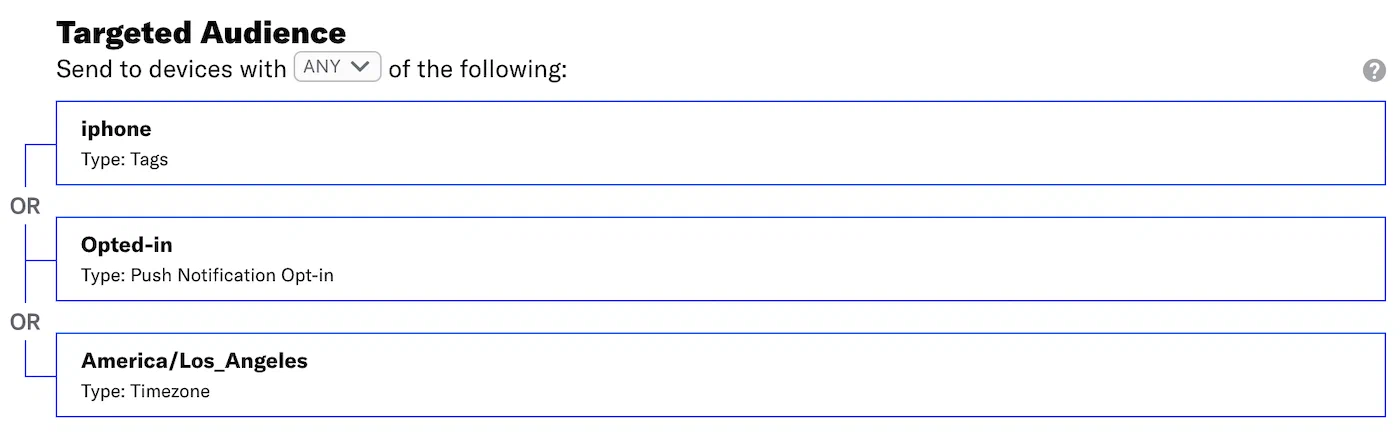
*Targeted audience selections*
* **Search**
1. Enter a term in the search field, and select from the listed results. To filter results, click
.
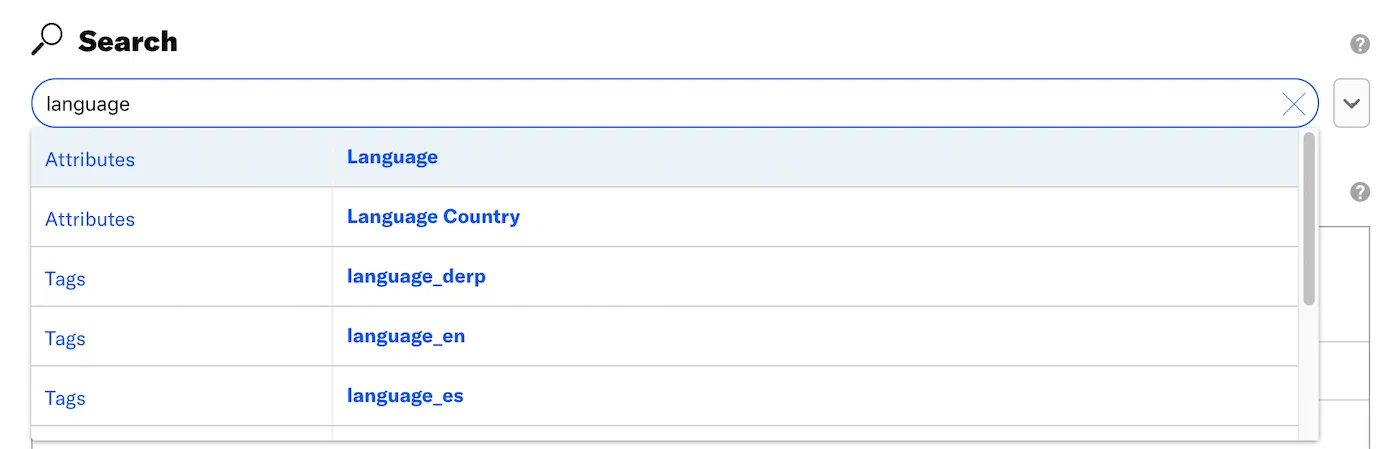
*Searching for Attributes in the audience selector*
1. (For attributes only) Set an operator determining how you want to evaluate the attribute: *equals*, *does not equal*, *contains*, etc.

*Setting an operator for an Attribute condition*
* **Explore**
1. Select a [data type](#target-data), and select from the listed results to drill down to your desired target. You can enter a term in the *Filter results* search box to help narrow your choices.
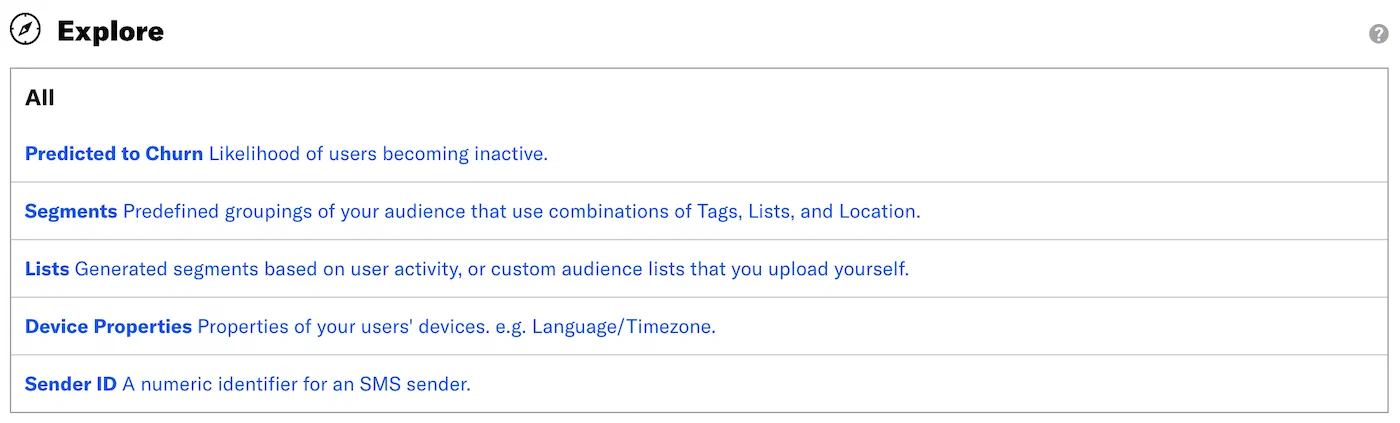
*Exploring audience data types*
1. (Optional) Click **
Add another target** to add more audience criteria.
1. Select *ALL/ANY* to determine how to evaluate multiple targets.
ALL = all criteria must be met (boolean AND)
ANY = any criteria must be met (boolean OR)
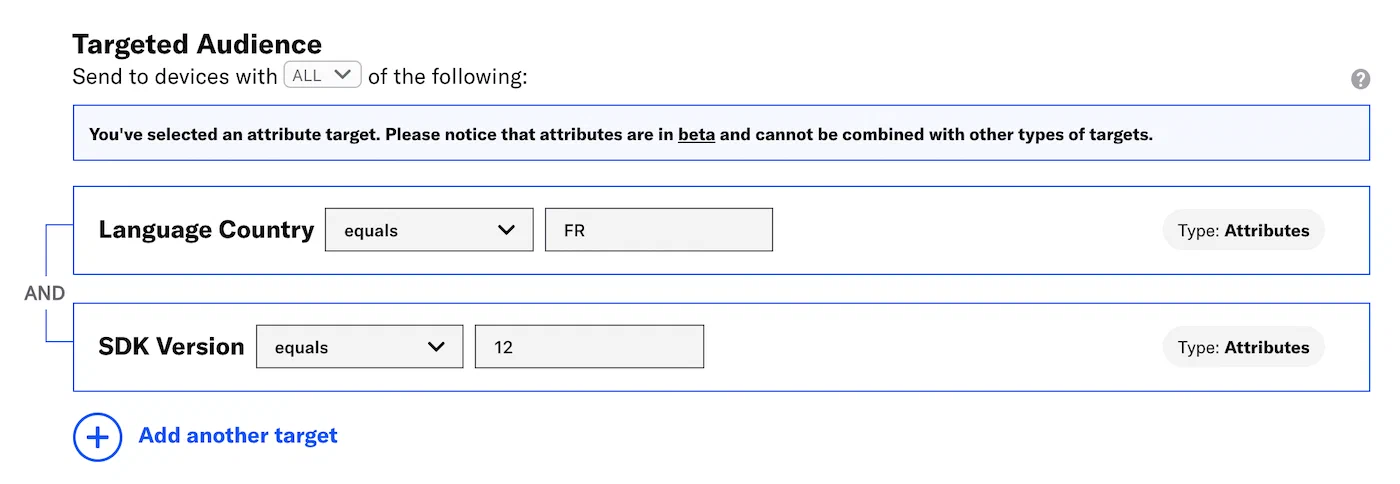
*Evaluating multiple audience targets with ALL/ANY*
By default Airship only includes audience members meeting ALL the conditions you
select. For example, if you selected ALL, with tags `VIP` and `has_pets`,
you'd only reach VIP pet owners. If you selected ANY, you’d reach all VIPs and
all pet owners.
You can create a [Segment](https://www.airship.com/docs/reference/glossary/#segment) to define more complex, nested logic.
Now you can complete the remaining steps in the composer.
## Target Data {#target-data}
You can specify your message audience by a unique identifier, such as a device
ID or email address, or by an identifier that may belong to or include multiple users, such as a tag or audience list. Learn more in
[Segmentation](https://www.airship.com/docs/guides/audience/segmentation/segmentation/).
| Data type | [Search](#steps) | [Explore](#steps) |
| --- | :---: | :---: |
| [Attributes](https://www.airship.com/docs/reference/glossary/#attributes) | ✓ | |
| [Audience List](https://www.airship.com/docs/reference/glossary/#audience_list) | ✓ | ✓ |
| [Device ID](https://www.airship.com/docs/reference/glossary/#device_id) | ✓ | |
| [Device Properties](https://www.airship.com/docs/reference/glossary/#device_properties) | ✓ | ✓ |
| [Named User](https://www.airship.com/docs/reference/glossary/#named_user) | ✓ | |
| [Predicted to Churn](https://www.airship.com/docs/reference/glossary/#predicted_to_churn) | ✓ | ✓ |
| [Segment](https://www.airship.com/docs/reference/glossary/#segment) | ✓ | ✓ |
| [Sender ID](https://www.airship.com/docs/reference/glossary/#sender_id) | ✓ | ✓ |
| [Tags](https://www.airship.com/docs/reference/glossary/#tag) and [Tag Groups](https://www.airship.com/docs/reference/glossary/#tag_group) | ✓ | |
> **Note:** Lifecycle audience lists are not supported for Web, Email, SMS, or Open channels.
# Preview and test groups
> Create audience groups that can be used for previewing personalized content and receiving test messages.
A *preview group* is an audience group used for previewing personalized content in the dashboard. Wherever a personalization preview is available, you can select a preview group, and its group members' attributes will appear for any Handlebars references to attributes. You can enable any preview group as a *test group* so you can send test messages to its group members. These messages appear as tests in Messages Overview.
By keeping a saved list of approved test users in Airship, you can be sure that your test messages only reach an approved, in-house list of users. You might limit your test group to company employees such
as Product staff, Development team, etc.
## Requirements, validation, and registration
When adding users to a group, you must enter an ID: [Channel ID](https://www.airship.com/docs/reference/glossary/#channel_id), email address, or [MSISDN](https://www.airship.com/docs/reference/glossary/#msisdn). The ID is used for rendering attributes in personalization previews and where test messages will be sent. The ID is validated upon entry, and you will see errors if these requirements are not met:
* Your project must be already be configured for the [Channel (Engagement)](https://www.airship.com/docs/reference/glossary/#channel_engage) for an entered ID.
* Channel IDs must exist for the project.
* MSISDNs must be for SMS channels that exist for the project.
You can add any email address, and an email channel will be registered for the project.
## Creating a new group
You can create up to 20 groups. You cannot change the group name and Test Group setting after creating the group, but you can delete the group and create a new one. Also, you cannot change a user ID later, but you can [add and remove users from the group](#adding-editing-and-removing-group-members).
> **Tip:** Make sure to use IDs that are valid for the group's intended purpose. For example, if you will be sending push notifications to the group, enter a Channel ID for an iOS or Android Channel.
1. Select the **Audience** menu, then **Preview and Test Groups**.
1. Select **Create group**.
1. Enter a name for the group.
1. (Optional) Enable **Test group**.
1. Select **Save and continue**.
1. For each group member, select **Add user**, then enter a name and Channel ID, email address or MSISDN. If a MSISDN is associated with more than one [Sender ID](https://www.airship.com/docs/reference/glossary/#sender_id), select the one that should be used as the sender of test messages.
1. Select **Done**.
After adding a user, you will return to the list of all users in the group. The ID column displays the Channel ID for each user. You cannot view the original email address or MSISDN entered when adding the user.
Select **Preview and Test Groups** in the page breadcrumbs to return to the list of all your groups. Select the delete icon (
) to remove a group.
## Adding, editing, and removing group members
1. Select the **Audience** menu, then **Preview and Test Groups**.
1. Select the pencil icon (
) for a group.
1. Complete the steps for an action:
| Action | Steps |
| --- | --- |
| **Add a user** | Select **Add user** and complete steps as described in [Creating a new group](#creating-a-new-group). |
| **Edit a user's name** | Select the pencil icon () for a user, change the name, and select **Done**. |
| **Delete a user** | Select the delete icon () for a user. |
## Using preview groups
See [Previewing personalized content](https://www.airship.com/docs/guides/personalization/previewing/).
## Sending to test groups
Messages you send to a test group appear in the Tests view in [Messages Overview](https://www.airship.com/docs/reference/glossary/#messages_overview). You can send to a test group from these locations:
| Location | Steps |
| --- | --- |
| The Audience step in the Message, A/B Test, In-App Automation, and Scene composers | Select **Test Users** and select a test group. You must complete the remaining composer steps and send the message before it is sent to the group. |
| The Review step in the Message, Automation, and Sequence composers | Select **Send Test**, select at least one test group, then select **Send**. The message sends immediately. |
| The Manage screen in a Sequence | See [Test a message in a Sequence](https://www.airship.com/docs/guides/messaging/messages/sequences/create/test/#test-a-message-in-a-sequence). The message sends immediately. |
| The Test Run option in a Sequence | See [Test a sequence](https://www.airship.com/docs/guides/messaging/messages/sequences/create/test/#test-a-sequence). The message sends immediately. |
# Track Rich Pages With Google Analytics
> Track rich page opens and clicks via Google Analytics.
While Airship messaging supports tracking of rich page opens out of the box, you can also
track opens and clicks within [Rich Page](https://www.airship.com/docs/reference/glossary/#rich_page) content with a third-party tool like *Google
Analytics*. These directions assume you already have created a Google Analytics account.
See:
* [Message Center content](https://www.airship.com/docs/guides/messaging/messages/content/app/message-center/)
* [Landing pages](https://www.airship.com/docs/guides/messaging/messages/content/app/landing-pages/)
## Configure Google Analytics
1. Navigate to the Admin page in
[Google Analytics](https://analytics.google.com).
1. In the *Property* column, click **+ Create property**, and name
it something like "Airship Rich Pages."
1. Set the Default URL to `https://device-api.urbanairship.com`.
1. Click **Get Tracking ID**, then you will see a page displaying the tracking ID.
1. Note the Tracking ID assigned to this property.
## Track Page Opens
To track page opens you need to embed the Google Analytics JavaScript.
If you just completed creating a new property, you will
already have this page open, and you can skip to step 4.
1. Navigate to the Admin page in
[Google Analytics](https://analytics.google.com).
1. In the *Property* column, select your property and click *Tracking Info* then *Tracking Code*.
1. Copy the code from the *Website tracking* section.
1. Paste the code into every page you want to track. Sample code is below.
Make sure to replace `YOUR TRACKING ID HERE` with your actual tracking ID.
```html
```
> **Note:** It may take several hours before results appear in Google Analytics.
### View Page Opens
Because Airship generates a unique URL for each page per user, you will
want to first create a filter so that Google Analytics will roll up your URLs
to the page level.
1. Navigate to the Admin page in [Google Analytics](https://analytics.google.com).
1. In the *View* column, click *Filters* then *+ Create Filter*.
1. Set the filter so it looks like this:
*Creating a Google Analytics filter for Airship data*
1. Click **Save**.
The filter converts URLs from this format, with user info embedded:
```text
https://device-api.urbanairship.com/api/user/3BIi_uawQaa8HShcJJxooA/messages/message/iyHEOIqcTq-drAx78p4FYw/body/
```
To this, which is how message-level URLs will appear in Google Analytics
reports:
```text
/api-messages/message/iyHEOIqcTq-drAx78p4FYw/body/
```
## Track Link Clicks
1. Paste this code into every page you want to track:
```html
```
You can modify the values of 'category' and 'action' to organize the
information in Google Analytics. See
[Google's documentation](https://developers.google.com/analytics/devguides/collection/analyticsjs/events) for more information.
1. Wire up the event to your event, passing a unique ID to the
`sendLink()` method:
```html
Download Now
```
### View Link Clicks
If you are tracking Link Clicks, you can view
the events in the Overview or Content sections of the Google Analytics
*Realtime* report.
# Ad IDs
> Optimize your user acquisition and re-marketing campaigns with Ad IDs.
# What are Ad IDs?
Ad IDs are user-level IDs that are the same for a user over multiple apps on
their device. Ad IDs allow marketers to send content and ads to users that
have not limited their ad tracking. Other services such as Facebook and
Twitter capture the same Ad ID and have ad platforms to target specific
users based on Ad IDs.
This topic guide covers use cases and technical details on how to send
Airship Ad IDs so you can begin to optimize your user acquisition and
re-marketing campaigns.
# Use Cases
Customer acquisition costs for mobile are rising due to low-quality users
[churning out](https://www.airship.com/docs/guides/features/intelligence-ai/predictive/predictive-churn/)
within a short time frame. It is therefore increasingly critical to focus on
your most valuable and loyal users, the ones you've worked hard to acquire,
activate, retain, and monetize.
What if you could construct an ideal profile based on the characteristics of
your most loyal users, then take the profile and say, "I'll have more like
them, please"?
With Airship messaging and
[Performance Analytics](https://www.airship.com/docs/reference/glossary/#pa)
you can leverage your most valuable users to find similar new users. Grow your
audience according to user characteristics that have been most successful for
you in the past.
> **Tip:** Read the
> [Exporting Lists Tutorial](https://www.airship.com/docs/guides/reports/analytics/tasks-queries/export/#ins-tutorial-ad-ids)
> to learn how to take action with Performance Analytics using Ad IDs.
## New User Acquisition
Using ad platforms such as Facebook and Twitter to leverage the information
available in
[Performance Analytics](https://www.airship.com/docs/reference/glossary/#pa),
such as loyal users, as input in to
[Facebook's lookalike audience](https://www.facebook.com/business/help/164749007013531?id=401668390442328)
helps you find more high-valued users similar to your loyal users.
**Examples of valuable data:**
* Push opted-in
* Interacted with a message
* Active for the last 30 days
* Completed a goal in your app
## Win-Back and Re-Marketing
You can also use Facebook or Twitter Ad platforms to run win-back campaigns for
[churned users](https://www.airship.com/docs/guides/features/intelligence-ai/predictive/predictive-churn/)
or re-market your product using a custom audience.
**Win Back - Example of valuable data:**
* Uninstall
**Re-marketing - Examples of valuable data:**
* New users
* Abandoned cart
* Browsed product view (non-purchase)
* High frequency/recency users
# Technical Details
> **Warning:** Your app must:
>
> 1. Send the *limit ad tracking* field from your app, and
> 1. Not target users with ads who have *limit ad tracking* enabled. A value of
> Unknown or Limit Ad Tracking = Yes or Unknown means you cannot send
> ads to these users.
See the [SDK Analytics](https://www.airship.com/docs/sdk-topics/analytics/) documentation for details about enabling tracking the Ad ID.
### Attributes
{{< glossary_definition "attributes" >}}
# About Attributes
> {{< glossary_definition "attributes" >}}
## Tags versus Attributes
Consider the example below — you want to target fans of the actor Chris Pine. To accomplish this, you specify an audience of users with the [Tag](https://www.airship.com/docs/reference/glossary/#tag) `chris_pine`. Either a user has this tag, or not. **Note:** These API examples can also be used in the dashboard.
**Tag audience**
```json
{
"audience": {
"tag": "chris_pine"
}
}
```
But let's say you wanted to target fans of **All The Chrises**: Chris Pine, Chris Evans, Chris Pratt, and Chris Hemsworth. With Attributes, you can set your audience to target users whose `favorite_actor` Attribute `contains` the value `chris`, and you will reach all the Chris fans.
**Attributes audience**
```json
{
"audience": {
"attribute": "favorite_actor",
"operator": "contains",
"value": "chris"
}
}
```
It's a silly example, but hopefully you can begin to see the power of comparison operators for Attributes.
## Attribute types
User information can be stored in an Attribute as text or as a number, date, or JSON object. Each Attribute type is named for the schema that defines what values it accepts. Text, Number, and Date schemas are determined by Airship. You provide your own schema for JSON Attributes.
Values accepted for each Attribute type:
| Attribute type | Value format | Comments |
| --- | --- | --- |
| **Text** | String | Text strings can be a maximum of 255 characters. |
| **Number** | Number or float value | When setting Number Attributes, you can provide your value as an integer, float, or string. |
| **Date** | ISO 8601 date-time formatted string: `YYYY-MM-DDTHH:MM:SS` | You can set an offset by appending the date-time with `+HH:MM`. For example, `2020-07-20T12:35:42+08:00`. Date Attributes are converted to and stored as UTC. |
| **JSON** | An object containing one or more string, number, date, or boolean key-value pairs, individually or within objects or arrays | JSON Attributes are not available in [Performance Analytics](https://www.airship.com/docs/reference/glossary/#pa). See following page section for additional information. |
### JSON Attributes
JSON Attributes are data objects containing one or more string, number, date, or boolean key-value pairs. The pairs can be added individually or within objects or arrays.
You can think of them as collections of information you can assign to a user. Example use cases:
* **Retailer** — Store user preferences and send sale or discount messages about items you know a user will be interested in and with personalized content for their preferred brands, colors, etc.
* **Airline** — Store a user's booking information and send confirmation and update messages leading up to, during, and after their trip. Messages would contain their confirmation code, flight numbers, origin and destination airport codes, and departure and arrival times.
For each JSON Attribute, you create a template for the structure and what data to store. The template is the *schema* and the data is defined as *properties*. Using the above airline use case, you could have an Attribute with ID `reservation` and create a schema for the confirmation code and lists of like data types (departures and arrivals) with properties for flight numbers, airport codes, and times.
In addition to the properties defined in your provided schema, each JSON Attribute has a property `exp` for its expiration date, represented as the number of seconds since the epoch (January 1st, 1970). After expiration, Airship ignores the Attribute where used in segmentation and personalization. When setting a JSON Attribute on a user, if a value for `exp` is not provided, Airship automatically sets a value of 90 days from the current date and time. The maximum expiry delay for a JSON Attribute is 731 days.
Each instance of setting a JSON Attribute on a user is defined by an *instance ID*, which is used as a reference for the property values set for that user.
The following describes associating the data with users and targeting and personalization options:
| Topic | How it works | Airline use case example |
| --- | --- | --- |
| **Setting the Attribute on your audience** | Use the API to set JSON Attributes on a user, specifying an instance ID and values for properties. | When a user books a round-trip flight, you could assign the `reservation` Attribute with instance ID `a001`. The JSON data assigned for instance `reservation#a001` would contain a list of each flight leg going to the destination and each returning flight leg. |
| **Targeting the Attribute** | You target a JSON Attribute's properties, not the object as a whole. All instances of the Attribute are evaluated for matches. Any user that matches the target is included in the message audience. | For a flight update message, you could target any user with the Attribute `reservation` where the initial leg of their trip departs from airport `PDX`. Any user with that Attribute and value `PDX` for the airport code property would be included in the message audience. |
| **Personalizing content** | In message content, you can reference JSON Attributes by instance ID or evaluate all instances of the Attribute. In both cases, the message content populates with the property values set for a user. | In a flight update message, you could reference `reservation` properties, and the message would contain user-specific details about how the change affects their trip. |
## Categories, data sources, and setup
Attributes can come from the Airship SDKs, users, and you.
Data sources, descriptions, and setup per Attribute category:
| Category | Data source | Description | Setup |
| --- | --- | --- | --- |
| **Default** | Airship SDKs | Airship automatically sets Default Attributes on your audience. See [Default Attributes](https://www.airship.com/docs/reference/data-collection/attributes/#default-attributes) in the _Attributes Reference_. | None. |
| **NPS survey** | User answers to Net Promoter Score (NPS) surveys in [Scenes](https://www.airship.com/docs/reference/glossary/#scene) | Airship automatically generates Attributes based on the NPS score or category. See [NPS Segmentation](https://www.airship.com/docs/guides/features/messaging/scenes/surveys-stories/#nps-segmentation) in _Surveys and Stories_ and [NPS survey Attributes](https://www.airship.com/docs/reference/data-collection/attributes/#nps-survey-attributes) in the _Attributes Reference_. | None. |
| **Predefined** | Customer | Preformatted Text and Number Attributes you can use to ensure consistency across reports and [Performance Analytics](https://www.airship.com/docs/reference/glossary/#pa). For example, ID `first_name` for first name, and ID `last_name` for last name. See [Predefined Attributes](https://www.airship.com/docs/reference/data-collection/attributes/#predefined-attributes) in the _Attributes Reference_. | Add Attributes in your project settings then set them on your audience. |
| **Custom** | Customer | You can add any Attribute type to your project. | Add Attributes in your project settings then set them on your audience. |
| **Zero-copy data integration** | Data partner | Directly access user data from external systems. The data remains in its original location instead of being copied or imported into Airship. | See [Zero-copy data integration](https://www.airship.com/docs/guides/features/data-integration/zero-copy-data-integration/). |
> **Warning:** To target users based on a unique user ID or other external identifier, do not use Custom Attributes. Instead, target [Named User](https://www.airship.com/docs/reference/glossary/#named_user).
> **Tip:** You can store responses to single choice questions in [Scenes](https://www.airship.com/docs/reference/glossary/#scene) as Attributes.
>
> See the [Question content element](https://www.airship.com/docs/guides/messaging/editors/native/elements/#question) in *Configuring Scene content*.
## Personalization
You can use Attributes in a message body to personalize content for each user. See [Personalizing messages using Attributes](https://www.airship.com/docs/guides/personalization/sources/attributes/).
# Adding Attributes to your project
> Before you can target Attributes, you must add some types to your project.
You must add Predefined and Custom Attributes to your project before you can set them on your audience for targeting. You can add up to 250 Attributes per project.
After adding Attributes, allow at least 10 minutes before setting their values. This delay ensures proper processing of the Attributes within Airship.
No setup is required for Default and NPS survey Attributes. You can go straight to [Targeting your audience using Attributes](https://www.airship.com/docs/guides/audience/attributes/targeting/). Similarly, Attributes from [Zero-copy data integration](https://www.airship.com/docs/guides/features/data-integration/zero-copy-data-integration/) are available for targeting once Airship completes your project configuration.
## Add Text, Number, and Date Attributes
Follow these steps to add text, number, or date Attributes to your project:
1. Go to **Audience**, then **Attributes**, then **Attribute List**.
1. Select **Create Attribute**.
1. Search for the Attribute you want to add. If it matches a [Predefined Attribute](https://www.airship.com/docs/reference/data-collection/attributes/#predefined-attributes), select from the results. Results do not include Predefined Attributes that have been [archived](https://www.airship.com/docs/guides/audience/attributes/managing/) or already added.
1. Complete the fields:
| Field | Description | Steps |
| --- | --- | --- |
| **Attribute ID** | The key that Airship uses to reference the Attribute in the SDKs and API. Letters, numbers, and underscores only, 64 characters maximum. The `ua_` prefix is reserved by Airship, so you cannot include it in the ID. Cannot be edited for Predefined Attributes. | Enter text. |
| **Name** | A human-friendly name to help you organize and identify your Attributes in the dashboard. Accepts all characters, 64 characters maximum. | Enter text. |
| **Type** | Determines the format of the Attribute value: Text, Number, or Date. Cannot be edited for Predefined Attributes. | Select a type. |
> **Important:** * Names and IDs must be unique.
> * Attribute IDs are case sensitive. If your Attributes exist in an external system, make sure they are always the same case in both systems.
> * We recommend using lowercase characters with underscores for Attribute IDs. For example, `my_text_attribute`.
> * You cannot edit a Custom Attribute's ID or type after saving.
1. Select **Add**.
## Add JSON Attributes
When adding a JSON Attribute, you must define the object's data structure in a schema. An object is a collection of properties defined as key-value pairs. The values can be strings, numbers, dates, booleans, objects, or arrays. An array is an ordered collection of values. A JSON object allows for nested objects and arrays, so it can contain an array of properties, and those properties can themselves be objects containing more properties and arrays of properties.
You can manually enter a schema or automatically generate a schema by uploading a sample .json file. For upload:
* The value data determines the value types and will be removed.
* Array value type is determined based on the first element in an array, so when using an array with more than one type, the array is converted to a single type based on the first element. For example, the array `["hi", true, 3]` will create an array of strings.
* Empty arrays, objects without keys, and keys with empty arrays or objects will be ignored.
You can assign any property a more readable name, like "Flight number" or "Reservation code", as an alias. When creating a [Segment](https://www.airship.com/docs/reference/glossary/#segment) targeting a JSON Attribute, you can select the alias from a menu instead of having to locate the property within the JSON schema. Aliases are supported in the dashboard only.
1. Go to **Audience**, then **Attributes**, then **Attribute List**.
1. Select **Create Attribute**.
1. Complete the fields:
| Field | Description | Steps |
| --- | --- | --- |
| **Attribute ID** | A portion of the key that Airship uses to reference the Attribute in the SDKs and API. Letters, numbers, and underscores only, 64 characters maximum. The `ua_` prefix is reserved by Airship, so you cannot include it in the ID. | Enter text. |
| **Name** | A portion of the key that Airship uses to reference the Attribute in the SDKs and API. The name is also used to help you organize and identify your Attributes in the dashboard. Letters, numbers, and underscores only, 64 characters maximum. | Enter text. |
| **Type** | Determines the format of the Attribute value. | Select JSON. |
> **Important:** * Names and IDs must be unique.
> * Attribute IDs are case sensitive. If your Attributes exist in an external system, make sure they are always the same case in both systems.
> * We recommend using lowercase characters with underscores for Attribute IDs. For example, `my_text_attribute`.
> * You cannot edit a Custom Attribute's ID or type after saving.
> **Tip:** You can select **Add** now to save the Attribute, then edit and set up the schema later.
1. (To automatically generate a schema) Select **Upload**, then upload your sample .json file.
1. (To manually create a schema) Select **Create schema**.
1. Edit the schema:
| Option | Steps |
| --- | --- |
| **Add a property** | Select the plus icon, enter a name, select a value type, then select the check mark. You must also select a value type for each array. |
| **Remove a property or object** | Hover over the item, then select the trash can icon. |
1. (Optional) Create aliases:
1. Under **Aliases**, select the plus icon.
1. Enter a name for the alias.
1. Select a property in the schema. Its path will appear next to the alias.
1. (Optional for arrays in the path) Select **First** or **Last** to specify the first or last item in the array. Defaults to **Any**.
1. Select the check mark to save.
1. Repeat for additional aliases.
1. Select **Save JSON Schema**.
1. Select **Add**.
# Setting and removing Attributes
> Setting and removing Attributes varies per Attribute type. Setting Attributes on Named Users is recommended.
For Predefined and Custom Attributes, you must set them on your audience after adding them to your project.
> **Important:** You must add Custom and Predefined Attributes to your project before setting them on users. Otherwise, setting those Attributes will result in an error. See [Adding Attributes to your project](https://www.airship.com/docs/guides/audience/attributes/adding/).
>
> JSON Attributes can only be set using the API.
No setup is required for Default and NPS survey Attributes. You can go straight to [Targeting your audience using Attributes](https://www.airship.com/docs/guides/audience/attributes/targeting/). Similarly, Attributes from [Zero-copy data integration](https://www.airship.com/docs/guides/features/data-integration/zero-copy-data-integration/) are available for targeting once Airship completes your project configuration.
## Channels versus Named Users
You can set Attributes on Channels and Named Users, however their inheritance of Attributes varies:
Channels inherit from Named Users — All the Channels associated with a Named User will also bear the Named Users’s Attributes. When you remove a Channel from a Named User, Airship removes Attributes set on the Named User from that Channel.
Using the example favorite_actor Attribute contains the value chris, if you store the favorite_actor Attribute at the Named User level, you can target all contacts who are fans of Chrises over any of their Channels. You can keep your audience up to date on Chris-related news, no matter which Channels they use to communicate with you.
**Attributes at the Named User level can be used to target any Channel associated with a Named User:**
```mermaid
graph LR
A[Named User with Attributes]
B[Attribute Selector]
subgraph Audience
C[App Message]
D[SMS]
E[Web Notification]
end
A --> B
B -.-> C
B -.-> D
B -.-> E
```
Named Users do not inherit from Channels — Any Attribute set for a Channel will not also be set for an associated Named User.
If you store the favorite_actor Attribute at the Channel level, you can only target fans of Chrises on the specific Channels bearing the favorite_actor Attribute, limiting the scope of Chris-related communications.
**Attributes at the Channel level are limited to that Channel:**
```mermaid
graph LR
A[App Channel with Attributes]
B[Attribute Selector]
subgraph Audience
C[App Message]
D[SMS]
E[Web Push]
end
A --> B -.-> C
```
In general, we recommend that you store Attributes at the Named User level so you can take advantage of your Attributes across any of your users’ Channels. This helps you build and maintain a cohesive relationship with your audience. Setting Attributes at the Channel level limits the scope of the Attribute to that Channel and can also limit your flexibility when targeting audiences.
Named users also inherit a few Default Attributes from the last Channel that was associated with them, helping keep your Named Users up to date with scheduling and locale information.
These Attributes appear in the user_attributes object:
Default Attribute
Description
Example
ua_local_tz
The user’s time zone
America/Los_Angeles
ua_country
The user’s ISO 3166 two-character country code
US
ua_language
The user’s ISO 639-1 two-character language code
en
## Required delay before setting Attribute values
After adding Attributes, allow at least 10 minutes before setting their values. This delay ensures proper processing of the Attributes within Airship.
## Setting and removing Text, Number, and Date Attributes
You can set and remove Text, Number, and Date Attributes using:
* CSV file upload in the dashboard
* CSV file transfer using SFTP
* App and Web SDKs
* Channels and Named Users APIs
Use these formats when setting each Attribute type:
| Type | Format |
| --- | --- |
| **Text** | String. When setting Text Attributes using a CSV, you do not need to wrap the value in quotes. |
| **Number** | Number, float value, or string |
| **Date** | ISO 8601 date-time formatted string: `YYYY-MM-DDTHH:MM:SS`. Set an offset by appending the date-time with `+HH:MM`. For example, `2020-07-20T12:35:42+08:00`. |
### CSV file
First, create a list of users and their Attributes in a CSV file. Prepare your file using the guidelines in [Attributes CSV Format](https://www.airship.com/docs/reference/messages/csv-formatting/#attributes) in the *CSV Formatting Reference*. When using email or SMS identifiers in your CSV file, Airship registers new Channels for addresses or MSISDN/sender combinations that are new to your project. Additional fields indicate opt-in statuses, so that you can send messages to new Channels generated from your CSV upload. All values in CSV uploads, including numbers, are represented as strings and cannot be used with [math helpers](https://www.airship.com/docs/guides/personalization/handlebars/math-helpers/).
Next, transfer the file using SFTP or upload it in the dashboard. Follow the steps in [SFTP upload for CSV files](https://www.airship.com/docs/guides/audience/segmentation/sftp-upload/), or follow these steps for dashboard upload:
1. Go to **Audience**, then **Attributes**, then **Upload Attribute Data**.
1. For **Upload Type**, select which file type you prepared, **Attributes CSV** or **Attributes Snapshot CSV**.
1. Select **Choose file** and select your file.
1. Select **Upload**.
To see your upload and SFTP transfer status, select **Upload History**. See [Viewing upload history](https://www.airship.com/docs/guides/audience/attributes/managing/#viewing-upload-history) in *Managing Attributes*.
#### Retention and deletion
Airship automatically deletes a list and all its versions after 90 days of inactivity. Timestamps used to calculate the 90-day period:
Creation date
New version uploaded
The creation date is the initial day one of the 90-day period. Each instance of uploading a new version resets the timestamp to day one.
The retention period for an Attributes list is the same whether uploaded in the Airship dashboard or [using SFTP](https://www.airship.com/docs/guides/audience/segmentation/sftp-upload/).
After deletion, the list is removed from the upload history and is no longer visible in the Airship dashboard or through API calls. Deletion does not affect the project state. For example, if you use an Attribute list that adds Attribute A to a Channel, Attribute A will still exist on the Channel after list deletion.
### SDK
To set or remove Attributes on a Channel or a Contact, use the Channel or Contact classes in our SDKs:
* **iOS** — [Contact](https://urbanairship.github.io/ios-library/v20/AirshipCore/documentation/airshipcore/airshipcontact)
, [Channel](https://urbanairship.github.io/ios-library/v20/AirshipCore/documentation/airshipcore/airshipchannel)
* **Android** — [Channel](https://www.airship.com/docs/reference/libraries/android-kotlin/latest/urbanairship-core/com.urbanairship.channel/-airship-channel/index.html), [Contact](https://www.airship.com/docs/reference/libraries/android-kotlin/latest/urbanairship-core/com.urbanairship.contacts/-contact/index.html)
* **Web** — [Channel](https://www.airship.com/docs/reference/libraries/web-notify-sdk/v2-latest/UaSDK.Channel.html#editAttributes), [Contact](https://www.airship.com/docs/reference/libraries/web-notify-sdk/v2-latest/UaSDK.Contact.html#editAttributes)
The code examples below show how to set Attributes using the provided methods. See the
[SDK docs](https://www.airship.com/docs/sdk-topics/attributes/) for more details.
#### Android Java
```java
Airship.getChannel().editAttributes()
.setAttribute("average_rating", 4.99)
.setAttribute("last_product_purchased", "A1234567")
.removeAttribute("purchase_pending")
.apply();
```
#### iOS Swift
```swift
Airship.channel.editAttributes { editor in
editor.set(string: "cauldron", attribute: "last_product_purchased")
editor.set(number: 4.99, attribute: "average_rating")
editor.remove("purchase_pending")
}
```
#### iOS Objective-C
```obj-c
[UAirship.channel editAttributes:^(UAAttributesEditor * editor) {
[editor setString:@"cauldron" attribute:@"last_product_purchased"];
[editor setNumber:@(4.99) attribute:@"average_rating"];
[editor removeAttribute:@"purchase_pending"];
}];
```
**Setting Attributes for Web**
```js
const editor = channel.editAttributes()
await editor
.set("my_attribute", "some_value")
.remove("other_attribute")
.apply()
```
### API
You can set Attribute values from external sources, such as a CRM or data warehouse, using the Channels and Named Users APIs:
* [Set or Remove Attributes on Channels](https://www.airship.com/docs/developer/rest-api/ua/operations/channels/#modifychannelattributes)
* [Set or Remove Attributes on Named Users](https://www.airship.com/docs/developer/rest-api/ua/operations/named-users/#modifynameduserattributes)
Use `set` or `remove` for the `action` value. Use the Attribute ID as the `key` value.
**Setting two Attributes on a Channel and removing another**
```http
POST /api/channels/attributes HTTP/1.1
Authorization: Basic
Accept: application/vnd.urbanairship+json; version=3
Content-Type: application/json
{
"audience": {
"ios_channel": "b8f9b663-0a3b-cf45-587a-be880946e881"
},
"attributes": [
{
"action": "set",
"key": "favorite_actor",
"value": "chris_evans",
"timestamp": "2019-09-19 12:00:00"
},
{
"action": "remove",
"key": "favorite_color",
"timestamp": "2019-09-19 12:00:00"
},
{
"action": "set",
"key": "first_name",
"value": "Roger",
"timestamp": "2019-09-19 12:00:00"
}
]
}
```
**Setting two Attributes on a Named User and removing another**
```http
POST /api/named_users/my_named_user/attributes HTTP/1.1
Authorization: Basic
Accept: application/vnd.urbanairship+json; version=3
Content-Type: application/json
{
"attributes": [
{
"action": "set",
"key": "firstName",
"value": "Gyuri",
"timestamp": "2020-09-19 12:00:00"
},
{
"action": "remove",
"key": "birthDate",
"timestamp": "2020-09-19 12:00:00"
},
{
"action": "set",
"key": "lastName",
"value": "Pataki",
"timestamp": "2020-09-19 12:00:00"
}
]
}
```
## Setting and removing JSON Attributes
You can set and remove JSON Attributes on a Channel or a Contact using:
* App and Web SDKs
* Channels and Named Users APIs
### SDK
[iOS SDK 19.3+](/docs/docs/developer/sdk-integration/apple/ios-changelog/#19.3.0) [Android SDK 19.6+](/docs/docs/developer/sdk-integration/android/changelog/#19.6.0)
The code examples below show how to set JSON Attributes using the provided methods.
#### Android Kotlin
```kotlin
Airship.contact.editAttributes {
setAttribute(
attribute = "attribute_name",
instanceId = "instance_id",
expiration = Date(),
json = jsonMapOf(
"key" to "value",
"another_key" to "another_value"
)
)
}
```
#### iOS Swift
```swift
Airship.contact.editAttributes { editor in
try! editor.set(
json: [
"key": .string("value"),
"another_key": .string("another_value")
],
attribute: "attribute_name",
instanceID: "instance_id",
expiration: Date.now
)
}
```
**Setting JSON Attributes for Web**
```js
const contact = await sdk.contact
const editor = await contact.editAttributes()
const nowInSeconds = Math.floor(Date.now() / 1000)
await editor
.set("attribute_name#instance_id", {
key: "value",
another_key: "another_value",
exp: nowInSeconds
}
)
.apply()
```
### API
Set or remove JSON Attributes using the Channels and Named Users APIs:
* [Set or Remove Attributes on Channels](https://www.airship.com/docs/developer/rest-api/ua/operations/channels/#modifychannelattributes)
* [Set or Remove Attributes on Named Users](https://www.airship.com/docs/developer/rest-api/ua/operations/named-users/#modifynameduserattributes)
Use `set` or `remove` for the `action` value. Set the key value as `#`. Instance IDs:
* Can contain letters, numbers, and underscores only
* Must begin with a letter
* Must end with a letter or number
* Are limited to 31 characters maximum
* Are case-sensitive
For more information, see [JSON Attributes](https://www.airship.com/docs/guides/audience/attributes/about/#json-attributes) in *About Attributes*.
In the examples below we are using the Attribute ID `reservations` and instance ID `a001`.
**Setting a JSON Attribute on a Channel**
```http
POST /api/channels/attributes HTTP/1.1
Authorization: Basic
Accept: application/vnd.urbanairship+json; version=3
Content-Type: application/json
{
"audience": {
"ios_channel": "b31cf3ab-f33e-46ae-b874-782facda2bab"
},
"attributes": [
{
"action": "set",
"key": "reservations#a001",
"value": {
"flights": [
{
"departs": {
"port": "PDX",
"time": "2023-12-01T05:09:00"
},
"arrives": {
"port": "LAX",
"time": "2023-12-01T07:09:00"
}
},
{
"departs": {
"port": "LAX",
"time": "2023-12-08T12:30:00"
},
"arrives": {
"port": "PDX",
"time": "2023-12-08T14:45:00"
}
}
]
}
}
]
}
```
**Setting the four different types of Attributes on a Named User**
```http
POST /api/named_users/my_named_user/attributes HTTP/1.1
Authorization: Basic
Accept: application/vnd.urbanairship+json; version=3
Content-Type: application/json
{
"attributes": [
{
"action": "set",
"key": "favorite_food",
"value": "cake"
},
{
"action": "set",
"key": "age",
"value": 35
},
{
"action": "set",
"key": "birthdate",
"value": "1985-07-14T00:00:00"
},
{
"action": "set",
"key": "flights#id123",
"value": {
"recordID": 123,
"flightsInfo": [
{
"departureTime": "2024-07-14T12:35:42+08:00",
"flightId": "LY205",
"destinationAirportCode": "PDX",
"originAirportCode": "LAX"
},
{
"departureTime": "2024-14-14T12:00:00+08:00",
"flightId": "LY315",
"destinationAirportCode": "LAX",
"originAirportCode": "PDX"
}
]
}
}
]
}
```
# Targeting your audience using Attributes
> Target Attributes using the dashboard or API.
Text, Number, and Date Attributes are targeted directly. You specify the Attribute, an operator, and a value to evaluate against. For JSON Attributes, you target specific properties within the JSON schema, not the object as a whole.
> **Warning:** To target users based on a unique user ID or other external identifier, do not use Custom Attributes. Instead, target [Named User](https://www.airship.com/docs/reference/glossary/#named_user).
## Targeting in the dashboard
You can include Attributes when using the **Target by conditions** and **Target specific users** audience options for messages and experiments. You can also create [Segments](https://www.airship.com/docs/reference/glossary/#segment) instead of having to recreate your audience selections. Both use the same process.
Attributes can be combined with other segmentation data, such as events and Tags. For full instructions and usage locations, see [Segments](https://www.airship.com/docs/guides/audience/segmentation/segments/). For details about configuring each Attribute type, see the next sections.
When defining your audience, add each Attribute as a condition. In the image below, the Segment includes a Text Attribute targeting users whose favorite food is lasagna. The Attribute name is "Favorite Food", the operator is `Equals`, and the value is `lasagna`.
*Creating a Segment in the dashboard*
### Configure Text, Number, and Date Attributes
To configure Text and Number Attributes, select an operator, select **Add a value** and enter a value. Select outside the field or hit Enter on your keyboard to save the value. Repeat for multiple values. Multiple values are evaluated as a Boolean OR.
To configure Date attributes, select an operator, and then configure a date or range. Availability and requirements depend on the operator. For the *Between* operator, the end date is not inclusive. For example, `Between July 5 - July 17` includes dates July 5 to July 16.
Use these configuration steps for Specific, Relative, and Today:
| Option | Steps |
| --- | --- |
| **Specific** | Select a Year/Month/Day. With the _Equals_ and _Does not equal_ operators you can also use the formats Day, Month, Month/Day, and Year/Month. |
| **Relative** | Specify the number of years/months/days/hours/minutes from today's date. With the _Equals_ and _Does not equal_ operators, also select Month/Day or Year/Month/Day. |
| **Today** | With the _Equals_ operator, select Month/Day or Year/Month/Day. With the _After_ and _Before_ operators, Year/Month/Day is the only option and is preselected. |
### Configure JSON Attributes
For JSON Attributes, you target one or more properties in its schema for evaluation. For multiple properties, set Boolean logic to determine whether any or all evaluations must be true for the whole condition to be true.
> **Note:** When using the "is not equal to" (!=) operator, the system treats missing information differently based on the Attribute type. For JSON Attributes, if a user doesn't have a value for a specific property, that user is skipped from evaluation. For Text, Number, or Date Attributes, if a user is missing a value for the Attribute, that absence is considered "null", which is evaluated as whether it is not equal to the specified value, which is typically true.
>
> For example, consider a project with 100 users:
>
> * Targeting a segment using a JSON Attribute `flight.destination` != `"London"`: Suppose 10 users have values for the property, and one of those users has the value `"London"`. The system will only evaluate the 10 users who explicitly have the property. Of the 10, one is "London", so the condition is true for nine users. The 90 users who do not have the `flight.destination` property are skipped from this evaluation. Result: nine users are included.
>
> * Targeting a segment using a Text Attribute `singleFlightDestination` != `"London"`: All 100 users are included in the evaluation, even if their `singleFlightDestination` value is missing, because the missing value is treated as `"null"`. If one user has `singleFlightDestination` as `"London"`, then 99 users will satisfy the condition: `"null"` != `"London"` is true, and any other value not equal to `"London"` is also true. Result: 99 users are included.
After selecting a JSON Attribute:
1. Select **Configure**.
*Configuring a JSON Attribute in a Segment*
1. Under **Evaluations**, choose from the **Select a source** menu:
| Option | Description |
| --- | --- |
| **\** | [An alternate name defined for a property.](https://www.airship.com/docs/guides/audience/attributes/adding/#add-json-attributes) The Attribute's schema will appear with the aliased property's line selected. |
| **Select from schema** | The Attribute's schema will appear. Select a property's line, then its path will appear to the right of the menu. |
1. (For string and number properties) Select an operator and enter a value.
1. (For Boolean properties) Select **Is true** or **Is false**.
1. (For date properties) Select an operator and configure a date or range. Availability and requirements depend on the operator. For the *Between* operator, the end date is not inclusive. For example, `Between July 5 - July 17` includes dates July 5 to July 16.
Use these configuration steps for Specific, Relative, and Today:
| Option | Steps |
| --- | --- |
| **Specific** | Select a Year/Month/Day. With the _Equals_ and _Does not equal_ operators you can also use the format Year/Month. |
| **Relative** | Specify the number of years/months/days/hours/minutes from today's date. With the _Equals_ and _Does not equal_ operators, also select Month/Day or Year/Month/Day. |
| **Today** | With the _Equals_ operator, select Month/Day or Year/Month/Day. With the _After_ and _Before_ operators, Year/Month/Day is the only option and is preselected. |
1. (Optional for arrays in the path) Select **First** or **Last** to specify the first or last item in the array. Defaults to **Any**.
1. Select the check mark to add the property.
1. Select **Add another** for more properties.
1. (For multiple properties) Select **AND** or **OR** to determine how to evaluate multiple properties within the condition:
* AND = all criteria must be met
* OR = any criteria must be met
1. Select **Done**.
## Targeting using the API
Use the [Attributes audience object](https://www.airship.com/docs/developer/rest-api/ua/schemas/attributes/) to target any Attribute type.
For Text, Number, and Date Attributes, use the Attribute ID as the value for `attribute` and specify a comparison `operator` and Attribute `value`. `precision` is also required for some operators for Date Attributes. For more information, see:
* [Text Attributes Selector](https://www.airship.com/docs/developer/rest-api/ua/schemas/attributes/#textattribute)
* [Number Attributes Selector](https://www.airship.com/docs/developer/rest-api/ua/schemas/attributes/#numberattribute)
* [Date Attributes Selector](https://www.airship.com/docs/developer/rest-api/ua/schemas/attributes/#dateattribute)
**Example push targeting a Text Attribute**
```http
POST /api/push HTTP/1.1
Authorization: Basic
Accept: application/vnd.urbanairship+json; version=3
Content-Type: application/json
{
"audience": {
"attribute": "item_purchased",
"operator": "contains",
"value": "jeans"
},
"device_types": [
"ios",
"android",
"web"
],
"notification": {
"alert": "Hello from Airship"
}
}
```
**Example push targeting a Date attribute**
```http
POST /api/push HTTP/1.1
Authorization: Basic
Accept: application/vnd.urbanairship+json; version=3
Content-Type: application/json
{
"audience": {
"attribute": "account_creation",
"operator": "equals",
"value": "2023-05-24",
"precision": "year_month_day"
},
"device_types": [
"web"
],
"notification": {
"alert": "Hello from Airship"
}
}
```
Use Boolean `NOT` or `AND` operators to create compound audience expressions. In the following example, the `NOT` operator gives you the same result as if you had used the "Does not contain" operator building a Segment in the dashboard. For more about Boolean audience operators, see [Audience Selection: Compound Selector](https://www.airship.com/docs/developer/rest-api/ua/schemas/audience-selection/#compoundselector) in the Data Formats section of our API reference.
**NOT operator**
```json
{
"NOT": {
"attribute": "item_purchased",
"operator": "contains",
"value": "jeans"
}
}
```
**AND operator**
```json
{
"AND": [
{
"attribute": "size",
"operator": "greater",
"value": 12
},
{
"attribute": "size",
"operator": "less",
"value": 15
}
]
}
```
For JSON Attributes, the [Attributes audience object](https://www.airship.com/docs/developer/rest-api/ua/schemas/attributes/) must contain the Attribute ID as the value for `attribute` and a `where` object. The `where` object defines a `property` as a JsonPath expression, the property `value`, a comparison `operator`, and the property type as a `compare_as` value. See [JSON Attributes Selector](https://www.airship.com/docs/developer/rest-api/ua/schemas/attributes/#jsonattribute) for more information.
**Audience object for a JSON Attribute**
```json
{
"audience":{
"attribute": "books_on_books",
"where":{
"property": "$.x.store.book[*].title",
"operator": "equals",
"value": "Dracula",
"compare_as": "text"
}
}
}
```
For details and more example requests, see [Attributes](https://www.airship.com/docs/developer/rest-api/ua/schemas/attributes/) in the Data Formats section of our API reference.
---
As in the dashboard, you can create reusable Segments instead of having to recreate your audience selections. See [Segments](https://www.airship.com/docs/developer/rest-api/ua/operations/segments/) in our API reference.
## Operators
Operators per Attribute type:
| Attribute type | Operators | API reference |
| --- | --- | --- |
| **Text** | equals, contains, less, greater, is_empty | [Text Attribute Selector](https://www.airship.com/docs/developer/rest-api/ua/schemas/attributes/#textattribute) |
| **Number** | equals, contains, less, greater, is_empty | [Number Attribute Selector](https://www.airship.com/docs/developer/rest-api/ua/schemas/attributes/#numberattribute) |
| **Date** | equals, before, after, is_empty, range | [Date Attribute Selector](https://www.airship.com/docs/developer/rest-api/ua/schemas/attributes/#dateattribute) |
| **JSON** | equals, contains, not_contains, less, greater, is_empty, not_empty1 | [JSON Attribute Selector](https://www.airship.com/docs/developer/rest-api/ua/schemas/attributes/#jsonattribute) |
1. If the JsonPath expression maps to an array, the only available operators are is_empty, not_empty, contains, or not_contains.
The same operators are available when creating a Segment in the dashboard, but some have slightly different labels, such as "Does not contain" instead of `not_contains`.
# Managing Attributes
> Edit and archive Attributes and view your upload history.
To view a list of your Attributes, go to **Audience**, then **Attributes**. The page opens to **Attribute List**. The default sort order is by last created, and each row displays:
* Name — Attributes from [Zero-copy data integration](https://www.airship.com/docs/guides/features/data-integration/zero-copy-data-integration/) are labeled **External**.
* Type
* ID
* Created and modified dates in UTC
All Attributes are displayed by default. Your total number of [Custom and Predefined Attributes](https://www.airship.com/docs/guides/audience/attributes/about/#categories-data-sources-and-setup) is displayed next to **Create Attribute**.
You can search for specific Attributes by name or ID. You can also filter for Default and Custom Attributes. The Custom filter includes Predefined Attributes. Toggle between **Active** and **Archived** to update the list.
Attribute management options:
| Option | Description | Steps |
| --- | --- | --- |
| **Edit** | You can change any active Attributes's name and an active JSON Attribute's schema and aliases. You cannot edit archived Attributes — you must first unarchive it to change its status back to Active. | Select the pencil icon (
), make your changes, then select **Save**. |
| **Archive/Unarchive** | Custom and Predefined Attributes only. Archiving reduces the total count of Attributes and stops data collection for an Attribute. Data collected prior to archiving is made available again after unarchiving. Archived Predefined Attributes do not appear in search when [adding Attributes to your project](https://www.airship.com/docs/guides/audience/attributes/adding/). | Select the archive icon (
). |
> **Note:** * [Contact Airship Support](https://support.airship.com/) to delete Custom Attributes.
> * You cannot edit or archive Attributes from [Zero-copy data integration](https://www.airship.com/docs/guides/features/data-integration/zero-copy-data-integration/) in the dashboard. To make updates, contact your Airship account manager or Support.
## Viewing upload history
To view the history of [Attributes set using a CSV file](https://www.airship.com/docs/guides/audience/attributes/setting/#csv-file), go to **Audience**, then **Attributes**, then **Upload History**. The list also includes [Named User association uploads](https://www.airship.com/docs/guides/audience/named-users/#csv-file). The latest upload is listed first, with columns for:
File name
User name — The user who performed the upload in the dashboard
Source — Dashboard or SFTP
Upload date
Status — Processed, Processed with errors, Processing, or Failed
For status “Processed with errors”, select the download icon (
) to download a CSV file of the identifiers that failed processing and their error reasons.
### Events
Events power Airship automation, segmentation, and data products.
# Events
> Events power Airship automation, segmentation, and data products.
Airship SDKs and APIs generate dozens of different kinds of events, ranging in purpose from engagement events like *app opens* or *screen views*, to Airship system events like *sends*, to custom events that you can define to suit your brand's needs.
See also the [Events Reference](https://www.airship.com/docs/reference/data-collection/events/).
## What are events?
From our friends at [dictionary.com](https://www.dictionary.com/browse/event):
**event** [ ih-vent ] _noun_
* something that happens or is regarded as happening; an occurrence, especially one of some importance.
* the outcome, issue, or result of anything: *The venture had no successful event.*
* something that occurs in a certain place during a particular interval of time.
In the Airship system, your business systems, social media, and elsewhere, events happen all the time. People are using your app (or not!), changing location, opting in or out of notifications, and these actions or inactions generate events. Events can represent:
- **Customer behavior** — App open, pageview, purchase
- **Airship system activity** — Compliance, message sends, message expiration
- **External events** — Social media, POS transactions, CRM changes
## What can I do with events?
Events power our internal data products, partner integrations, and automation and segmentation services. They are also emitted into the Airship [Real-Time Data Streaming (RTDS)](https://www.airship.com/docs/reference/glossary/#rtds) service, allowing you to use streaming event data for custom integrations.
To learn more about how to leverage Airship events, see the following resources:
- [Event Segmentation](#event-segmentation) — Segment audiences by event count, value, and recency, and with advanced filtering capabilities.
- [Automation and Sequences](https://www.airship.com/docs/guides/messaging/messages/sequences/) — Trigger messages based on events and event properties. See also [In-App Automation](https://www.airship.com/docs/reference/glossary/#iaa) and [Scenes](https://www.airship.com/docs/reference/glossary/#scene).
- [Data & Analytics](https://www.airship.com/docs/guides/audience/) — Analyze customer trends and optimize your engagement strategy with our data products: Real-Time Data Streaming and [Performance Analytics](https://www.airship.com/docs/reference/glossary/#pa).
- [Integrations](https://www.airship.com/docs/integrations/) — Gain a broader understanding of the customer lifecycle, from attribution to acquisition to engagement, with one of our ready-made partner integrations.
## What do events look like?
Events typically include a timestamp for when the event occurred, information about the associated user and/or device, the event `TYPE`, and additional user- or event-specific details.
Here's an example of a `SCREEN_VIEWED` event as it appears in the RTDS stream:
```json
{
"id": "fe882bd1-e0b9-11ea-bc35-0242f70dd9ff",
"offset": "1000060042216",
"occurred": "2020-08-17T18:46:28.046Z",
"processed": "2020-08-17T18:46:44.405Z",
"device": {
"ios_channel": "e27dd2e0-62e8-44e1-b123-2a98f6dd873e",
"channel": "e27dd2e0-62e8-44e1-b123-2a98f6dd873e",
"device_type": "IOS",
"named_user_id": "pfd",
"identifiers": {
"com.urbanairship.limited_ad_tracking_enabled": "false",
"session_id": "261371DB-235A-45DE-B1F2-A6B92507BCD3",
"GA_CID": "6b5ca2a2-c1f1-4119-9617-2d5bff0db09d",
"com.urbanairship.idfa": "00000000-0000-0000-0000-000000000000",
"com.urbanairship.vendor": "164594EF-582D-4F1D-B1B8-844738591F86"
},
"attributes": {
"locale_variant": "",
"app_version": "738",
"device_model": "iPhone12,8",
"app_package_name": "com.urbanairship.stag.goat",
"iana_timezone": "America/Los_Angeles",
"push_opt_in": "true",
"locale_country_code": "US",
"device_os": "13.5.1",
"locale_timezone": "-25200",
"locale_language_code": "en",
"location_enabled": "true",
"background_push_enabled": "true",
"ua_sdk_version": "14.0.0-beta1",
"location_permission": "ALWAYS_ALLOWED"
}
},
"body": {
"duration": 80799213,
"viewed_screen": "home",
"session_id": "c7adcd61-47c3-412f-9a60-e626ab4c3d1a"
},
"type": "SCREEN_VIEWED"
}
```
## Event types
Many events are available out of the box for segmentation. Others require configuration in your SDK implementation and by activating them in the Airship dashboard.
We classify events as one of: default, predefined, or custom. Properties associated with the events can be used for [filtering events](#filtering) used in automation and segmentation.
Default events
: Default events, aka *out-of-the-box* events, are standard to every implementation, and are automatically enabled for segmentation. Common default events include *app open* and *web click*. Default events have properties assigned by Airship.
Custom events
: Custom events are events for which you define your own name and custom properties. Custom events support a numeric *value* field which can hold values such as purchase price or a percentage of content consumed. Track custom events from our SDKs or associate them directly with a user using our [Custom Events API](https://www.airship.com/docs/developer/rest-api/ua/operations/custom-events/). Once you define a custom event, you must [activate the event for segmentation](https://www.airship.com/docs/guides/audience/events/manage/) in the dashboard.
Predefined events
: Predefined events are custom events that are built into our SDKs as [Custom Event Templates](https://www.airship.com/docs/sdk-topics/custom-events/). Predefined events represent many common customer use cases for retail-, account-, and media-related events, such as *registered account* or *shared content*. Predefined events must be [activated for segmentation](https://www.airship.com/docs/guides/audience/events/manage/) in the dashboard. Predefined events have properties assigned by Airship, but you can modify or remove them, and you can add your own.
Below is a table showing which events require additional configuration for segmentation.
| [Event](#events) | Predefined properties | Enabled for segmentation by default |
|-------------------|------------|------------------------------------------|
| Default (Out-of-the-box) | :white_check_mark: | :white_check_mark: |
| Custom | :x: | :x: |
| Predefined (built-in) | :white_check_mark:1 | :x: |
1. Can be modified, added, and removed.
See the [Events Reference](https://www.airship.com/docs/reference/data-collection/events/) for activity names and property information for default, predefined, and custom events.
### Default events
Default (OOTB) events come standard with any implementation of our SDKs, or in the case of SMS and email, our channels APIs. Default events correlate with [RTDS events](https://www.airship.com/docs/developer/rest-api/connect/schemas/events/), but for the purposes of segmentation, see our [Events Reference](https://www.airship.com/docs/reference/data-collection/events/), as event types and names may differ slightly.
For example, in RTDS, an *email unsubscribe* event has a `type` of `COMPLIANCE`, an `event_type` of `registration`, and a `registration_type` of `unsubscribe`.
**Email unsubscribe event in RTDS**
```json
{
"id": "bd8c90d6-5704-4438-8075-7530d06c4cba",
"offset": "1000001778792",
"occurred": "2018-11-27T23:47:54.641Z",
"processed": "2018-11-27T23:47:55.516Z",
"device": {
"channel": "b8519372-54ff-456d-9819-7faa92fe8b9d",
"device_type": "EMAIL",
"delivery_address": "former.user@example.com"
},
"body": {
"event_type": "registration",
"properties": {
"message_type": "commercial",
"registration_type": "unsubscribe"
}
},
"type": "COMPLIANCE"
}
```
When targeting an audience after an email unsubscribe event, however, you will use the `activity` name of `email_unsubscribe` in your request.
**Target a segment of users based on an email unsubscribe event**
```json
{
"audience": {
"activity": "email_unsubscribe",
"metric": "count",
"operator": "equals",
"value": 1
},
"notification": {
"email": {
"subject": "Sorry to see you go!",
"html_body": "
We received your unsubscribe request.
Hope you come back some day!
"
},
"device_types": [
"email"
]
}
```
In the dashboard, you can create this audience when building a [Segment](https://www.airship.com/docs/reference/glossary/#segment) or targeting a specific audience:
1. Search for and select the `email_unsubscribe` event.
1. Select *Performed event*.
1. Select the *Equals* operator and enter the value `1`.
*Targeting users by email unsubscribe event*
### Predefined events
Predefined events are `CUSTOM` events, and are available to use out-of-the-box with built-in templates in our iOS, Android, and Web SDKs. Predefined event are available for many common retail-, media- and account-related use cases. The properties for these events are also predefined, but you can edit or remove them and also add custom properties. See: [Manage Events](https://www.airship.com/docs/guides/audience/events/manage/).
You must implement and track the events in your app or website using [Custom Event Templates](https://www.airship.com/docs/sdk-topics/custom-events/).
The following example uses the retail template in our Web SDK to create and track a `purchased` event, passing in optional properties.
```js
new sdk.CustomEvent.templates.retail.PurchasedEvent(99.99, {
id: "12345",
category: "mens shoes",
description: "Low top",
brand: "SpecialBrand",
new_item: true,
}, "13579").track()
```
Adding and tracking events in the SDK, however, does not activate them for segmentation. See [Manage Events](https://www.airship.com/docs/guides/audience/events/manage/) to learn how to activate predefined events in the dashboard.
### Custom events
If predefined events don't meet your requirements, you can create and track your own custom events in our SDKs, or submit events with our [Custom Events API](https://www.airship.com/docs/developer/rest-api/ua/operations/custom-events/).
Unlike predefined events, you must define your own event name and properties. Custom events will appear in RTDS and Performance Analytics under the `name` that you define for the event. As with predefined events, you must activate your custom event in the UI for segmentation.
**Example custom event**
```json
{
"id": "036ea86a-4336-40c5-80af-27c4d30fb3d1",
"offset": "1000060042791",
"occurred": "2020-08-18T04:52:00.000Z",
"processed": "2020-08-18T04:52:04.695Z",
"device": {
"channel": "aafe7a54-e1f6-463e-8821-3ccfedf0cf3c",
"device_type": "WEB",
"named_user_id": "ivan_ivanovich"
},
"body": {
"name": "my_event",
"interaction_type": "url",
"interaction_id": "https://example.com",
"value": 20,
"session_id": "774afcd9-c5dd-47bf-94c9-a4f209d49f4a",
"source": "SDK",
"properties": {
"mood": "happy",
"value": 55
}
},
"type": "CUSTOM"
}
```
Custom events will have a `type` of `custom` and can represent any user action you wish to track in the SDK. You can also add events that are unrelated to an Airship app or site by using the API.
To learn more about custom events, see our [Custom Events Guide](https://www.airship.com/docs/guides/audience/events/custom-events/).
## Event segmentation
You can target your message and experiment audiences using events. Example audience targeting:
* Users who opened your app three times in the past seven days
* Users who opened your app in the past six weeks
* Users who were sent an SMS six times in the last two weeks
* Users who made a purchase of more than $100 in the last 15 days
* Users who have not viewed more than five pieces of content
Using the API, see the [Segments endpoint](https://www.airship.com/docs/developer/rest-api/ua/operations/segments/). See also the [Event Segmentation schema](https://www.airship.com/docs/developer/rest-api/ua/schemas/event-segmentation/).
In the dashboard, you can include events when using the **Target by conditions** and **Target specific users** audience options for messages and experiments. You can also create [Segments](https://www.airship.com/docs/reference/glossary/#segment) instead of having to recreate your audience selections. Both use the same process.
Events can be combined with other segmentation data, such as Attributes and Tags. For full instructions and usage locations, see [Segments](https://www.airship.com/docs/guides/audience/segmentation/segments/). Details about configuring event conditions, see the next section.
When defining your audience, add each event as a condition, choose whether or not the event was performed, and set the frequency of occurrence. You can also specify a date or range when the event occurred and filter by properties associated with the event.
To configure event conditions:
1. Select **Performed event**, **First performed event**, **Last performed event**, or **Did not perform event**.
1. (For *Performed event* and *Did not perform event* only) Select the *Equals* or *Between* operator and configure the frequency of the event.
1. (Optional) Select **Specify when** to target when the event was performed, then select an operator and configure a date or range. Availability and requirements depend on the operator.
* **Specific** — Select a Year/Month/Day. With the *Equals* operator you can also use formats Month/Day, and Year/Month.
* **Relative** — Specify the number of years/months/days/hours/minutes from today's date. With the *Equals* operator, also select Month/Day or Year/Month/Day.
* **Today** — Select Month/Day or Year/Month/Day.
> **Note:** For the *Between* operator, the end date is not inclusive, e.g., selection `Between July 5 - July 17` includes dates July 5 to July 16.
1. (Optional) Filter events using numeric values associated with the events or by key/value properties attached to the events. Filtering events this way can help you more precisely target your audience.
1. Select **Add Property** and search for a property, or select **Add Event Value**.
1. If applicable, select the operator you want to use to evaluate the value or property.
1. Enter a value, then select outside the field or hit Enter on your keyboard to save the value. Repeat for multiple values. Multiple values are evaluated as a boolean OR.
1. (Optional) Select **Add Property** or **Add Event Value** to add more filters.
1. Select *AND/OR* to determine how to evaluate multiple filters and alternatives within each filter.
* **AND** = all criteria must be met
* **OR** = any criteria must be met
> **Note:** Properties of type "Array" may have [multiple values defined for the same sub-property](https://www.airship.com/docs/guides/audience/events/manage/#create-a-new-event). When segmenting with array sub-properties that can hold multiple values, be aware that the evaluation of AND and OR conditions can be complex. Ensure your boolean logic precisely matches how you intend to filter based on these potentially multiple values within a single sub-property.
This example shows a segment that targets users with the `purchased` event occurring twice between the dates September 1, 2020, and September 15, 2020:
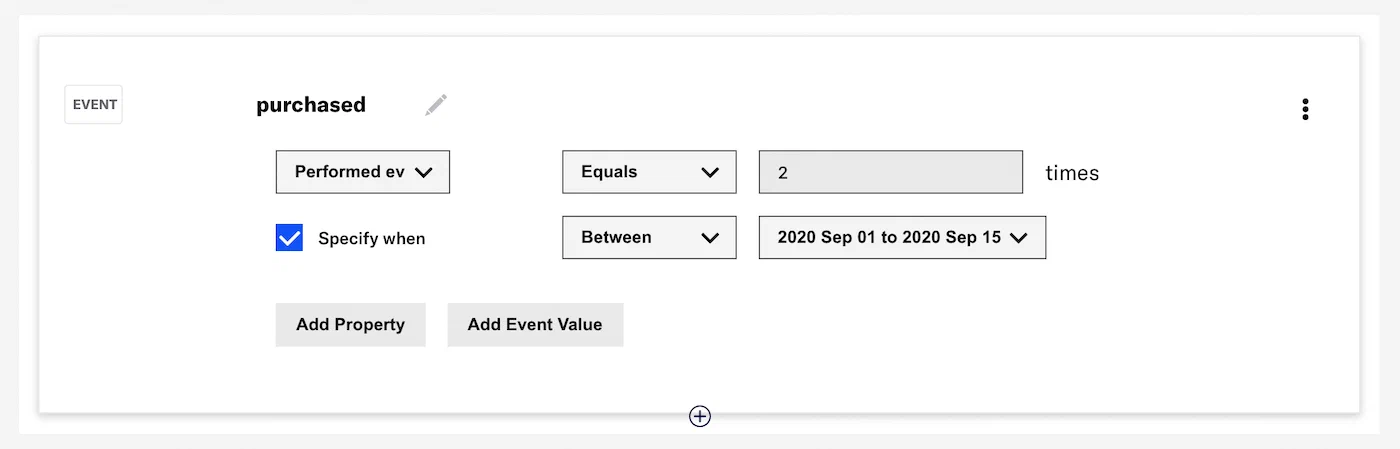
*Targeting users by event count and date range*
### Segment evaluation
Airship uses a 90-day "look back" for events and event properties used in segmentation. The exception is for "first" and "last" occurrences, which are stored even if they are more than 90 days old. This window (and the storage of first/last occurrences) starts when an event is [activated for segmentation](https://www.airship.com/docs/guides/audience/events/manage/).
As of January 2023, “last performed” occurrences are included when evaluating segmentation queries **for events without properties**, even when not using the "last performed" operator.
For example, prior to this change, if you targeted all users who performed the event `added_to_cart` one or more times, **only** users who performed the event one or more times in the last 90 days were included in the target audience.
With the change, users who performed the event one or more times in the last 90 days **AND** users who "last performed" the event prior to the 90-day period would be included in the target audience.
If the query includes a property, such as "added to cart 1 or more times, where the category = shoes," the evaluation does not include “last performed” occurrences.
### Filtering by event properties {#filtering}
In addition to targeting your audience by event count, value, and recency, you may further refine your selection by filtering on event properties.
To target event properties, use the [where object](https://www.airship.com/docs/developer/rest-api/ua/schemas/event-segmentation/#whereobject) in the API, and include the path to the property along with the values you are filtering for, e.g., push ID, email address, or campaign category.
In the example below, the audience is users who have opened the app by tapping a push notification with the `push_id` of `"28e9d533-c8a7-4abf-93f4-4794b09391eb"`:
```json
{
"audience": {
"activity": "app_open",
"value": 0,
"operator": "greater",
"metric": "count",
"where": {
"property": "/_triggering_push/push_id",
"operator": "equals",
"compare_as": "text",
"value": "28e9d533-c8a7-4abf-93f4-4794b09391eb"
}
}
}
```
In the dashboard, you can create this audience in a condition:
1. Add the `app_open` event.
1. Select **Performed event**.
1. Select the *Greater than* operator and enter the value `0`.
1. Select **Add Property**.
1. Search for and select `/_triggering_push/push_id`.
1. Select the *Equals* operator and enter the value `28e9d533-c8a7-4abf-93f4-4794b09391eb`.
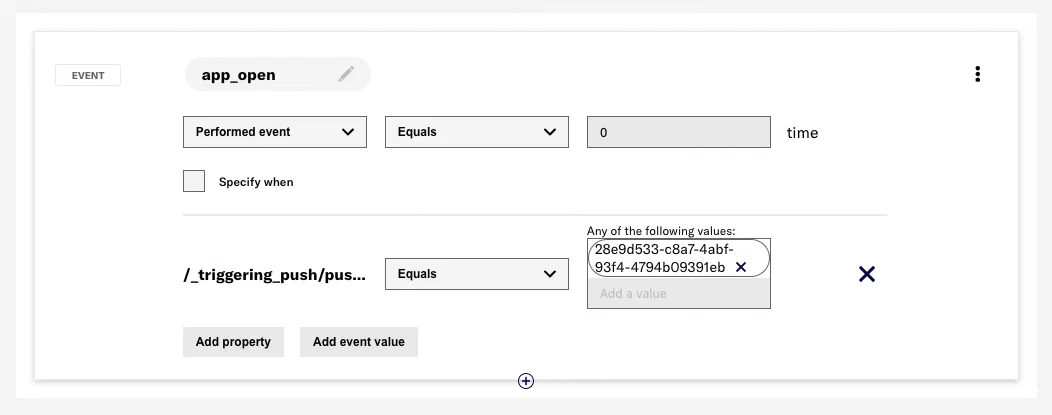
*Filtering by push ID in a Segment*
# Custom Events
> Track user activity and conversions in your Airship channels, submit external events to Airship, trigger messages and sequences, and segment your audience with custom events.
## Overview
Custom events extend our [default events](https://www.airship.com/docs/guides/audience/events/events/). Such events as *opens* or *tag
change* are applicable to all apps and websites. Custom events, on the other hand, are
specific to the needs of your app or website. For example, you may be interested in tracking the *order
created* event in your e-commerce app, the *playback started* event in your content delivery
platform, or the *OnParticipatedInExperimentNotification* event in
your A/B testing application for tracking user participation.
You may track custom events either via our mobile and web SDKs or by using any other event tracking system.
In this guide, we will show you how to tie your digital engagement activities together
using custom events:
Set up via templates or directly in code
: Setting up a custom event for your app is easy. For common event types, we provide ready-made templates
in our [Mobile and Web](https://www.airship.com/docs/sdk-topics/custom-events/) SDKs.
Alternatively, you can set up custom events directly in your code by instantiating a class from the SDK
that implements the custom event API and passing a string that represents the name of the
event.
Extend with properties
: To provide more detail and customization to the events you are tracking, you may make use of
event properties. These are key/value pairs, where the key represents the name of a
property and the value is the information associated with this property. Examples of event
properties are *a product SKU on a purchase event*, or *a category on a viewed video
event*.
Stream in real time
: Our *Real-Time Data Streaming* supports streaming custom events to your
business systems in real time. See our
[Data Streaming API Reference](https://www.airship.com/docs/developer/rest-api/connect/schemas/events/#custom) for details.
Trigger automation or sequence
: You may set up custom events and their properties to trigger an automation or sequence:
members of your audience may receive personalized messages with
[Dynamic Content](https://www.airship.com/docs/reference/glossary/#dynamic_content) that includes information from the custom event.
For example, if your custom event has a `user_name` property, you can add `{{user_name}}`
to your message, and anybody receiving the message would see their *user name* — the value of the `user_name` property.
## Emitting Custom Events from Message Actions
You can emit custom events when users interact with [Scenes](https://www.airship.com/docs/reference/glossary/#scene), [push notifications](https://www.airship.com/docs/reference/glossary/#push_notification), or [in-app messages](https://www.airship.com/docs/reference/glossary/#in_app_message). This allows you to track user interactions with specific message elements without implementing SDK code.
**Scenes** — Emit an event when a user taps a button, image, or screen. See [Emit a Custom Event](https://www.airship.com/docs/guides/messaging/in-app-experiences/configuration/button-actions/#emit-a-custom-event) in *Actions* for Scenes.
**Push notifications and in-app messages** (iOS SDK 20+) (Android SDK 20+) — Emit an event when a user taps the message or a button within the message. See:
* [Creating content](https://www.airship.com/docs/guides/messaging/messages/content/app/push-notifications/#creating-content) in *Push Notification Content*
* [Creating content](https://www.airship.com/docs/guides/messaging/messages/content/app/in-app-messages/#creating-content) in *In-App Message Content*
* [Add buttons to message content](https://www.airship.com/docs/guides/messaging/messages/buttons/#add-buttons-to-message-content) in *Buttons*
To emit Custom Events from the API, use the [add_custom_event](https://www.airship.com/docs/developer/rest-api/ua/schemas/push/#actionsobject) notification action.
## Tracking Custom Events
We recommend starting by identifying a few most important actions that
users perform in your app or site. These could include:
* Registering for an account
* Using a new feature
* Watching a video
* Viewing a specific screen
* Saving or sharing content
* Adding a product to a list or cart
* Making a purchase
Custom events track *actions* and not *objects*. For this reason, a good
practice is to apply the *verb-first* naming convention to custom events.
You can also track these events in varying levels of detail, based on how you
name them, and optionally include values with each event.
You may have other systems that track the granular specifics of your
e-commerce engine or content consumption. To measure the impact of push,
consider keeping reports at a higher level when starting out. For example, as
a publisher, you could track a purchase event in a few ways:
* Purchased a Magazine
* Purchased a Sports Magazine
* Purchased *Sports Illustrated*, Volume 17, Issue 9
While the third variation above might provide the most detail, you can start with
the first level of granularity to keep your reports easy to digest and roll-up, and
still see which push notifications were driving the most engagement or ROI.
Here are some examples in more detail:
> **Tip:** In our examples below, event names are lowercased. We use dashes to separate levels of granularity, and underscores
> for multi-word names/values.
> For example:
>
> * event_name-event_category
> * purchased_item-sports_magazine
| Market vertical | Description | Example event name | Event value |
| --- | --- | --- | --- |
| All | User registers for an account | registered_account |
| All | User stars any product, article, or content | starred_content |
| Media | User browses a category articles or content | browsed_content |
| Media | User plays a video *Could use the event value to set the amount of time spent watching the video. Report the event after the user navigates away from the video or stops the video.* | consumed_content | Percentage of content consumed |
| Media | User shares content | shared_content |
| Retail | User adds item to cart | added_to_cart |
| Retail | User purchases an item *Use event value to capture the value of the item* | purchased | Purchase Price |
We provide ready-made templates for our mobile and web SDKs to get you started with a number of common
account-, media-, and retail-related events. See the templates in our [Custom Events](https://www.airship.com/docs/sdk-topics/custom-events/) SDK documentation.
With our mobile and web SDKs, tracking custom events is similar to [adding an Airship segmentation tag](https://www.airship.com/docs/developer/sdk-integration/web/segmentation/). Set specific properties and assign a range of values that must be met in order to trigger
automation rules. Custom event properties can contain objects and arrays of objects. Use dot notation to access nested properties: `parent_property.child_property`.
* API: [Custom Event Selectors](https://www.airship.com/docs/developer/rest-api/ua/schemas/pipeline-objects/#eventidentifier)
* Dashboard: [Manage Events](https://www.airship.com/docs/guides/audience/events/manage/)
> **Note:** Custom event properties used to be referenced in the `$data.events.[0].properties` namespace. If you have templates referencing properties in this namespace, they'll still work, but you'll have to continue using this namespace until you [contact Airship Support](https://support.airship.com/) and move over to the simplified namespace for custom event properties.
To minimize battery consumption, custom events are automatically combined and sent batched in the background. For more information, see [Tips and Code Samples](#tips-and-code-samples).
Simple example
: Here is a simple example that demonstrates how to track a custom event named **consumed_content**:
**iOS**
```swift
var event = CustomEvent(name: "consumed_content", value: 123.12)
// Set custom event properties
event.setProperty(bool: true, forKey: "boolean_property")
event.setProperty(string: "string_value", forKey: "string_property")
event.setProperty(double: 11.0, forKey: "number_property")
// Record the event in analytics
event.track()
```
**Android**
```java
// Create and name an event
Builder builder = CustomEvent.newBuilder("consumed_content");
// Set custom event properties on the builder
builder.addProperty("bool_property", true);
builder.addProperty("string_property", "string_property_value");
builder.addProperty("int_property", 11);
builder.addProperty("double_property", 11.0d);
builder.addProperty("long_property", 11L);
ArrayList collection = new ArrayList();
collection.add("string_array_value_1");
collection.add("string_array_value_2");
collection.add("string_array_value_3");
builder.addProperty("collection_property", JsonValue.wrapOpt(collection));
CustomEvent event = builder.build();
// Start tracking the event
event.track();
```
**Web**
```js
// Create and name an event
var event = new sdk.CustomEvent("consumed_content")
// Start tracking the event
event.track()
```
Assigning a value to a custom event
: In this example, you will create an event with a value for advanced analytics reporting:
**iOS**
```swift
// Create and name an event with a value
let event = CustomEvent(name: "event_name" value: 123.12)
// Track the event
event.track()
```
**Android**
```java
// Create and track a custom event with a value
CustomEvent.newBuilder("event_name")
.setEventValue(123.12)
.build()
.track();
```
**Web**
```js
// Create and name an event with a value
var event = new sdk.CustomEvent('event_name', 123.12)
// Start tracking the event
event.track()
```
## Server-Side Events
Server-side events are sent through the [Custom Events API](https://www.airship.com/docs/developer/rest-api/ua/operations/custom-events/). When you submit an event, you'll provide the [channel ID](https://www.airship.com/docs/reference/glossary/#channel_id) or [Named User ID](https://www.airship.com/docs/reference/glossary/#named_user) of the user you want to associate the event with.
You can use [Event identifiers](https://www.airship.com/docs/developer/rest-api/ua/schemas/pipeline-objects/#eventidentifier) to send automated messages to the *channel ID* or *named user* associated with each event. Attributing events to named users can help you better represent user actions and trigger automations for individual users without having to map channels to external IDs. Server-side events are involved in a significant number of Airship integrations.
> **Note:** [Server-side events](https://www.airship.com/docs/guides/audience/events/custom-events/#server-side-events) cannot be used to trigger an [In-App Automation](https://www.airship.com/docs/reference/glossary/#iaa) or [Scene](https://www.airship.com/docs/reference/glossary/#scene).
>
> Custom Events used for In-App Automation or Scene triggers must be client-side events. Web Scenes can only use Custom Events tracked using the Web SDK. App Scenes and In-App Automations can only use Custom Events tracked using the Mobile SDK.
**Sample Custom Event**
```json
[
{
"occurred": "2016-05-02T02:31:22",
"user": {
"named_user_id": "hugh.manbeing"
},
"body": {
"name": "purchased",
"value": 239.85,
"transaction": "886f53d4-3e0f-46d7-930e-c2792dac6e0a",
"interaction_id": "your.store/us/en_us/pd/shoe/pid-11046546/pgid-10978234",
"interaction_type": "url",
"properties": {
"description": "Sneaker purchase",
"brand": "Victory Sneakers",
"colors": [
"red",
"blue"
],
"items": [
{
"text": "New Line Sneakers",
"price": "$ 79.95"
},
{
"text": "Old Line Sneakers",
"price": "$ 79.95"
},
{
"text": "Blue Line Sneakers",
"price": "$ 79.95"
}
],
"name": "Hugh Manbeing",
"userLocation": {
"state": "CO",
"zip": "80202"
}
},
"session_id": "22404b07-3f8f-4e42-a4ff-a996c18fa9f1"
}
}
]
```
## Custom Events vs. Audience Segmentation Tags
Custom events are similar to [audience segmentation tags](https://www.airship.com/docs/developer/sdk-integration/web/segmentation/). While tags target users via audience segmentation, custom events inform analytics reporting and trigger automated messages.
For example, a user can be tagged as a *purchaser* after making a purchase. This user can
be segmented later for sending follow-up messages. You may use a custom event to track when the
user *purchased shoes*. This is something that happened, and you may wish to calculate its
business impact across all users.
Audience tags are useful to identify users for future campaigns. A person who has purchased before may be receptive to a
different type of future messaging. A tag only tells you that this user purchased at least
once. Because it is useful to understand how many purchases are made in total during a
period of time, we have custom events so you can keep track of both types of data.
## Event Reporting
Once you have the latest SDK installed and a snippet of code
tracking custom events, you'll start to see event data show up in your message reports.
These events will appear in each message report, and in an aggregate app
report, with information on whether each event occurred on an Airship
delivery channel (Landing Page or Message Center), or in a custom location in
your app or website.
These reports display summary data, and a CSV export option will provide full
data that you can manipulate as needed or import into business
intelligence or analytics tools.
See [View Attributed Events](https://www.airship.com/docs/guides/reports/message/#view-attributed-events) in *Message Reports* and [Scene Detail](https://www.airship.com/docs/guides/messaging/in-app-experiences/scenes/create/scene-reports/#scene-detail) in *Scene Reports*.
## Push Attribution
Because Airship has visibility into both the sending and receiving (via
SDK) of each push, our Push Attribution model ties these custom events back to
each message so that you can see the full
story of conversions following both direct and indirect opens.
We track how each custom event is attributed to a specific push. The following options are available:
* Direct Attribution of Events
* Indirect Attribution of Events
* Unattributed Events
Direct attribution
: If a push notification is sent to a device and the user taps on the
notification to open the app and complete a custom event, then the event will
be recorded with the **Direct** attribution to that push notification.
Indirect attribution
: If a push notification is sent to the device and the user does not tap on the
notification, but opens the app later that day (within a 12 hour *attribution window*) and
completes a custom event it will be recorded with **Indirect** attribution to
that push notification. If the event is completed after 12 outside of the attribution window, then the event will be categorized as **Unattributed**.
Unattributed events
: If a user completes a custom event during a time when no push was sent, or that
user is opted-out, then the event will be categorized as **Unattributed**.
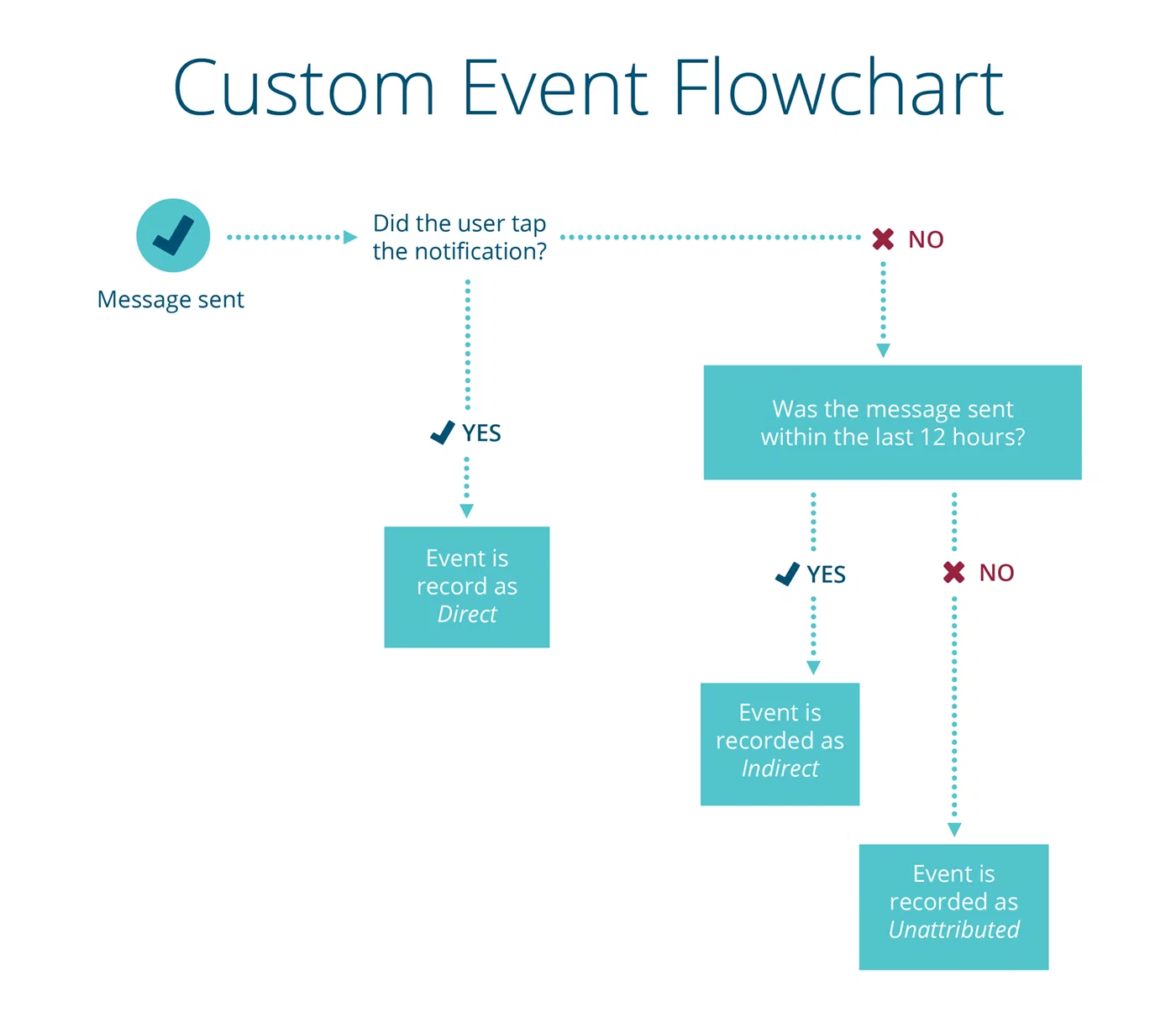
*Custom Event push attribution flowchart*
## Tips and Code Samples
When setting up custom events, remember:
* Start by tracking two to five key activities or conversion points in your app.
* When naming events, keep the total number of unique event names reasonable, so your reports are easy to read.
* Event will be ignored if their names contain more than 255 characters.
* Use consistent naming conventions for your events. We lowercase all incoming events for consistency in reports.
* Event Values must be between -231 and [231 - 1] or the value will be ignored.
* Event Values cannot contain `$` or `,` characters or the value will be ignored (decimals only).
### JavaScript for Rich Pages
Send a [Message Center page](https://www.airship.com/docs/guides/features/messaging/message-center/) or [landing page](https://www.airship.com/docs/guides/features/messaging/landing-pages/) with the following HTML to set a
custom event on the button. In the example below, we create a button (named *buy-button*)
which fires the "bought book" event with a value of `10.99`.
```html
Store
```
Our example detects if a page is a landing page, sets the
`interaction_type` and `interaction_id` if needed, emits an event to the Custom Events
system, and writes debugging information to the DOM.
Under the hood, a *landing page* is simply a web view, so in order to propagate
the knowledge that the event was fired from a landing page to the custom events
system, we must set the `interaction_type` to `ua_landing_page` and the
`interaction_id` to the URL of the landing page.
For a [Message Center page](https://www.airship.com/docs/guides/features/messaging/message-center/), the Airship SDK is able to detect that the event is fired from a
Message Center page so `interaction_type` and the `interaction_id`
will be taken care of by the SDK.
### Injecting the Airship JavaScript Interface
If you have a WebView that exists outside of a Message Center, you can use the
following examples to inject the Airship JavaScript interface in to your
WebView to enable sending custom events.
> **Important:** The Airship JavaScript interface runs Airship actions and
> exposes information about the application. It should only be loaded in WebViews
> that are displaying content from trusted sources and that only link to other
> trusted sources.
#### iOS Example
The Airship JavaScript interface can be added to any `WKWebView`
whose navigation delegate is an instance of [NativeBridge](https://urbanairship.github.io/ios-library/v20/AirshipCore/documentation/airshipcore/nativebridge)
. Custom WebViews can also
implement the [NativeBridgeExtensionDelegate](https://urbanairship.github.io/ios-library/v20/AirshipCore/documentation/airshipcore/nativebridgeextensiondelegate)
to extend the JavaScript environment
or respond to SDK-defined JavaScript commands.
```swift
self.nativeBridge = NativeBridge()
self.nativeBridge.nativeBridgeExtensionDelegate = self.nativeBridgeExtension
self.nativeBridge.forwardNavigationDelegate = self
webView.navigationDelegate = self.nativeBridge
```
Optionally, enable `UAirship.close()` by having the controller implement the `close` method in the `NativeBridgeDelegate` protocol:
```swift
func close() {
// Close the current window
}
```
#### Allowlist Rules
For iOS, the [URLAllowList](https://urbanairship.github.io/ios-library/v20/AirshipCore/documentation/airshipcore/airshipurlallowlist)
controls which URLs the Airship SDK is able to act on. As of SDK 17, all URLs are allowed by default. See: [iOS: Configuring Airship](https://www.airship.com/docs/developer/sdk-integration/apple/installation/advanced-integration/#url-allowlist).
#### Android and Fire OS example
The Airship JavaScript interface can be added to any web view as long as JavaScript is enabled and the client is set to an
instance of UAWebViewClient.
```java
webView.getSettings().setJavaScriptEnabled(true);
webView.setWebViewClient(new UAWebViewClient())
```
#### Allowlist Rules
For Android, the [UrlAllowList](https://www.airship.com/docs/reference/libraries/android-kotlin/latest/urbanairship-core/com.urbanairship/-url-allow-list)
controls which URLs the Airship SDK is able to act on. As of SDK 17, all URLs are allowed by default. See: [URL Allowlist](https://www.airship.com/docs/developer/sdk-integration/android/installation/advanced-integration/#url-allowlist).
# Manage Events
> Configure events and event properties for segmentation, automation, and Goals.
[Custom Events](https://www.airship.com/docs/reference/glossary/#custom_event) can contain properties that you have defined outside of Airship. To make these events and their properties accessible to our segmentation and automation services, add them to your project to enable use with these features:
* [Custom Event Triggers](https://www.airship.com/docs/reference/glossary/#custom_event_trigger) in Automations and Sequences — See Custom Event in [*Automation triggers*](https://www.airship.com/docs/guides/messaging/messages/sequences/triggers/#custom-event) and [*Sequence triggers*](https://www.airship.com/docs/guides/messaging/messages/sequences/triggers/#custom-event).
* [Custom Event Triggers](https://www.airship.com/docs/reference/glossary/#custom_event_iaa_trigger) for In-App Automations and Scenes — See [Custom Event](https://www.airship.com/docs/guides/messaging/in-app-experiences/configuration/triggers/#custom-event) in *In-app experience triggers*.
* [Cancellation Events](https://www.airship.com/docs/reference/glossary/#cancellation_events_event_option)
* Emitting a Custom Event when a user clicks/taps a button, image, or screen in a Scene — See [Emit a Custom Event](https://www.airship.com/docs/guides/messaging/in-app-experiences/configuration/button-actions/#emit-a-custom-event) in *Actions* for In-app Experiences.
* [Goals](https://www.airship.com/docs/reference/glossary/#goals)
When adding events to your project, you have the option to activate them for event segmentation. See [Event Segmentation](https://www.airship.com/docs/guides/audience/events/events/#event-segmentation) for details on event types and properties.
See also [Holdout Experiments](https://www.airship.com/docs/reference/glossary/#holdout_experiment).
## Create a new event
Add a new custom or predefined event to your project.
1. Next to your project name, select the dropdown menu (
), then **Settings**.
1. Under **Project settings**, select **Events**.
1. Select **Create event**.
1. 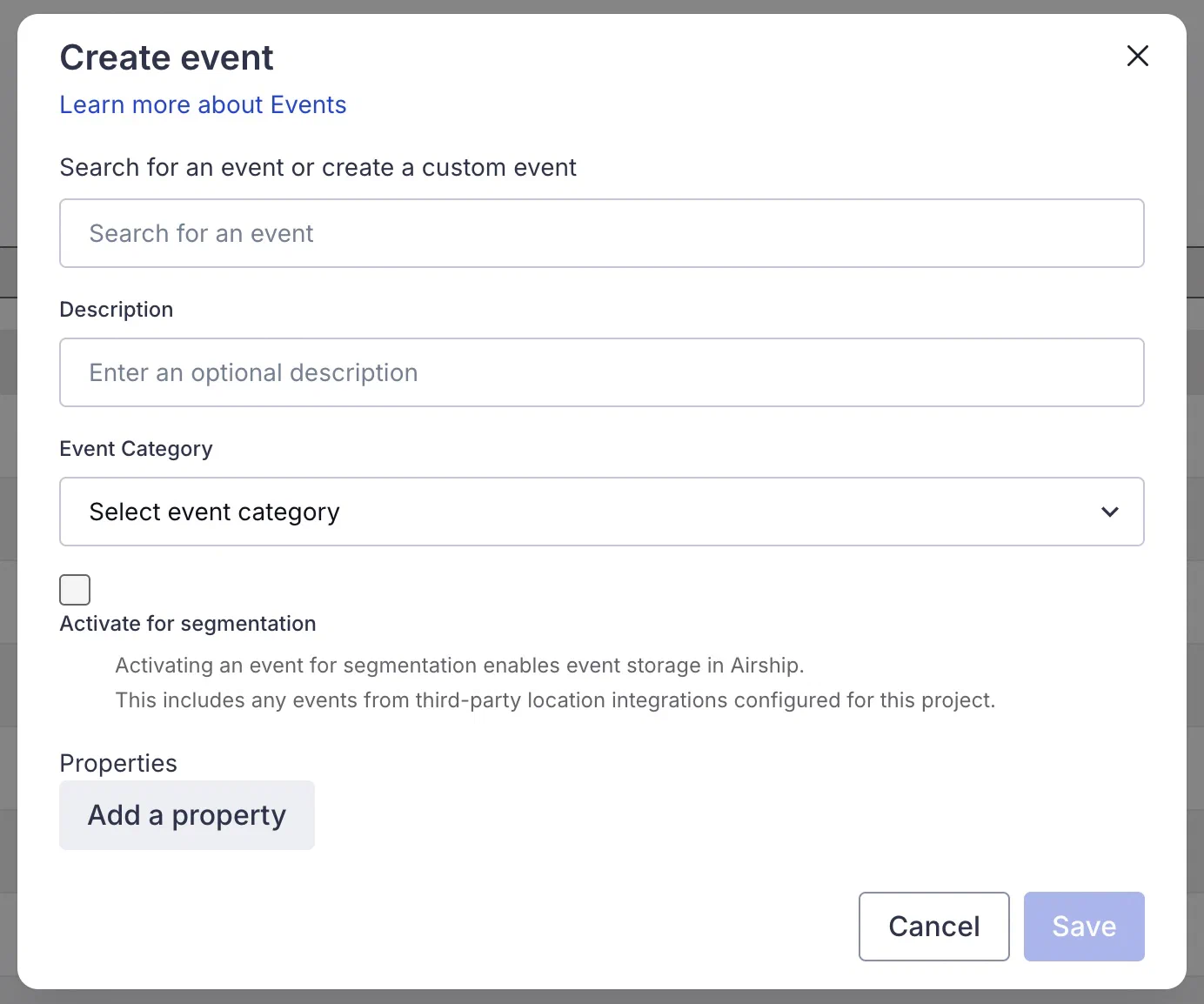
*Creating a new event*
Enter a name for your new custom event or search for a predefined event to activate.
Predefined events have reserved names and will appear in search results with a `Predefined event` flag. For a list of available predefined events, see [Predefined events](https://www.airship.com/docs/reference/data-collection/events/#predefined-events) in the *Events Reference*.
If you choose one of the predefined events, the event properties will be populated for you. If you are creating a new custom event that is unknown to Airship, select **Create custom "[search term]" event** to create it.
1. (Optional) Enter a description for the event.
1. Select an event category or select **Create category** and enter a category name.
> **Note:** When Airship adds a new default category that matches a custom category, the default category will replace the custom one. For example, if Airship adds a default "Shipped" category, it will replace your custom "Shipment sent" category, and "Shipment sent" will be removed from your project.
1. (Optional) Check the box to **Activate for segmentation**.
1. (Optional) Add event properties. Predefined events are already populated with properties, and you can add more. You can also edit or remove properties for predefined events.
Select **Add property**, then enter a property name and select its type: String, Number, Boolean, Date, Array, or Any. The type determines which operators are available to you when using event segmentation. Select **Any** if the value for the property is unknown or if it could be multiple types. Select **Add another** and repeat to assign additional properties for the event.
> **Note:** Properties of type "Any" cannot be used for segmentation. They will not appear in the dashboard when building Segments or targeting using segmentation data, and they cannot be referenced using the API.
>
> Similarly, properties of type "Array" have these restrictions by default. However, you can make the contents of an array accessible for segmentation by defining their nested properties. See [Defining nested array properties](#defining-nested-array-properties) below.
1. Select **Save**.
### Defining nested array properties
When adding an "Array" type property for an event, you can make the contents of the array accessible for segmentation by defining its nested properties using JSON Path expressions.
After adding the array property, add sub-properties using the syntax `$.arrayproperty[*].subproperty`. The asterisk (`*`) acts as a wildcard, indicating that the path should match the sub-property for any item within the array property. This makes it possible to segment your audience based on the characteristics of individual items within an array without needing to refer to their specific locations.
For example, consider a `Products` array where each product object has a name and price:
```json
{
"Products": [
{
"name": "Laptop",
"price": 1200
},
{
"name": "Mouse",
"price": 25
}
]
}
```
To enable segmentation on the name and price of individual products within the `Products` array, you would define the following properties for the event in your project:
* `Products` of type Array, to acknowledge the array itself
* `$.Products[*].name` of type String, for segmentation using the name of any product in the array
* `$.Products[*].price` of type Number, for segmentation using the price of any product in the array
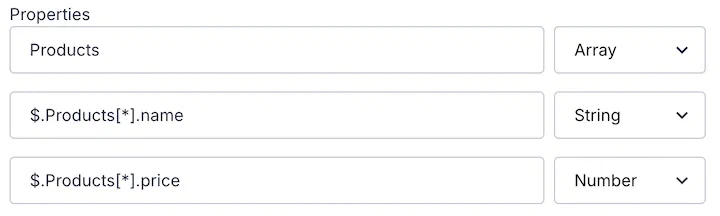
*Specifying properties within an array property*
## Edit or delete events
Deleted events or event properties will no longer be available for use in segmentation. If you change an event's name, only the new name will be available for use in segmentation.
Similarly, deleted event properties will no longer be available for selection when configuring Automation and Sequence triggers. However, the event itself will still remain available for triggers.
1. Next to your project name, select the dropdown menu (
), then **Settings**.
1. Under **Project settings**, select **Events**. The table includes a maximum of 1,000 events.
1. Search for an event, then:
* To delete, select the trash can icon (
) in its row.
* To edit, select the pencil icon (
) in its row, make your changes, and then select **Save**.
### Segmentation
Build a custom audience of users who share some criteria for message targeting, experiments, and trigger conditions.
# Segmenting your audience
> Build a custom audience of users who share some criteria for message targeting, experiments, and trigger conditions.
While some messages may require broadcasting to all users, typically you want to target a specific audience. The same applies to message A/B test and Feature Flag audiences.
Here are a few common scenarios and the target for each:
* **App upgrade** — Send an announcement about a new app version and encourage users to upgrade. *Target: App version*
* **External user list** — Send messages to a list of users created from your CRM data. *Target: Uploaded List*
* **Re-engagement prompt** — Send a re-engagement message based on users' likelihood to stop using your app or website. *Target: [Predicted to Churn](https://www.airship.com/docs/reference/glossary/#predicted_to_churn) risk profile*
* **Localized content** — Display different in-app messages based on your users' language and country settings. *Target: Locale*
## Building audience groups
When defining audiences using the **Target by conditions** or **Target specific users** options, you can select data to include, such as:
* [Attributes](https://www.airship.com/docs/reference/glossary/#attributes)
* [Lifecycle List](https://www.airship.com/docs/reference/glossary/#lifecycle_list)
* [Channel ID](https://www.airship.com/docs/reference/glossary/#channel_id)
* [Device Properties](https://www.airship.com/docs/reference/glossary/#device_properties)
* [Events](https://www.airship.com/docs/reference/glossary/#events)
* [Named User](https://www.airship.com/docs/reference/glossary/#named_user)
To build the audience, you add *conditions* organized in *blocks*, or select a saved Segment. The procedure is the same.
Build the audience by adding *conditions* organized in *blocks*. A block contains one or more conditions, providing a way to mix and match boolean operators. For example, you might use an OR operator for conditions in a block, and use an AND operator to join the blocks together.

*Targeting specific users in the dashboard*
### Segments
To save a defined audience group for reuse within your project, create a [Segment](https://www.airship.com/docs/reference/glossary/#segment). You can then select that Segment when using **Target by conditions** or **Target Specific Users**. The same interface and procedure apply to both targeting specific users and creating Segments. You can also include any saved Segment within another Segment. See the full procedure in [Segments](https://www.airship.com/docs/guides/audience/segmentation/segments/).
To create Segments using the API, see the [`/api/segments` endpoint](https://www.airship.com/docs/developer/rest-api/ua/operations/segments/). To target specific users using the API, use the `"audience"` object. See the [Audience Selection API schema](https://www.airship.com/docs/developer/rest-api/ua/schemas/audience-selection/).
### Channel-level filtering
After building an audience group to target specific users or in a Segment, you can filter messages to specific channels at the message composition stage using Channel Conditions. For example, to send to only devices that have language set as English, add a channel condition for `{ua_language=EN}`.
### Client-side vs server-side data {#client-server}
Airship client-side data mostly comes from [apps and websites that use our SDK](https://www.airship.com/docs/guides/reports/reports/#engagement-data). This is the source of *client-side* data used for targeting. Client-side data includes [Device Properties](https://www.airship.com/docs/reference/glossary/#device_properties) and [Attributes](https://www.airship.com/docs/reference/glossary/#attributes). See reference: [Default Attributes](https://www.airship.com/docs/reference/data-collection/attributes/#default-attributes).
You can also group users and add Attributes and Tags yourself — this is considered *server-side* data. CRM and POS systems are common sources. For segmentation, you can create:
* [Attributes](https://www.airship.com/docs/reference/glossary/#attributes)
* [Audience Lists](https://www.airship.com/docs/reference/glossary/#audience_list)
* [Named Users](https://www.airship.com/docs/reference/glossary/#named_user)
* [Tags](https://www.airship.com/docs/reference/glossary/#tag) and [Tag Groups](https://www.airship.com/docs/reference/glossary/#tag_group)
You can then set Attributes or Tags on channels and Named Users, or group channels into Named Users. See:
* [Setting Tags on your audience](https://www.airship.com/docs/guides/audience/tags/#setting-tags-on-your-audience)
* [Associating channels with Named Users](https://www.airship.com/docs/guides/audience/named-users/#associate)
* [Attributes](https://www.airship.com/docs/guides/audience/attributes/about/)
> **Note:** Channel registration is asynchronous, so it may take up to an hour before you can target newly-created channels.
## Segmentation evaluation
Airship evaluates segmentation criteria at the Contact level, not individual channels. This means that channel-level data, such as [Device Properties](https://www.airship.com/docs/reference/glossary/#device_properties) and primary device tags, is automatically available to the Contact for segmentation purposes. When [viewing audience counts](https://www.airship.com/docs/guides/audience/segmentation/segments/#generate-audience-count), the results include the total number of Contacts and channels in the audience, as well as the total number of channels and the number of opted-in channels for each [Channel (Engagement)](https://www.airship.com/docs/reference/glossary/#channel_engage) and mobile app platform.
Contact-level evaluation enables cross-channel messaging, such as:
* Sending an SMS to users who haven't opened the app in 60 days
* Sending a follow-up push to users who haven't opened an email
* Limiting the frequency of a campaign across all of a user's channels
### Channel-level segmentation
Projects in accounts created on or before February 26, 2026, use the channel-level segmentation system, which uses a mix of channel- and Contact-level evaluation. For example, using the criteria: `{custom_tag=gold} AND {ua_language=EN}`:
* The channel-level segmentation system targets all channels with a custom tag of `Gold` AND where the device language is set to English.
* The Contact-level segmentation system targets all channels of Contacts with a custom tag of `Gold` AND any device where the language is set as English.
### Migration and how to identify your segmentation system
All customers will be migrated to the Contact-level evaluation system:
* Airship will contact you to coordinate migration.
* Until migration is complete, you will not experience any changes to the Airship service or see changes in the dashboard.
* After completing migration, mobile apps will require the minimum SDKs Android 19.9 and iOS 19.6. You will not be able to create legacy A/B tests.
You can identify your project's current segmentation system. Next to your project name, select the dropdown menu (
), then **Project Details**. If your project is using the Contact-level system, you will see "Contact-level segmentation: Enabled." If you are on the channel-level system, no segmentation status is listed.
# Segments
> {{< glossary_definition "segment" >}} Create Segments for a project and also use the same method to define audience conditions in messages and experiments.
## Segment structure
You build Segments by adding segmentation data as conditions organized in blocks. For the data you can use in Segments, see [Segmenting your audience](https://www.airship.com/docs/guides/audience/segmentation/segmentation/).
Most data types require a value and an operator for evaluating the condition: *True/False*, *Equals*/*Does not equal*, etc. *True/False* determines whether to **include** users for whom the condition is true or false. Most data types use this operator and require no additional selections or values.
AND and OR operators between conditions and between blocks determine how they are evaluated. For example, use the AND operator to combine conditions or blocks, and use the OR operator to create alternatives.
In the image below, the Segment includes a Text Attribute targeting users whose favorite food is lasagna. The Attribute name is "Favorite Food", the operator is `Equals`, and the value is `lasagna`.

*Creating a Segment in the dashboard*
The example also shows the use of the Boolean AND. Overall, the Segment dictates including audience members who have the [Tag](https://www.airship.com/docs/reference/glossary/#tag) `airship` and also have the Text Attribute "Favorite Food" that equals `lasagna`. If a user does not meet both conditions, they will not be included in the message audience.
## Create a Segment
To create a reusable Segment for your project:
1. Go to **Audience**, then **Segments**, and select **Create Segment**.
1. Enter a name and description, then select **Save and continue**. Search for Segments using this name when targeting message and experiment audiences.
1. Build your Segment as described in the following sections, and then select **Save & exit**.
For the API, use the [Segments endpoint](https://www.airship.com/docs/developer/rest-api/ua/operations/segments/).
> **Note:** The same method of building a Segment is used for the **Target by conditions**, **Target Specific Users**, and **Channel conditions** options for the following:
>
> * Messages (Message composer)
> * Scenes
> * In-App Automations
> * Feature Flag Configurations
> * A/B tests
> * Sequence messages
>
> The same method is also used for setting Sequence trigger conditions.
### Adding conditions
When adding conditions, you can search all your segmentation data. The default filter is **All**, and you can select a different filter before or after entering a search term.
Search behavior for Tags and Tag Groups varies by filter:
| Selected filter | Steps |
| --- | --- |
| **Tags** | Search for primary device Tags (Tags in the `device` Tag Group) only. |
| **Tag Groups** | Select the search field and select a Tag Group, or search for and select a Tag Group, and then search within that Tag Group. |
| **All** | This combines the behaviors of the Tags and Tag Groups filters. Use this filter to search for Tags in all Tag Groups. |
| **Predictive AI** | Select the search field and then **Predicted to Churn**. You can then select a value: High risk, Medium risk, or Low risk. |
| **NPS Category** | Select the search field and then **NPS Category**. You can then select a value: Promoter, Passive, or Detractor. |
| **Autogroup** | Select the search field and then **Autogroup**. You can then enter a value, 1-100. Autogroup is only available for accounts not using the [channel-level segmentation system](https://www.airship.com/docs/guides/audience/segmentation/segmentation/#channel-level-segmentation). |
In some locations of this interface, you have quick access to your 10 most recently created or modified Segments, [Uploaded lists](https://www.airship.com/docs/reference/glossary/#uploaded_list), and [Subscription lists](https://www.airship.com/docs/reference/glossary/#subscription_list), and all your [Lifecycle lists](https://www.airship.com/docs/reference/glossary/#lifecycle_list). Below the search field, select **Segments**, **Uploaded Lists**, **Subscription Lists**, or **Lifecycle Lists**, and choose from the listed items to add it as a condition.
### Editing conditions and blocks
Use these options for adding and editing conditions:
* Select the edit icon (
) to change your selection within a condition, for example, changing a Tag from `airship` to `starship`.
* Select the add icon (
) to add a condition to a block.
* To duplicate or delete, select the more menu icon (). Deleting all conditions in a block deletes the block.
* Select **Add a block ** to add separate conditions.
After adding a block, you can hover over it and select **Edit block
** to make changes.
### Setting Boolean logic
Select AND or OR between conditions and blocks to apply Boolean logic:
* AND = all conditions must be met
* OR = any condition must be met
When using JSON Attributes, you cannot mix AND and OR selections between conditions or blocks.
### Configuring specific conditions
For information about configuring Attribute conditions, see [Targeting your audience using Attributes](https://www.airship.com/docs/guides/audience/attributes/targeting/). For event conditions, see [Event segmentation](https://www.airship.com/docs/guides/audience/events/events/) in the *Events* guide.
For device properties, first select an operator. Then, select, search for, or enter a value. Multiple values are evaluated as a Boolean OR. No configuration is required for operators *Empty* and *Not Empty*.

*Configuring device properties in a Segment*
> **Note:** **For device property conditions:**
>
> * *Equals* and *Does not equal* are the default operators. To make all operators available:
> 1. Next to your project name, select the dropdown menu (
> ), then **Settings**.
> 1. Under **Project settings**, select **Dashboard Settings**.
> 1. Enable **Segment Operators**.
>
> * When using Application Version, SDK Version, or Device OS Version:
> * Only semantic versioning is accepted.
> * Anything after the third decimal place is excluded.
>
> For example, `12.2.3-alpha` is evaluated as `12.2.3`.
## Generate audience count
When creating a Segment, select **Generate Audience Count** to see the total number of [Contacts](https://www.airship.com/docs/reference/glossary/#contact) for the Segment. **Total Contacts** is the number of Contacts that meet all Segment requirements. Select the show count details icon () to see the following:
* The total number of Contacts and channels in the audience
* The total number of channels and the number of opted-in channels for each [Channel (Engagement)](https://www.airship.com/docs/reference/glossary/#channel_engage) and mobile app platform
If the Segment has three or fewer blocks, you can select **View channel breakdown** to see the same information for a block. Select the regenerate count icon () after adding or removing criteria.
In the [list of all Segments](#manage-segments), select the Segment name to see the Contact and channel counts, if they were already generated when creating the Segment. If not, select **Generate audience count**. Select **Channel breakdown** for the same breakdown available when creating or editing a Segment. Counts appear for seven days, and then you can generate a new count.
You can generate the same counts in the Review step in the Message composer. When configuring the Target Specific Users option for an A/B test audience, you can generate the number of channels.
> **Note:** For projects using the [channel-level segmentation system](https://www.airship.com/docs/guides/audience/segmentation/segmentation/#channel-level-segmentation), audience counts do not include Contacts:
>
> * **Total Contacts** is instead **Total Count**, which is the total number of channels in the Segment.
> * The count details displays the total number of channels and a breakdown of channels and opted-in channels for each engagement channel and mobile app platform.
> * If the Segment has three or fewer blocks, the number of channels in the block displays by default, along with the same channel breakdown.
>
> Also, in the [list of all Segments](#manage-segments) the channels count is displayed in the **Audience Count** column if it was already generated when creating the Segment. Select **Generate** for any Segment that does not already display its count. Counts appear for seven days, and then you can generate a new count. Select the expand icon (
> ) to see the number of channels and opted-in users per engagement channel and mobile app platform.
> **Note:** * Calculations can take multiple minutes to complete, depending on audience size and query complexity.
> * For iOS, the opted-in counts only include devices opted-in to notifications and do not include devices where only background push is enabled.
> * For Android, the opted-in counts include devices opted-in to notifications as well as devices where only background push is enabled.
> * For email, the audience count (within a block and for the Segment) is the sum of Channel IDs for [transactional and commercial](https://www.airship.com/docs/developer/api-integrations/email/commercial-transactional/) messages, and you can hover over the count to see the breakdown. *Opted-in* is for commercial messages only.
## Target a Segment
In the API, target a Segment using the `"audience"` object. See: [API: Audience Selection](https://www.airship.com/docs/developer/rest-api/ua/schemas/audience-selection/).
In the dashboard, you can target a Segment when configuring the Audience step for messages and experiments:
1. (In the Message, Scene, In-App and Automation composers and in A/B tests) Select **Target by conditions**.
1. (In Feature Flag Configurations) Select **Target specific users**, then **Segments**.
1. Define your audience using the same method as when building a Segment.
> **Note:** For projects using the [channel-level segmentation system](https://www.airship.com/docs/guides/audience/segmentation/segmentation/#channel-level-segmentation):
>
> * In the Audience step of the following for messages and A/B tests:
> 1. (In the Message composer) Select **Target by specific users**.
> 1. (In the Scene and In-App Automation composers and A/B tests) Select **Target specific users**, then **Segments**.
> 1. Define your audience using the same method as when building a Segment.
>
> * When configuring triggers for Scenes and In-App Automations in the Journey map:
> 1. Select **Audience conditions**.
> 1. Select **Target specific users**, then **Segments**.
> 1. Define your audience using the same method as when building a Segment.
To enter a Segment into a [Sequence](https://www.airship.com/docs/reference/glossary/#sequence), select the Segment when configuring these triggers in the [Journey Map](https://www.airship.com/docs/reference/glossary/#journey_map):
* [Manual Entry](https://www.airship.com/docs/guides/messaging/messages/sequences/triggers/#manual-entry)
* [Date Attribute](https://www.airship.com/docs/guides/messaging/messages/sequences/triggers/#date-attribute)
* [Recurring Schedule](https://www.airship.com/docs/guides/messaging/messages/sequences/triggers/#recurring-schedule)
* [Specific Date and Time](https://www.airship.com/docs/guides/messaging/messages/sequences/triggers/#specific-date-and-time)
When configuring the triggers, you filter the audience members entering the Sequence by setting conditions, which can include a Segment. Setting conditions uses the same method as when building a Segment. See [Trigger](https://www.airship.com/docs/guides/messaging/messages/sequences/create/create/#trigger) in *Create a Sequence*.
You can also specify for each message in a Sequence that Contacts in the audience must be a member of a Segment. See the Segmentation option for Conditions in [Add messages to a Sequence](https://www.airship.com/docs/guides/messaging/messages/sequences/create/add-messages/).
## Export a Segment
Export a CSV list of audience members in a Segment to add to or reconcile with external systems. You can select [Contact](https://www.airship.com/docs/reference/glossary/#contact) or [Channel ID](https://www.airship.com/docs/reference/glossary/#channel_id) as the identifier. A list of Channel IDs also includes the channel platform. Once the file is available, Airship sends a download link to your account email address, and you can also download the file from the dashboard. The CSV files are available for download seven days after the request date.
While creating or editing a Segment:
1. Select **Export**.
1. Select an identifier.
1. Select **Save and export** to confirm saving the Segment in its current state and starting the export process. The Segment Exports screen will automatically load and display a list of all your requested exports from the last seven days.
1. Once the export status is Done, select the download icon () for the Segment, or follow the link in your email to download the file.
One Segment per project can be exported at a time. If you or another user for your project already have an export processing, you must wait until processing is complete before you can request another export.
To return to your requested exports, go to **Audience**, then **Segments**, and then **Go to exports**. The processing status and the request date and time are listed for each Segment. To stop processing a Queued or Running export, select the stop icon ().
> **Note:** For projects using the [channel-level segmentation system](https://www.airship.com/docs/guides/audience/segmentation/segmentation/#channel-level-segmentation), you can export a list of Channel IDs and the channel platform for each audience member. There is no option to select Contacts instead.
## Manage Segments
Go to **Audience**, then **Segments** to view and manage your saved Segments. All Segments appear in this list, whether created using the API or dashboard, including [Audience Pulse](https://www.airship.com/docs/reference/glossary/#audience_pulse) Segments.
Your last modified Segment is listed first. You can search for Segments by name and sort the list by name, date created, or date last modified.
Available actions:
| Action | Description | Steps |
| --- | --- | --- |
| **Generate audience count** | Calculate and display the number of Contacts and channels in a Segment. | Select the Segment name, then **Generate audience count**. For more information, see [Generate audience count](#generate-audience-count) above. |
| **View details** | Show a Segment's description and targeted audience. | Select a Segment name. |
| **Edit**1 | You can edit any part of a Segment. Not available for [Audience Pulse](https://www.airship.com/docs/reference/glossary/#audience_pulse) Segments that update weekly.
**Segmentation data is evaluated at send time.** If you schedule a message that targets a Segment and then edit that Segment, the scheduled message automatically uses the updated Segment criteria. "Scheduled" includes recurring messages. | Select the more menu icon () for a Segment, then **Edit**, edit as you would a [new Segment](#create-a-segment), then select **Save & exit**. |
| **Duplicate**1 | Make a copy of a Segment. Not available for Audience Pulse Segments. | Select the more menu icon (), then **Duplicate**, and then complete the same steps as when [creating a Segment](#create-a-segment). |
| **Delete** | Remove a Segment from your project. **Deleting a Segment that is in use may impact messaging.** | Select the more menu icon (), then **Delete**. |
{class="table-col-1-20 table-col-2-40"}
1. Some complex Segments created using the API cannot be edited or duplicated in the dashboard.
Use the Update Segment API.
> **Note:** For projects using the [channel-level segmentation system](https://www.airship.com/docs/guides/audience/segmentation/segmentation/#channel-level-segmentation), use the following reference to manage your Segments:
>
> | Action | Description | Steps |
> | --- | --- | --- |
> | **Generate audience count** | Calculate and display the number of [Channel IDs](https://www.airship.com/docs/reference/glossary/#channel_id) in a Segment. | Select **Generate** for a Segment. See [Generate audience count](#generate-audience-count) above. |
> | **View details** | Show a Segment's description and targeted audience, as well as the number of Channel IDs and opted-in users per [engagement channel](https://www.airship.com/docs/reference/glossary/#channel_engage) after generating the audience count. | Select the expand icon (
> ) to view details for a Segment and collapse icon (
> ) to close. |
> | **Edit**1 | You can edit any part of a Segment. Not available for Audience Pulse Segments that update weekly.
**Segmentation data is evaluated at send time.** If you schedule a message that targets a Segment and then edit that Segment, the scheduled message automatically uses the updated Segment criteria. "Scheduled" includes recurring messages. | Select the pencil icon (
> ) for a Segment, edit as you would a [new Segment](#create-a-segment), then select **Save and exit**. |
> | **Duplicate**1 | Make a copy of a Segment. Not available for Audience Pulse Segments. | Select the duplicate icon (
> ), enter a name and description, edit as you would a [new Segment](#create-a-segment), then select **Save and exit**. |
> | **Delete** | Remove a Segment from your project. **Deleting a Segment that is in use may impact messaging.** | Select the trash can icon (
> ) for a Segment. |
> {class="table-col-1-20 table-col-2-40"}
> 1. Some complex Segments created using the API cannot be edited or duplicated in the dashboard.
> Use the Update Segment API.
# Targeting Specific Users
> Set conditions for message and experience audiences.
You can target specific users based on user data. A channel must meet your conditions to remain in the audience.
## Set conditions
Configure conditions in the Audience step of a message or experiment:
* **Feature Flag configurations and A/B test audiences** — Configure conditions after selecting the **Target Specific Users** audience option.
* **In-App Automations and Scenes** — Configure conditions under **Channel conditions**.
> **Note:** For projects using the [channel-level segmentation system](https://www.airship.com/docs/guides/audience/segmentation/segmentation/#channel-level-segmentation), configure In-App Automation and Scene conditions after selecting the **Target Specific Users** audience option.
Configuration steps for each condition are described on this page.
Use multiple conditions to build a more complex audience. Multiple conditions in a single message are handled as a boolean AND, meaning a user must meet ALL of the conditions to see a message.
Make sure to also specify how messages are handled when audience conditions are not fully met. You can do so at the project level and per message. See [Missed behavior](https://www.airship.com/docs/guides/messaging/project/enable-features/#setting-behavioral-defaults) in *Setting behavioral defaults* and [Override default missed behavior action](https://www.airship.com/docs/guides/messaging/in-app-experiences/configuration/optional-features/#missed-behavior) in *Optional features*.
### App Version
Target users based on the version of your app they have installed.
For each platform:
1. Select one of:
* any version
* is equal to
* is greater than or equal to
* is less than or equal to
* is between — *This option includes boundary values. For example, entering versions 4.3 - 5.1 includes 4.3 and 5.1.*
1. Enter the version number or numbers. For Android apps, enter the versionCode. If you don't know this value, you can find it in your Google Play dashboard.
> **Tip:** Use the App Version target to contact users on older versions of your app and
> encourage them to upgrade to the latest version.
### Device Property
Filter the audience eligible to see your message by targeting users who have or do not have a specific [Device Property](https://www.airship.com/docs/reference/glossary/#device_properties). See the [Device Property Tags reference](https://www.airship.com/docs/reference/data-collection/device-properties/#device-property-tags).
> **Note:** If a device property is available in a different condition (e.g., Locale), it is not available in the Device Property condition.
1. Select *is* or *is not* from the dropdown menu, then enter a term in the search field and select from the results. A device property tag's type is listed below the tag name.
To filter results, select the down arrow icon (
) below the search box, then select a type of device property. You can select a filter after entering a search term.
1. (Optional) Select the plus icon () to add another device property. If using an *is not* selector, you cannot add another device property in the same condition. For each additional tag, select *and* or *or* from the dropdown menu.
* **and** = all criteria must be met (boolean AND)
* **or** = any criteria must be met (boolean OR)
### Locale
Target users based on their device's [Locale](https://www.airship.com/docs/reference/glossary/#locale).
Select language and country. Country is optional. Select **Add additional locale** for more locales.
**Examples:**
* To display a message in French to users that have a country code of France, select both French and France.
* To display a message in French to all users that have their language set to French, regardless of country setting, select French and do not select a country.
### Location Opt-in Status
Target users based on their opt-in status to Location. Select **Opted in** or **Opted out of location**.
### New Users
Select **New Users** to ensure your message is seen only by users who have
freshly installed your app.
New Users are detected on the first app startup, and a user becomes eligible to
receive all messages targeting a New User at that time. The actual message has
the potential to be displayed in the future, however, depending on the other
display rules (e.g., triggers) selected.
Users will not see New Users-targeted messages that are published after the
first time the app was run. However, they will see edits to message content.
> **Note:** Users who remove and reinstall the app become re-eligible for messages targeting New Users. App version updates are not installs.
> **Tip:** New Users is useful for targeting users with a "Welcome" message, which the
> user will see the first time they open your app. Our SDK will download and
> display messages to a new user if they’re set to be triggered on the next
> [app open](https://www.airship.com/docs/guides/messaging/in-app-experiences/configuration/triggers/#app-open).
>
> You can also use the New User target to orchestrate a series of onboarding
> messages by triggering a different message to display on the second, third,
> and fourth app open, for example.
### Platforms {#platforms}
Filter the eligible audience for your message to those on a specific platform.
Check the box for *iOS*, *Android*, and/or *Fire OS*.
> **Tip:** Create platform-specific content and functionality in your messages.
### Predicted to Churn {#predictive-churn}
Target users based on their likelihood to abandon your app.
[Predictive Churn](https://www.airship.com/docs/guides/features/intelligence-ai/predictive/predictive-churn/)
analyzes your audience for users that exhibit behaviors indicating they are
likely to become inactive, and tags the users as High, Medium, or Low Risk.
Select a risk group.
### Push Opt-in Status {#opt-in-push}
Target users based on their opt-in status to Push. Select **Opted-in** or **Opted-out of push notifications**.
> **Tip:** Some example uses include:
>
> * Present new users who are opted out of push with a message giving them
> reasons to opt in during onboarding.
> * Retarget long-time users who never opted in to push with messages giving
> them reasons to opt in.
> * Market features specifically to users who are opted in to push.
### Segments
Filter your audience based on whether they meet a set of conditions you define. To configure the condition, follow the same process as building a [Segment](https://www.airship.com/docs/reference/glossary/#segment).
> **Note:** For In-App Automations and Scenes, the **Segments** condition is only available for projects using the [channel-level segmentation system](https://www.airship.com/docs/guides/audience/segmentation/segmentation/#channel-level-segmentation).
>
> If your project uses Contact-level segmentation, add a Segment under **Audience selection** instead: select **Target by conditions**, and then add your Segment.
### Tags {#target-tags}
Filter the audience eligible to see your message by targeting users who have or
do not have a specific tag or tag group. For [device property tags](https://www.airship.com/docs/reference/glossary/#device_properties) use the [Device Property](#device-property) condition instead.
> **Note:** [Server-side](https://www.airship.com/docs/guides/audience/segmentation/segmentation/#client-server) tags cannot be targeted directly. You must first [create a Segment](https://www.airship.com/docs/guides/audience/segmentation/segments/) that includes this data, then select that Segment when configuring your audience. See the [Segments condition](#segments) above.
1. Select **is** or **is not**, and then enter a term in the
search field.
To filter results, select the down arrow icon (
) next to the search field, then
select **Tags** or a specific tag group. You can select a filter before or
after entering a search term.
1. From the search results box, do one of:
* Click to **select a tag** from the listed results. A tag's tag group, if
any, is listed below the tag name.
* **Select a tag group** from the dropdown menu.
* Click the button to **create a new tag**.
1. (Optional) Select the plus icon () to add another tag. If using an *is not* selector, you cannot add another tag in the same condition. For each additional tag, select **and** or **or**.
* **and** = all criteria must be met (boolean AND)
* **or** = any criteria must be met (boolean OR)
> **Tip:** **Example use case:** Educate specific users about your app's Store Finder
> feature.
>
> 1. Create an In-App Message about the Store Finder feature, and target users
> who do not have the tag `store_finder`.
>
> 1. Associate the tag `store_finder` with a message
> [action](https://www.airship.com/docs/guides/messaging/in-app-experiences/configuration/button-actions/#set-tag) or when the message is displayed.
> This ensures that users who have seen the message will not see it again.
# Bulk sending
> Send messages to lists of users by providing audience identifiers at send time, either directly in the request or by first creating a bulk audience ID.
Bulk sending eliminates the need to add users to your project ahead of time. For example, you can send messages to a list of users generated from [Performance Analytics](https://www.airship.com/docs/reference/glossary/#pa) or other reporting platforms without having to re-create your audience criteria.
To address existing channels by [Channel ID](https://www.airship.com/docs/reference/glossary/#channel_id), use the [Upload and Send](#upload-and-send) method. To send to email addresses, phone numbers, or Open channel addresses, use [Create and Send](#create-and-send), and any unregistered addresses will be registered as new channels at send time.
## Upload and Send
Upload and Send targets existing channels by [Channel ID](https://www.airship.com/docs/reference/glossary/#channel_id) across app, web, email, SMS, and Open channels.
To use this method, first prepare a CSV file of Channel IDs (see [CSV formatting](#csv-formatting) for requirements), and then:
* **Dashboard:** In the [Message composer](https://www.airship.com/docs/guides/messaging/messages/create/), select **Upload users** in the Audience step, and upload your CSV in the Review step.
* **API:** Upload your CSV to the [Create bulk send audience endpoint](https://www.airship.com/docs/developer/rest-api/ua/operations/bulk-sending/#bulkuploadcreateandsendplatform) to obtain a `bulk_id`, and then send your message using the [Send message with bulk ID](https://www.airship.com/docs/developer/rest-api/ua/operations/bulk-sending/#bulksendpush) or [Schedule message with bulk ID](https://www.airship.com/docs/developer/rest-api/ua/operations/bulk-sending/#schedulebulksendpush) endpoint.
## Create and Send
*Create and Send* is a way to target recipients of a single channel type by providing a list of user identifiers when creating a message. You can send to email addresses, phone numbers, or Open channel addresses. Unknown identifiers are registered as new channels.
You can provide your identifiers as CSV in the dashboard or API, and the API also supports an array method:
| Use | ID format | Steps |
| --- | --- | --- |
| **Dashboard** | CSV | In the [Message composer](https://www.airship.com/docs/guides/messaging/messages/create/), select **Upload users** in the Audience step, and upload your CSV in the Review step. |
| **API** | CSV | First, upload identifiers in CSV format to the [Create bulk send audience](https://www.airship.com/docs/developer/rest-api/ua/operations/bulk-sending/#bulkuploadcreateandsendplatform) endpoint to obtain a `bulk_id`. Then, send your message using the [Create and Send a message](https://www.airship.com/docs/developer/rest-api/ua/operations/bulk-sending/#createandsend) or [Schedule a Create and Send message](https://www.airship.com/docs/developer/rest-api/ua/operations/bulk-sending/#schedulecreateandsendoperations) endpoint. New channels are created at send time, not when requesting the ID. |
| **API** | Array | Include audience identifiers in the `create_and_send` array within the `audience` object when calling the [Create and Send a message](https://www.airship.com/docs/developer/rest-api/ua/operations/bulk-sending/#createandsend) or [Schedule a Create and Send message](https://www.airship.com/docs/developer/rest-api/ua/operations/bulk-sending/#schedulecreateandsendoperations) endpoint. |
The Create and Send endpoints also support sending to app and web Channel IDs using a `bulk_id`, but it works identically to [Upload and Send](#upload-and-send).
## Usage guidelines
Bulk send methods have the following limitations:
* Channels must all be of the same type.
* Each `bulk_id` can only be used once. After sending, the bulk audience data is deleted.
* [CSV columns](#csv-formatting) not prefixed with `ua_` are used for message personalization only and are not saved as channel attributes.
* Bulk sends support only a single device type per request. Setting multiple `device_types` returns a 400 response.
* [Optimal Send Time](https://www.airship.com/docs/reference/glossary/#optimal_send_time) is not supported.
## CSV formatting
CSV files must be smaller than 150 MB, with a maximum of three million rows. The header row is case-sensitive and must contain the required `ua_`-prefixed channel fields as column headers, with values in corresponding fields. Airship ignores rows that are empty or contain malformed channel information.
### Using Channel IDs
Use Channel IDs for [Upload and Send](#upload-and-send).
* The first column header must be `ua_channel_id`. Entries in the first column contain the target Channel ID.
* Your audience must all belong to the same device type. For App channels, this means one of iOS, Android, or Fire OS channels at a time. For example, if you want to send a message to both iOS and Android channels, you must curate separate lists of iOS and Android users and send two separate messages.
### Using email, SMS, or Open channel identifiers
Use email addresses, phone numbers, or Open channel identifiers for [Create and Send](#create-and-send).
* The first column header varies per channel. Entries in the first column contain the target identifier.
* For existing channels, you must provide an `opted_in` date-time value that is newer than an `opted_out` value on the channel.
> **Important:** Setting a newer `opted_in` date-time value within the CSV data does not update the `opted_in` value on the channel. It only overrides the `opted_out` value to send the current message. You must update the `opted_in` value using the appropriate channel API to opt it back in to your messaging audience.
* Opt-in/out dates must be formatted as ISO 8601 strings. See [Date-Time Format](https://www.airship.com/docs/developer/rest-api/ua/introduction/#date-time-format) in the API reference.
Required fields and formatting per channel type:
**SMS**
* First column header: `ua_msisdn`
* First column values: A [MSISDN](https://www.airship.com/docs/reference/glossary/#msisdn)
* Additional headers:
* `ua_sender`
* `ua_opted_in` — The date-time when the user subscribed to messages.
**Email**
* First column header: `ua_address`
* First column values: An email address
* Additional headers:
* `ua_commercial_opted_in` or `ua_commercial_opted_out` — The date-time when the user subscribed to or unsubscribed from messages. An opt-in or -out date is required for commercial emails. You can also provide dates for `ua_transactional_opted_in` or `ua_transactional_opted_out`, but they are optional. Opt-in/out dates are mutually exclusive. Providing a date for both opted in and opted out in the same row is considered invalid.
* `ua_open_tracking_opted_in` or `ua_open_tracking_opted_out` — The date-time when the user opted in to or out of tracking. By default, new channels are opted in to both open and click tracking. A channel can be opted out of tracking by setting an opted out date. The channel can be opted back in to tracking by setting an opted in date that is newer than the opted out date. Providing a date for both opted in and opted out in the same row is considered invalid.
* `ua_click_tracking_opted_in` or `ua_click_tracking_opted_out` — Same rules as open tracking above.
* `ua_email_suppression_state` — With value `BOUNCE`, `SPAM_COMPLAINT`, `COMMERCIAL_SPAM_COMPLAINT`, or `IMPORTED`. See [Suppression types](https://www.airship.com/docs/developer/api-integrations/email/bounce-handling/#suppression-types) in *Email Bounce Handling and Suppression*.
* `timezone` — Format time zones according to the IANA time zone database. For example, `America/Los_Angeles`.
**Open**
* First column header: `ua_address`
* First column values: A unique address that your Open channel uses
**CSV example for a Create and Send email**
```text
ua_address,ua_commercial_opted_in,name,city,state
someone@example.com,2022-04-01T18:45:30,Joe Someone,Portland,OR
else@example.com,2022-04-21T16:13:01,Sir Else,Seattle,WA
```
## Personalization
All bulk send methods support [personalization](https://www.airship.com/docs/guides/personalization/about/). Your CSV can contain additional columns for personalizing messages using [Handlebars](https://www.airship.com/docs/reference/glossary/#handlebars). All values in CSV uploads, including numbers, are represented as strings and cannot be used with [math helpers](https://www.airship.com/docs/guides/personalization/handlebars/math-helpers/).
When sending to a `bulk_id`, include `"personalization": true` in the `options` object of your send request. Personalization is enabled automatically for the array method and dashboard sends.
See [Personalize your Create and Send messages](https://www.airship.com/docs/guides/personalization/sources/create-and-send/).
# Audience Pulse
> {{< glossary_definition "audience_pulse" >}}
Turn user activity data into actionable insights with tier-based reports and AI-powered recommendations.
## About Audience Pulse
The Recency, Frequency, Monetary (RFM) model groups users' activities over time into tiers based on:
* how recently they performed an event,
* how frequently they performed an event, and
* the amount of time or money they spent related to an event.
Audience Pulse analyzes events across all channels for a user. Events are evaluated for a user on the channel where they occur. Considering activity across all connected channels provides a holistic view of user engagement.
Two reports display the tier data:
* The [Distribution report](#distribution) visually organizes the relative size of each tier and also displays its user count and audience percentage.
* The [Transitions report](#transitions) shows the flow of users between tiers over time.
Understanding the distribution can help you gauge user activity. Seeing the transitions between tiers can give you insight on how well you are retaining users or how effective your marketing campaigns are.
Initial reports are a "look back" for that period from the current date and from a week prior. For example, if you select a 30-day analysis window, the first reports will cover the past 30 days from today and the past 30 days from seven days ago. Analysis regenerates weekly, providing new and up-to-date data and a wider time span for tracking transitions.
To get started, customize tiers with your events, such as purchases, adding to carts, and engaging with editorial content. Once your reports are available, save selected groups as [Segments](https://www.airship.com/docs/reference/glossary/#segment) and target them for more effective campaigns.
### Events to analyze
You can set a different event for each tier to tailor the analysis to your specific business goals and user interactions. Select any [Custom Event](https://www.airship.com/docs/reference/glossary/#custom_event) in your project or a Default Event.
For Monetary events, you must also select an event property. This is to analyze a value instead of only counting the events. Use Monetary event properties to track metrics like purchase amount, content consumption duration, or any other relevant numerical data.
All channels are supported, but Default Events are limited to the following:
* App: `app_open` or `message_center_read`
* Web: `web_click` or `web_session`
* Email: `email_click`, `email_open`, `email_unsubscribe`, or `email_bounce`
* SMS: `short_link_click`
The tiers are initially configured to analyze app sessions, with each tier using the `app_open` event and the "Time in app" event property for Monetary.
See [Events](https://www.airship.com/docs/guides/audience/events/events/) and the [Events Reference](https://www.airship.com/docs/reference/data-collection/events/).
### Analysis window
You will select an analysis window matching your user lifecycle. Only users with at least one event occurrence during this period will be analyzed.
### Segments
Turn Audience Pulse analysis into actionable information by generating audience [Segments](https://www.airship.com/docs/reference/glossary/#segment) based on selected tiers or transitions.
Segments update weekly when analysis regeneration is complete, and segmentation data is evaluated at send time. If you schedule a message that targets an Audience Pulse Segment, the scheduled message automatically uses the latest Segment criteria. "Scheduled" includes recurring messages.
You also have the option to save a Segment with its current values only instead of updating weekly.
Use cases:
* **Personalization** — Different tiers can represent users at different stages of using your app or different levels of interest in your product. Use Segments based on tiers to customize your messaging to each group more appropriately. For example, reward your top tiers and incentivize the lower ones.
* **Engagement** — Transitions between tiers are opportunities to provide specific content based on engagement level. Create Segments based on transitions to message users based on which direction they are moving through tiers or which tiers they are moving between. For example, create a re-engagement campaign for users moving down tiers to help retain them, or send a message suggesting users share your app or write a review when they transition into the top tier.
### RFM analysis, tiers, and tagging
For each Recency, Frequency, and Monetary category, users are divided into groups: top, middle, and bottom thirds. The groups are in relation to all the other users in the category. Here are a few examples to illustrate:
* A user who visited the app the most recently will fall into the top third of the Recency category, because they are in the top 33% of recent visitors. A user who opened the app the furthest back in time in the analysis window will be in the bottom third.
* Users who opened the app more times than the bottom two thirds of the audience will fall into the top third of the Frequency category. Users who opened the app fewer times than the top two thirds of the audience will land in the bottom third.
* A user who spent the most amount of time in the app will fall into the top third of the Monetary category. A user who spent the least amount of amount of time in the app will land in the bottom third.
Each third has a value: 3 for top, 2 for middle, and 1 for bottom. Each user is represented by a combination of the these distributed values. For example:
* A user at the top third for Recency, middle for Frequency, and top for Monetary is represented as 323.
* A user at the top third for Recency, bottom for Frequency, and middle for Monetary is represented as 312.
Users are assigned a tier based on their distribution.
Tier descriptions and distributions:
| Tier | Description | Distributions |
| --- | --- | --- |
| **Champions** | Users who performed the analyzed event most recently, most often, and spent the most on it | 333 |
| **Loyal Customers** | Users who performed the analyzed event recently, often, and spent a great amount on it | 332, 233 |
| **Potential Loyalists** | Recent users who spent a good amount on the event | 223, 323, 322, 232 |
| **Recent Customers** | Users who visited most recently but haven't yet transitioned to Potential Loyalist and could easily go down in ranking | 311, 313, 312, 331, 321 |
| **Promising** | Users with average Recency scores and potential to increase Frequency or Monetary scores | 222, 221, 212, 213, 231 |
| **Need Attention** | Users who haven't performed the analyzed event in a while or have low Frequency and Monetary scores and whose Recency is fading | 123, 113, 211 |
| **At Risk** | Users with above average Frequency but who haven't performed the analyzed event for a long time, so are strong candidates to re-engage | 122, 132, 131 |
| **Can't Lose Them** | Users who have spent a great amount and performed the analyzed event often but not recently | 133 |
| **Hibernating** | Users whose last visit was a while ago, have infrequent visits, and have not spent much | 111, 112, 121 |
When assigned a tier, [Tags](https://www.airship.com/docs/reference/glossary/#tag) describing the tier and analysis window date are assigned to users. Tags are added at the [Contact level](https://www.airship.com/docs/guides/audience/your-audience/#data-storage).
## Workflow
The following is the general workflow for using Audience Pulse:
1. **Generate tiers** - Analyze activity in your app and assign users to Audience Pulse tiers. Distribution and transition reports are available after analysis completes and tiers are assigned.
1. **Review reports** - Review the Distribution report for the most recent week's analysis and the Transitions report to see how users moved between tiers over time.
1. **Create Segments** - Select tiers or transitions to include in Segments you can use for targeted campaigns.
## Generate tiers
Start analysis to assign users to Audience Pulse tiers and create reports:
1. Go to **Audience**, then **Audience Pulse**.
1. Select **Generate tiers**.
1. (Optional) Search for and select an event to analyze for Recency, Frequency, and Monetary. Otherwise, the `app_open` event will be used for each. For Monetary, also select a numeric event property to analyze its values. The menu includes all properties with numeric or `ANY` values.
1. Select a time frame for analysis that approximates your user lifecycle.
1. Select **Start**.
The processing time for generating the tiers can vary depending on the size of your audience and the analysis window. You can leave the page during this process. Select **Stop** to cancel the analysis.
Once the analysis is complete, the [Distribution](#distribution) and [Transitions](#transitions) reports appear on separate tabs. To view the current analysis window settings, select the gear icon (), and then select **Reset analysis** if you'd like to change it. Your current Audience Pulse analysis will be removed from your project.
## Access reports and create Segments
After analysis is complete, Distribution and Transition reports are available in your project. You can create Segments from tiers or transitions but not both.
### Distribution
The Distribution report shows the relative size of each tier and also displays its user count and audience percentage. Hover over a tier for more information.
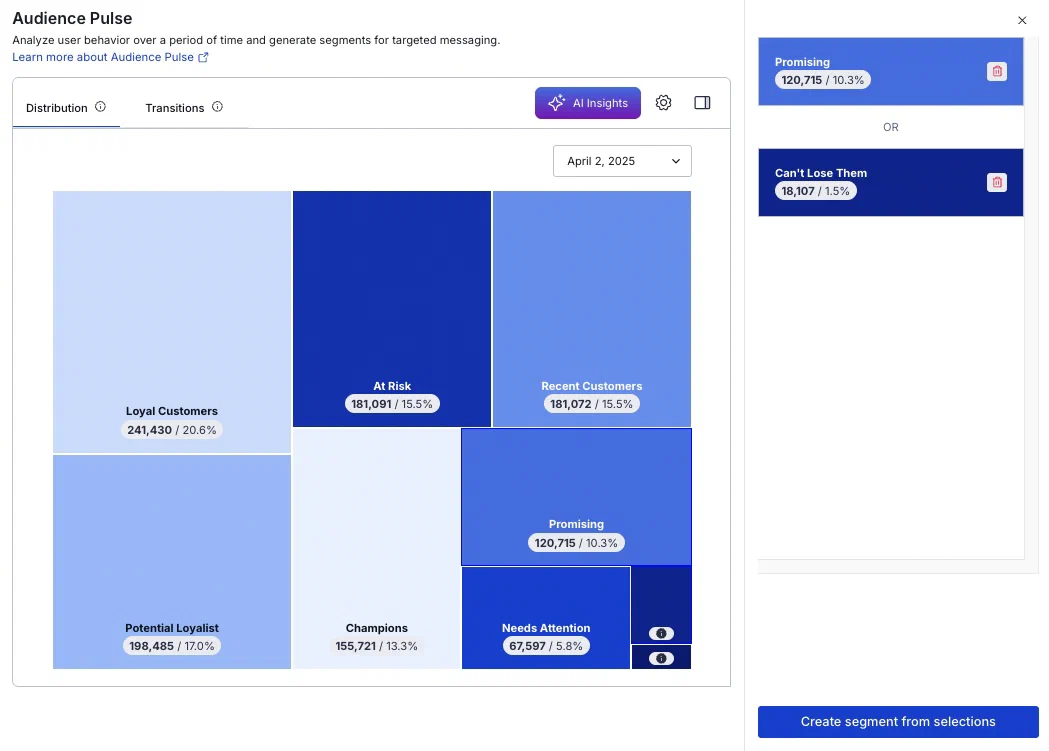
*Audience Pulse Distribution report*
To create a Segment from tiers:
1. Select one or more tiers, and they will appear in a list in the sidebar. To remove a tier from the list, select the trash can icon () or select it again in the report. Multiple tiers are handled as a boolean OR. Select the sidebar icon () to collapse or expand the sidebar.
1. Select **Create segment from selections**.
1. Enter a Segment name.
1. (Optional) Enter a description.
1. (Optional) Disable **Update weekly** to save the Segment with the current values only. **You cannot change this behavior later.** See [Segments](#segments).
1. Select **Save Segment**.
### Transitions
The Transitions report shows the tiers for two selected weeks, as well as the movement of users between tiers from one analysis date to another. By default, high volume transitions are highlighted. These are the top 30% of transitions by number of users who moved between tiers. Uncheck **Show important transitions** to remove highlighting.
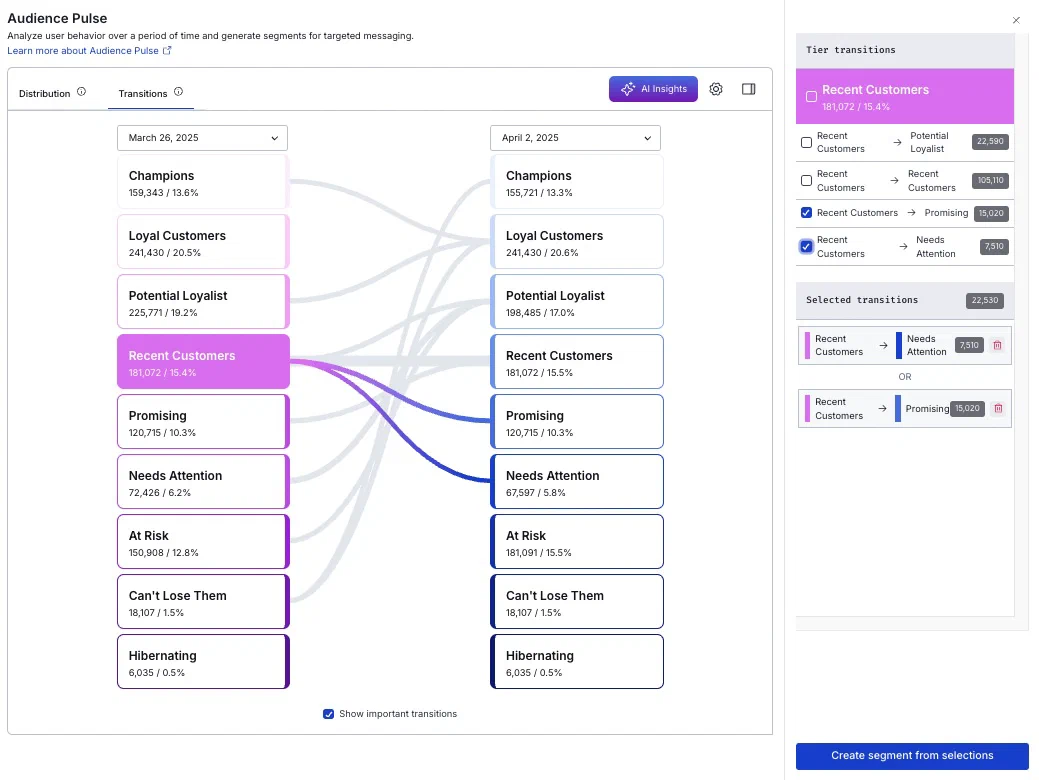
*Audience Pulse Transitions report*
Two columns list the previous and current weeks' tiers. Select new dates to update the displayed transitions. Select a tier in either column, and all transitions in or out will be listed in the sidebar, including the number of users in each transition group.
To create a Segment from users who transitioned between tiers for your selected dates:
1. Select tiers to add them to the sidebar list.
1. Select the tier name in the sidebar to include all transition groups or select individual groups. Repeat for additional tiers. Multiple transitions are handled as a boolean OR. Select the sidebar icon () to collapse or expand the sidebar.
1. Select **Create segment from selections**.
1. Enter a Segment name.
1. (Optional) Enter a description.
1. (Optional) Disable **Update weekly** to save the Segment with the current values only. **You cannot change this behavior later.** See [Segments](#segments).
1. Select **Save Segment**.
### AI recommendations
[AXP](https://www.airship.com/docs/reference/feature-packages/) [Agentic & Generative AI](https://www.airship.com/docs/guides/features/intelligence-ai/ai/)
For [AXP Enterprise plans](https://www.airship.com/docs/reference/feature-packages/), apply AI analysis for deeper insights into audience activities and get actionable recommendations to build more effective, targeted campaigns.
To access your recommendations in Audience Pulse, select ** AI Insights**. A drawer will expand and display summary cards for five recommendations. Select a card to see the details:
* **Why this matters** describes the discovered trend and the importance of addressing it.
* **Recommendations** provides the recommended course of action and implementation instructions. Recommendations can include messages, experiences, [Journeys](https://www.airship.com/docs/reference/glossary/#journey), and experiments.
If there is an error in processing, you can select **Generate new recommendations**.
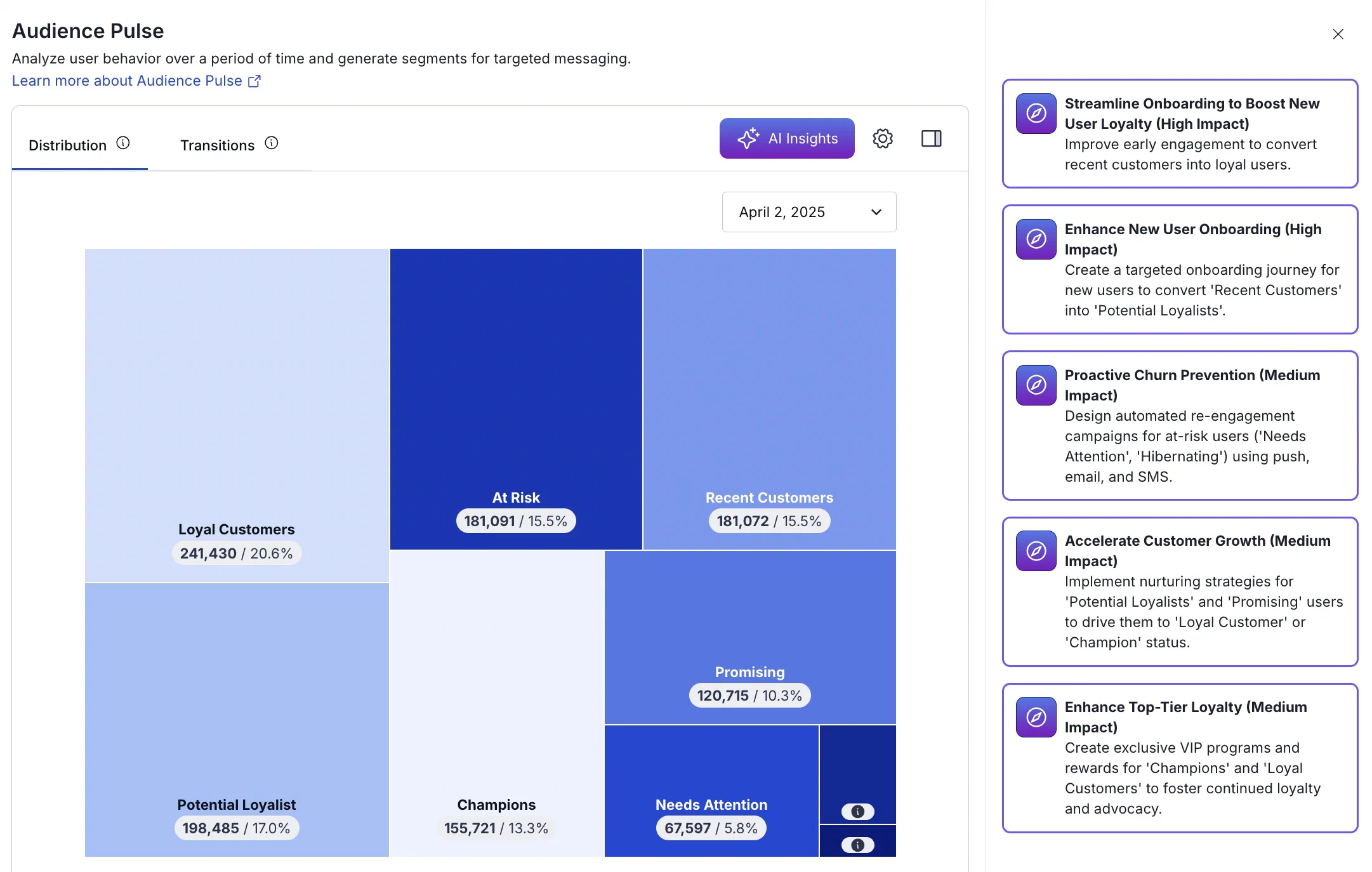
*Audience Pulse with AI recommendations*
For even more relevant recommendations, add your brand's homepage URL for analysis. Homepage text provides context to ensure insights are a better fit for your brand. The industry setting for your project is also taken into account.
To edit your industry and URL, select the dropdown menu () next to your project name, then **Project details**. The current values are processed each time AI recommendations are run.
> **Note:** **Opting In to AI Functions**
>
> If you opted out of AI usage, you must sign an updated contract to enable this feature. Contact your account manager for assistance.
>
> **Compliance Considerations in Using AI Functions**
>
> The Service incorporates AI functions, including Generative AI and Agentic AI.
>
> Generative AI generates content such as Notification copy, images, and Journeys based on your prompts.
>
> Agentic AI autonomously optimizes, personalizes, or executes cross-channel customer engagement actions, or analyzes audience and performance data, subject to the parameters and controls you set in the Service. These systems operate under human-defined parameters and do not initiate customer-facing actions without human interaction or pre-configured parameters. You are responsible for reviewing Generated Outputs for accuracy, appropriateness, and to ensure they do not violate third-party intellectual property or other rights. Airship does not publish Generated Outputs to end users without approval from the Customer.
>
> In addition to the applicable terms of your agreement with Airship (e.g., Use of Service, Customer Responsibilities sections), you must comply with the [Airship Acceptable Use Policy](https://www.airship.com/legal/acceptable-use/), which provides additional details about appropriate conduct when using the Service.
>
> The Service includes safety features to block harmful content, such as content that violates our Acceptable Use Policy. You may not attempt to bypass these protective measures or use content that violates your agreement with Airship.
>
> About the AI models:
>
> Airship utilizes Google Gemini and Imagen to generate copy and images for AI Scene screens. The content is created solely with Google's out-of-the-box models, and no customization or fine-tuning with Customer Data is applied. See [Responsible AI](https://cloud.google.com/responsible-ai?hl=en) in Google's *Google Cloud* documentation.
## Manage saved Segments
Go to **Audience**, then **Segments** to view and manage your saved Segments. See [Manage Segments](https://www.airship.com/docs/guides/audience/segmentation/segments/#manage-segments).
# Ban Lists
> {{< glossary_definition "ban_list" >}} {{< badge "axp" >}}
> **Important:** You are responsible for maintaining any Ban List, including accuracy and timing of its updates. Please verify with your legal and compliance teams:
>
> * that any Ban List provided to the Airship Service is compliant with local regulations regarding which End Users should be added to a Ban List;
> * scenarios when communications are appropriate to audience members on a Ban List;
> * timing of required updates to the Ban List under applicable industry and local regulatory standards.
>
> Airship does not monitor and is not otherwise responsible for the Ban List content and modifications that have to be made to the Ban List.
## About Ban Lists
A Ban List has these components:
* **Your record of banned users** — These may be users compiled from "Do not contact me" responses or any other reason to omit them from messaging.
You decide the record's format and storage location outside of Airship. Each user must be associated with a [Channel ID](https://www.airship.com/docs/reference/glossary/#channel_id) or [Named User](https://www.airship.com/docs/reference/glossary/#named_user). We recommend Named User since it maps to all Channel IDs associated with a user. Named User must already be implemented for your project.
* **An external [webhook](https://en.wikipedia.org/wiki/Webhook)** — This is an HTTP callback Airship uses to access your record of banned users. You configure the callback and provide Airship with a request URL formatted for querying your data.
The webhook must provide a specific response when a match is found. You can format the request URL to use Channel ID, Named User, or both. You can also format it to pass variables. You set a default value for the variable when setting up the URL and can [override the values](#overriding-variable-default-values) for individual messages.
* **A Ban List configuration in your Airship project** — You will enter your request URL and confirm Airship is authorized to use it for its intended purpose.
Once the above items are in place, this is the Ban List workflow:
1. Airship makes an API call to your webhook for every Channel ID in a message audience. For In-App Automations and Scenes, the Ban List is checked immediately before display. For all other messages, it is checked at send time.
1. Your webhook checks your record of banned users for matches for each Channel ID. If a match is found, the webhook sends a response telling Airship to drop the matched user.
1. Airship drops the send for each match.
Only necessary data to prevent users from receiving messages is captured during time of send and is not stored beyond what is necessary for that purpose. Airship does not access or store administrative configurations related to your Ban List.
You can set up one Ban List per project.
Support for [In-App Automation](https://www.airship.com/docs/reference/glossary/#iaa) and [Scenes](https://www.airship.com/docs/reference/glossary/#scene) requires: [iOS SDK 18.4+](/docs/docs/developer/sdk-integration/apple/ios-changelog/#18.4.0) (Android SDK 18+)
> **Warning:** Ban Lists do not work with email addresses or [MSISDNs](https://www.airship.com/docs/reference/glossary/#msisdn) in [Create and Send](https://www.airship.com/docs/reference/glossary/#create_and_send) CSVs since Ban Lists must match against existing user data.
### Throttling
Using an external Ban List can mean a lot of API calls in a short period of time. When configuring your Ban List in Airship, you can set a frequency rate for your requests. The minimum rate is 100 requests per second.
### Bypassing
You can bypass your Ban List when sending business-critical or otherwise required messages, such as privacy policy update notifications. Bypass is supported for both the API and dashboard.
### Reporting
A `SEND_ABORTED` event occurs when a recipient is dropped from our system before delivery is attempted, with `reason` value `FEED_BANNED_RESPONSE`.
`SEND_ABORTED` is not reported for dropped In-App Automations or Scenes. Instead, the app SDK sends an `IN_APP_MESSAGE` event with resolution `IN_APP_MESSAGE_EXCLUSION` when a recipient is dropped.
See the events and examples in the *Real-Time Data Streaming API* reference:
* [Send Aborted](https://www.airship.com/docs/developer/rest-api/connect/schemas/events/#send-aborted)
* [In-App Message Exclusion](https://www.airship.com/docs/developer/rest-api/connect/schemas/events/#in-app-message-exclusion)
Each dropped recipient counts toward the Not Sent count in a [message report](https://www.airship.com/docs/guides/reports/message/).
### Webhook requirements
When you send a message, Airship will make an API call to your webhook with a URL parameter containing a Named User ID and/or Channel ID. Your server must return a header indicating Airship should drop a matched user from the send.
Set up your webhook to return an `X-UA-Segmentation-Action` header to specify an action to be taken by Airship. The only value supported is `drop`, to drop the recipient from the send. This header is valid only for 200- and 400-level status codes and is ignored if provided for 300- or 500-level status codes. It is also ignored if the value is not recognized or the header is missing. Any response with a 200-level status code that does not contain a `drop` value in the header will allow sending to the recipient.
## Formatting your request URL
Your request URL is used to retrieve the user data. You will enter it in the dashboard when configuring your Ban List. It comprises your domain, protocol, path, and any variables you want to include.
Guidelines:
* The URL **must contain** a parameter for the identifiers in your Ban List, one of:
* `?channel_id={{$channel.id}}`
* `?named_user={{ua_named_user_id}}`
* `?named_user={{ua_named_user_id}}&channel_id={{$channel.id}}`
* Use double square brackets (`[[var]]`) for send time, or *message-level*, variables.
This example request URL has a send time variable `category` and the parameter for Named User: `https://api.example.com/ban-list/[[category]]?named_user={{ua_named_user_id}}`.
## Configuring your Ban List
[Owners and Administrators](https://www.airship.com/docs/guides/getting-started/admin/teams-messaging/#access-levels) can configure a project's Ban List.
In the Airship dashboard:
1. Next to your project name, select the dropdown menu (
), then **Settings**.
1. Under **Project settings**, select **Dashboard Settings**.
1. Select **Configure** for Ban List.
1. Configure the list settings:
| Setting | Description | Steps |
| --- | --- | --- |
| **Request URL** | The URL to retrieve the user data from. See [Formatting your request URL](#formatting-your-request-url). | Enter the request URL. |
| **Default value for \** | The default value for each send time variable included in the request URL. | Enter a default value. |
| **Confirm request URL domain** | The domain in the request URL. For example, `api.example.com`. Do not include the protocol or variables. | Enter the domain. |
| **Headers** | Optional. HTTP request headers that may be required to successfully communicate with the external webhook. For example, authorization headers. Header information is not a part of the request URL. | Select **Add header**, and then enter a key and value. Repeat for additional headers. |
| **Throttle requests** | Optional. Allows setting a frequency rate for your requests. See [Throttling](#throttling). The minimum rate is 100 requests per second. | Enter the number of API requests to allow per second. |
1. Select **Confirm access rights for request URL**.
1. Select **Done**.
Now you can toggle the **Ban List** setting to enable it for your project.
## Overriding variable default values
If your project has a Ban List enabled and the request URL includes send time variables, you can override their default values for individual messages.
When sending messages using the API, use the [`ban_list_parameters`](https://www.airship.com/docs/developer/rest-api/ua/schemas/push/#pushoptions) push option to override values for variables.
In the dashboard, you can override the default values:
* In the Delivery step of the Message, A/B Test, Automation composers
* In the Delivery step when composing each message in a Sequence
In the Delivery step, go to **Ban List**. Each variable is listed under the heading **Default value for \**. Enter a new value for any variable.
## Bypassing your Ban List
Using the API, include the [`bypass_ban_list_processing`](https://www.airship.com/docs/developer/rest-api/ua/schemas/push/#pushoptions) push option and set it to `true`.
To use this feature in the dashboard, your [project Owner or Administrator](https://www.airship.com/docs/guides/getting-started/admin/teams-messaging/#access-levels) must first enable the option:
1. Next to your project name, select the dropdown menu (
), then **Settings**.
1. Under **Project settings**, select **Dashboard Settings**.
1. Enable **Bypass Ban List**.
> **Important:** Disable this setting when no longer needed to avoid accidentally sending messages to banned users.
Then, when creating messages, enable **Bypass Ban List** in the Delivery step. Location per [Composer](https://www.airship.com/docs/reference/glossary/#composer):
| Composer | Step |
| --- | --- |
| [Message](https://www.airship.com/docs/guides/messaging/messages/create/), [A/B Test](https://www.airship.com/docs/guides/experimentation/a-b-tests/messages/), and [Automation](https://www.airship.com/docs/guides/messaging/messages/sequences/create-automation/) | Delivery |
| [Sequence](https://www.airship.com/docs/reference/glossary/#sequence) | Delivery for each message in the Sequence |
## Success, Retry, and Error Conditions
Airship considers any 2xx response from a feed to be a success and will continue a message using the feed response. Airship considers any 3xx and 5xx codes (except 502/503) to be error conditions.
| HTTP status | Result | Behavior |
| --- | --- | --- |
| 2xx | Success | Airship uses the feed response, even if empty. |
| 3xx | Error | Error behavior determined by user. |
| 5xx | Error | Error behavior determined by user. |
| timeout (60 sec) | Retry | Up to 4 retries, 60 sec between attempts. |
| 502/503 | Retry | Up to 4 retries, 60 sec between attempts. |
# Retarget a message audience
> Send a follow-up push notification or email to an audience segment of a previous message.
## About Audience Retargeting
> **Important:** This feature is only available for projects using the [channel-level segmentation system](https://www.airship.com/docs/guides/audience/segmentation/segmentation/#channel-level-segmentation). You can replicate retargeting functionality by creating [Segments](https://www.airship.com/docs/reference/glossary/#segment) based on message engagement events and then targeting those Segments for follow-up messages.
*Audience retargeting* is a method for sending follow-up messages to the audience of a parent message. This method is available for push notifications (app and web) and email in the Message composer.
When creating your message, you enable the *Generate retargeting segments* setting to make the audience of the current message eligible for follow-up messages. After you send the message, Airship generates the following [Segments](https://www.airship.com/docs/reference/glossary/#segment) for retargeting:
* **App and/or Web push notification segments**
* *Direct Engagements* — App and web audience members who engaged with the message.
* *No Action* — App and web audience members who did not engage with the message.
* *All Recipients* — The entire app and web audience.
* **Email segments**
* *Email Sent* — The entire email audience.
* *Email Opened* — Any email address with at least one open event associated with it for the message.
* *Email Clicked* — Any email address with at least one click event associated with it for the message, excluding clicks on the unsubscribe link. Only HTTP and HTTPS links are tracked.
* *Email Opened, No Click* — Any email address with at least one open event associated with it for the message, but zero click events.
* *Email Sent, not opened or clicked* — Any email address that has no open or click events associated with it for the message.
---
You can send a follow-up message to any of your retargeting segments.
* The original message is considered the *parent*, and the follow-up message is the *child*.
* The selected channels for the follow-up message must be the same as the parent, and the message type for the app channel must be push notification only; app channel message types cannot be combined.
* Your follow-up message is a copy of the parent message, with the following differences in the *Audience* step:
* *Target Specific Users* is selected and set to your selected retargeting segment. You can add additional criteria to narrow down the retargeted audience.
* If the parent message included multiple app platforms, you can disable app platforms, but you cannot select additional ones.
> **Note:** **Multi-channel messages**
>
> If the parent message targets multiple channels, you will be presented with an option to set up follow-up messages for *each channel* individually. Child messages are specific to the channel they are tied to, and never target multiple channels as a parent message can.
>
> For example, if a parent message targets the email *AND* app channels, the retargeting messages that you create will only be activated on the email *OR* app channel given a qualifiying interaction with the email or push notification, respectively.
---
You can generate retargeting segments for up to 5 parent messages per day. There's no limit to the number of follow-up messages you can send from those parents.
The [message report](https://www.airship.com/docs/guides/reports/message/) for a parent message shows that retargeting is enabled, along with the complete audience criteria and the audience size (recipient count and percentage of total audience) for each segment. The child message report specifies the segment retargeted from the parent message, and links to its parent message. You can follow the link from the child to the parent to see your original audience criteria.
## Enable Retargeting {#enable}
To make the audience of a message eligible for retargeting, enable *Generate retargeting segments* in the *Audience* step of the Message composer. This option is only available when your channels are limited to app platforms, web, and email.

*Enabling retargeting segments*
> **Tip:** You can keep *Generate retargeting segments* enabled for your child message too. This can help you narrow down a key audience segment in a series of messages.
## View Segment Metrics and Send a Follow-up Message {#follow-up}
To take advantage of audience retargeting, you must have already sent a parent message with *Generate retargeting segments* enabled. You can then view the segment metrics and select one as the audience for a follow-up to the parent message, or a subset of that audience. The message type for app platforms is limited to push notification only; you cannot add additional message types.
1. Go to **Messages**, then **Messages Overview**.
1. Click
for the message containing the audience you want to retarget.
1. Under *Retargeting Segments*, click **Compose follow-up** for the audience you want to target. This opens a copy of the message in the Message composer, with *Target Specific Users* set to your selected audience segment.
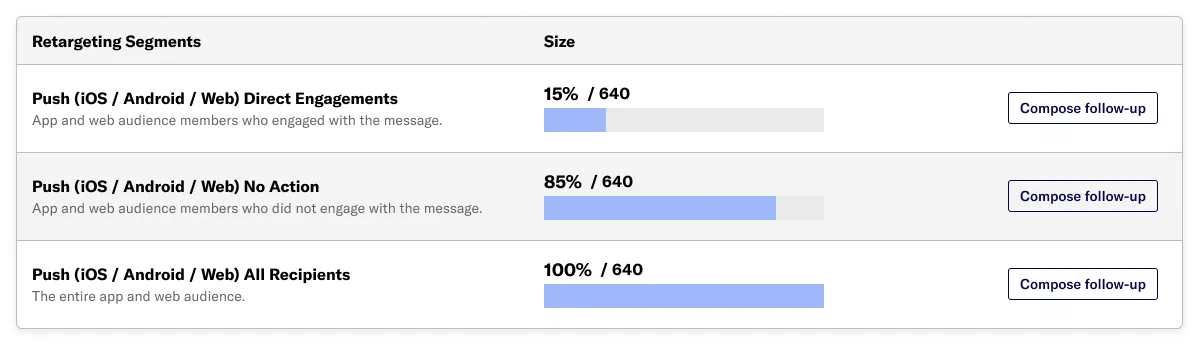
*Composing a follow-up from retargeting segments in a message report*
1. (Optional) Add additional audience criteria to narrow down the audience if necessary.
1. Continue composing your message as normal.
> **Note:** When you send or schedule a message to a retargeting segment, Airship does not calculate your audience until send time. Make sure you leave enough time for users to see and interact with the parent message before you send a follow-up message.
# SFTP upload for CSV files
> You can upload audience lists, attributes, named user association lists, and Coupons data directly to Airship using SFTP.
Many CRM platforms export data as CSV files. You can take advantage of Airship's SFTP interface to upload that data to:
* **Add users to your project in a reusable** [Audience List](https://www.airship.com/docs/reference/glossary/#audience_list) — The list is labeled "[Uploaded List](https://www.airship.com/docs/reference/glossary/#uploaded_list)" in the dashboard and can be selected as your messaging audience or included in a [Segment](https://www.airship.com/docs/reference/glossary/#segment).
* **Set or remove user** [Attributes](https://www.airship.com/docs/reference/glossary/#attributes) — Attributes can be associated with [Channels](https://www.airship.com/docs/reference/glossary/#channel_dev), [Named Users](https://www.airship.com/docs/reference/glossary/#named_user), [MSISDNs](https://www.airship.com/docs/reference/glossary/#msisdn), or email addresses, but you cannot mix identifiers. For MSISDNs and email addresses, Airship will generate new channels for identifiers we don't recognize.
* **Associate** [Channels](https://www.airship.com/docs/reference/glossary/#channel_dev) **with** [Named Users](https://www.airship.com/docs/reference/glossary/#named_user) — Upon upload, Airship registers channels that are new to your project and creates the named user ID if it does not already exist.
* **Add more codes for a [Coupons](https://www.airship.com/docs/reference/glossary/#coupons) campaign** — You can also overwrite existing campaign settings using the values in the CSV file.
All uploaded files are encrypted in transit and at rest.
You will need:
1. An FTP/SFTP client — Many CRM platforms support SFTP directly, or you can use a client like FileZilla.
1. SSH keys — Airship's implementation of SFTP uses public key authentication.
1. A properly formatted CSV file
> **Important:** You must add Custom and Predefined Attributes to your project before setting them on users. Otherwise, setting those Attributes will result in an error. See [Adding Attributes to your project](https://www.airship.com/docs/guides/audience/attributes/adding/).
>
> JSON Attributes can only be set using the API.
> **Tip:** You can also upload audience lists, attributes, named user association lists, and Coupons data in the dashboard. See:
>
> * [Uploaded Lists](https://www.airship.com/docs/guides/audience/segmentation/audience-lists/uploaded/)
> * [Setting Attributes Using a CSV File](https://www.airship.com/docs/guides/audience/attributes/setting/#csv-file)
> * [Associating Named Users Using a CSV File](https://www.airship.com/docs/guides/audience/named-users/#csv-file)
> * [Coupons: Editing campaigns and adding more codes](https://www.airship.com/docs/guides/personalization/sources/coupons/#editing-campaigns-and-adding-more-codes)
## Format your CSV
Prepare your CSV according to the formatting reference for the data you want to upload:
* [Attributes CSV format](https://www.airship.com/docs/reference/messages/csv-formatting/#attributes)
* [Named user association CSV format](https://www.airship.com/docs/reference/messages/csv-formatting/#named-user-association)
* [Uploaded audience list CSV format](https://www.airship.com/docs/guides/audience/segmentation/audience-lists/uploaded/#formatting-your-list)
* [Coupons CSV format](https://www.airship.com/docs/guides/personalization/sources/coupons/#formatting-your-csv)
## Generate keys
Airship's SFTP implementation uses SSH key pairs for authentication. You will create a pair of keys: a private key for your client and a public key for Airship.
Steps for Windows-based clients:
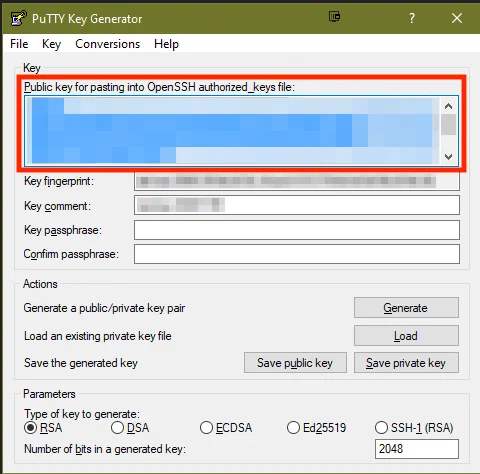
*Generating keys in PuTTY*
1. [Download and run **puttygen.exe**](https://www.puttygen.com/download-putty).
1. Select **RSA** in the *Parameters* section near the bottom of the page and click **Generate**.
1. Move the mouse around in the blank area, as instructed, until the key pair is generated and the *Key* section updates.
1. Click **Save public key** and select the directory where you want to save your public key.
1. Click **Save private key** and save the private key in the same folder as your public key.
1. Copy the contents of the **Public key for pasting into OpenSSH authorized_keys file** field. This is what you'll paste when adding the key to Airship. Make sure to copy the entire key, starting with `ssh-rsa`.
Steps for MacOS- and Linux-based clients:
1. Open your terminal.
1. At the command line, enter `ssh-keygen -t rsa`. You can set other options, but the key type must be set to RSA (`-t rsa`).
1. Enter the directory and file name (without extension) for your new keys, e.g., `/Users/your_username/Documents/rsa_keys/`, and optionally enter a passphrase and confirm. This process generates two files based on the file name you provide:
* `` contains your private key.
* `.pub` contains your public key.
1. Copy the contents of your `.pub` file. This is what you'll paste when adding the key to Airship.
---
If you need to remove a key from your project:
1. Next to your project name, select the dropdown menu (
), then **Settings**.
1. Under **Project settings**, select **SFTP**.
1. Select the trash can icon (
) for a key.
## Add your public key to Airship
When you add your public key to Airship, you select the *Purpose* for the key (audience/static lists or attributes), then we generate a username for your SFTP connection. You can use the same key pair to upload both audience/static lists and attributes, but you must add the public key to Airship twice — once for each purpose.
In Airship:
1. Next to your project name, select the dropdown menu (
), then **Settings**.
1. Under **Project settings**, select **SFTP**.
1. Select **Add key** and configure:
* **Purpose:** Select **Static Lists** (Uploaded audience lists), **Attributes**, **Attributes Snapshot**, **Named Users**, or **Coupons**.
* **Name:** Enter a name to help you identify the key in Airship.
* **Public key:**
* For **Window users**, paste the contents of the **Public key for pasting into OpenSSH authorized_keys file** field you copied in the previous step.
* For **MacOS and Linux users**, paste the contents of the `.pub` you saved in the previous step.
1. Select **Save key**.
## Set up your client and transfer CSVs
You can set up any client to use Airship's SFTP interface, using SSH or an SFTP client. Many CRM platforms natively support SFTP. First retrieve configuration information for the [key you added to Airship](#add-your-public-key-to-airship), then enter it in your SFTP client configuration.
1. Next to your project name, select the dropdown menu (
), then **Settings**.
1. Under **Project settings**, select **SFTP**.
1. Select the eye icon () for a key to see values for:
* SSH command line
* Username
* Host: `sftp.airship.com` (`sftp.airship.eu` for EU customers)
* Port: `5222`
1. Copy and paste the values from the previous step for use in your SFTP configuration. Authentication also requires [your private key](https://www.airship.com/docs/guides/audience/segmentation/sftp-upload/#generate-keys).
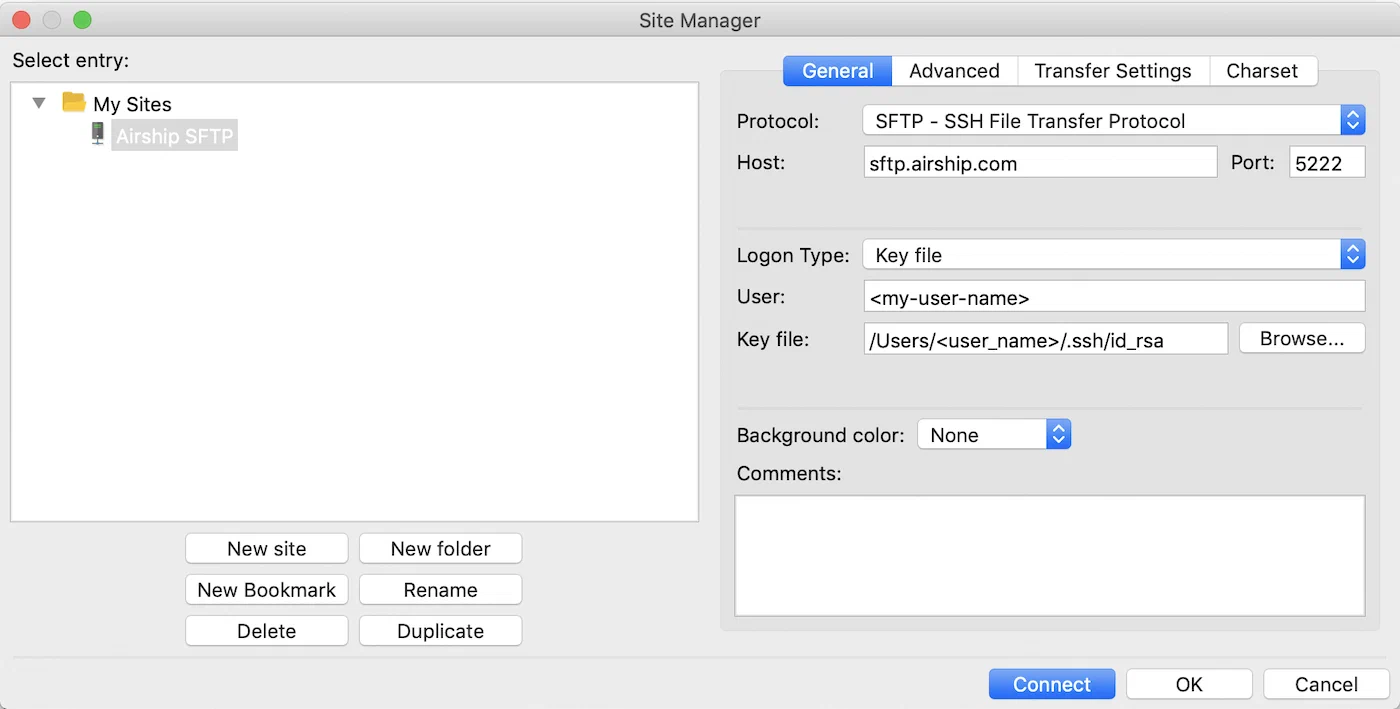
*SFTP client configuration*
After your connection is set up, you can transfer CSV lists to Airship.
---
After file transfer, see the following locations to access each upload type:
* **Audience Lists** — Go to **Audience**, then **Lists**, then **Uploaded**. See [Uploaded lists](https://www.airship.com/docs/guides/audience/segmentation/audience-lists/uploaded/).
* **Attributes** — Go to **Audience**, then **Attributes**, then **Attribute List**. See [Targeting your audience using attributes](https://www.airship.com/docs/guides/audience/attributes/targeting/) and [Managing attributes](https://www.airship.com/docs/guides/audience/attributes/managing/).
* **Coupons** — Next to your project name, select the dropdown menu (
), then **Settings**. Under **Project settings**, select **Coupons**. See [Coupons](https://www.airship.com/docs/guides/personalization/sources/coupons/).
* **Named Users** — To view user data, go to **Audience**, then **Contact Management**. See [Contact Management](https://www.airship.com/docs/guides/audience/contact-management/).
* **Attributes** and **Named Users** — For your upload history, go to **Audience**, then **Attributes**, then **Upload History**. The latest upload is listed first, with columns for:
File name
User name — The user who performed the upload in the dashboard
Source — Dashboard or SFTP
Upload date
Status — Processed, Processed with errors, Processing, or Failed
For status “Processed with errors”, select the download icon (
) to download a CSV file of the identifiers that failed processing and their error reasons.
#### Audience lists
# Lifecycle lists
> Use Airship's automatically-generated lifecycle information about your app users to target specific audience members.
Audience Lists are messaging recipient groups based on either your own data or automatically-generated app user lifecycle information. You can use audience lists to target specific users. This document explains Lifecycle audience lists.
## About Lifecycle lists
*Lifecycle lists* are automatically generated audience lists that capture app open, uninstall, notification, and dormancy information within the past 24 hours, one week, or 30 days. For example, with Lifecycle lists you have a built-in recipient list of all users who have opened your app in the past 7 days. You can disable Lifecycle list auto-generation.
There are six Lifecycle list types:
* **First App Open** — Opened the app *for the first time* within the given time interval.
* **Opened App** — Opened the app within the given time interval.
* **Uninstalls** — Devices that have been marked as uninstalled within the given time interval. This list is only available for projects using the [channel-level segmentation system](https://www.airship.com/docs/guides/audience/segmentation/segmentation/#channel-level-segmentation).
Note that you must attempt to send a push to an uninstalled device before our system marks it as uninstalled. For details, please see [Detecting Uninstalled Devices](https://www.airship.com/docs/guides/reports/engagement/#detecting-uninstalled-devices).
* **Sent Notification** — Devices that have received a notification within the given time interval.
* **Direct Opens** — Opened the app directly from a notification within the given time interval.
* **Dormant** — Given a time interval **X**, the dormant list contains users that have not opened the app in the last **X** days, but did open the app at least once in the **X** days prior to not opening the app. Tooltips provided in the UI give actual values.
> **Note:** Android devices with faulty registrations may be included in the Uninstalls list regardless of whether or not they have an active installation of your app. Consequently, the Uninstalls list may contain a small number of devices that have not actually uninstalled your app.
>
> See error "Unregistered Device" in Android's [Downstream message error response codes](https://firebase.google.com/docs/cloud-messaging/http-server-ref?hl=en#error-codes).
### List intervals and data
The data for each list type is presented in time intervals:
* Last Whole Day — *Defined as a period of time commencing and terminating at midnight UTC*
* Last 7 Days
* Last 14 Days — *Sent Notifications list only*
* Last 30 Days
In *Audience » Lists » Lifecycle*, each list displays the following per time interval:
* Processing status
* Days and dates (UTC)
* Day and date when the list was last processed
* Devices count — The number of channels associated with the list.
As with [Uploaded Lists](https://www.airship.com/docs/reference/glossary/#uploaded_list), the Devices count includes both users who are opted-in *and* opted-out of push. For example, if you send a push to a list of 1,000 devices where 600 of the devices are opt-in, only 600 devices will receive that push, whereas an in-app message would go to all 1,000 devices. This distinction between a list's Devices count (total devices) and opt-in devices is important to know when viewing a push-to-list's Total Sends metric — Total Sends will correspond to opt-in devices rather than the Devices count.
You can also retrieve Lifecycle list information using the [`/lists`](https://www.airship.com/docs/developer/rest-api/ua/operations/static-lists/) API endpoint.
### Use cases
You can use Lifecycle lists to target users with personalized messages based on their behaviors:
* Specify a Lifecycle list when using the targeting specific users in a message or experiment audience.
* Include a Lifecycle list in a [Segment](https://www.airship.com/docs/reference/glossary/#segment).
* Download Lifecycle lists and add the users to your CRM or other backend system.
Use cases per list:
* **First App Open:** Target users that have been acquired recently.
* Engage with newly-acquired users, sending specific messages that help them understand the benefits of your app.
* Guide users to specific areas of your app experience that they might not know about.
* Welcome customers and deliver an incentive to open the app again.
* **Opened App:** Target users according to active-user status.
* If your app is focused on daily or weekly users, e.g., a gaming app, use the *Last Whole Day* or *Last 7 Days* Opened App list to target your most active users.
* For lifestyle or retail apps, the *Last 30 Days* list can be used to message users that have engaged, pushing them to a conversion point in the app such as making a purchase.
* **Uninstalls:** Target users (via non-push channels) who have uninstalled your app.
* Use this list to export devices that have uninstalled your app. Consider messaging them via a different channel regarding the value and utility of mobile notifications.
* Augment your data warehouse with this information to investigate why they uninstalled your app.
* **Sent Notifications:** Filter out users who have already received a message.
* Create a [Segment](https://www.airship.com/docs/reference/glossary/#segment). to filter out users that recently received a message to limit overreach.
* Export this list into your email tool to filter our users you have already messaged.
* Export this list into your CRM to investigate how users actions outside of the app are influenced by your messaging.
* **Dormant:** Target previously active customers who have not engaged with the app recently.
* Send special offers to previously active users, incentivizing re-engagement with your app.
* Send messages that describe the value and benefit of your app to users who have become dormant. Encourage re-engagement by describing new app versions and features.
* Export the dormant list into your CRM and follow up with customers using a different communication method.
## Enabling Lifecycle lists
Go to *Audience » Lists » Lifecycle*, and click **Turn On**. The lists are available 24 hours after you enable them; the delay is necessary in order to populate the minimum data required for the shortest time interval, *Last Whole Day*.
## Using Lifecycle Lists
* **Message and experiment audiences** — Include a Lifecycle list when using the **Target by conditions** or **Target Specific Users** option in a message, Feature Flag Configuration, or A/B test audience. To send to a Lifecycle list using the API, include `"static_list": "name_of_list"` in the audience object. See [Audience Selection](https://www.airship.com/docs/developer/rest-api/ua/schemas/audience-selection/) in the API reference.
> **Note:** If a Lifecycle list is processing, you will not be able to send to the list until processing has finished.
* **Segments** — Include a Lifecycle list in a [Segment](https://www.airship.com/docs/reference/glossary/#segment).
* **Add to a backend system** — Download a CSV of your Lifecycle list data for use in another system. Click the arrow icon at the end of a list's row, and save the file. Lifecycle lists can only be downloaded by a [project Owner or Administrator](https://www.airship.com/docs/guides/getting-started/admin/teams-messaging/#access-levels).
Each row of the CSV has two columns: device type and channel ID; add the users' channel IDs to your CRM or other backend system. How you use this data depends on your backend integration:
1. **You maintain a mapping of channel IDs to customer IDs (such as named users) in your system.** If this is the case, you have all the information you need! Feed the channel IDs into your backend system for further analysis.
1. **You don't have a mapping, but you do have named users integrated with your app.** In order for the downloaded list data to be usable, you need to get the named user associated with each channel:
1. Use the [named users listing](https://www.airship.com/docs/developer/rest-api/ua/operations/named-users/#getnameduser)
endpoint to get a paginated list of named users and their associated channels.
1. Iterate through the list of named users and their channels, mapping the
channels contained in your downloaded list to the appropriate named user. How you accomplish this step is up to you. You may want to write a simple script that compares the named user list generated in step 1 with the downloaded list.
1. Now that each channel on the downloaded list has an associated named
user, you may add the channels to your backend system.
# Uploaded lists
> Create audience lists using your own data.
Audience Lists are messaging recipient groups based on either your own data or automatically-generated app user lifecycle information. You can use audience lists to target specific users. This document explains Uploaded audience lists.
## About Uploaded lists
Uploaded Lists are reusable audience lists that you create. They are static and updatable. In the API, they are referred to as Static Lists.
After you create an Uploaded list, you can:
* Select the list when defining your audience for a message.
* Include the list in a [Segment](https://www.airship.com/docs/reference/glossary/#segment).
Because lists are static, they can become outdated very quickly. We encourage active curation of lists, updating them with current data as frequently as possible.
### Retention and deletion
Airship automatically deletes a list and all its versions after 90 days of inactivity. Timestamps used to calculate the 90-day period:
* Creation date
* New version uploaded
* Message sent (pushed) to the list
The creation date is the initial day one of the 90-day period. Each instance of uploading a new version or sending to the list resets the timestamp to day one.
The retention period for an Uploaded list is the same whether uploaded in the Airship dashboard, [using SFTP](https://www.airship.com/docs/guides/audience/segmentation/sftp-upload/), or using the [`/lists`](https://www.airship.com/docs/developer/rest-api/ua/operations/static-lists/) API endpoint.
After deletion, the list is removed from the upload history, is no longer visible in the Airship dashboard or through API calls, and is no longer available for audience segmentation.
## Formatting your list
Uploaded lists must be in CSV format. CSV files can contain up to 10 million
[Named Users](https://www.airship.com/docs/reference/glossary/#named_user)
or channel IDs, and be up to 1.5 GB. Each row in the CSV must be
an `identifier_type,UUID` pair.
The `identifier_type` is one of: `named_user`, `ios_channel`, `android_channel`, `amazon_channel`, `sms_channel`, `email_channel`, `open_channel`, or `web_channel`.
The `identifier` is the associated `named_user_id` or `channel_id`.
```text
named_user,customer-42
named_user,room-27
ios_channel,5i4c91s5-9tg2-k5zc-m592150z5634
web_channel,d132f5b7-abcf-4920-aeb3-9132ddac3d5a
android_channel,52b2b587-0152-4134-a8a0-38ae6933c88a
email_channel,ab1a81e3-5af3-4c04-a7ae-d676960e6684
open_channel,6bcf3e63-a38a-44d8-8b0d-2fb5941e74ab
sms_channel,ab1a81e3-aaf3-ac04-a7ae-a676960e6684
```
> **Tip:** Follow the steps in [Export Audience Lists](https://www.airship.com/docs/guides/reports/analytics/tasks-queries/export/#export-audience-list) to download a CSV of device identifiers in [Performance Analytics](https://www.airship.com/docs/reference/glossary/#pa).
## Uploading your list
You can create up to 100 Uploaded lists per project, either in the dashboard, [using SFTP](https://www.airship.com/docs/guides/audience/segmentation/sftp-upload/), or using the [`/lists`](https://www.airship.com/docs/developer/rest-api/ua/operations/static-lists/) API endpoint.
In the dashboard:
1. Go to *Audience » Lists » Uploaded* and click **Create List**.
1. Enter a name. **The name cannot be changed after you save the list.**
1. Enter a description that explains what kind of identifiers are contained within your CSV file.
1. Click **Choose file** and select your file. After selection, you will see the button label change to **Uploaded list**. If you need to choose a different file before saving the list, click *clear* and start again.
1. Click **Save**.
You will return to the Uploaded tab, where your new list's status will likely be *Processing*. Once the status is *Ready*, you can send to your new list. Processing time is generally quick but varies depending on the size of your list and server load. Small lists can process within seconds, while large lists may take 5 or 10 minutes. We recommend uploading lists at least a few hours before you need to send to them. This will give you plenty of time to address any potential errors.
> **Warning:** When a new list is uploaded, an empty list is created first while the
> list identifiers are processed. Please be sure the new list completes
> processing and displays a Device count before sending to it. It is
> possible to upload a new list and then immediately send to it, resulting
> in zero (0) sends because it hasn't completed processing.
> **Tip:** You can create an empty list by completing the steps to upload your list but without
> uploading a CSV file. This list can be used via both the UI and API, but it
> will, of course, send to 0 devices. This may be useful if you want to send a
> scheduled message to a list but you haven't yet finished collecting the data
> necessary to construct the CSV file.
>
> Create an empty list, then compose the scheduled message, selecting the
> empty list as the audience. Once your CSV file is ready, edit the list and upload the CSV file. The
> message will be sent to your intended recipients as long as the upload has
> completed processing and the list Status is *Ready* before the scheduled send
> time.
### Troubleshooting upload failure {#troubleshooting}
Upload may timeout due to a poor internet connection. If so, the file upload must be attempted again. To ensure that the entirety of a given list is successfully processed, we do not support partial uploads.
If your Uploaded list shows status *Failed*, review these typical causes:
Invalid UUID
: One or more of the given UUIDs are invalid. See [this page](https://en.wikipedia.org/wiki/Universally_unique_identifier) for more information on properly formatted UUIDs.
Invalid identifier type
: You included an identifier type that is not recognized by the uploader. The valid identifier types are `named_user`, `ios_channel`, `android_channel`, `amazon_channel`, `web_channel`, `open_channel`, `sms_channel`, and `email_channel`.
Too many identifiers
: The list uploader supports up to 10 million `identifier_type,UUID` pairs. Exceeding this limit will result in an error.
Too many lists
: You can have up to 100 Uploaded lists. Attempting to create more than 100 Uploaded lists will result in an error.
Wrong number of columns
: CSV files must be two columns, containing `identifier_type,UUID` pairs. Uploading a CSV file with more or fewer than two columns will result in an error.
Invalid name/description
: Names and descriptions can have lengths of up to 64 and 10,000 characters, respectively. Exceeding either limit will result in an error.
### List data
Go to *Audience » Lists » Uploaded*. Each row displays:
* List name
* Processing status — *Ready* indicates that your list may be used as a message
audience, *Processing* indicates that our servers have not yet completed the upload, *Failed* indicates upload failure.
* Devices count — The number of [Channel IDs](https://www.airship.com/docs/reference/glossary/#channel_id)
associated with the list. This count simply reflects the number of *valid* channel identifiers associated with a given list. Uninstalled channels may still be reflected in the channel count, meaning that sending to a list may result in a send count
lower than the channel count.
* Users count — The number of named users associated with a given list. May include named user identifiers with no associated channels in Airship.
* Created and Last Modified dates
When interpreting the Devices count, keep in mind:
1. The Devices count includes both users who are opted-in *and* opted-out
of push. For example, if you send a push to a list of 1,000 devices where 600 of the devices are opt-in, only 600 devices will receive that push, whereas an in-app message would go to all 1,000 devices. This distinction between a list's Devices count (total devices) and opt-in devices is important to know when viewing a push-to-list's Total Sends metric — Total Sends will correspond to opt-in devices rather than the
Devices count.
1. In order to improve processing time, Airship does not validate
that channels are active and addressable when they are processed by our system. We only validate that channels have the right format. This means that any channels that have either been uninstalled or are incorrect but in proper format will still be reflected in the total channel count when the list is done processing, and sending to the list will result in a lower send count than was on the list of channels.
> **Warning:** Attribute information may contain a combination of values from both the last *Uploaded list* and the last *successfully processed list*. For example, if the processing step fails after you edit an existing list, the **Status** indicator will read *Failed*, but **Devices** and **Last Modified** will display information from the last *successfully processed list*.
## Using Uploaded Lists
Specify an Uploaded list in these locations:
* **Segments** — Include an Uploaded list in a [Segment](https://www.airship.com/docs/reference/glossary/#segment).
* **Message and experiment audiences** — Include an Uploaded list when using the **Target by conditions** or **Target Specific Users** option in a message, Feature Flag Configuration, or A/B test audience. To send to a list using the API, include `"static_list": "name_of_list"` in the audience object. See [Audience Selection](https://www.airship.com/docs/developer/rest-api/ua/schemas/audience-selection/) in the API reference.
> **Note:** * If an Uploaded list is processing, you will not be able to send to the list until processing has finished.
> * If you edited an Uploaded list and it is still processing, you can still send to the list, but the recipients will be from the pre-edited version.
## Managing Uploaded Lists
You can edit an Uploaded list's description and CSV file.
> **Note:** * You cannot append new values to an existing list by uploading only the new values. To extend a list with additional `identifier_type,UUID` pairs, you must update the original CSV file with those values, then edit the list, uploading the new CSV file that contains both the original pairs and the additions.
>
> * If you replace a CSV file or upload a CSV for a list that was created without one, be advised that:
> * The CSV file will be processed in the same manner as a new list.
> * The previously uploaded list is available during processing.
> * All existing scheduled messages will use the most recent processed list. "Scheduled" includes recurring messages.
1. Go to *Audience » Lists » Uploaded*.
1. Find the list you want to edit, and click
.
1. Change the description and/or upload a new CSV file as instructed in [Uploading your list](#uploading-your-list).
1. Click **Save**.
---
To delete a list:
1. Go to *Audience » Lists » Uploaded*.
1. Click
for a list.
After deletion, the list is removed from the upload history, is no longer visible in the Airship dashboard or through API calls, and is no longer available for audience segmentation.
# Subscription lists
> Create audience lists for specific topics.
> **Important:** Please consult your legal counsel before implementing a particular subscription list approach or to help define the subscription purpose in order to address your specific use case or regulatory requirements in your jurisdiction.
Audience Lists are messaging recipient groups based on either your own data or automatically-generated app user lifecycle information. You can use audience lists to target specific users.
## About subscription lists
A *Subscription list* is an audience list of users who are opted in to messaging about a specific topic. Users can manage their opt-in status per list using a Preference Center. Subscription lists can help with retaining customers, since recipients can opt in and out of content per list rather than opting out of all messaging.
After you create a subscription list, you can:
* Select the list when defining your audience for a message
* Opt a user in to or out of a subscription when the user taps a button in a push notification, in-app message, or web push notification
* Trigger an [Automation](https://www.airship.com/docs/reference/glossary/#automation) or [Sequence](https://www.airship.com/docs/reference/glossary/#sequence) when a user opts in to or out of a subscription, or use their opt-in status as a [Condition](https://www.airship.com/docs/reference/glossary/#conditions_event_option)
* Include the list in a [Segment](https://www.airship.com/docs/reference/glossary/#segment)
* Include the list in a [Preference Center](https://www.airship.com/docs/reference/glossary/#preference_center)
* Opt users in to or out of a subscription list when they respond with an [SMS Keyword](https://www.airship.com/docs/reference/glossary/#sms_keyword)
---
A subscription list is for either commercial or transactional purposes, which you specify when creating the list and can edit at any time.
* **Commercial** — Advertises or promotes a commercial product or service, including content on a website operated for a commercial purpose.
* **Transactional** — Facilitates an already agreed-upon transaction, or updates a customer about an ongoing transaction. Verify with your legal team to comply with regulations.
When you send to the list, you should only include content related to its purpose.
When sending an **email** to a subscription list, you must include an unsubscribe link for opting out of all email messaging, and you can also include an unsubscribe link for that list only. See: [Email unsubscribe links](https://www.airship.com/docs/guides/messaging/messages/content/email/email-unsubscribe-links/).
---
You create subscription lists in the dashboard, and you can add users using these methods:
* **Automatically** — Enable [Auto opt-in](#auto-opt-in).
* **Manually** — [Use the API to add or remove users](#populating-a-list-using-the-api).
* **User choice** — Include the list in a [Preference Center](https://www.airship.com/docs/reference/glossary/#preference_center).
> **Note:** Airship does not preserve the opt-in/out dates or the source of when or where a user opts into or out of a subscription. Airship does not have access to dates for opt-in/out events unless [Real-Time Data Streaming (RTDS)](https://www.airship.com/docs/reference/glossary/#rtds) is set up. See: [RTDS API: Subscription List Event](https://www.airship.com/docs/developer/rest-api/connect/schemas/events/#subscription-list).
### Auto opt-in
[AXP](https://www.airship.com/docs/reference/feature-packages/)
When creating a subscription list, you can automatically opt in users to that list by enabling *Auto opt-in*. Both existing and new audience members will be opted in to the list.
Auto opt-in cannot be disabled after saving your list. Lists enabled for auto opt-in are not available for use with the *Subscription* trigger for Sequences and Automation.
Changing the list type between commercial and transactional does not change the auto opt-in setting.
### Reporting
In [Performance Analytics](https://www.airship.com/docs/reference/glossary/#pa), you can view a list's eligible subscriber count over time. This count is of unique users subscribed to the list and opted in to notifications at any time during the time frame defined for the report.
Go to *Audience » Lists » Subscription* and click
for a list. The default view is the last 30 days of data. Use the date filter to select a new time frame.
Reporting is not available for lists enabled for [Auto opt-in](#auto-opt-in).
## Creating a list
You can create up to 20 subscription lists per project.
1. Go to *Audience » Lists » Subscription* and click **Create subscription list**.
1. Enter a name and description for the list. Both appear in your project's [Preference Centers](https://www.airship.com/docs/reference/glossary/#preference_center). Description is optional.
* The list ID is automatically generated based on the name and is truncated at 32 characters.
* A list ID will not generate for a list name that contains only numbers and/or special characters.
* If the name starts with a number and/or special characters, the generated ID omits the leading numbers and/or special characters.
* Uppercase letters in the name are converted to lowercase in the ID.
* Special characters in the name are converted to underscores in the ID and only appear if followed by numbers or letters.
1. (Optional) Edit the list ID. Letters, numbers, and underscores only, and must start with a letter and end with a letter or number. 32 characters maximum. **You cannot change the list ID later.**
1. Click **Next**.
1. Enable the channels you want to include in the list.
1. Select a subscription type: Commercial or Transactional. Commercial is selected by default.
1. (Optional) Check the *Auto opt-in* checkbox to enable [auto opt-in](#auto-opt-in). **You cannot change this setting after you save the list.**
1. Click **Save**.
## Populating a list using the API
Subscription lists are set at the user level to support multi-channel preferences. Use the [Named User Scoped Batch Operations endpoint](https://www.airship.com/docs/developer/rest-api/ua/operations/named-users/#performnameduserscopedbatchoperations) to add or remove users to/from your subscription list.
> **Note:** If you are using a single-channel [Preference Center](https://www.airship.com/docs/reference/glossary/#preference_center) created before October 10, 2022, that has not been [migrated to user-level](https://www.airship.com/docs/guides/messaging/features/preference-centers/#migrating-to-a-user-level-preference-center), use the [`/api/channels/subscription_lists` endpoint](https://www.airship.com/docs/developer/rest-api/ua/operations/channels/#modifychannelsubscriptions) to add or remove individual channels to/from your subscription list.
## Using subscription lists
* **Message and experiment audiences** — Include a subscription list when using the **Target by conditions** or **Target Specific Users** option in a message, Feature Flag Configuration, or A/B test audience. To send to a subscription list using the API, use the [`subscription_list` atomic selector](https://www.airship.com/docs/developer/rest-api/ua/schemas/audience-selection/).
* **Buttons** [AXP](https://www.airship.com/docs/reference/feature-packages/) — Opt a user in to or out of a subscription list when the user taps a button in your message. See [Add buttons to message content](https://www.airship.com/docs/guides/messaging/messages/buttons/#add-buttons-to-message-content) in *Buttons*.
* **Automation and sequence trigger and condition** — Trigger an [Automation](https://www.airship.com/docs/reference/glossary/#automation) or [Sequence](https://www.airship.com/docs/reference/glossary/#sequence) when a user opts in to or out of a subscription, or use their opt-in status as a [Condition](https://www.airship.com/docs/reference/glossary/#conditions_event_option). See:
* [Subscription](https://www.airship.com/docs/guides/messaging/messages/sequences/triggers/#subscription) in *Automation and Sequence Triggers*
* [Conditions](https://www.airship.com/docs/guides/messaging/messages/sequences/create-automation/#conditions) in the Setup section of *Create an Automation*
* [Conditions](https://www.airship.com/docs/guides/messaging/messages/sequences/create/add-messages/#conditions) in *Add Messages to a Sequence*
* **Segments** — Include a subscription list in a [Segment](https://www.airship.com/docs/reference/glossary/#segment). For the API, see the [`/api/segments` endpoint](https://www.airship.com/docs/developer/rest-api/ua/operations/segments/).
* **Preference centers** — Add subscription lists to [Preference Centers](https://www.airship.com/docs/reference/glossary/#preference_center).
* **SMS keywords** — Set up [keywords](https://www.airship.com/docs/guides/messaging/features/sms-keywords/) your audience can use to opt in to or out of your subscription lists. Once added to your project, you can include the keywords in your SMS messages.
## Managing subscription lists
Go to *Audience » Lists » Subscription*. The default sort order is by last modified. Each row displays:
* List name and ID
* Type — *Commercial* or *Transactional*, and *Auto opt-in*, if enabled
* Channels
* Description
* Date and time last modified (browser local time)
* Audience count — The number of [Channel IDs](https://www.airship.com/docs/reference/glossary/#channel_id) in the list and the time it was last calculated (browser local time). Click
to generate an updated count.
Lists for all channels appear by default. Click *All channels
* and select a channel to filter for only lists enabled for that channel. You can search for lists by name, ID, or description.
Click
to view a list's reporting data. Click
to edit a list's name, type, description, or enabled channels. Click
to archive.
### Privacy
Find documentation for handling individual data privacy rights and complying with data privacy regulations.
# Individual Data Privacy Rights Under Data Privacy Laws
> How Airship supports individual data privacy rights under applicable data privacy laws, including the EU General Data Protection Regulation (GDPR) and the California Consumer Privacy Act (CCPA)
In the course of Airship's customers use of the Airship platform (Service), Airship may process Personal Data on behalf of our customers. In that capacity, Airship is the Data Processor and our customer is the Data Controller. The Service provides Customer with a number of controls that Customer may use to retrieve, correct, delete, or restrict personal data, which Customer may use to assist it in connection with its obligations under the applicable data privacy laws including, for example, its obligations relating to responding to requests from data subjects or applicable data protection authorities. To the extent Customer is unable to independently access the relevant personal data within the Service, Airship will provide reasonable cooperation to assist Customer (at Customer's cost to the extent legally permissible) to respond to any requests from data subjects or applicable data protection authorities relating to the processing of personal data via the Service.
> **Note:** While this documentation corresponds to the relevant articles under the GDPR, these APIs may be used to respond to similar requests from individuals under other applicable data privacy laws.
## Article 15: Right of access
Airship makes available the following APIs to support Customer's extraction of a data subject's personal data from Customer's account on Airship:
* [Get Named Users API](https://www.airship.com/docs/developer/rest-api/ua/operations/named-users/#getnameduser)
* [Channel Lookup API](https://www.airship.com/docs/developer/rest-api/ua/operations/channels/#getchannel)
* [Channel Listing API](https://www.airship.com/docs/developer/rest-api/ua/operations/channels/#getchannels)
## Article 16: Right to rectification
Airship makes available the following APIs for Customer to use to rectify inaccurate information for a data subject:
* If Customer has implemented the "Named User" feature:
* [Named User API](https://www.airship.com/docs/developer/rest-api/ua/operations/named-users/)
* If Customer has not implemented the "Named User" feature:
* Rectify data using Airship's SDKs: [Reference for Airship's SDKs](https://www.airship.com/docs/developer/sdk-integration/)
* Example: [iOS SDK reference](https://www.airship.com/docs/developer/sdk-integration/apple/installation/getting-started/)
* Example: [Android SDK reference](https://www.airship.com/docs/developer/sdk-integration/android/installation/getting-started/)
* If Customer is providing personal data about a data subject using Open Channels:
* Use the [Open Channels APIs](https://www.airship.com/docs/developer/rest-api/ua/operations/open-channels/)
## Article 17: Right to erasure
Airship supports Customers to comply with the data subject's right to erasure in accordance with the following process:
* Channel Uninstall API can be used to remove all data associated with a Channel ID
from the Airship Service. See the [Channel Uninstall API](https://www.airship.com/docs/developer/rest-api/ua/operations/data-privacy-laws-compliance/#uninstallchannels) for instructions and examples.
* Named User Uninstall API removes the Named User and all channel data associated with the Named user from the Airship Service. See the [Named User Uninstall API](https://www.airship.com/docs/developer/rest-api/ua/operations/named-users/#uninstallnameduser) for instructions and examples.
* The Contact Management tool is an alternative to the API methods described above. User data is removed in the same manner as the API methods. See [Deleting a contact](https://www.airship.com/docs/guides/audience/contact-management/#deleting-a-contact) in *Contact Management*.
* Customer must provide the specific ID associated with the specific data subject, for example, the hashed ID used as the Named User value, the device token, or the Channel ID.
* Customer is responsible for updating their own configuration and use of the Airship Service so that the information regarding the same data subject is no longer provided to Airship.
## Article 18: Right to restrict processing
Airship supports opt-in and opt-out or subscribe and unsubscribe controls included as part of the consent process implemented by Customer for its digital assets being used with the Service through [Airship REST APIs](https://www.airship.com/docs/developer/rest-api/ua/operations/channels/#modifychannelsubscriptions) as well as through the SDKs using the [Privacy Manager APIs](https://www.airship.com/docs/reference/data-collection/sdk-data-collection/).
## Article 19: Notification obligation regarding rectification or erasure of personal data or restriction of processing
If Customer has configured its account on the Service to transmit data to its own servers or to third party applications, Customer has access to that information within the user interface of the Service for purposes of Customer providing notice to data subjects.
## Article 20: Right to data portability
Airship makes available the following APIs to support Customer's extraction of a data subject's personal data from Customer's account on Airship:
* [Get Named User API](https://www.airship.com/docs/developer/rest-api/ua/operations/named-users/#getnameduser)
* [Channel Lookup API](https://www.airship.com/docs/developer/rest-api/ua/operations/channels/#getchannel)
* [Channel Listing API](https://www.airship.com/docs/developer/rest-api/ua/operations/channels/#getchannels)
Once extracted, Customer can provide a copy to the applicable data subject.
## Article 21: Right to object
Airship supports opt-in and opt-out or subscribe and unsubscribe controls included as part of the consent process implemented by Customer for its digital assets being used with the Service through [Airship REST APIs](https://www.airship.com/docs/developer/rest-api/ua/operations/channels/#modifychannelsubscriptions) as well as through the SDKs using the [Privacy Manager APIs](https://www.airship.com/docs/reference/data-collection/sdk-data-collection/).
## Article 22: Automated individual decision-making, including profiling
Customer is responsible for ensuring that its use of the Service does not result in a data subject being subject to a decision based solely on automated processing, including profiling, which produces legal effects concerning him or her or similarly significantly affects him or her.
## Create and Send Messages
Get into the details of creating and managing messages across every channel — from push notifications and in-app messaging to preference centers and feature flags.
# Accessibility in messaging
> Learn the tools and best practices for creating inclusive and accessible messages in Airship.
Accessibility ensures all users, including those with disabilities, can receive and understand your communications, interact with your brand, and engage with your products or services. The evolving landscape of accessibility regulations and legislation coming into effect, such as the European Accessibility Act, amplifies its importance.
This guide will help you create accessible content for those with a wide range of abilities, including those with visual, hearing, physical, and cognitive disabilities.
> **Note:** While Airship provides tools to support accessible message creation, you are responsible for ensuring your content meets applicable accessibility requirements and standards, such as the [Web Content Accessibility Guidelines](https://www.w3.org/WAI/standards-guidelines/wcag/) (WCAG), a set of internationally recognized technical standards for accessible content.
## Understanding your audience
To build accessible content, it's essential to understand the diverse ways your audience may interact with information due to varying abilities and conditions.
Consider the following for each area of disability:
| Disability type | Considerations |
| --- | --- |
| **Visual** | Visual disability can range from mild vision loss, including color vision deficiencies, to total blindness. Your users may rely on screen readers to listen to text, adjust text size and colors, or use refreshable Braille. |
| **Hearing** | Users with hearing impairment rely on transcripts and captions for audio content. They might need media players that allow adjustment of caption size and colors and have controls to stop, pause, and adjust volume independently. |
| **Physical** | Physical disability can affect muscle control, movement, or sensation. Users often rely on keyboard support for interaction and need large clickable areas, sufficient time to complete tasks, and visible indicators of focus. |
| **Cognitive** | Cognitive disability may affect how people understand information, hear, move, see, or speak. Such users benefit from clearly structured content, consistent labeling, predictable interactions, various navigation options, and settings to turn off distracting elements. Simpler text, supported by images, is also beneficial. |
## Accessibility best practices
Creating accessible content doesn't require perfection. Starting with small, thoughtful choices and improving over time can make a big difference in the short and long term. The following best practices apply across all messaging channels.
### Content structure and flow
How you organize and present your content significantly impacts accessibility. Well-structured content helps users navigate and understand your messages more effectively.
Follow these best practices for content structure and flow:
| Best practice | Implementation detail |
| --- | --- |
| **Break content into clear sections** | Use headings, bullet points, and lists to improve scanability and comprehension for all users, especially those relying on screen readers or keyboard navigation. |
| **Use built-in heading styles** | Use built-in headings such as Heading 1, Heading 2, and Heading 3 in visual composers or H1, H2, and H3 in HTML to structure your content visually and logically. Don't rely on bolding or increasing font size to create visual headings, as screen readers will not recognize these as headings. |
| **Maintain heading order** | Organize heading levels hierarchically. For example, Heading 3 should always follow Heading 2, which should always follow Heading 1. This helps users of assistive technologies navigate and understand the document's structure. |
| **Maintain a sequential hierarchy** | Don't skip heading levels, where Heading 3 follows Heading 1 without Heading 2 in between, as it breaks the structure and can confuse screen reader users. |
### Readability and clarity
Clear, readable text benefits everyone, but it's especially crucial for users with cognitive disabilities, visual impairments, or those using screen readers. Consistent formatting and simplicity can go a long way.
A good rule of thumb is to write short and clear sentences. Aim for a seventh-grade reading level to ensure content is easy for everyone to understand, including those using screen readers or who have cognitive processing difficulties.
Follow these formatting best practices for readability and clarity:
| Element | Best practice |
| --- | --- |
| **Font size** | Select a body text size of at least 14 pixels with proportionally larger headings for adequate readability. |
| **Line and paragraph spacing** | Line-height should be around 1.5. Paragraph spacing should match the height of one line. |
| **Text alignment** | Avoid justified text, which creates uneven word spacing that can be difficult to read for people with dyslexia or cognitive disabilities. |
| **Emphasis** | Use bold, italic, and uppercase sparingly, as overuse of those can make content hard to read, especially for people with dyslexia or visual impairments. |
| **Links and buttons** | Clearly label link and button text in a way that describes what happens next. This helps screen reader users and those navigating with a keyboard know what to expect. Avoid ambiguous phrases. For example, instead of "Click here", use "Click here to register". |
| **Symbols and emojis** | While playful, special characters and emojis may be confusingly interpreted when read aloud by screen readers. For example, 👍🏽 might be read as "Thumbs up, medium skin tone", or 😂, which is typically used to express laughter, might be read as "face with tears of joy." Use them sparingly and ensure they don't replace clear, descriptive text. |
### Images and color
Visual design choices directly affect accessibility. From color contrast to image descriptions, these elements must work for users with varying visual abilities and those using assistive technologies.
Follow these best practices for images and color:
* **Alt text for images:** Provide concise, descriptive alternative text (alt text) for every meaningful image:
* In [Scenes](https://www.airship.com/docs/reference/glossary/#scene), use the **Alternative text** field for the Media or List element.
* Use the `alt` attribute when providing HTML for [email](https://www.airship.com/docs/guides/messaging/messages/content/email/email/), [Message Center](https://www.airship.com/docs/reference/glossary/#message_center) messages, [landing pages](https://www.airship.com/docs/guides/messaging/messages/content/app/landing-pages/), or [In-App Automations](https://www.airship.com/docs/reference/glossary/#iaa). When using the drag-and-drop option in the [Interactive editor](https://www.airship.com/docs/guides/messaging/editors/interactive/about/), use the **Alternate Text** field for images.
* The alt text should accurately describe what is in the image or its function, avoiding generic marketing jargon.
* Keep it short, yet specific, ideally 125 characters or less.
* Avoid introductory phrases like "image of" or "picture of", as screen readers already announce an image.
* Reflect any essential text that appears in the image within the alt text.
* If an image functions as a link or call to action, describe the intended action, for example, "Shop the Fall Collection".
* For decorative images such as a patterned or scenic background used purely for style, leave alt text fields blank when configuring your message so screen readers know to skip them. In HTML, leave the value empty: `alt=""`.
* **Avoid images of text:** Do not embed text within images whenever possible. Screen readers cannot read text in images, and users cannot easily adjust font size or color. If text must remain in an image, ensure it has high contrast, a large font size of at least 18 pt (24 px) non-bold and 14 pt (18.66 px) bold, and descriptive alt text.
* **Light and dark modes:** Design your content to adapt appropriately for light and dark modes. This allows users to choose the display setting that's most comfortable for their eyes, reducing strain and improving readability. When creating your content, ensure that:
* Text and background colors have sufficient contrast in both light and dark environments.
* Images and graphics are legible and don't rely on color alone to convey information, as colors can appear differently or be inverted in dark mode.
* The visual experience remains consistent and user-friendly, regardless of the user's preferred display setting.
* **Color contrast:** Ensure sufficient color contrast for all text against its background. This helps users with low vision or those viewing content in challenging conditions.
These contrast ratio minimums are according to [WCAG 2.2 AA](https://www.w3.org/TR/WCAG22/#contrast-minimum):
| Content type | Minimum contrast ratio |
| --- | --- |
| Standard text (body, buttons, links) | 4.5:1 |
| Large text (at least 18 pt (24 px) non-bold and 14 pt (18.66 px) bold) | 3:1 |
*Buttons with 4.5:1 contrast ratio*
### Buttons and links
Interactive elements like buttons and links are critical touch points in your messages. Making them accessible ensures all users can navigate and complete desired actions successfully.
Follow these best practices for buttons and links:
| Best practice | Implementation detail |
| --- | --- |
| **Write clear, action-oriented button labels** | Use button labels that precisely describe their intended action. For example, "Submit order" is preferable to "Submit". Keep the labels concise to prevent truncation. |
| **Include content descriptions for buttons** | Provide a concise and descriptive content description, sometimes called an accessibility label or alt text, for each button. Screen readers read this description aloud, which helps users understand the button's purpose and action, especially when the visual label is short or ambiguous. For example, an "Add" button might have a content description "Add item to cart". |
| **Make buttons and links easy to select** | Ensure your buttons and links are large enough and spaced sufficiently apart, especially for mobile users with motor disabilities. This reduces errors and improves everyone's experience. We recommend a minimum button size of 44 x 44 pixels. |
| **Use appropriate HTML elements** | Use the `` element for navigation, for example, when linking to an external page. Use the `