Contact Management
Search, view, and manage contacts.
You can use the contact management tool to view details about specific contacts and remove channels and contacts from your Airship records.
If on an AXP plan, you can also create named usersA customer-provided identifier used for mapping multiple devices and channels to a specific individual. and add/remove channelsA device or address registered with Airship to receive messages, such as a mobile app, web browser, email address, or SMS number. It stores opt-in status, device-specific information, and metadata used for targeting. Each channel has a unique channel ID. to/from a named user.
For SDK methods for managing named users, see Contacts in our developer documentation.
Contact lookup
You can look up a contact using these identifiers:
- ChannelA device or address registered with Airship to receive messages, such as a mobile app, web browser, email address, or SMS number. It stores opt-in status, device-specific information, and metadata used for targeting. Each channel has a unique channel ID. ID
- Named userA customer-provided identifier used for mapping multiple devices and channels to a specific individual. ID — Case-sensitive
- Device tokenThe identifier that Apple Push Notification service (APNs) assigns to an iOS app instance on a specific device. Airship maps each device token to a channel ID, which you use to address the device. If the device token changes, Airship updates the mapping automatically.
- Email address
- Phone number — Can include a combination of spaces, dashes, and braces around the area code, for example:
18001234567,1 800 123 4567, and1 (800) 123-4567
Looking up a contact
To look up a contact:
- Go to Audience, then Contact Management.
- Enter an identifier and select Look up. Lookup results list for each identifier and associated named user, if any:
- Creation date and time
- Last registration or modified date and time
- Associated channel types
- For more information about a channel or named user, select the right arrow icon (). See the next two sections for descriptions of those views.
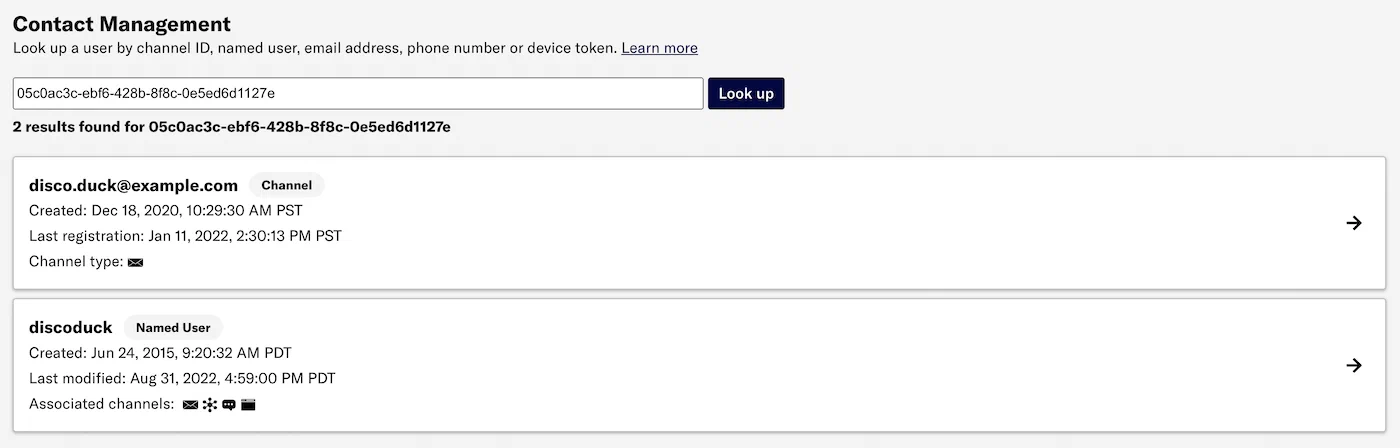
Email channel and named user returned for a channel ID lookup
Viewing channel details
- Look up a contact.
- For a returned channel, select the right arrow icon (). Data displayed for each channel:
- Identifier
- ChannelA device or address registered with Airship to receive messages, such as a mobile app, web browser, email address, or SMS number. It stores opt-in status, device-specific information, and metadata used for targeting. Each channel has a unique channel ID. ID
- Creation and last registration dates and times
- Installation status
- Opt-in status
- App, web, and open channels display Opted-In or Opted-Out. Background Enabled or Background Disabled appears for app channel background push.
- SMS channels have a check box, which is checked if opted in. You can check/uncheck the box to change the status.
- Email channels have Commercial and Transactional check boxes, which are checked if opted in. You can check/uncheck the boxes to change the status. If an email channel is suppressed, you will see a button for removing suppression. See Removing email suppression.
- Tracking status — Email channels have Open tracking and Click tracking check boxes, which are checked if opted-in. You can check/uncheck the boxes to change the status.
- In a holdout group — This label appears if the channel is currently excluded from messaging as part of an active Holdout ExperimentMeasures the effects of excluding a group of audience members from all messages or messages with specific campaign categories. You can compare the performance of the two audience groups in reports for selected goal events..
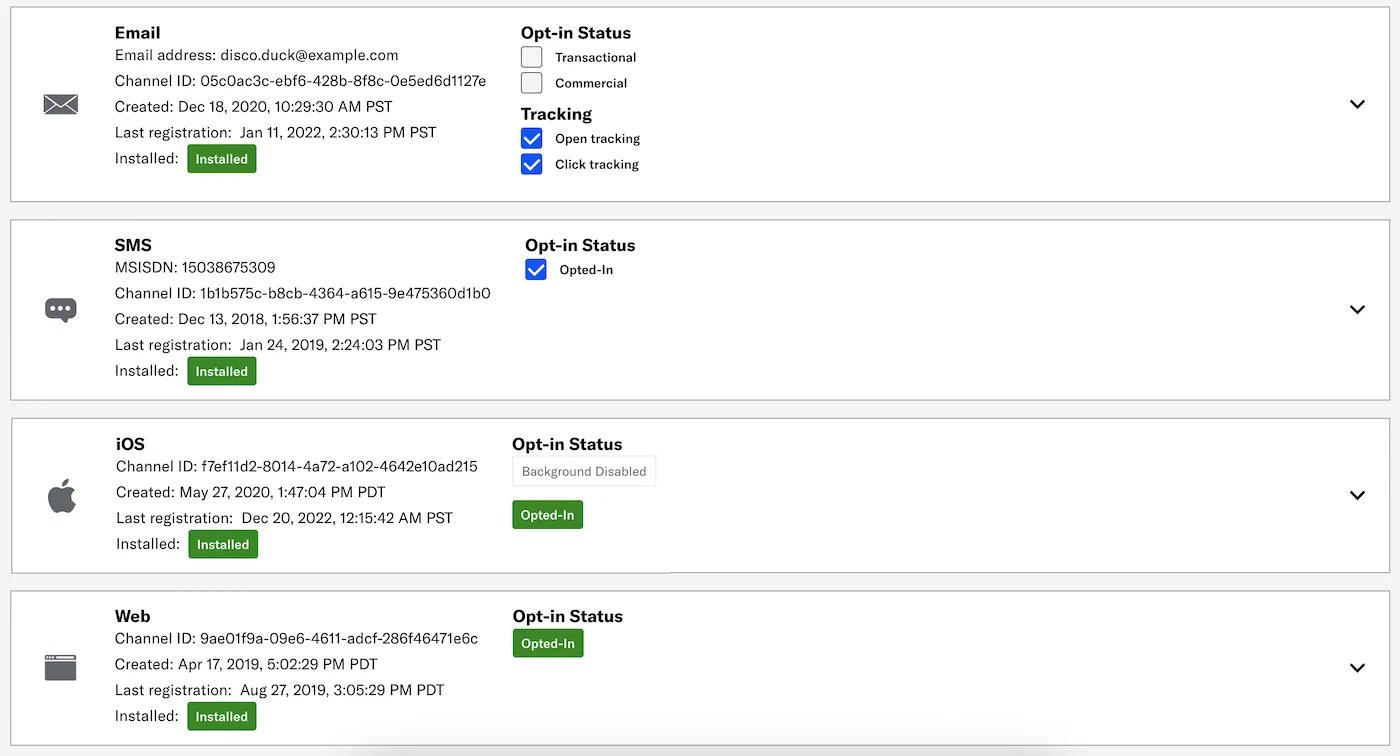
Details for email, SMS, iOS, and web channels
- Select the down arrow icon () for information associated with the channel. Data displayed per tabbed section:
Viewing named user details
To view information about a named user:
For a returned named user, select the right arrow icon (). Data displayed per tabbed section:
Section Description Channels Each channel is listed separately. The appearance and functionality is identical to the detail view for a channel. User Tag Groups Tag groupsAn array of tags that you can associate with both channels and named users. and the tags within a group. Attributes AttributeMetadata used for audience segmentation and personalization. Attributes extend the concept of tags by adding comparison operators and values to determine whether or not to target a user, helping you better evaluate your audience. IDs, types, and values. For JSON attributes, the ID is formatted as <attribute_ID#instance_ID>. See JSON attributes in About attributes.Message History A list of messages sent to the user within the last 30 days. 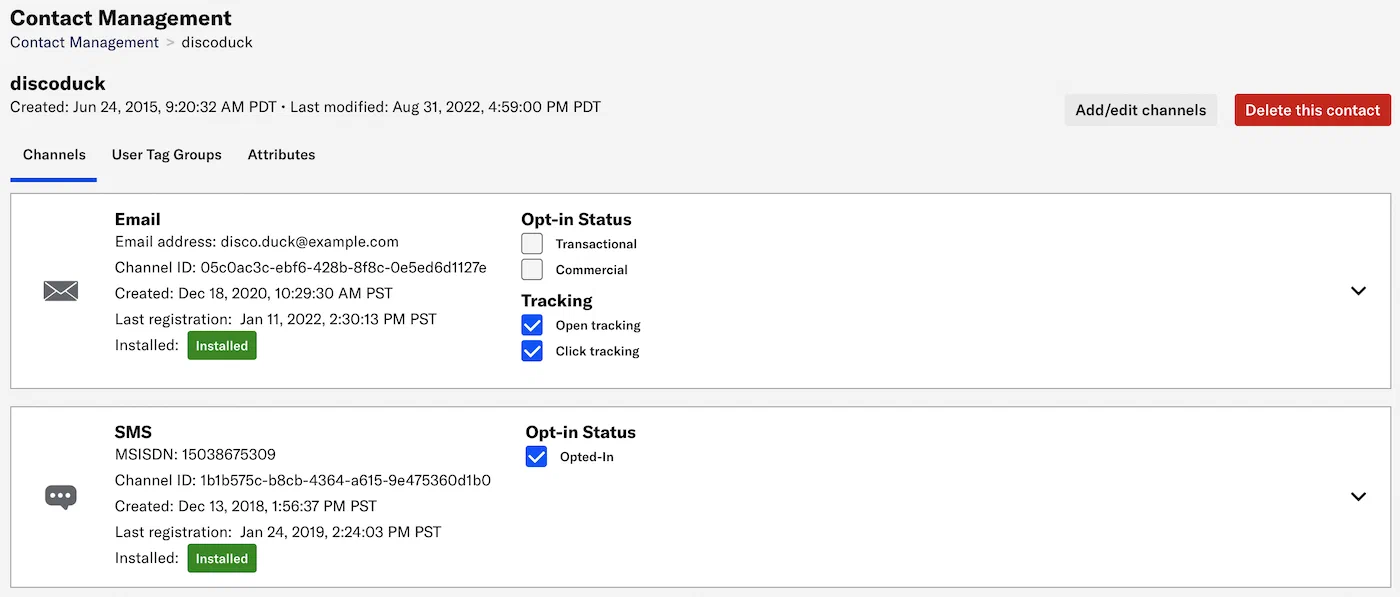
Named user details
Creating a named user
AXPIf a channel is not yet associated with a named user, you can manually create one:
- Look up a contact.
- For a returned channel, select the right arrow icon ().
- Select Create Named User.
- Enter the user name.
- Select Submit.
The channel and any channels associated with it will be associated with the named user.
Associating channels with a named user
AXPTo add a channel:
- Look up a contact.
- For a returned named user, select the right arrow icon ().
- Select Add/edit channels.
- Enter a contact identifier and select Look up.
- Select Add channel for an individual channel.
- If the channel you want to add is already associated with a named user, both the individual channel and its currently associated named user will be listed in the results.
- If you searched for a named user, or if a named user was returned when searching for a different identifier, select View channels to see its associated channels. Select Add channel to disassociate the channel from its current named user and associate it with the named user you are editing.
To disassociate a channel from a named user:
- Look up a contact.
- For a returned named user, select the right arrow icon ().
- Select Add/edit channels.
- Select Remove for a channel.
Deleting a channel
To remove a channel from your Airship records:
- Look up a contact.
- For a returned channel, select the right arrow icon (). Make sure to select a channel, not a named user. The option to delete a channel is not available when viewing details for a channel within a named user record.
- Select Delete this channel.
Deleting a contact
To remove a contact and its associated channels from your Airship records:
- Look up a contact.
- Select the right arrow icon () for a channel or named user.
- Select Delete this contact.
Removing email suppression
To remove the suppression state for an email channel:
- Look up a contact.
- For a returned email channel, select the right arrow icon ().
- Select the information icon () next to the Opt-in Status check box to view the complaint reason.
- Select Remove suppression. The button is only present if the channel is suppressed.
The Real-Time Data StreamingA service that delivers user-level events in real time to your backend or third-party systems using the Data Streaming API. Email registration event for this action includes the username of the user who removed suppression.
After removing suppression, you must also opt the channel back in to messaging before they can receive email from you again.