# Automations and Sequences
Automatically send one message or series of messages initiated by a trigger.
# About Automations and Sequences
> Automatically send one message or series of messages initiated by a trigger.
Automation automatically sends messages when users meet certain conditions. In Airship, an Automation refers to a triggered message you create using the Automation composer or the API.
## Automations versus Sequences
Both Automations and Sequences automatically send messages when triggered by user behavior or events, such as a tag change, entering or exiting a location, or inactivity.
* **Automation** sends a single message. Use the [Automation composer](https://www.airship.com/docs/guides/messaging/messages/sequences/create-automation/) or the [`/pipelines` endpoints](https://www.airship.com/docs/developer/rest-api/ua/operations/automation/) to create Automations.
* **Sequences** can send a single message or a series of messages. Airship sends the messages based on your timing settings, and you can set conditions that determine continuation. Create a Sequence from the [Journey Map](https://www.airship.com/docs/reference/glossary/#journey_map).
Sequences have additional triggers not available for Automations and can be connected to each other and to other messaging components to create continuous user experiences in a [Journey](https://www.airship.com/docs/reference/glossary/#journey). See [Sequences](#sequences) for more information about Sequence-specific features.
For both, you can refine your audience with [Cancellation Events](https://www.airship.com/docs/reference/glossary/#cancellation_events_event_option) and [Conditions](https://www.airship.com/docs/reference/glossary/#conditions_event_option).
> **Tip:** Automations and Sequences rely on a trigger. If you want to automatically send the same message on a recurring schedule, use the [Message composer](https://www.airship.com/docs/guides/messaging/messages/create/) with the Recurring delivery option. You can also use the [Schedules API](https://www.airship.com/docs/developer/rest-api/ua/operations/schedules/).
## Use cases
There are many uses for automation:
* Send targeted messages to users who are predicted to delete your app and a different message to your most loyal users.
* Send a "How was your visit?" message 24 hours after a mobile device enters a defined location.
* Send a Thank You message when a user opts in to web notifications in their browser.
* Send a web push notification to users who haven't visited your website for five days.
For more complex use cases, use Sequences to send multiple messages, set outcomes, and route users to different paths based on their behavior:
* **Abandoned cart** — Create a series of reminder messages, exit the Sequence when the user completes a purchase, and route to a Sequence that sends a promo code or prompts to review their purchase.
* **Event promotion** — Create a series of messages promoting an event, exit the Sequence when the user purchases tickets for that event, and route to a Sequence that provides updates about the upcoming event.
* **Feature launches** — Create a series of messages educating users about a new feature, exit the Sequence when the user engages with the feature, then route to a Sequence providing tips and requesting feedback. See also [Scenes](https://www.airship.com/docs/reference/glossary/#scene).
## Sequences
Sequences offer additional capabilities beyond single-message Automations. You can send one message or multiple messages in a series, with delivery timing and delays between messages. For each message, configure [Contact](https://www.airship.com/docs/reference/glossary/#contact)-, [Subscription List](https://www.airship.com/docs/reference/glossary/#subscription_list)-, or [Segment](https://www.airship.com/docs/reference/glossary/#segment)-based requirements. The message is not sent if the user does not meet the conditions.
Sequences also support alternative outcomes to ending the Sequence when all messages are sent. You can route users to different Sequences or in-app experiences based on their behavior.
Use a [Sequence Template](https://www.airship.com/docs/reference/glossary/#sequence_template) to simplify getting started.
### Cross-channel retargeting
Cross-channel retargeting is a way to send messages in a Sequence to selected channels based on behavior in a different channel. For example, you can trigger a Sequence from an app event and send messages to email, SMS, web, or open channels. Configure each message in a Sequence for different channels to reach users where they're most likely to engage, creating cohesive cross-channel experiences.
You can also apply [Channel Coordination](https://www.airship.com/docs/reference/glossary/#channel_coordination) and [Predictive Churn](https://www.airship.com/docs/reference/glossary/#predicted_to_churn) for more complex retargeting:
* **Retail** — When a user becomes high risk for churn, send messages with increasing discounts to email, SMS, web, and app channels, to entice them back to your app or website. Channel Coordination strategy: [Fan Out](https://www.airship.com/docs/reference/glossary/#fan_out).
* **Travel** — When a user purchases a flight, send promotions for preferred seating and lounge passes to the channel where the user purchased the ticket (i.e., where the event originated from). Channel Coordination strategy: [Originating Channel](https://www.airship.com/docs/reference/glossary/#originating_channel).
> **Note:** If you are retargeting based on interaction with a message, the first message for retargeting must be a push notification, in-app message, or web push notification.
# Create an Automation
> Use the Automation composer to automatically send a message to users when predefined conditions are met.
> **Note:** Each automation counts toward your *Sequences and Automation* [Message Limit](https://www.airship.com/docs/reference/glossary/#message_limits).
To get started, access the Automation composer:
1. Select **Create** in the sidebar.
1. Next to **Build from scratch**, select **View all**.
1. Select **Automation**.
Next, enter a message name and save it. After completing a step, select the next one in the header to move on.
## Setup
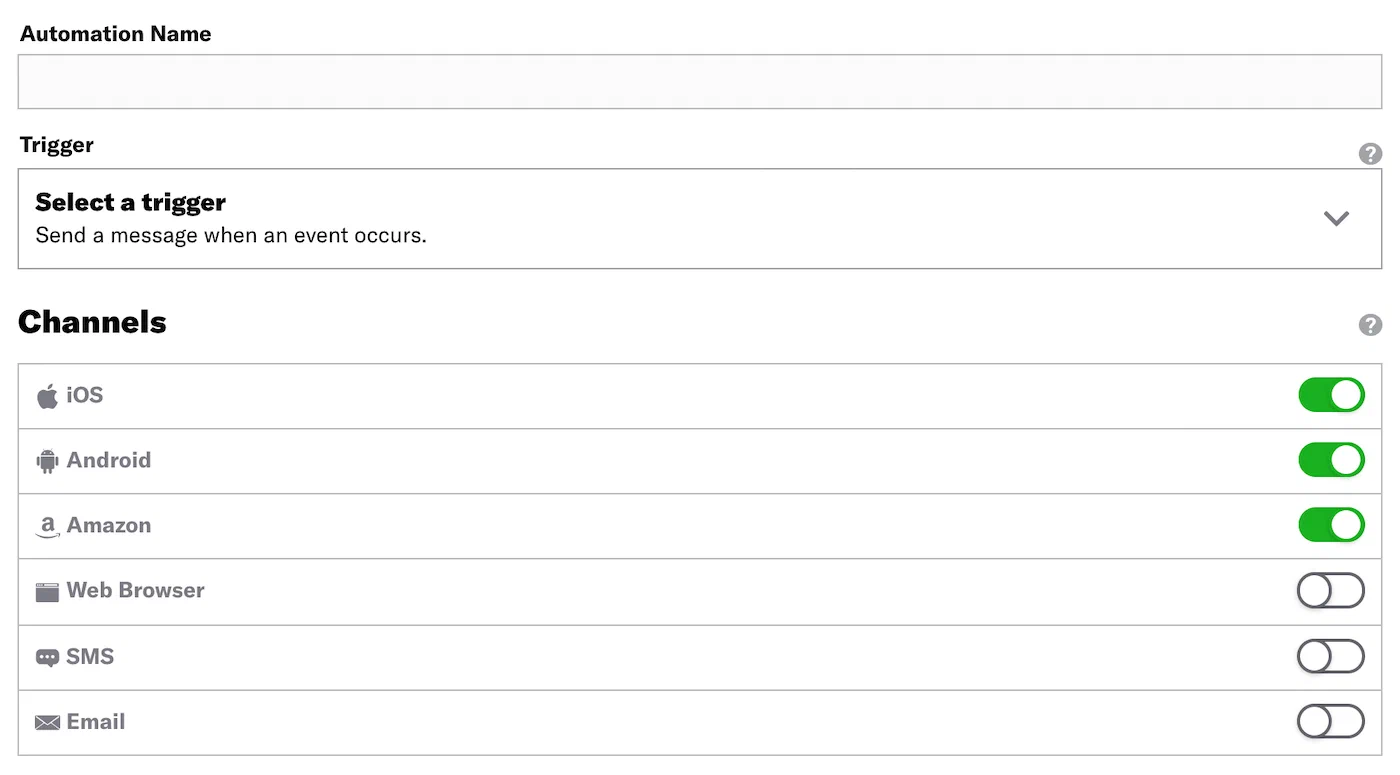
First, [configure the trigger](https://www.airship.com/docs/guides/messaging/messages/sequences/triggers/) that will initiate your automation, and enable the channels you want to send the message to.
Then, configure options: [Cancellation Events](#cancellation-events), [Conditions](#conditions), and [Rule Limits](#rule-limits). Last, set up [Channel coordination](#channel-coordination).
### Cancellation Events
*Cancellation events* are Custom Events that prevent an Automation, Sequence, In-App Automation, or Scene from sending/displaying if they occur while the Automation (or other) is in a delay period. Not supported for the Inactivity trigger.
To configure, complete the same workflow used for the [Custom Event trigger](https://www.airship.com/docs/guides/messaging/messages/sequences/triggers/#custom-event). This includes the option to [filter](https://www.airship.com/docs/guides/messaging/messages/sequences/triggers/#filtering-custom-events) the cancellation events.
> **Important:** Cancellation events require a delay of at least one hour to ensure that there is time for the cancellation event to occur after the original triggering event occurs. In the *Delivery* step in an automation, you must specify a delay of at least one hour.
### Conditions
Conditions are requirements your audience must meet in order to receive a message from an automation. You can base conditions on whether a user has or does not have a specific [Tag](https://www.airship.com/docs/reference/glossary/#tag), which includes [Predicted to Churn status](https://www.airship.com/docs/reference/glossary/#predicted_to_churn) and [Device Property](https://www.airship.com/docs/reference/glossary/#device_properties) tags, or whether or not they are a member of a [Subscription List](https://www.airship.com/docs/reference/glossary/#subscription_list).
> **Tip:** If sending an SMS message, you can use conditions to restrict your message audience to a particular [Sender ID](https://www.airship.com/docs/reference/glossary/#sender_id). Either search for a sender ID, or select the Sender ID filter before searching.
To configure:
1. Select **Add a condition**.
1. Search for the data you want to use as a condition. To filter results, select the filter menu (▼) and make your selection. Search behavior varies by filter:
* **All (no filter selected):** Search within all condition types.
* **Tags:** Search for [primary device tags](https://www.airship.com/docs/guides/audience/tags/#device-tags) (tags in the `device` tag group).
* **Tag Groups:** Search for and select a tag group, then search within that tag group.
* **Predicted to Churn:** Search for all or part of `High`, `Medium`, `Low` or `Predicted` only.
* **Subscription List:** Search subscription list names only.
To create a new tag using your search term, click **Create [search term]**.
1. Select the logic for the condition:
* **Has** means the user must have the tag or be a member of (opted in to) the subscription list to receive the message.
* **Doesn’t Have** means the user must not have the tag or be a member of (not opted in to) the subscription list to receive the message.
1. After adding all conditions, use the **Any**/**All** Boolean selector to determine which conditions must be satisfied before the message will be sent.
### Rule Limits
*Rule limits* cap the number of messages a user can receive from an Automation within a time frame, preventing you from over-messaging your audience, e.g., a maximum of 1 per day. Rule limits are set per Automation.
To configure, select **Add a Daily Limit** and/or **Add an All-Time Limit** and enter a number.
### Channel coordination
First, select a [Channel Coordination](https://www.airship.com/docs/reference/glossary/#channel_coordination) strategy:
- Fan Out targets a Named User on all the channels they are opted in to, maximizing the chances they receive your message.
- Last Active targets a Named User on the opted-in channel they used most recently.
- Priority Channel targets a Named User on the first channel they are opted in to, in the priority order you set.
Then, enable the channel types to include in your audience. For Mobile Apps, also select from the available platforms. For Priority Channel, also drag the channel types into priority order.
> **Note:** For projects using the [channel-level segmentation system](https://www.airship.com/docs/guides/audience/segmentation/segmentation/#channel-level-segmentation), instead of channel coordination, enable the channels you want to send the message to. Available channels are based on your trigger.
>
> 
>
> *Enabling channels for an Automation*
## Content
Configure the message content per enabled channel. See [Content by channel](https://www.airship.com/docs/guides/messaging/messages/content/).
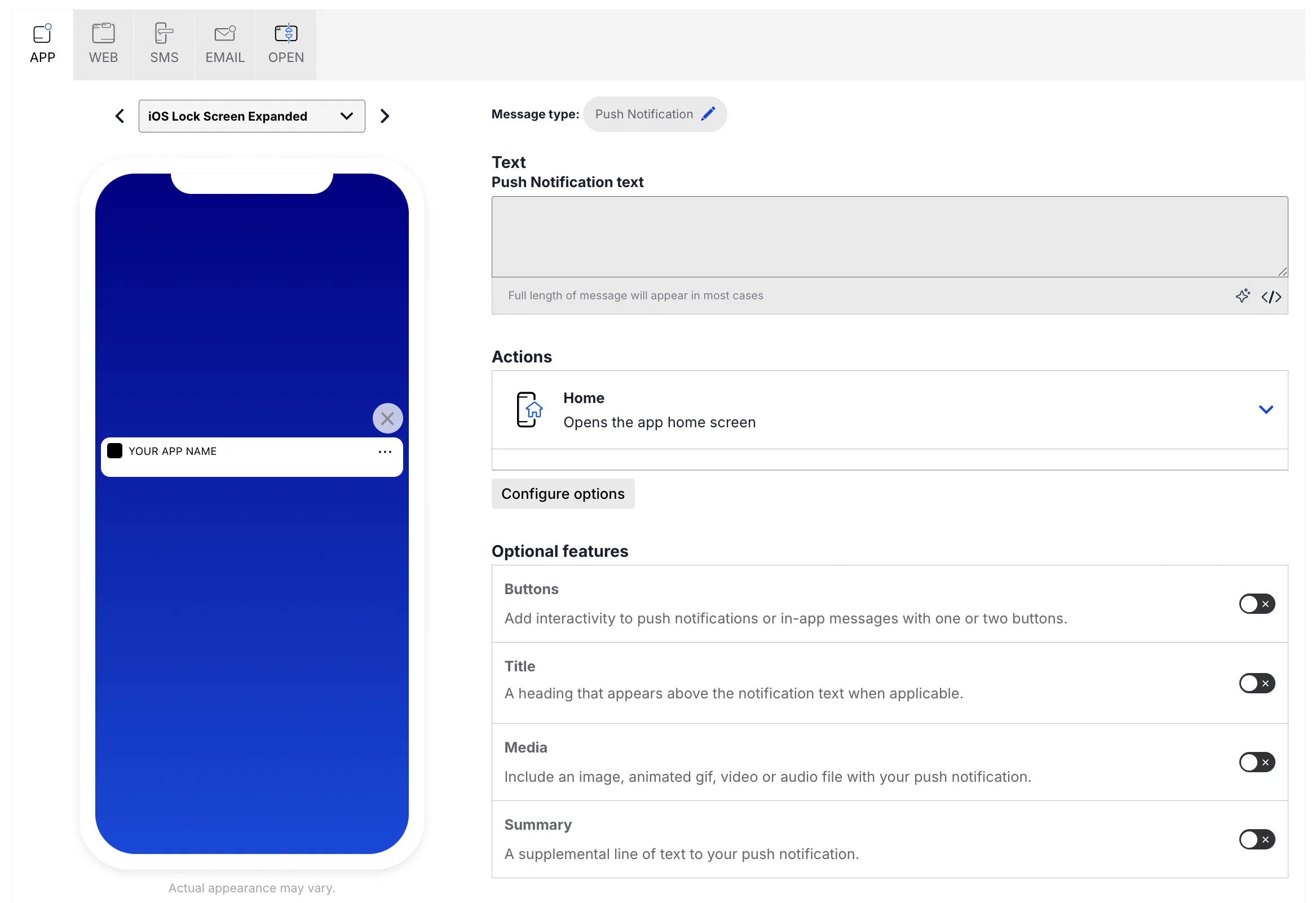
*Configuring message content per channel in the composer*
## Delivery
Configure [delivery](https://www.airship.com/docs/guides/messaging/messages/delivery/delivery/). Timing settings do not appear if you chose the Inactivity trigger.
## Review {#message-review}
Review the device preview and message summary. Click the arrows to page through the various previews. The channel and display type dynamically update in the dropdown menu above. You can also select a preview directly from the dropdown menu. If you want to make changes, click the associated step in the header, make your changes, then return to *Review*.
Send a test message to verify its appearance and behavior on each configured channel. The message is sent to your selected recipients immediately, and it appears as a test in [Messages Overview](https://www.airship.com/docs/reference/glossary/#messages_overview).
1. Select **Send Test**.
-
Under Test audience, enter at least one [Named User](https://www.airship.com/docs/reference/glossary/#named_user) or [Test Group](https://www.airship.com/docs/reference/glossary/#preview_test_groups) and select from the results. If your message includes email, you can also search for email addresses. If no matches appear for an address, you can select Create channel for <address>, and the channel will be registered for your project and opted in to transactional messaging.
Users in an active [Holdout Experiment](https://www.airship.com/docs/reference/glossary/#holdout_experiment) will not receive a test message. You can view a user’s current holdout group status and history when viewing their channel details in Contact Management.
-
(If your message contains [Handlebars](https://www.airship.com/docs/reference/glossary/#handlebars)) Under Personalization, select and configure a personalization data source:
| Data source |
Description |
Steps |
| Test message recipient |
The message will be personalized using information associated with each test audience member. |
n/a |
| Preview Data tool |
The message will be personalized using the data currently entered in the Preview Data tool. The same values will apply to all test message recipients. You can also manually edit the JSON. |
(Optional) Edit the JSON data. |
-
Select Send.
Choose whether to create this automation as *Active* or *Paused*. Select Paused if you’d like to create the message but aren't quite ready to activate it. After starting your automation, you can [change its status at any time](https://www.airship.com/docs/guides/messaging/manage/change-status/).
When ready, select **Start Automation** or **Schedule Automation**.
## Convert an Automation to a Sequence
Convert an Automation to a Sequence so you can use features like [Control Groups](https://www.airship.com/docs/guides/experimentation/control-groups/), [Test Run](https://www.airship.com/docs/guides/messaging/messages/sequences/create/test/), and [A/B Testing](https://www.airship.com/docs/guides/experimentation/a-b-tests/sequences/). You can also add more messages.
After conversion:
* The Automation name is copied to the Sequence.
* The Automation trigger and settings are copied to the Sequence.
* The Automation message content and settings are copied to the first message in the Sequence.
* The Sequence status is the same as the Automation status at the time of conversion: *Started* if the Automation was active, and *Paused* if the Automation was paused, or *Draft*.
* The converted Automation is archived and cannot be un-archived.
To convert to a Sequence:
1. Go to **Messages**, then **Messages Overview**.
1. Click the duplicate icon (
) for an Automation, and select **Convert to: Sequence**.
The next screen will be the [Sequence Manager](https://www.airship.com/docs/reference/glossary/#sequence_manager) for the new Sequence.
# Automation and Sequence triggers
> A trigger is an event that initiates an Automation or Sequence.
In an [Automation](https://www.airship.com/docs/guides/messaging/messages/sequences/create-automation/), configure triggers in the Setup step. Configure Sequences triggers in the [Journey Map](https://www.airship.com/docs/reference/glossary/#journey_map). See the [Trigger](https://www.airship.com/docs/guides/messaging/messages/sequences/create/create/#trigger) step in *Create a Sequence*.
## Trigger support by channel
The following table shows trigger support by channel:
| Trigger | App | Web | Email | SMS | Open |
| --- | :---: | :---: | :---: | :---: | :---: |
| **[Custom Event](#custom-event)** | ✓ | ✓ | ✓ | ✓ | ✓ |
| **[Double Opt-In](#double-opt-in)** | | | ✓ | | |
| **[First Seen](#first-seen)** | ✓ | ✓ | ✓ | ✓ | ✓ |
| **[Inactivity](#inactivity)** | ✓ | ✓ | | | |
| **[Location](#location)** | ✓ | | | | |
| **[Location Attributes](#location-attributes)** | ✓ | | | | |
| **[Predicted to Churn](#predicted-to-churn)** | ✓ | ✓ | | | |
| **[Subscription](#subscription)** | ✓ | ✓ | ✓ | | |
| **[Tag Change](#tag-change)** | ✓ | ✓ | ✓ | ✓ | ✓ |
| **[Contact Association](#contact-association)**1 | ✓ | ✓ | ✓ | ✓ | ✓ |
| **[Date Attribute](#date-attribute)**1 | ✓ | ✓ | ✓ | ✓ | ✓ |
| **[Feature Flag Interaction Event](#feature-flag-interaction-event)**1 | ✓ | ✓ | | | |
| **[Manual Entry](#manual-entry)**1 | ✓ | ✓ | ✓ | ✓ | ✓ |
| **[Recurring Schedule](#recurring-schedule)**1 | ✓ | ✓ | ✓ | ✓ | ✓ |
| **[Specific Date and Time](#specific-date-and-time)**1 | ✓ | ✓ | ✓ | ✓ | ✓ |
1. Supported for Sequences only.
## Triggers
Follow these steps to configure each trigger.
### Contact Association
The Contact Association trigger initiates a Sequence when an anonymous channel is associated with a [Named User](https://www.airship.com/docs/reference/glossary/#named_user). After selecting the trigger, no setup is required.
### Custom Event {#custom-event}
The *Custom Event trigger* initiates an Automation or Sequence when a Custom Event associated with members of your audience occurs. See: [Custom Events](https://www.airship.com/docs/guides/audience/events/custom-events/).
Configuration steps:
1. Search for and select an event. Results are limited to events that occurred in the last 30 days. If the event name you search for does not appear, click **Use [search term]** to use the event name as typed.
1. (Optional) Click **Add Another** to add more events. Airship handles multiple events as a boolean OR.
1. (Optional) Follow the [Filtering Custom Events](https://www.airship.com/docs/guides/messaging/messages/sequences/triggers/#filtering-custom-events) steps to add custom event filters.
1. (Optional) Set the maximum age for the events. If an event is received after it is older than a certain age, the automation or sequence will not start.
1. Enable *Event Expiration*.
1. Enter a value in minutes, hours, days, months, or years.
> **Tip:** If you are a [Radar](https://radar.io/) customer and have configured the
> [Airship and Radar integration](https://www.airship.com/docs/integrations/radar/), Radar location events and properties will
> be available for use with the Custom Event trigger.
#### Filtering Custom Events {#filtering-custom-events}
When configuring the [Custom Event trigger](#custom-event) or Automation [Cancellation Events](#cancellation-events), you can filter them using their associated numeric values or by key/value properties attached to the events. Filtering events this way can help you more precisely target your audience.
For example, if you have a custom event named “Purchase”, with a purchase category fedoras and a value 125.0 representing the dollar amount of the purchase, you can add these criteria to the Purchase event so that your message is only seen by users spending at least $125 on fedoras.
> **Note:** * Properties are only available for [custom events defined in your project](https://www.airship.com/docs/guides/audience/events/manage/).
> * Acceptable values and operators for event properties are based on configuration settings when adding the events to your project.
> * The filter **does not** show events and event properties for custom events associated with [Named Users](https://www.airship.com/docs/reference/glossary/#named_user). You can still use events associated with named users as triggers, but you must enter their information manually.
- Select Add event properties for the custom event.
- Select Add property, then Search for properties and search for a property, or select Add event value.
- If applicable, select the operator you want to use to evaluate the value or property.
- Enter or select the event or property value you want to filter for.
- (Optional) Select the add icon (+) to add an alternative for a filter.
- (Optional) Select Add property or Add event value to add more filters.
- Select All or ANY to determine how to evaluate multiple filters and alternatives within each filter.
- ALL = all criteria must be met (boolean AND)
- ANY = any criteria must be met (boolean OR)
- Select Save.
#### Filtering Custom Events using file upload {#file-upload}
You can use file upload to provide multiple values to match against a specified event property’s value. For string properties only.
For example, for a point-of-sale system that emits events when a sale occurs, an event might have the following data:
```js
name: "sale-completed"
properties:
customer_id: 234234
store_id: 103843
region: "northwest-usa"
```
To trigger only when sales occur in the regions of northwest-usa and southwest-usa but not midwest-usa or any other region, you would do the following to filter your custom events:
- Search for or enter the property name
region.
- Select operator File upload (is one of).
- Upload a
.txt file containing values northwest-usa and southwest-usa.
Provide your values in a line delimited .txt file. Each value must be on a separate line. 100 KB maximum file size.
### Date Attribute
The *Date Attribute trigger* initiates a Sequence for your entire audience or for a specified Segment based on the month and day of a date attribute. You can enter your selected audience into the Sequence on the next occurrence of the actual attribute date or a number of days before or after the date. See also [Segmenting your audience](https://www.airship.com/docs/guides/audience/segmentation/segmentation/) and [Attributes](https://www.airship.com/docs/reference/glossary/#attributes).
Configuration steps:
1. Select your audience: all users or a [Segment](https://www.airship.com/docs/reference/glossary/#segment).
1. (Segment audience only) Search for and select a segment. You can select **View segment detail** to open it for editing and confirm the audience.
1. Set when the audience should start the Sequence.
1. Search for and select a date attribute.
After saving, you can select the trigger card to view the segment name and scheduled send time relative to the attribute date. Select the name to open it for editing.
> **Note:** Segmentation data is evaluated at send time. For example, if your sequence targets an audience list whose members change over time, it is sent to the current version of the list when the sequence is triggered.
### Double Opt-In
The *Double Opt-In trigger* initiates an Automation or Sequence when a member of your audience opts in to commercial email messaging. You must provide an opt-in link in the body of the message, and users must follow the link to confirm opting in.
You can filter the trigger by using properties attached to the opt-in event, and you can reference the properties using [Handlebars](https://www.airship.com/docs/reference/glossary/#handlebars) to personalize the message content. If you choose to use properties in these ways:
* Your developer must add the properties when setting up email channel registration.
* You cannot search for properties when filtering. Instead, you will enter a property name, then opt to use the name as entered.
* The property name you enter when filtering (or for handlebars personalization) must be identical to the name in the `properties` object for the opt-in event.
For additional requirements and usage details, see: [[Double Opt-In](https://www.airship.com/docs/reference/glossary/#double_opt_in)](https://www.airship.com/docs/developer/api-integrations/email/getting-started/#double-opt-in).
In the Automation composer, first make sure that only the Email channel is enabled, then select the trigger. After selecting the trigger, no configuration is required, but you can filter by properties attached to the double opt-in event:
1. Select **Add Property**.
1. Enter a property in the search field and select **Use [property]**.
1. Select the operator you want to use to evaluate the property.
1. Enter a value. Select the add icon (+) for additional values. Multiple values are evaluated as a boolean OR.
1. (Optional) Select **Add Property** to add more filters.
1. Select *ALL/ANY* to determine how to evaluate multiple filters and alternatives within each filter using a boolean *AND/OR*.
* **AND** = all criteria must be met
* **OR** = any criteria must be met
### Feature Flag Interaction Event
The Feature Flag Interaction Event trigger initiates a Sequence when a [Feature Flag](https://www.airship.com/docs/reference/glossary/#feature_flag) interaction event occurs. You can trigger for users with access to the flagged feature, users who do not have access to the flagged feature, or both.
The interaction event must be implemented for the app or website. See [Interaction events](https://www.airship.com/docs/guides/experimentation/feature-flags/#interaction-events) in the *Feature Flags* guide.
Configuration steps:
1. Search for a flag by name, display name, or description.
1. Select who can trigger the Sequence:
| Option | Description |
| --- | --- |
| **Users with feature access** | Trigger for members of the Feature Flag audience, which includes all Configuration audiences for a flag. |
| **Users without feature access** | Trigger for users who are not members of the Feature Flag audience. |
1. Enter the number of times the event must occur before the Sequence is triggered.
### First Seen
The *First Seen trigger* initiates an Automation or Sequence when members of your audience opt in to notifications or when a channel registration event, such as when the app launches in the background or a user opens your app for the first time, occurs. The behavior of the First Seen trigger varies by channel:
* **Apps:** Triggers the automation or sequence when a channel registration event occurs: when the app launches in the background or a user opens your app for the first time. See [Channel registration](https://www.airship.com/docs/guides/getting-started/developers/channels-intro/#channel-registration) in *Intro to Channels*.
* **Web, SMS, and open channels:** Triggers the automation or sequence when users opt in to notifications.
* **Email:** Triggers the automation or sequence when users opt in to commercial notifications.
To configure, select the First Seen trigger. No further setup is required.
> **Important:** * Users added to Airship through [Create and Send](https://www.airship.com/docs/reference/glossary/#create_and_send) are purposely excluded from the First Seen trigger, preventing them from receiving duplicate messages when added to the system.
>
> * **Automation:** The First Seen trigger requires a delay of at least one hour to ensure delivery. Set a delay in the Delivery step in an automation.
>
> * **Sequences:** For the First Seen trigger, a delivery delay shorter than one hour is allowed but may result in dropped sends. Set a delay as the first step when creating a new message.
### Inactivity
> **Note:** For Sequences, the Inactivity trigger:
> * Cannot be combined with other triggers. It must be the only trigger for a Sequence.
> * Does not support adding [Conditions](https://www.airship.com/docs/guides/messaging/messages/sequences/create/create/#trigger).
> * Cannot be used with the [App Open exit event](https://www.airship.com/docs/guides/messaging/messages/sequences/create/outcomes/#exit-events).
The *Inactivity trigger* initiates an Automation or Sequence when a member of your audience does not use your app or website for a period of time. The inactivity period begins the later of **a)** the creation time of the automation or sequence, or **b)** the last app or website activity by the user.
To configure, enter the period of inactivity in days.
### Location
> **Note:** The *Location* trigger requires [Gimbal integration](https://www.airship.com/docs/integrations/gimbal/).
The *Location trigger* initiates an Automation or Sequence based on an audience member's device location. You can select a maximum of 20 locations per automation or sequence.
Configuration steps:
1. Click **Select a Location**.
1. Enter a search term. Results, if any, display on the map and are listed on the *Results* tab. There are two types of locations available for selection: [geofences and beacons](https://www.airship.com/docs/integrations/gimbal/#key-terms).
Click a result for a detailed view of a location.
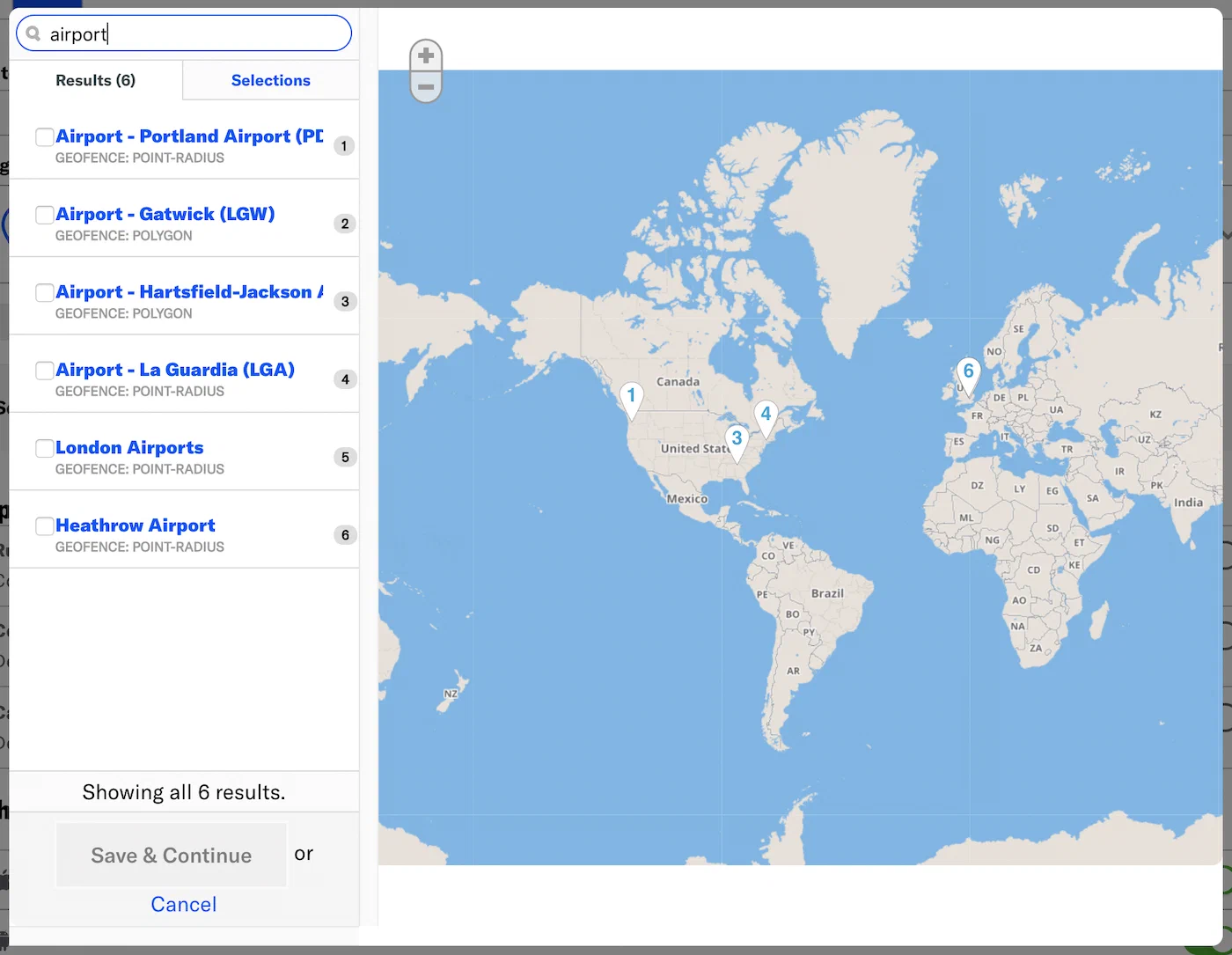
*Searching for a location to use as a trigger*
If selecting a geofence, the map will zoom to the selected location. Click and drag, and use the **+/-** zoom controls to change the displayed area.
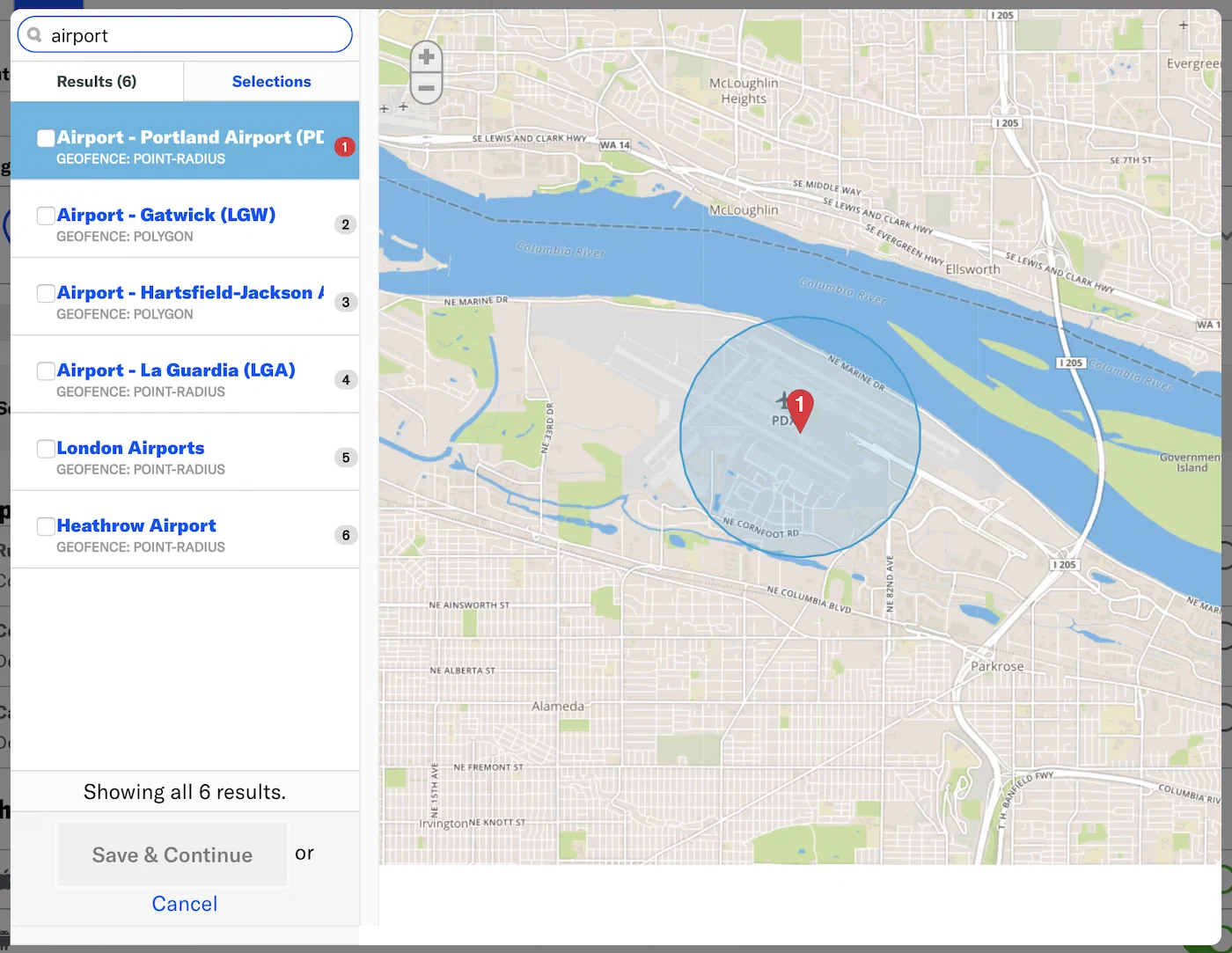
*Viewing a selected geofence on the location map*
1. On the *Results* tab, check the box next to the locations you want to use as the trigger.
1. Review the *Selections* tab, then click **Save and continue**.
1. (Optional) Click **Select a Location** to add more locations.
1. Choose whether to trigger your automation or sequence when the user *enters* or *exits* a location.
### Location Attributes
> **Note:** The *Location Attributes* trigger requires [Gimbal integration](https://www.airship.com/docs/integrations/gimbal/).
The *Location Attributes trigger* initiates an Automation or Sequence based on *key/value pair* metadata associated with a particular location. You can add a maximum of 50 location attributes per automation or sequence.
Configuration steps:
1. Enter a key/value pair for the location you want to use as the message trigger.
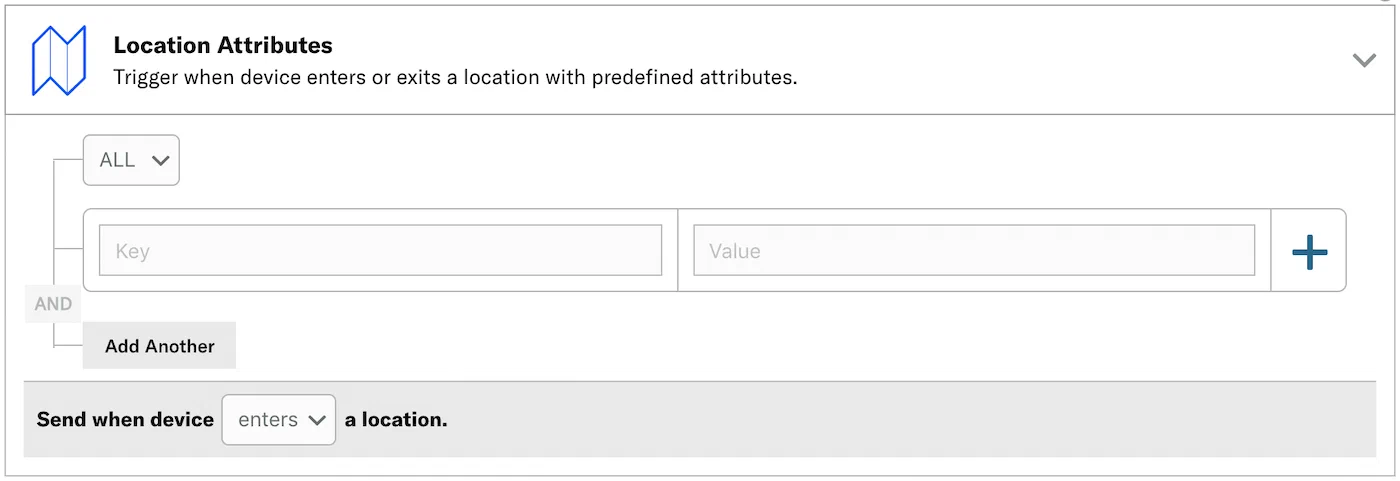
*Entering a location attribute key/value pair as a trigger*
1. (Optional) Select the add icon (+) to add an alternative location attribute.
1. (Optional) Select **Add Another** to add more location attributes.
1. Select *ALL/ANY* to determine how to evaluate multiple location attributes and alternatives within each location attribute.
- ALL = all criteria must be met (boolean AND)
- ANY = any criteria must be met (boolean OR)
> **Note:** By default, the automation or sequence is triggered if the audience meets ALL the location attributes. For example, if you selected ALL, with attributes `half_off` and `has_cafe`, you'd only reach users who enter or exit locations that meet both conditions. If you select ANY, you’d reach all users who enter a location running a half-off campaign as well as all users who enter a location that has a cafe.
1. Choose whether to trigger your automation or sequence when the user *enters* or *exits* a location.
### Manual Entry
> **Note:** The Manual Entry trigger does not support adding [Conditions](https://www.airship.com/docs/guides/messaging/messages/sequences/create/create/#trigger).
The *Manual Entry trigger* initiates a Sequence for the audience members in a specified Segment. See also: [Segmenting your audience](https://www.airship.com/docs/guides/audience/segmentation/segmentation/).
Configuration steps:
1. Search for and select a [Segment](https://www.airship.com/docs/reference/glossary/#segment). You can select **View segment detail** to open it for editing and confirm the audience.
1. Select **Save** for the trigger configuration.
1. Select the card for the trigger you just saved. You can select the segment name to open it for editing.
1. Select **Enter** to enter the segment into the Sequence so they can start receiving messages.
* **Enter** is not available until after the Sequence has been started.
* If you enter the same segment into the Sequence more than once, the users may receive the same messages from the Sequence more than once.
> **Note:** Segmentation data is evaluated at send time. For example, if your sequence targets an audience list whose members change over time, it is sent to the current version of the list when the sequence is triggered.
### Predicted to Churn
The *Predicted to Churn trigger* initiates an Automation or Sequence when Airship predicts an audience member's likelihood of becoming inactive, or *churning*. [Predictive Churn](https://www.airship.com/docs/guides/features/intelligence-ai/predictive/predictive-churn/) analyzes your audience for users that exhibit behaviors indicating they are likely to become inactive, and tags the users as High, Medium, or Low Risk.
> **Note:** To enable Predictive Churn features:
>
> 1. Next to your project name, select the dropdown menu (▼), then **Settings**.
> 1. Under **Project settings**, select **Predictive AI**.
> 1. Enable **Predictive App Churn** and/or **Predictive Web Churn**.
Configuration steps:
1. Select a risk profile.
* **High risk:** Users most likely to become inactive.
* **Medium risk:** Users who exhibit signs of potentially becoming inactive.
* **Low risk:** Users least likely to become inactive.
1. Choose whether to apply the trigger when the risk is added or removed.
### Recurring Schedule
The *Recurring Schedule trigger* initiates a Sequence for the audience members in a specified Segment periodically at specified intervals. You can also set an end date for the Sequence and exclusion periods. See also: [Segmenting your audience](https://www.airship.com/docs/guides/audience/segmentation/segmentation/).
Configuration steps:
1. Search for and select a [Segment](https://www.airship.com/docs/reference/glossary/#segment). You can select **View segment detail** to open it for editing and confirm the audience.
1. Specify the delivery interval by number of hours/days/weeks/months/years. For weeks, also specify which days of the week when the Sequence will be triggered.
1. Set the initial date to trigger the Sequence.
1. Set the initial time and time zone to trigger the Sequence.
1. (Optional) Specify when the Sequence can no longer be triggered.
1. Enable *End Date*.
1. Enter a date.
1. Set the time and time zone.
1. (Optional) Specify dates or days of the week when the Sequence should not be triggered. If you select the *hours* interval, you can also specify which hours of the day should be excluded. If you select the *weeks* interval, you can only specify which dates should be excluded.
If the scheduled date and time fall during an excluded period, Airship waits to trigger until the next available valid time. For example, if you scheduled weekly on Thursdays but added the date for Thanksgiving Day as an exclusion, the next available trigger time would be the Thursday after Thanksgiving Day.
1. Enable *Do not send*.
1. Select **Add date exclusion**, enter a date, and repeat for additional dates.
1. Select **Add day exclusion** and select days.
1. Select **Add time exclusion** and set start and end times.
After saving, you can select the trigger card to view the segment name, interval, and initial scheduled date and time (UTC). Select the name to open it for editing.
> **Note:** Segmentation data is evaluated at send time. For example, if your sequence targets an audience list whose members change over time, it is sent to the current version of the list when the sequence is triggered.
### Specific Date and Time
The *Specific Date and Time trigger* initiates a Sequence for the audience members in a specified Segment at a set date and time. See also: [Segmenting your audience](https://www.airship.com/docs/guides/audience/segmentation/segmentation/).
Configuration steps:
1. Enter a date in YYYY-MM-DD format and select the time and time zone.
1. Search for and select a [Segment](https://www.airship.com/docs/reference/glossary/#segment). You can select **View segment detail** to open it for editing and confirm the audience.
After saving, select the trigger card to view the segment name and scheduled date and time (UTC). Select the name to open it for editing.
> **Note:** Segmentation data is evaluated at send time. For example, if your sequence targets an audience list whose members change over time, it is sent to the current version of the list when the sequence is triggered.
### Subscription
The *Subscription trigger* initiates an Automation or Sequence when a Contact opts in to or out of a subscription list. Lists enabled for *Auto opt-in* are not available for this trigger. See [Auto opt-in](https://www.airship.com/docs/guides/audience/segmentation/audience-lists/subscription/#auto-opt-in) in *Subscription lists*.
Airship evaluates subscription status across all channels collectively. A Contact is subscribed to a list when they have at least one opted-in channel and unsubscribed when they have no opted-in channels. The trigger fires when this subscription status changes.
Configuration steps:
1. Search for and select at least one list.
1. Specify whether to trigger when users opt in to, or opt out of, the list.
### Tag Change
The *Tag Change trigger* initiates an Automation or Sequence when a tag is added or removed from a device.
Configuration steps:
1. Search for a tag. If the tag you search for does not appear, click **Create [search term]** to create a new tag. You can select a tag group filter before or after searching.
1. (Optional) Click **Add Another** to add more tags. Airship handles multiple tags as a Boolean OR.
1. Choose whether to apply the trigger when a tag is added or removed.
# Sequence Manager
> Learn how to navigate the Manage screen.
The *Sequence Manager* displays a preview of the messages in a Sequence, with options for editing and testing, and for running experiments. You can access the sequence manager from two locations:
- Select a sequence in [Messages Overview](https://www.airship.com/docs/reference/glossary/#messages_overview) and then select the edit icon (
)
- Select a sequence in the [Journey Map](https://www.airship.com/docs/reference/glossary/#journey_map) and then select the edit icon (
).
Airship also opens the sequence manager after you add or modify messages in a sequence.
## Manage screen layout
The following information and actions are available in the sequence manager.
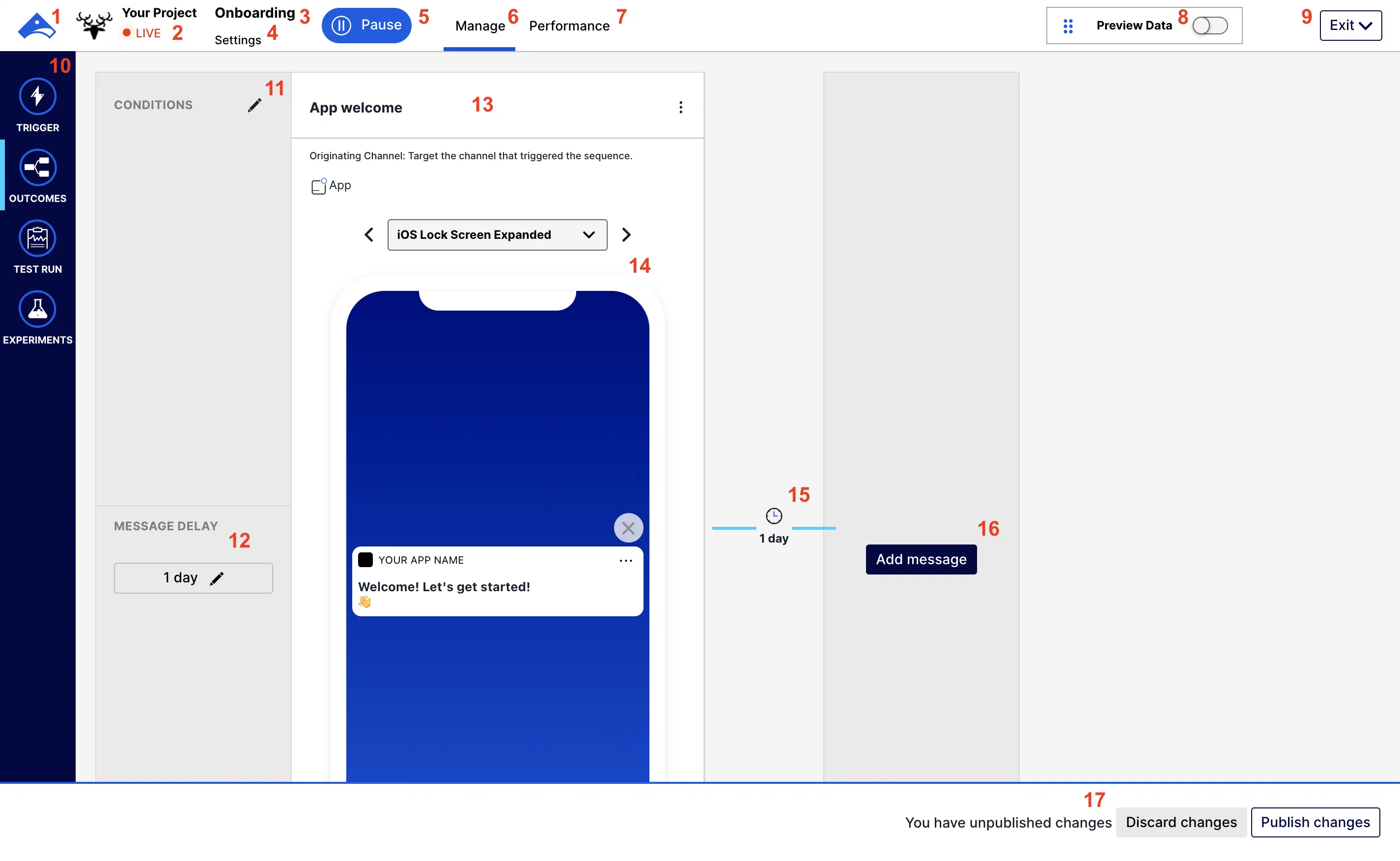
*The sequence manager*
1. Return to your [Airship dashboard](https://www.airship.com/docs/reference/glossary/#dashboard).
1. The icon, name, and environment type for your current project.
1. The sequence name.
1. [Edit the sequence settings.](https://www.airship.com/docs/guides/messaging/messages/sequences/create/edit/#settings)
1. [Start or pause the sequence.](https://www.airship.com/docs/guides/messaging/manage/change-status/#start-pause-sequence)
1. Return to the sequence manager screen from the [Performance](https://www.airship.com/docs/reference/glossary/#sequence_performance) report.
1. View the [Performance report](https://www.airship.com/docs/reference/glossary/#sequence_performance). *Performance* appears after you start the sequence.
1. [Preview personalization](https://www.airship.com/docs/guides/personalization/previewing/) in your message.
1. Exit the sequence or click ▼ for more options.
* **Save and exit** — Apply changes to the sequence. The next screen will show the sequence in the [Journey Map](https://www.airship.com/docs/reference/glossary/#journey_map). If your sequence is in progress, click the sequence in the map, then click **Publish changes** to resume your sequence with your changes applied.
* **Revert** — Exit the sequence without saving changes.
* **Archive** — Archive the sequence.
1. Click the drawer to view sequence settings and configuration options:
* **Trigger** — View the sequence [trigger](https://www.airship.com/docs/guides/messaging/messages/sequences/triggers/) configuration.
* **Outcomes**
* **Conversions** — For [sequence outcomes](https://www.airship.com/docs/guides/messaging/messages/sequences/create/outcomes/) configured for *Conversion* exit events, this is the conversion count and rate per outcome. This is labeled *Reactivations* if using the [Inactivity trigger](https://www.airship.com/docs/guides/messaging/messages/sequences/triggers/#inactivity).
* **Continuations** — The number of users who met the conditions for all messages in the sequence and continued to the downstream journey component.
* **Test Run** — [Test the sequence](https://www.airship.com/docs/guides/messaging/messages/sequences/create/test/#test-a-sequence) and [view results](https://www.airship.com/docs/guides/messaging/messages/sequences/create/test/#test-report).
* **Experiments** — Create a control group or A/B test, and view data related to active experiments. Click *Past Experiments* to see history. See the tutorials for more information: [Sequence Control Groups](https://www.airship.com/docs/guides/experimentation/control-groups/), [Sequence A/B Tests](https://www.airship.com/docs/guides/experimentation/a-b-tests/sequences/).
1. The [[Conditions](https://www.airship.com/docs/reference/glossary/#conditions_event_option)](https://www.airship.com/docs/guides/messaging/messages/sequences/create/add-messages/#conditions) set for the message. [Edit the message delay and conditions](https://www.airship.com/docs/guides/messaging/messages/sequences/create/edit/#delay-conditions).
1. The delay period set for the message. See: [Edit the message delay and conditions](https://www.airship.com/docs/guides/messaging/messages/sequences/create/edit/#delay-conditions).
1. The message summary. The message name appears at the top. If your account is enabled for [Channel Coordination](https://www.airship.com/docs/reference/glossary/#channel_coordination), the message's Channel Coordination strategy and selected channels also appear here. Click the more menu icon (⋮) for options to:
* [Edit the message content.](https://www.airship.com/docs/guides/messaging/messages/sequences/create/add-messages/)
* [Send a test message.](https://www.airship.com/docs/guides/messaging/messages/sequences/create/test/#test-a-message-in-a-sequence)
* Delete the message. You cannot delete the first message in a sequence.
1. The device preview. Select from the menu to see how the message will appear on different devices. If your content is personalized, you can use the [Preview Data](https://www.airship.com/docs/guides/personalization/previewing/) option to see how the content will look when populated with data.
1. The attribution period after the last message is sent, during which cancellation and conversion events are counted in reporting. After the attribution period elapses, no further events are recorded for the sequence.
For sequences configured with a continuation sequence outcome that does not include an exit event, the attribution period is the delay period set for the continuation sequence. For all other sequences, the attribution period is one day (24 hours). Sequences created prior to August 28, 2023, have a one-hour attribution period.
1. [Add a message to the sequence](https://www.airship.com/docs/guides/messaging/messages/sequences/create/add-messages/).
1. After editing a sequence, click **Test changes** to [create a sequence test](https://www.airship.com/docs/guides/messaging/messages/sequences/create/test/#test-a-sequence), or click **Publish changes** to apply the changes to a sequence that is already in progress.
# Sequence Performance
> The Performance report shows audience behavior compared to the sequence's goal. It displays performance data and a link to the message report for each message in the sequence.
A sequence's Performance report is available after you [start the sequence](https://www.airship.com/docs/guides/messaging/manage/change-status/#start-pause-sequence). You will not see links to the reports until then.
> **Note:** Engagement data is sent to Airship as soon as it becomes available. Data may be delayed due to connectivity issues with a user's carrier, Wi-Fi, power, etc. Wait at least 12 to 24 hours before acting on the data to allow for potential lags.
You can access a performance report by selecting your sequence in [Messages Overview](https://www.airship.com/docs/reference/glossary/#messages_overview) and then selecting its report icon (
), or by selecting a sequence in the [Journey Map](https://www.airship.com/docs/reference/glossary/#journey_map) and then its report icon (
).
## Performance report layout
The performance report has the same layout as the [Sequence Manager](https://www.airship.com/docs/reference/glossary/#sequence_manager), and the message previews show the content as it appeared when the sequence was first started. The following information and actions are available in the report.
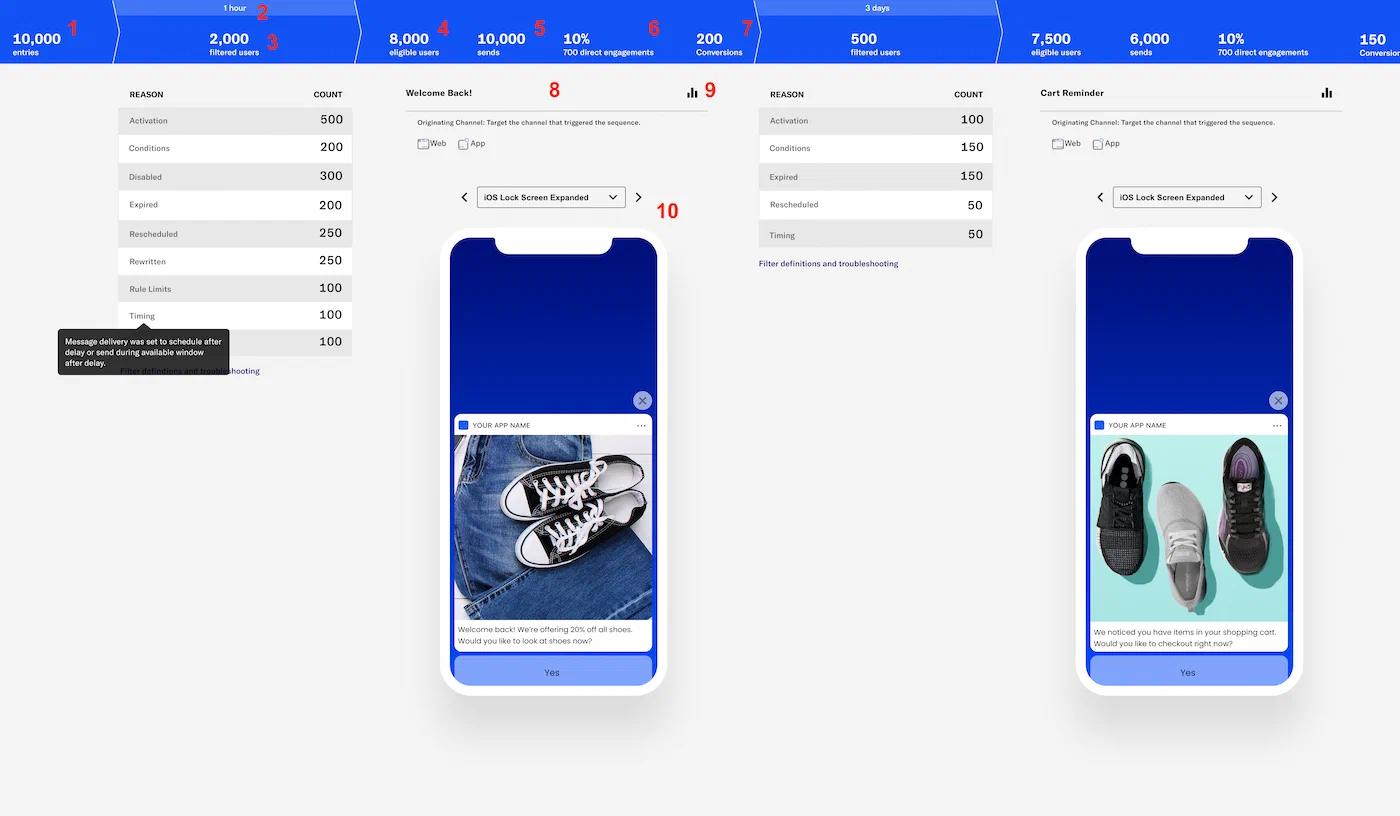
*A sequence performance report*
1. *Entries* — The total number of users who entered the sequence.
1. A time period. For each message in the sequence, this is the delay period set for the message.
A time period also follows the last message in the sequence. This is the attribution period after the last message is sent, during which cancellation and conversion events are counted in reporting. After the attribution period elapses, no further events are recorded for the sequence.
For sequences configured with a continuation sequence outcome that does not include an exit event, the attribution period is the delay period set for the continuation sequence. For all other sequences, the attribution period is one day (24 hours). Sequences created prior to August 28, 2023, have a one-hour attribution period.
1. *Filtered users* — The reasons why users exited the sequence, or *fell out of the funnel*, and counts for each. Hover over a reason row to see its definition. See also on this page: [Filter definitions and troubleshooting](#filter-definitions-and-troubleshooting).
1. *Eligible users* — The total number of users that have met the criteria to receive the message. A user could be either a [Channel](https://www.airship.com/docs/reference/glossary/#channel_engage) or a [Named User](https://www.airship.com/docs/reference/glossary/#named_user).
1. *Sends* — The total number of messages sent across all platforms. Sends may be higher or lower than your eligible users depending on your [Channel Coordination](https://www.airship.com/docs/reference/glossary/#channel_coordination) strategy.
1. *Direct engagements* — The total number of direct app opens and clicks on web notifications. The percentage of direct engagements is calculated as *Direct Engagements* / *Number of Sends* * 100.
1. *Conversions / Reactivations* — The number of users who exited the sequence by a *Conversion* event. This count is used to calculate conversion/cancellation rates.
* If your sequence does not have a *Conversion* outcome, this count will not appear.
* For sequences using the [Inactivity trigger](https://www.airship.com/docs/guides/messaging/messages/sequences/triggers/#inactivity), *Conversions* is instead labeled *Reactivations*. A reactivation occurs when an eligible user re-engages with the app or website.
* Conversion events that occur before the first message of the sequence is sent are not included in the Conversions/Reactivations count, though converted users will still experience the conversion outcome as configured.
1. The message summary. The message name appears at the top. If your account is enabled for [Channel Coordination](https://www.airship.com/docs/reference/glossary/#channel_coordination), the message's Channel Coordination strategy and selected channels also appear here.
1. Select the report icon (
) to open the [message report](https://www.airship.com/docs/guides/reports/message/).
1. The device preview. Select from the menu to see how the message will appear on different devices.
---
The report shows data for *All Time* by default. You can select a different time frame, and the report will reload with data for that period.
If you [set a control group](https://www.airship.com/docs/guides/experimentation/control-groups/) for the sequence, you can also select *Active audience* / *Control group* to change the viewable data.
> **Tip:** You can access Performance reports from additional locations:
>
> * From the [Sequence Manager](https://www.airship.com/docs/reference/glossary/#sequence_manager), click *Performance*.
> * From the [Journey Map](https://www.airship.com/docs/reference/glossary/#journey_map), select a sequence in the map, then click *Performance*.
## Filter definitions and troubleshooting
The Performance screen displays counts for the following reasons users exit a sequence:
| Exit reason | Definition | Troubleshooting |
| --- | --- | --- |
| **Activation** | The message delivery time was outside of the sequence's scheduled start/stop window. | Make sure the sequence [start and end dates and times](https://www.airship.com/docs/guides/messaging/messages/sequences/create/create/#trigger) are set correctly. |
| **Cancelled** | A [[Cancellation Event](https://www.airship.com/docs/reference/glossary/#cancellation_events_event_option)](https://www.airship.com/docs/guides/messaging/messages/sequences/create/outcomes/#exit-events) event was performed. | n/a |
| **Conditions** | The message's [Conditions](https://www.airship.com/docs/reference/glossary/#conditions_event_option) were not met, e.g., message 2 was only delivered to users with tag `hotdog`. | Verify message conditions are set correctly. See: [Edit delay and conditions for a message in a sequence](https://www.airship.com/docs/guides/messaging/messages/sequences/create/edit/#delay-conditions). |
| **Disabled** | The sequence was paused during the time when users would have received the next message. | Check the [Team activity log](https://www.airship.com/docs/guides/getting-started/admin/teams-messaging/#team-activity-log) to see when the sequence may have been paused.First, go to the [Sequence Manager](https://www.airship.com/docs/reference/glossary/#sequence_manager) and copy the reference from the page URL. The reference is the string following `series`. It should be similar to `fmYMAonmSIuaJEge3VIouw`.
Next, 1) select the account menu icon (user-circle) in the dashboard header and select **Team Management**, then **Activity**, 2) select your project and the action **Journey paused**, and 3) use Control+F or Command+F to find the reference on the page. You may need to change the number of items on the page or adjust the date time range. |
| **Error** | Any reason not attributable to another filter. | n/a |
| **Expired** | The message was not delivered to a device before its expiration date and time. | Make sure [expiration](https://www.airship.com/docs/guides/messaging/messages/delivery/delivery-options/#expiration) is set up correctly for the message: 1) Go to the [Sequence Manager](https://www.airship.com/docs/reference/glossary/#sequence_manager), 2) select the more menu icon (⋮) for a message and then **Edit Message**, 3) go to the Delivery step and review the expiration settings. |
| **Rescheduled** | Users awaiting the scheduled message in a sequence performed the trigger event again, resulting in cancelling and rescheduling the message delivery. This can also occur when channel-level fulfillment is rescheduled to a contact-level fulfillment. | None. Even with [Rule Limits](https://www.airship.com/docs/reference/glossary/#rule_limits_sequence) set, a user could enter a sequence multiple times while awaiting delivery of the first message, resulting in rescheduling. |
| **Rewritten** | The message trigger and/or timing were edited while the user was awaiting message delivery, invalidating delivery. | See [Edit sequence settings](https://www.airship.com/docs/guides/messaging/messages/sequences/create/edit/#settings) and [Edit delay and conditions for a message in a sequence](https://www.airship.com/docs/guides/messaging/messages/sequences/create/edit/#delay-conditions). |
| **Rule limits** | The [Rule Limits](https://www.airship.com/docs/reference/glossary/#rule_limits_sequence) or the project [Message Limits](https://www.airship.com/docs/reference/glossary/#message_limits) (set for *Sequences and Automation*) were met. | View your sequence- and project-level rule limits and edit if they are too restrictive.
For Sequence rule limits, go to the [Sequence Manager](https://www.airship.com/docs/reference/glossary/#sequence_manager), then **Settings**, then **Triggers**, and review the **Rule Limits**.
For project rule limits, next to your project name, select the dropdown menu (▼), then **Settings**. Then, under **Project settings**, select **Message Limits** and review your settings for **Sequence and Automation Limits**. |
| **Timing** | Message delivery was set to **schedule after delay** or **send during available window after delay** and either were true: A user did not have a known time zone, or the option **Do not send** was selected for **If a trigger occurs outside the available window**, and the trigger did occur outside the window. | If you did not intend to include a channel with unknown time zones, you can exclude them from your audience.
**Non-AXP or -Orchestration customers:** Go to the [Sequence Manager](https://www.airship.com/docs/reference/glossary/#sequence_manager), then **Settings**, then **Target**, and change channel selections.
**AXP and -Orchestration customers:** 1) go to the [Sequence Manager](https://www.airship.com/docs/reference/glossary/#sequence_manager), 2) select the more menu icon (⋮) for a message and select **Edit Message**, and 3) Select the settings icon (⚙) and edit the enabled channels for the message.
To disable the **Do not send** option, 1) go to the [Sequence Manager](https://www.airship.com/docs/reference/glossary/#sequence_manager), 2) select the more menu icon (⋮) for a message and select **Edit Message**, and 3) go to the Delivery step and change the Timing setting to **Send at next available time**, or [configure a different delivery](https://www.airship.com/docs/guides/messaging/messages/delivery/delivery/). |
| **Untargetable Platform** | Users did not have a [Channel](https://www.airship.com/docs/reference/glossary/#channel_dev) matching any of those selected for the message audience. | n/a |
## Creating Sequences
Learn how to configure Sequences.
# Create a Sequence
> Create a series of messages that are initiated by a trigger. Messages are delivered according to your timing settings, and you can also set conditions that determine the continuation of the series.
> **Note:** Each message in a sequence counts toward your *Sequences and Automation* [Message Limit](https://www.airship.com/docs/reference/glossary/#message_limits).
To get started, create a new Sequence:
1. In the sidebar, select the **Create** dropdown menu (▼), then select **Journey**.
1. Select **Sequence**, then **Start from scratch**.
1. Enter a name for your Sequence.
1. Select **Continue**.
You will now configure each [component](https://www.airship.com/docs/guides/messaging/messages/sequences/about/#components) from the [Journey Map](https://www.airship.com/docs/reference/glossary/#journey_map). You can configure components in any order.
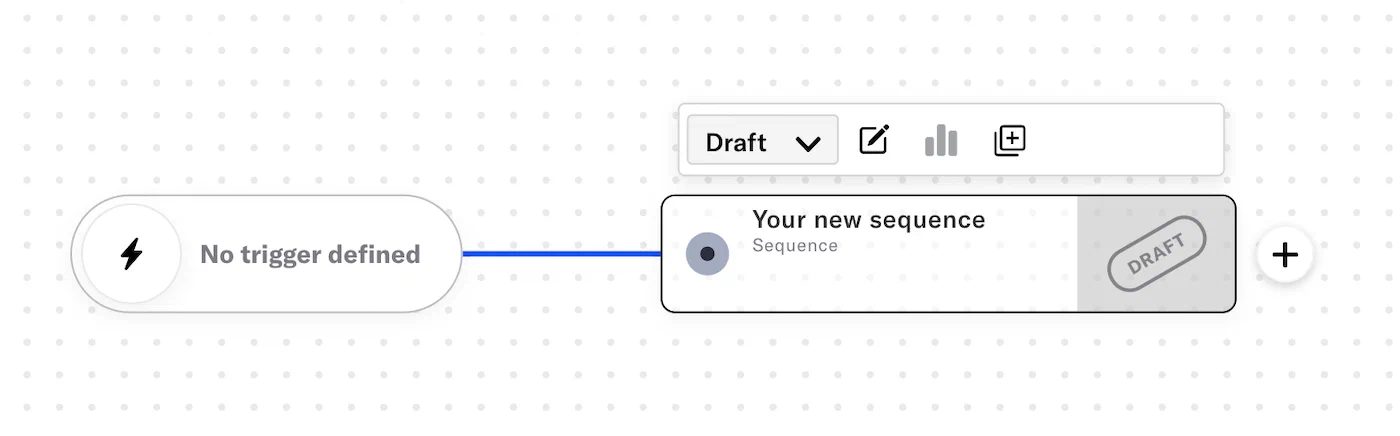
*A draft sequence*
## Trigger
Configure a trigger that will initiate your sequence. You can configure up to 10 triggers unless you are using the [Inactivity trigger](https://www.airship.com/docs/guides/messaging/messages/sequences/triggers/#inactivity).
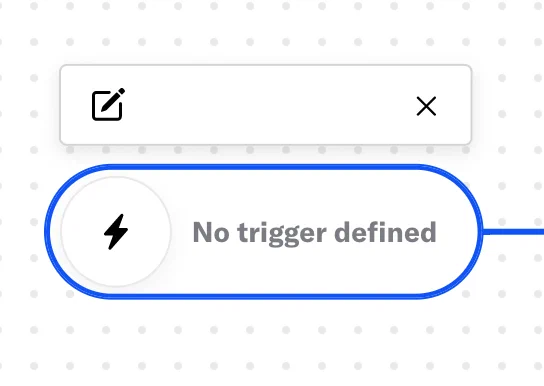
*Configure a Sequence trigger*
1. Select the trigger card and then the edit icon (✏). If multiple triggers are configured, first select the trigger stack to expand it, and then select a trigger card.
1. Select and configure a [trigger](https://www.airship.com/docs/guides/messaging/messages/sequences/triggers/).
1. (Optional) Under **Settings**, define the times during which the trigger is active for the Sequence. Trigger start and end dates are evaluated before [Sequence start and end dates](#scheduling-and-frequency).
1. Enable **Start Date** and/or **End Date**.
1. Set the time, time zone, and date.
1. (Optional) Under **Conditions**, build a [Segment](https://www.airship.com/docs/reference/glossary/#segment) to filter the audience members entering the Sequence. Creating a segment here uses the same segmentation data and procedure as building [Segments](https://www.airship.com/docs/guides/audience/segmentation/segments/#adding-conditions). You cannot set Conditions for the Inactivity or Manual Entry trigger.
1. Select **Save**.
To add another trigger, select the add icon (+) below the configured triggers. Adding more triggers to an existing Sequence does not require publishing changes. To delete a trigger, select its card, and then select the delete icon (trash).
> **Tip:** You can route users to a Sequence when an [In-App Automation](https://www.airship.com/docs/reference/glossary/#iaa) or [Scene](https://www.airship.com/docs/reference/glossary/#scene) displays on a device or when they select a button in an In-App Automation. See [Link Journey components](https://www.airship.com/docs/guides/features/orchestration-experimentation/journeys/#link-journey-components) in the *Journeys* documentation.
## Scheduling and frequency
Define when the sequence can deliver messages to your audience, and control the frequency of sending messages and of triggering the sequence. The settings are optional.
1. Select the sequence card, then the edit icon (✏).
1. Select **Settings** in the header.
1. Under **Scheduling**, define the times during which the Sequence can deliver messages to your audience. When its end date occurs, its status automatically changes to Completed, and you cannot restart it. Enable **Start Date** and/or **End Date**, and then set the time, time zone, and date.
> **Important:** [Trigger start and end dates](#trigger) are evaluated before Sequence start and end dates. Verify settings in both locations before starting a Sequence or publishing changes.
1. Under **Limits**, enable **Ignore Channel Message Limits** to override the project-level [Message Limits](https://www.airship.com/docs/reference/glossary/#message_limits), ensuring that your audience will receive your message even if they've reached the message limit. Overriding message limits does not override your **Rule limits** setting.
1. Under **Limits**, enable **Rule Limits** to cap the number of messages a user can receive from a Sequence within a time frame, preventing you from over-messaging your audience. Select **Add a daily limit** and/or **Add an all-time limit** and enter a number.
1. Select **Save & Continue**.
You will return to the [Sequence Manager](https://www.airship.com/docs/reference/glossary/#sequence_manager). You can start adding messages. To return to the map, select **Journey view** or **Exit ▼**, then **Save and exit**.
## Channels
> **Note:** If your account includes [Channel Coordination](https://www.airship.com/docs/reference/glossary/#channel_coordination), skip this step — the section does not appear for you in the dashboard. You will instead configure channels when you [add each message](#messages) to the sequence.
Enable the channels you want to send the message to. Available channels are based on your selected trigger.
1. Select the sequence card, then the edit icon (✏).
1. Select **Settings** in the header.
1. Select the **Target** tab.
1. Enable channels.
1. Select **Next**, then **Save & Continue**.
You will return to the [Sequence Manager](https://www.airship.com/docs/reference/glossary/#sequence_manager). You can start adding messages, or select **Exit ▼**, then **Save and exit** to return to the map.
## Messages
Configure the message conditions and content. For details, see [Add messages to a sequence](https://www.airship.com/docs/guides/messaging/messages/sequences/create/add-messages/). If you just saved and exited Settings, you will already be on the Manage screen and can skip to step 2.
1. Select the sequence card, then the edit icon (✏).
1. Set the message conditions.
1. Set the delay period.
1. Add the message content and configure its delivery settings.
1. Select **Save & Continue** to complete adding the message to your sequence.
You will return to the [Sequence Manager](https://www.airship.com/docs/reference/glossary/#sequence_manager) after adding a message. From there, select **Add message** and repeat these steps for each message you want to add to the sequence. Select **Exit ▼**, then **Save and exit** to return to the map.
## Outcomes
You can configure outcomes in the [Journey Map](https://www.airship.com/docs/reference/glossary/#journey_map). If using the [Inactivity trigger](https://www.airship.com/docs/guides/messaging/messages/sequences/triggers/#inactivity), the outcome is pre-configured and cannot be edited.
For details about setting up each option, see [Sequence outcomes](https://www.airship.com/docs/guides/messaging/messages/sequences/create/outcomes/).
## Start sequence
When all required components are configured, you can:
* [Test the sequence](https://www.airship.com/docs/guides/messaging/messages/sequences/create/test/) before starting it or publishing changes.
* [Create a control group](https://www.airship.com/docs/guides/experimentation/control-groups/) before starting the sequence.
* **Start the sequence** to make it available to your audience:
* From the map: Select the sequence card and select *Start* from the dropdown menu.
* From the [Sequence Manager](https://www.airship.com/docs/reference/glossary/#sequence_manager): Select **play Start**.
# Sequence templates
> {{< glossary_definition "sequence_template" >}}
This document describes each Sequence template, provides steps for accessing them, and lists considerations for editing. See [Create a Sequence](https://www.airship.com/docs/guides/messaging/messages/sequences/create/create/) for full documentation about creating a new Sequence and composing its messages.
Each message in a Sequence counts toward your *Sequences and Automation* [Message Limit](https://www.airship.com/docs/reference/glossary/#message_limits).
## Types of Sequence templates
Default channels, trigger, outcome, message content, and delivery timing are described for each template type.
### Welcome Series
Send onboarding messages. Default settings:
| Channels | Trigger | Outcome | Message 1 | Message 2 | Delivery timing |
| --- | --- | --- | --- | --- | --- |
| App | [First Seen](https://www.airship.com/docs/reference/glossary/#first_seen_event_trigger) | Default Sequence behavior: Users who trigger the Sequence will receive all messages in the Sequence. | **Delay:** 1 day
**Message type and content:** Push notification, with title and body welcoming the user to the app. | **Delay:** 3 days after message 1
**Message type and content:** Push notification, encouraging the user to check out the brand's best features. | All messages are set to *Send immediately*: Airship sends your message after receiving the triggering event and after the delay period elapses. |
### Authentication Sequence
Encourage users on anonymous channels to log in to your app, which associates them with a [Named User](https://www.airship.com/docs/reference/glossary/#named_user). This creates a known contact within Airship. Default settings:
| Channels | Trigger | Outcome | Message 1 | Message 2 | Delivery timing |
| --- | --- | --- | --- | --- | --- |
| App | [First Seen](https://www.airship.com/docs/reference/glossary/#first_seen_event_trigger) | Conversion: Users who trigger the Sequence and then log in to the app will exit the Sequence. | **Delay:** 7 days
**Message type and content:** Push notification, with title and body encouraging user to log in to the app. | | All messages are set to *Send immediately*: Airship sends your message after receiving the triggering event and after the delay period elapses. |
> **Note:** Named user association at login must be implemented for your app. See: [Associating Channels with Named Users](https://www.airship.com/docs/guides/audience/named-users/#associate).
### Re-engagement Sequence
Win back inactive audience members. Default settings:
| Channels | Trigger | Outcome | Message 1 | Message 2 | Delivery timing |
| --- | --- | --- | --- | --- | --- |
| App, Web | [Inactivity](https://www.airship.com/docs/reference/glossary/#inactivity_event_trigger), set to *15 days* | Conversion: Users who trigger the Sequence and then re-engage with the app or website will exit the Sequence. They are represented in the *Reactivations* count in the [Performance Report](https://www.airship.com/docs/reference/glossary/#sequence_performance) and Sequence tests. | **Delay:** None
**Message type and content:** Push notification or web push notification, with title and body telling the user that they are missed. | **Delay:** 7 days after message 1
**Message type and content:** Push notification or web push notification, with title and body telling the user that they are missing out. | All messages are set to *Send immediately*: Airship sends your message after receiving the triggering event and after the delay period elapses. |
## Using a Sequence template
To get started, create a new Sequence:
1. In the sidebar, select the **Create** dropdown menu (▼), then select **Journey**.
1. Select **Sequence**, then select a template.
The Sequence will open to the [Journey Map](https://www.airship.com/docs/reference/glossary/#journey_map). Details to keep in mind as you complete configuration:
* **Trigger and Outcomes** — Make sure your Trigger and Outcomes are appropriately configured for the Sequence's goal.
* For Sequences using the **Re-engagement Sequence** template, you cannot edit the Conversion selection in the *Outcomes* step. Users will exit the Sequence and be counted as a *Reactivation* in the [Performance Report](https://www.airship.com/docs/reference/glossary/#sequence_performance) and Sequence tests.
* For Sequences using the **Authentication Sequence** template, *Contact association* is the preselected conversion event in the *Outcomes* step, but you have the option to edit and select a custom event.
* **Messages** — Verify the settings for the default messages and any messages you add to the Sequence.
* **Delay and conditions** — Adjust the delay and/or conditions, as necessary.
* For Sequences using the **Re-engagement Sequence** template, there is no delay setting for the first message.
* For Sequences using the **Authentication Sequence** template, *Anonymous channels* is preselected for the *Channel condition* for the first message, and cannot be edited.
* **Content** — Make sure to edit the placeholder text in each message, adding brand-specific content. For a Welcome Series, highlight features that your users can get started with right away. For Re-engagement, highlight the features and/or deals that your users are missing out on.
* **Delivery** — All messages are set to *Send immediately* by default.
After setting up your new Sequence, you can:
* [Test the Sequence](https://www.airship.com/docs/guides/messaging/messages/sequences/create/test/) before starting it.
* [Start the Sequence](https://www.airship.com/docs/guides/messaging/messages/sequences/create/create/#start-sequence) to make it available to your audience.
# Sequence outcomes
> Configure alternatives to a sequence's default ending behavior.
By default, all sequence messages are delivered to users who meet the conditions, but you can configure alternative outcomes.
## Possible outcomes
You can configure the following outcomes for a sequence:
-
Continue to an in-app experience ([In-App Automation](https://www.airship.com/docs/reference/glossary/#iaa) or [Scene](https://www.airship.com/docs/reference/glossary/#scene)) or another sequence when Airship sends the last message in the current sequence.
-
Exit the sequence when a specific event occurs. When configuring the event, you designate it as a conversion or cancellation for reporting.
-
Exit the sequence when a specific event occurs, then continue to an in-app experience or another sequence.
> **Note:** An active in-app automation or scene that is connected downstream of a sequence might display independently of the upstream sequence until the in-app experience updates on a user's device.
>
> This is because in-app experiences are cached on users' devices then displayed when certain conditions are met. Edits made to individual messages, including connecting an in-app experience downstream of a sequence, are applied upon the next app open or via [background push](https://www.airship.com/docs/guides/messaging/project/enable-features/#setting-behavioral-defaults), if enabled.
## Exit events
You can configure a sequence to exit users based on these events:
* **App open** — This event occurs when a user opens your Android or iOS app or starts a web session. It applies only to sequences that include those platforms. It is not supported for sequences using the [Inactivity trigger](https://www.airship.com/docs/guides/messaging/messages/sequences/triggers/#inactivity).
* **Contact association** — This event occurs when an anonymous channel is associated with a [Named User](https://www.airship.com/docs/reference/glossary/#named_user).
* **Commercial opt-in** — This event occurs when a user opts in to [commercial email messaging](https://www.airship.com/docs/developer/api-integrations/email/commercial-transactional/) for the first time.
* **Tag change** — This event occurs when a tag is added to, or removed from, a device.
* **Custom event** — This event occurs when a user performs a custom event you select that represents a key value exchange with your customers.
* **Subscription event** — This event occurs when a user opts in to or out of a [Subscription List](https://www.airship.com/docs/reference/glossary/#subscription_list). This exit event can only be configured in the [Journey Map](https://www.airship.com/docs/reference/glossary/#journey_map), not the sequence settings.
Exit events are designated as either *Conversion* or *Cancellation*. Both have the same effect on a sequence, but the classifications are used for reporting and mapping. Their occurrence is evaluated during the delay period configured when [adding each message](https://www.airship.com/docs/guides/messaging/messages/sequences/create/add-messages/).
> **Note:** Sequences triggered by [[Inactivity](https://www.airship.com/docs/reference/glossary/#inactivity_event_trigger)](https://www.airship.com/docs/guides/messaging/messages/sequences/triggers/#inactivity) are automatically configured such that:
> 1. A user becoming active is a conversion event labeled *Reactivation*.
> 1. You cannot configure additional conversion events.
## Continuation
Configuring a sequence to continue to an in-app experience or another sequence creates a [Journey](https://www.airship.com/docs/reference/glossary/#journey). You can configure the downstream component in two ways:
* **Create new** — After entering a name, it is saved as a draft.
* **Insert existing** — Search for and select a sequence or in-app experience in your project. Archived items are excluded from search results.
For downstream sequences, [channel selection](https://www.airship.com/docs/guides/messaging/messages/sequences/create/create/#channels) is eliminated since your audience is predetermined by the upstream sequence.
### Delay period
You can set a delay period — the time Airship should wait before evaluating triggers and conditions for the downstream sequence or in-app experience. The delay period starts after the last message in the upstream sequence is sent or when an [exit event](#exit-events) occurs. The maximum delay period is 90 days.
### In-app experience expiration period
If the downstream in-app automation or scene does not display on a user's device within the default period of 31 days, they will exit the journey. This period starts after any configured [delay period](#delay-period) elapses.
As an alternative to exiting, you can route to a fallback sequence. You can also set a shorter expiration period.
## Configuring continuation
Route users to a sequence or in-app experience when Airship sends the last message in the current sequence or an exit event occurs.
1. Go to **Journeys** and select a sequence.
1. Select the add icon (+) to the right of the sequence or a [previously configured exit event](#configuring-exit-events-and-optional-continuation). A configuration drawer will open.
1. Select *Continuation*. This step is eliminated if configuration is for an exit event.
1. Select *Create new* or *Insert existing*.
1. Set the delay period — the time Airship should wait before evaluating triggers and conditions for the downstream sequence or in-app experience. Enter a value in minutes, hours, or days. The maximum delay period is 90 days.
1. Select *Sequence*, *Scene*, or *In-App Automation*, then enter a name for the draft or search for an existing message.
1. (For in-app experiences only, optional) Edit the expiration period and/or set a fallback sequence.
If the downstream in-app automation or scene does not display on a user's device within the default period of 31 days, they will exit the [Journey](https://www.airship.com/docs/reference/glossary/#journey). This period starts after any configured delay period elapses. As an alternative to exiting, you can route to a fallback sequence. You can also set a shorter expiration period.
* **Expiration** — Enter a number of days.
* **Fallback sequence** — Search for an existing sequence or enter a name for a draft and click **Create new sequence: [draft name]**.
1. Click **Save**.
The map will now show the downstream sequence or in-app experience with a connection to the upstream sequence or exit event.
## Configuring exit events and optional continuation
Exit users from the sequence when an event occurs. You can set up multiple events. After configuring an event, you have the option to then route users to a sequence or in-app experience. See also: [Exit events](https://www.airship.com/docs/guides/messaging/messages/sequences/create/outcomes/#exit-events).
1. Go to **Journeys** and select a sequence.
1. Select the add icon (+) to the right of the sequence. A configuration drawer will open.
1. Select the exit type: *Cancellation Event* or *Conversion Event*.
1. Select the exit event and configure.
* **App open:** No configuration needed.
* **Contact association:** No configuration needed.
* **Commercial opt-in:** No configuration needed.
* **Subscription event:**
1. Search for and select a subscription list.
1. Choose whether to exit when the user opts in to or out of the subscription.
* **Tag change:**
1. Search for a tag. If the tag you search for does not appear, click **Create [search term]** to create a new tag. You can select a tag group filter before or after searching.
1. (Optional) Click **Add Another** to add more tags. Airship handles multiple tags as a Boolean OR.
1. Choose to perform the event when a tag is *Added*, or *Removed*.
* **Custom event:**
1. Search for a custom event, then select an event from the listed results. Results are limited to events that occurred in the last 30 days. If your event name does not appear in the search results, click **Use [search term]** to use the event name as typed.
1. (Optional) Click **Add Another** to add more events. Airship handles multiple events as a Boolean OR.
1. (Optional) Filter custom events by value or key/value properties. Filtering events this way can help you more precisely target your audience.
- Select Add event properties for the custom event.
- Select Add property, then Search for properties and search for a property, or select Add event value.
- If applicable, select the operator you want to use to evaluate the value or property.
- Enter or select the event or property value you want to filter for.
- (Optional) Select the add icon (+) to add an alternative for a filter.
- (Optional) Select Add property or Add event value to add more filters.
- Select All or ANY to determine how to evaluate multiple filters and alternatives within each filter.
- ALL = all criteria must be met (boolean AND)
- ANY = any criteria must be met (boolean OR)
- Select Save.
> **Note:** The filter **does not** show events and event properties for custom events associated with [Named Users](https://www.airship.com/docs/reference/glossary/#named_user). You can still use events associated with named users as triggers, but you must enter their information manually.
> **Tip:** You can use file upload to provide multiple values to match against a specified event property’s value. For string properties only.
> For example, for a point-of-sale system that emits events when a sale occurs, an event might have the following data:
> ```js
> name: "sale-completed"
> properties:
> customer_id: 234234
> store_id: 103843
> region: "northwest-usa"
> ```
>
> To trigger only when sales occur in the regions of northwest-usa and southwest-usa but not midwest-usa or any other region, you would do the following to filter your custom events:
>
> - Search for or enter the property name
region.
> - Select operator File upload (is one of).
> - Upload a
.txt file containing values northwest-usa and southwest-usa.
>
>
> Provide your values in a line delimited .txt file. Each value must be on a separate line. 100 KB maximum file size.
1. (Optional) Set the maximum age for the events. If an event is received after it is older than a certain age, the automation or sequence will not start.
1. Enable *Event Expiration*.
1. Enter a value in minutes, hours, days, months, or years.
1. (Optional) Enable *Add continuation* and complete the steps above for [Configuring continuation](#configuring-continuation), starting at step 4.
1. Click **Save**.
The map will now show a connection from the sequence to the exit event.
# Add messages to a sequence
> Follow these steps to add messages to a new or existing sequence.
You add messages to a sequence from the [Sequence Manager](https://www.airship.com/docs/reference/glossary/#sequence_manager). You can access this screen from these locations:
* [Journey Map](https://www.airship.com/docs/reference/glossary/#journey_map): Select a sequence, select its card in the map, then select the edit icon (
).
* [Messages Overview](https://www.airship.com/docs/reference/glossary/#messages_overview): Select the edit icon (
) for a sequence.
For sequences that don't yet contain messages, you can start the following steps immediately after opening the Manage screen. For sequences with at least one message, first click **Add message** from the Manage screen, then complete these steps.
## Configure optional settings
In addition to configuring the message itself, you can set audience requirements and a delay period.
### Conditions
Conditions are requirements your audience must meet in order to receive a message from a sequence. If a member of the audience doesn't meet the conditions, they will not receive this message or any subsequent messages in the sequence; they will exit the sequence. If you add multiple conditions, they are handled as a boolean OR. If any condition is met, the message will be sent.
To set conditions:
1. Select **Add conditions +**, and then select a condition and configure:
| Condition | Description | Steps |
| --- | --- | --- |
| **Contact** | This condition specifies that [Contacts](https://www.airship.com/docs/reference/glossary/#contact) must be anonymous or associated with a [Named User](https://www.airship.com/docs/reference/glossary/#named_user). It is available for the first message in a Sequence only. | Select **Anonymous contacts** or **Authenticated contacts**. |
| **Segmentation** | This condition specifies that Contacts must be a member of a [Segment](https://www.airship.com/docs/reference/glossary/#segment) that you build. | Define your audience using the same segmentation data and process as when building a [Segment](https://www.airship.com/docs/reference/glossary/#segment). |
| **Subscription** | This condition specifies that Contacts must be opted in to or out of a [Subscription List](https://www.airship.com/docs/reference/glossary/#subscription_list). You can select multiple lists.Airship evaluates subscription status across all channels collectively. A Contact is subscribed to a list when they have at least one opted-in channel and unsubscribed when they have no opted-in channels. | Search for and select a list, then select whether they must be in to or out of the list. |
{class="table-col-1-20 table-col-2-40"}
1. Select the arrow icon (arrow-left) to close the configuration panel.
### Delay
You can set a delay period for the message. This is the time Airship should wait after receiving the triggering event before sending your message. Set the value to zero (0) minutes to send immediately or adjust the default value (one hour) to the desired delay period. The maximum delay period is 90 days.
* **For the first message in your sequence**:
* The delay period starts when the triggering event is received by Airship.
* For the First Seen trigger, a delay shorter than one hour may result in dropped sends.
* For sequences with the goal of *Event*, a delay shorter than one hour may result in sends going to users who converted/cancelled.
* For sequences using the Inactivity trigger, there is no delay setting for the first message.
* **For subsequent messages**:
* The delay period starts when the previous message was sent.
* For sequences with the goal of *Event*, a delay shorter than one hour may result in sends going to users who converted/cancelled.
To set a delay:
1. Under **Message Delay**, select the currently set time period.
1. Enter a value in minutes, hours, or days.
1. Select **Save**.
## Configure the message
Select **Add message content**. You can add message content without setting conditions or a delay. After completing a step, select the next step in the header to move on.
### Setup
> **Note:** Projects using the [channel-level segmentation system](https://www.airship.com/docs/guides/audience/segmentation/segmentation/#channel-level-segmentation) do not have a Setup step. However, if they are enabled for Channel Coordination, you must select and configure a strategy and save it before moving to the Content step.
>
> Also, for the channel-level segmentation system, each strategy targets a [Named User](https://www.airship.com/docs/reference/glossary/#named_user), not a [Contact](https://www.airship.com/docs/reference/glossary/#contact).
First, select a [Channel Coordination](https://www.airship.com/docs/reference/glossary/#channel_coordination) strategy:
* **Fan Out** targets a Contact on all the channels they are opted in to, maximizing the chances they receive your message.
* **Last Active** targets a Contact on the opted-in channel they used most recently.
* **Originating Channel** targets a Contact on the channel that triggered the Sequence.
* **Priority Channel** targets a Contact on the first channel they are opted in to, in the priority order you set.
Then, enable the channel types to include in your audience. For Mobile Apps, also select from the available platforms. For Priority Channel, also drag the channel types into priority order.
Use Channel conditions to filter which channels are included in the audience. A channel must meet the conditions to remain in the audience.
For example, if your audience includes users with app, email, and SMS channels, and you set a channel condition requiring membership in an email Subscription List:
- Only email channels that meet that condition would remain in the audience.
- All app and SMS channels would be excluded.
To set channel conditions, use the same process as when building a [Segment](https://www.airship.com/docs/reference/glossary/#segment). You can use the following data in your conditions:
- [Autogroup](https://www.airship.com/docs/reference/glossary/#autogroup)
- [Channel ID](https://www.airship.com/docs/reference/glossary/#channel_id)
- [Device Properties](https://www.airship.com/docs/reference/glossary/#device_properties)
- [Events](https://www.airship.com/docs/reference/glossary/#events)
- [Lifecycle List](https://www.airship.com/docs/reference/glossary/#lifecycle_list)
- [Predicted to Churn status](https://www.airship.com/docs/reference/glossary/#predicted_to_churn)
- [Subscription List](https://www.airship.com/docs/reference/glossary/#subscription_list)
- [Tag](https://www.airship.com/docs/reference/glossary/#tag) in the
device [Tag Group](https://www.airship.com/docs/reference/glossary/#tag_group) — See Primary device tags.
- [Uploaded (Static) List](https://www.airship.com/docs/reference/glossary/#uploaded_list)
Selected Lifecycle, Subscription, and Uploaded Lists must contain Channel IDs or Named Users as the identifier, not a mix of the two.
### Content
Configure the message content per enabled channel. See [Content by channel](https://www.airship.com/docs/guides/messaging/messages/content/).

*Configuring message content per channel*
### Delivery
Configure [delivery](https://www.airship.com/docs/guides/messaging/messages/delivery/delivery/). Timing settings do not appear if you chose the Inactivity trigger.
### Review
Review the device preview and message summary. Click the arrows to page through the various previews. The channel and display type dynamically update in the dropdown menu above. You can also select a preview directly from the dropdown menu. If you want to make changes, click the associated step in the header, make your changes, then return to *Review*.
Send a test message to verify its appearance and behavior on each configured channel. The message is sent to your selected recipients immediately, and it appears as a test in [Messages Overview](https://www.airship.com/docs/reference/glossary/#messages_overview).
1. Select **Send Test**.
-
Under Test audience, enter at least one [Named User](https://www.airship.com/docs/reference/glossary/#named_user) or [Test Group](https://www.airship.com/docs/reference/glossary/#preview_test_groups) and select from the results. If your message includes email, you can also search for email addresses. If no matches appear for an address, you can select Create channel for <address>, and the channel will be registered for your project and opted in to transactional messaging.
Users in an active [Holdout Experiment](https://www.airship.com/docs/reference/glossary/#holdout_experiment) will not receive a test message. You can view a user’s current holdout group status and history when viewing their channel details in Contact Management.
-
(If your message contains [Handlebars](https://www.airship.com/docs/reference/glossary/#handlebars)) Under Personalization, select and configure a personalization data source:
| Data source |
Description |
Steps |
| Test message recipient |
The message will be personalized using information associated with each test audience member. |
n/a |
| Preview Data tool |
The message will be personalized using the data currently entered in the Preview Data tool. The same values will apply to all test message recipients. You can also manually edit the JSON. |
(Optional) Edit the JSON data. |
-
Select Send.
Select **Save & Continue** to complete adding the message to your sequence.
---
From the [Sequence Manager](https://www.airship.com/docs/reference/glossary/#sequence_manager), now you can:
* Add another message to extend the sequence.
* [Test the sequence](https://www.airship.com/docs/guides/messaging/messages/sequences/create/test/) before starting it or publishing changes.
* [Create a control group](https://www.airship.com/docs/guides/experimentation/control-groups/) before starting the sequence.
* Click **play Start** to make the sequence available to your audience.
* Click **Publish changes** to apply your changes to a sequence that is already in progress. Audience members who have already triggered the sequence will only see the added or edited message content if they have not yet passed this point in the sequence.
## Personalizing messages
For Sequences using the *Custom Event* trigger, you can personalize messages using [Attributes](https://www.airship.com/docs/reference/glossary/#attributes) or [Custom Event](https://www.airship.com/docs/reference/glossary/#custom_event) properties. In both cases, you reference variables using [Handlebars](https://www.airship.com/docs/reference/glossary/#handlebars) to personalize the message for each member of your audience. If you set up templates, you can reference your templates when setting up messages in the Sequence.
For example, if your events have a property called `name`, you would add it to your message or template using `{{name}}`.
> **Note:** Custom event properties used to be referenced in the `$data.events.[0].properties` namespace. If you have templates referencing properties in this namespace, they'll still work, but you'll have to continue using this namespace until you [contact Airship Support](https://support.airship.com/) and move over to the simplified namespace for custom event properties.
You can personalize a message using both attributes and custom event properties. If both an attribute and a custom event property have the same name, Airship will attempt to use the custom event property — the most recent property — to personalize the message.
For example, if you have a custom event representing a purchase, you can send an automated message confirming the purchase and providing information about what the user bought.
Custom Event
```json
{
"occurred": "{{event_time}}",
"user": {
"named_user_id": "user"
},
"body": {
"name": "purchase",
"subscribe": true,
"properties": {
"customer_name": "user",
"total": 48,
"cost_units": "USD",
"purchase": [
{
"qty": 4,
"item": "MLB regulation baseball",
"per": "$12",
"total": "$48"
}
]
}
}
}
```
Message Content
```handlebars
Hi {{$def customer_name "valued customer"}}!
Thanks for your purchase of:
{{#each purchase}}
{{qty}}x {{per}} {{item}} = {{this.total}}
{{/each}}
total: ${{total}}
Is being processed. We'll message you again when it ships!
```
## Localize your sequence messages
Learn how to localize your messages in your sequence using [Handlebars](https://www.airship.com/docs/reference/glossary/#handlebars) with conditions targeting `ua_language` and/or `ua_country` tags. Localizing messages in this way ensures that your audience only sees the message intended for their language settings.
> **Note:** The `else` statement acts as the default message for members of your audience who do not have a `ua_language`
# Test a Sequence
> Use sequence testing to verify the appearance and behavior of your messages, as well as channel configuration, tag conditions, and conversion or cancellation events.
You can send a sequence to a test audience according to your specified timing, then view versions of the [Performance Report](https://www.airship.com/docs/reference/glossary/#sequence_performance) and message reports based on the test audience. You can also test individual messages in the sequence.
## Your test audience
You can send a test to either a single [Named User](https://www.airship.com/docs/reference/glossary/#named_user) or to a [Test Group](https://www.airship.com/docs/reference/glossary/#preview_test_groups).
* If you used tag conditions in your sequence, make sure you know which users in your test audience have which tags.
* If you personalized messages using attributes, assign the relevant attributes to your test audience.
* There may be a discrepancy between the number of intended recipients and the number of actual devices if members of the test audience have uninstalled.
* Users in an active [Holdout Experiment](https://www.airship.com/docs/reference/glossary/#holdout_experiment) will not receive a test message. You can view a user's current holdout group status and history when [viewing their channel details in Contact Management](https://www.airship.com/docs/guides/audience/contact-management/#viewing-channel-details).
## Test a sequence
Follow these steps to test a sequence that has never been started, or started but never edited.
> **Note:** The option to test a sequence is not available until the sequence is configured with the minimum requirements to start it.
If you just created the sequence, you will already be on the *Manage* screen. Otherwise, first go to **Messages**, then **Messages Overview**, and then select the edit icon (
) for a sequence. Then:
1. Click **Test Run** in the leftside drawer.
1. Click **Set up a test run**.
1. Enter at least one named user or test group and select from the results.
1. Specify the amount of time you want between delivery of each message in your test sequence.
1. Click **Create test**.
1. Click **Start test** on the *Test* screen. You can repeat this step to restart the test.
Now you can [evaluate the test](#evaluate).
### Test your changes after editing a sequence
Follow these steps to test your changes after editing a started or paused sequence.
If you just edited the sequence, you will already be on the *Manage* screen. Otherwise, first go to **Messages**, then **Messages Overview**, and then select the edit icon (
) for a sequence. Then:
1. Click **Test changes** next to the notice *You have unpublished changes.*
1. If you have created a test for this sequence before, click **Yes, create new test** to confirm deleting previous test data.
1. Enter at least one named user or test group and select from the results.
1. Specify the amount of time you want between delivery of each message in your test sequence.
1. Click **Create test**.
1. Click **Start test run**. You can repeat this step to restart the test.
Now you can [evaluate the test](#evaluate).
## Test a message in a sequence
Send a test message, then verify its appearance and behavior on each channel the message is configured for. The message is sent to your selected recipients immediately, and it appears as a test in [Messages Overview](https://www.airship.com/docs/reference/glossary/#messages_overview).
Send a test from the *Review* step when composing a message:
1. Select **Send Test**.
-
Under Test audience, enter at least one [Named User](https://www.airship.com/docs/reference/glossary/#named_user) or [Test Group](https://www.airship.com/docs/reference/glossary/#preview_test_groups) and select from the results. If your message includes email, you can also search for email addresses. If no matches appear for an address, you can select Create channel for <address>, and the channel will be registered for your project and opted in to transactional messaging.
Users in an active [Holdout Experiment](https://www.airship.com/docs/reference/glossary/#holdout_experiment) will not receive a test message. You can view a user’s current holdout group status and history when viewing their channel details in Contact Management.
-
(If your message contains [Handlebars](https://www.airship.com/docs/reference/glossary/#handlebars)) Under Personalization, select and configure a personalization data source:
| Data source |
Description |
Steps |
| Test message recipient |
The message will be personalized using information associated with each test audience member. |
n/a |
| Preview Data tool |
The message will be personalized using the data currently entered in the Preview Data tool. The same values will apply to all test message recipients. You can also manually edit the JSON. |
(Optional) Edit the JSON data. |
-
Select Send.
Send a test from the [Sequence Manager](https://www.airship.com/docs/reference/glossary/#sequence_manager):
1. Go to **Messages**, then **Messages Overview**.
1. Select the edit icon (
) for a sequence.
1. Click the more menu icon (⋮) for the message you want to test, and select *Send Test Message*.
1. Enter at least one named user or test group and select from the results.
1. Click **Send**.
## Evaluate a sequence test {#evaluate}
Sequence tests are manually triggered, so the first message in the sequence is sent to every member of the test audience, then the audience is filtered by channel availability and tag conditions.
After you start a sequence test, verify:
* **Channels and tag conditions:** Were your messages received on intended channels and according to tag conditions you set?
* **Conversion or cancellation events:** Were users funneled out of the sequence as expected?
* **Message content:** Do your messages appear and behave as intended on each channel the message was configured for?
* **Personalization:** Do messages personalized using [Handlebars](https://www.airship.com/docs/reference/glossary/#handlebars) make sense?
* You cannot simulate a custom event in your test. Messages personalized using custom event properties will display their default values in your test messages. Any variable without a default value will instead appear empty.
* **Performance:** Do the [Test report](#test-report) metrics represent your expected test results?
### View a sequence Test report {#test-report}
A sequence's Test report is available after you [create and start a test](#test-a-sequence). It is identical to the [Performance Report](https://www.airship.com/docs/reference/glossary/#sequence_performance), but the data is based on your test audience.
1. Go to **Messages**, then **Messages Overview**.
1. Select the edit icon (
) for a sequence.
1. Click **Test Run**, then **View test report**.
1. Click **
Report** to open an individual [message report](https://www.airship.com/docs/guides/reports/message/).
Previous Test report data is cleared when you create a new test.
# Edit or duplicate a Sequence
> Follow these steps to duplicate or edit a sequence.
> **Tip:** * **Do not pause** a sequence before you edit it. Edit the sequence, then click **Publish changes**. You can also [test the sequence](https://www.airship.com/docs/guides/messaging/messages/sequences/create/test/#test-a-sequence) before publishing changes. For active sequences, changes to [outcomes](https://www.airship.com/docs/guides/messaging/messages/sequences/create/outcomes/) are published automatically after saving.
> * You should only pause a sequence when you want to stop it and use it at a later date. Paused sequences remain in your project and can be edited and started again at any time.
## Edit sequence settings {#settings}
Sequence settings include the sequence name, trigger options, and target (channels).
For active sequences, editing the [audience channel selection](https://www.airship.com/docs/guides/messaging/messages/sequences/create/create/#channels) may impact delivery, depending on whether a user is opted into newly selected channels and which [Channel Coordination](https://www.airship.com/docs/reference/glossary/#channel_coordination) strategy is chosen.
> **Important:** Do not edit a Sequence that has a control group. See [Sequence Control Groups](https://www.airship.com/docs/guides/experimentation/control-groups/).
1. Go to **Messages**, then **Messages Overview**.
1. Select the edit icon (
) for a sequence.
1. Click *Settings* in the header, and make your changes.
* For the sequence name, click the name in the header, enter a new sequence name, then click **Continue** or **Next**.
* Edit the [Trigger and options](https://www.airship.com/docs/guides/messaging/messages/sequences/triggers/) or [Target](https://www.airship.com/docs/guides/messaging/messages/sequences/create/create/#channels) as you would for a new sequence.
> **Note:** When configuring a continuation (downstream) sequence, the *Trigger* step lists the upstream sequence that will initiate the downstream sequence, and the *Target* step is eliminated since your audience is predetermined by the upstream sequence.
1. Click **Save and continue**.
1. Click **Publish changes** to apply the changes to a sequence that is already in progress.
## Edit or remove sequence outcomes in the journey map
For active sequences, changes to [outcomes](https://www.airship.com/docs/guides/messaging/messages/sequences/create/outcomes/) are published automatically after saving. Editing [[Cancellation Events](https://www.airship.com/docs/reference/glossary/#cancellation_events_event_option)](https://www.airship.com/docs/guides/messaging/messages/sequences/create/outcomes/#exit-events) will cause users to exit the sequence if they then perform a newly added event.
**Edit an exit event:**
1. Go to *Journeys* and select a sequence.
1. Click an exit event card, then click the edit icon (
).
1. Make changes to the currently selected exit event, or click **Cancel** and [select a different exit event and complete its configuration](https://www.airship.com/docs/guides/messaging/messages/sequences/create/outcomes/#configuring-exit-events-and-optional-continuation).
1. Click **Save**.
**Remove an exit event:**
1. Go to *Journeys* and select a sequence.
1. Select an exit event card, then select the delete icon (trash).
**Remove a component from a journey:**
1. Go to *Journeys* and select a component.
1. Click the more menu icon (⋯), then **Unlink**.
The map will refresh to focus on the component you unlinked.
## Edit message content in a sequence
Editing the content of messages in a started sequence has no impact on message delivery. For example, if you edit the content of message 3 and a user has not yet received message 3, the user will receive the updated version of message 3.
> **Important:** Do not edit a Sequence that has a control group. See [Sequence Control Groups](https://www.airship.com/docs/guides/experimentation/control-groups/).
1. Go to **Messages**, then **Messages Overview**.
1. Select the edit icon (
) for a sequence.
1. Click the more menu icon (⋮) for the message you want to edit, and select *Edit Message*.
1. Go to the *Content* step and make your changes.
1. Go to the *Review* step select **Save & Continue**. You will return to the Manage screen.
1. Click **Publish changes** to apply the changes to a sequence that is already in progress.
## Edit the name of a message in a sequence
Each message in a sequence is automatically named for the sequence name and its position in the sequence, e.g., *Welcome Sequence 4*. You can edit the name of any message in a sequence.
1. Go to **Messages**, then **Messages Overview**.
1. Select the edit icon (
) for a sequence.
1. Click the more menu icon (⋮) for the message you want to edit, and select *Edit Message*.
1. Click the settings icon (⚙) in the header.
1. Enter a new message name.
1. Click **Save & Continue**.
1. Go to the *Review* step and click **Save & Continue**. You will return to the Manage screen.
1. Click **Publish changes** to apply the changes to a sequence that is already in progress.
## Edit delay and conditions for a message in a sequence {#delay-conditions}
> **Important:** Do not edit a Sequence that has a control group. See [Sequence Control Groups](https://www.airship.com/docs/guides/experimentation/control-groups/).
You can edit the *delay* period that must elapse before the message is sent and the *conditions* that your audience must meet to receive the message.
* For sequences using the Inactivity trigger, there is no delay setting for the first message.
* For active sequences:
* Editing the timing delay between messages in a started sequence may cause users to exit the sequence. For example, if you edit the delay between message 2 and message 3, users who have already received message 2 will not receive message 3.
* Editing the conditions for a message will cause users to exit the sequence if they don't match the new conditions.
1. Go to **Messages**, then **Messages Overview**.
1. Select the edit icon (
) for a sequence.
1. Click the edit icon (
) for Conditions or Message Delay, and configure as you would for composing a new message:
* [Conditions](https://www.airship.com/docs/guides/messaging/messages/sequences/create/add-messages/#conditions)
* [Message delay](https://www.airship.com/docs/guides/messaging/messages/sequences/create/add-messages/#delay)
1. Click **Publish changes** to apply the changes to a sequence that is already in progress.
## Duplicate a sequence {#duplicate}
* The new sequence name is the original sequence name, with " - Copy" appended.
* If the original sequence was *Started* at the time of duplication, the new sequence status is *Paused* until you start it.
1. Go to **Messages**, then **Messages Overview**.
1. Click the duplicate icon (
) for a sequence.
The next screen will be the [Sequence Manager](https://www.airship.com/docs/reference/glossary/#sequence_manager) for the new sequence.