# Add messages to a sequence
Follow these steps to add messages to a new or existing sequence.
You add messages to a sequence from the [Sequence Manager](https://www.airship.com/docs/reference/glossary/#sequence_manager). You can access this screen from these locations:
* [Journey Map](https://www.airship.com/docs/reference/glossary/#journey_map): Select a sequence, click its card in the map, then click
.
* [Messages Overview](https://www.airship.com/docs/reference/glossary/#messages_overview): Click
for a sequence.
For sequences that don't yet contain messages, you can start the following steps immediately after opening the Manage screen. For sequences with at least one message, first click **Add message** from the Manage screen, then complete these steps.
## Configure optional settings
In addition to configuring the message itself, you can set audience requirements and a delay period.
### Conditions
Conditions are requirements your audience must meet in order to receive a message from a sequence. If a member of the audience doesn't meet the conditions, they will not receive this message or any subsequent messages in the sequence; they will exit the sequence. If you add multiple conditions, they are handled as a boolean OR. If any condition is met, the message will be sent.
To set conditions:
1. Select **Add conditions
**, and then select a condition and configure:
1. Select the arrow icon (
) to close the configuration panel.
### Delay
You can set a delay period for the message. This is the time Airship should wait after receiving the triggering event before sending your message. Set the value to zero (0) minutes to send immediately or adjust the default value (one hour) to the desired delay period. The maximum delay period is 90 days.
* **For the first message in your sequence**:
* The delay period starts when the triggering event is received by Airship.
* For the First Seen trigger, a delay shorter than one hour may result in dropped sends.
* For sequences with the goal of *Event*, a delay shorter than one hour may result in sends going to users who converted/cancelled.
* For sequences using the Inactivity trigger, there is no delay setting for the first message.
* **For subsequent messages**:
* The delay period starts when the previous message was sent.
* For sequences with the goal of *Event*, a delay shorter than one hour may result in sends going to users who converted/cancelled.
To set a delay:
1. Under **Message Delay**, select the currently set time period.
1. Enter a value in minutes, hours, or days.
1. Select **Save**.
## Configure the message
Select **Add message content**. You can add message content without setting conditions or a delay. After completing a step, select the next step in the header to move on.
### Setup
> **Note:** Projects using the [channel-level segmentation system](https://www.airship.com/docs/guides/audience/segmentation/segmentation/#channel-level-segmentation) do not have a Setup step. However, if they are enabled for Channel Coordination, you must select and configure a strategy and save it before moving to the Content step.
>
> Also, for the channel-level segmentation system, each strategy targets a [Named User](https://www.airship.com/docs/reference/glossary/#named_user), not a [Contact](https://www.airship.com/docs/reference/glossary/#contact).
First, select a [Channel Coordination](https://www.airship.com/docs/reference/glossary/#channel_coordination) strategy:
* **Fan Out** targets a Contact on all the channels they are opted in to, maximizing the chances they receive your message.
* **Last Active** targets a Contact on the opted-in channel they used most recently.
* **Originating Channel** targets a Contact on the channel that triggered the Sequence.
* **Priority Channel** targets a Contact on the first channel they are opted in to, in the priority order you set.
Then, enable the channel types to include in your audience. For Mobile Apps, also select from the available platforms. For Priority Channel, also drag the channel types into priority order.
Use Channel conditions to filter which channels are included in the audience. A channel must meet the conditions to remain in the audience.
For example, if your audience includes users with app, email, and SMS channels, and you set a channel condition requiring membership in an email Subscription List:
- Only email channels that meet that condition would remain in the audience.
- All app and SMS channels would be excluded.
To set channel conditions, use the same process as when building a [Segment](https://www.airship.com/docs/reference/glossary/#segment). You can use the following data in your conditions:
- [Autogroup](https://www.airship.com/docs/reference/glossary/#autogroup)
- [Channel ID](https://www.airship.com/docs/reference/glossary/#channel_id)
- [Device Properties](https://www.airship.com/docs/reference/glossary/#device_properties)
- [Events](https://www.airship.com/docs/reference/glossary/#events)
- [Lifecycle List](https://www.airship.com/docs/reference/glossary/#lifecycle_list)
- [Predicted to Churn status](https://www.airship.com/docs/reference/glossary/#predicted_to_churn)
- [Subscription List](https://www.airship.com/docs/reference/glossary/#subscription_list)
- [Tag](https://www.airship.com/docs/reference/glossary/#tag) in the
device [Tag Group](https://www.airship.com/docs/reference/glossary/#tag_group) — See Primary device tags.
- [Uploaded (Static) List](https://www.airship.com/docs/reference/glossary/#uploaded_list)
Selected Lifecycle, Subscription, and Uploaded Lists must contain Channel IDs or Named Users as the identifier, not a mix of the two.
### Content
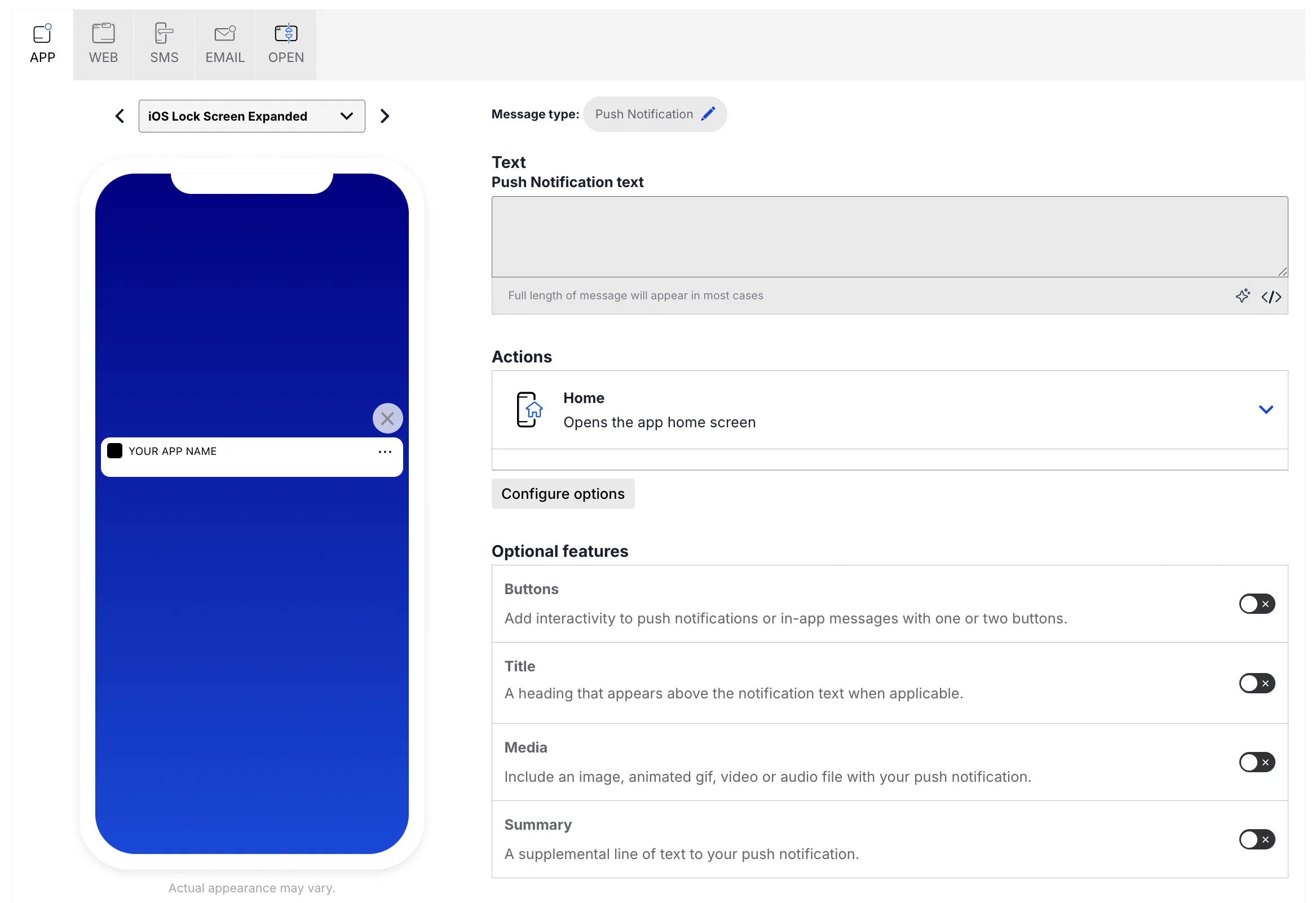
Configure the message content per enabled channel. See [Content by channel](https://www.airship.com/docs/guides/messaging/messages/content/).
### Delivery
Configure [delivery](https://www.airship.com/docs/guides/messaging/messages/delivery/delivery/). Timing settings do not appear if you chose the Inactivity trigger.
### Review
Review the device preview and message summary. Click the arrows to page through the various previews. The channel and display type dynamically update in the dropdown menu above. You can also select a preview directly from the dropdown menu. If you want to make changes, click the associated step in the header, make your changes, then return to *Review*.
Send a test message to verify its appearance and behavior on each configured channel. The message is sent to your selected recipients immediately, and it appears as a test in [Messages Overview](https://www.airship.com/docs/reference/glossary/#messages_overview).
1. Select **Send Test**.
-
Under Test audience, enter at least one [Named User](https://www.airship.com/docs/reference/glossary/#named_user) or [Test Group](https://www.airship.com/docs/reference/glossary/#preview_test_groups) and select from the results. If your message includes email, you can also search for email addresses. If no matches appear for an address, you can select Create channel for <address>, and the channel will be registered for your project and opted in to transactional messaging.
Users in an active [Holdout Experiment](https://www.airship.com/docs/reference/glossary/#holdout_experiment) will not receive a test message. You can view a user’s current holdout group status and history when viewing their channel details in Contact Management.
-
(If your message contains [Handlebars](https://www.airship.com/docs/reference/glossary/#handlebars)) Under Personalization, select and configure a personalization data source:
| Data source |
Description |
Steps |
| Test message recipient |
The message will be personalized using information associated with each test audience member. |
n/a |
| Preview Data tool |
The message will be personalized using the data currently entered in the Preview Data tool. The same values will apply to all test message recipients. You can also manually edit the JSON. |
(Optional) Edit the JSON data. |
-
Select Send.
Select **Save & Continue** to complete adding the message to your sequence.
---
From the [Sequence Manager](https://www.airship.com/docs/reference/glossary/#sequence_manager), now you can:
* Add another message to extend the sequence.
* [Test the sequence](https://www.airship.com/docs/guides/messaging/messages/sequences/create/test/) before starting it or publishing changes.
* [Create a control group](https://www.airship.com/docs/guides/experimentation/control-groups/) before starting the sequence.
* Click **
Start** to make the sequence available to your audience.
* Click **Publish changes** to apply your changes to a sequence that is already in progress. Audience members who have already triggered the sequence will only see the added or edited message content if they have not yet passed this point in the sequence.
## Personalizing messages
For Sequences using the *Custom Event* trigger, you can personalize messages using [Attributes](https://www.airship.com/docs/reference/glossary/#attributes) or [Custom Event](https://www.airship.com/docs/reference/glossary/#custom_event) properties. In both cases, you reference variables using [Handlebars](https://www.airship.com/docs/reference/glossary/#handlebars) to personalize the message for each member of your audience. If you set up templates, you can reference your templates when setting up messages in the Sequence.
For example, if your events have a property called `name`, you would add it to your message or template using `{{name}}`.
> **Note:** Custom event properties used to be referenced in the `$data.events.[0].properties` namespace. If you have templates referencing properties in this namespace, they'll still work, but you'll have to continue using this namespace until you [contact Airship Support](https://support.airship.com/) and move over to the simplified namespace for custom event properties.
You can personalize a message using both attributes and custom event properties. If both an attribute and a custom event property have the same name, Airship will attempt to use the custom event property — the most recent property — to personalize the message.
For example, if you have a custom event representing a purchase, you can send an automated message confirming the purchase and providing information about what the user bought.
Custom Event
```json
{
"occurred": "{{event_time}}",
"user": {
"named_user_id": "user"
},
"body": {
"name": "purchase",
"subscribe": true,
"properties": {
"customer_name": "user",
"total": 48,
"cost_units": "USD",
"purchase": [
{
"qty": 4,
"item": "MLB regulation baseball",
"per": "$12",
"total": "$48"
}
]
}
}
}
```
Message Content
```handlebars
Hi {{$def customer_name "valued customer"}}!
Thanks for your purchase of:
{{#each purchase}}
{{qty}}x {{per}} {{item}} = {{this.total}}
{{/each}}
total: ${{total}}
Is being processed. We'll message you again when it ships!
```
## Localize your sequence messages
Learn how to localize your messages in your sequence using [Handlebars](https://www.airship.com/docs/reference/glossary/#handlebars) with conditions targeting `ua_language` and/or `ua_country` tags. Localizing messages in this way ensures that your audience only sees the message intended for their language settings.
> **Note:** The `else` statement acts as the default message for members of your audience who do not have a `ua_language`