Bypass your [Ban List](https://www.airship.com/docs/reference/glossary/#ban_list) when sending business-critical or otherwise required messages, such as privacy policy update notifications.
If you have a Ban List but do not see this option in the composer, enable it in your project settings. See Bypassing your Ban List in the Ban List documentation.
### Campaign categories*Campaign categories* are labels that group messages of a similar type or messaging strategy for aggregate reporting. Campaigns help you track the efficacy of both your individual messages and a messaging campaign as a whole. You can add a maximum of ten categories.
Enter a campaign category name, then select Add. Category names have a 64-character maximum.
For categories defined in message limits, its limit displays after the category. To override the limit, select the check box for Ignore limit for this message.
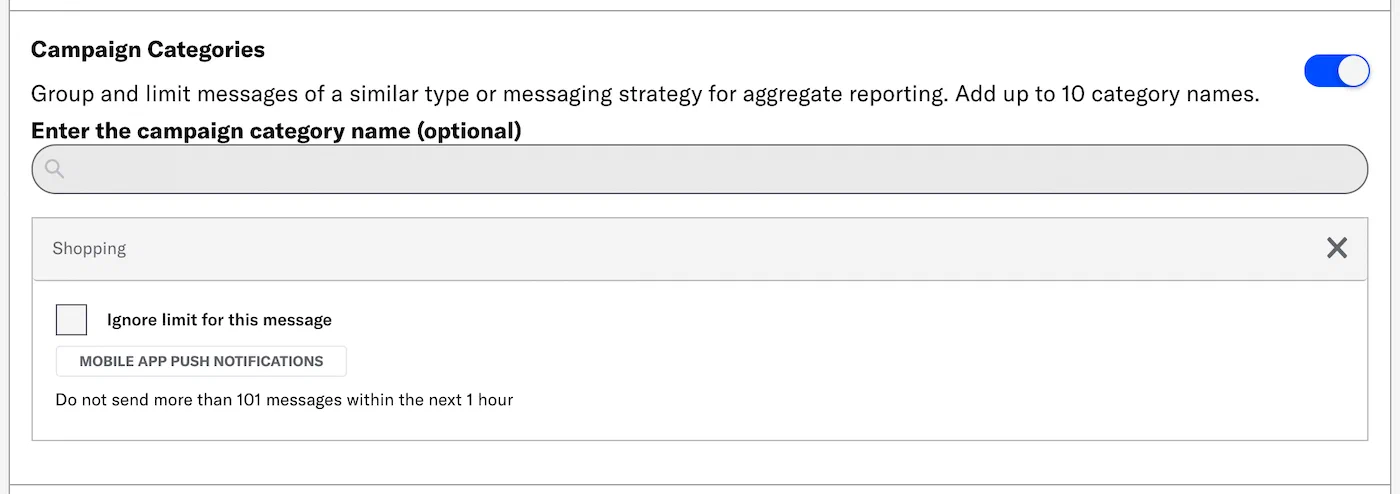 *Adding a campaign category that has a message limit* > **Tip:** Campaign categories are listed in the > [Message Detail](https://www.airship.com/docs/guides/reports/message/#message-detail) > section of Message Reports. ### Custom keys *Custom keys* are additional key-value pairs in your push notification payload for use by custom code in your app or website. You can use custom keys to pass additional campaign identifiers for analytics, pass user information to the device, control the look and feel of the app, provide image links, etc. By default, a custom key is sent to push notifications on all platforms, but you can choose platform-specific keys as well if your message is going out to more than one platform, e.g., one imageURL for iOS and another imageURL for Android. Select a platform, then enter the key and value. Click **Add Another** for additional keys. > **Note:** For Message Center messages or templates created using the Interactive editor, a separate Custom Keys section is under **Message Center Options**. Configure those custom keys to set key-value pairs that apply specifically to your Message Center message. See [Custom Keys](#message-center-custom-keys) for Message Center. ### Expiration The *delivery expiration* option discards your message if it hasn't been delivered to a device within a specific period of time. Select and configure an option: * **Duration:** Enter the number of minutes, hours, or days past your defined send time to expire the delivery. * **Date & Time:** Enter the date and time when delivery attempts should cease. Expiration behavior per message type:| Message type | Expiration behavior |
|---|---|
| Push notifications and Web push notifications | If a device is online, the notification will be delivered immediately. If a device is offline, the push service for each platform preserves the notification and attempts to deliver it as soon as it comes online, up until the expiration date. The default expiration for push notifications without an expiration date is 30 days for APNs and 28 days for FCM. For Web, if no expiration is set and a device is offline, the delivery service, e.g., Google or Mozilla, preserves the notification and attempts to deliver it as soon as it comes online, for a maximum of 28 days. There is no way to remove a delivered push notification. |
| In-app messages | Since in-app messages are delivered via a push payload, they will not be delivered past the expiration date if the user has been offline. In addition, Airship will not display an in-app message past the expiration date. |
| Message Center | If you created the message using the Visual editor, its expiration is coupled with push notifications and in-app messages. |
If you combine Message Center with other App message types and pause or stop delivery within 48 hours of send time, delivery status change has no effect on Message Center delivery. Message Center messages will remain in the inbox until expiration, if set. You can also manually remove messages from the Message Center inbox.
> * If your use case requires a rate lower than 100 messages per second, [contact Support](https://support.airship.com) to request a different default rate for your project. 1. Go to **Messages**, then **Messages Overview**. 1. Change the message status: * Click * Pause* or * Resume*. * Click * Stop* to cancel delivery. You cannot resume a canceled message. 1. Change the throttle rate: 1. Click for the message. 1. Click next to *Throttle Delivery*. 1. Enter a new rate and click **Update**. ## Message Center These options are specific to Message Center messages and templates created with the Interactive editor. ### Custom keys {#message-center-custom-keys} You can set [Custom Keys](https://www.airship.com/docs/reference/glossary/#custom_keys) that apply specifically to a Message Center message. Under **Message Center Options**, add a key and value. Select **Add Another** for additional keys. > **Tip:** If your Message Center is set up with [Named User](https://www.airship.com/docs/reference/glossary/#named_user) filtering, include a custom key with `named_user_id` as the key and the user's actual ID as the value. > > See information about filtering by Named User in the Message Center documentation for [SDK integrations](https://www.airship.com/docs/developer/sdk-integration/). > **Tip:** For messages created with the *Interactive editor*, you can use custom keys to preview lines, which appear below the message title in the inbox. > > You must perform some development work before your app can display preview lines in the inbox. > > Use `com.urbanairship.listing.field1` and `com.urbanairship.listing.field2` as keys representing preview lines 1 and 2. In the **Value** field for each key, enter the text that you want to show on each line of the preview. > > 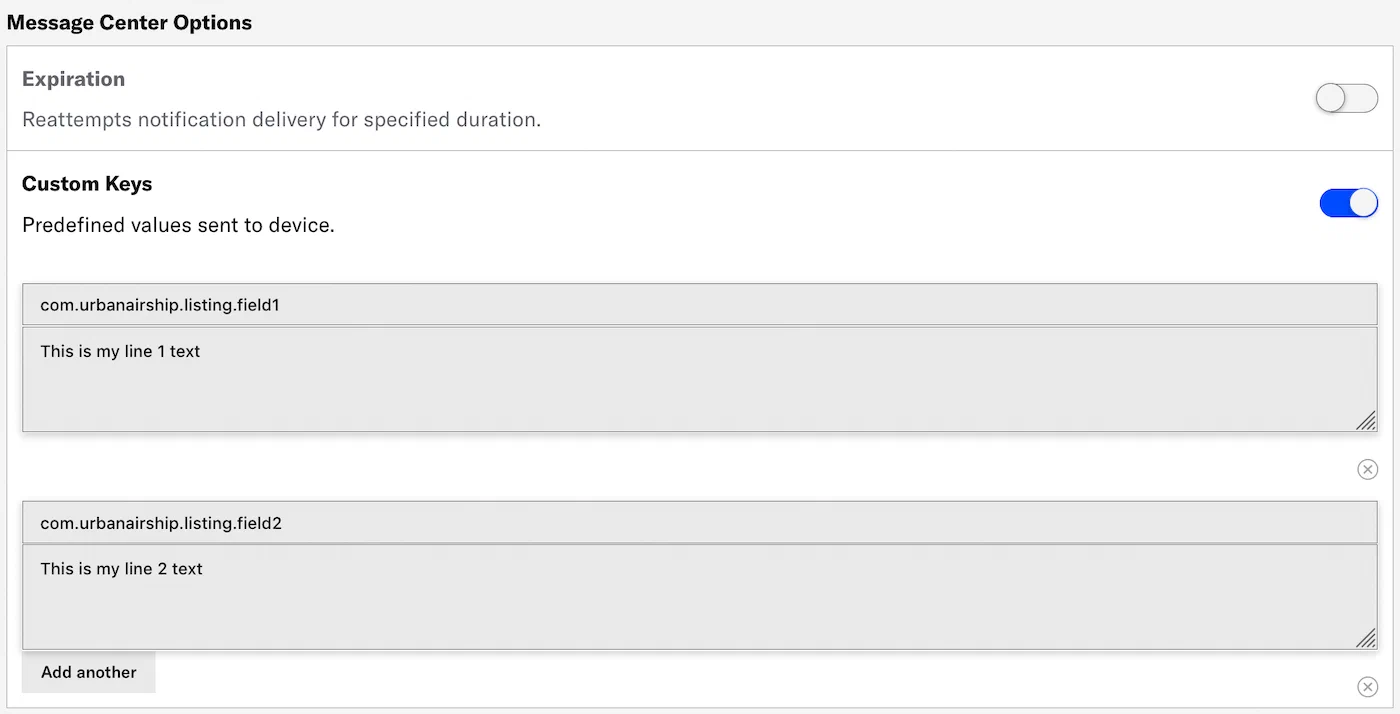 > > You can personalize preview lines using [Handlebars](https://www.airship.com/docs/reference/glossary/#handlebars) to reference [Attributes](https://www.airship.com/docs/reference/glossary/#attributes) or [Custom Event](https://www.airship.com/docs/reference/glossary/#custom_event) properties. ### Expiration {#message-center-expiration} The Expiration setting for Message Center removes the message from users' inboxes. This may be helpful if the message represents a coupon, sale, or specific event and needs to expire on a specific date and time, or after a period of time has elapsed (duration). Under **Message Center Options**, select one of: * **Duration:** Enter the number of minutes, hours, or days past your defined send time to remove the message. * **Date & Time:** Select the date, time, and time zone when the message should be removed. 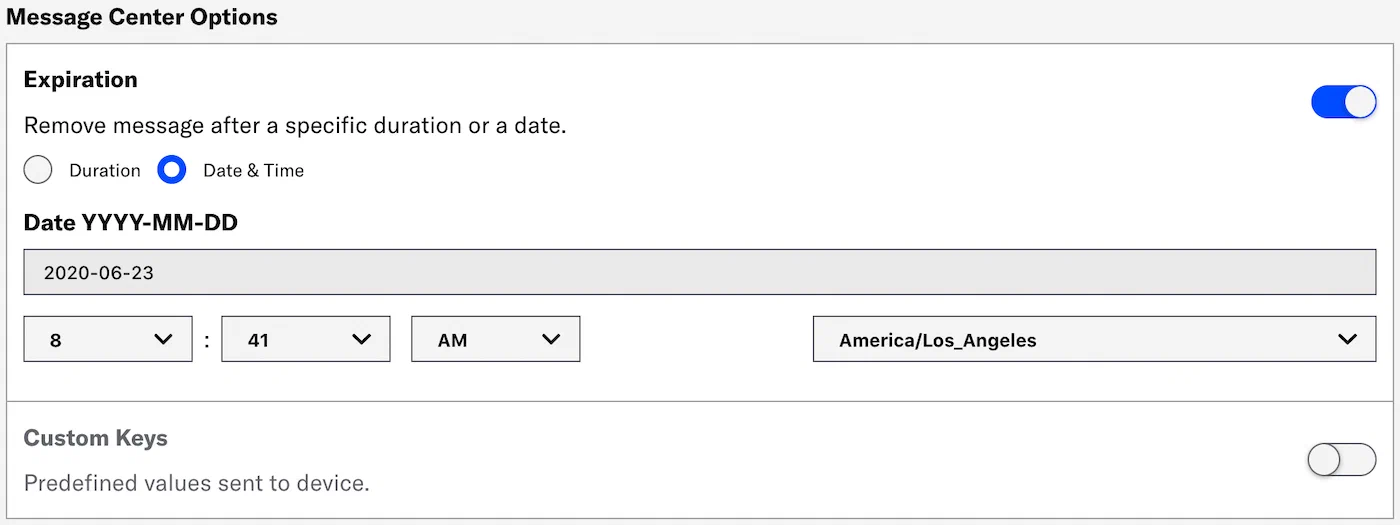 > **Note:** If you created your Message Center message using the Visual editor, instead of setting an expiration, go to the Options tab and set when to remove it from the Message Center. See [Creating content: Visual editor](https://www.airship.com/docs/guides/messaging/messages/content/app/message-center/#visual-editor) in *Message Center content*. ## SMS These options are specific to SMS messages. ### Expiration (SMS) {#sms-expiration} The *delivery expiration* option discards your message if it hasn't been delivered to a device within a specific period of time. 72 hours is the default. Enter the number of hours, between 1 and 72. ## iOS These options are specific to iOS messages. ### Background processing The *background processing* option wakes the app and give it some running time to perform work, such as downloading content for future display. Data included in the push notification is available for background processing, e.g., to send URLs and then download that content. **iOS only.** ### Badge Update the recipient device's app *badge*. A *badge* is the numeric display on an app icon that typically indicates the number of unread messages. The badge count can be used as an engagement strategy, notifying users about new content and driving them to open your app. By default messages automatically increment the badge number, but you can specify an exact number, e.g., +3, +12, -3. Select *Increment by 1* or *Specify*. *Specify* requires a value in the text field. > **Note:** Badge functionality requires the device to be opted in to push notifications. ### Group A *delivery group* uses an identifier to group related notifications from your app into a single stack. Notifications bearing the same group identifier are stacked together. **iOS 12 and later only.** Enter an identifier in the text field. > **Note:** Remember to use the same identifier for subsequent messages you wish to group. ### Interruption level Determine the degree of interruption a user experiences from a push notification. Each level has a different impact on the user's experience, depending on their Focus settings. The default level is *Active*. Select *Passive*, *Time Sensitive*, or *Critical*. For *Critical*, also specify the alert volume level, at 10% increments. | Interruption level | Overrides scheduled delivery | Breaks through Focus | Supports sounds/vibration | Overrides ring/silent switch | iOS minimum | |---|---|---|---|---|---| | Active (default) | No | No | Yes | No | n/a | | Passive | No | No | No | No | 15 | | Time Sensitive | Yes | Yes | Yes | No | 15 | | Critical | Yes | Yes | Yes | Yes | 12 | > **Important:** * Critical alerts require: > 1. A special entitlement issued by Apple. > 1. Feature enablement by Airship. Contact your account manager or Support if you have the Apple entitlement and want to use critical alerts with Airship. > * Critical alerts must be allowed by a user on their device. ### Mutable content The *mutable content* option allows a notification’s content to be changed or downloaded before delivery. This feature is automatically enabled if media is defined in the message's *Optional Features » Media* settings. **iOS 10 and later only.** ### Relevance score The relevance score is one of multiple factors used by Apple to determine which push notifications are featured more prominently within the *Notification summary*. Use this setting to override the default value of 0. iOS 15 and later only. Set a value between 1 and 10. ### Sound Play a custom *sound* when your audience receives a message. The sound file that you specify must be bundled with your app by your app developer. Enter "default" to use your audience's default system notification sound or the name of the sound file that you want to play, for example "beep.caf". See [Configure Notification Options](https://www.airship.com/docs/developer/sdk-integration/apple/push-notifications/getting-started/#configure-notification-options) for more information. ## Android and Fire OS These options are specific to Android and Fire OS messages. ### Collapse key A *collapse key* is an optional delivery feature that acts as a grouping and replacement mechanism for messages with the same value. The Collapse Key comes into play when a device is offline (e.g. airplane mode) or in doze mode; if multiple messages are available with the same collapse key value when a device comes back online, it will display only the most recent message and discard previous that have the same value. Enter the key in the text field. ### Delivery priority The *delivery priority* option sends your notification using Firebase Cloud Messaging (FCM) high priority. When not enabled, messages default to normal priority. **Android only**. > **Note:** From [Set the priority of a message](https://firebase.google.com/docs/cloud-messaging/customize-messages/setting-message-priority) in Google's FCM documentation: > > **High priority.** FCM attempts to deliver high priority messages immediately even if the device is in Doze mode. High priority messages are for time-sensitive, user visible content. ### Notification category Send your message with a specific *notification category* instead of the default. A *notification category* is a grouping mechanism for messages in **Android versions 8.0 and later**, synonymous with [Android notification channels](/docs/developer/sdk-integration/mobile/push/advanced/android/#notification-channels). Users can set behaviors for each notification category within your Android app, determining the types of messages they are most interested in. Select a notification category. > **Note:** You must add your app's notification categories to your Airship project before you can select them for your messages. See: [Manage Android Notification Categories](https://www.airship.com/docs/guides/messaging/project/config/android-notification-categories/). ## Email These options are specific to email messages. ### URL parameters Override project-level email [URL Parameters](https://www.airship.com/docs/reference/glossary/#url_parameters) or add custom parameters for the current message only. Existing project-level parameters are listed onscreen for reference. 1. Under **URL parameters for this message**, enter a parameter name and value. * To override an existing parameter, enter its name and enter a new value. * To remove an existing parameter, enter its name and leave the value empty. * To add a parameter, enter a parameter name and value. 1. Select ** Add parameter** to add more. ## Web These options are specific to web push notifications. ### Require interaction > **Important:** Support for the Require Interaction option varies by browser and OS. Enable **Require interaction** to require your audience to interact with your web notification to dismiss it from the browser window. Users may interact with a web notification in these ways: * Click the notification, which opens the message-defined URL, or the [default Action URL](https://www.airship.com/docs/developer/sdk-integration/web/getting-started/#airship-setup). * Dismiss the notification. * Click the Settings icon or button on the notification. ## API equivalents for delivery options Set Campaign Categories using the Campaigns object. See [Campaigns Object](https://www.airship.com/docs/developer/rest-api/ua/schemas/push/#campaignsobject) in the API reference. Start and End dates are for Automation only. You can set them using the `activation_time` and `deactivation_time` properties in the Pipeline object. See [Pipeline Object](https://www.airship.com/docs/developer/rest-api/ua/schemas/pipeline-objects/#pipelineobject) in the API reference. These options can be set using [Platform Overrides](https://www.airship.com/docs/developer/rest-api/ua/schemas/platform-overrides/): | Composer option | API | | --- | --- | | Background processing1,2 | `content_available` | | Badge2 | `badge` | | Collapse key (Fire OS) | `consolidation_key` | | Collapse key (Android) | `collapse_key` | | Custom keys | `extra` | | Delivery priority3 | `delivery_priority` | | Expiration | `expiry` | | Group2 | `thread_id` | | Interruption level2 | `interruption_level` | | Mutable content1,2 | `mutable_content` | | Notification category3 | `notification_channel` | | Relevance score2 | `relevance_score` | | Require interaction4 | `require_interaction` | | Sound2 | `sound` | | URL parameters5 | `url_parameters` | 1. Automation only