# Web content

Reach your web channel on desktop and mobile browsers.

See also the [Push notifications](https://www.airship.com/docs/guides/features/messaging/push-notifications/) feature guide.

## Creating content

<p>When creating messages, you configure its appearance in the Content step. In the Delivery step, you can configure content-related features that do not affect the appearance of the message.</p>

In the *Content* step, click **Web Notification**:

   ![Web content](https://www.airship.com/docs/images/content-web_hu_607f8f9f3a9dfec9.webp)

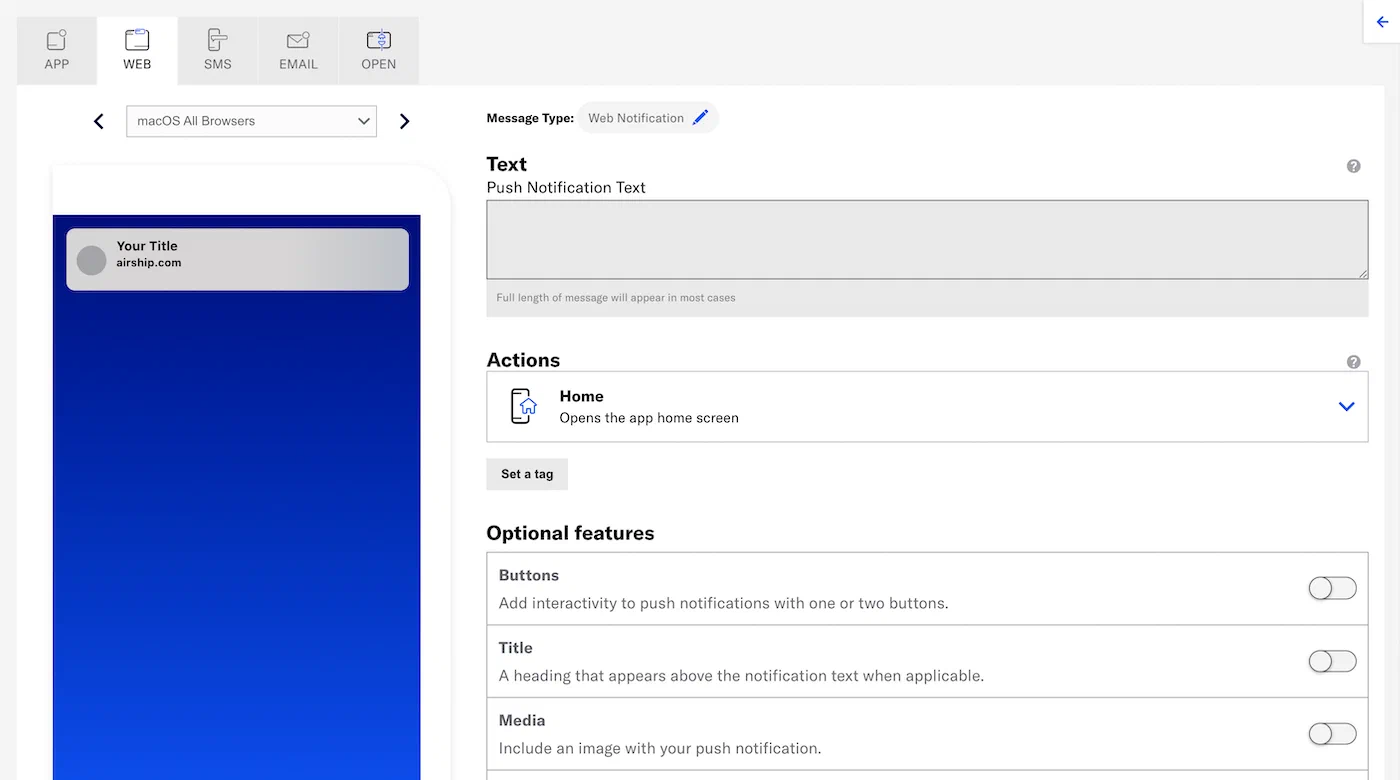
Now you can configure the body of the message:
   ![Web content](https://www.airship.com/docs/images/composer-content-web_hu_6727bcaa97e417fb.webp)

1. <p>Enter the message text. If you are using [Handlebars](https://www.airship.com/docs/reference/glossary/#handlebars), you can test how the content will appear. See <a href="https://www.airship.com/docs/guides/personalization/previewing/">Previewing personalized content</a>.</p>

1. Select an [Action](https://www.airship.com/docs/reference/glossary/#action):
   * Home
   * Web Page
   * Adaptive Link
   
1. (Optional) Set and/or remove tags when the user interacts with your message.

   <ol>
   <li>Click <strong>Configure options</strong>.</li>
   <li>Select <em>Add tag</em> or <em>Remove tag</em>, then search for tags that exist in the system, or create a new tag.</li>
   <li>(Optional) Click <strong>Configure another option</strong> and repeat the previous step.</li>
   </ol>
   > **Tip:** Setting one or more tags when a user interacts with a message can help you track user interactions for follow-on retargeting campaigns. For example, if you set a tag `responded-campaign1`, you can target users bearing the `responded-campaign1` tag with another message at a later date, knowing that they are active users. Alternatively, you can re-engage users with this tag using an automated message if they are inactive for a period of time.

1. Configure optional features:

   * [Buttons](https://www.airship.com/docs/guides/messaging/messages/buttons/#add-buttons-to-message-content)
   * [Icon](#icon)
   * [Media](#media)
   * [Title](#title)

Now you are ready to complete the remaining steps in the composer.

### Icon

Enter a URL to add an icon to your web push notification, overriding the default icon specified in your Web Notifications configuration. **Safari is not supported.** See also [Media guidelines](https://www.airship.com/docs/reference/messages/media-guidelines/).

<p>If your Airship plan includes CDN support, you can also upload media or select from previously uploaded media. See <a href="https://www.airship.com/docs/guides/messaging/features/media/#insert-media-in-message-content">Insert media in message content</a> in <em>Media library</em>.</p>

### Media

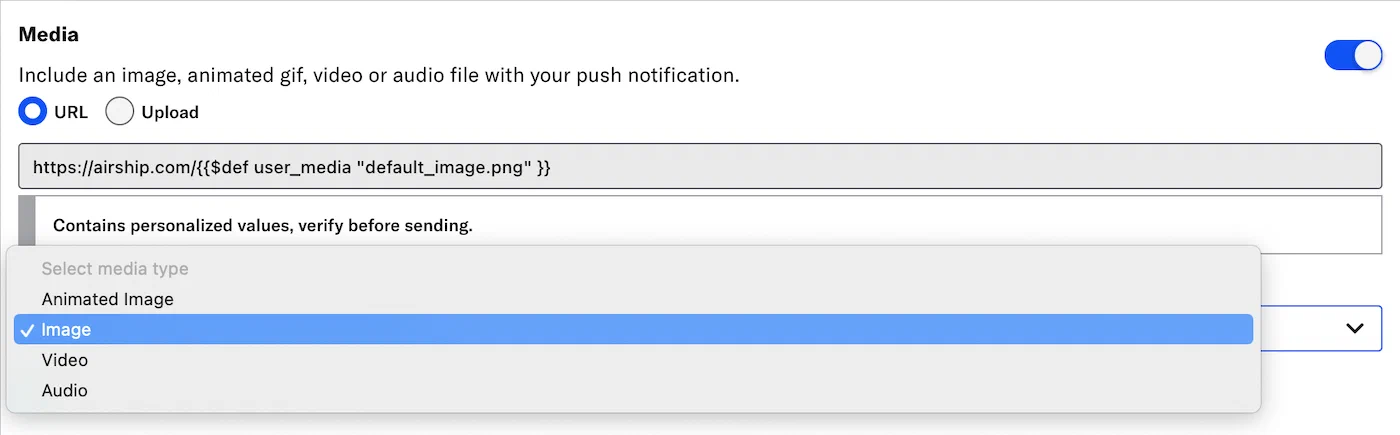
<p>Enter a URL to add media to your notifications. See also <a href="https://www.airship.com/docs/reference/messages/media-guidelines/">Media guidelines</a>.</p>
<p>If using a <a href="https://www.airship.com/docs/guides/personalization/content/personalize-actions/#personalize-media-urls">personalized media URL</a> for an App push notification, you must specify the media type after entering the URL:</p>
![Specifying the media type for a personalized media URL](https://www.airship.com/docs/images/app-media_hu_13eb6dceaa95791a.webp)

*Specifying the media type for a personalized media URL*

<p>If your Airship plan includes CDN support, you can also upload media or select from previously uploaded media. See <a href="https://www.airship.com/docs/guides/messaging/features/media/#insert-media-in-message-content">Insert media in message content</a> in <em>Media library</em>.</p>

### Title

Enter a title to create a heading that appears above the notification text. The title set here will override the [default title](https://www.airship.com/docs/developer/sdk-integration/web/getting-started/#airship-setup) configured for your web notifications.