When creating messages, you configure its appearance in the Content step. In the Delivery step, you can configure content-related features that do not affect the appearance of the message.
In the *Content* step, click **Custom Message**: 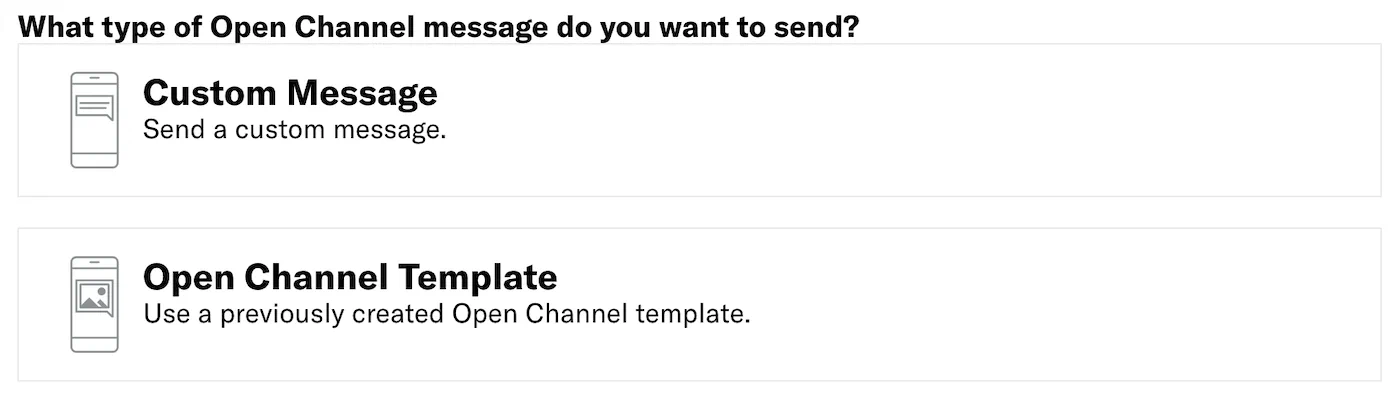 Now you can configure the body of the message: 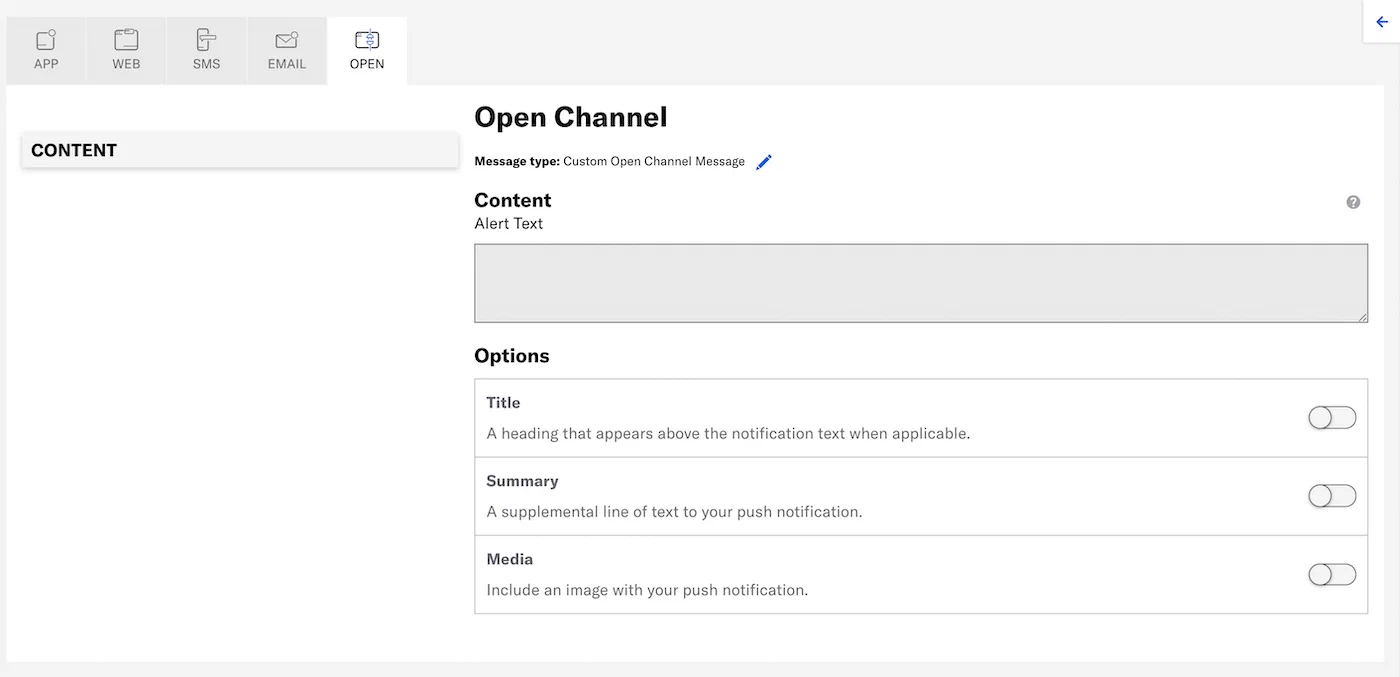 1.Enter the message text. If you are using [Handlebars](https://www.airship.com/docs/reference/glossary/#handlebars), you can test how the content will appear. See Previewing personalized content.
1. Configure optional features: * [Media](#media) * [Summary](#summary) * [Title](#title) Now you are ready to complete the remaining steps in the composer. ### MediaEnter a URL to add media to your notifications. See also Media guidelines.
If using a personalized media URL for an App push notification, you must specify the media type after entering the URL:
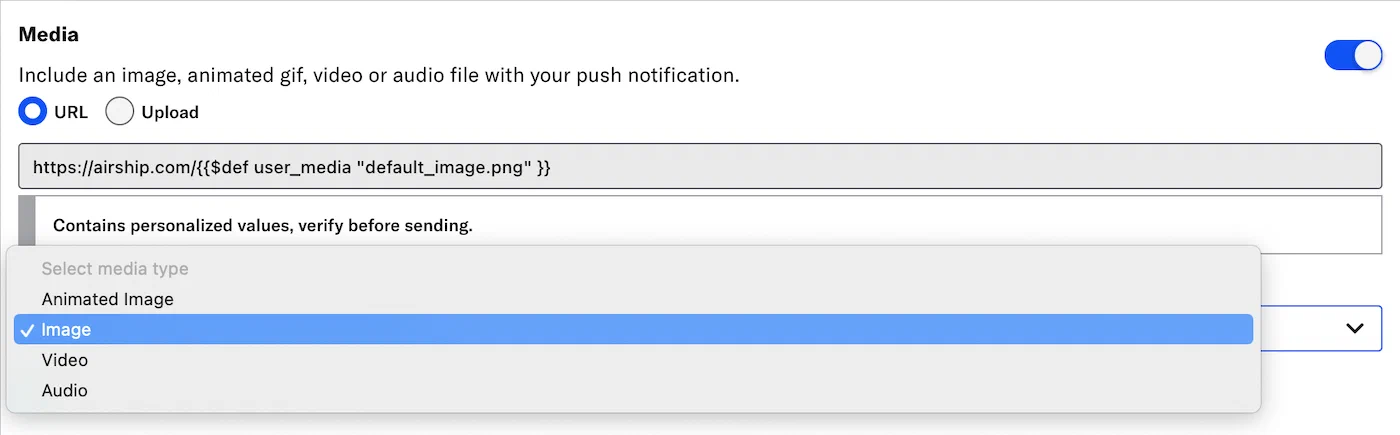 *Specifying the media type for a personalized media URL*If your Airship plan includes CDN support, you can also upload media or select from previously uploaded media. See Insert media in message content in Media library.
### Summary Add a summary line as supplemental text displayed with the notification. ### Title Enter a title to create a heading that appears above the notification text.