# Message Center content

Create messages for your Message Center inbox.

See also the [Message Center](https://www.airship.com/docs/guides/features/messaging/message-center/) feature guide.

## Choosing an editor

<p>The first step in adding content to a landing page or Message Center message is choosing an editor.</p>
<p>Use the <strong>Interactive editor</strong> to do any of the following:
<ul>
   <li>Paste or upload your own HTML.</li>
   <li>Design using the <a href="https://www.airship.com/docs/guides/messaging/features/wysiwyg-editor/about/">WYSIWYG option</a>. You can start from a blank layout or select an Airship default layout or a <a href="https://www.airship.com/docs/guides/messaging/features/wysiwyg-editor/saving-layouts/">layout you saved</a>. The WYSIWYG editor supports <a href="https://www.airship.com/docs/guides/messaging/features/wysiwyg-editor/merge-fields/">[Merge Fields](https://www.airship.com/docs/reference/glossary/#merge_field)</a>, so you can personalize your message for your audience.</li>
   </ul></p>
<p>After selecting <em>Interactive Editor</em>, you also have the option to select a [Template](https://www.airship.com/docs/reference/glossary/#template).</p>
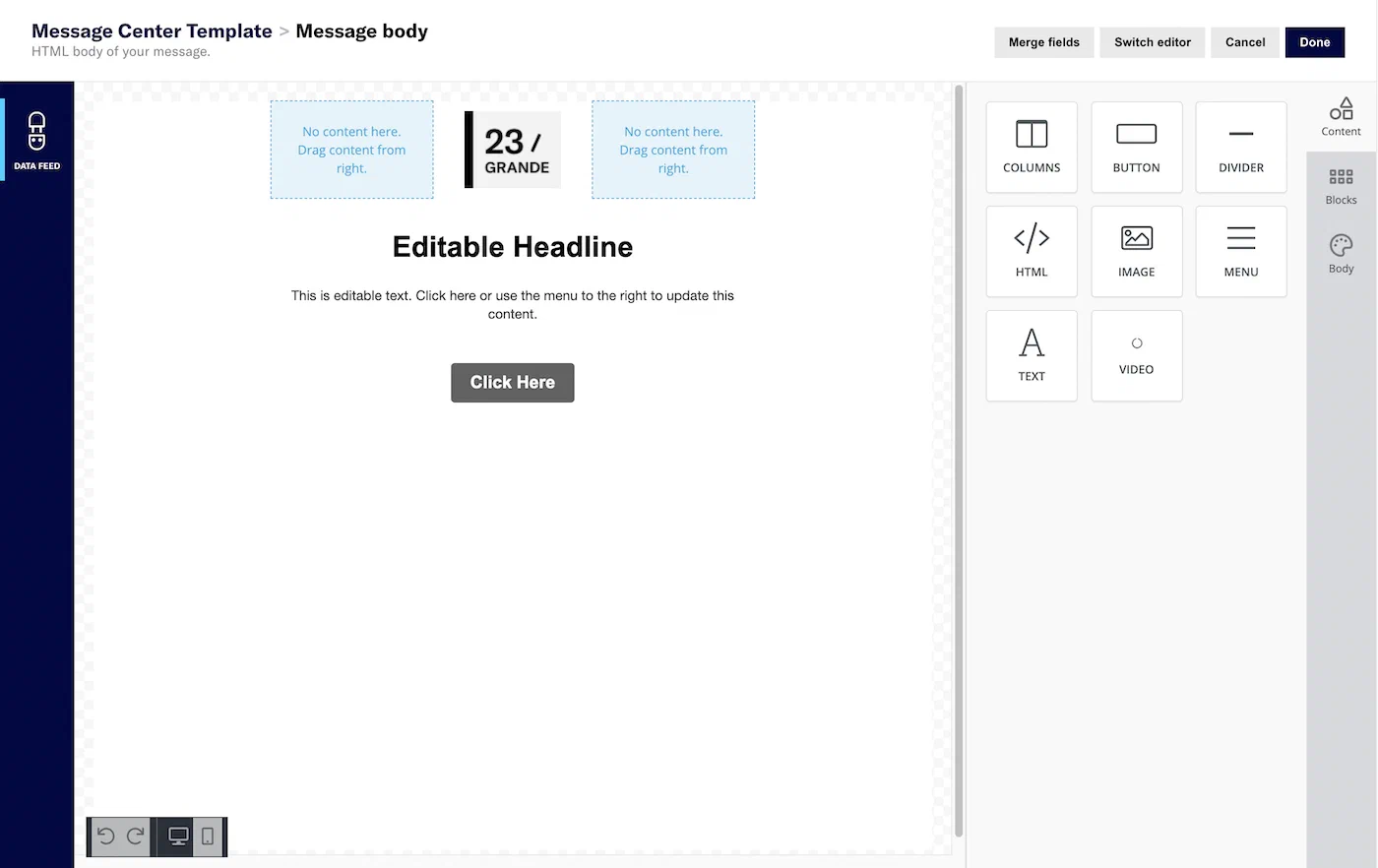
![Designing content the using the WYSIWYG option in the Interactive editor](https://www.airship.com/docs/images/editor-interactive_hu_f3164c9db0a14a24.webp)

*Designing content the using the WYSIWYG option in the Interactive editor*
<hr>
<p>Use the <strong>Visual editor</strong> to do any of the following:</p>
<ul>
<li>Upload your own HTML.</li>
<li>Select a <strong>legacy</strong> custom or <a href="#standard-templates">default template</a>. This editor has fewer default templates than the Interactive editor and with simple layouts.</li>
<li>Design using our legacy editor, which has fewer design features than the Interactive editor.</li>
</ul>
![Designing content template using the Visual editor](https://www.airship.com/docs/images/editor-visual_hu_ef631d9eaeeb772e.webp)

*Designing content template using the Visual editor*
> **Important:** **Video**<br>
> * You can enter a URL for video content in the Interactive and Visual editors, but the Interactive editor accepts YouTube URLs only.
> 
> **HTML**<br>
> * Uploaded HTML is single-use. It is not saved in your project for reuse on other messages.
> * You cannot edit uploaded HTML. We recommend sending a test message before you send to your live audience.
> * See: [Custom HTML Templates for Rich Pages](https://www.airship.com/docs/reference/messages/custom-templates/).

## Creating content: Interactive editor {#interactive-editor}

<p>When creating messages, you configure its appearance in the Content step. In the Delivery step, you can configure content-related features that do not affect the appearance of the message.</p>

In the *Content* step, click **Message Center** then **Add content**:
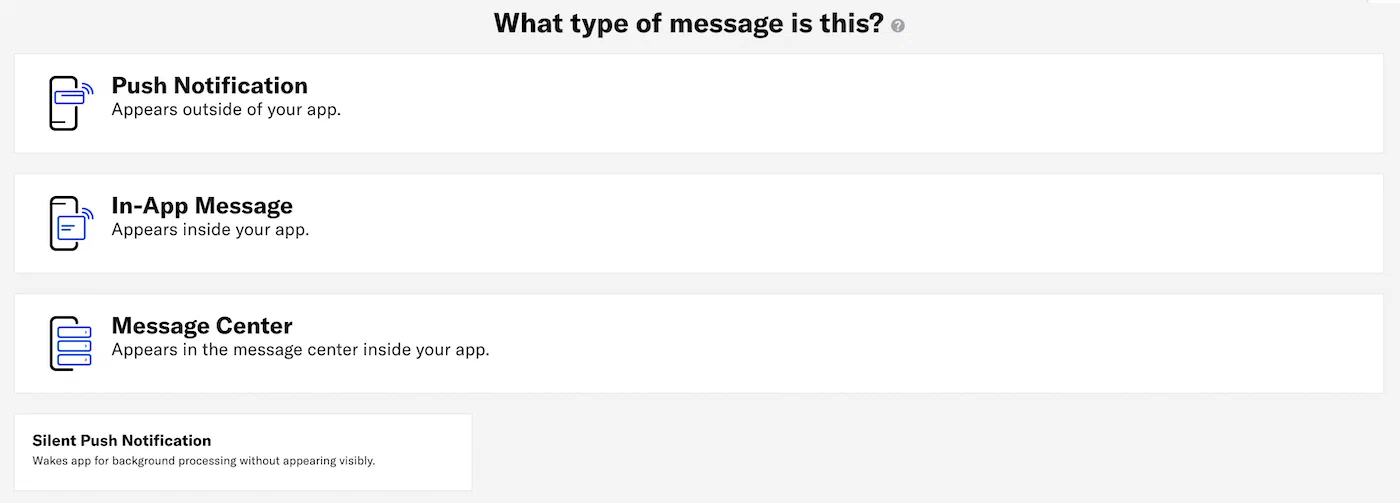
   ![Message Center content](https://www.airship.com/docs/images/content-push_hu_8ed94982804cda87.webp)

Then click **Interactive editor » Add content » Edit**. Now you can configure the message content:
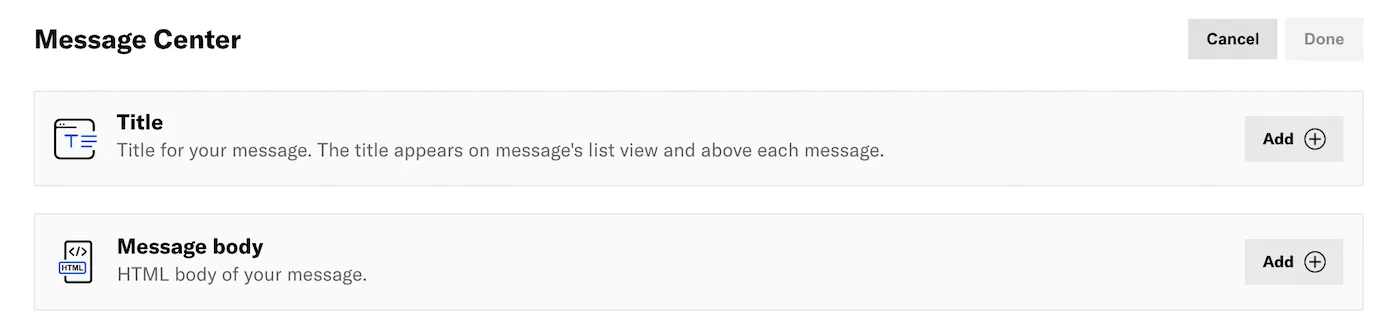
   ![Message Center content](https://www.airship.com/docs/images/content-mc_hu_2e6ddad08129dd58.webp)

If your message includes [Handlebars](https://www.airship.com/docs/reference/glossary/#handlebars), you can preview how the content will appear. See [Previewing personalized content](https://www.airship.com/docs/guides/personalization/previewing/).

1. Add a *Title*.
   1. Click **Add 
**.
   1. Enter a title.
   1. Click **Done**.

1. Add the *Message body*.
   1. Click **Add 
**.
      <ul>
      <li>For <strong>HTML</strong>, select the paste or upload option and add your HTML.</li>
      <li>For the <strong>WYSIWYG editor</strong>, first select a default or <a href="https://www.airship.com/docs/guides/messaging/features/wysiwyg-editor/saving-layouts/">saved layout</a>, or select <em>Blank Layout</em> to design your own. You can edit any layout after selecting. Then design your message. See: <a href="https://www.airship.com/docs/guides/messaging/features/wysiwyg-editor/about/">WYSIWYG editor</a>.</li>
      </ul>
   1. Click **Done**.

1. Click **Done** to exit the editor.

Now you are ready to complete the remaining steps in the composer.

### Add thumbnail image

Message Center supports a message *preview*, which is how the message appears as listed in the inbox. In the *Visual editor* you enter a thumbnail image for the preview on the Message Center tab. See: [Creating content: Visual editor](https://www.airship.com/docs/guides/messaging/messages/content/app/message-center/#visual-editor).

For Message Center messages created with the *Interactive editor*, add the image while in the WYSIWYG editor:

<ol>
<li>
<p>Select <strong>Settings</strong> in the left sidebar.</p>
</li>
<li>
<p>Enter the HTTPS URL of an image. See <a href="https://www.airship.com/docs/reference/messages/media-guidelines/">Media guidelines</a>.</p>
<p>If your Airship plan includes CDN support, you can also upload media or select from previously uploaded media. See <a href="https://www.airship.com/docs/guides/messaging/features/media/#insert-media-in-message-content">Insert media in message content</a> in <em>Media library</em>.</p>
</li>
</ol>

## Creating content: Visual editor {#visual-editor}

<p>When creating messages, you configure its appearance in the Content step. In the Delivery step, you can configure content-related features that do not affect the appearance of the message.</p>

In the *Content* step, click **Message Center** then **Add content**:

   ![Message Center content](https://www.airship.com/docs/images/content-push_hu_8ed94982804cda87.webp)

Then click **Visual editor » Create**. Now you can configure the message content:

1. Select a template or the upload option. 
   * For **HTML**, click **Select** for *Upload* under *Standard Templates*.
   * For **templates**, click **Preview** for a template and select devices at the top of the screen to see how it will appear, then click **Select** for the template you want to use.
      * *Standard Templates* are *Text*, *Image*, and *Video*. See: [Standard templates](#standard-templates).
      * Templates added for you by Airship are listed under *Custom Templates*.
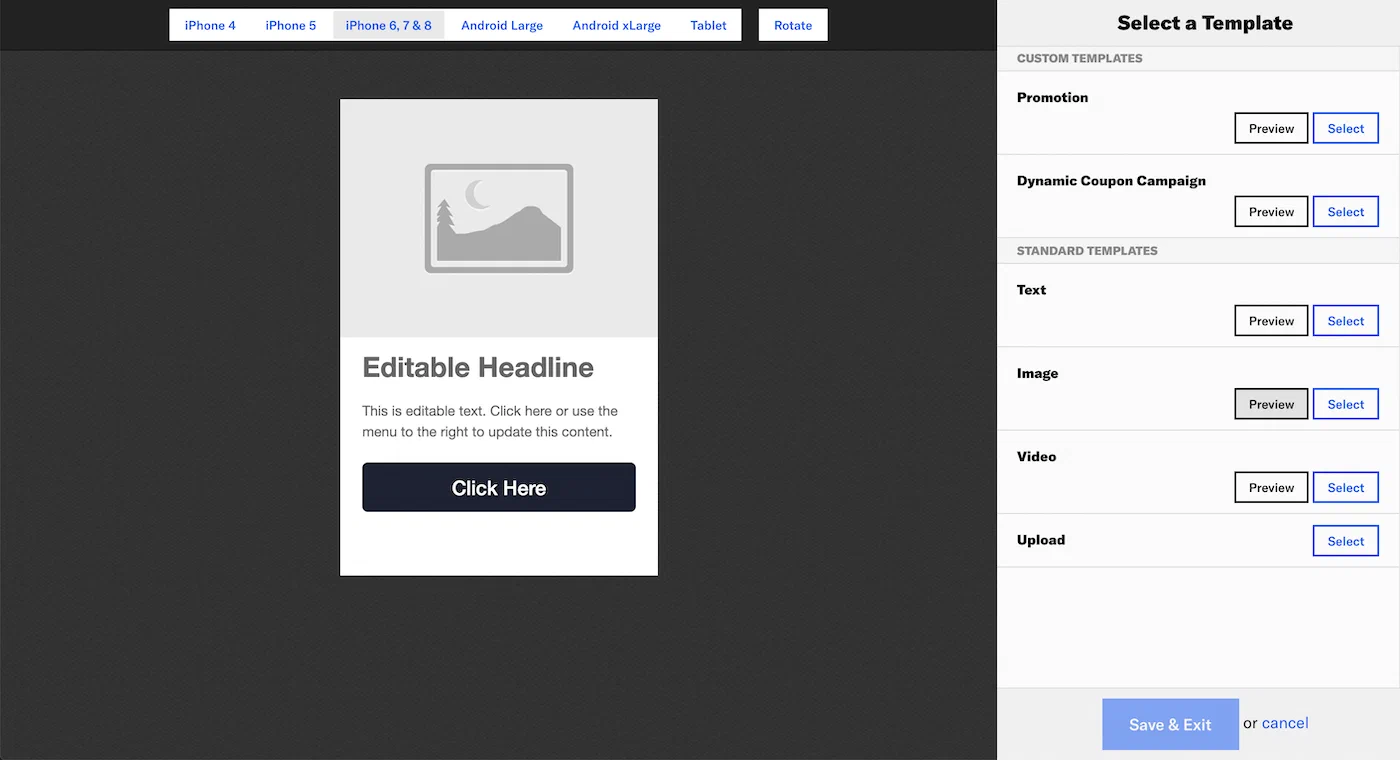
   ![Message Center content](https://www.airship.com/docs/images/rich-page-select-template_hu_4eb29b5f275ed869.webp)

1. Configure the *Message Center* tab to determine the message preview that appears in the Message Center inbox.
   * **Message Center Title** — Required. Enter text.
   * **Thumbnail** — Upload an image. See: [Media guidelines](https://www.airship.com/docs/reference/messages/media-guidelines/).
   * **Lines 1 and 2** — These lines appear below the title. Enter text.

1. Configure the *Content* tab to create the message body.
   * For **HTML**, upload your HTML file.
   * For **templates**, configure the fields for each page element. See: [Field configuration](#field-configuration). You can click to select fields in the preview or select directly from the side menu. Use the *ON/OFF* toggle in the upper right corner to enable/disable an element.
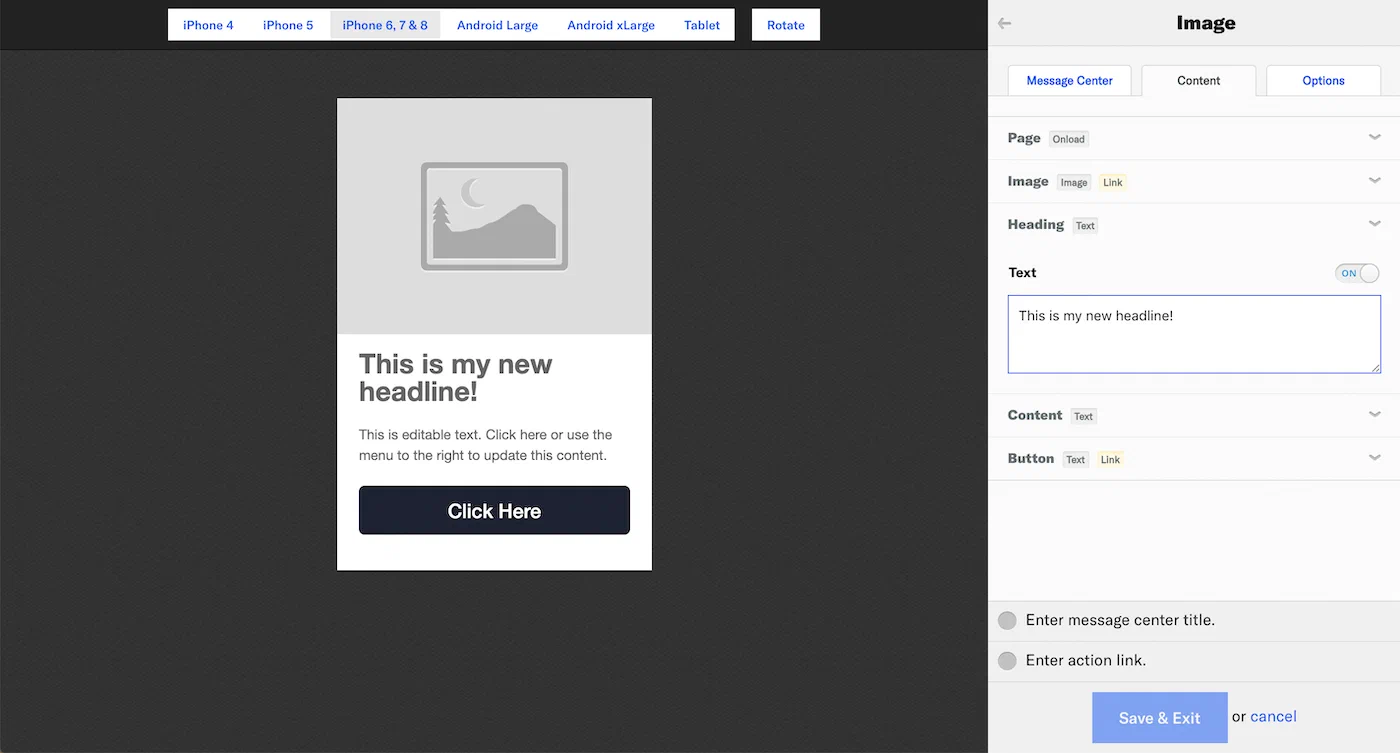
      ![Message Center content](https://www.airship.com/docs/images/rich-page-message-center-fields_hu_8b77f7200ef2f490.webp)

1. Configure the *Options* tab.
   * **Remove from Message Center** — By default, messages are set to *Never* expire. To set expiration, select *Specify* and enter the number of minutes, hours, or days after send time when the page will expire. Expired messages are removed from users' inboxes.
   * [Custom Keys](https://www.airship.com/docs/reference/glossary/#custom_keys) — Enter the key and value. Click  for additional keys.
   > **Tip:** If your Message Center is set up with [Named User](https://www.airship.com/docs/reference/glossary/#named_user) filtering, include a custom key with `named_user_id` as the key and the user's actual ID as the value.
> 
>    See information about filtering by Named User in the Message Center documentation for [SDK integrations](https://www.airship.com/docs/developer/sdk-integration/).


1. Click **Save & Exit**.
   * You cannot save until your page meets minimum configuration requirements. Requirements are listed above **Save & Exit**.
   * If your template includes a button or image, you must configure or disable its *Action Link* before you can save.
   
Now you are ready to complete the remaining steps in the composer.

### Standard templates and fields {#standard-templates}

<p>Airship provides three default (labeled &ldquo;Standard&rdquo;) templates: <em>Text</em>, <em>Image</em>, and <em>Video</em>.</p>
<ul>
<li>Each template contains various default elements.</li>
<li>Each element requires configuring one or more field. See: <a href="#field-configuration">Field configuration</a>.</li>
</ul>
<table>
  <thead>
      <tr>
          <th>Element</th>
          <th>Fields</th>
          <th>Text template</th>
          <th>Image template</th>
          <th>Video template</th>
      </tr>
  </thead>
  <tbody>
      <tr>
          <td>Page</td>
          <td>Onload</td>
          <td>✓</td>
          <td>✓</td>
          <td>✓</td>
      </tr>
      <tr>
          <td>Headline</td>
          <td>Text</td>
          <td>✓</td>
          <td>✓<sup>1</sup></td>
          <td>✓</td>
      </tr>
      <tr>
          <td>Content</td>
          <td>Text</td>
          <td>✓</td>
          <td>✓</td>
          <td>✓</td>
      </tr>
      <tr>
          <td>Button</td>
          <td>Text, Link</td>
          <td>✓</td>
          <td>✓</td>
          <td></td>
      </tr>
      <tr>
          <td>Image</td>
          <td>Image, Link</td>
          <td></td>
          <td>✓</td>
          <td></td>
      </tr>
      <tr>
          <td>Video</td>
          <td>Video</td>
          <td></td>
          <td></td>
          <td>✓</td>
      </tr>
  </tbody>
</table>
<p><sup>1. Labeled &ldquo;Heading&rdquo; in the Image template.</sup></p>

### Field configuration {#field-configuration}

<p>Elements in a template are controlled by various fields. Both custom and standard templates use the same field types, requirements, and configuration:</p>
<ul>
<li>
<p><strong>Text</strong> — Displayed in a headline, message body, button label, etc. Enter text.</p>
</li>
<li>
<p><strong>Image</strong> — Displayed in the body of the message. Upload an image. See: <a href="https://www.airship.com/docs/reference/messages/media-guidelines/">Media guidelines</a>.</p>
</li>
<li>
<p><strong>Video</strong> — Displayed in the body of the message. Enter the URL for the video source. See: <a href="https://www.airship.com/docs/reference/messages/media-guidelines/">Media guidelines</a>.</p>
</li>
<li>
<p><strong>Onload</strong> — Add or remove tags when the content loads.</p>
<ol>
<li>Click <strong>Add Tags</strong> or <strong>Remove Tags</strong>.</li>
<li>Click <strong>Select Tag</strong>.</li>
<li>Enter the tag in the search field.
<ul>
<li>Matches are listed below the <strong>Create Tag</strong> button. Click to select.</li>
<li>If the tag is not found, click <strong>Create Tag</strong> to add it.</li>
<li>Remove a selected tag by clicking 
 at the end of its row.</li>
</ul>
</li>
<li>(Optional) Repeat for additional tag actions.</li>
</ol>
</li>
<li>
<p><strong>Link</strong> — The action that occurs when a user taps a button or image in the message. Select and configure an [Action](https://www.airship.com/docs/reference/glossary/#action): <em>Deep Link</em>, <em>URL</em>, or <em>Share</em>.</p>
<p>You can also add or remove a tag when your audience taps the button or image. Follow the process as described for <em>Onload</em> above.
> **Important:** * Images have *Action Link* enabled by default. This makes the image perform as a button. If you don't want the image to be clickable, disable *Action Link* for the image.
>    * While you can disable the *Action Link* for buttons, doing so does not remove the button itself. Because you must configure or disable the *Action Link* to save a template, you can disable it if you want to edit the message later.
</p>
</li>
</ul>

### Android app reinstallation

<p>Message Center inboxes are associated with channel IDs. On Android, reinstalling an app creates a new channel ID. Messages previously available in an Android user’s inbox will no longer be available after app reinstall.</p>

## Hosting and page size

<p>Content is hosted in a <a href="https://en.wikipedia.org/wiki/Content_delivery_network" target="_blank">CDN<span class="external-link-icon">&thinsp;<i class="ph ph-arrow-square-out"></i></span></a>, ensuring responsive load times for your users globally. Hosted content — including embedded CSS, images and JavaScript — is limited to 1.5 MB, however the ideal page size is much smaller, given the potential for degraded download speeds on cellular networks. We recommend that you optimize your images and HTML to keep total page sizes under 100 KB.</p>
<p>If you have additional assets to load, you can host them in another location and link to them. Airship offers additional asset hosting options as a Professional Service. <a href="https://www.airship.com/contact-us/" target="_blank">Contact Airship Sales<span class="external-link-icon">&thinsp;<i class="ph ph-arrow-square-out"></i></span></a> for more information.</p>

## Welcome Message

You can create a default message that appears in every new user's Message Center inbox when they open your app for the first time:

1. Go to **Messages**, then **Welcome Message**.
1. Enter a message title.
1. Enter HTML for the message body.
1. Select **Save**.

After saving, you have the option to delete the message.


<!-- This is not yet true

### Set tags when users open a Message Center Message {#msg-tag}

You can insert scripts in custom HTML blocks into a message center message to take advantage of [Airship's JavaScript interface](https://www.airship.com/docs/reference/messages/custom-templates/).

<p>In addition to standard button actions, you can add a script to your message center message or template to set tags on your audience when they open your message.</p>
<p>Add a custom HTML block to the top of your message center template or message for scripts. While the block takes up space in the editor, users won&rsquo;t see a custom HTML block that only contains scripts in their message.</p>
<p>Use <code>add_tags_action</code> and <code>remove_tags_action</code> from the example below to add or remove tags from your audience when they open your message.</p>
<p>**Add or remove tags when users open your message:**

```html
<script type="text/javascript">
    function onLoad() {
        UAirship.runAction("add_tags_action", "tag-to-add", function() {})
        UAirship.runAction("remove_tags_action", "tag-to-remove", function() {})
    }
    // Check if the interface is fully loaded
    if(typeof UAirship === 'object' && UAirship.runAction) {
        onLoad()
    } else {
        document.addEventListener('ualibraryready', onLoad, false)
    }
</script>
```
</p>
-->

<!-- leftovers

Talk about the [Message Center Object](https://www.airship.com/docs/developer/rest-api/ua/schemas/push/#messageobject) and what you can do with it. Maybe provide an brief example but mostly get them
over to the API reference.


**Possible Example but needs to be better-formatted**:
```json
{
   "audience": "all",
   "notification": {
      "ios": {
         "badge": "+1"
      }
   },
   "message": {
      "title": "This week's offer",
      "body": "<html><body><h1>blah blah</h1> etc...</html>",
      "content_type": "text/html",
      "expiry": "2015-04-01T12:00:00",
      "extra": {
         "offer_id": "608f1f6c-8860-c617-a803-b187b491568e"
      },
      "icons": {
         "list_icon": "http://cdn.example.com/message.png"
      }
   }
}
```


Worth pointing out that the SDK does all of the heavy lifting for user management,
e.g., read/unread count, deletes, etc.
There is one available operation that deletes a message completely, from all
users' inboxes.

-->

## Remove a message from a Message Center

You can remove messages from the Message Center inbox from the dashboard.

> **Warning:** Removing a message from a Message Center is irreversible.


1. Go to **Messages**, then **Messages Overview**.
1. Click 
 for the message you want to remove.
1. Click **Remove from inbox** and confirm.

After removal, *Removed from inbox* and the removal date, time, and time zone appears in these locations:
   * [Messages Overview](https://www.airship.com/docs/reference/glossary/#messages_overview) — Message Details expanded view 
   * [Message report](https://www.airship.com/docs/guides/reports/message/) — Header