Create variants of message content by duplicating the initial variant or by starting from scratch. Each variant returns analytic data to help you determine the most effective way to engage your audience. Message A/B tests can include a control group, and you can adjust audience allocation across the message variants and control group.
**Maximum variants:** 26
**Resource:** [Message A/B tests](https://www.airship.com/docs/guides/experimentation/a-b-tests/messages/) |
| **Sequence** | Conversion or engagement | **App** (push notification, in-app message, Message Center), **Web**, **Email**, **SMS**, **Open channel** |
Create a variant for any message in a [Sequence](https://www.airship.com/docs/reference/glossary/#sequence). The variant is a duplicate of the original message that you can then edit, changing its content, delivery settings, or [Channel Coordination](https://www.airship.com/docs/reference/glossary/#channel_coordination) settings. Audience allocation is set to 50% for each variant by default, but you can change the percentages. After starting the test, you will wait till the Confidence level meets or exceeds 95% and then select the winning message. The Sequence is then republished with the winning message. Audience members who receive the variant message are randomly selected on entry to the Sequence.
Related events and conversions are recorded for both audiences, providing data you can use to evaluate Sequence performance based on your selected metric.
You can run Sequence A/B tests and [control groups](https://www.airship.com/docs/guides/experimentation/control-groups/) concurrently.
**Maximum variants:** 2
**Resource:** [Sequence A/B tests](https://www.airship.com/docs/guides/experimentation/a-b-tests/sequences/) |
| **Scene** | Various user actions | **App** (Scene) |
Create variations of [Scene](https://www.airship.com/docs/reference/glossary/#scene) content by duplicating an existing Scene or creating screens from scratch. You can make a single change, such as changing a button label in a screen, or provide entirely different content.
Audience members are randomly selected and split equally to receive your control Scene (Variant A) and your variant Scene (Variant B) for the targeted audience.
Related events and conversions are recorded for both audiences, providing data you can use to evaluate Scene performance based on your selected metric.
**Maximum variants:** 2
**Resource:** [Scene A/B tests](https://www.airship.com/docs/guides/experimentation/a-b-tests/scenes/) |
| **Feature Flag** | [Goals](https://www.airship.com/docs/reference/glossary/#goals) | **App** or **Web** content | Compare audience behaviors when a feature is hidden or present, or experiment with distinct feature experiences, such as new home screen designs, by setting different property values for each variant.
Reports provide detailed data for evaluating engagement and the overall success of a feature based on your Goals.
**Maximum variants:** 26
**Resource:** [Feature Flags](https://www.airship.com/docs/guides/experimentation/feature-flags/) |
{class="table-col-1-20 table-col-4-50"}
# Message A/B tests
> Experiment with up to 26 message variations to determine audience engagement.
## About A/B tests for messages
Create variants of message content by duplicating the initial variant or by starting from scratch. Each variant returns analytic data to help you determine the most effective way to engage your audience. Message A/B tests can include a control group, and you can adjust audience allocation across the message variants and control group.
A/B tests for messages support these channels and message types: * App — Push notifications, in-app messages, and Message Center * Web * Email * SMS * Open channel Set up the test in two steps: 1. **Create two or more message variants** — Just like in the [Message composer](https://www.airship.com/docs/guides/messaging/messages/create/), for each variant, select channels, configure content for each channel, and set up delivery. 1. **Allocate an audience** — You can designate all users as eligible for the test or target specific users. Of that group, set the percentage that will participate in the test. Audience members are randomly selected. You can also include a control group, which is the portion of your audience that doesn't receive messages. It's disabled by default, and you can enable it when [setting the test audience](#set-the-test-audience). When enabled, the control group is included in the performance report for comparison. The overall audience percentage is automatically divided evenly between variants and the control group, but you can set your own values. After creating variants and setting the audience, you can start the test and review its results. To have Airship optimize your experiment in real-time and maximize conversions, use an [Intelligent Rollout](https://www.airship.com/docs/guides/experimentation/intelligent-rollouts/) instead.When running a message experiment and a [Holdout Experiment](https://www.airship.com/docs/reference/glossary/#holdout_experiment) simultaneously, Airship prevents holdout group users from being included in the message experiment. This eliminates potentially skewed data in cases where there are overlapping experimentation audiences. It also ensures that the most critical experiments maintain integrity.
To prepare for your tests, see About A/B testing.
## Create a message A/B test First, select the **Create** dropdown menu (▼), then **A/B Test**. Or you can start from your list of all message experiments by going to **Experiments**, then **Message Experiments**, selecting **Add experiment**, and then **A/B Test**. Next, select the test name and change it to something descriptive, then select the check mark to save it. To finish setting up your test, you must add message variants and determine the audience. You can configure them in any order. > **Tip:** You can also create a message experiment from the [Message composer](https://www.airship.com/docs/guides/messaging/messages/create/), with the message as the first variant. In the Review step, select **Create Experiment**, then **A/B Test** or [**Intelligent Rollout**](https://www.airship.com/docs/guides/experimentation/intelligent-rollouts/). ### Add message variants You can add up to 26 variants to an A/B test: 1. Select **Add variant**. After completing a step, select the next step in the header to move on. 1. For **Channels**:First, select a [Channel Coordination](https://www.airship.com/docs/reference/glossary/#channel_coordination) strategy:
Then, enable the channel types to include in your audience. For Mobile Apps, also select from the available platforms. For Priority Channel, also drag the channel types into priority order.
> **Note:** For projects using the [channel-level segmentation system](https://www.airship.com/docs/guides/audience/segmentation/segmentation/#channel-level-segmentation), instead of Channel Coordination, enable the channels you want to send the message to.Use Channel conditions to filter which channels are included in the audience. A channel must meet the conditions to remain in the audience.
For example, if your audience includes users with app, email, and SMS channels, and you set a channel condition requiring membership in an email Subscription List:
To set channel conditions, use the same process as when building a [Segment](https://www.airship.com/docs/reference/glossary/#segment). You can use the following data in your conditions:
device [Tag Group](https://www.airship.com/docs/reference/glossary/#tag_group) — See Primary device tags.Selected Lifecycle, Subscription, and Uploaded Lists must contain Channel IDs or Named Users as the identifier, not a mix of the two.
> **Note:** Setting channel conditions is not supported for projects using the [channel-level segmentation system](https://www.airship.com/docs/guides/audience/segmentation/segmentation/#channel-level-segmentation). Under **Localization**, enable the option if you want to provide different content to app and web users depending on their language and country. 1. For **Content**, configure the message content per enabled channel. See the [Content documentation](https://www.airship.com/docs/guides/messaging/messages/content/) per message type, [Content options](https://www.airship.com/docs/guides/messaging/in-app-experiences/configuration/optional-features/), and [Localization](https://www.airship.com/docs/guides/messaging/messages/localization/). 1. For **Delivery**, configure the message delivery timing and options. See [Message delivery](https://www.airship.com/docs/guides/messaging/messages/delivery/delivery/). 1. In the **Review** step, review the device preview and message summary: * Use the arrows to page through the various previews. The channel and display type dynamically update in the dropdown menu above. You can also select a preview directly from the menu. * If you want to make changes, select the associated step in the header, make your changes, then return to Review. * Select **Send Test** to send a test message to verify its appearance and behavior on each configured channel. The message is sent to your selected recipients immediately, and it appears as a test in [Messages Overview](https://www.airship.com/docs/reference/glossary/#messages_overview). Follow the same steps as in the [Review step for the Message composer](https://www.airship.com/docs/guides/messaging/messages/create/#message-review). When your review is complete, select **Save Variant**. To add another variant from scratch, select **Add variant**. To duplicate an existing variant, select the more menu icon (⋯) at the end of a row and select **Copy to variant**. ### Set the test audience After creating an A/B test, select **Audience** and then set up your test audience: 1. Choose and configure users: | Option | Description | Steps | | --- | --- | --- | | **All Users** | This option makes the test available to a percentage of your total audience. | n/a | | **Target Specific Users** | This option makes the test available to a percentage of users who meet specified conditions. | Select and configure one or more conditions. Use the same process as when building a [Segment](https://www.airship.com/docs/reference/glossary/#segment). | 1. (Optional) Under **Audience allocation**, limit the selected audience to your specified percentage. 1. (Optional) Enable [**Control group**](#about-ab-tests-for-messages). 1. (Optional) To override the default variant distribution, enable **Allow uneven allocations** and then edit the percentage for each variant and the control group. > **Note:** If you later add more variants, also update your variant allocation settings. 1. Select **Save**. ### Start an A/B test Once you've created your message variants and set the audience for your test, select **Start** and confirm. Each variant will send according to its delivery settings. ## View test results After starting an A/B test, discover which variant performed best. Use the test- and message-level reports to determine the quality of each variant and strategies for increasing engagement. See also [Implementing A/B tests, outcomes, and compliance](https://www.airship.com/docs/guides/experimentation/a-b-tests/about/#implementing-ab-tests-outcomes-and-compliance) in *About A/B testing*. To access test results, go to **Experiments**, then **Message Experiments**, select the more menu icon (⋯) for a test in the list, then **View results**. You can also select the name of a test from the list and then go to **Results**. * A **Performance** section for each channel contains statistical data for each variant per channel and the control group, if any. Select a variant name to open its [message report](https://www.airship.com/docs/guides/reports/message/). * **Message Detail** contains the same information and preview options shown in the Review step when creating each variant and in a variant's message report.To export data:
Go to Experiments, then Message Experiments to view and manage your message A/B tests. You can filter the list by experiment type and archive status. Each experiment is listed by name with its status and the date it was last modified. Your last modified experiment is listed first, and you can search by experiment name.
You can perform the following actions from the list: | Option | Description | Steps | | --- | --- | --- | | **View** | Open the test to access its message variants, audience configuration, and results. | Select a test's name. Or select its more menu icon (⋯) and then **View test**. | | **Duplicate** | Make a draft copy of a test with its message variants and audience configuration. | Select a test's more menu icon (⋯) and then **Duplicate**. | | **View results** | Open the test's performance reports. | Select a test's more menu icon (⋯) and then **View results**. See [View test results](#view-test-results). | ### Test and variant statuses In your list of all message experiments, A/B tests display the following statuses: | Status | Description | | --- | --- | | **Draft** | The test has not been started and can still be edited. | | **Started** | One or more variants are in progress or scheduled. You can edit the test name, targeted audience, and messages that have not yet sent. | | **Action Required** | The test has been started, but at least one variant failed to send. Select **Resume Experiment** to retry failed variants. | | **Completed** | All variants have been sent. | {class="table-col-1-20 table-col-2-80"} Within a test, the Variants list displays the following statuses: | Status | Description | | --- | --- | | **Draft** | The variant has not yet been saved. | | **Ready** | The variant meets all requirements for sending and has been saved. | | **Scheduled** | The variant is queued to send according to its delivery settings. | | **Active** | The [recurring variant](https://www.airship.com/docs/guides/messaging/messages/delivery/delivery/#recurring) is sending according to its delivery settings. | | **Sent** | The variant was sent. | | **Failed** | The variant failed to send. See the test status **Action Required**. | {class="table-col-1-20 table-col-2-80"} ### Editing message variants and audience You can edit variants and audience settings for any test with Draft status. After opening a test from the Message Experiments list, select the more menu icon (⋯) for a variant and select an option: | Option | Description | | --- | --- | | **Edit** | Modify the variant's channels, content, or delivery settings. | | **Duplicate** | Create a copy of the variant as a starting point for a new variant. | | **Delete** | Remove the variant from the test. | {class="table-col-1-20 table-col-2-80"} To modify the test audience, select **Audience** and adjust targeting or allocation settings. See [Set the test audience](#set-the-test-audience) for configuration details. For tests with Started status, you can manage variants configured for [recurring](https://www.airship.com/docs/guides/messaging/messages/delivery/delivery/#recurring) delivery from the more menu icon (⋯): | Option | Description | | --- | --- | | **Pause** | Temporarily stop sending the variant. Select **Resume** to continue sending. | | **Stop** | Cancel future sends of the variant. You cannot resume a stopped variant. | {class="table-col-1-20 table-col-2-80"} # Legacy message A/B tests > Experiment with up to 26 message variations to determine audience engagement. > **Important:** This page is for the **legacy** message A/B tests. In our [current Message A/B tests](https://www.airship.com/docs/guides/experimentation/a-b-tests/messages/), the architecture allows multiple messages to be grouped as variants within a single test. You can define the test audience and allocation at the test level, separately from creating message variants. Delivery is also at the variant level. This flexible structure enables testing any part of a message, such as content, send time, delivery channels, and more. ## About A/B tests for messages Create variants of message content by duplicating the initial variant or from scratch. Each variant returns analytic data to help you determine the most effective way to engage your audience. You can retain a control group or send to 100% of your selected audience. Legacy A/B tests for messages support these channels and message types: * App — Push notifications and in-app messages * Web * Email * SMS * Open channelWhen running a message experiment and a [Holdout Experiment](https://www.airship.com/docs/reference/glossary/#holdout_experiment) simultaneously, Airship prevents holdout group users from being included in the message experiment. This eliminates potentially skewed data in cases where there are overlapping experimentation audiences. It also ensures that the most critical experiments maintain integrity.
To prepare for your tests, see About A/B testing.
### Audience groups in the API When you set up A/B Tests using the [`/experiments` API](https://www.airship.com/docs/developer/rest-api/ua/operations/a-b-tests/), your `audience` is split across the variants in your message by `weight` properties. You can also set a `control` group. The `control` group is a decimal (float) between 0 and 1 representing the portion of your audience who will not get a message. The remainder of your audience (after the control group is subtracted) receives messages according to their `weight`. If you don't set `weight` properties, Airship splits your audience evenly across your variants. Airship adds the `weight` properties in your payload and divides the total by an individual weight to determine the proportion of the audience that receives each variant. For example, if you set weights of 10, 10, and 5 for your variants, Airship splits your audience proportionally into subsets of 40%, 40%, and 20%: | Variant | Weight | Audience percentage | | --- | --- | --- | | A | 10 | 40% | | B | 10 | 40% | | C | 5 | 20% | **Example experiment with control and weights** ```json { "name": "Experiment 1", "audience": "all", "control": 0.2, "device_types": "all", "variants": [ { "push": { "notification": { "alert": "You're in a cool group" } }, "weight": 20 }, { "push": { "notification": { "alert": "You're in the coolest group" } }, "weight": 40 } ] } ``` ## Create a message A/B test The following steps walk you through creating a legacy message A/B test in the dashboard. For the API, see [A/B Tests](https://www.airship.com/docs/developer/rest-api/ua/operations/a-b-tests/) in the API reference. To get started, access the legacy A/B Test composer: 1. Select **Create** in the sidebar. 1. Next to **Build from scratch**, select **View all**. 1. Select **A/B Test — Legacy**. Each configuration step is labeled in the center of the header:  *The Audience step in the A/B Test composer* After completing a step, select the next one to move on. Select the settings icon (⚙) to [change the test name](https://www.airship.com/docs/guides/messaging/manage/edit/#message-names) or [flag it as a test](https://www.airship.com/docs/guides/messaging/manage/flag-as-test/). 1. In the Audience step, enter a descriptive name for the test, then enable channels and select which users should receive the test. User groups: | Option | Description | Steps | | --- | --- | --- | | **All Users** | Your entire audience for the selected channels | n/a | | **Target Specific Users** | Audience members in a group you define | Use the same procedure as when building a [Segment](https://www.airship.com/docs/reference/glossary/#segment) | | **Test Users** | Members of a [Test Group](https://www.airship.com/docs/reference/glossary/#preview_test_groups) | Select a Test Group. | 1. Select the **Variants** step, then select the number of variants you want to create and set the percentage of your target audience to test. By default we send your test to 80% of your target audience, keeping a control group of 20%. You can change the number of variants later. 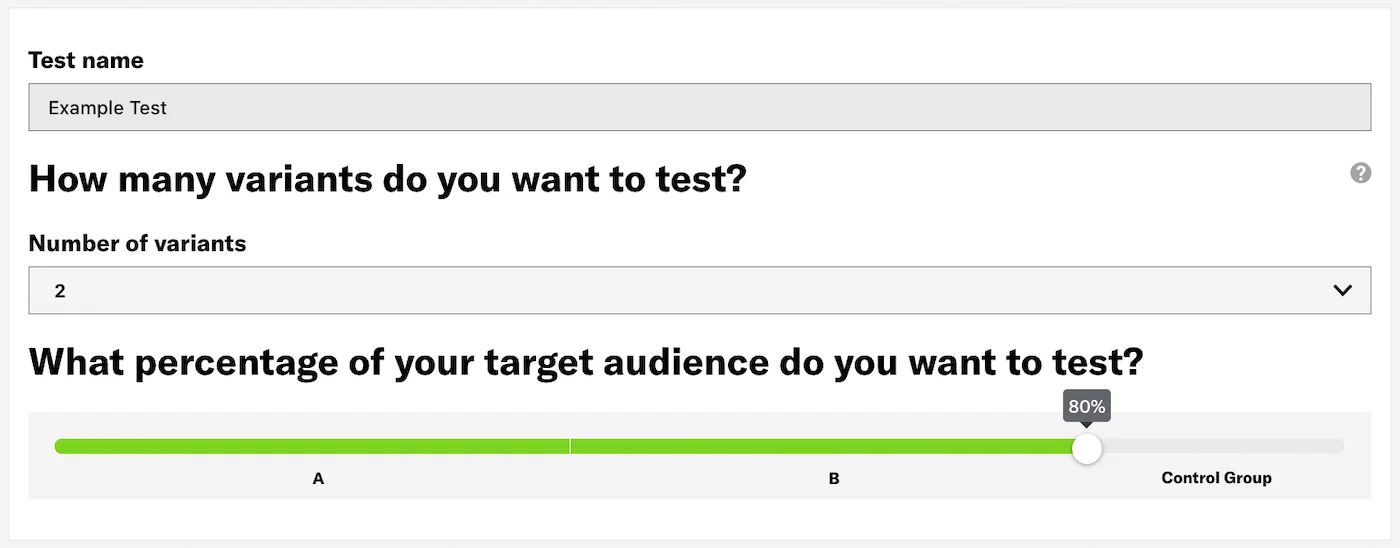 *The Variants step in the A/B Test composer* 1. Select the **Content** step, then enter a name for variant A and configure the message content per enabled channel. See [Content by channel](https://www.airship.com/docs/guides/messaging/messages/content/). For additional variants, select a lettered tab, choose whether to copy content from an existing variant or start with a blank message, and complete message configuration. Select the add icon (+) or remove icon (×) to add or remove variants. You cannot remove the last remaining variant. 1. Select the **Delivery** step, then set up delivery timing: | Option | Description | Steps | | --- | --- | --- | | **Send Now** | Send the message immediately after review. | n/a | | **Schedule**1 | Send the message on a specific date and time in a specific time zone or in each user's time zone. For delivery by time zone, a push notification scheduled for 9 a.m. will arrive for people on the east coast at 9 a.m. Eastern Time, in the midwest an hour later at 9 a.m. Central Time, then on the west coast two hours after that, at 9 a.m. Pacific Time. | Enter a date in YYYY-MM-DD format and select the time, then select a time zone or check the box for **Delivery By Time Zone**. | | **Optimize**2 | Send the message on a specific date and at each user's [Optimal Send Time](https://www.airship.com/docs/reference/glossary/#optimal_send_time). iOS, Android, and Fire OS only.Airship recommends scheduling your message at least three days in advance due to the combination of time zones and optimal times. You can reduce the lead time if your audience is more localized, e.g., only in the United States or in a certain European region.
| Enter a date in YYYY-MM-DD format. | {class="table-col-1-20 table-col-2-40"} 1. Messages are only delivered by time zone to channels that have a time zone set. App and Web channels have their time zone set automatically by the SDK. Email, SMS, and Open channels will only have a time zone if set through the Channel Registration API. To do so, enter a value for the"timezone" key in the request body. See user registration information for Email, SMS, and Open channels. The API equivalent of Delivery By Time Zone is Push to Local Time.Under Test audience, enter at least one [Named User](https://www.airship.com/docs/reference/glossary/#named_user) or [Test Group](https://www.airship.com/docs/reference/glossary/#preview_test_groups) and select from the results. If your message includes email, you can also search for email addresses. If no matches appear for an address, you can select Create channel for <address>, and the channel will be registered for your project and opted in to transactional messaging.
Users in an active [Holdout Experiment](https://www.airship.com/docs/reference/glossary/#holdout_experiment) will not receive a test message. You can view a user’s current holdout group status and history when viewing their channel details in Contact Management.
(If your message contains [Handlebars](https://www.airship.com/docs/reference/glossary/#handlebars)) Under Personalization, select and configure a personalization data source:
| Data source | Description | Steps |
|---|---|---|
| Test message recipient | The message will be personalized using information associated with each test audience member. | n/a |
| Preview Data tool | The message will be personalized using the data currently entered in the Preview Data tool. The same values will apply to all test message recipients. You can also manually edit the JSON. | (Optional) Edit the JSON data. |
Select Send.
Create variations of [Scene](https://www.airship.com/docs/reference/glossary/#scene) content by duplicating an existing Scene or creating screens from scratch. You can make a single change, such as changing a button label in a screen, or provide entirely different content.
Audience members are randomly selected and split equally to receive your control Scene (Variant A) and your variant Scene (Variant B) for the targeted audience.
Related events and conversions are recorded for both audiences, providing data you can use to evaluate Scene performance based on your selected metric.
When running a message experiment and a [Holdout Experiment](https://www.airship.com/docs/reference/glossary/#holdout_experiment) simultaneously, Airship prevents holdout group users from being included in the message experiment. This eliminates potentially skewed data in cases where there are overlapping experimentation audiences. It also ensures that the most critical experiments maintain integrity.
To prepare for your tests, see About A/B testing.
Scene A/B test metrics: | Metric | Description | | --- | --- | | **Scene completion** | The user viewed all screens in the Scene. | | **Push Opt-in** | The user tapped a button, text, image, or screen configured with the [Push Opt-in action](https://www.airship.com/docs/guides/messaging/in-app-experiences/configuration/button-actions/#push-opt-in). | | **Adaptive Link** | The user followed an [Adaptive Link](https://www.airship.com/docs/reference/glossary/#adaptive_link) in the Scene. | | **App Rating** | The user tapped a button, text, image, or screen configured with the [App Rating action](https://www.airship.com/docs/guides/messaging/in-app-experiences/configuration/button-actions/#app-rating). | | **Deep Link** | The user followed a deep link in the Scene. | | **Preference Center** | The user opened the [Preference Center](https://www.airship.com/docs/reference/glossary/#preference_center) in your app. | | **App Settings** | The user opened their device's settings page for your app. | | **Share** | The user tapped a button, text, image, or screen configured with the [Share action](https://www.airship.com/docs/guides/messaging/in-app-experiences/configuration/button-actions/#share). | | **Web Page** | The user tapped a button, text, image, or screen configured with the [Web Page action](https://www.airship.com/docs/guides/messaging/in-app-experiences/configuration/button-actions/#web-page). | | **Submit Responses** | The user tapped a button, text, image, or screen configured with the [Submit Responses action](https://www.airship.com/docs/guides/messaging/in-app-experiences/configuration/button-actions/#submit-responses). | ## Creating a Scene A/B test 1. Go to **Messages**, then **Messages Overview**, and select the edit icon ( ) for a Scene. 1. Go to the **Content** step, select **Experiments** in the left sidebar, and then select **Create experiment**. A Scene must have at least one screen configured before the Experiments option is available. 1. Enter a name and description, and then choose the metric to use for reporting experiment performance. 1. Check the box for **Copy content from existing Scene** if you want to duplicate the current Scene's content and edit. Keep the box unchecked if you want to create a variant content from scratch. 1. Select **Save**. 1. Configure screens for variant B as you would for a new Scene. See the [Native Experience editor](https://www.airship.com/docs/guides/messaging/editors/native/about/). > **Important:** Both variants must include the same action/event associated with the experiment's primary metric. For example, if you want to use Submit Responses as your primary metric, you must configure that action for a button in both variants. > **Tip:** * A test with a single variable is measurable. When you make multiple changes in the variant, you will not know which change had an effect. > * If your primary metric is Push Opt-in, consider testing the order of your screens so that users don't dismiss the Scene before the request. > * If your primary metric is Scene Completion, focus on the number of screens and their content value. For example, a long Scene (more than 5 screens) will often get a lower completion rate than a shorter one. 1. Select **Done**. 1. Go to the **Review** step to review the device preview and Scene summary. 1. Select **Finish** or **Update** to start the test. You cannot start an A/B test for a Scene that has unpublished changes. You cannot edit a Scene's content while an A/B test is active. ## Selecting the winning variant After starting an A/B test, compare the performance of the variants in the Scene's Content step or in its message report to determine which (or if either) message is having the expected impact.You may want to end an A/B test early if you see a significant drop in conversions or engagement. If the drop is not significant or if it is observed early on in the test period, you may want to let the test continue, as the rate may correct itself. Another reason to end a test early is if you notice an error in your content. To end a test early, select a winner. This effectively cancels the test.
See also [Implementing A/B tests, outcomes, and compliance](https://www.airship.com/docs/guides/experimentation/a-b-tests/about/#implementing-ab-tests-outcomes-and-compliance) in *About A/B testing*. After selecting a winning variant, the Scene is republished with the winner, and the A/B test ends. 1. Go to **Messages**, then **Messages Overview**, and select the report icon ( ) for your Scene. 1. Select **Scene Detail** and compare the metrics of variants A and B. * The default view is based on the metric selected when creating the experiment. If other applicable metrics are available, you can choose from the dropdown menu, and the displayed data will update. If not relevant to both variants, N/A appears instead of a value. * Conversions are calculated as the number of users who performed the action defined in the primary metric divided by the number of users who entered the Scene. See [Scene Reports](https://www.airship.com/docs/guides/messaging/in-app-experiences/scenes/create/scene-reports/) for more information about individual statistics. 1. Select **Select as winner** and confirm your choice. # Sequence A/B tests > Use an A/B test to determine which version of a message has the best impact on a Sequence's conversions or engagement. ## About A/B tests for SequencesCreate a variant for any message in a [Sequence](https://www.airship.com/docs/reference/glossary/#sequence). The variant is a duplicate of the original message that you can then edit, changing its content, delivery settings, or [Channel Coordination](https://www.airship.com/docs/reference/glossary/#channel_coordination) settings. Audience allocation is set to 50% for each variant by default, but you can change the percentages. After starting the test, you will wait till the Confidence level meets or exceeds 95% and then select the winning message. The Sequence is then republished with the winning message. Audience members who receive the variant message are randomly selected on entry to the Sequence.
Related events and conversions are recorded for both audiences, providing data you can use to evaluate Sequence performance based on your selected metric.
When running a message experiment and a [Holdout Experiment](https://www.airship.com/docs/reference/glossary/#holdout_experiment) simultaneously, Airship prevents holdout group users from being included in the message experiment. This eliminates potentially skewed data in cases where there are overlapping experimentation audiences. It also ensures that the most critical experiments maintain integrity.
To prepare for your tests, see About A/B testing.
> **Tip:** You can run Sequence A/B tests and [control groups](https://www.airship.com/docs/guides/experimentation/control-groups/) concurrently. ## Creating a Sequence A/B test > **Note:** * You must start the Sequence before you can create an A/B test. > * You cannot start an A/B test for a Sequence that has unpublished changes. 1. Go to **Messages**, then **Messages Overview**, and select the edit icon ( ) or report icon ( ) for a Sequence. 1. Select **Experiments** in the left sidebar, then **Create an A/B test**. 1. Configure settings, then select **Save and continue**: | Setting | Description | | --- | --- | | **Name and description** | This is the text that describe the purpose of the test | | **Primary metric** | This is the metric to use for reporting experiment performance. **Engagement** does not require additional setup. **Sequence conversion** requires a conversion event as the Sequence's [Outcome](https://www.airship.com/docs/guides/messaging/messages/sequences/create/outcomes/). | | **Variant** | This is the message to duplicate for editing. | | **Variant allocation** | This is the percentage of the Sequence audience who will receive the variant. | {class="table-col-1-30"} 1. Select **Create variant**, then edit the Content or Delivery steps, or edit the [Channel Coordination](https://www.airship.com/docs/reference/glossary/#channel_coordination) setting. For Channel Coordination, select the gear icon (⚙), make a new selection, then select **Save & continue**. > **Tip:** * A test with a single variable is measurable. When you make multiple changes in the variant, you will not know which change had an effect. > > * If your test's primary metric is Sequence conversions, consider editing any part of the message. For example, for a push notification, you could edit the title OR timing OR change your Channel Coordination selection. > > * If your test's primary metric is Engagement, focus on what users can experience before they interact with the message. For example, for an email, you would change the subject line only. 1. Select the **Review** step and review the device preview and message summary. Select the arrows to page through the various previews. The channel and display type dynamically update in the dropdown menu above. You can also select a preview directly from the dropdown menu. If you would like to make further changes, return to Review after you finish editing. Select **Send Test** to send a test message to verify its appearance and behavior on each configured channel. The message is sent to your selected recipients immediately, and it appears as a test in [Messages Overview](https://www.airship.com/docs/reference/glossary/#messages_overview). Follow the same steps as in the [Review step for a Sequence message](https://www.airship.com/docs/guides/messaging/messages/sequences/create/add-messages/#review). 1. Select **Save & continue**, and you will then see the original and variant on the A/B test summary screen. 1. Select **Start A/B test** to make the variant available to your audience or select **Exit** to save the test without starting it. To start a saved A/B test: 1. Go to **Messages**, then **Messages Overview**, and then select the edit icon ( ) or the report icon ( ) for a Sequence to go to the [Sequence Manager](https://www.airship.com/docs/reference/glossary/#sequence_manager) or [Performance Report](https://www.airship.com/docs/reference/glossary/#sequence_performance). 1. Select **Experiments** in the left sidebar, then **View detail**. 1. Select **Start A/B test**. While the test is running: * You cannot edit the Sequence settings or messages. * On the Manage and Performance screens, the message with the variant is labeled with a flask icon (flask). * On the Performance screen, statistics are the aggregate of the variant and the original message. ## Selecting the winning variant After starting the A/B test, compare the performance of the original message and variant and determine which (or if either) message is having the expected impact on engagement or conversion.You may want to end an A/B test early if you see a significant drop in conversions or engagement. If the drop is not significant or if it is observed early on in the test period, you may want to let the test continue, as the rate may correct itself. Another reason to end a test early is if you notice an error in your content. To end a test early, select a winner. This effectively cancels the test.
See also [Implementing A/B tests, outcomes, and compliance](https://www.airship.com/docs/guides/experimentation/a-b-tests/about/#implementing-ab-tests-outcomes-and-compliance) in *About A/B testing*. 1. Go to **Messages**, then **Messages Overview**, and then select the edit icon ( ) or the report icon ( ) for a Sequence to go to the [Sequence Manager](https://www.airship.com/docs/reference/glossary/#sequence_manager) or [Performance Report](https://www.airship.com/docs/reference/glossary/#sequence_performance). 1. (From the Manage screen) Select the flask icon (flask) for the message with the variant. 1. (From the Performance report) Select **Experiments** in the left sidebar to view basic report statistics. Then select **View results** to access the test summary. 1. In the test summary, compare the metrics for the original message and the variant: | Data | Description | | --- | --- | | **Sample size** | The number of users selected to receive the variant. The threshold is 10,000 users. | | **Lift** | The percent increase or decrease of your primary metric for users who have received the variant. Presented after seven days or when the sample size of 10,000 users is reached. | | **Confidence** | The probability that the same results would be obtained if the test were repeated. Presented after seven days or when the sample size of 10,000 users is reached. | Additional statistics are displayed for the original message and variant based on the test's primary metric. If your primary metric is Engagement, select a message type to view statistics for that type only. 1. After Confidence is at least 95%, select a winner. The Sequence will be republished with the winner, and the A/B test ends. First select **Select a winner**, then **Select original** or **Select variant**, then confirm your choice. > **Note:** The winning message is saved as configured. You cannot select the content or settings per channel or message type. ## Viewing A/B test history After selecting a winning message, the A/B test is added to the list of past experiments. 1. Go to **Messages**, then **Messages Overview**, and then select the edit icon ( ) or the report icon ( ) for a Sequence to go to the [Sequence Manager](https://www.airship.com/docs/reference/glossary/#sequence_manager) or [Performance Report](https://www.airship.com/docs/reference/glossary/#sequence_performance). 1. Select **Experiments** in the left sidebar. 1. Select **Past Experiments**. Each A/B test is listed by name along with its end date. Select the report icon ( ) for an A/B test to open its summary.