 Apr 16, 2026
Cross-Project Content Duplication
Copy your content from one project to another right from the dashboard. Whether you’re promoting from test to production or sharing across brands and regions, reuse what works without starting over.
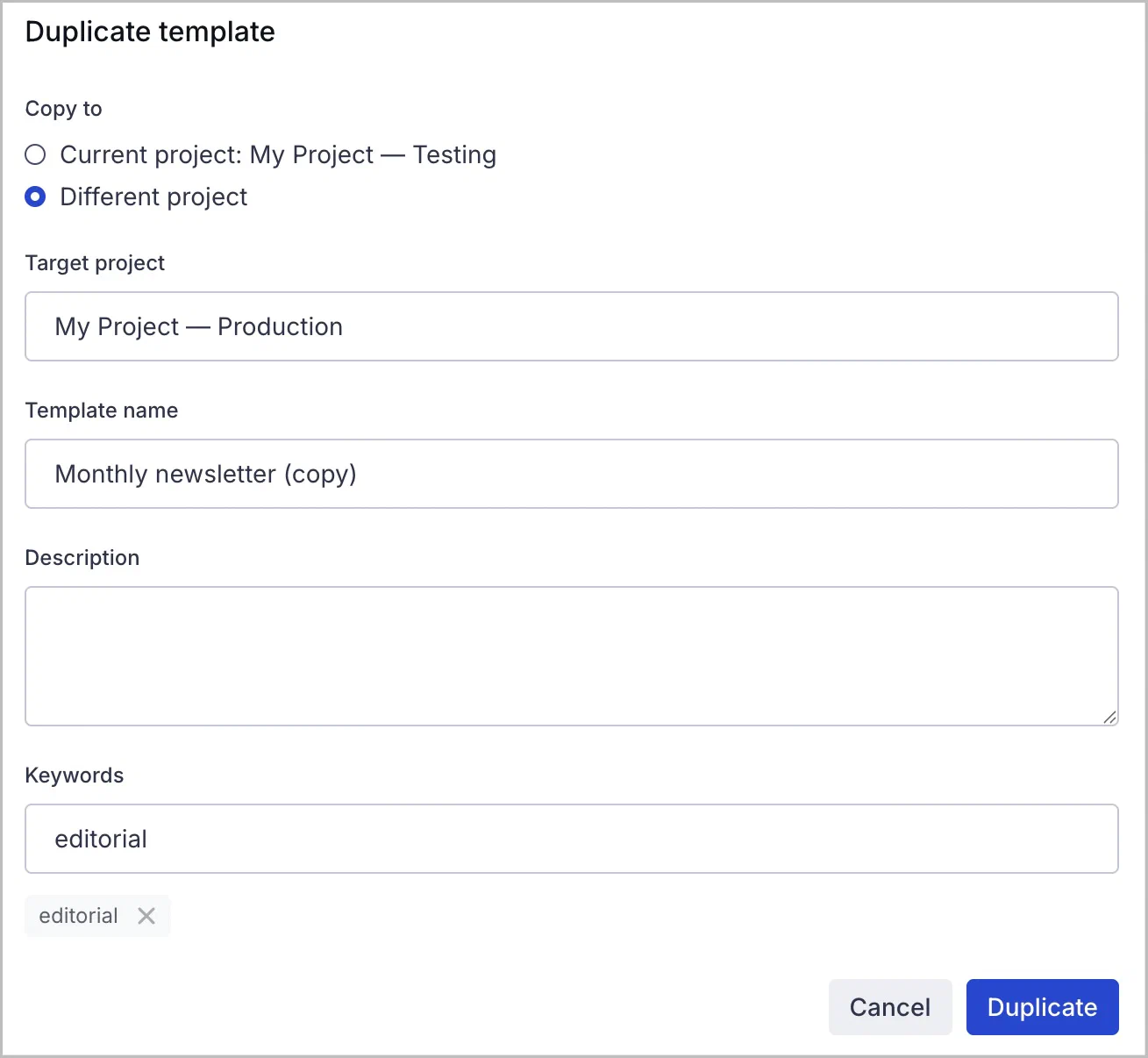
Duplicate content between projects and share brand assets to get your campaigns live faster. No recreating, no copy-pasting, no re-uploading.
It’s quick, and you can try it now! First, go to Content and select a type:
- Templates
- snippetsA reusable piece of content that you can define in Airship for later use in your messages and templates. Snippets support text or HTML content and can be used for commonly used elements such as a copyright, header image, or custom CSS.
- SceneA mobile app or web experience of one or more screens displayed with fully native UI components in real time, providing immediate, contextual responses to user behaviors. Scenes can be presented in full-screen, modal, or embedded format using the default swipe/click mode or as a story. Scene content can also be displayed in a Message Center message and contain survey questions. layouts
- Web pages for email Preference CentersA page where users can manage their opt-in statuses for the subscription lists in your project. Preference Centers are presented within your app or website or as an Airship-hosted web page.
- Media — The media library requires CDN support
Next, select the more menu icon () for an item in the list, and then Duplicate. In the configuration window, select a destination project, and then Duplicate.
The item’s name, description, and keywords carry over as is, and you can edit them before saving. If a template references snippets or External Data FeedsA connection to an external API. When you send a message, Airship uses a response from that API to personalize messages., the dialog lists them and copies any that don’t already exist in the destination project.
Content management improvements
When viewing your content lists, you’ll see updated designs and some new features. Select an item to open a detail drawer where you can view and edit metadata and access actions. Sorting, filtering, and search have also been refreshed.
Documentation
For full details, including steps and content-specific considerations, see the documentation for managing each content type: