 Jan 27, 2026
Scene Accessibility Agent and Navigation Controls
Streamline accessibility improvements and expand your market reach with an intelligent accessibility agent that automatically identifies and fixes issues in your Scenes. Navigation and play controls support keyboards and assistive technology, making the experiences accessible to all users.
Ensuring accessible experiences is critical for compliance with evolving global regulations like the European Accessibility Act and for reaching broader markets. Today’s release helps you launch more accessible campaigns faster.
Accessibility agent
Agentic & Generative AI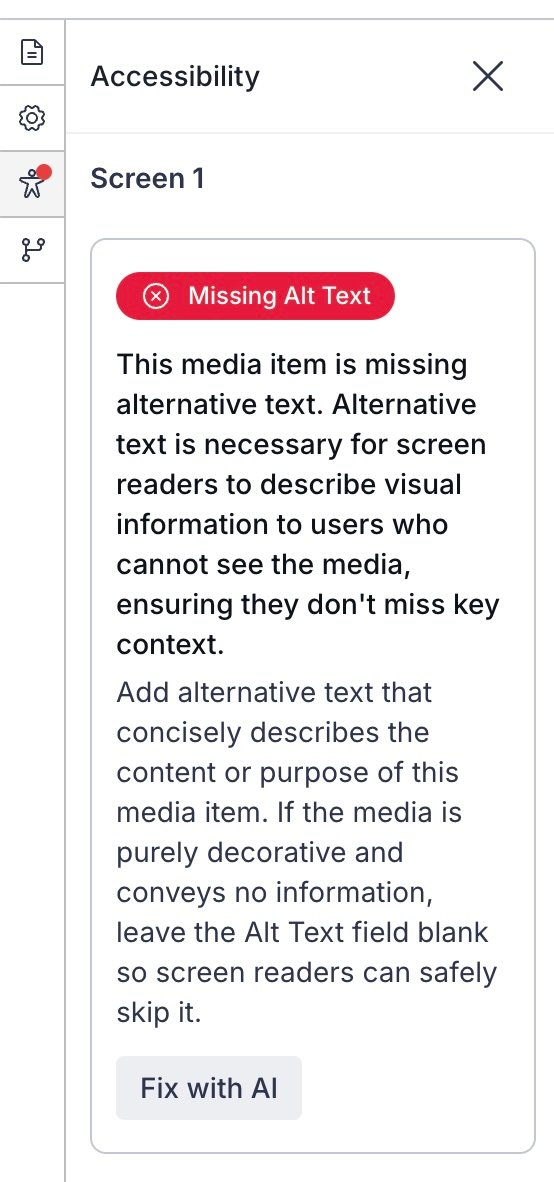
The accessibility agent automatically audits your SceneA mobile app or web experience of one or more screens displayed with fully native UI components in real time, providing immediate, contextual responses to user behaviors. Scenes can be presented in full-screen, modal, or embedded format using the default swipe/click mode or as a Story. They can also contain survey questions. content and identifies potential accessibility issues, such as insufficient color contrast, missing alternative text, and text size that falls below recommend minimums. Addressing these issues helps ensure your content is usable by the greatest number of audience members, including those with disabilities.
While editing screens, when an accessibility issue is found, a red dot appears on the accessibility audit icon () in the left sidebar. Select the icon to view the list of flagged issues. Each issue includes:
- A description of the problem
- The screen and element where it occurs
- Guidance on how to address it
- A button labeled with the recommended correction — AI-powered corrections are labeled “Fix with AI”
Select the button to apply the correction, and then verify each automatically applied fix to ensure it meets your needs and maintains your intended messaging.
You are responsible for reviewing all automatically applied fixes before launching your Scene. Automated fixes may not always align with your specific content requirements or brand guidelines. For comprehensive accessibility guidance and best practices, see Accessibility in messaging.
Navigation and play controls
Optional controls improve navigation and accessibility in Scenes:
- Navigation control — This displays left and right arrows for navigating between screens. This also supports navigation using keyboards and assistive technology.
- Play control — This displays a button to play or pause automatic screen transitions. This also adds support for control using keyboards and assistive technology. Available only when StoryA Scene set to automatically transition to the next screen without swiping or clicking. mode is enabled.
You can configure these options when setting the Scene’s root appearance.
Requirements and documentation
For the audit agent, see Accessibility agent in Configuring Scene content. See also Accessibility in messaging and AI-Powered Customer Experiences: Airship’s Commitment to Responsible Innovation.
Navigation and play controls require minimum SDKs iOS 20.1 and Android 20.1.1. See Set the root appearance in Configuring Scene content.