# Messages
Get technical specifications and requirements for your messages.
# Media guidelines
> Get supported media file types, sizes, recommendations, and more.
* Media URLs must use HTTPS and be accessible by your audience.
* Uploaded (Airship-hosted) media must be 2 MB or smaller. *Maximum file size* on this page refers to URL-linked media only.
* Airship recommends a maximum file size of 1 MB for all media. Additional recommendations and exceptions are noted.
> **Note:** Your audience's ability to receive media may be limited by their download speeds. If media is too large and takes too long to download, your message may render without it. In general, you should use the smallest possible image size to ensure that your audience receives messages quickly, regardless of connection quality.
See also:
* [Media library](https://www.airship.com/docs/guides/messaging/features/media/)
* [Personalize Media URLs](https://www.airship.com/docs/guides/personalization/content/personalize-actions/#personalize-media-urls)
## Push notifications
You can add media to your [Push Notification](https://www.airship.com/docs/reference/glossary/#push_notification) message content and [Templates](https://www.airship.com/docs/reference/glossary/#template).
**File type and size:**
| Platform | Media type | File types | Recommended file size | Maximum file size |
| --- | --- | --- | --- | --- | --- |
| **Android / Fire OS** | Image | JPEG, PNG1 | < 200 K | 2 MB |
| **iOS** | Image | JPEG, PNG, GIF (static or animated) | < 200 K | 10 MB2 |
| **iOS** | Audio | AIFF, WAV, MP3, M4A | < 1 MB | 5 MB2 |
| **iOS** | Video | AVI, MPEG, MPEG2, MP4 | < 5 MB | 50 MB2 |
1. Android and Fire OS support additional file types. Only JPEG and PNG are supported for Airship push notifications. 2. Refers to URL-linked media only. Uploaded (Airship-hosted) media must be 2 MB or smaller.
**Image width and height:**
| Platform | Minimum | Maximum | Recommended dimensions | Recommended aspect ratio |
| --- | --- | --- | --- | --- |
| **Android / Fire OS** | 300 x 300 px | 2048 x 1024 px | 720 x 360 px | 2:11 |
| **iOS** | 300 x 300 px | 1038 x 1038 px | 1038 x 1038 px or 518 x 1036 px | 1:1 or 1:21 |
1. For non-iOS devices, the 2:1 aspect ratio prevents cropping. Images in iOS scale vertically. If you use a 2:1 aspect ratio on iOS, or 1:2 on Android, the image will zoom and crop accordingly. We recommend testing to ensure your messages appear as intended.
> **Important:** Media attachments for iOS notifications are not guaranteed to be delivered by Apple and are dependent on local device conditions. A combination of the media file size, connection speed, and network congestion may result in Apple's push service dropping the media in favor of delivering the text only. Use the smallest media file possible to increase the chances it will be delivered even under suboptimal conditions.
## Web notifications
You can add an image to your [Web Push Notification](https://www.airship.com/docs/reference/glossary/#web_push_notification) content and [Templates](https://www.airship.com/docs/reference/glossary/#template). The image appears in web push notifications in Chrome and Opera browsers on Windows and Android platforms.
| File types | Recommended file size | Maximum file size | Recommended aspect ratio |
| --- | --- | --- | --- | --- |
| **JPEG, PNG** | < 200 k | 2 MB | 2:11 |
1. If you use a 1:2 aspect ratio, the image will zoom and crop accordingly. We recommend testing to ensure your messages appear as intended.
### Web icon
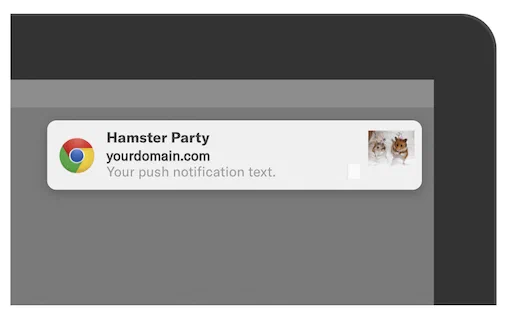
*Web icon*
The web icon is an image that appears in a [Web Push Notification](https://www.airship.com/docs/reference/glossary/#web_push_notification). Typically, it is your brand's logo. You set the default icon when [configuring the Web channel](https://www.airship.com/docs/developer/sdk-integration/web/getting-started/#airship-setup). You can also override the default icon for an individual message. See [Icon](https://www.airship.com/docs/guides/messaging/messages/content/web/#icon) in *Web content*.
If you are including Safari support, the default icon must be square and at least 256 x 256 pixels. Overriding the icon in an individual message is not supported for Safari.
| File types | Recommended file size | Maximum file size | Recommended dimensions | Recommended aspect ratio |
| --- | --- | --- | --- | --- | --- |
| **JPEG, PNG** | < 100 k | 2 MB | 256 x 256 px | 1:1 |
## Email
You can add images to your [Email](https://www.airship.com/docs/guides/messaging/messages/content/email/email/) message content or [Templates](https://www.airship.com/docs/reference/glossary/#template).
| File types | Recommended file size | Maximum file size |
| --- | --- | --- |
| **JPEG, PNG, GIF (static or animated)**1 | < 200 K | 2 MB |
1. Additional formats are supported (e.g., TIFF, BMP), but they do not always display in email clients.
**Recommendations:**
* 72 DPI.
* Keep image size as small as possible. Use compression to decrease the size and balance quality.
* Consider using an image that is twice the size of the space you'd like to fill so that it looks good on all screens. You can adjust the dimensions in the [Interactive editor](https://www.airship.com/docs/guides/messaging/editors/interactive/about/), or with `` tags if using HTML. The width of the image will depend on the space you are trying to fill, but for reference, it is commonly recommended to have your email width at 600 px.
## SMS (MMS)
You can add media to your [MMS](https://www.airship.com/docs/guides/messaging/messages/content/sms/) message content or [Templates](https://www.airship.com/docs/reference/glossary/#template). SMS does not support media.
Twilio [automatically resizes supported image file types](https://help.twilio.com/articles/223133547) based on specific carrier limits. See also [Twilio Programmable SMS Supported File Types and Size Limits for MMS Media Messages](https://help.twilio.com/articles/360018832773-Twilio-Programmable-SMS-Supported-File-Types-and-Size-Limits-for-MMS-Media-Messages).
| Media type | File types | Recommended file size | Maximum file size | Recommended dimensions | Recommended aspect ratio |
| --- | --- | --- | --- | --- | --- |
| **Image** | JPEG | < 600 KB | 1 MB | 640 x 1138 px | 9:16 |
| **Image** | PNG, GIF (static or animated) | < 600 KB | 1 MB | 640 x 480 px or 640 x 640 px | 4:3 or 1:1 |
| **Audio** | MP1, MP2, MP3, M1A, M2A, M4A, M4P, M4B, M4R, MPA, WAV, 3GP, 3G2 | < 600 KB | 1 MB |
| **Virtual Contact File (vCard)** | VCARD, VCF | < 600 KB | 1 MB |
### Virtual Contact File (vCard)
Airship sends vCard files without validation or other processing. We recommend verifying vCard rendering on devices before sending to users.
vCards must start and end with `BEGIN:VCARD` and `END:VCARD` and also include a `VERSION`. The table below is to illustrate the sample vCard. For additional information, including requirements and formatting variations for different versions, see [Properties](https://en.wikipedia.org/wiki/VCard#Properties) in the *vCard* Wikipedia article.
**Sample vCard file content**
```text
BEGIN:VCARD
VERSION:3.0
FN:Sabine Airlines
N:Airlines;Sabine;;;
TITLE:SMS Text Alerts
TEL;TYPE=sms:01234
URL;TYPE=Homepage:https://www.example.com
ADR;TYPE=Address:;;5678 Party Place;Portland;OR;97296;USA
NOTE:Text STOP to 01234 to unsubscribe from alerts.
PHOTO;TYPE=JPEG;VALUE=URI:https://example.com/logo.jpg
END:VCARD
```
Properties and example values for the above sample vCard:
| Property name | Description | Example formatted content for version 3.0 |
| --- | --- | --- |
| **ADR** | Optional. A physical address of the vCard object. | ADR;TYPE=Address:;;5678 Party Place;Portland;OR;97296;USA |
| **BEGIN** | Required. Indicates the start of the vCard. | BEGIN:VCARD |
| **END** | Required. Indicates the end of the vCard. | END:VCARD |
| **FN** | Optional or required, depending on version. Formatted name string. Should be the full name of the vCard contact. | FN:Sabine Airlines |
| **N** | Optional or required, depending on version. The structured name of the vCard contact. | N:Airlines;Sabine;;; |
| **NOTE** | Optional. A string of additional information or notes about the vCard contact. | NOTE:Text STOP to 01234 to unsubscribe from alerts. |
| **PHOTO** | Optional. An image or photograph associated with the vCard contact as either a public URL or an embedded in the vCard as a Base64 encoded block of text. Image types are generally `GIF`, `JPEG`, or `PNG`. Base64 encoding is recommended, as URI-based images may fail to load on some devices. To convert images, you can use the [Image to Base64](https://base64.guru/converter/encode/image) tool on *Base64 Guru*. For formatting requirements per version, see the information for [`PHOTO`](https://en.wikipedia.org/wiki/VCard#Properties) in the *vCard* Wikipedia article. | PHOTO;TYPE=JPEG;VALUE=URI:https://example.com/logo.jpg
or
PHOTO;ENCODING=b;TYPE=JPEG:[BASE64 IMAGE] |
| **TEL** | Optional. A number string representing the vCard contact's telephone number. Type values include `work`, `home`, `cell`, `voice`, `fax`, `pager`, and `sms`. Comma separate multiple values, for example: `TEL;TYPE=home,voice:(503) 555-2204`. | TEL;TYPE=sms:01234 |
| **TITLE** | Optional. The job title or function of the vCard contact. | TITLE:SMS Text Alerts |
| **URL** | Optional. A URL related to the vCard contact. You can add a `TYPE` value that acts as a field label in the vCard. | URL;TYPE=Homepage:https://www.example.com |
| **VERSION** | Required. The version of the vCard format being used. Common versions are 2.1, 3.0, and 4.0. | VERSION:3.0 |
{class="table-col-1-20 table-col-2-40"}
## Message Center and landing pages
The hosted content limit for a [Rich Page](https://www.airship.com/docs/reference/glossary/#rich_page) is 1.5 MB, which includes the HTML and images. So the maximum image file size to use should be calculated in aggregate with other included images and kept as low as possible. See also: [Message Center content: Hosting and page size](https://www.airship.com/docs/guides/messaging/messages/content/app/message-center/#hosting-and-page-size); this information applies to both Message Center and [Landing pages](https://www.airship.com/docs/guides/features/messaging/landing-pages/).
You can enter a URL for video content in the Interactive and Visual editors, but the Interactive editor accepts YouTube URLs only. The same image file types are allowed in both editors.
| Editor | File types | Recommended file size | Maximum file size |
| --- | --- | --- | --- |
| **Interactive** | JPEG, PNG, GIF (static or animated) | < 200 KB | 1 MB |
| **Visual** | JPEG, PNG, GIF (static or animated) | < 200 KB | 512 KB |
### Message Center thumbnail image
The default size for a Message Center thumbnail image is 64x48 points. This translates to 256 x 192 px for xxxhdpi screens on Android and 192 x 144 px for @3x on iPhones. To avoid image scaling on Android devices, we advise using 256 x192 px.
| File types | Recommended file size | Maximum file size | Recommended Dimensions | Recommended aspect ratio |
| --- | --- | --- | --- | --- | --- |
| **JPEG, PNG** | < 100 k | 2 MB | 256 x 192 px | 1:4 |
## In-app automation
You can add media to your [In-App Automation](https://www.airship.com/docs/reference/glossary/#iaa) content and [Templates](https://www.airship.com/docs/reference/glossary/#template).
* *Banner* image — A small thumbnail image that appears on the right or left side of the message.
* *Modal* image — A large image embedded in the message.
* *Fullscreen* image — A large image embedded in the message.
* *Fullscreen* video — Can be displayed instead of an image.
| Media type | File types | Recommended file size | Maximum file size |
| --- | --- | --- | --- |
| **Image** | JPEG, PNG, GIF (static or animated) | < 200 K | 2 MB |
| **Video** | MPEG, MPEG2, MP4, YouTube | < 1 MB | 2 MB |
## Scenes
In [Scene](https://www.airship.com/docs/reference/glossary/#scene) content you can use images and video for background media and the Media content element. If using the List content element, you can use an image for each bullet. We recommend that all bullet images in a list have the same aspect ratio.
| Media type | File types | Recommended file size | Maximum file size |
| --- | --- | --- | --- |
| **Image** | JPEG, PNG, GIF (static or animated) | < 2 MB | 2 MB |
| **Video** | MPEG, MPEG2, MP4, Vimeo1, YouTube | < 2 MB | 2 MB |
1. Vimeo requires minimum SDKs iOS 19.4 and Android 19.7.
The following image dimensions are meant to provide a single recommendation that works reasonably well for both Android and iOS devices.
**Image width and height:**
| View style | Minimum dimensions | Maximum dimensions | Recommended dimensions | Recommended aspect ratio |
| --- | --- | --- | --- | --- |
| **Fullscreen** | 1125 x 2436 px1 | 1440 x 3088 px2 | 1242 x 2688 px3 | 19.5:94 |
| **Modal** using percentage sizing | Fullscreen dimensions x view style percentage | Fullscreen dimensions x view style percentage | Fullscreen dimensions x view style percentage | Equal to the view style aspect ratio |
| **Modal** using a fixed size | Equal to the view style dimensions | View style dimensions x 3 | View style dimensions x 2 | Equal to the view style aspect ratio |
1. These dimensions are equal to the screen size of the iPhone X, XS, and 11 Pro. 2. These dimensions are equal to the highest resolution Android phones while maintaining the aspect ratio, providing a good balance between quality and file size, and should display well on most modern smartphones. 3. These dimensions are equal to the screen size of the iPhone 11 Pro Max, 12 Pro Max, and most high-end Android devices. 4. This aspect ratio is an optimal middle ground as it is used by many modern smartphones, including recent (as of 2025) iPhones and Android devices.
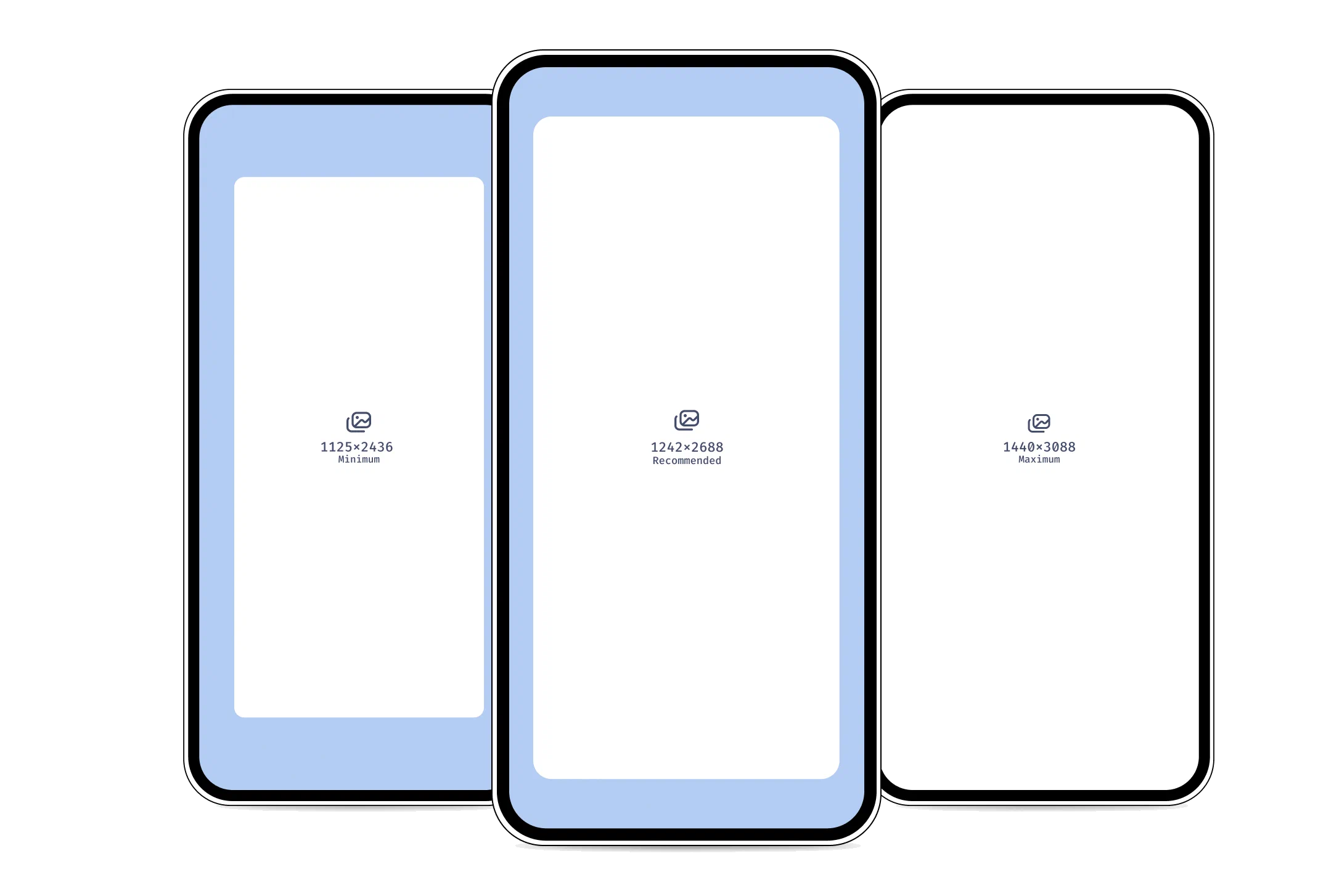
*Recommended dimensions for Scene images*
Media can appear cropped based on device screen size. When configuring the Fit option for background media and the List and Media content elements, you can determine how or if the media will be cropped. See the options for Fit and Position in [Set background color and media](https://www.airship.com/docs/guides/messaging/editors/native/screens/#set-background-color-and-media) and [Design properties](https://www.airship.com/docs/guides/messaging/editors/native/design-properties/).
Additional guidelines:
* Place important elements within the middle 80% of the image, leaving at least 10% margin on all sides. For example, if your image is 1000 x 2000 pixels, keep the focal point, such as text or a subject, inside a center area of 800 x 1600 pixels.
* Leave larger margins from the edges for Text elements.
* Test on various devices or emulators to ensure acceptable display across different screen sizes.
## Responsive design
Images for HTML content should be designed for and tested on multiple devices to ensure your content looks great on a range of screen sizes and orientations.
* Make sure your images are wide enough to look correct on a wide desktop screen.
* Be aware of what part of your content will appear on smaller screens or in landscape mode when the page loads, and what will show only when scrolling.
* If you include text within your images, make sure your font is large enough to be readable when it is resized down to smaller screen sizes.
## Open channel
When including media URLs in open channel payloads, make sure to use media that match the criteria of your OS or interface, or the third-party service you are integrating with.
# Built-In Interactive Notification Types
> Find predefined interactive notification types with their IDs, button labels, and descriptions.
## Predefined App Buttons {#predefined-app-buttons}
Airship provides a set of standard Interactive Notification types.
The Airship library, along with the custom user notification types, will always register the following set:
| Type | Type ID | Examples | Description | Button 1 label | B1 ID | B1 Foreground | Button 2 label | B2 ID | B2 Foreground |
| --- | --- | --- | --- | --- | --- | --- | --- | --- | --- |
| Yes or No (Open the app) | ua_yes_no_foreground | Would you like to fill out a survey? [Yes] [No] | Yes option takes user into the app. No dismisses the notification, but can record a tag. | Yes | yes | TRUE | No | no | FALSE |
| Yes or No (Dismiss notification) | ua_yes_no_background | Would you receive black friday offers? [Yes] [No] | Yes and No options dismiss the notification when clicked, without taking the user into the app. | Yes | yes | FALSE | No | no | FALSE |
| Accept or Decline (Open the app) | ua_accept_decline_foreground | Would you like to fill out a survey? [Accept] [Decline] | Accept option takes the user into the app. No dismisses the notification, but can record a tag. | Accept | accept | TRUE | Decline | decline | FALSE |
| Accept or Decline (Dismiss notification) | ua_accept_decline_background | Would you receive black friday offers? [Accept] [Decline] | Yes and No options dismiss the notification when clicked, without taking the user into the app. | Accept | accept | FALSE | Decline | decline | FALSE |
| Shop Now | ua_shop_now | 20% off Men's shoes [Shop now] | Shop Now takes user into the app; should be a different location from the notification action. Can also set a tag. | Shop Now | shop_now | TRUE | n/a | n/a | n/a |
| Buy Now | ua_buy_now | 20% off Men's shoes [Buy Now] | Buy Now takes user into the app; should be a different location from the notification action. Can also set a tag. | Buy Now | buy_now | TRUE | n/a | n/a | n/a |
| Follow | ua_follow | New York City bans the plastic bag. [Follow] | Follow sets a tag allowing a user to opt in to receiving more notifications about a story, offer, event, program, etc. | Follow | follow | FALSE | n/a | n/a | n/a |
| Opt-in | ua_opt_in | Would you receive Black Friday offers? [Opt-in] | Opt-in sets a tag allowing a user to opt in to receiving more notifications about a story, offer, event, program, etc. | Opt-in | opt_in | FALSE | n/a | n/a | n/a |
| Unfollow | ua_unfollow | Black Friday Furby Boom 80% off Last Chance! [Unfollow] | Unfollow sets a tag allowing a user to stop receiving notifications about a story, offer, event, program, etc. | Unfollow | unfollow | FALSE | n/a | n/a | n/a |
| Opt-out | ua_opt_out | Black Friday Furby Boom 80% off Last Chance! [Opt-out] | Opt-out sets a tag allowing a user to stop receiving notifications about a story, offer, event, program, etc. | Opt-out | opt_out | FALSE | n/a | n/a | n/a |
| Opt-in / Remind Me Later | ua_opt_in_remind | Black Friday Furby Boom 80% off Last Chance! [Opt-in] [Remind me later] | Encouraging Opted-Out Users to Opting In to a program, feature or option. Remind can set tag for retargeting. | Opt-in | opt_in | No | Remind Me Later | remind | No |
| Remind Me Later | ua_remind_me_later | Black Friday Furby Boom 80% off Last Chance! [Remind Me Later] | Remind Me Later sets a tag that can be used for retargeting a message, e.g. manually or with automation | Remind Me Later | remind | FALSE | n/a | n/a | n/a |
| Tell Me More | ua_more_info | Black Friday Furby Boom 80% off Last Chance! [Tell me more] | Deep link to more details about a specific offer or program | Tell Me More | more_info | Yes |
| Download | ua_download | Weekly wallpaper view of the Grand Canyon [Download] | Download deep links users directly to media e.g. wallpaper images, apps, music downloads, file downloads, etc. | Download | download | TRUE | n/a | n/a | n/a |
| Share | ua_share | Obama wins the election! [Share] | Pass sharing text through to native OS apps like Facebook and Twitter using the UA Share Action. | Share | share | TRUE | n/a | n/a | n/a |
| Download / Share | ua_download_share | Weekly wallpaper view of the Grand Canyon [Share] [Download] | Download deep links users directly to media e.g. wallpaper images, apps, music downloads, file downloads, etc. Share the same media socially. | Download | download | TRUE | Share | share | TRUE |
| Remind Me Later / Share | ua_remind_share | Black Friday Furby Boom 80% off Last Chance! [Share] [Remind Me Later] | Remind Me Later sets a tag that can be used for retargeting a message, e.g. manually or with automation. See UA Share Action. | Remind Me Later | remind | FALSE | Share | share | TRUE |
| Opt-in / Share | ua_opt_in_share | Would you receive Black Friday offers? [Share] [Opt-in] | Opt-in sets a tag allowing a user to opt in to receiving more notifications about a story, offer, event, program, etc. See UA Share Action. | Opt-in | opt_in | FALSE | Share | share | TRUE |
| Opt-out / Share | ua_opt_out_share | Black Friday Furby Boom 80% off Last Chance! [Share] [Opt-out] | Opt-out sets a tag allowing a user to stop receiving notifications about a story, offer, event, program, etc. See UA Share Action. | Opt-out | opt_out | FALSE | Share | share | TRUE |
| Follow / Share | ua_follow_share | New York City bans the plastic bag. [Share] [Follow] | Follow sets a tag allowing a user to opt in to receiving more notifications about a story, offer, event, program, etc. See UA Share Action. | Follow | follow | FALSE | Share | share | TRUE |
| Unfollow / Share | ua_unfollow_share | Black Friday Furby Boom 80% off Last Chance! [Share] [Unfollow] | Unfollow sets a tag allowing a user to stop receiving notifications about a story, offer, event, program, etc. See UA Share Action. | Unfollow | unfollow | FALSE | Share | share | TRUE |
| Shop Now / Share | ua_shop_now_share | 20% off Men's shoes [Share] [Shop now] | Shop Now takes user into the app; should be a different location from the notification action. Can also set a tag. See UA Share Action. | Shop Now | shop_now | TRUE | Share | share | TRUE |
| Buy Now / Share | ua_buy_now_share | 20% off Men's shoes [Share] [Buy Now] | Buy Now takes user into the app; should be a different location from the notification action. Can also set a tag. See UA Share Action. | Buy Now | buy_now | TRUE | Share | share | TRUE |
| More Like This / Less Like This | ua_more_like_less_like | Take 30% off of all Mead notebooks and White Out. [More Like This] [Less Like This] | Let users opt in to additional messages of this type. Set tags in the background. | More Like This | more_like | FALSE | Less Like This | less_like | FALSE |
| Like / Dislike | ua_like_dislike | Justin Bieber just got a pet poodle in prison and named it Sparky. [Like] [Dislike] | Capture user sentiment by recording the # of likes/dislikes of a message. Optionally set tags for retargeting. | Like | like | FALSE | Dislike | dislike | FALSE |
| Like | ua_like | Justin Bieber just got a pet poodle in prison and named it Sparky. [Like] | Capture user sentiment by allowing users to like a message. Optionally set a tag for retargeting. | Like | like | FALSE | n/a | n/a | n/a |
| Like / Share | ua_like_share | Weird Al playing at the Moda Center this weekend, last chance to buy tickets. [Like] [Share] | Capture user sentiment by allowing users to like a message, or share. Optionally set tags for retargeting. | Like | like | FALSE | Share | share | TRUE |
| Add to Calendar | ua_add_calendar_remind | Add David Bowie Look-Alike Contest to your calendar? [Add to calendar] | Add a calendar event (.ics file) to the calendar on the phone. | Add to Calendar | add_calendar | Yes | Remind Me Later | remind | No |
| Add | ua_add | Add Wesley Willis Tribute Concert ticket to your Wallet now. [Add] | Add an item: most frequently a wallet pass or card to your digital Wallet | Add | add | Yes |
| Save / No | ua_save | Tiger Flees Zoo, Steals Ice Cream Truck! [Save] | Save something for future reference | Save | save | No |
| Follow / Save | ua_follow_save | Tiger Flees Zoo, Steals Ice Cream Truck! [Follow] [Save] | Give customer choice of following a story, which implies opting in to ongoing notifications, vs. merely saving it for future reference. | Follow | follow | No | Save | save | No |
| Rate Now | ua_rate | Show us some love in the app store. [Rate now] | Drive users to rate the app in the app store by deep linking from this button | Rate Now | rate | Yes |
| Rate Now / Remind Me Later | ua_rate_remind | Show us some love in the app store. [Rate now] [Remind me later] | Prompt users to rate app or alternative set tag for retargeting and reminding user to rate at future date. | Rate Now | rate | Yes | Remind Me Later | remind | No |
| Search | ua_search | Find a deal on Weird Al plastic Furby shoes? [Search] | Deep link to a search functionality within the app | Search | search | Yes |
| Book Now | ua_book | Rest up for Black Friday! Save your hotel room early. [Book now] | Deep link to booking flow within an app | Book Now | book | Yes |
## Emoji {#built-in-emoji}
You may also assign button labels that render on the device as emoji.
> **Note:** For iOS and devices running Android M or higher, the types will render as emoji as shown below. For older Android versions we use icons instead of emoji.
| Type | Type ID | Examples | Description | Button 1 label | B1 ID | B1 Foreground | Button 2 label | B2 ID | B2 Foreground |
| --- | --- | --- | --- | --- | --- | --- | --- | --- | --- |
| :smile: / :unamused:| `ua_icons_happy_sad` | Justin Bieber just got a pet poodle in prison and named it Sparky. :smile: :unamused: | Capture user sentiment by recording the number of happy/sad emotions for a message. Optionally set tags for retargeting. | :smile:| happy | FALSE | :unamused: | sad | FALSE |
| :thumbsup: / :thumbsdown: | `ua_icons_up_down` | Justin Bieber just got a pet poodle and named it Sparky :thumbsup: :thumbsdown: | Capture user sentiment by recording the number of thumbs up or down for a message. Optionally set tags for retargeting. | :thumbsup:| up | FALSE | :thumbsdown:| down | FALSE |
# CSV Formatting Reference
> Find CSV formatting requirements and information for uploading data to Airship.
## Attributes CSV format {#attributes}
**For use with:**
* **Dashboard:** [Setting or removing Attributes using CSV upload](https://www.airship.com/docs/guides/audience/attributes/setting/#csv-file)
* **SFTP:** [Setting or removing Attributes using CSV upload](https://www.airship.com/docs/guides/audience/segmentation/sftp-upload/)
> **Important:** You must add Custom and Predefined Attributes to your project before setting them on users. Otherwise, setting those Attributes will result in an error. See [Adding Attributes to your project](https://www.airship.com/docs/guides/audience/attributes/adding/).
>
> JSON Attributes can only be set using the API.
The fields in your CSV depend on the type of audience you want to upload. You can upload lists for channels, named users, email addresses, or [MSISDNs](https://www.airship.com/docs/reference/glossary/#msisdn), but you cannot mix identifiers. Attributes in your CSV should appear to the right of channel and registration identifiers — anything not included in the required or additional fields below.
When using email or SMS identifiers, Airship registers new channels for addresses or MSISDN/sender combinations that are new to your project. Use the additional fields to indicate opt-in statuses, so that you can send messages to new channels generated from your CSV upload.
When you upload your file in the dashboard or transfer it using SFTP, you must select a type that determines how empty values in Attribute columns are handled:
| | Attributes | Attributes Snapshot |
| --- | --- | --- |
| **Handling of empty/null values** | Empty or null values are ignored, preserving any existing Attribute values not explicitly set in the CSV. | Empty or null values trigger removing those Attributes from the user. |
| **Primary use case** | This mode is useful for making partial updates to a user's Attributes without affecting others. | This mode is useful for synchronizing Attribute states with external systems, ensuring the Attributes in the CSV exactly match the user's Attributes. |
To see a sample formatted file, go to **Audience**, then **Attributes**, then **Upload Attribute Data**. Select each upload type, and then select the download link.
CSV formatting for Attributes:
**Any channel**
* Required: `channel_id`
**Named User**
* Required: `named_user`
**Email**
* Required: `email_address`
* Additional fields:
* `ua_commercial_opted_in` or `ua_commercial_opted_out` — Opted in/out dates are mutually exclusive. Providing a date for both in the same row is considered invalid.
* `ua_transactional_opted_in` or `ua_transactional_opted_out` — Same mutually exclusive rule as commercial dates above.
* `ua_email_suppression_state` — With values: `BOUNCE`, `SPAM_COMPLAINT`, `COMMERCIAL_SPAM_COMPLAINT`, or `IMPORTED`.
* `ua_open_tracking_opted_in` or `ua_open_tracking_opted_out` — By default, new channels are opted in to both open and click tracking. A channel can be opted out of tracking by setting an opted out date. The channel can be opted back in to tracking by setting an opted in date that is newer than the opted out date. Providing a date for both opted in and opted out in the same row is considered invalid.
* `ua_click_tracking_opted_in` or `ua_click_tracking_opted_out` — Same rules as open tracking above.
* `timezone` — Format according to the IANA timezone database. Example: `America/Los_Angeles`.
**SMS/MMS**
* Required: `msisdn` (numeric, without leading 0), `sms_sender`
* Additional fields:
* `ua_opted_in`
File guidelines:
* File size must not exceed 10 million rows or 1.5 GB.
* The first field of the header row must be an identifier field.
* No more than 100 Attribute fields.
* Date Attributes use ISO 8601 date-time format — `YYYY-MM-DDTHH:MM:SS`. Set an offset by appending the date-time with `+HH:MM`.
* One identifier per line.
* One Attribute per cell.
* To ensure the support of special characters and accents, the file must be encoded to UTF-8 without BOM.
### Channel IDs or named users
If you know your audience's Airship identifiers, you can use `channel_id` or `named_user` in your list. Whichever you use, the identifier must be the first field in your header row. Subsequent rows represent Attribute names.
**Channel ID example**
```text
channel_id,fav_food,age,birthdate
,pizza,18,2002-05-05T00:00:00
,burgers,22,1998-06-12T00:00:00
,sushi,27,1993-03-04T00:00:00
```
### Email or SMS
You can also assign Attributes to a list of email or SMS addresses, which can be helpful if you don't know the Airship identifiers for your audience or you need to create new channels. When you upload an audience of email addresses or phone numbers, Airship generates new channels for email addresses or MSISDN/sender combinations it doesn't recognize.
You should provide additional information in the CSV if you want to be able to send messages to new channels. While Airship will create new channels for addresses that don't exist in our system, and fields containing `opted_in` are optional, you cannot send messages to email or SMS channels that have not explicitly opted in to messages. If you want to be able to send messages to new channels, you must provide the appropriate date-time value when users opted in to messaging.
**Email example**
```text
email_address,ua_commercial_opted_in,fav_food,age,birthdate
brandy@example.com,2022-01-01T18:45:30,burger,18,2004-05-05T00:00:00
jake@example.com,2022-01-01T12:45:30,sushi,22,2000-06-12T00:00:00
```
**SMS example**
```text
msisdn,sms_sender,ua_opted_in,fav_food,age,birthdate
15558675309,12345,2020-05-05T10:34:22,tacos,18,2002-05-05T00:00:00
15559867543,12345,2020-05-05T12:03:45,pizza,22,1998-06-12T00:00:00
```
## Named user association CSV format {#named-user-association}
**For use with:**
* **Dashboard:** [Associating channels with named users using CSV upload](https://www.airship.com/docs/guides/audience/named-users/#csv-file)
* **SFTP:** [Associating channels with named users using CSV upload](https://www.airship.com/docs/guides/audience/segmentation/sftp-upload/)
The fields in your CSV depend on the type of identifier you want to associate with a named user. You can upload lists for channel IDs, email addresses, or [MSISDNs](https://www.airship.com/docs/reference/glossary/#msisdn), but you cannot mix identifiers. For email addresses and MSISDNs, additional fields indicate opt-in statuses. Upon upload, Airship:
* Registers channels that are new to your project
* Creates the named user ID if it does not already exist
The named user in your CSV must be the first column in the file header. The identifier and any additional fields should follow.
CSV formatting for named user associations:
**Any channel**
* Required: `channel_id`
**Email**
* Required: `email_address`
* Additional fields:
* `ua_commercial_opted_in` or `ua_commercial_opted_out` — Opted in/out dates are mutually exclusive. Providing a date for both in the same row is considered invalid.
* `ua_transactional_opted_in` or `ua_transactional_opted_out` — Same mutually exclusive rule as commercial dates above.
* `ua_email_suppression_state` — With values: `BOUNCE`, `SPAM_COMPLAINT`, `COMMERCIAL_SPAM_COMPLAINT`, or `IMPORTED`.
* `ua_open_tracking_opted_in` or `ua_open_tracking_opted_out` — By default, new channels are opted in to both open and click tracking. A channel can be opted out of tracking by setting an opted out date. The channel can be opted back in to tracking by setting an opted in date that is newer than the opted out date. Providing a date for both opted in and opted out in the same row is considered invalid.
* `ua_click_tracking_opted_in` or `ua_click_tracking_opted_out` — Same rules as open tracking above.
**SMS/MMS**
* Required: `msisdn` (numeric, without leading 0), `sms_sender`
* Additional fields:
* `ua_opted_in`
File guidelines:
* File size must not exceed 10 million rows or 1.5 GB.
* The first field of the header row must be `named_user`.
* One identifier per line.
* To ensure the support of special characters and accents, the file must be encoded to UTF-8 without BOM.
### Channel IDs
If you know your audience's Airship identifiers, you can use `channel_id` in your list. `named_user` must be the first field in your header row. The second column will be the identifier.
**Channel ID example**
```text
named_user,channel_id
Joe,
9834lejrw,
```
### Email or SMS
You can also associate named users to a list of email or SMS addresses, which can be helpful if you don't know the Airship identifiers for your audience or you need to create new channels. When you upload an audience of email addresses or phone numbers, Airship generates new channels for email addresses or MSISDN/sender combinations it doesn't recognize.
You should provide additional information in the CSV if you want to be able to send messages to new channels. While Airship will create new channels for addresses that don't exist in our system, and fields containing `opted_in` are optional, you cannot send messages to email or SMS channels that have not explicitly opted in to messages. If you want to be able to send messages to new channels, you must provide the appropriate date-time value when users opted in to messaging.
**Email example**
```text
named_user,email_address,ua_commercial_opted_in
Abby,brandy@example.com,2022-01-01T18:45:30
98er3o34,jake@example.com,2022-01-01T12:45:30
```
**SMS example**
```text
named_user,msisdn,sms_sender,ua_opted_in
Leia,15558675309,12345,2020-05-05T10:34:22
23jw77s,15559867543,12345,2020-05-05T12:03:45
```
## Tags CSV format {#tags-format}
**For use with:**
* **Dashboard:** [Setting or removing tags using CSV upload](https://www.airship.com/docs/guides/audience/tags/#file-upload)
When setting or removing tags using CSV upload, your file must contain a list of user identifiers only. When you upload the file, you can select which tags to add or remove.
The fields in your CSV depend on the type of audience you want to upload. You can upload lists for channels, named users, email addresses, or [MSISDNs](https://www.airship.com/docs/reference/glossary/#msisdn), but you cannot mix identifiers in a single CSV file. To upload more than one channel type, create separate files and upload them individually. List your channel type at the top of the first column and list your identifiers below the channel type.
When using email or SMS identifiers, Airship registers new channels for addresses or MSISDN/sender combinations that are new to your project. Use the additional fields to indicate opt-in statuses, so that you can send messages to new channels generated from your CSV upload.
> **Tip:** You can download a sample formatted CSV in the dashboard. Go to **Audience**, then **Tags**, then **Set tags**, and select **Download sample CSV**.
CSV formatting for tag uploads:
**Any channel**
* Required: `channel_id`
**Named User**
* Required: `named_user`
**Email**
* Required: `email_address`
* Additional fields:
* `ua_commercial_opted_in`
* `ua_transactional_opted_in`
* `ua_open_tracking_opted_in` or `ua_open_tracking_opted_out` — By default, new channels are opted in to both open and click tracking. A channel can be opted out of tracking by setting an opted out date. The channel can be opted back in to tracking by setting an opted in date that is newer than the opted out date. Providing a date for both opted in and opted out in the same row is considered invalid.
* `ua_click_tracking_opted_in` or `ua_click_tracking_opted_out` — Same rules as open tracking above.
**SMS/MMS**
* Required: `msisdn` (numeric, without leading 0), `sms_sender`
* Additional fields:
* `ua_opted_in`
File guidelines:
* File size must not exceed 10 million rows or 1.5 GB.
* The first field of the header row must be an identifier field.
* To ensure the support of special characters and accents, the file must be encoded to UTF-8 without BOM.
### Channel IDs or named users
If you know your audience's Airship identifiers, you can use `channel_id` or `named_user` in your list. Whichever you use, the identifier must be the first field in your header row.
**Channel ID example**
```text
channel_id
```
### Email or SMS
You can also assign tags from custom tag groups to a list of email or SMS addresses, which can be helpful if you don't know the Airship identifiers for your audience or you need to create new channels. When you upload an audience of email addresses or phone numbers, Airship generates new channels for email addresses or MSISDN/sender combinations it doesn't recognize.
You should provide additional information in the CSV if you want to be able to send messages to new channels. While Airship will create new channels for addresses that don't exist in our system, and fields containing `opted_in` are optional, you cannot send messages to email or SMS channels that have not explicitly opted in to messages. If you want to be able to send messages to new channels, you must provide the appropriate date-time value when users opted in to messaging.
**SMS example**
```text
msisdn,sms_sender,ua_opted_in
15558675309,12345,2020-05-05T10:34:22
15559867543,12345,2020-05-05T12:03:45
```
# Scene SDK minimums
> Find the minimum SDK versions for Scene features.
Web [Scenes](https://www.airship.com/docs/reference/glossary/#scene) require Web SDK 2+. The features and capabilities on this page require the stated mobile app SDK versions, which are also noted in their documentation sections.
> **Tip:** You can view the most frequently installed Airship SDK versions among your users. In [Performance Analytics](https://www.airship.com/docs/reference/glossary/#pa), go to the [Device Properties Dashboard](https://www.airship.com/docs/guides/reports/analytics/definitions/#device-properties) and select the **iOS** or **Android UA Version (During Date Range)** Look.
## Surveys and channel collection
These minimums are for input collection and validation:
| Feature | iOS | Android |
|---------|:---:|:-------:|
| [Email address collection](https://www.airship.com/docs/guides/messaging/editors/native/elements/#email) | [18.13](/docs/docs/developer/sdk-integration/apple/ios-changelog/#18.13.0) | [18.5](/docs/docs/developer/sdk-integration/android/changelog/#18.5.0) |
| [Email address registration](https://www.airship.com/docs/guides/messaging/editors/native/elements/#email) | [19.1](/docs/docs/developer/sdk-integration/apple/ios-changelog/#19.1.0) | [19.2](/docs/docs/developer/sdk-integration/android/changelog/#19.2.0) |
| [Phone number collection or registration](https://www.airship.com/docs/guides/messaging/editors/native/elements/#sms) | [19.6](/docs/docs/developer/sdk-integration/apple/ios-changelog/#19.6.0) | [19.9](/docs/docs/developer/sdk-integration/android/changelog/#19.9.0) |
| [Validate form](https://www.airship.com/docs/guides/messaging/in-app-experiences/configuration/button-actions/#validate-form) | [19.6](/docs/docs/developer/sdk-integration/apple/ios-changelog/#19.6.0) | [19.9](/docs/docs/developer/sdk-integration/android/changelog/#19.9.0) |
## Accessibility
These minimums are for accessibility features:
| Feature | iOS | Android |
|---------|:---:|:-------:|
| Accessibility heading level for [text](https://www.airship.com/docs/guides/messaging/editors/native/design-properties/#text-properties) or [media](https://www.airship.com/docs/guides/messaging/editors/native/design-properties/#media-properties) properties | [18.13](/docs/docs/developer/sdk-integration/apple/ios-changelog/#18.13.0) | [18.5](/docs/docs/developer/sdk-integration/android/changelog/#18.5.0) |
| Using a Text element as the accessibility description for an [Email](https://www.airship.com/docs/guides/messaging/editors/native/elements/#email), [SMS](https://www.airship.com/docs/guides/messaging/editors/native/elements/#sms), or [Text Input](https://www.airship.com/docs/guides/messaging/editors/native/elements/#text-input) field | [19.8](/docs/docs/developer/sdk-integration/apple/ios-changelog/#19.8.0) | [19.10](/docs/docs/developer/sdk-integration/android/changelog/#19.10.0) |
| [Video controls](https://www.airship.com/docs/guides/messaging/editors/native/screens/#video-controls) for background video | [20.6.2](/docs/docs/developer/sdk-integration/apple/ios-changelog/#20.6.2) | [20.5](/docs/docs/developer/sdk-integration/android/changelog/#20.5.0) |
## Custom Views
These minimums are for [Custom Views](https://www.airship.com/docs/reference/glossary/#custom_view):
| Feature | iOS | Android |
|---------|:---:|:-------:|
| Custom Views | [19.2](/docs/docs/developer/sdk-integration/apple/ios-changelog/#19.2.0) | [19.4](/docs/docs/developer/sdk-integration/android/changelog/#19.4.0) |
| Scene control API for Custom Views ([iOS SDK](https://www.airship.com/docs/developer/sdk-integration/apple/in-app-experiences/custom-views/#scene-control), [Android SDK](https://www.airship.com/docs/developer/sdk-integration/android/in-app-experiences/custom-views/#scene-control)) | [20.0](/docs/docs/developer/sdk-integration/apple/ios-changelog/#20.0.0) | [20.0](/docs/docs/developer/sdk-integration/android/changelog/#20.0.0) |
## Markdown styling
These minimums are for [Markdown styling](https://www.airship.com/docs/guides/messaging/editors/native/about/#markdown-styling):
| Feature | iOS | Android |
|---------|:---:|:-------:|
| Bold, italic, strikethrough, and links | [18.6](/docs/docs/developer/sdk-integration/apple/ios-changelog/#18.6.0) | [18.2](/docs/docs/developer/sdk-integration/android/changelog/#18.2.0) |
| Highlight | [20.2](/docs/docs/developer/sdk-integration/apple/ios-changelog/#20.2.0) | [20.1](/docs/docs/developer/sdk-integration/android/changelog/#20.1.0) |
| Subscript and superscript | [20.6](/docs/docs/developer/sdk-integration/apple/ios-changelog/#20.6.0) | [20.6](/docs/docs/developer/sdk-integration/android/changelog/#20.6.0) |
## Text design properties
These minimums are for [text design properties](https://www.airship.com/docs/guides/messaging/editors/native/design-properties/#text-properties) and [text styles in brand guidelines](https://www.airship.com/docs/guides/messaging/features/brand-guidelines/#text-button-and-input-styles):
| Feature | iOS | Android |
|---------|:---:|:-------:|
| Font weight | [20.1](/docs/docs/developer/sdk-integration/apple/ios-changelog/#20.1.0) | [20.1](/docs/docs/developer/sdk-integration/android/changelog/#20.1.0) |
| Line height | [20.1](/docs/docs/developer/sdk-integration/apple/ios-changelog/#20.1.0) | [20.1](/docs/docs/developer/sdk-integration/android/changelog/#20.1.0) |
| Letter spacing | [20.1](/docs/docs/developer/sdk-integration/apple/ios-changelog/#20.1.0) | [20.1](/docs/docs/developer/sdk-integration/android/changelog/#20.1.0) |
## General
These minimums are for various Scene features:
| Feature | iOS | Android |
|---------|:---:|:-------:|
| [Embedded Content](https://www.airship.com/docs/reference/glossary/#embedded_content) | [18.7](/docs/docs/developer/sdk-integration/apple/ios-changelog/#18.7.0) | [18.1.4](/docs/docs/developer/sdk-integration/android/changelog/#18.1.4) |
| Adding an action when a user [taps/clicks the screen](https://www.airship.com/docs/guides/messaging/editors/native/screens/#add-an-action) or [an image](https://www.airship.com/docs/guides/messaging/editors/native/elements/#media) | [18.12](/docs/docs/developer/sdk-integration/apple/ios-changelog/#18.12.0) | [18.4](/docs/docs/developer/sdk-integration/android/changelog/#18.4.0) |
| Setting both margins and a border in the same Scene ([root appearance](https://www.airship.com/docs/guides/messaging/editors/native/root/)) | [19.0](/docs/docs/developer/sdk-integration/apple/ios-changelog/#19.0.0) | [19.0](/docs/docs/developer/sdk-integration/android/changelog/#19.0.0) |
| Scene border radius — Embedded Content view styles: [Default setting](https://www.airship.com/docs/guides/messaging/in-app-experiences/configuration/defaults/#set-embedded-content-view-styles) and [root appearance](https://www.airship.com/docs/guides/messaging/editors/native/root/) | [19.6](/docs/docs/developer/sdk-integration/apple/ios-changelog/#19.6.0) | [19.9](/docs/docs/developer/sdk-integration/android/changelog/#19.9.0) |
| [Branching](https://www.airship.com/docs/reference/glossary/#branching) | [19.6](/docs/docs/developer/sdk-integration/apple/ios-changelog/#19.6.0) | [19.9](/docs/docs/developer/sdk-integration/android/changelog/#19.9.0) |
| [Custom HTML](https://www.airship.com/docs/guides/messaging/in-app-experiences/scenes/create/#provide-custom-html) | [20.1](/docs/docs/developer/sdk-integration/apple/ios-changelog/#20.1.0) | [20.1](/docs/docs/developer/sdk-integration/android/changelog/#20.1.0) |
| [Navigation control and Play control](https://www.airship.com/docs/guides/messaging/editors/native/root/) | [20.1](/docs/docs/developer/sdk-integration/apple/ios-changelog/#20.1.0) | [20.1.1](/docs/docs/developer/sdk-integration/android/changelog/#20.1.1) |
# Custom HTML for Rich Pages and In-App Automation
> Create and upload custom HTML templates for In-App Automation, Message Center messages, and landing pages in your app.
Airship provides several predefined templates for sending [rich pages](https://www.airship.com/docs/reference/glossary/#rich_page) to the device. Custom templates are also supported by uploading an HTML page.
You can also add custom HTML blocks when using drag-and-drop in the [Interactive editor](https://www.airship.com/docs/guides/messaging/editors/interactive/) for rich pages.
## JavaScript Interface
Both iOS and Android/Fire OS load an Airship JavaScript interface into
landing pages, Message Center messages, and In-App Automation messages. You can use the following functions in your custom HTML to access information about the system and trigger actions. The interface is available on both iOS and Android platforms, namespaced by a global `UAirship` object.
### UAirship.getAppKey()
The App Key in Airship, e.g., `YOUR_APP_KEY`.
### UAirship.getUserId()
Get the user's Airship ID, e.g., `4e84b80563051f67ec001a87`.
### UAirship.getChannelId()
Get the user's Airship `channel_id`, e.g., `45741d38-2dab-4c7b-8981-41423e078959`.
### UAirship.getNamedUser()
Get the named user that the `channel_id` is associated with.
### UAirship.getDeviceModel()
Returns the device model that the user is viewing your message on, e.g., iPod Touch, XT1053.
### UAirship.close()
Closes the current landing page or Message Center message.
* **Android:** Simulates the Back button.
* **iOS:** If the webview's delegate implements the protocol `NativeBridgeDelegate`, it will call `close`.
### UAirship.runAction(actionName, argument, callback)
Triggers an action asynchronously. You can trigger any action registered with the device's action registry using JavaScript. For more information about actions, including a list of available actions and how to write custom actions, see
[Mobile Actions](https://www.airship.com/docs/sdk-topics/actions/).
* `actionName` — The name of the action you want to trigger.
* `argument` — The value of the action's argument in JSON.
* `callback` — Callback when the action finishes. Invoked with an instance
of an error if an error occurred and any result data from the action.
```javascript
// Triggers the add tags action with tag "MY_TAG"
UAirship.runAction("add_tags_action", "MY_TAG", function(error, result) {
console.log("add_tags_action finished")
if (!error) {
console.log("Added MY_TAG")
} else {
console.log("Failed to add MY_TAG")
}
})
console.log("add_tags_action called")
```
The earliest the callback will execute is during the next turn of the event loop, i.e., the example above will log `add_tags_action called` before `add_tags_action finished`.
### UAirship.getMessageId()
Get the message ID of the current message/page or `null` for landing pages.
### UAirship.getMessageSentDate()
The message's sent date in GMT `yyyy-MM-dd HH:mm:ss` format or null for landing pages.
### UAirship.getMessageSentDateMS()
The message's sent date in milliseconds (Unix epoch time) or -1 for landing pages.
### UAirship.getMessageTitle()
The message's title or null for landing pages.
### UA Library Ready Event
The `ualibraryready` event fires when the UAirship interface and page content are fully loaded.
```javascript
// Check if the interface is fully loaded
if(typeof UAirship === 'object' && UAirship.runAction) {
onload()
} else {
document.addEventListener('ualibraryready', onload, false)
}
```
## URL Intercepting
URLs with the scheme `uairship` are intercepted by the Airship SDK.
### uairship://run-basic-actions
Runs action with implicit string arguments. Actions and the arguments are
defined by the URI parameters. The following example adds the `hi` tag when a user clicks the link.
```html
Add tags!
```
### uairship://run-actions
The same as `run-basic-actions`, but the action's arguments are JSON encoded. The following example adds the `foo` and `bar` tags to a device when a user clicks the link.
```html
Add tags!
```
## Custom HTML Sample
Send an In-App Automation, Message Center message, or landing page with the following HTML.
```html
Tap a button below to perform an action!
Check out what you can do with a little bit of JavaScript
```
# OTT Platform Support
> Deliver rich experiences to Over-the-Top (OTT) devices with comprehensive messaging and engagement features.
Airship provides comprehensive support for Over-the-Top (OTT) devices, enabling you to deliver engaging experiences across Android TV, Fire OS, and Apple tvOS. Create and manage OTT messages the same way as messages for mobile platforms—simply target the corresponding platform to reach your OTT audience.
## Complete Feature Support
Airship's OTT capabilities extend beyond basic messaging to include the full suite of engagement features:
| Feature | Android TV | Fire OS | Apple tvOS |
|------------------------------------------------------|:-------------------------------------------:|:-------------------------------------------:|:-------------------------------------------:|
| [Push Notification](https://www.airship.com/docs/reference/glossary/#push_notification) | :x: | :white_check_mark: 1 | :white_check_mark: 2 |
| [In-App Message](https://www.airship.com/docs/reference/glossary/#in_app_message) (standard) | :x: | :white_check_mark: | :x: |
| [In-App Automation](https://www.airship.com/docs/reference/glossary/#iaa) | :white_check_mark: | :x: | :white_check_mark: 3 |
| [Scene](https://www.airship.com/docs/reference/glossary/#scene) | :white_check_mark: | :white_check_mark: | :white_check_mark: 3 |
| [Embedded Content](https://www.airship.com/docs/reference/glossary/#embedded_content) | :white_check_mark: | :white_check_mark: | :white_check_mark: 3 |
| [Message Center](https://www.airship.com/docs/reference/glossary/#message_center) | :white_check_mark: 4 | :white_check_mark: 5 | :x: |
| [Preference Center](https://www.airship.com/docs/reference/glossary/#preference_center) | :white_check_mark: | :white_check_mark: | :white_check_mark: |
| [Feature Flag](https://www.airship.com/docs/reference/glossary/#feature_flag) | :white_check_mark: | :white_check_mark: | :white_check_mark: |
| [Contact](https://www.airship.com/docs/reference/glossary/#contact) | :white_check_mark: | :white_check_mark: | :white_check_mark: |
| [Tag](https://www.airship.com/docs/reference/glossary/#tag) | :white_check_mark: | :white_check_mark: | :white_check_mark: |
| [Attributes](https://www.airship.com/docs/reference/glossary/#attributes) | :white_check_mark: | :white_check_mark: | :white_check_mark: |
| [Subscription List](https://www.airship.com/docs/reference/glossary/#subscription_list) | :white_check_mark: | :white_check_mark: | :white_check_mark: |
| Analytics | :white_check_mark: | :white_check_mark: | :white_check_mark: |
| Privacy Manager | :white_check_mark: | :white_check_mark: | :white_check_mark: |
1. Fire OS: The notification appears in the notification tray. Fire TV Stick does not support: buttons, *Summary* field, *Share* action, and high priority push ([heads-up notifications](https://developer.amazon.com/docs/fire-tv/notifications.html#headsup)). 2. tvOS: User-visible notifications are restricted to [badges](https://www.airship.com/docs/developer/sdk-integration/apple/push-notifications/badge-management/). Content-available pushes are available for performing content fetching and other silent operations in the background. 3. tvOS: HTML content is not supported. Scheduled In-App Experiences will no longer display if the app's cache is wiped due to tvOS storage limitations. 4. Android TV: The [OpenExternalUrlAction](https://www.airship.com/docs/reference/libraries/android-kotlin/latest/urbanairship-core/com.urbanairship.actions/-open-external-url-action/index.html)
to open URLs in messages will not work, as Android TV does not have a web browser. 5. Fire OS: The [MessageCenterAction](https://www.airship.com/docs/reference/libraries/android-kotlin/latest/urbanairship-message-center-core/com.urbanairship.messagecenter.actions/-message-center-action/index.html)
opens the Message Center but does not directly open the message. If a web browser is installed, URLs function as button actions.
## Getting Started
Set up Airship for your OTT platform:
- [Android SDK](https://www.airship.com/docs/developer/sdk-integration/android/) — supports Android TV and Fire OS
- [Apple SDK](https://www.airship.com/docs/developer/sdk-integration/apple/) — supports tvOS