# Radar
Track location data and generate contextual events using Radar event types.
[Radar](https://radar.io/) makes it easy to start tracking location data
with their iOS and Android SDKs, and generate contextual events from this data
using their different event types: Geofences, Insights, and Places.
Radar sends location data to Airship using our
[server-side Custom Events API](https://www.airship.com/docs/developer/rest-api/ua/operations/custom-events/).
Whenever location events are generated, Radar will send custom events and
properties to Airship. This data can then be used with the
Custom Event trigger in Automations and Sequences.
## Radar Use Cases
* **Media:** Trigger sending a notification to a user when they enter a place
within a specific category, e.g., a fitness venue, asking them to read your
latest article on Health & Wellness.
* **Retail:** Trigger sending a notification to a user when they enter one
of your store locations, telling them about a new product you are offering.
* **Dining:** Trigger sending a notification to a user when they enter a
specific geofence, offering them a 20% off coupon for your restaurant.
## Radar Integration Requirements
* **Accounts**
1. Radar — Enterprise account
1. Airship — Must include messaging
* **Airship project**
* The Airship SDK must use the same user identity as the Radar SDK.
## Configuring the Radar Integration
In Airship:
1. Next to your project name, select the dropdown menu (
), then **Settings**.
1. Under **Project settings**, select **Partner Integrations**.
1. Select **Radar**.
1. Select **Configure** for the inbound integration and follow the onscreen instructions to:
* Create [Custom Events](https://www.airship.com/docs/reference/glossary/#custom_event) and an authentication token. Radar uses the token to communicate with your project in Airship.
* (Optional) Create [Tag Groups](https://www.airship.com/docs/reference/glossary/#tag_group).
* Configure the Airship integration in Radar.
Radar will send custom events and properties to Airship for use with the Custom Event trigger. See the full list of [Radar Events](#radar-events).
## Using the Custom Event trigger {#trigger}
In the Setup step in an [Automation](https://www.airship.com/docs/guides/messaging/messages/sequences/create-automation/) or when configuring the trigger for a [Sequence](https://www.airship.com/docs/guides/messaging/messages/sequences/create/create/):
1. Select the Custom Event trigger.
1. Search for a Radar event, then select from the listed
results. Results are limited to events that occurred in the last 30 days. All [Radar events](#radar-events) have the prefix `radar` in the name. For example, `radar_geofence_entered`.
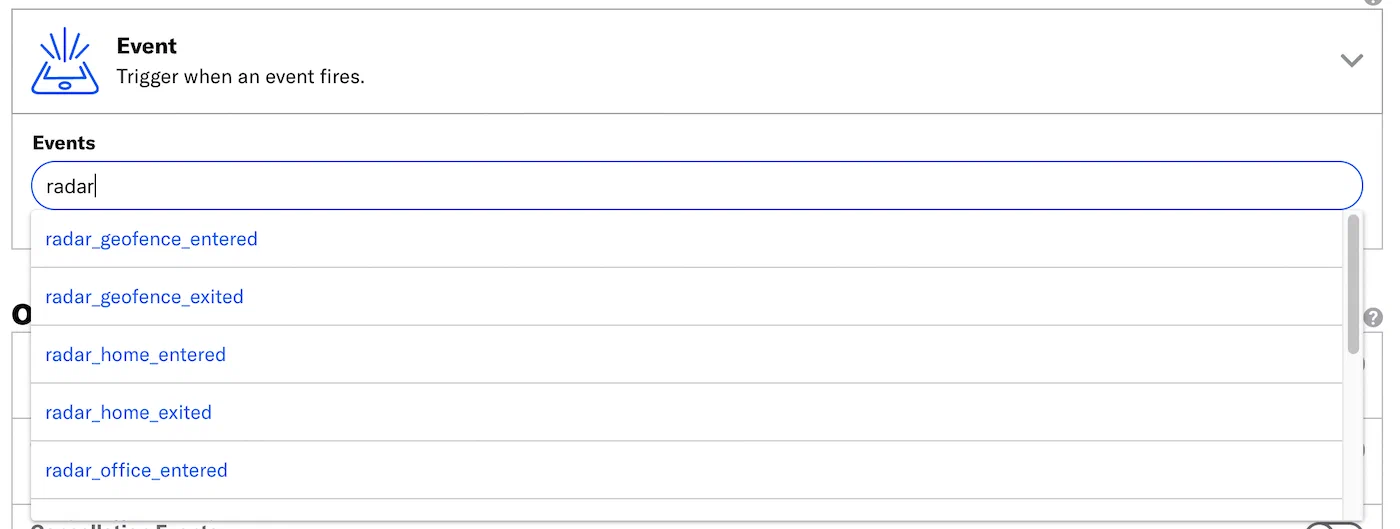
*Searching for Radar events for the Custom Event trigger*
1. (Optional) Select **Add Another** to add more Radar events. Multiple event are handled as a boolean OR.

*radar_geofence_entered in the Custom Event trigger*
### Filtering Custom Events {#filter}
When configuring the Custom Event trigger, you can filter custom events using numeric values associated with those custom events, or by key/value properties attached to the events. Filtering events this way can help you more precisely target your audience.
> **Note:** The filter **does not** show events and event properties for custom events associated with [Named Users](https://www.airship.com/docs/reference/glossary/#named_user). You can still use events associated with named users as triggers, but you must enter their information manually.
Each Radar location event has [associated properties](#radar-events) that may be used as filters. For example, you can choose to trigger an automation or sequence when a user enters a Radar geofence (`radar_geofence_entered`) with a confidence property (`radar_confidence`) value of Medium.
1. Select **Add event properties** for the custom event.

*Adding event properties for a Radar custom event*
1. Select **Add property**.
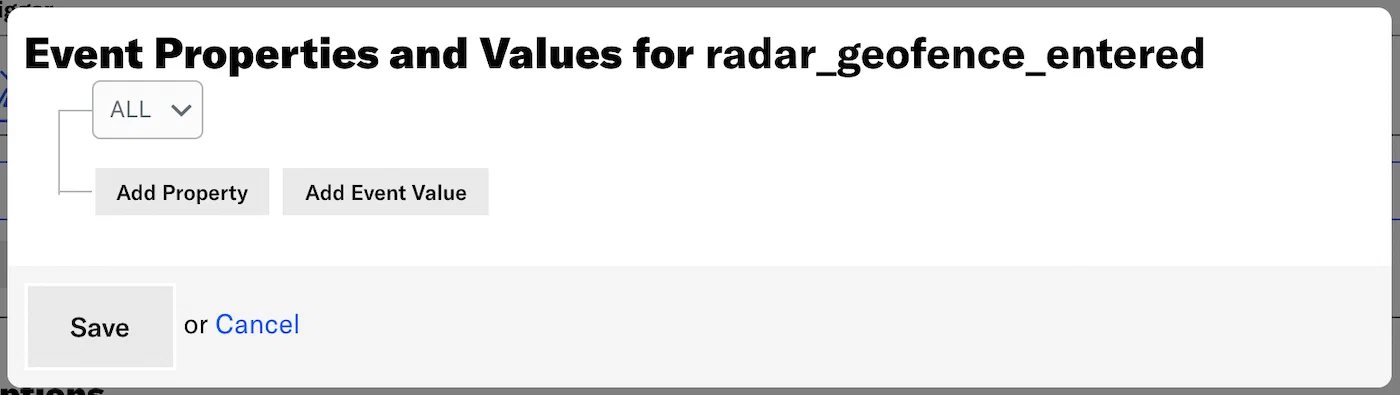
*Selecting Add property*
1. Select **Search for properties**, enter a search term, and select from the
listed results.
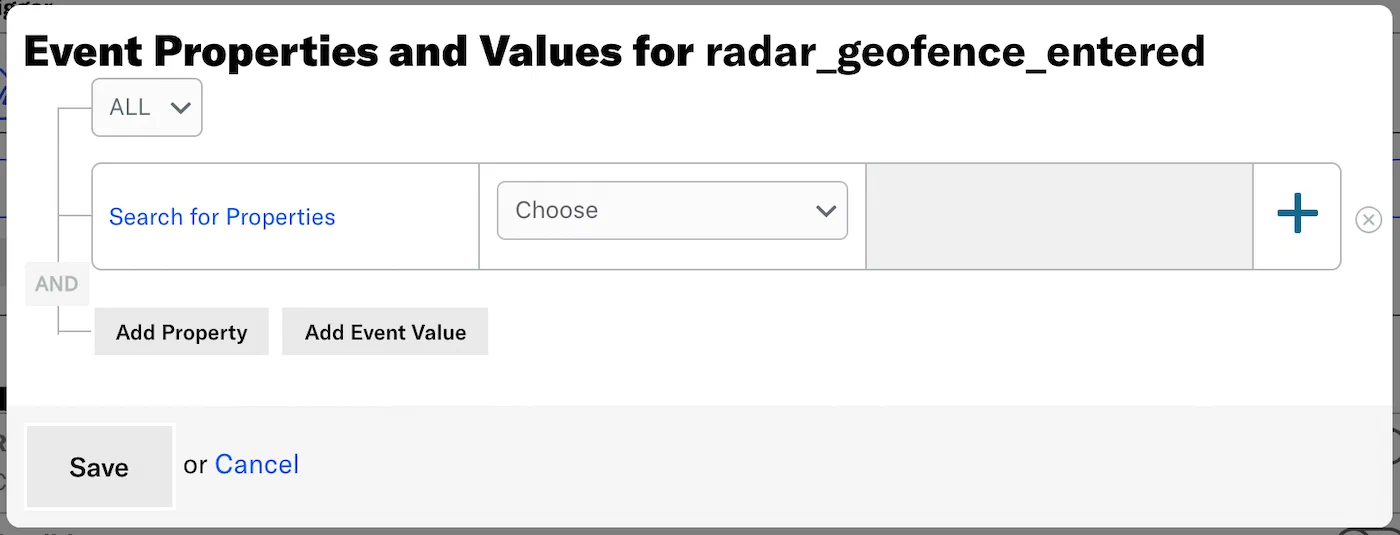
*Searching for Radar event properties*
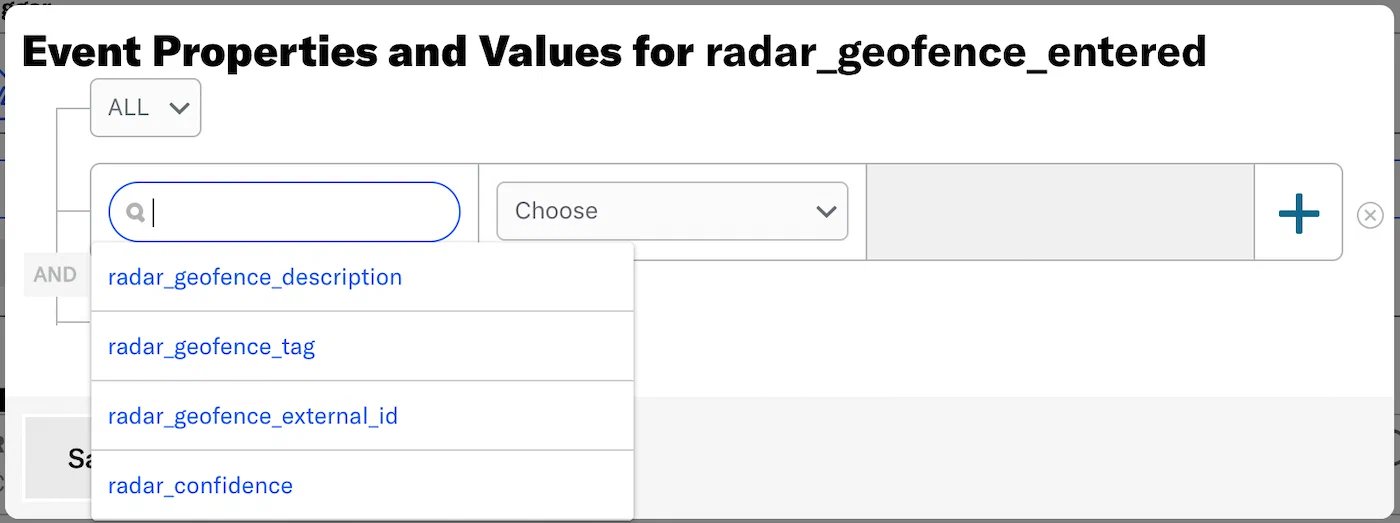
*Selecting a Radar event property from search results*
1. Set the property or value for your event filter and the operator determining how you want to evaluate the property or value. An operator will pre-populate for most properties. `Equals` is used for `radar_confidence` only.
1. (Optional) Add an alternative by selecting the plus icon () at the
end of a row.
1. Select **ALL** or **ANY** to determine how to evaluate multiple filters and alternatives within each filter:
- ALL = all criteria must be met (boolean AND)
- ANY = any criteria must be met (boolean OR)
1. Select **Save**.
## Radar Events and Properties {#radar-events}
Use the following terms when [searching for](#trigger) and
[filtering](#filter) Radar events. See [Radar's documentation](https://radar.io/documentation) for additional detail.
Each event is followed by its associated properties and each property's acceptable value.
### Radar Geofences
radar_geofence_entered
: radar_geofence_description: String
radar_geofence_tag: String
radar_geofence_external_id: String
radar_confidence: *Low*, *Medium*, or *High*
radar_geofence_exited
: radar_geofence_description: String
radar_geofence_tag: String
radar_geofence_external_id: String
radar_confidence: *Low*, *Medium*, or *High*
radar_duration: A number, in minutes
### Radar Insights
radar_home_entered
: radar_confidence: *Low*, *Medium*, or *High*
radar_home_exited
: radar_confidence: *Low*, *Medium*, or *High*
radar_office_entered
: radar_confidence: *Low*, *Medium*, or *High*
radar_office_exited
: radar_confidence: *Low*, *Medium*, or *High*
radar_traveling_started
: radar_confidence: *Low*, *Medium*, or *High*
radar_traveling_stopped
: radar_confidence: *Low*, *Medium*, or *High*
### Radar Places
radar_place_entered
: radar_place_name: String
radar_place_chain_slug: String
radar_place_chain_name: String
radar_place_categories: String
radar_place_facebook_id: String
radar_confidence: *Low*, *Medium*, or *High*
radar_place_exited
: radar_place_name: String
radar_place_chain_slug: String
radar_place_chain_name: String
radar_place_categories: String
radar_place_facebook_id: String
radar_confidence: *Low*, *Medium*, or *High*
radar_duration number: A number, in minutes