# Location
Location partners integrated with Airship enrich engagement with geofencing, movement, and place-based signals.
# Bluedot
> Enhance mobile experiences with Bluedot's precise and scalable geofencing solutions.
Bluedot is a SaaS provider of location management tools. To set up a mobile application that makes use of Bluedot location services and Airship push notifications.
## Bluedot Integration Requirements
* **Accounts**
1. Bluedot
1. Airship — Must include messaging
* **Airship project**
* The Airship SDK must use the same user identity as the Bluedot SDK.
## Configuring the Bluedot Integration
In Airship:
1. Next to your project name, select the dropdown menu (▼), then **Settings**.
1. Under **Project settings**, select **Partner Integrations**.
1. Select **Bluedot**.
1. Select **Configure** for the inbound integration and follow the onscreen instructions to create the [custom events](https://www.airship.com/docs/reference/glossary/#custom_event) `bluedot_place_entered` and `bluedot_place_exited`.
For information about using this integration, see [Bluedot documentation](https://docs.bluedot.io/integrations/airship-integration/).
# Foursquare
> Integrate the Foursquare Movement SDK with your Airship implementation.
Airship can easily integrate with Foursquare's Movement SDK by associating
channels with Foursquare user identifiers. This allows a single user to be consistently
identified across both platforms.
## Foursquare Integration Requirements
* **Accounts**
1. Foursquare
1. Airship — Must include messaging
* **Airship project**
* The Airship SDK must use the same user identity as the Foursquare SDK.
Associating the Foursquare Movement user identifiers with Airship channels can be accomplished
with the following code.
### Client Code: iOS
On iOS, associating a Foursquare Movement user identifier with an Airship channel should
be done inside a callback triggered by the channel created event. This is to ensure
the channel ID is set immediately once it's available.
```swift
// Observe the notification center event `ChannelCreated`
NotificationCenter.default.addObserver(self, selector: #selector(AppDelegate.updateUserID), name:AirshipNotifications.ChannelCreated.name, object: nil)
// In the notification callback set the userID on your Movement SDK Manager instance
func updateUserID() {
if let channelID = UAirship.push().channelID, let _ = FSQMovementSdkManager.shared().userInfo {
FSQMovementSdkManager.shared().userInfo!.setUserId(channelID)
}
}
```
```obj-c
// Observe the notification center event `ChannelCreated`
[[NSNotificationCenter defaultCenter] addObserver:self
selector:@selector(updateChannel)
name:UAirshipNotificationChannelCreated.name
object:nil];
// In the notification callback set the userID on your Movement SDK Manager instance
NSString channelID = [[UAirship push] channelID];
if (channelID) {
[FSQMovementSdkManager.sharedManager.userInfo setUserId:channelID];
}
```
### Client Code: Android
On Android, associating a Foursquare Movement user identifier with an Airship channel should be
done inside a class extending `AirshipReceiver` that implements its `onChannelCreated`
function. This is to ensure the channel ID is set immediately once it's available.
```kotlin
private class MovementAirshipIntegration : AirshipChannelListener {
override fun onChannelCreated(channelId: String) {
val userInfo = UserInfo().apply {
setUserId(channelId)
}
MovementSdk.get().setUserInfo(userInfo, persisted = true)
}
}
```
## Configuring the Foursquare Integration
In Airship:
1. Next to your project name, select the dropdown menu (▼), then **Settings**.
1. Under **Project settings**, select **Partner Integrations**.
1. Select **Foursquare**.
1. Select **Configure** for the inbound integration and follow the onscreen instructions to:
* Create [custom events](https://www.airship.com/docs/reference/glossary/#custom_event) and an authentication token. Foursquare uses the token to communicate with your project in Airship.
* Configure Airship as a third-party integration in Foursquare.
# Gimbal
> Automatically send messages based on Gimbal location data.
[Gimbal](https://gimbal.com/) sends their location data to Airship via Gimbal Adapters. An Airship Gimbal adapter is a drop-in class for iOS, Android, and Fire OS that integrates Gimbal [Places](#key-terms) events with Airship.
The Gimbal data can then be used with the [Custom Event trigger](https://www.airship.com/docs/guides/messaging/messages/sequences/triggers/#custom-event) in [Automations and Sequences](https://www.airship.com/docs/guides/messaging/messages/sequences/about/). Gimbal is the system of record for their location data, and all updates to places data are managed by Gimbal.
Our [legacy integration] instead uses the [Location](https://www.airship.com/docs/guides/messaging/messages/sequences/triggers/#location) and [Location Attributes](https://www.airship.com/docs/guides/messaging/messages/sequences/triggers/#location-attributes) triggers.
## Gimbal integration requirements
* **Accounts**
1. Gimbal
1. Airship — Must include messaging
* **Airship project**
* The Airship SDK must use the same user identity as the Gimbal SDK.
## Adding Gimbal adapters
Follow the installation instructions:
* [iOS Gimbal Adapter](https://github.com/gimbalinc/airship-adapter-ios)
* [Android Gimbal Adapter](https://github.com/gimbalinc/airship-adapter-android)
## Configuring Gimbal integration
In Airship:
1. Next to your project name, select the dropdown menu (▼), then **Settings**.
1. Under **Project settings**, select **Partner Integrations**.
1. Select **Gimbal**.
1. Select **Configure** for the inbound integration and follow the onscreen instructions to create the [custom events](https://www.airship.com/docs/reference/glossary/#custom_event) `gimbal_custom_entry_event` and `gimbal_custom_exit_event`.
### Gimbal events and properties
When you configure the integration in the Airship dashboard, the following two custom events are created. Each event is followed by its associated properties and each property’s acceptable value.
gimbal_custom_entry_event
: placeAttributes — Gimbal place [attribute](#key-terms). Attributes are flattened and prefixed with `GMBL_PA_`.
visitID — String
placeIdentifier — String
placeName — String
boundaryEvent — Number: 1 = Entry, 2 = Exit.
gimbal_custom_exit_event
: placeAttributes — Gimbal place [attribute](#key-terms). Attributes are flattened and prefixed with `GMBL_PA_`.
visitID — String
placeIdentifier — String
placeName — String
boundaryEvent — Number: 1 = Entry, 2 = Exit.
dwellTimeInSeconds — Number
## Using the Custom Event trigger
In the *Setup* step in an [automation](https://www.airship.com/docs/guides/messaging/messages/sequences/create-automation/) or when configuring the *Trigger* for a [sequence](https://www.airship.com/docs/guides/messaging/messages/sequences/create/create/):
1. Select the *Custom Event* trigger.
1. Use the *Events* box to search for and select `gimbal_custom_entry_event` or `gimbal_custom_exit_event`.
1. (Optional) Click **Add Another** to add more events. Airship handles multiple events as a boolean OR.
1. (Optional) Follow the [Filtering custom events](https://www.airship.com/docs/guides/messaging/messages/sequences/triggers/#filtering-custom-events) steps to add custom event filters. Refer to the [properties](#gimbal-events-and-properties) for each event.
1. (Optional) Set the maximum age for the events. If an event is received after it is older than a certain age, the Automation or Sequence will not start.
1. Enable *Event Expiration*.
1. Enter a value in minutes, hours, days, months, or years.
## Legacy integration
You cannot set up the legacy integration. You can only manage an existing legacy integration, and you can use Gimbal location data with the triggers.
### Syncing events or removing the integration
1. Next to your project name, select the dropdown menu (▼), then **Settings**.
1. Under **Project settings**, select **Partner Integrations**.
1. Select **Gimbal**.
1. Select **Sync Now** to sync Gimbal region events or **Remove** to remove the integration.
### Using the Location and Location Attributes triggers
Configure triggers in the Setup step in an [Automation](https://www.airship.com/docs/guides/messaging/messages/sequences/create-automation/) or the [Journey map](https://www.airship.com/docs/guides/features/orchestration-experimentation/journeys/) for a [Sequence](https://www.airship.com/docs/guides/messaging/messages/sequences/create/create/). See [Location](https://www.airship.com/docs/guides/messaging/messages/sequences/triggers/#location) and [Location Attributes](https://www.airship.com/docs/guides/messaging/messages/sequences/triggers/#location-attributes) in *Automation and Sequence triggers*.
## Gimbal key terms {#key-terms}
Location
: A location is a logical place defined by a set of beacons and/or geofences.
Locations are the logical entities that are signalled by devices and may be
used to trigger Automations and Sequences.
Attributes
: Attributes are *key/value pair* metadata associated with a particular
location, e.g., *chain:BobsBurgers*, *has_blender:yes*. Attributes must be
defined and assigned to a particular location in the Gimbal system and
synced with an Airship account.
Beacon
: A beacon represents a physical device used for proximity detection. Beacons
may represent hardware implementing the iBeacon standard for use with iOS,
or proprietary beacons (such as Gimbal beacons) for use with Android.
Beacons may or may not have geolocation data associated with them.
Geofence
: A geofence represents a fixed location representable by one or more points
in the
[WGS coordinate system](http://en.wikipedia.org/wiki/World_Geodetic_System).
Geofences can consist of a single point and a radius expressed in meters,
defining a circular region, or a series of points defining a polygon.
Place
: The Gimbal system refers to your app's locations as *Places*. A Place is
either a single geofence, one or more beacons, or one or more beacons and a
geofence.
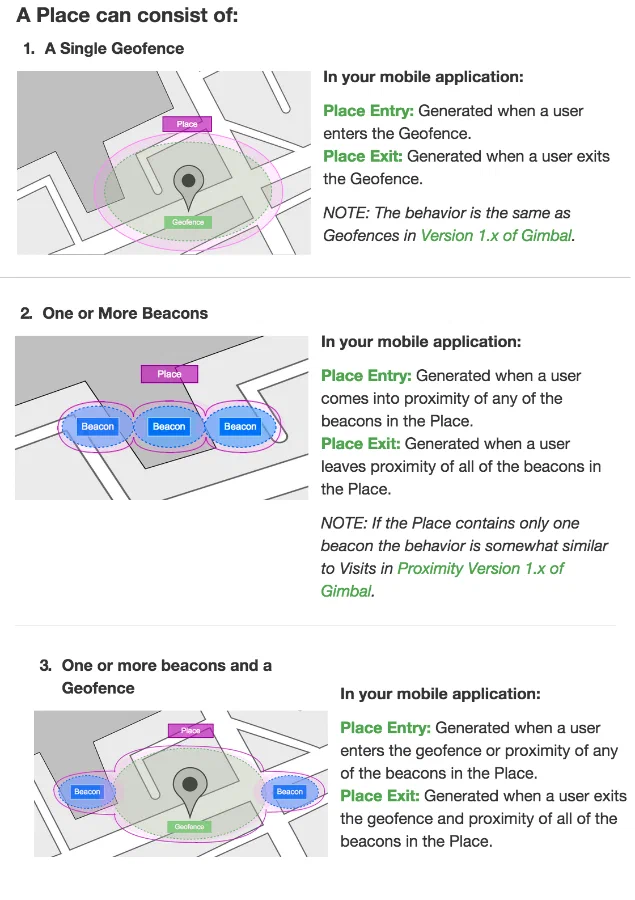
*Gimbal place definitions*
# Radar
> Track location data and generate contextual events using Radar event types.
[Radar](https://radar.io/) makes it easy to start tracking location data
with their iOS and Android SDKs, and generate contextual events from this data
using their different event types: Geofences, Insights, and Places.
Radar sends location data to Airship using our
[server-side Custom Events API](https://www.airship.com/docs/developer/rest-api/ua/operations/custom-events/).
Whenever location events are generated, Radar will send custom events and
properties to Airship. This data can then be used with the
Custom Event trigger in Automations and Sequences.
## Radar Use Cases
* **Media:** Trigger sending a notification to a user when they enter a place
within a specific category, e.g., a fitness venue, asking them to read your
latest article on Health & Wellness.
* **Retail:** Trigger sending a notification to a user when they enter one
of your store locations, telling them about a new product you are offering.
* **Dining:** Trigger sending a notification to a user when they enter a
specific geofence, offering them a 20% off coupon for your restaurant.
## Radar Integration Requirements
* **Accounts**
1. Radar — Enterprise account
1. Airship — Must include messaging
* **Airship project**
* The Airship SDK must use the same user identity as the Radar SDK.
## Configuring the Radar Integration
In Airship:
1. Next to your project name, select the dropdown menu (▼), then **Settings**.
1. Under **Project settings**, select **Partner Integrations**.
1. Select **Radar**.
1. Select **Configure** for the inbound integration and follow the onscreen instructions to:
* Create [custom events](https://www.airship.com/docs/reference/glossary/#custom_event) and an authentication token. Radar uses the token to communicate with your project in Airship.
* (Optional) Create [tag groups](https://www.airship.com/docs/reference/glossary/#tag_group).
* Configure the Airship integration in Radar.
Radar will send custom events and properties to Airship for use with the Custom Event trigger. See the full list of [Radar Events](#radar-events).
## Using the Custom Event trigger {#trigger}
In the Setup step in an [Automation](https://www.airship.com/docs/guides/messaging/messages/sequences/create-automation/) or when configuring the trigger for a [Sequence](https://www.airship.com/docs/guides/messaging/messages/sequences/create/create/):
1. Select the Custom Event trigger.
1. Search for a Radar event, then select from the listed
results. Results are limited to events that occurred in the last 30 days. All [Radar events](#radar-events) have the prefix `radar` in the name. For example, `radar_geofence_entered`.
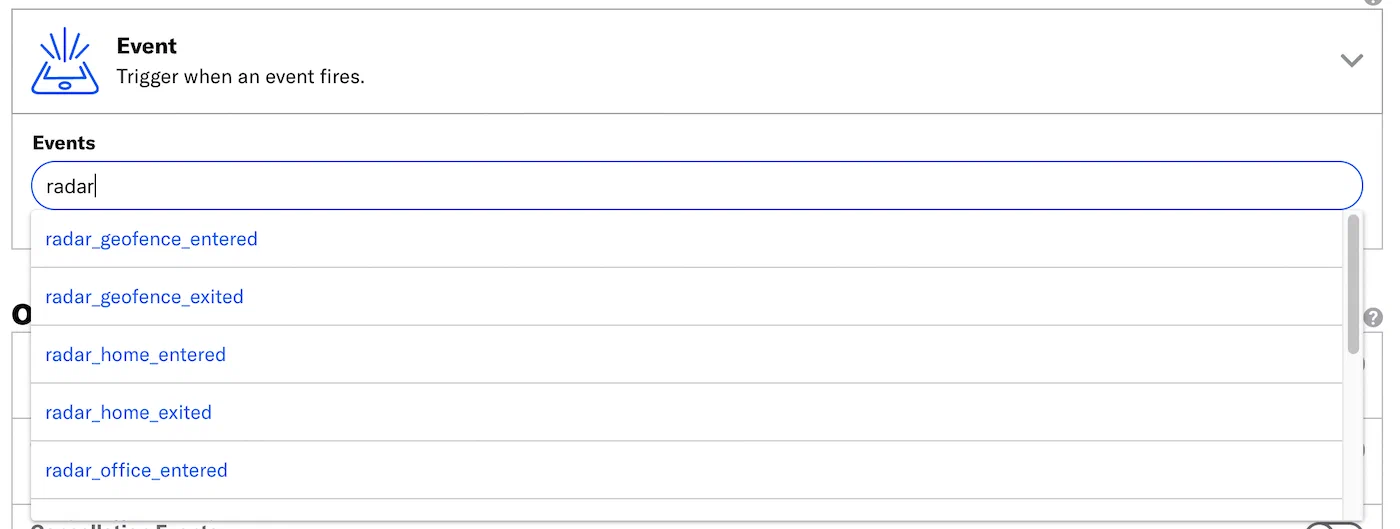
*Searching for Radar events for the Custom Event trigger*
1. (Optional) Select **Add Another** to add more Radar events. Multiple event are handled as a boolean OR.
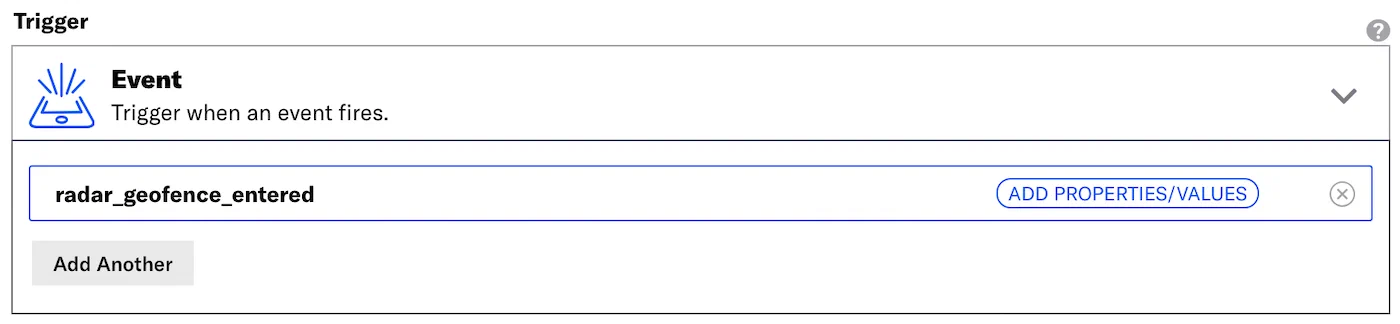
*radar_geofence_entered in the Custom Event trigger*
### Filtering custom events {#filter}
When configuring the Custom Event trigger, you can filter custom events using numeric values associated with those custom events, or by key/value properties attached to the events. Filtering events this way can help you more precisely target your audience.
> **Note:** The filter **does not** show events and event properties for custom events associated with [named users](https://www.airship.com/docs/reference/glossary/#named_user). You can still use events associated with named users as triggers, but you must enter their information manually.
Each Radar location event has [associated properties](#radar-events) that may be used as filters. For example, you can choose to trigger an automation or sequence when a user enters a Radar geofence (`radar_geofence_entered`) with a confidence property (`radar_confidence`) value of Medium.
1. Select **Add event properties** for the custom event.

*Adding event properties for a Radar custom event*
1. Select **Add property**.
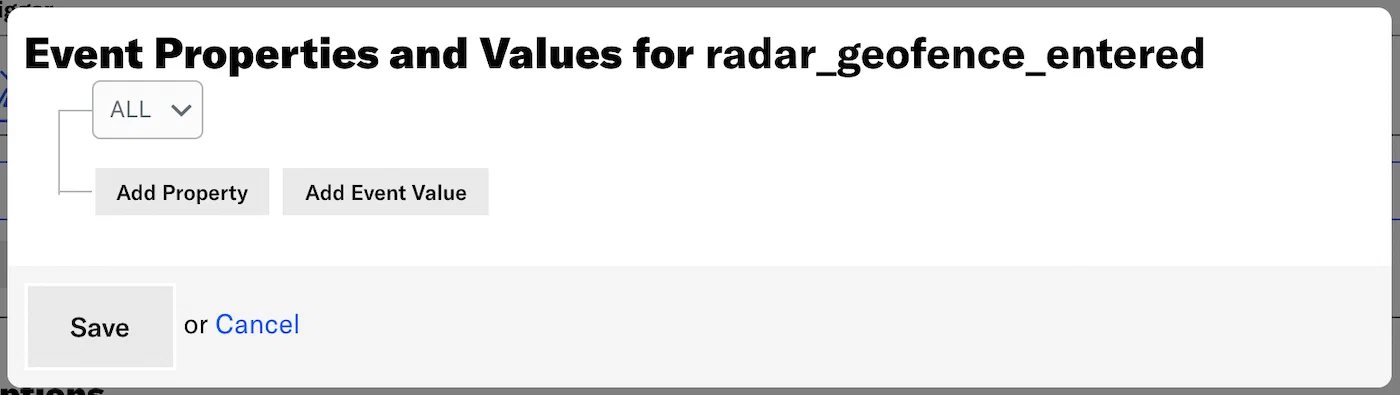
*Selecting Add property*
1. Select **Search for properties**, enter a search term, and select from the
listed results.
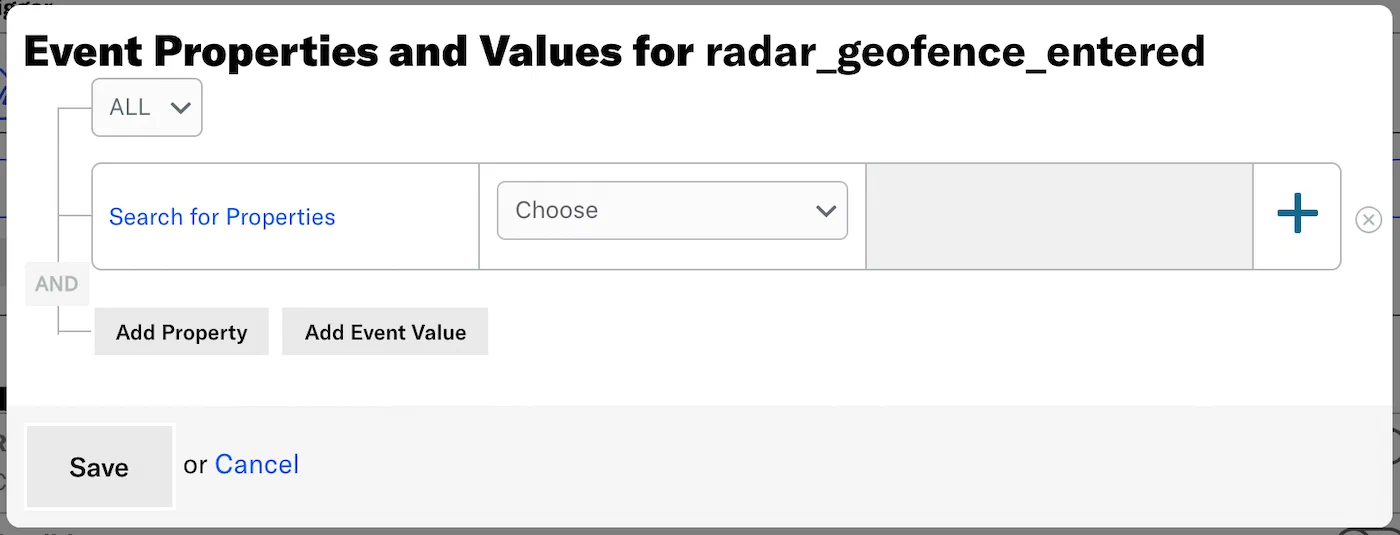
*Searching for Radar event properties*
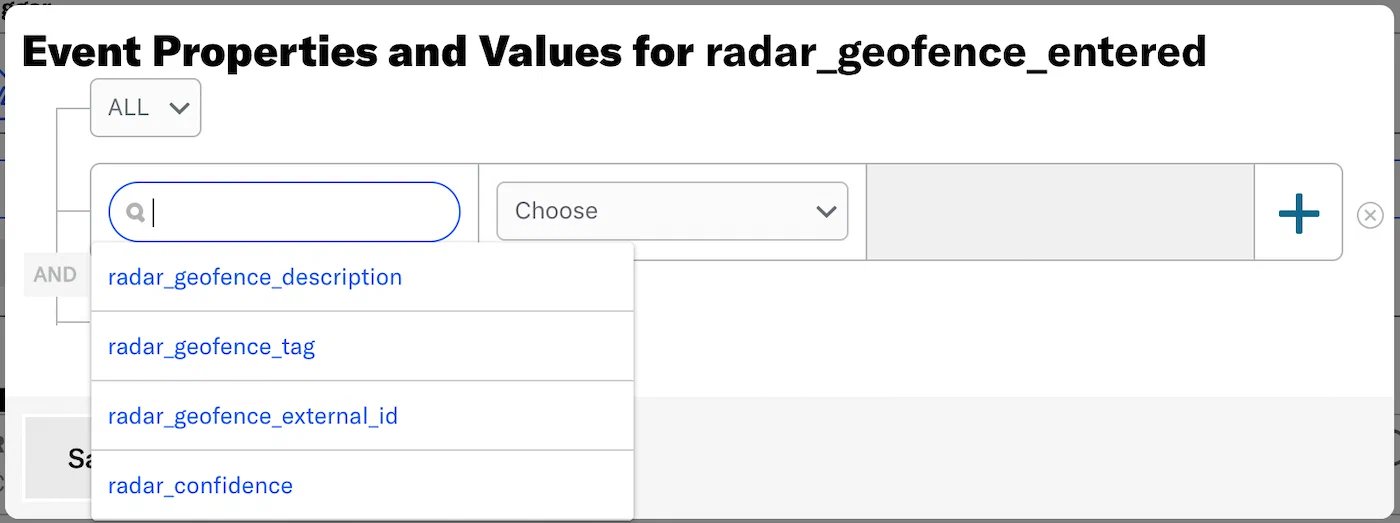
*Selecting a Radar event property from search results*
1. Set the property or value for your event filter and the operator determining how you want to evaluate the property or value. An operator will pre-populate for most properties. `Equals` is used for `radar_confidence` only.
1. (Optional) Add an alternative by selecting the add icon (+) at the
end of a row.
1. Select **ALL** or **ANY** to determine how to evaluate multiple filters and alternatives within each filter:
- ALL = all criteria must be met (boolean AND)
- ANY = any criteria must be met (boolean OR)
1. Select **Save**.
## Radar Events and Properties {#radar-events}
Use the following terms when [searching for](#trigger) and
[filtering](#filter) Radar events. See [Radar's documentation](https://radar.io/documentation) for additional detail.
Each event is followed by its associated properties and each property's acceptable value.
### Radar Geofences
radar_geofence_entered
: radar_geofence_description: String
radar_geofence_tag: String
radar_geofence_external_id: String
radar_confidence: *Low*, *Medium*, or *High*
radar_geofence_exited
: radar_geofence_description: String
radar_geofence_tag: String
radar_geofence_external_id: String
radar_confidence: *Low*, *Medium*, or *High*
radar_duration: A number, in minutes
### Radar Insights
radar_home_entered
: radar_confidence: *Low*, *Medium*, or *High*
radar_home_exited
: radar_confidence: *Low*, *Medium*, or *High*
radar_office_entered
: radar_confidence: *Low*, *Medium*, or *High*
radar_office_exited
: radar_confidence: *Low*, *Medium*, or *High*
radar_traveling_started
: radar_confidence: *Low*, *Medium*, or *High*
radar_traveling_stopped
: radar_confidence: *Low*, *Medium*, or *High*
### Radar Places
radar_place_entered
: radar_place_name: String
radar_place_chain_slug: String
radar_place_chain_name: String
radar_place_categories: String
radar_place_facebook_id: String
radar_confidence: *Low*, *Medium*, or *High*
radar_place_exited
: radar_place_name: String
radar_place_chain_slug: String
radar_place_chain_name: String
radar_place_categories: String
radar_place_facebook_id: String
radar_confidence: *Low*, *Medium*, or *High*
radar_duration number: A number, in minutes
# Woosmap
> Deliver the right messages at the right time, and in the right place.
Make your app location-aware and benefit from dedicated [custom events](https://www.airship.com/docs/reference/glossary/#custom_event) to trigger messages with Airship. This means you can design personalized Airship [Automations and Sequences](https://www.airship.com/docs/guides/messaging/messages/sequences/about/) based on location.
* The Woosmap Geofencing SDK adds to your app: Geofencing, users' background location, and geographic behavior analysis capabilities.
* You can manage your assets (stores, points of interest, branches, competitors, etc.) in Woosmap and add even more depth to your location-based scenarios.
## Woosmap Integration Requirements
* **Accounts**
1. Woosmap
1. Airship — Must include:
* Messaging
* **Airship project**
* The Airship SDK must use the same user identity as the Woosmap SDK.
## Configuring the Woosmap Integration
In Airship:
1. Next to your project name, select the dropdown menu (▼), then **Settings**.
1. Under **Project settings**, select **Partner Integrations**.
1. Select **Woosmap**.
1. Select **Configure** for the inbound integration and follow the onscreen instructions to create [custom events](https://www.airship.com/docs/reference/glossary/#custom_event).
See [Woosmap documentation](https://developers.woosmap.com/products/geofencing-sdk/integration/airship/) for more information.