# Content & Personalization
Content, personalization, and email design partners integrated with Airship help you enrich messages with dynamic and personalized experiences.
# Email Love
> Design emails in Figma with Email Love and export them to Airship as message templates.
[Email Love](https://emaillove.com/) is a Figma plugin for designing emails. Teams build and iterate on email layouts directly in Figma, then push them to their sending platform without manual HTML export or copy-paste.
The Airship integration sends the exported HTML to your Airship project as email [templates](https://www.airship.com/docs/guides/personalization/content/templates/), so you can select them as message content and send using Airship.
## Requirements
The integration requires the following accounts:
- **Email Love:** You must have the Email Love Figma plugin installed and at least one email design ready to export. See the [Email Love Help Center](https://help.emaillove.com/) for account requirements.
- **Airship:** Your plan must include email. See the [Feature packages reference](https://www.airship.com/docs/reference/feature-packages/).
## Configuring the integration
Follow Email Love's [Upload your email to Airship](https://help.emaillove.com/exporting-an-email-design/6rcR6LPWq6BoYseKZf41nS/upload-your-email-to-airship/7B8Nqun2uEVDfYoYVzvPqL) guide to connect your Airship project credentials in the plugin and export an email as a message template.
## Personalization
Airship email templates use [Handlebars](https://www.airship.com/docs/reference/glossary/#handlebars) for merge fields and conditional logic. Email Love supports Handlebars in exported HTML, so personalization tokens you include in your Figma design are preserved when the template arrives in Airship. See [Dashboard tools for Handlebars](https://www.airship.com/docs/guides/personalization/simplifying-handlebars/).
# EmailShepherd
> Design email in EmailShepherd and export production-ready HTML to Airship as content templates, with Handlebars supported for personalization.
[EmailShepherd](https://emailshepherd.com/) is an email creation platform. Teams use its visual builder and optional AI-assisted workflows to produce on-brand HTML, then publish to their sending platform.
The Airship integration sends that HTML to your Airship project as email [templates](https://www.airship.com/docs/guides/personalization/content/templates/), so you can select them for your message content and send using Airship's delivery, audience, and reporting.
EmailShepherd recommends defining personalization and conditionals with a Dynamic Content Profile so exported markup matches Airship's expectations. After export, you manage and send messages in Airship as usual.
## Requirements
The integration requires the following accounts:
- **EmailShepherd** — Your account must include export connector access. See EmailShepherd's [product documentation](https://emailshepherd.com/docs/) for the requirements of your plan.
- **Airship** — Your plan must include email. See the [Feature packages reference](https://www.airship.com/docs/reference/feature-packages/).
## Configuring the integration
Follow EmailShepherd's [Airship Connector Setup Guide](https://emailshepherd.com/docs/articles/connectors/airship/) to configure OAuth credentials in Airship, add a connector in EmailShepherd, and export an email to an Airship content template.
## Personalization
Airship email templates use [Handlebars](https://www.airship.com/docs/reference/glossary/#handlebars) for merge fields and logic. For details on aligning tags and conditionals with Airship, see [Airship Templating Syntax](https://emailshepherd.com/docs/articles/connectors/airship/#airship-templating-syntax) in the *Airship Connector Setup Guide*. See also [Dashboard tools for Handlebars](https://www.airship.com/docs/guides/personalization/simplifying-handlebars/).
# Iterate
> Send feature-rich Iterate surveys using Airship In-App Automation or email, and save responses as Airship custom attributes.
Iterate's unique customer insights platform empowers teams to listen, learn, and act by deploying surveys and data collection across all customer channels. Using Airship's [In-App Automation](https://www.airship.com/docs/reference/glossary/#iaa) or email, Iterate can help you gather the data you need by delivering your customers engaging and powerful questions without needing to integrate any new SDKs.
Enrich your customer profiles by sending responses to Airship as custom [attributes](https://www.airship.com/docs/reference/glossary/#attribute), enabling you to create deeply personalized campaigns, fill in demographic gaps, collect key metrics like NPS and CSAT, and more.
## Iterate Integration Requirements
**Accounts**
1. Iterate
1. Airship — [Must include In-App Automation and/or Email](https://www.airship.com/docs/reference/feature-packages/)
## Configuring the Iterate Integration
For information about configuration and usage, see Iterate's [Airship integration](https://help.iteratehq.com/en/articles/8280192-airship-integration) documentation.
# Jacquard
> Jacquard's AI content platform generates and optimizes content for enterprise marketers.
The Jacquard, formerly Phrasee, platform brings together artificial intelligence (AI), computational linguistics, and their trademark customer-centricity as the only tool of its kind to generate, optimize, automate, and analyze language in real time. It gets smarter with every send, seamlessly delivering top-performing copy across your digital marketing campaigns.
With Jacquard, you can:
* Create experiments and generate copy for variants
* Track engagement per variant
Refer to [Jacquard's documentation](https://support.jacquard.com/docs/airship-dynamic-optimisation-getting-started) to implement the integration between Jacquard and Airship.
# Movable Ink
> Movable Ink generates personalized visual content for Airship app audiences.
You can set up both inbound and outbound integrations with Movable Ink.
## Movable Ink Integration Requirements
This integration requires these accounts:
1. Movable Ink
* Stories subscription — *Required for outbound integration only*
1. Airship
* Messaging
* [Real-Time Data Streaming](https://www.airship.com/docs/reference/feature-packages/#data) — *Required for outbound integration only*
## Inbound Integration
Movable Ink helps you deliver highly relevant, personalized push notifications, Message Center messages, and in-app automations.
Contact [alliances@airship.com](mailto:alliances@airship.com) to get started with the Movable Ink inbound integration. Airship will help you set up your integration and create Message Center templates so you can use your Movable Ink campaigns in Airship.
To use Movable Ink with Airship, you must use your audience's `channel_id` or `named_user_id` identifiers as Movable Ink merge tags — the `mi_u` query parameter in Movable Ink. This helps ensure that each member of your audience receives personalized content.
To take advantage of Movable Ink, you'll insert blocks of content or *Creative Tags* from Movable Ink into your Airship messages. A Creative Tag is a snippet of HTML that includes business logic to render personalized, intelligent content in your Airship message.
### Use Cases
Movable Ink helps you personalize the look and feel of your message to suit each individual in your audience.
* **Merge sale-specific information in your messages:** Promote product-based messaging in your app after a user views content in a website or an email.
* **Target your audience contextually:** Send time-targeted messages to make sure your audience knows about upcoming events, weather, time-targeted offers, etc.
* **Offer behavioral recommendations:** Let your audience know about product substitutes or events tangential to their current interests to keep them engaged.
### Movable Ink Support in Airship
Movable Ink dynamically generates creative content in real time for your mobile app using Airship. This table lists many of the Movable Ink capabilities available for Airship apps.
> **Note:** If a Movable Ink capability is not listed in these tables, then it is fully supported for mobile messaging with Airship.
**Creative Optimizer**:
| Movable Ink capability | Rich push notification | In-App Automation/Message Center | Notes |
| --- | :---: | :---: | --- |
| Display A/B content | | ✓ | |
| Optimize | | ✓ | Use the channel ID to optimize. Must deep link so Movable Ink can capture clicks and optimize the content. Cannot optimize based on conversions or revenue. |
{class="table-col-1-30"}
**Targeting Rules**:
| Movable Ink capability | Rich push notification | In-App Automation/Message Center | Notes |
| --- | :---: | :---: | --- |
| Date | ✓\* | ✓\* | \*Supported but not recommended because push notifications are cached upon receipt and do not refresh. |
| Day of Week | ✓\* | ✓ | \*Supported but not recommended because push notifications are cached upon receipt and do not refresh. |
| Query Parameters | ✓\* | ✓\*\* | \*If using Airship with Salesforce Marketing Cloud, your identifiers in Airship (`channel_id` or `named_user`) must match Salesforce's UUID and be passed through their connector.\*\*Can only use the UUID (`mi_u`) parameter. |
| Time of Day | ✓\* | ✓ | \*Supported but not recommended because push notifications are cached upon receipt and do not refresh. |
| Stories/Behavioral Activity | | ✓ | Airship's channel or named user identifiers must be linked to your ESP's UUID, which Movable Ink uses for Stories user profiles. |
| Deep linking in the app | ✓\* | ✓\*\* | \*Must deep link with Branch.io.
\*\*Must use Airship's custom deep linking solution to track click analytics. |
{class="table-col-1-30"}
**Apps**:
| Movable Ink capability | Rich push notification | In-App Automation/Message Center | Notes |
| --- | :---: | :---: | --- |
| Bar Chart | | ✓\* | \*As long as the UUID can be used in other data providers to generate content. |
| Barcode Generator | ✓ | ✓ | Requires a custom solution and only UUIDs can be merged. Can be used with APIs that accept the UUIDs. |
| Countdown Timer | ✓\* | ✓ | \*Supported but not recommended because push notifications are cached upon receipt and do not refresh. |
| Data Sources | ✓ | ✓ | |
| Facebook Share Button | ✓ | ✓ | Redirects to the web, then to Facebook's website to post content. Deep linking to Facebook's app is not possible. |
| Image Personalization | | ✓ | Airship stores limited data about app activity, such as last login date, that may be used. |
| Polling | | ✓ | After voting, will leave the app to a mobile landing page as long as the UUID is working. |
| QR Code Generator | | ✓ | Requires a custom solution, and only UUIDs can be merged. Can be used with APIs that accept the UUIDs. |
| Scratch Off | ✓ | ✓ | On click, will either leave the app for the Scratch off experience or to a custom landing webpage built within the app. |
| Social Sharing | ✓\* | ✓ | \*Will be directed to the original app, then the web browser, and finally to the desired destination. |
| Video | ✓ | ✓ | Animated GIFs only. |
{class="table-col-1-30"}
### Send a Push Notification with Movable Ink
You can insert an image source from a Movable Ink *Creative Tag* into an Airship message to deliver personalized media to your audience.
1. Go to your campaign in Movable Ink and click **Code**.
1. Click **Push** and copy the image source URL (the `src` of the `img` tag) from the creative tag.
1. Go to the **Content** step of your message in Airship.
1. Paste the URL in the **Media** section in the *Content* step of your message. Verify that the message preview shows your media from Movable Ink.
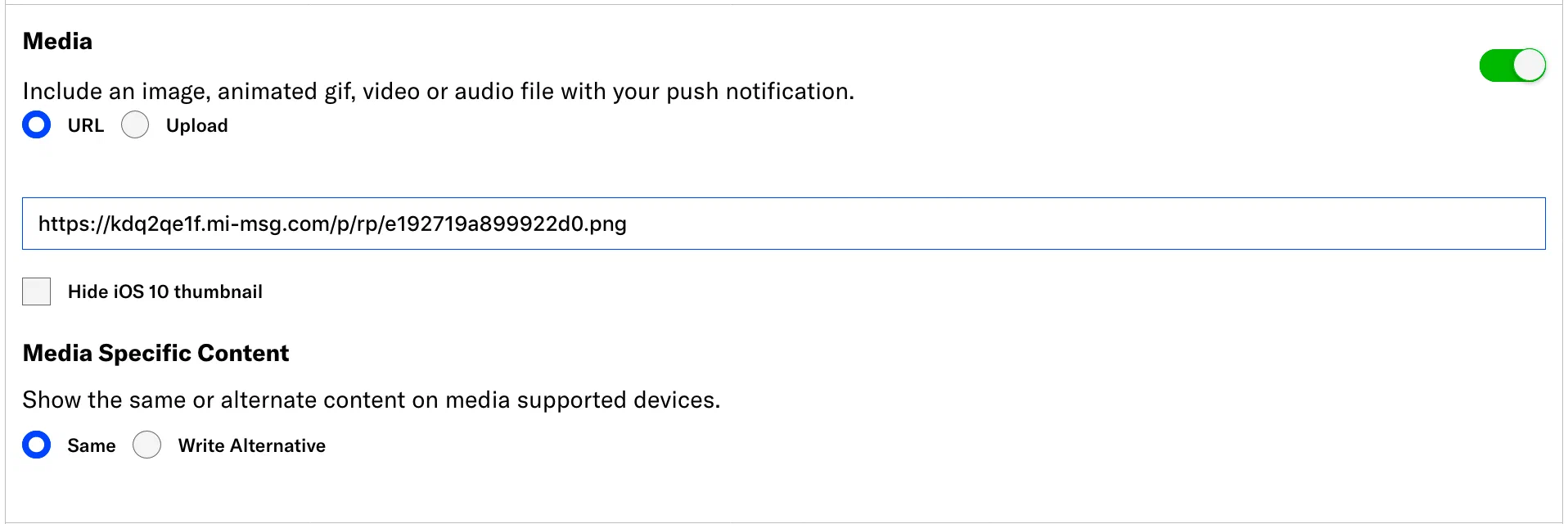
*Adding a Movable Ink media URL to a push notification*
1. Complete the remaining composer steps and send your message.
### Send a Message Center message with Movable Ink
Airship Professional Services will create Message Center templates supporting Movable Ink for you. When you compose messages in Airship, you will select a template supporting Movable Ink, then add different parts of your *Creative Tags* from your Movable Ink campaign to your message.
In the *Content* step of a message in Airship:
1. Choose how you want to present the message:
* Add the message to the Message Center inbox only:
1. Select *Message Center* and click **Add Content**.
1. Select the *Visual editor*.
**OR**
* Add the message to the Message Center inbox **AND** link to the message from a push notification and/or in-app message:
1. Select *Message Center*, combine with *Push Notification* and/or *In-App Message*, and click **Add Content**.
1. Select the *Visual editor* in the *Actions* section. *Message Center* is automatically the selected action.
1. Click **Create**.
1. Select your Movable Ink template under *Custom Templates*.
1. Go to the *Content* tab for the template.
1. Enter your **Movable Ink URL**:
1. Go to your campaign in Movable Ink, click *Code*, and select *Mobile Inbox*.
1. Copy the URL in your *Creative Tag*. This is the value of the `href` attribute of the `a` tag.
1. Click the *Movable Ink URL* field in Airship and paste the URL.
1. Enter your **Movable Ink Image**:
1. Go to your campaign in Movable Ink and copy the image source URL (the `src` of the `img` tag) from the creative tag.
1. Click the *Movable Ink Image* field in Airship and paste the image source.
1. Set up the remainder of your message.
1. Click **Save & Exit**.
1. Complete the remaining composer steps and send your message.
### Set Up In-App Automation with Movable Ink
To take advantage of Movable Ink in your in-app automation, you must create a custom HTML message containing your Movable Ink *Creative Tags*.
In Movable Ink:
1. Go to your campaign and click **Code**.
1. Click **In-App Messaging** and copy the *Creative Tags* that you want to add to your automation.
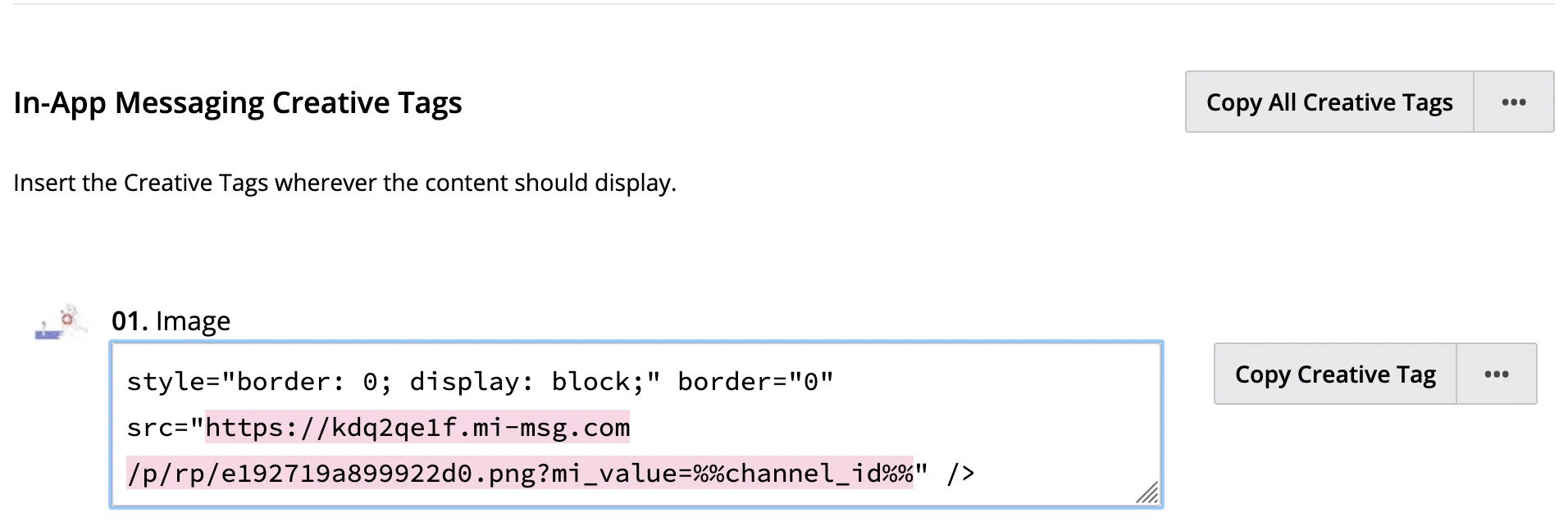
*Copying Creative Tags from Movable Ink*
1. Paste your *Creative Tags* into the appropriate places in your Custom HTML message.
In the Airship dashboard, create a new In-App Automation:
1. Select **Create** in the sidebar.
1. Next to **Build from scratch**, select **View all**.
1. Select **In-App Automation** and configure.
* For *Style*, select **Custom HTML**.
* In the **Content** step, upload your Custom HTML file or provide the URL where your content is hosted.
1. Complete the remaining composer steps and send your message.
### Send an Email with Movable Ink
When setting up an email from Airship, you must add a **Campaign Code** to your email. If your email links your users to a website, you must add a **Conversion Tracking** script to your site to track conversions from your email.
To use Movable Ink *Creative Tags* in an email, you must copy the contents of your creative tags into your email. You can either copy your creative tags directly into your own, custom HTML email, or you can create HTML blocks in the email Interactive editor.
In the *Content* step of your email:
1. Go to your campaign in Movable Ink and click **Code**.
1. Click *Email* and copy your *Creative Tags*.
1. Paste your *Creative Tags* somewhere in the HTML Body of your email or create reusable HTML blocks in the Interactive editor.
* To use your own custom HTML:
1. Paste your *Creative Tags* into your custom HTML.
1. Click **Add +** for **HTML Body**.
1. Upload or paste HTML. Your HTML must contain the *Campaign Code* you copied in earlier steps.
* To create reusable custom HTML blocks in the Interactive editor:
1. Select a default or [saved layout](https://www.airship.com/docs/guides/messaging/editors/interactive/saving-layouts/), or select *Blank Layout* to design your own.
1. Drag an *HTML* content element into your email.
1. Select the HTML element and paste your *Creative Tags* into the block.
1. When you finish setting up your email, click **Done**.

*Adding a custom HTML block to an email*
1. Complete the remaining composer steps and send your message.
### Deep Linking Using Movable Ink
Movable Ink deep links allow you to use dynamic in-app click through locations in your creative tags.
They also enable you to track clicks within Movable Ink from your in-app campaigns. When using Movable
Ink deep links you will need to do a few extra steps to make sure they integrate properly.
First, add a new Movable Ink [deep link](https://www.airship.com/docs/guides/messaging/project/config/deep-links/#add-a-deep-link) in the Airship dashboard. Set the template value to `{url}` to allow using any Movable Ink URL as
a deep link.
Next, you will need to do a few minor app updates to handle Movable Ink deep links within a mobile app in order to resolve the actual deep link value at runtime.
#### Android Example
Set up a method or class that is able to resolve a Movable Ink deep link to the actual deep link:
```kotlin
class MovableInkUrl(private val url: String) {
private data class Result(val url: String, val locationHeader: String?, val statusCode: Int)
fun asFlow() = flow {
emit(resolveDeepLink())
}.flowOn(Dispatchers.IO)
fun asLiveData(): LiveData {
return asFlow()
.catch {
emit(null)
}
.asLiveData()
}
private fun resolveDeepLink(): String? {
var result: Result = resolveUrl(url)
while (true) {
if (result.statusCode == 200) {
return result.url
}
if (result.statusCode == 302) {
val nextUrl = nextUrl(result.url, requireNotNull(result.locationHeader))
if (shouldResolve(nextUrl)) {
result = resolveUrl(nextUrl)
continue
} else {
return nextUrl
}
}
return null
}
return null
}
private fun nextUrl(url: String, location: String): String {
return if (Uri.parse(location).isRelative) {
Uri.parse(url).buildUpon()
.encodedPath(location)
.build()
.toString()
} else {
location
}
}
private fun shouldResolve(url: String): Boolean {
if (url == this.url) {
return true
}
return URLUtil.isHttpsUrl(url)
}
private fun resolveUrl(url: String): Result {
return with(URL(url).openConnection() as HttpURLConnection) {
this.instanceFollowRedirects = false
this.requestMethod = "HEAD"
val l = getHeaderField("Location")
disconnect()
Result(url, l, responseCode)
}
}
}
```
Resolving deep links might take a few seconds depending on the connection, so you may need to show some sort of UI state while the app is determining the next navigation. In this example, we will show a progress activity that displays while the deep link is being resolved.
```kotlin
class MovableInkActivity : AppCompatActivity() {
internal lateinit var viewModel: UrlViewModel
override fun onCreate(savedInstanceState: Bundle?) {
super.onCreate(savedInstanceState)
Autopilot.automaticTakeOff(this)
val url = intent.getStringExtra("url")
val fallbackUrl = intent.getStringExtra("fallback")
if (url == null) {
finish()
return
}
setContentView(createLayout())
viewModel = ViewModelProvider(this, ViewModelFactory(url, fallbackUrl)).get(
UrlViewModel::class.java
)
viewModel.result.observe(this) { result ->
if (result != null) {
Airship.deepLink(result)
} else {
// no deep link or fallback state
// Toast.makeText(this, "Failed to resolve movable ink URL", Toast.LENGTH_SHORT).show()
}
finish()
}
}
private fun createLayout(): View {
val layout = FrameLayout(this)
val progressBar = ProgressBar(this, null, android.R.attr.progressBarStyleLarge)
progressBar.isIndeterminate = true
val params: LinearLayout.LayoutParams =
LinearLayout.LayoutParams(WRAP_CONTENT, WRAP_CONTENT)
layout.addView(progressBar, params)
return layout
}
companion object {
fun launch(context: Context, url: String, fallbackUrl: String?) {
val intent = Intent()
.setClass(context, MovableInkActivity::class.java)
.putExtra("url", url)
.putExtra("fallback", fallbackUrl)
.setFlags(Intent.FLAG_ACTIVITY_NEW_TASK)
context.startActivity(intent)
}
}
internal class UrlViewModel(private val url: String, private val fallbackUrl: String?) :
ViewModel() {
val result = MovableInkUrl(url).asFlow()
.catch {
emit(fallbackUrl)
}
.map {
it ?: fallbackUrl
}
.asLiveData()
}
internal class ViewModelFactory(private val url: String, private val fallbackUrl: String?) :
ViewModelProvider.Factory {
override fun create(modelClass: Class): T {
@Suppress("UNCHECKED_CAST") return UrlViewModel(url, fallbackUrl) as T
}
}
}
```
To handle Movable Ink deep links through Airship you will need to either add a new deep link listener on Airship, or modify your existing deep link listener to process the deep links:
```kotlin
airship.deepLinkListener = object : DeepLinkListener {
override fun onDeepLink(deepLink: String): Boolean {
if (deepLink.startsWith("https://mi.")) {
MovableInkActivity.launch(context, deepLink, null)
return true
}
...
}
}
```
#### iOS Example
Set up a method or class that is able to resolve a Movable Ink deep link to the actual deep link:
```swift
}
import Foundation
class MovableInkURL {
private let url: URL
private let delegate: TaskDelegate = TaskDelegate()
private lazy var session : URLSession = {
let config = URLSessionConfiguration.default
return URLSession(configuration: config,
delegate: self.delegate,
delegateQueue: OperationQueue())
}()
init(url: URL) {
self.url = url
}
public func resolve() async throws -> URL {
var request = URLRequest(url: url)
request.httpMethod = "HEAD"
return try await withCheckedThrowingContinuation { continuation in
let task = self.session.dataTask(with: request, completionHandler: { data, response, error in
if let response = response as? HTTPURLResponse,
let locationHeader = response.value(forHTTPHeaderField: "Location"),
let url = URL(string: locationHeader) {
return continuation.resume(returning: url)
} else if let url = response?.url {
return continuation.resume(returning: url)
} else {
return continuation.resume(throwing: error ?? URLError(.badServerResponse))
}
})
task.resume()
}
}
private class TaskDelegate: NSObject, URLSessionTaskDelegate {
func urlSession(_ session: URLSession,
task: URLSessionTask,
willPerformHTTPRedirection response:
HTTPURLResponse, newRequest request: URLRequest) async -> URLRequest? {
guard let url = request.url,
url.absoluteString.lowercased().starts(with: "https")
else {
return nil
}
return request
}
}
}
```
Resolving deep links might take a few seconds depending on the connection, so you may need to show some sort of UI state while the app is determining the next navigation. In this example, we will show a progress window with a progress view while it resolves.
```swift
import Foundation
import SwiftUI
import UIKit
class MovableInkAlert {
static func openForURL(_ url: URL,
scene: UIWindowScene,
onResult: @escaping (URL?) -> Void) {
var window: UIWindow?
let view = MovableLoadingView(url: url) { url in
window?.windowLevel = .normal
window?.isHidden = true
window = nil
onResult(url)
}
let viewController = UIHostingController(rootView: view)
viewController.view.backgroundColor = .clear
viewController.modalPresentationStyle = .currentContext
window = UIWindow(windowScene: scene)
window?.rootViewController = viewController
window?.windowLevel = .alert
window?.makeKeyAndVisible()
}
fileprivate struct MovableLoadingView: View {
let url: URL
let onResult: ((URL?) -> Void)
@ViewBuilder
var body: some View {
VStack {
ProgressView()
.onAppear {
Task {
let url = try? await MovableInkURL(url: self.url).resolve()
await MainActor.run {
self.onResult(url)
}
}
}
.padding()
.background(Color(UIColor.systemBackground))
.cornerRadius(10)
}
.frame(maxWidth: .infinity, maxHeight: .infinity)
.background(Color.gray.opacity(0.2))
}
}
}
```
To handle Movable Ink deep links through Airship you will need to either add a new deep link delegate on Airship, or modify your existing deep link delegate to process the deep links:
```swift
func receivedDeepLink(_ url: URL, completionHandler: @escaping () -> ()) {
if (url.absoluteString.starts(with: "https://mi.")) {
MovableInkAlert.openForURL(url, scene: try! Utils.findWindowScene()) { resolvedURL in
// Navigate to resolvedURL or a fallbackURL
completionHandler()
}
return
}
...
}
```
## Outbound Integration
Send events from Airship to Movable Ink using [Real-Time Data Streaming](https://www.airship.com/docs/reference/glossary/#rtds) to activate customer event data stored in Airship to generate personalized content within Movable Ink. For more information, as well as use cases, see [Airship Incoming Webhooks Integration Guide](https://support.movableink.com/hc/en-us/articles/17880007272471-Airship-Incoming-Webhooks-Integration-Guide) in Movable Ink's support site. Login is required.
### Configuring the Outbound Integration
First, generate API credentials in Movable Ink, and then enter them when configuring the integration in Airship. Your Movable Ink Client Experience team will be notified when you generate API credentials and may contact you to confirm next steps.
In Movable Ink:
1. In Studio, select **Data** from the sidebar, then select **Integrations Gallery**.
1. Locate the Airship tile and select **Learn More** to view the available integrations.
1. Select **Incoming Webhooks**.
1. Select **Get Started**, then **Generate Credentials**. You should now have an Endpoint URL, Access Key ID, and Password.
In Airship:
1. Next to your project name, select the dropdown menu (▼), then **Settings**.
1. Under **Project settings**, select **Partner Integrations**.
1. Select **Movable Ink**.
1. Select **Configure** for the outbound integration and follow the onscreen instructions to:
* Enter your Endpoint URL
* Enter your API Access Key and Secret
* Select the Airship events to send to Movable Ink
After completing setup, Airship will begin sending events from your Airship project to Movable Ink.