# Mobile Wallet Reference
Design and usage reference for Airship Mobile Wallet passes.
## Supported Platforms
| Pass type | Apple Wallet | Google Wallet |
| --- | :---: | :---: |
| Member card1 | ✓ | |
| Gift card1 | ✓ | ✓ |
| Loyalty1 | ✓ | ✓ |
| Coupon2 | ✓ | ✓ |
| Event ticket | ✓ | ✓ |
| Boarding pass3 | ✓ | ✓ |
| Generic | ✓ | ✓ |
1. Member card, Gift card, and Loyalty passes for Apple Wallet are based on Apple's Store Card pass style.
2. Coupon passes for Google Wallet are based on Google's Offer pass style.
3. Also supports ferry, bus, and train tickets.
## Supported Countries and Regions
Feature support by country and region is determined by Apple and Google. All Airship supported wallet pass types, while not necessarily tied to payment transactions, are bound to the same regional restrictions that apply to the Apple and Google payment ("Pay") platforms. See:
* [Countries and regions that support Apple Pay](https://support.apple.com/en-us/HT207957)
* [Countries or regions where you can use Google Wallet](https://support.google.com/wallet/answer/12060037)
## Location and Date Triggers
**For use with:**
* **Dashboard:** [Adding a Relevant Location trigger](https://www.airship.com/docs/guides/wallet/user-guide/notifications/triggers/#add-a-relevant-location-trigger)
* **API:** [Setting locations array for an Adaptive Link](https://www.airship.com/docs/developer/rest-api/wallet/schemas/adaptive-links/#adaptivelinkrequest)
Location radius is the minimum required proximity to a defined location for Relevant Location text to appear. For date triggers, you can set a date window, which is the period before and after a defined date and time when Relevant Date text will appear.
Date triggers are supported for Apple Wallet only. The table below shows location support, location radius, and date support for each pass type:
| Pass type | Location support | Location radius | Date support |
| --- | --- | --- | --- |
| Member card | Apple | Small (100 m) | |
| Gift card | Apple, Google | Small (100 m for both platforms) | |
| Loyalty | Apple, Google | Small (100 m for both platforms) | |
| Coupon | Apple, Google | Small (100 m for both platforms) | |
| Event ticket1 | Apple, Google | Large (Google: 250 m, Apple: 1,000 m) | ✓ |
| Boarding pass2 | Apple, Google | Large (Google: 250 m, Apple: 1,000 m) | ✓ |
| Generic3 | Apple, Google | Small (100 m for both platforms) | ✓ |
1. For Apple Wallet Event tickets, Date can be used alone, but Location cannot be used without Date.
2. For Apple Wallet Boarding passes, you can specify a Date, a Location, or both.
3. For Apple Wallet Generic passes, Location can be used alone, but Date cannot be used without Location.
See also [Relevance Information Displays Passes on the Lock Screen](https://developer.apple.com/library/archive/documentation/UserExperience/Conceptual/PassKit_PG/Creating.html#//apple_ref/doc/uid/TP40012195-CH4-SW53), including Table 4-2, in the Apple Wallet Developer Guide, and [Nearby Notifications](https://developers.google.com/wallet/retail/loyalty-cards/use-cases/trigger-push-notifications#nearby-notifications) in the Google Wallet Developer Guide.
## Layouts
In addition to the layout information provided here, please also refer to Apple and Google developer documentation for the position of fields, images, and other design elements for each pass type.
* [Apple Wallet Developer Guide: Pass Design and Creation](https://developer.apple.com/library/archive/documentation/UserExperience/Conceptual/PassKit_PG/Creating.html#//apple_ref/doc/uid/TP40012195-CH4-SW1)
* [Google Wallet API for Passes: Generic](https://developers.google.com/wallet/generic/resources/template)
* [Google Wallet API for Passes: Gift cards](https://developers.google.com/pay/passes/guides/pass-verticals/pass-template?vertical=gift-cards#pass-vertical)
* [Google Wallet API for Passes: Loyalty](https://developers.google.com/pay/passes/guides/pass-verticals/pass-template?vertical=loyalty#pass-vertical)
* [Google Wallet API for Passes: Offer/Coupon](https://developers.google.com/pay/passes/guides/pass-verticals/pass-template?vertical=offers#pass-vertical)
* [Google Wallet API for Passes: Boarding passes](https://developers.google.com/pay/passes/guides/pass-verticals/pass-template?vertical=boarding-passes#pass-vertical)
* [Google Wallet API for Passes: Event tickets](https://developers.google.com/pay/passes/guides/pass-verticals/pass-template?vertical=event-tickets#pass-vertical)
### Fields
* Most passes can have up to three *header fields*, a single *primary field*, up to four *secondary fields* and up to four *auxiliary fields*.
* **Boarding passes** use two *primary fields* to show origination and destination. They also can have up to five *auxiliary fields*.
* **Coupons** and **Member Cards** combine *secondary* and *auxiliary fields* onto a single line, for up to four fields total.
* **Event Tickets** with a background image and **Generic** passes with a square bar code (QR code or Aztec) will not use *auxiliary fields*.
* Google Wallet **Loyalty passes** will display the content of the [MemberID/AccountID fields](https://developers.google.com/pay/passes/guides/pass-verticals/pass-template?vertical=loyalty#default-template) where the barcode should be if a barcode is missing. To avoid this you can leave the fields blank and check the [Hide this field if the label and value are blank](https://www.airship.com/docs/guides/wallet/user-guide/ui/template-editor/#advanced-options) option in the template.
* Google Wallet **Generic passes** have two required fields, `header` and `cardTitle`, and an optional `subheader` field.
* The number of fields on a pass also depends on the text in each field. If there is too much text in a field, some fields will not be displayed.
### Images
Pass type also determines the types of images that will appear on the pass. Event Ticket passes have two different layouts, determined by the type of images and/or barcode types that are selected.
| Pass Type | Fields |
| --- | --- |
| Loyalty | Icon1, Logo, Strip, Hero2 |
| Coupon | Icon1, Logo, Strip, Hero2 |
| Gift Card | Icon1, Logo, Strip, Hero2 |
| Member Card | Icon1, Logo, Thumbnail |
| Event Ticket (Layout 1) | Icon1, Logo, Background, Thumbnail |
| Event Ticket (Layout 2) | Icon1, Logo, Strip |
| Boarding Pass | Icon1, Logo, Strip, Hero2, Footer |
| Generic | Icon1, Logo, Thumbnail, Hero2 |
1. Icon images are available on iOS only.
2. Hero images are available on Android only.
#### Image Sizes {#reference-image-sizes}
For Apple Wallet, each image type should adhere to the specifications below.
| Image type | Width | Height | Maximum file size |
| --- | --- | --- | --- |
| Hero | 1032 px | 336 px | 200 KB |
| Thumbnail | 180 px | 180 px | 100 KB |
| Background | 360 px | 400 px | 250 KB |
| Icon | 58 px | 58 px | 50 KB |
| Logo | 660 px | 660 px | 150 KB |
| Strip | 624 px | 246 px | 450 KB |
| Footer | 572 px | 30 px | 50 KB |
Always send and install a [test pass](https://www.airship.com/docs/guides/wallet/user-guide/design-template/test-pass/), and verify the pass's appearance prior to distribution to end users.
Image file size limits are enforced when uploading [via the dashboard](https://www.airship.com/docs/guides/wallet/user-guide/ui/template-editor/#images) or the API.
### Schematics
The images below indicate where each field appears on the pass. In some cases, field placement is determined by the images selected.
| Pass type | Apple Wallet | Google Wallet |
| --- | --- | --- |
| Loyalty | 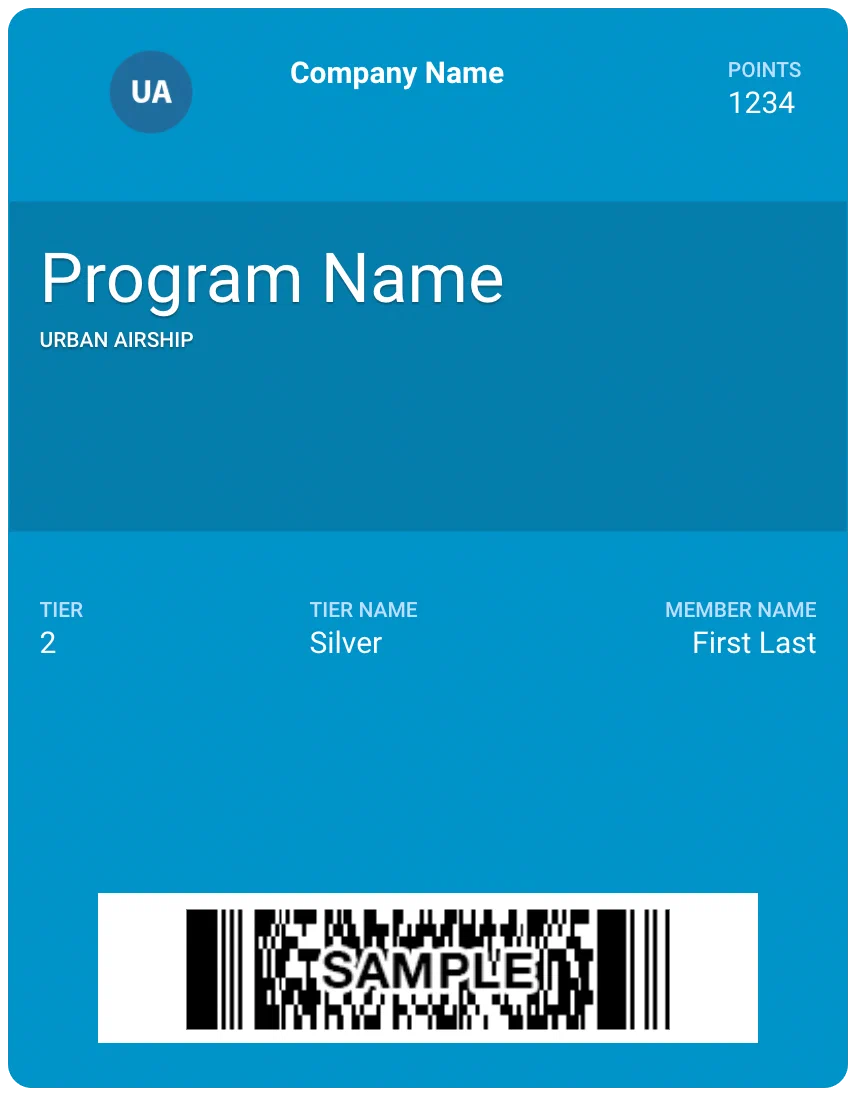 | 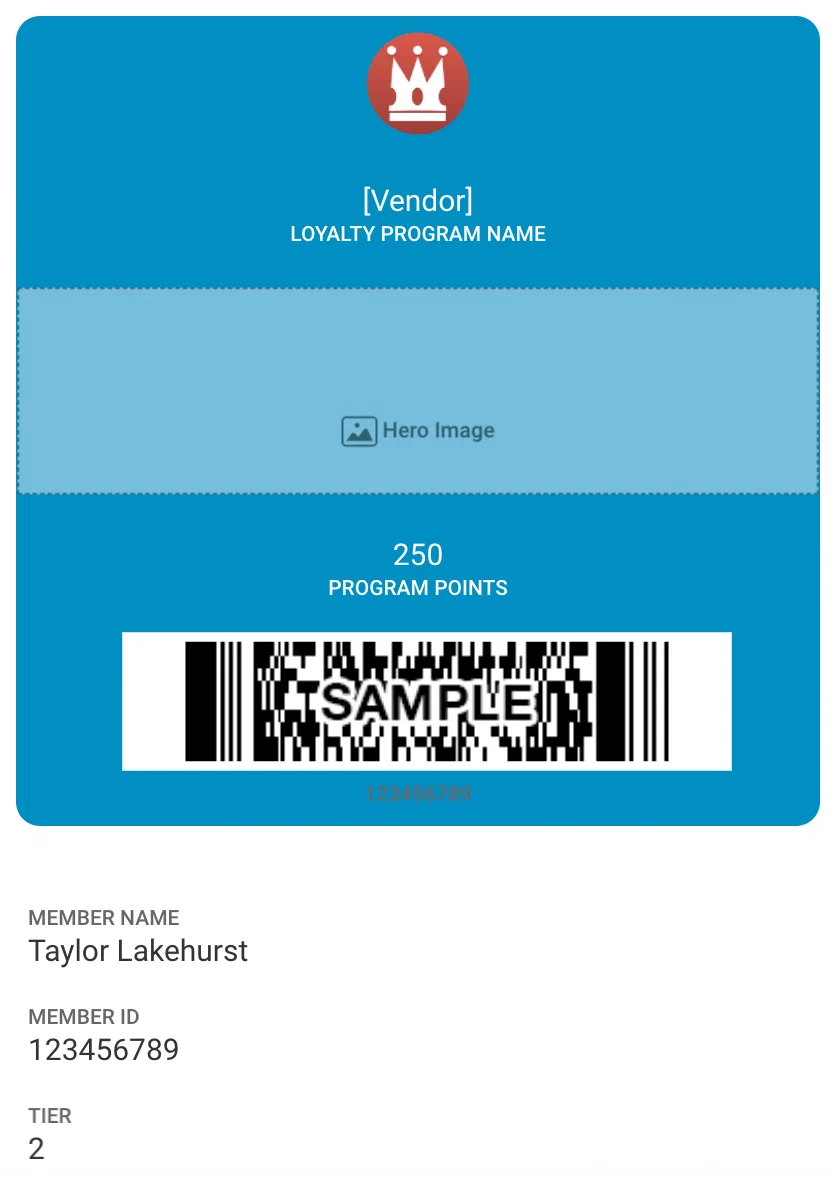 |
| Coupon | 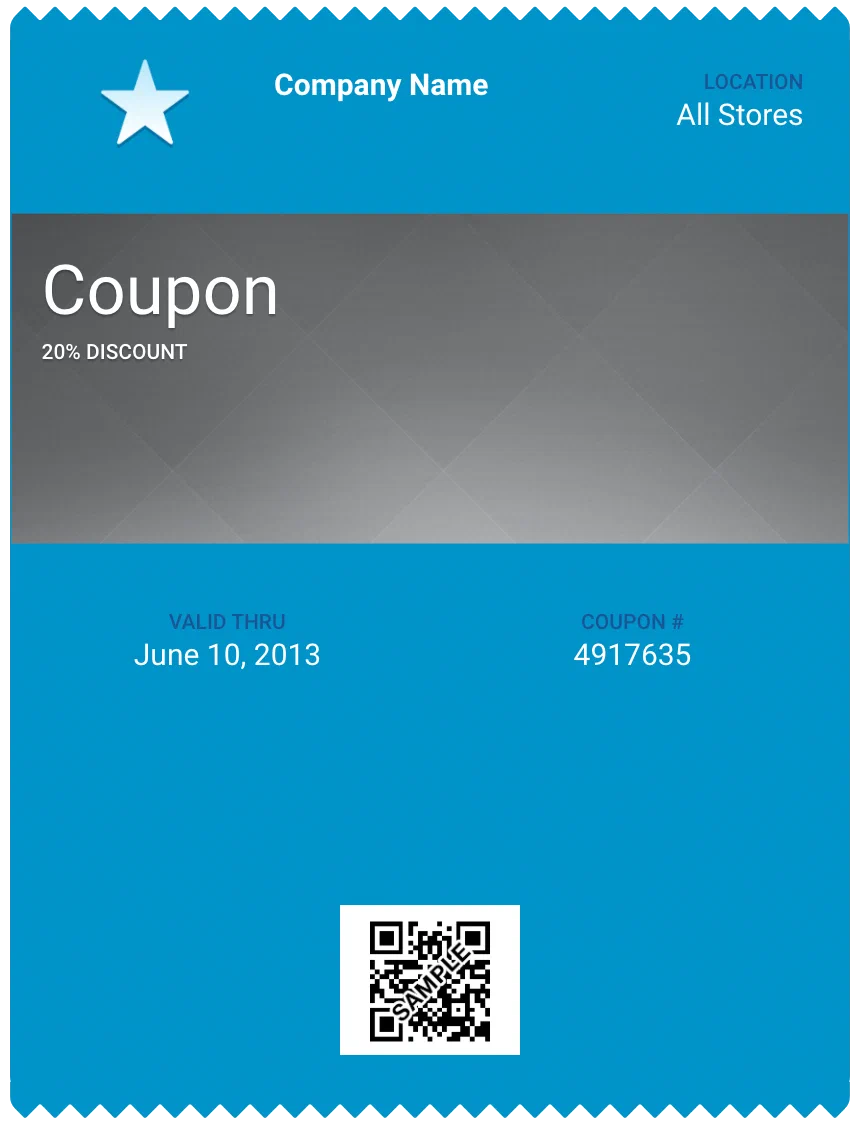 | 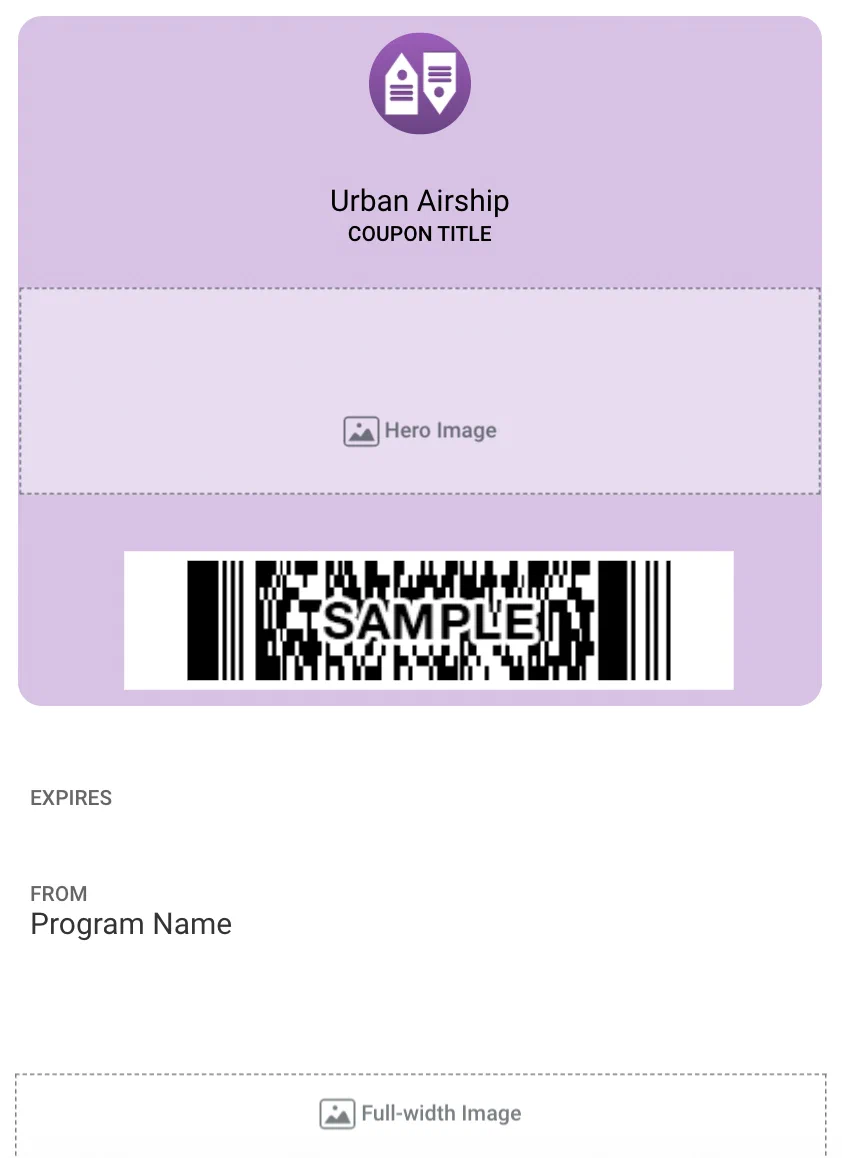 |
| Gift card | 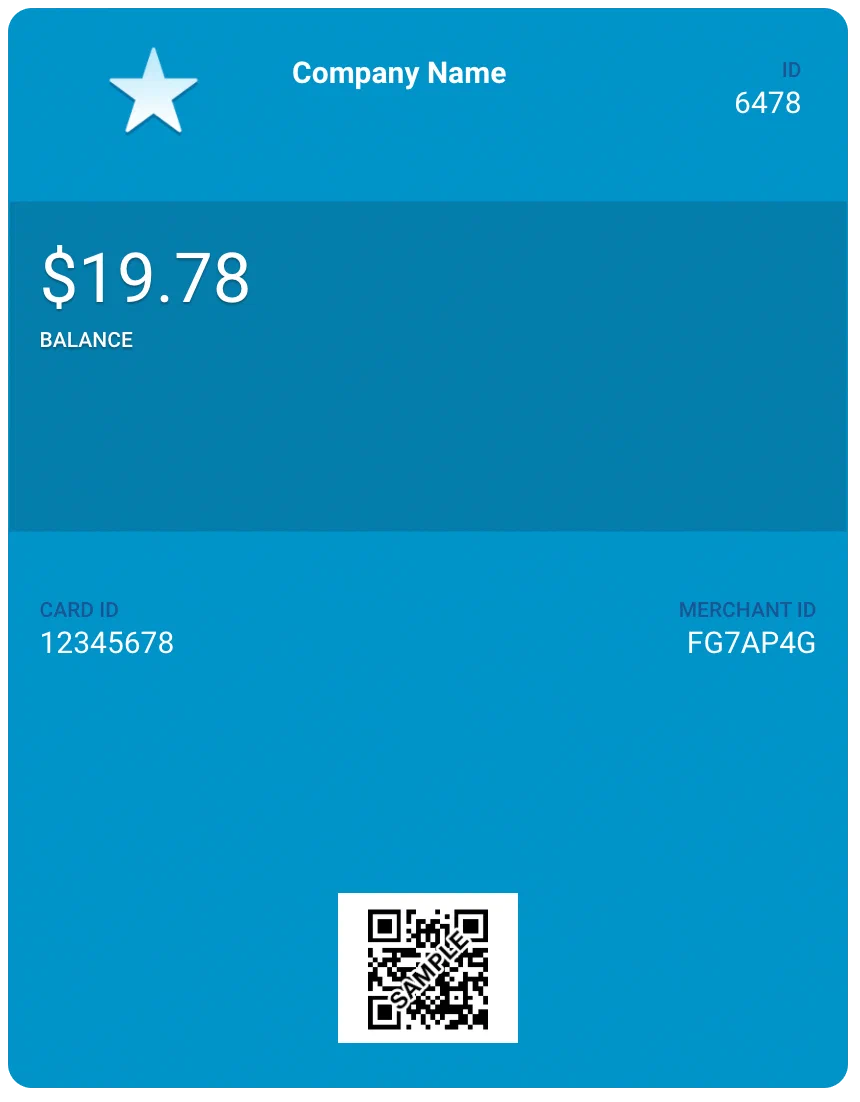 | 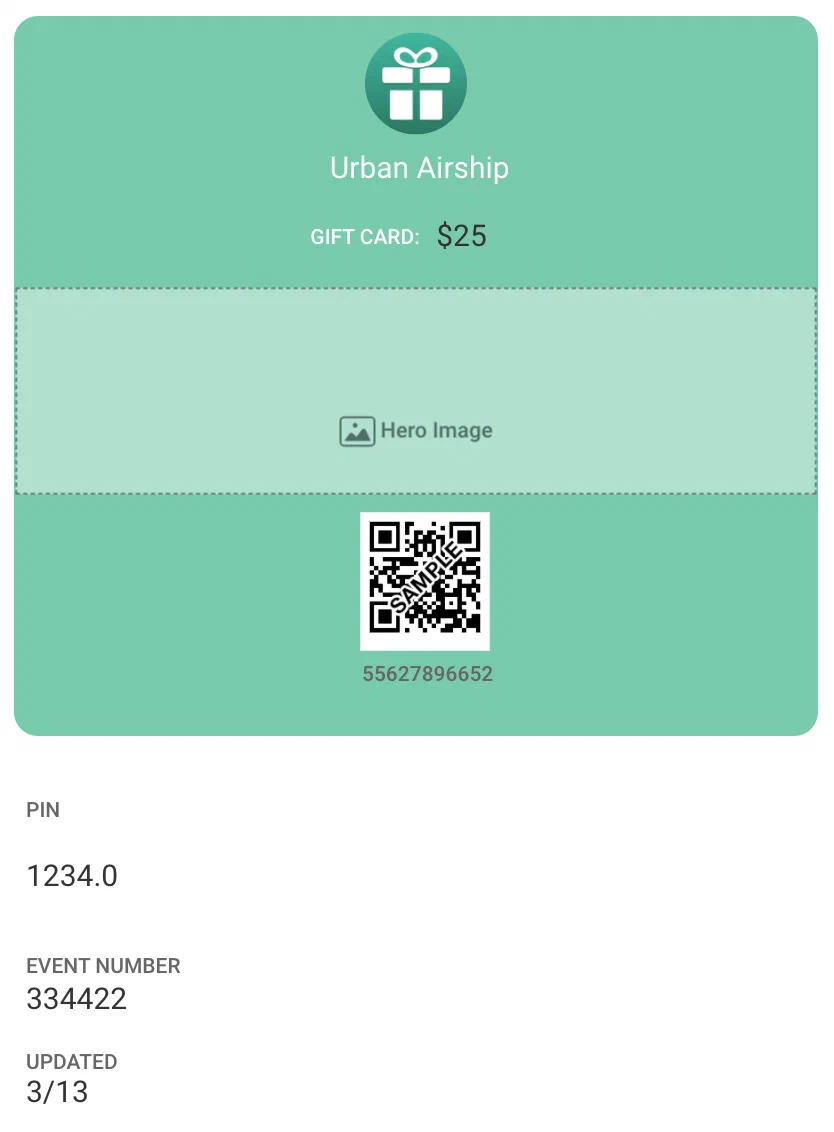 |
| Member card | 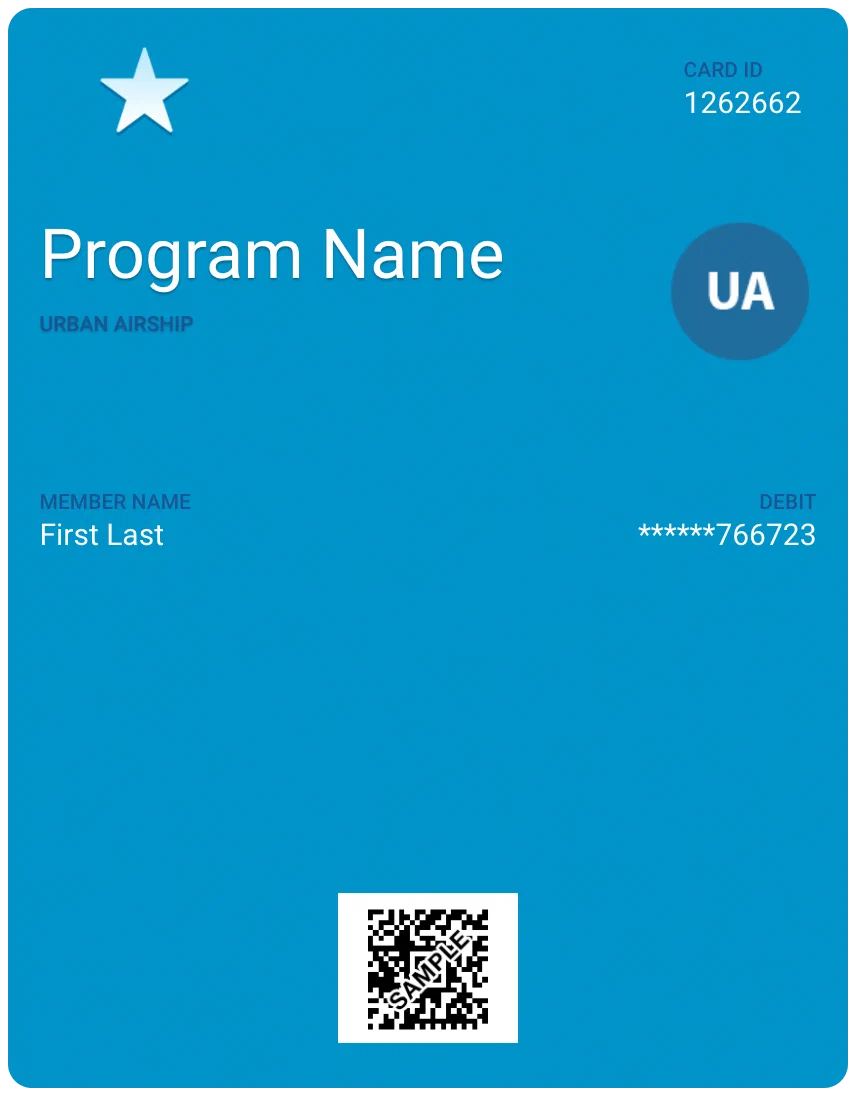 | |
| Event ticket (Layout 1) | 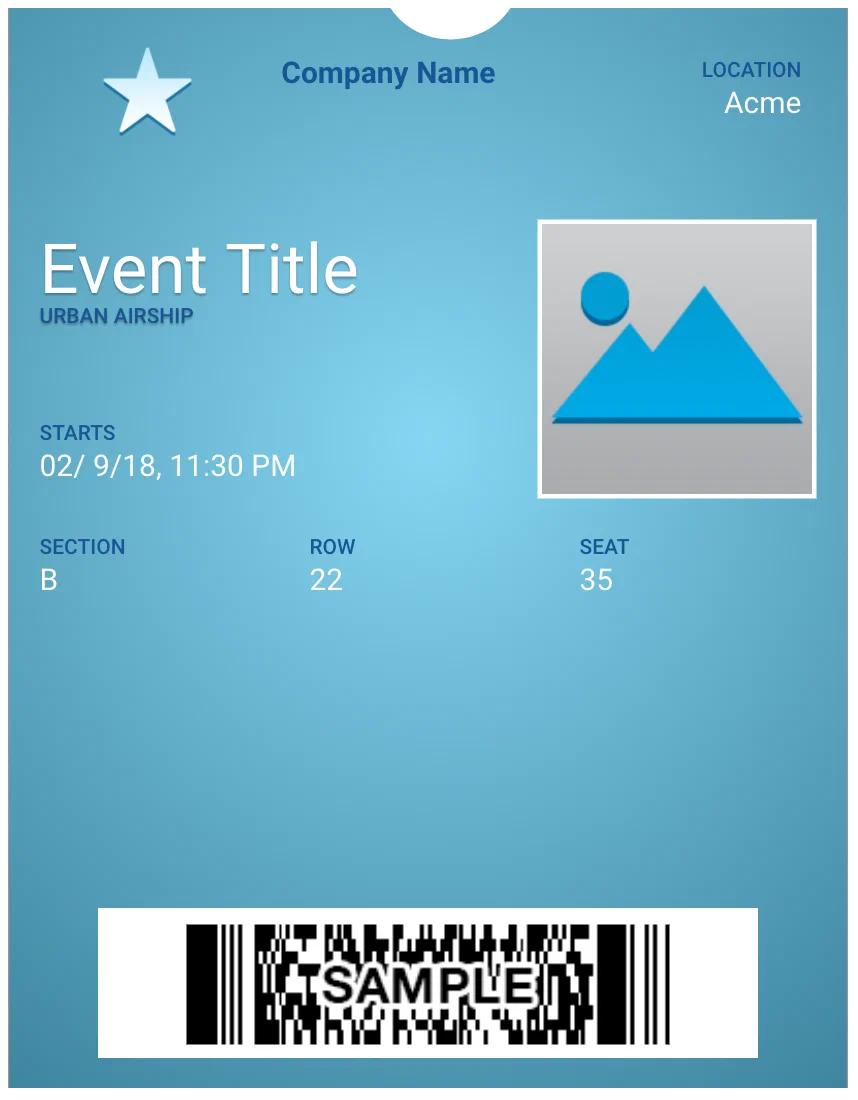 | 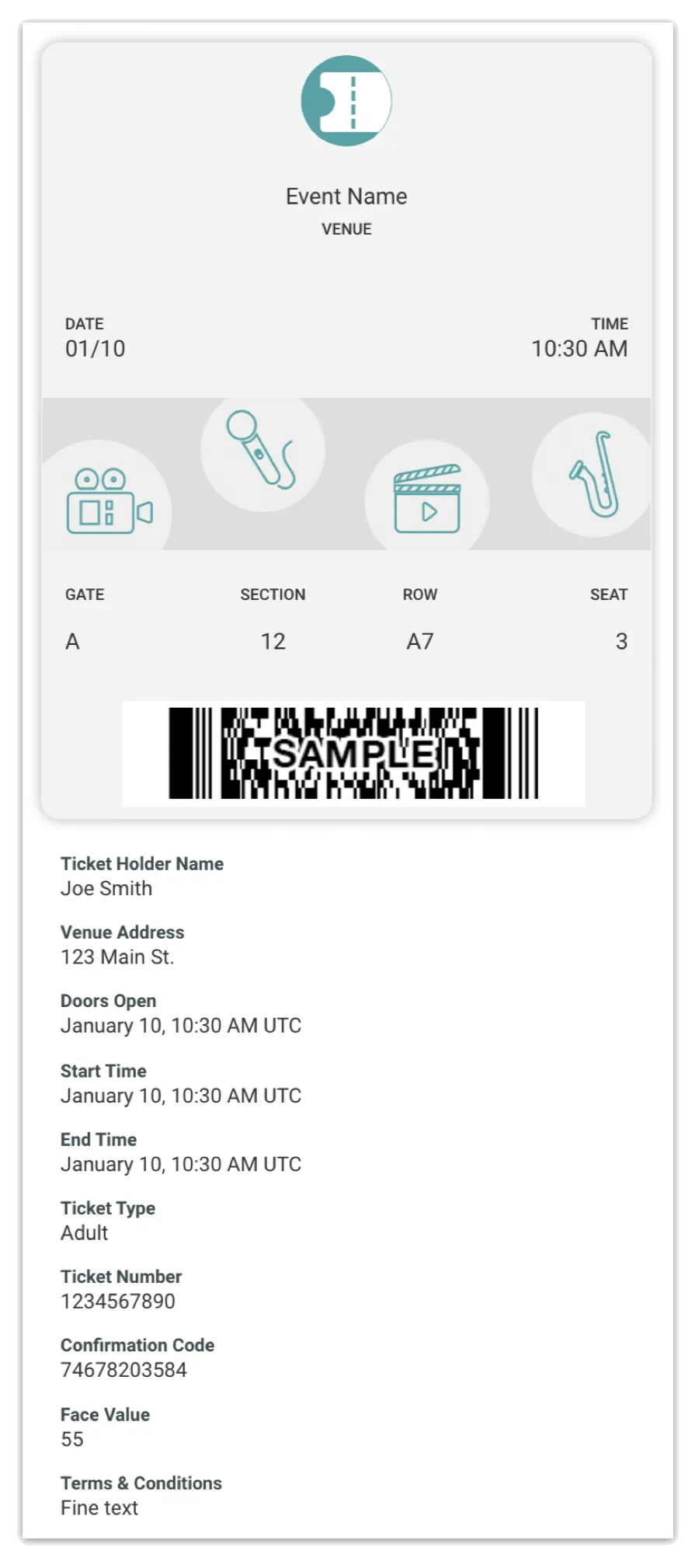 |
| Event ticket (Layout 2) | 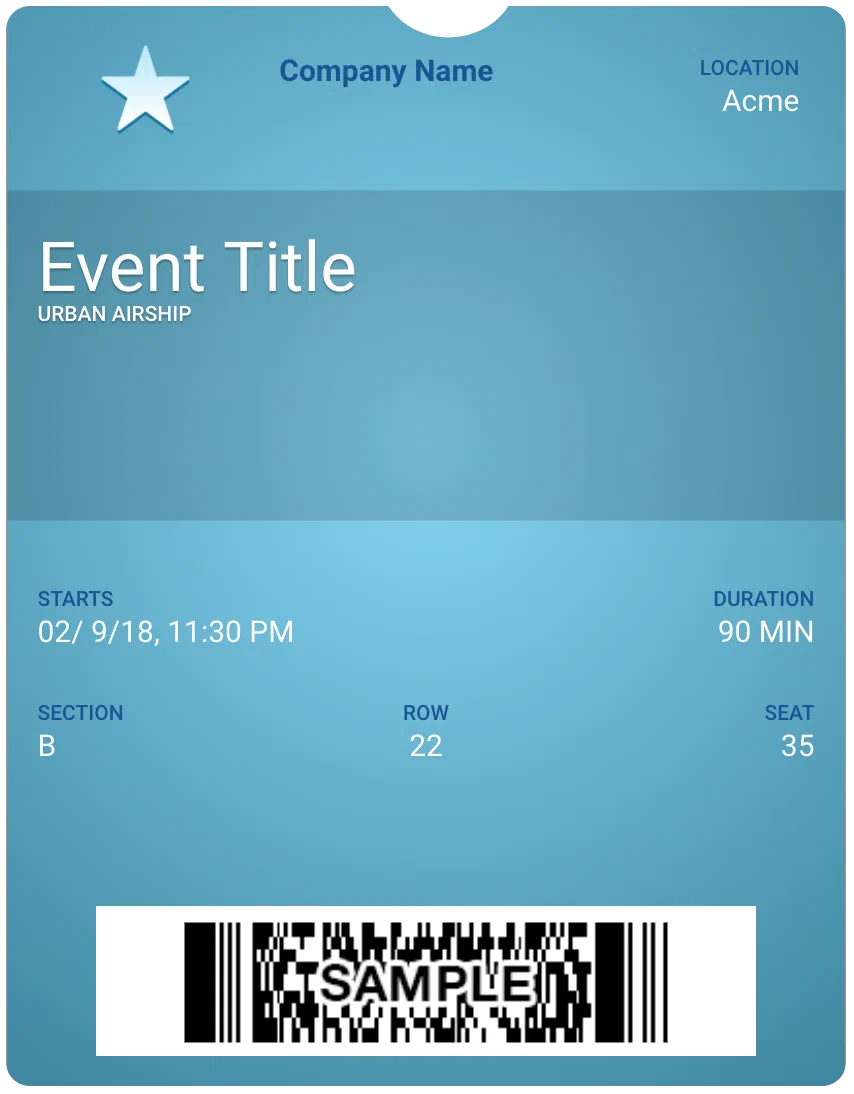 | |
| Boarding pass | 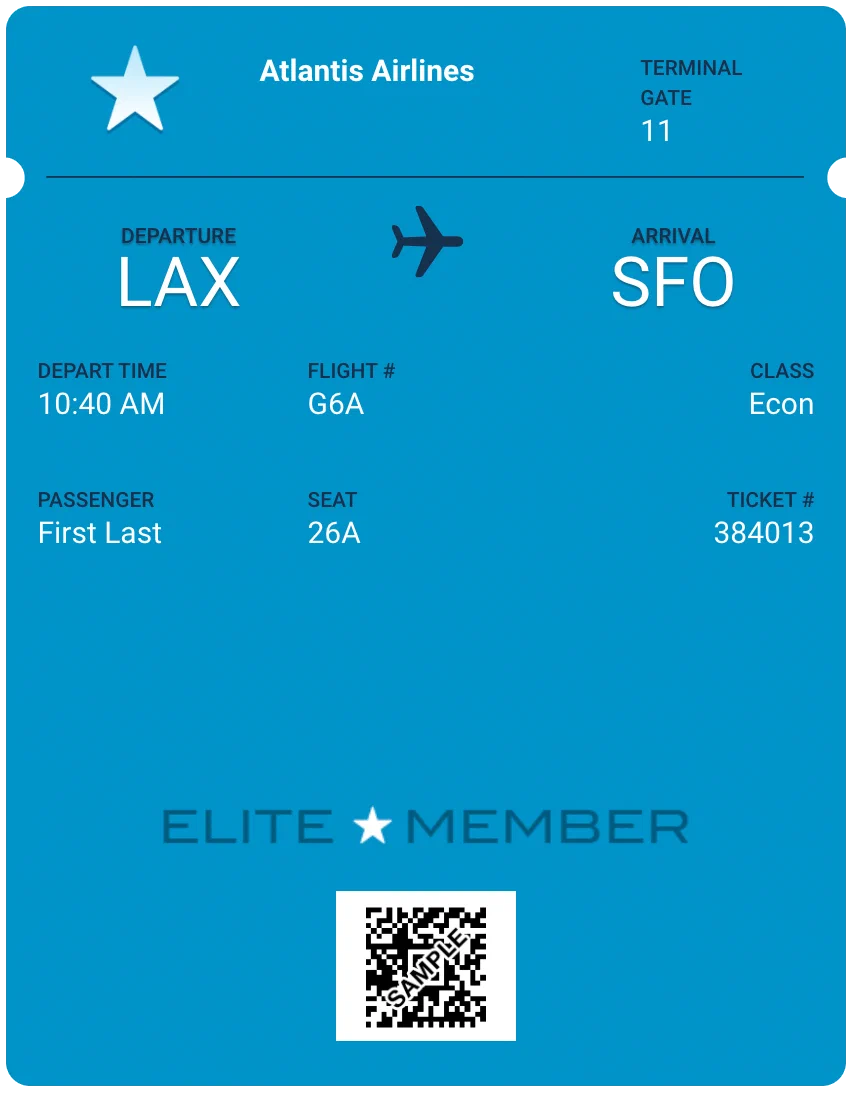 | 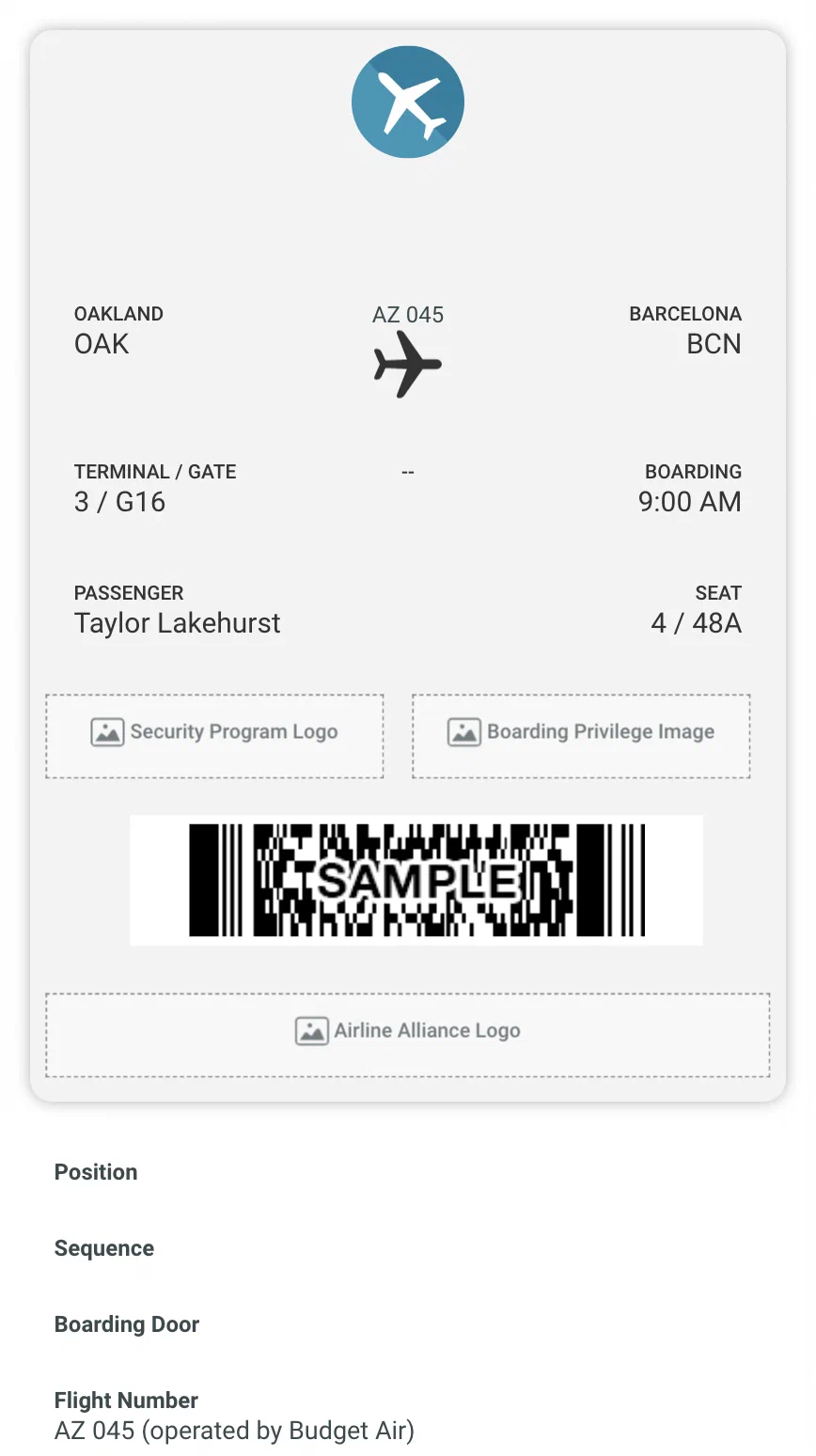 |
| Generic | 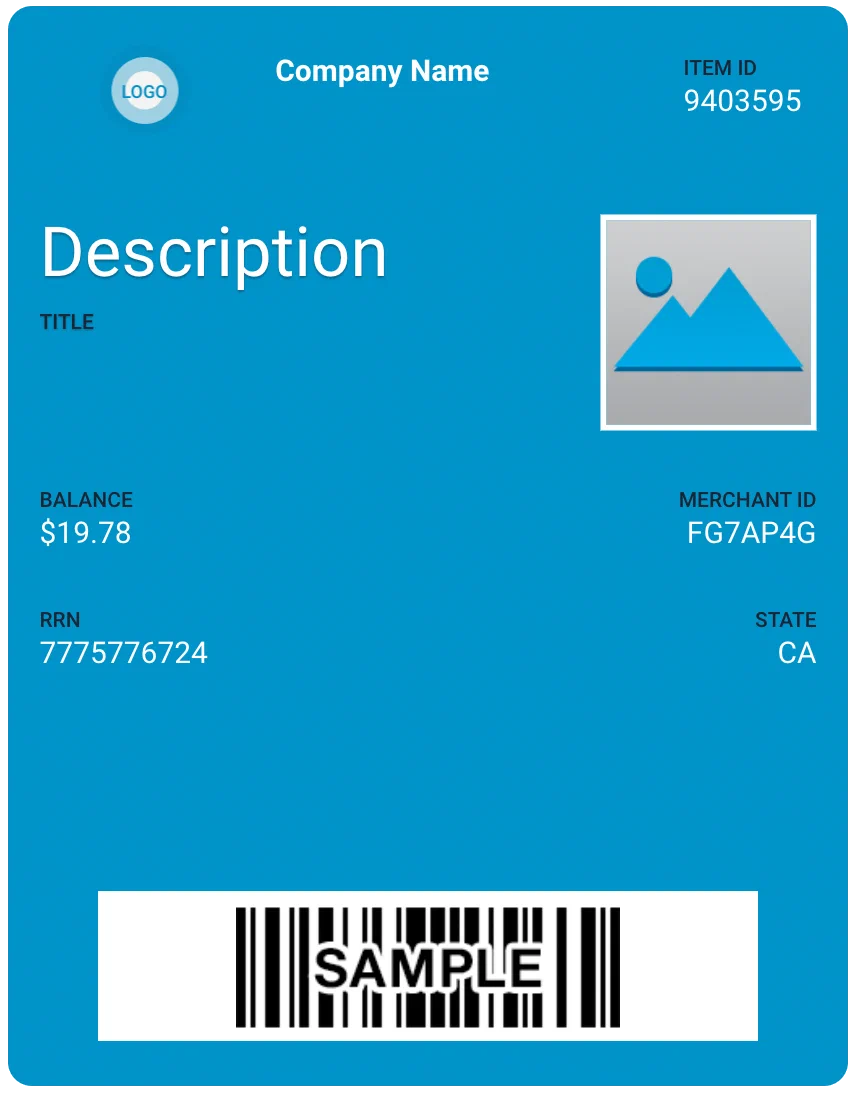 | 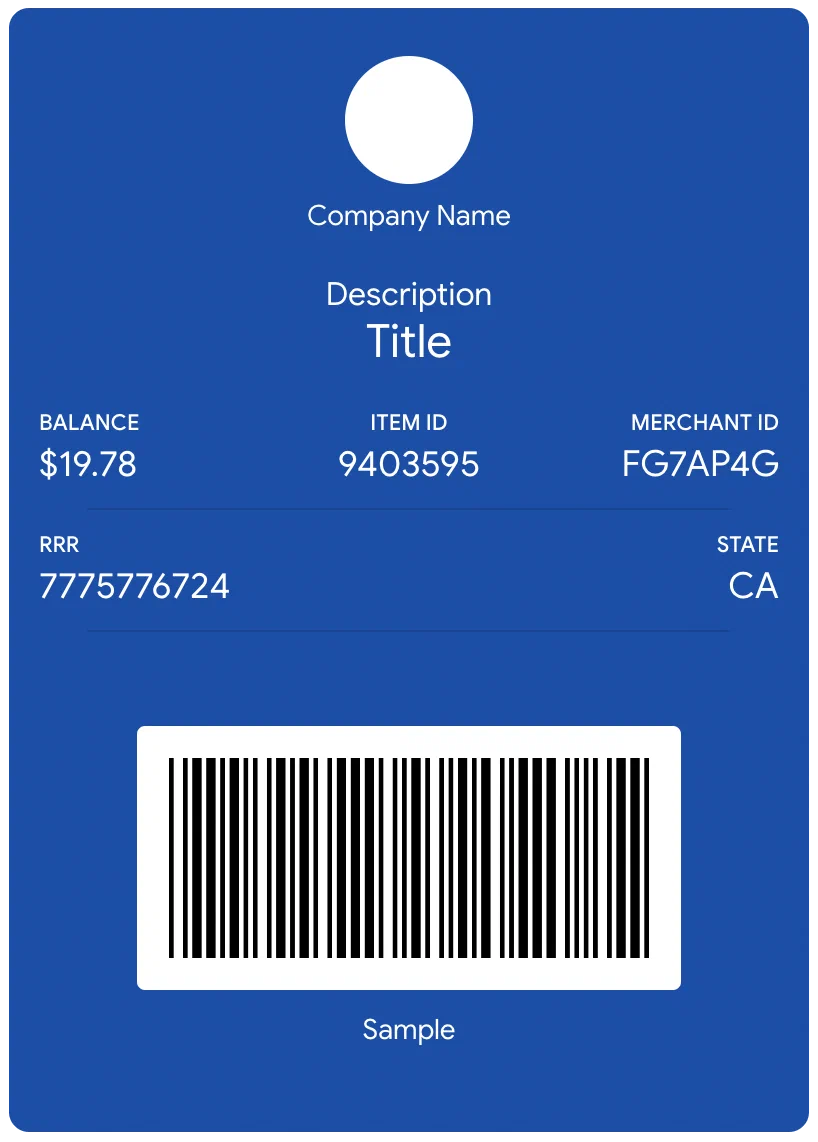 |
## Barcode Types {#ws-barcode-types}
| Type | Display | API associated strings | Apple Wallet | Google Wallet |
| --- | --- | --- | :---: | :---: |
| PDF417 |  | `"PKBarcodeFormatPDF417"` | ✓ | ✓ |
| Aztec |  | `"PKBarcodeFormatAztec"` | ✓| ✓ |
| QR |  | `"PKBarcodeFormatQR"` | ✓ | ✓ |
| Code 128 | 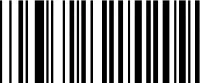 | `"PKBarcodeFormatCode128"` | ✓ | ✓ |
| UPC-A |  | `"UPC_A"` | | ✓ |
| EAN-13 | 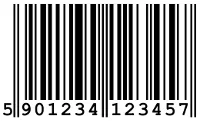 | `"EAN_13"` | | ✓ |
| Code 39 | 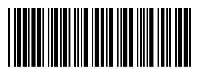 | `"CODE_39"` | | ✓ |
## Sharing Policy {#sharing-policy}
By default, templates allow pass sharing across users and devices. You can change
the sharing policy for templates from the Templates menu for a mobile wallet project.
Apple Wallet and Google Wallet support slightly different sharing settings.
| Sharing policy |
Apple |
Google |
| Multiple users and devices (Default) |
✓ |
✓ |
| One user on multiple devices |
|
✓ |
| One user on one device |
✓ |
✓1 |
1. Intended for use in limited circumstances.
Contact Airship Support for additional information.
## Apple vs Google URL Differences
From the user’s perspective, the pass installation experience is similar on either iOS
or Android — the pass is ultimately downloaded directly to either the Apple Wallet or
Google Wallet app. However, there are differences between the pass URLs:
-
Apple Wallet: Pass URLs generated from Apple Wallet templates point to
a stored .pkpass file. A .pkpass file can be considered similar to a PDF or
any other document that you might link to.
-
Google Wallet: Pass URLs generated from Google Wallet templates provide a
deep link from Google into the Google Wallet app so that the pass can be
downloaded directly without requiring a browser window to facilitate the
request.
For additional detail about the publicUrl object and pass deep linking, see:
API: Passes.
## Single- vs Multi-Use Public URL {#single-vs-multi-use-public-url}
When generating a pass via the
API, you can
create a publicly accessible URL for the pass, hosted at
https://wallet-api.urbanairship.com. The Public URL can be either a single
or multiple (multi-use) pass type, referring to the number of times the pass
can be be downloaded.
-
Use the Single option if you are creating a unique pass. A Single Public
URL can only be downloaded once, but the user can share the pass from the
Apple Wallet directly.
-
Use the Multiple option if the pass is non-unique and can be downloaded
by multiple devices and shared many times.
> **Important:** A public URL is required for Android and optional for iOS.
> **Note:** The URLs returned by the [CSV Batch Importer](https://www.airship.com/docs/guides/wallet/user-guide/create-links/csv-batch-import/)
> are multi-use passes — they can be downloaded by multiple devices.
## Adaptive Link Expiration
Adaptive Links automatically expire after a period that begins upon creation and ends after a duration determined by its associated pass type:
- Boarding pass: 30 days
- Event ticket: 30 days
- Coupon: 365 days
- Generic: 730 days
- Gift card: 730 days
- Loyalty: 730 days
- Member card: 730 days
For additional details, including setting custom expiration dates, see [Expiration](https://www.airship.com/docs/guides/wallet/user-guide/create-links/adaptive-links/#expiration) in *About Adaptive Links*.
## Troubleshooting Apple Wallet Passes
In rare instances, some passes created in Airship Wallet projects will not load in Apple Wallet. Here are some probable causes:
1. We've found inconsistent support of PNG image bit-depths by Apple Wallet
and OS X PassViewer. 8-bit .png images are not currently supported by
Apple Wallet. We recommend that you re-create your PNG at 24-bits (in
Photoshop use *Save for Web*, and choose PNG-24), then re-upload your
image in Airship Wallet.
1. Corrupt graphics will sometimes cause an image to not appear on the
pass. Regenerate your graphics using your favorite graphics editor
(you can use Apple’s Preview.app if you prefer) as 24-bit PNGs and
re-upload them to your Airship Wallet project.
### Pass Design Elements
Pass appearance is dependent on the template design, but all passes have the same primary elements:
* Background color
* Images
* Data fields
* Barcode (optional)
For Apple Wallet passes, you can also set:
* Text color
* Icon image: This is displayed on the lock screen along with any
notifications. It is also displayed when a pass is provided by an app, e.g.,
a mail attachment.
* Data fields on the back of the pass
See [Layouts](#layouts) for more information. These are iOS examples of a boarding pass, a coupon, and a loyalty card.
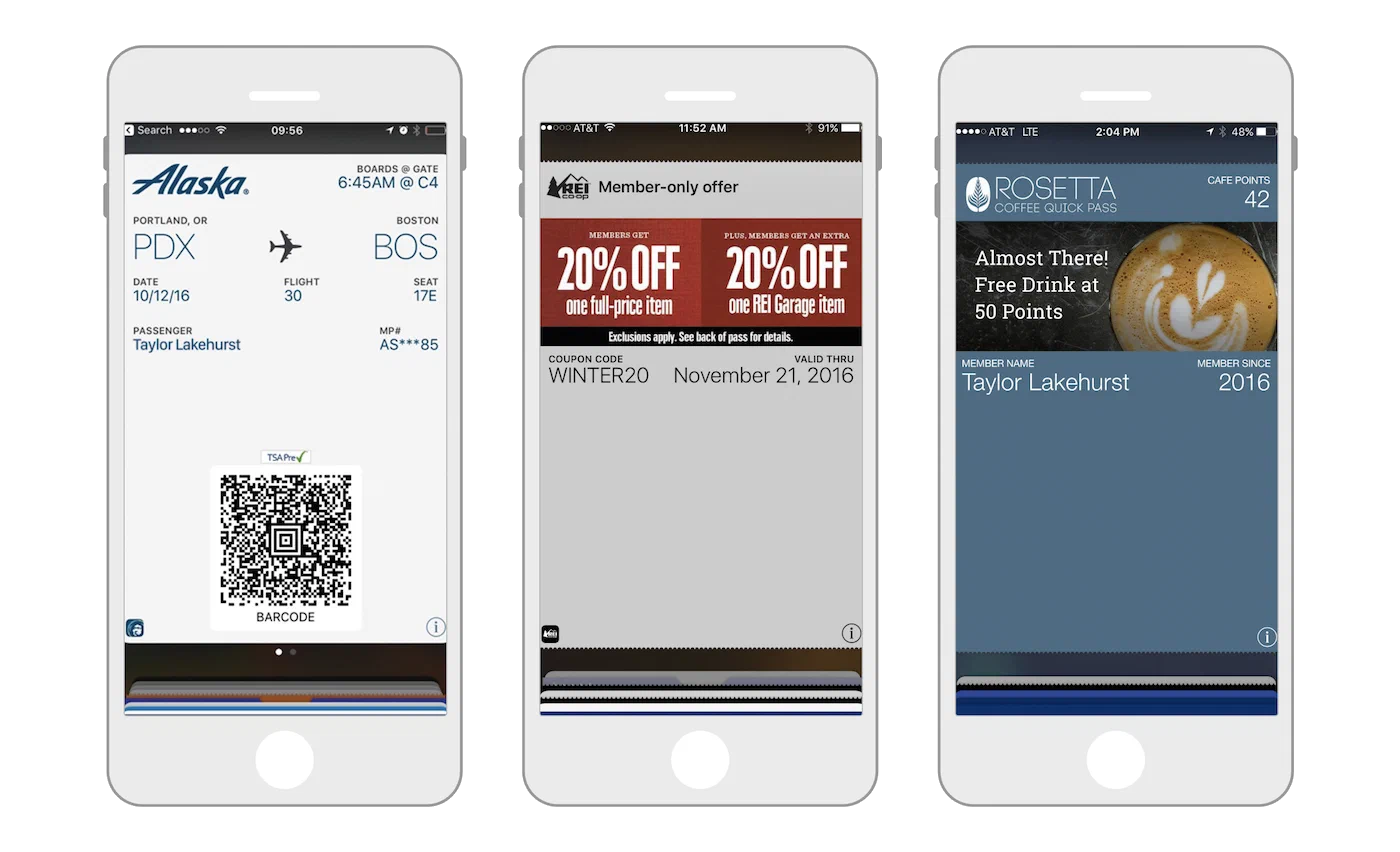
*Examples of a boarding pass, coupon, and loyalty card on iOS*