# Boarding pass overrides

Boarding pass overrides customize the placement and order of fields in Google boarding passes.

You can configure boarding pass overrides through the [wallet template editor](https://www.airship.com/docs/guides/wallet/user-guide/ui/template-editor/) or the [Wallet API](https://www.airship.com/docs/developer/rest-api/wallet/).

> **Note:** Boarding pass overrides only work with Google passes. Apple passes do not support this functionality.


If you are using the Update Template API to override the layout of a pass, it may help you to first view the template in the template editor to better understand its current layout.

## Google Pass Layout

Google passes are organized into sections, each of which has a default layout. You can pass `overrides` when creating your boarding pass template to customize the labels and layout of fields in the sections listed below.

When you override the label or position of a field in one of these sections, you must override all the fields in that section.

![Boarding pass template sections that support overrides](https://www.airship.com/docs/images/walletTemplateOverview_hu_5d9fafff706bee67.webp)

*Boarding pass template sections that support overrides*

You can override the following sections:

1. `cardTemplate`: Supports 2 rows, 3 columns of information. You can override the area in this part of the template.
1. `barcodeSection`: The barcode area of the template.
1. `detailsTemplate`: A list of pass details below the barcode.
1. `listTemplate`: The pass details that users see in their wallet before they open their pass.

### The Card Title

**You cannot override fields in the Card Title section of a boarding pass template**. This includes the fields shown below. In the case of the `departureAirport`, and `arrivalAirport`, we show both the `label` and `value` on the pass.

Fields on the card template are all populated from the flight object — either in the `/flights` API or as a part of an object within an array of `payload.flights` in an adaptive link request. The table below lists the items on the template and the flight object values that populate the template field when you create a pass.

*Required* items in the table below represent the required properties in the adaptive link payload, and are therefore required to be on a pass. While other fields may not be required, and you can hide them if empty, you may want to leave them blank and populate them as the `departureTime` approaches so your passengers know where to look on the pass to find new information.

Moving a template on a field moves both the `label` and `value` keys, if both keys exist, for a flight or passenger.

> **Note:** While the API allows for `label` values at the template field and flight object level, Google does not typically allow you to override field labels for boarding passes. In most cases, `label` overrides at the flight level apply to Apple Wallet passes only.


The table below relates template field names to the keys that populate the template in the adaptive link `payload.flights[]` array of objects.
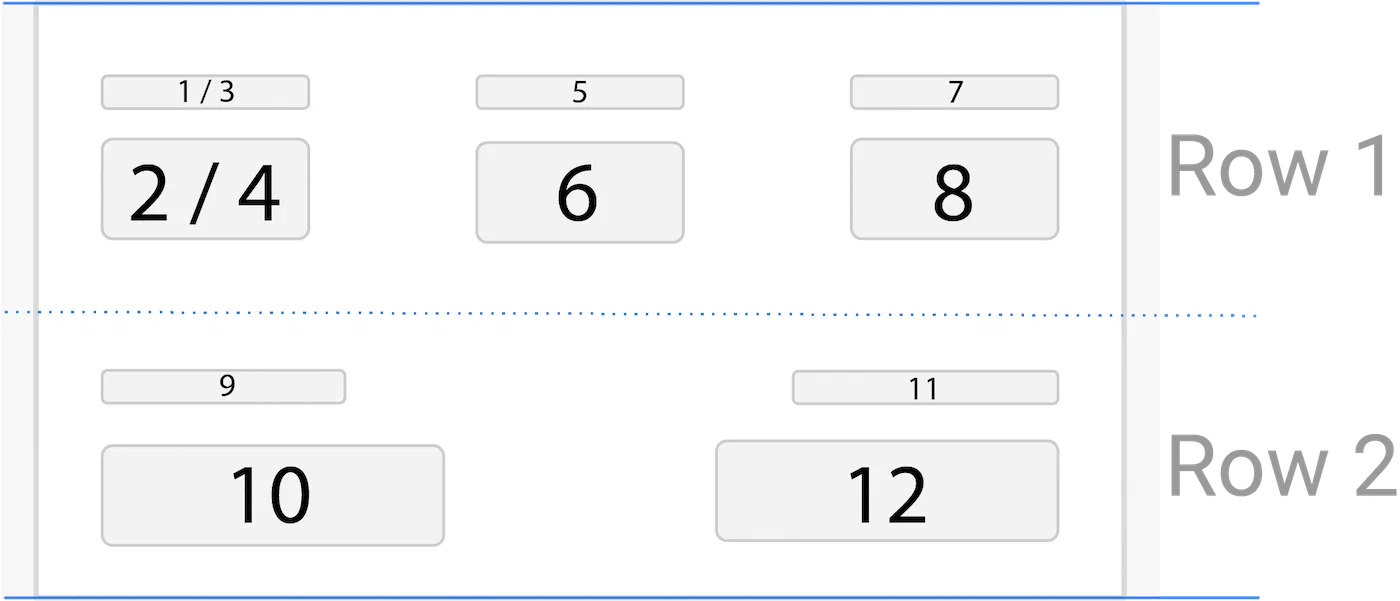
![The Card Title section of a boarding pass](https://www.airship.com/docs/images/boardingpass-cardtitle_hu_4eab106e9387240.webp)

*The Card Title section of a boarding pass*

<div class="table-scroll-wrapper">
<table>
	<tr>
		<th style="width:20px;">&nbsp; &nbsp; &nbsp;</th>
		<th>Template field</th>
		<th>Adaptive Link key<br><code>payload.flights[]</code></th>
		<th class="centered">Default label</th>
		<th style="width:70px;">Required</th>
	</tr>
	<tr>
		<td>1</td>
		<td><code>image</code></td>
		<td></td>
		<td class="centered"></td>
		<td class="centered">:white_check_mark:</td>
	</tr>
	<tr>
		<td>2</td>
		<td><code>airlineName</code></td>
		<td><code>fields.airlineName.value</code></td>
		<td></td>
		<td class="centered">:white_check_mark:</td>
	</tr>
	<tr>
		<td>3</td>
		<td><code>flightNumber</code><sup>1</sup></td>
		<td><code>fields.flightNumber.value</code></td>
		<td></td>
		<td class="centered">:white_check_mark:</td>
	</tr>
	<tr>
		<td>4</td>
		<td class="spanned" rowspan="2"><code>departureAirport</code></td>
		<td><code>fields.departureAirport.label</code><sup>2</sup></td>
		<td class="centered"></td>
		<td class="centered">:white_check_mark:</td>
	</tr>
	<tr>
		<td>5</td>
		<td><code>fields.departureAirport.value</code></td>
		<td></td>
		<td class="centered">:white_check_mark:</td>
	</tr>
	<tr>
		<td>6</td>
		<td class="spanned" rowspan="2"><code>arrivalAirport</code></td>
		<td><code>fields.arrivalAirport.label</code><sup>2</sup></td>
		<td class="centered"></td>
		<td class="centered">:white_check_mark:</td>
	</tr>
	<tr>
		<td>7</td>
		<td><code>fields.arrivalAirport.value</code></td>
		<td></td>
		<td class="centered">:white_check_mark:</td>
	</tr>
</table>
</div>

<sup>1</sup> This field also appears in the <code>detailsTemplate</code>. You can override this field to change its placement elsewhere on the pass, but you cannot remove or change its placement on the card title.<br>
<sup>2</sup> Typically set by the corresponding <code>value</code> property. You can override the Airport name using the <code>label</code> field, but you don't have to set this value manually when creating flights.

### The Card Template

The Card Template consists of 2 rows. The first row supports three columns. The second row supports 2 columns. All `row`/`col` combinations support `subcol`, allowing for 2 template fields per rectangle in the image below.

*Required* items in the table below represent the required properties in the adaptive link payload, and are therefore required to be on a pass. While other fields may not be required, and you can hide them if empty, you may want to leave them blank and populate them as the `departureTime` approaches so your passengers know where to look on the pass to find new information.

Moving a template on a field moves both the `label` and `value` keys, if both keys exist, for a flight or passenger.

> **Note:** While the API allows for `label` values at the template field and flight object level, Google does not typically allow you to override field labels for boarding passes. In most cases, `label` overrides at the flight level apply to Apple Wallet passes only.


The table below relates template field names to the keys that populate the template in the adaptive link `payload.flights[]` array of objects.
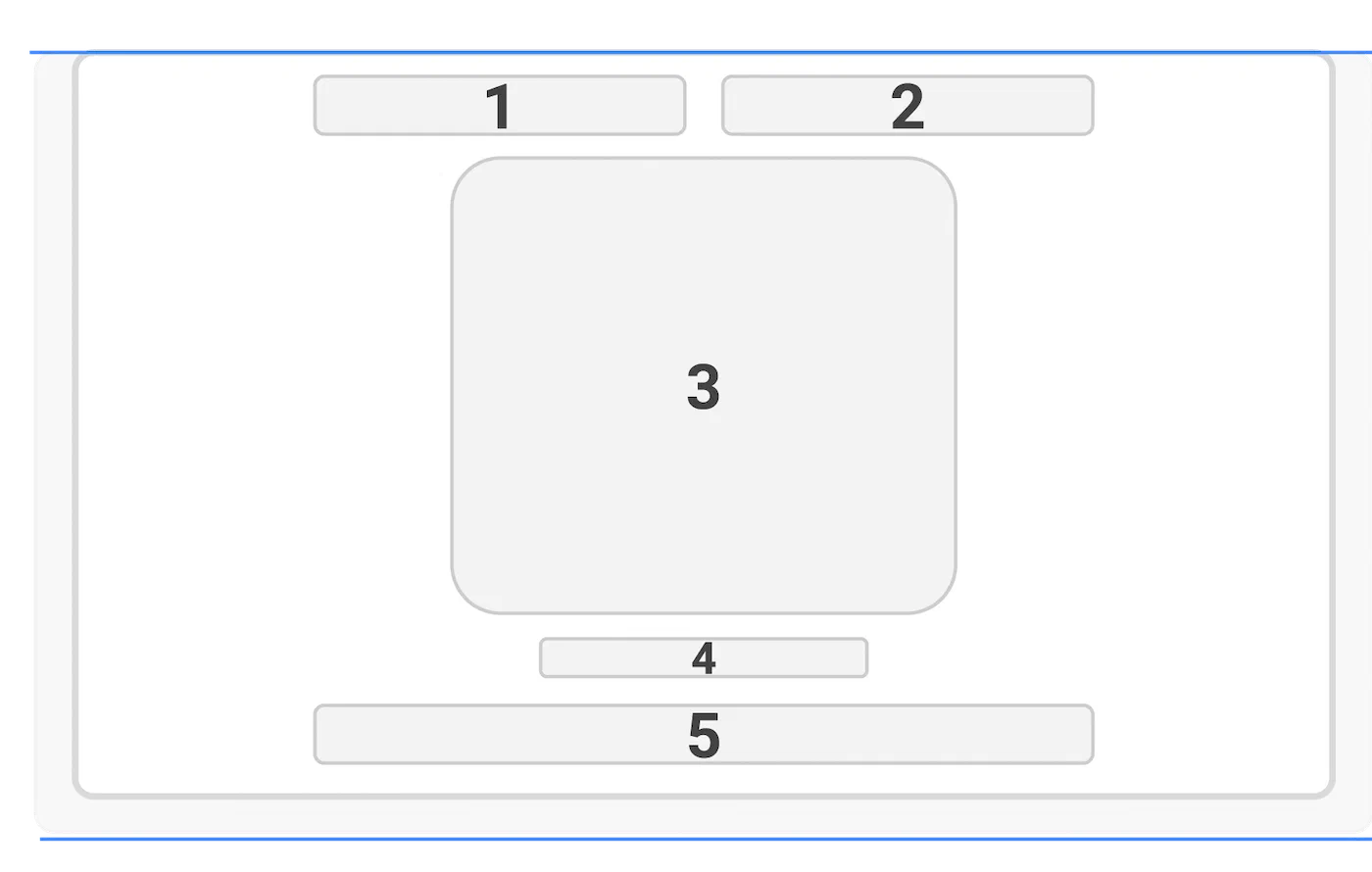
![The Card Template section of a boarding pass](https://www.airship.com/docs/images/boardingPass-cardTemplate_hu_eb857978da8a3666.webp)

*The Card Template section of a boarding pass*

<div class="table-scroll-wrapper">
<table class="custom">
	<tr>
		<th style="width:20px;">&nbsp; &nbsp; &nbsp;</th>
		<th>Template field</th>
		<th>Adaptive Link key<br><code>payload.flights[]</code></th>
		<th class="centered">Default label</th>
		<th style="width:70px;">Required</th>
	</tr>
	<tr>
		<td>1</td>
		<td class="spanned" rowspan="2"><code>departureTerminal</code></td>
		<td><code>fields.departureTerminal.label</code></td>
		<td class="centered">TERMINAL</td>
		<td class="centered"></td>
	</tr>
	<tr>
		<td>2</td>
		<td><code>fields.departureTerminal.value</code></td>
		<td></td>
		<td class="centered"></td>
	</tr>
	<tr>
		<td>3</td>
		<td class="spanned" rowspan="2"><code>departureGate</code></td>
		<td><code>fields.departureGate.label</code></td>
		<td class="centered">GATE</td>
		<td class="centered"></td>
	</tr>
	<tr>
		<td>4</td>
		<td><code>fields.departureGate.value</code></td>
		<td></td>
		<td class="centered"></td>
	</tr>
	<tr>
		<td>5</td>
		<td><code>seatClassPolicy</code><sup>1</sup></td>
		<td><code>fields.seatClass.label</code></td>
		<td class="centered">CABIN</td>
		<td class="centered"></td>
	</tr>
	<tr>
		<td>6</td>
		<td><code>seatClass</code></td>
		<td><code>passengers[].fields.seatClass</code></td>
		<td></td>
		<td class="centered"></td>
	</tr>
	<tr>
		<td>7</td>
		<td class="spanned" rowspan="2"><code>boardingTime</code><sup>2</sup></td>
		<td><code>fields.boardingTime.label</code></td>
		<td class="centered"></td>
		<td class="centered"></td>
	</tr>
	<tr>
		<td>8</td>
		<td><code>fields.boardingTime.value</code></td>
		<td class="centered"></td>
		<td class="centered"></td>
	</tr>
	<tr>
		<td>9</td>
		<td class="spanned" rowspan="2"><code>passengerName</code></td>
		<td><code>passengers[].fields.passengerName.label</code></td>
		<td class="centered">PASSENGER</td>
		<td class="centered"></td>
	</tr>
	<tr>
		<td>10</td>
		<td><code>passengers[].fields.passengerName.value</code></td>
		<td class="centered"></td>
		<td class="centered">:white_check_mark:</td>
	</tr>
	<tr>
		<td>11</td>
		<td class="spanned" rowspan="2"><code>boardingGroup</code></td>
		<td><code>passengers[].fields.boardingGroup.label</code></td>
		<td class="centered">GROUP</td>
		<td class="centered"></td>
	</tr>
	<tr>
		<td>12</td>
		<td><code>passengers[].fields.boardingGroup.value</code></td>
		<td class="centered"></td>
		<td class="centered"></td>
	</tr>
	<tr>
		<td>13</td>
		<td class="spanned" rowspan="2"><code>seatNumber</code></td>
		<td><code>passengers[].fields.seatNumber.label</code></td>
		<td class="centered">SEAT</td>
		<td class="centered"></td>
	</tr>
	<tr>
		<td>14</td>
		<td><code>passengers[].fields.seatNumber</code></td>
		<td class="centered"></td>
		<td class="centered"></td>
	</tr>
</table>
</div>

<sup>1</sup>The label changes based on the <code>seatClassPolicy</code> set on the flight.<br>
<sup>2</sup>This field also appears on the <code>detailsTemplate</code>.

### The Barcode Template

The barcode template consists of four rows. You can set default values for a few items on the template, but the barcode value itself is populated from the `headers` in your template or adaptive link with a `confirmationCode` value set for each passenger.

*Required* items in the table below represent the required properties in the adaptive link payload, and are therefore required to be on a pass. While other fields may not be required, and you can hide them if empty, you may want to leave them blank and populate them as the `departureTime` approaches so your passengers know where to look on the pass to find new information.

Moving a template on a field moves both the `label` and `value` keys, if both keys exist, for a flight or passenger.

> **Note:** While the API allows for `label` values at the template field and flight object level, Google does not typically allow you to override field labels for boarding passes. In most cases, `label` overrides at the flight level apply to Apple Wallet passes only.


The table below relates template field names to the keys that populate the template in the adaptive link `payload.flights[]` array of objects.

![The Barcode section of a boarding pass](https://www.airship.com/docs/images/boardingPass-barcodeTemplate_hu_4ecab8947d957625.webp)

*The Barcode section of a boarding pass*

<div class="table-scroll-wrapper">
<table class="custom">
	<tr>
		<th style="width:20px;">&nbsp; &nbsp; &nbsp;</th>
		<th>Template field</th>
		<th>Adaptive Link key<br><code>payload.flights[]</code></th>
		<th class="centered">Default label</th>
		<th style="width:70px;">Required</th>
	</tr>
	<tr>
		<td>1</td>
		<td><code>headers.securityProgramLogo</code></td>
		<td><code></code></td>
		<td class="centered"></td>
		<td class="centered"></td>
	</tr>
	<tr>
		<td>2</td>
		<td><code>headers.boardingPrivilegeImage</code></td>
		<td><code></code></td>
		<td></td>
		<td class="centered"></td>
	</tr>
	<tr>
		<td>3</td>
		<td><code>headers.barcode_value</code></td>
		<td><code>passengers[].fields.confirmationCode</code></td>
		<td class="centered"></td>
		<td class="centered">
</td>
	</tr>
	<tr>
		<td>4</td>
		<td><code></code></td>
		<td><code>headers.barcodeAltText</code></td>
		<td></td>
		<td class="centered"></td>
	</tr>
	<tr>
		<td>5</td>
		<td><code>headers.airlineAllianceLogo</code></td>
		<td><code>fields.airlineAllianceLogo</code></td>
		<td class="centered"></td>
		<td class="centered"></td>
	</tr>
</table>
</div>
<br>

### The Details Template

The `detailsTemplate` supports a number of single-column rows, each supporting `subcol` — two items separated by a `/`. Generally, website and image rows on the details template, are set at the template level, though you can set them within an adaptive link payload by providing a field object (with `label` and/or `value` keys) outside of the flights object.
<!-- is this bit true? Does it go in the flights object? -->

*Required* items in the table below represent the required properties in the flight or passenger objects when creating adaptive links, and are therefore required to be on a pass. While other fields may not be required, and you can hide them if empty, you may want to populate these fields as the `departureTime` approaches.

Moving a template on a field moves both the `label` and `value` keys, if both keys exist, for a flight or passenger.

> **Note:** While the API allows for `label` values at the template field and flight object level, Google does not typically allow you to override field labels for boarding passes. In most cases, `label` overrides at the flight level apply to Apple Wallet passes only.


The table below relates template field names to the keys that populate the template in the adaptive link `payload.flights[]` array of objects.

![The Details Template section of a boarding pass](https://www.airship.com/docs/images/boardingPasses-detailsTemplate_hu_4419d9287677511.webp)

*The Details Template section of a boarding pass*

<div class="table-scroll-wrapper">
<table class="custom">
	<tr>
		<th style="width:20px;">&nbsp; &nbsp; &nbsp;</th>
		<th>Template field</th>
		<th>Adaptive Link key<br><code>payload.flights[]</code></th>
		<th class="centered">Default label</th>
		<th style="width:70px;">Required</th>
	</tr>
	<tr>
		<td>1</td>
		<td class="spanned" rowspan="2"><code>boardingPosition</code></td>
		<td></td>
		<td class="centered">Position</td>
		<td class="centered"></td>
	</tr>
	<tr>
		<td>2</td>
		<td><code>passengers[].fields.boardingPosition.value</code></td>
		<td></td>
		<td class="centered"></td>
	</tr>
	<tr>
		<td>3</td>
		<td class="spanned" rowspan="2"><code>sequenceNumber</code></td>
		<td></td>
		<td class="centered">Sequence</td>
		<td class="centered"></td>
	</tr>
	<tr>
		<td>4</td>
		<td><code>passengers[].fields.sequenceNumber.value</code></td>
		<td></td>
		<td class="centered"></td>
	</tr>
	<tr>
		<td>5</td>
		<td class="spanned" rowspan="2"><code>boardingDoor</code></td>
		<td></td>
		<td class="centered">Boarding Door</td>
		<td class="centered"></td>
	</tr>
	<tr>
		<td>6</td>
		<td><code>passengers[].fields.boardingDoor.value</code></td>
		<td></td>
		<td class="centered"></td>
	</tr>
	<tr>
		<td>7</td>
		<td class="spanned" rowspan="2"><code>flightNumber</code></td>
		<td></td>
		<td class="centered">Flight Number</td>
		<td class="centered"></td>
	</tr>
	<tr>
		<td>8</td>
		<td><code>fields.flightNumber.value</code></td>
		<td></td>
		<td class="centered">:white_check_mark:</td>
	</tr>
	<tr>
		<td>9</td>
		<td class="spanned" rowspan="2"><code>confirmationCode</code></td>
		<td></td>
		<td class="centered">Confirmation Code</td>
		<td class="centered"></td>
	</tr>
	<tr>
		<td>10</td>
		<td><code>passengers[].fields.confirmationCode.value</code></td>
		<td></td>
		<td class="centered">:white_check_mark:</td>
	</tr><tr>
		<td>11</td>
		<td class="spanned" rowspan="2"><code>eticketNumber</code></td>
		<td></td>
		<td class="centered">Ticket Number</td>
		<td class="centered"></td>
	</tr>
	<tr>
		<td>12</td>
		<td><code>passengers[].fields.eticketNumber.value</code></td>
		<td></td>
		<td class="centered">:white_check_mark:</td>
	</tr><tr>
		<td>13</td>
		<td class="spanned" rowspan="2"><code>frequentFlyerNumber</code><br><code>frequentFlyerProgramName</code></td>
		<td></td>
		<td class="centered">Frequent Flyer Number<sup>1</sup></td>
		<td class="centered"></td>
	</tr>
	<tr>
		<td>14</td>
		<td><code>passengers[].fields.frequentFlyerProgramName.value</code><br><code>passengers[].fields.frequentFlyerNumber.value</code></td>
		<td></td>
		<td class="centered"></td>
	</tr><tr>
		<td>15</td>
		<td class="spanned" rowspan="2"><code>boardingTime</code></td>
		<td><code>fields.boardingTime.label</code></td>
		<td class="centered">Boarding Time</td>
		<td class="centered"></td>
	</tr>
	<tr>
		<td>16</td>
		<td><code>fields.boardingTime.value</code></td>
		<td></td>
		<td class="centered"></td>
	</tr>
	<tr>
		<td>17</td>
		<td class="spanned" rowspan="2"><code>gateClosingTime</code></td>
		<td><code>fields.gateClosingTime.label</code></td>
		<td class="centered">Gate Closes</td>
		<td class="centered"></td>
	</tr>
	<tr>
		<td>18</td>
		<td><code>fields.gateClosingTime.value</code></td>
		<td></td>
		<td class="centered"></td>
	</tr><tr>
		<td>19</td>
		<td class="spanned" rowspan="2"><code>departureTime</code></td>
		<td><code>fields.departureTime.label</code></td>
		<td class="centered">Scheduled</td>
		<td class="centered"></td>
	</tr>
	<tr>
		<td>20</td>
		<td><code>fields.departureTime.value</code></td>
		<td></td>
		<td class="centered"></td>
	</tr><tr>
	<!-- same row as above -->
		<td>21</td>
		<td class="spanned" rowspan="2"><code>actualDepartureTime</code></td>
		<td><code>fields.actualDepartureTime.label</code></td>
		<td class="centered">Estimated Departure</td>
		<td class="centered"></td>
	</tr>
	<tr>
		<td>22</td>
		<td><code>fields.actualDepartureTime.value</code></td>
		<td></td>
		<td class="centered"></td>
	</tr><tr>
		<td>23</td>
		<td class="spanned" rowspan="2"><code>arrivalTime</code></td>
		<td><code>fields.arrivalTime.label</code></td>
		<td class="centered">Scheduled</td>
		<td class="centered"></td>
	</tr>
	<tr>
		<td>24</td>
		<td><code>fields.arrivalTime.value</code></td>
		<td></td>
		<td class="centered"></td>
	</tr><tr>
		<td>25</td>
		<td class="spanned" rowspan="2"><code>actualArrivalTime</code></td>
		<td><code>fields.actualArrivalTime.label</code></td>
		<td class="centered">Estimated Arrival</td>
		<td class="centered"></td>
	</tr>
	<tr>
		<td>26</td>
		<td><code>fields.actualArrivalTime.value</code></td>
		<td></td>
		<td class="centered"></td>
	</tr><tr>
		<td>27</td>
		<td class="spanned" rowspan="2"><code>arrivalTerminal</code></td>
		<td><code>fields.arrivalTerminal.label</code></td>
		<td class="centered">Arrival Terminal</td>
		<td class="centered"></td>
	</tr>
	<tr>
		<td>28</td>
		<td><code>fields.arrivalTerminal.value</code></td>
		<td></td>
		<td class="centered"></td>
	</tr><tr>
		<td>29</td>
		<td class="spanned" rowspan="2"><code>arrivalGate</code></td>
		<td><code>fields.arrivalGate.label</code></td>
		<td class="centered">Gate</td>
		<td class="centered"></td>
	</tr>
	<tr>
		<td>30</td>
		<td><code>fields.arrivalGate.value</code></td>
		<td></td>
		<td class="centered"></td>
	</tr>
	<tr>
		<td>31</td>
		<td><code>boardingPrivilegeImage</td>
		<td><code></code></td>
		<td class="centered"></td>
		<td class="centered"></td>
	</tr>
	<tr>
		<td>32</td>
		<td><code>Random Information</code><sup>1</sup></td>
		<td></td>
		<td class="centered"></td>
		<td class="centered"></td>
	</tr>
	<tr>
		<td>33</td>
		<td><code>Website</code><sup>1</sup></td>
		<td></td>
		<td class="centered"></td>
		<td class="centered"></td>
	</tr>
</table>
</div>

<sup>1</sup>These fields are part of default templates created through the Airship user interface. You can set their values at the template level or set them at the adaptive link level, if you want the value(s) should change.

### Template Overrides

You can override the order of items in a section of your template, or the information in a template section, by specifying an `overrides` object. This object contains the section(s) that you want a field to appear in and the order or placement of a field in that section using `row`, `col`, and `subcol` properties.

Two fields can occupy the same `row` and `col`. Use the `subcol` to determine the order of fields in the same row and column positions.

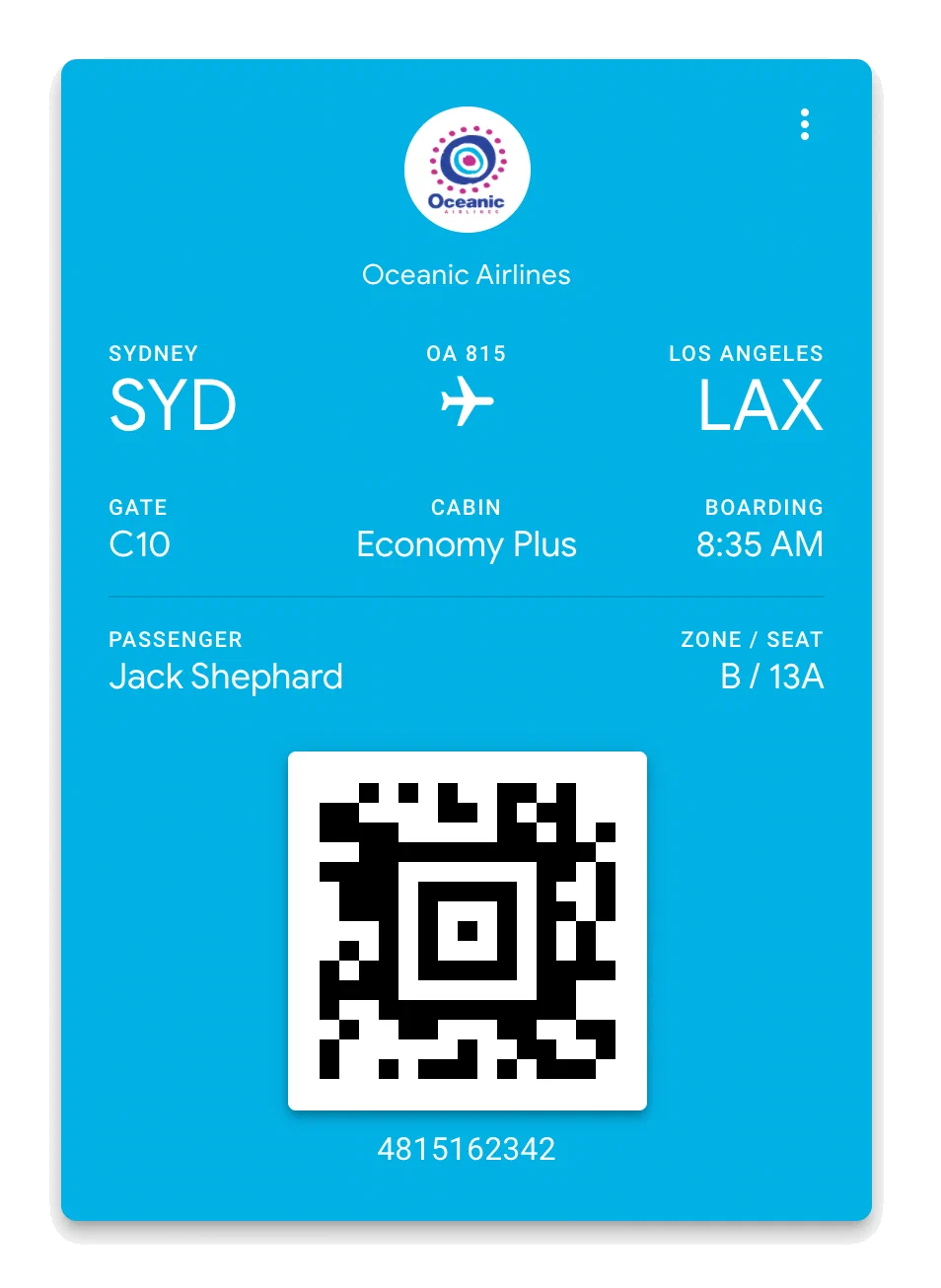
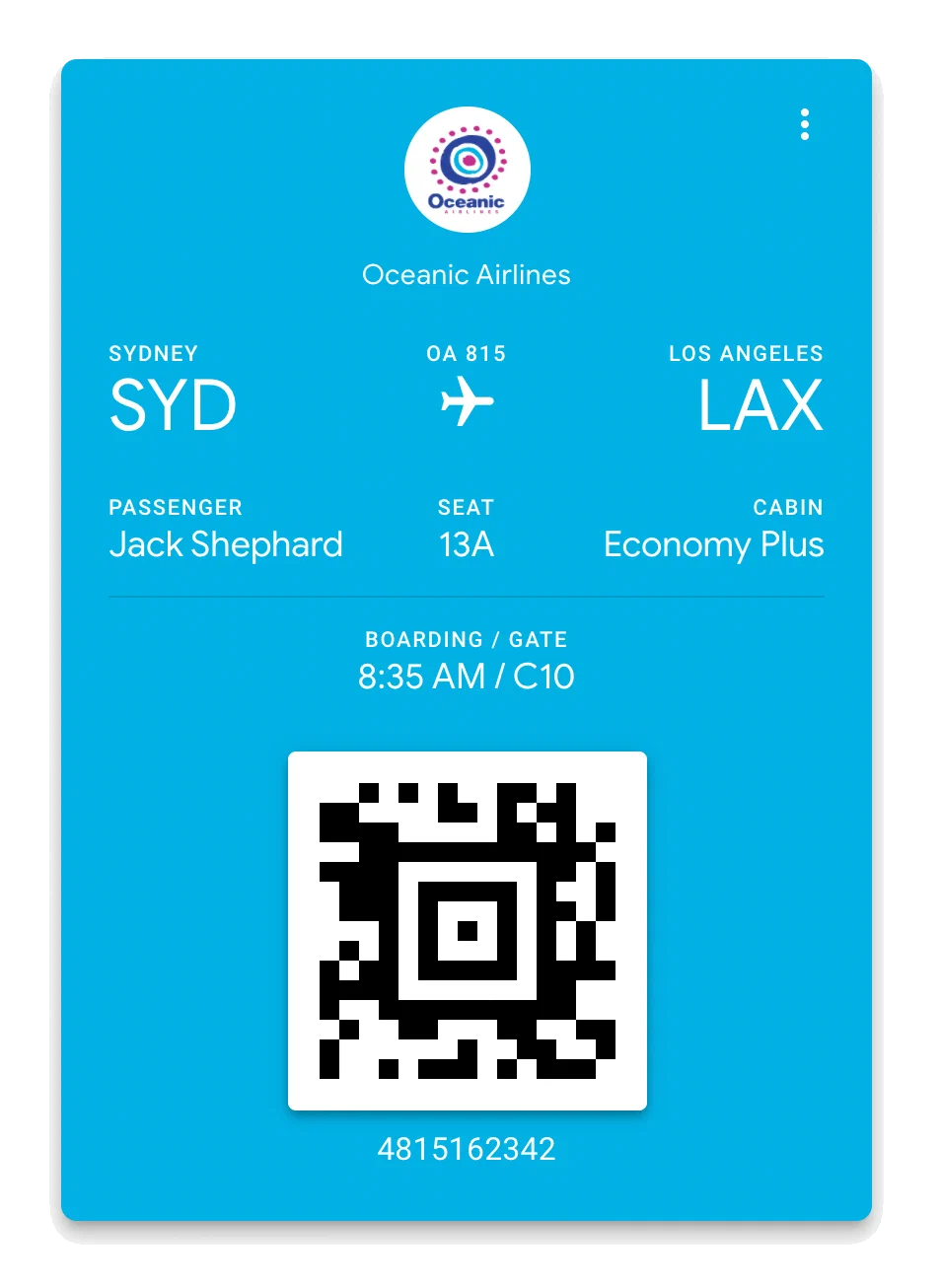
In the example below, we'll move the `boardingTime` and `departureGate` to the second row (index 1) and first column on the card template. Because these two fields will occupy the same space on the template, we'll also set the `subcol` to ensure that the boarding time appears first.

> **Note:** If you override a field in a template section, you must set overrides for all fields in that section. Fields without an override in a section that uses overrides will not appear in a section or on your passes.


**Set overrides for boarding pass fields**

```json
{
    "boardingTime": {
        "fieldType": "flightModule",
        "value": "",
        "formatType": "String",
        "label": "",
        "hideEmpty": false,
        "required": false,
        "overrides": {
            "cardTemplate": {
                "row": 1,
                "col": 0,
                "subCol": 0,
                "dateStyle": "timeOnly"
            }
        }
    },
    "departureGate": {
        "fieldType": "flightModule",
        "value": "",
        "formatType": "String",
        "label": "",
        "hideEmpty": false,
        "required": false,
        "overrides": {
            "cardTemplate": {
                "row": 1,
                "col": 0,
                "subCol": 1
            }
        }
    }
}
```


<div class="table-scroll-wrapper">
<table style="border:none; box-shadow:none; border-collapse: unset;">
<tr>
    <td class="centered" >
    ![Boarding pass with default fields](https://www.airship.com/docs/images/boardingPassWithoutOverride_hu_72001ab3a982d93f.webp)
    
    *Boarding pass with default fields*
    </td>
    <td class="centered" >
    ![Boarding pass with overrides applied](https://www.airship.com/docs/images/boardingPassWithOverride_hu_fabdfb08484b67a5.webp)
    
    *Boarding pass with overrides applied*
    </td>
</tr>
</table>
</div>

## Override a Template

The card template consists of up to two rows, with up to three items per row (left, center, and right). You can add or move fields around the `cardTemplate` to better organize your passes.

> **Note:** We recommend testing overrides with a duplicate template before modifying a template that is associated with live passes. The steps here include duplication, creating an [Adaptive Link](https://www.airship.com/docs/reference/glossary/#adaptive_link), and viewing the passes on local devices to verify that your overrides perform the way you expect.
> 
> You must have at least one Apple Wallet and one Google Wallet template to create an adaptive link.


1. Duplicate an Apple Wallet or Google Wallet template you want to override, and use its `templateId` in the following steps.

1. Use the [/templates](https://www.airship.com/docs/developer/rest-api/wallet/operations/templates/#gettemplate) API to get your template payload. This call, as opposed to the `/v1/template` endpoints, returns a template payload in exactly the same format as you would use in a `POST` or `PUT` operation.

**Get template payload**

```http
GET /templates/160571 HTTP/1.1
Authorization: Basic <authorization string>
Content-Type: application/json
```


1. Update your template with `overrides` using a `PATCH` against the [/templates/{templateId}](https://www.airship.com/docs/developer/rest-api/wallet/operations/templates/#patchtemplates) endpoint. In the payload, you only need to provide the fields in your template that you want to override.
> **Note:** If your template contains fields that aren't a part of the default template design, like `fareType` or `departureGate`, they must contain `label` and `value` keys. You can set empty strings in your template and replace these values when you generate passes, but failing to set `label` or `value` keys will prevent those fields from rendering properly on your pass.

**Update template with overrides**

```http
PATCH /templates/<templateId> HTTP/1.1
Authorization: Basic <authorization string>
Content-Type: application/json

{
	"fields": {
		"passengerInfo": {
			"fieldType": "infoModuleData",
			"value": "First/Last",
			"formatType": "String",
			"label": "PASSENGER",
			"order": 5,
			"overrides": {
				"cardTemplate": {
					"row": 0,
					"col": 0
				}
			}
		},
		"boardingPosition": {
			"fieldType": "flightModule",
			"value": "___",
			"formatType": "String",
			"label": "POSITION",
			"hideEmpty": false,
			"required": false,
			"overrides": {
				"cardTemplate": {
					"row": 0,
					"col": 1
				}
			}
		},
		"departureGate": {
			"fieldType": "flightModule",
			"value": "__",
			"formatType": "String",
			"label": "",
			"hideEmpty": false,
			"required": false,
			"overrides": {
				"cardTemplate": {
					"row": 0,
					"col": 2
				}
			}
		},
		"fareType": {
			"fieldType": "infoModuleData",
			"value": "__",
			"formatType": "String",
			"label": "FARE",
			"hideEmpty": false,
			"required": false,
			"order": 2,
			"overrides": {
				"cardTemplate": {
					"row": 1,
					"col": 0
				}
			}
		},
		"boardsOrEmptyInfo": {
			"fieldType": "infoModuleData",
			"value": "",
			"formatType": "String",
			"label": "BOARDS",
			"hideEmpty": false,
			"required": false,
			"order": 6,
			"overrides": {
				"cardTemplate": {
					"row": 1,
					"col": 1
				}
			}
		},
		"boardsOrSecurityInfo": {
			"fieldType": "infoModuleData",
			"value": "__",
			"formatType": "String",
			"label": "__",
			"hideEmpty": false,
			"required": false,
			"order": 7,
			"overrides": {
				"cardTemplate": {
					"row": 1,
					"col": 2
				}
			}
		}
	}
}
```


1. Repeat steps 2 and 3 for the other platform so that you have will have updated templates for both Apple Wallet and Google Wallet.

1. Create an adaptive link for the updated template IDs, [using the API](https://www.airship.com/docs/guides/wallet/user-guide/create-links/api/) or [dashboard](https://www.airship.com/docs/guides/wallet/user-guide/create-links/dashboard/). Your adaptive link must include passenger information:
   * For `passengers`, both `passengerName` and `confirmationCode` are required fields.
   * For `flights`, `departureTime`, `departureAirport`, `arrivalAirport`, `flightNumber`, and `airlineCode` are required fields.
	<!-- do we need an example adaptive link call here?
	```html

```

	-->

1. Paste the adaptive link in local Android and iOS devices, save the passes, and confirm they appear as you expected.

1. If the passes appear as expected, repeat steps 1-2 for your original templates.

1. (Optional) Confirm the appearance of the passes based on your original templates, and delete the duplicate templates you used for testing.

## Reverting Boarding Pass Template Overrides {#revert}

If you want to revert a template section to the default layout, update your template with an empty `overrides` object.

**Empty overrides object using default layout**

```json
{
    "departureGate": {
        "fieldType": "flightModule",
        "value": "",
        "formatType": "String",
        "label": "",
        "hideEmpty": false,
        "required": false,
        "overrides": {}
    }
}
```


## Override properties

The `overrides` object contains properties that represent an individual override for the field. Properties with Integer values are 0-indexed.

`overrides`: an object with child properties for each section where a field will appears on a pass. Supported child objects: `cardTemplate`, `barcodeSection`, `detailsTemplate`, `listTemplate`. Set an empty object to reset a field to the default layout.

`row`: Integer; the row the field should appear in. The number of available rows depends on the template `type`.

`col`: Integer; the column the field should appear in. There are three columns in the card template, 0 is the left column, 1 is the center, and 2 is the right column.

`subcol`: Integer, 0 or 1; when multiple fields use the same `row` and `col`, this determines whether a field appears on the left or the right in the column.

`dateStyle`: String; for fields that take ISO date-times, use `dateStyle` to override the default format for dates and times. Different fields have different default date styles. Accepted values:

* `date-time`: Show both date and time
* `dateOnly`: Display only the date
* `timeOnly`: Display only the time
* `dateTimeYear`: Display the date, time, and year
* `dateYear`: Display the date and year

**Example field override**

```json
{
    "boardingTime": {
        "fieldType": "flightModule",
        "value": "",
        "formatType": "String",
        "label": "",
        "hideEmpty": false,
        "required": false,
        "overrides": {
            "cardTemplate": {
                "col": 0,
                "row": 1,
                "subcol": 0,
                "dateStyle": "timeOnly"
            }
        }
    }
}
```


### Date and Time Styles

Several fields in the flight object take date-time string values. By default board pass templates shape date-time values to fit their placement on the pass. For example, `boardingTime` only shows the time when the user boards a plane, rather than the full date and time. However, you can override the default date-time format for any field using the `dateStyle` key in an override object setting the following styles:

* `date-time`: Show both date and time
* `dateOnly`: Display only the date
* `timeOnly`: Display only the time
* `dateTimeYear`: Display the date, time, and year
* `dateYear`: Display the date and year

> **Important:** If you override the `dateStyle` for a field, you must also set overrides for all of the fields within a template section.


You can use `dateStyle` with the following boarding pass fields.

| Field | Default style |
|---|---|
|`boardingTime`|`timeOnly`|
|`arrivalTime`|`date-time`|
|`actualArrivalTime`|`timeOnly`|
|`departureTime`|`date-time`|
|`actualDepartureTime`|`timeOnly`|