# Distributing Pass Links to your Audience
You can send a pass link to a user via an app, email, SMS, or any other medium.
You can distribute pass URLs over any channel you use to communicate with your audience.
It's important to remember that you are sending a link to generate and install a pass on the device, not an
attachment to a message body. You should send adaptive links over a medium that you
expect to persist, in case your users decide to dismiss a notification alert and install the pass later.
If you are also an Airship messaging customer, you can include an adaptive link in your message. The way your audience uses an adaptive link depends on your message type:
* When the user taps or clicks the notification.
* When the user taps a button in the message.
* Include the link in the body of the message.
While you can include a pass link in the body of a message sent to **any channel**, you can configure messages you send to apps or web browsers to open the pass link based on a user interaction.
* **Push Notifications and In-App Messages:** When creating your message, choose the action that occurs when a user clicks or taps the message. Select either the *Web Page* action and paste the pass link, or the *Adaptive Link* action and select an adaptive link from the list.
* **In-App Automation:** Choose what action occurs when a user taps a button in your message and associate the pass link with the button.
Apple Wallet passes have an additional option: when the user taps your notification, your app will open and prompt the user to view or add the pass.
* Add the Airship In-App Wallet Action to your app.
* When creating a push notification or in-app message in the dashboard, add the pass link in a *Custom Key*.
Caveats for Google Wallet and Apple Wallet pass links are noted below. You can also distribute an [Adaptive Link](https://www.airship.com/docs/reference/glossary/#adaptive_link) instead.
* **Apple Wallet:** When the user clicks a pass link, the device’s default browser will open the link and render the pass, and the user may then save the pass to the device's Wallet app.
* **Google Wallet:** When the user clicks the pass link, the device’s Google Wallet app will open the link, and the user may then save the pass.
### Single- vs Multi-Use Public URL
When generating a pass via the
API, you can
create a publicly accessible URL for the pass, hosted at
https://wallet-api.urbanairship.com. The Public URL can be either a single
or multiple (multi-use) pass type, referring to the number of times the pass
can be be downloaded.
-
Use the Single option if you are creating a unique pass. A Single Public
URL can only be downloaded once, but the user can share the pass from the
Apple Wallet directly.
-
Use the Multiple option if the pass is non-unique and can be downloaded
by multiple devices and shared many times.
> **Important:** A public URL is required for Android and optional for iOS.
> **Note:** The URLs returned by the [CSV Batch Importer](https://www.airship.com/docs/guides/wallet/user-guide/create-links/csv-batch-import/)
> are multi-use passes — they can be downloaded by multiple devices.
### Apple vs Google URL Differences
From the user’s perspective, the pass installation experience is similar on either iOS
or Android — the pass is ultimately downloaded directly to either the Apple Wallet or
Google Wallet app. However, there are differences between the pass URLs:
-
Apple Wallet: Pass URLs generated from Apple Wallet templates point to
a stored .pkpass file. A .pkpass file can be considered similar to a PDF or
any other document that you might link to.
-
Google Wallet: Pass URLs generated from Google Wallet templates provide a
deep link from Google into the Google Wallet app so that the pass can be
downloaded directly without requiring a browser window to facilitate the
request.
For additional detail about the publicUrl object and pass deep linking, see:
API: Passes.
### Push Notification or In-App Message
Configuration steps vary between composers, but the *Content* steps for push notifications and in-app messages have the same relevant options. Refer to the [Airship composers](https://www.airship.com/docs/guides/getting-started/ui/composer-navigation/) guide for full documentation.
1. In the *Content* step of a composer, enter your message text and select either:
* [Web Page](https://www.airship.com/docs/guides/messaging/messages/actions/) action and paste your pass link.
* [Adaptive Link action](https://www.airship.com/docs/guides/messaging/messages/actions/) action and select from the dropdown menu.
> **Note:** Only adaptive links created in the dashboard will appear in the dropdown list.
1. Complete the remaining steps in the composer setup.
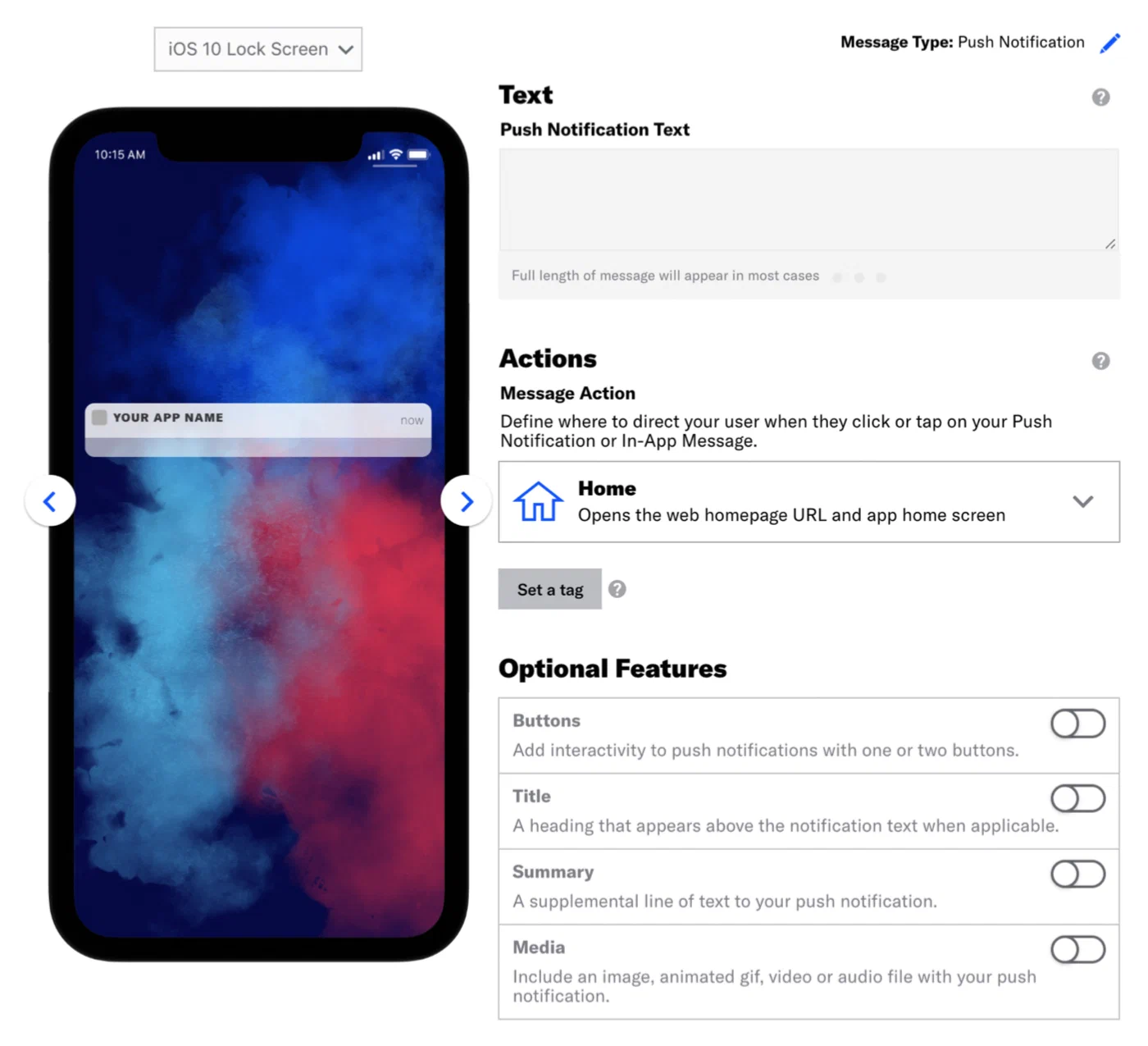
*Composing the push notification content*
### Push Notification using a Custom Key
First add the [Airship In App Wallet Action](https://github.com/urbanairship/ua-extensions/tree/master/AppleWallet) to your app so it can handle a Wallet custom key. This allows users to save passes directly in the app without being redirected to Safari. Then register the action in the app registry.
> **Note:** The Custom Key method is for Apple Wallet passes only.
Once your app is capable of handling a Wallet custom key, substitute the following Content and Delivery steps in each composer.
> **Note:** The configuration steps vary between composers, but the *Content* and *Delivery* steps have the same relevant options. The please refer to the individual tutorials for full documentation.
1. Follow the steps in these tutorials, selecting Push Notification as the message
type, and pause at the *Content* step.
* [Message Composer](https://www.airship.com/docs/guides/messaging/messages/create/)
* [Automation Composer](https://www.airship.com/docs/guides/messaging/messages/sequences/create-automation/)
* [A/B Test Composer](https://www.airship.com/docs/guides/experimentation/a-b-tests/messages/)
1. In the *Content* step, enter the text that will display in your message,
then select the [Home action](https://www.airship.com/docs/guides/messaging/messages/actions/).
1. Click *Delivery* in the header.
1. Select a delivery type, then enable
[Custom Keys](https://www.airship.com/docs/guides/messaging/messages/delivery/delivery-options/#custom-keys), and complete the configuration.
1. Select *iOS* from the platform dropdown menu
1. Enter the key and value:
* **key** = `wallet_action` or `^w`
* **value** = the public pass URL or the adaptive link URL
1. Complete the remaining steps in the composer.
### In-App Automation
1. In the *Actions* step of the [In-App Automation composer](https://www.airship.com/docs/guides/messaging/in-app-experiences/in-app-automation/create/), select either:
* [Web Page](https://www.airship.com/docs/guides/messaging/in-app-experiences/configuration/button-actions/#web-page) action and paste your pass link.
* [Adaptive Link](https://www.airship.com/docs/guides/messaging/in-app-experiences/configuration/button-actions/#adaptive-link) action and select an adaptive link from the dropdown menu.
> **Note:** Only adaptive links created in the dashboard will appear in the dropdown list.
1. Complete the remaining steps in the composer.
## API Examples
The examples below use this sample pass URL:
```text
https://wallet-api.urbanairship.com/v1/download/pass/9cde359c-c6b6-c6b6-c6b6-1159b754c89c
```
See [Actions](https://www.airship.com/docs/developer/rest-api/ua/schemas/push/#actionsobject) in the Airship API reference.
**Example `actions` object using the sample pass URL**
```json
{
"audience":{
"ios_channel": "b8f9b663-0a3b-cf45-587a-be880946e881"
},
"device_types":[ "ios" ],
"notification":{
"ios":{
"alert":"20% off Kung Fu classes!"
},
"actions":{
"open":{
"type":"url",
"content":"https://wallet-api.urbanairship.com/v1/download/pass/9cde359c-c6b6-c6b6-c6b6-1159b754c89c"
}
}
}
}
```
**Send automated message with adaptive link action through Airship**
```http
POST /api/pipelines HTTP/1.1
Authorization: Basic
Accept: application/vnd.urbanairship+json; version=3
Content-Type: application/json
{
"name":"Ticket Purchases",
"enabled": true,
"immediate_trigger": [
{
"custom_event": {
"key": "ticket_purchase"
}
}
],
"outcome":{
"push":{
"audience": {
"tag": "needs_ticket",
"group": "future_passengers"
},
"device_types":[
"ios",
"android",
],
"notification":{
"alert":"Tap to install your pass!",
"actions": {
"open": {
"type": "url",
"content": "https://wallet-api.urbanairship.com/v1/pass/adaptive/"
}
}
}
}
}
}
```
### API Push using a Custom Key
Use the `extra` key in the [iOS Override Object](https://www.airship.com/docs/developer/rest-api/ua/schemas/platform-overrides/#iosoverrideobject) to specify the pass URL.
**Example iOS override object with extra key using the sample pass URL**
```json
{
"audience":{
"ios_channel": "b8f9b663-0a3b-cf45-587a-be880946e881"
},
"device_types":[ "ios" ],
"notification":{
"ios":{
"alert":"20% off Kung Fu classes!",
"extra":{
"^w" : "https://wallet-api.urbanairship.com/v1/download/pass/9cde359c-c6b6-c6b6-c6b6-1159b754c89c"
}
}
}
}
```
## Personalizing Passes from Adaptive Links
> **Note:** You cannot personalize boarding passes or event tickets using query parameters. You must provide all values pass in the adaptive link `payload` object including passenger/attendee information.
When you send adaptive links, you can add query parameters to the link that will populate the pass when the user installs it.
For example: if you want to add an offer code, barcode value, member ID, and time/location to a pass, you could append query parameters to the adaptive link:
`https://wallet-api.urbanairship.com/v1/pass/adaptive/QXynXTbMhS?offercode=AUGUST&barcode=A1234567&tags=PST~OR&exid=A1234567`
> **Tip:** If you send a message using a template, you can use [Handlebars](https://www.airship.com/docs/reference/glossary/#handlebars) in the adaptive link action to automatically personalize adaptive links for your audience
> **Note:** You cannot personalize Google Wallet `class` fields with unique values. Any field preceded by `class` constitutes a class field. See [Google Wallet Pass Verticals documentation](https://developers.google.com/pay/passes/guides/overview/basics/about-google-pay-api-for-passes) for a full list of class fields for each pass type.