Add Web Metrics To a Report
Add web metrics to a report.
Add web push notification metrics to the Message Report by Platform report, and save the customized version in your Personal or Group space.
- Go to Reports » Performance Analytics.
- Go to any report or dashboard.
- Click the grid icon (), click the globe icon (), and then go to Messages » Message Report by Platform.
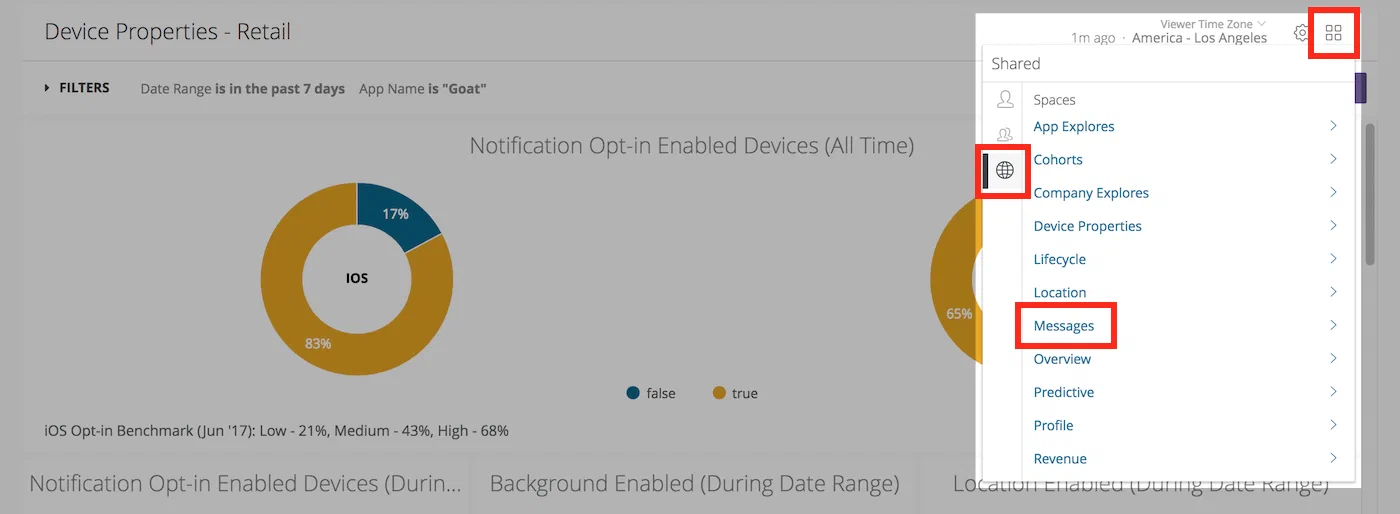
Navigating to the Message Report by Platform Look - Click the gear icon () and select Explore from Here.
- In Filters, set Message Type to
Web Notification. - From the left side menu, in Messaging Metrics » Measures » Web Metrics, click the rows for:
- Web Click Rate
- Web Click Count
- Web Session Rate
- Web Session Count
- Click the gear icon () and select Save as a Look.
- Enter a Title and Description, select the Personal or Group space, then click Save or Save & View Look.