Report on Funnel and Path
Learn how to create your own funnel and path reports.
This tutorial expands on templated funnels to show how you can create your own funnel and path reports. These reports are powerful tools for analyzing the behaviors of your users. Funnel and path are available for custom eventsA record of an action in your app, on your website, in the Airship system, or in an external system. Examples are a message send, an app open, or a purchase transaction..
Since most users are unable to complete a goal in a single session, our example funnel and path report shows goals achieved over a time range.
Show Goals Achieved Over a Time Range
- Go to Reports » Performance Analytics.
- Select the Revenue dashboard.
- For the Funnel report, click the more menu icon () and select Explore From Here.
- In Filters, edit the filters and values as desired, then click Run.
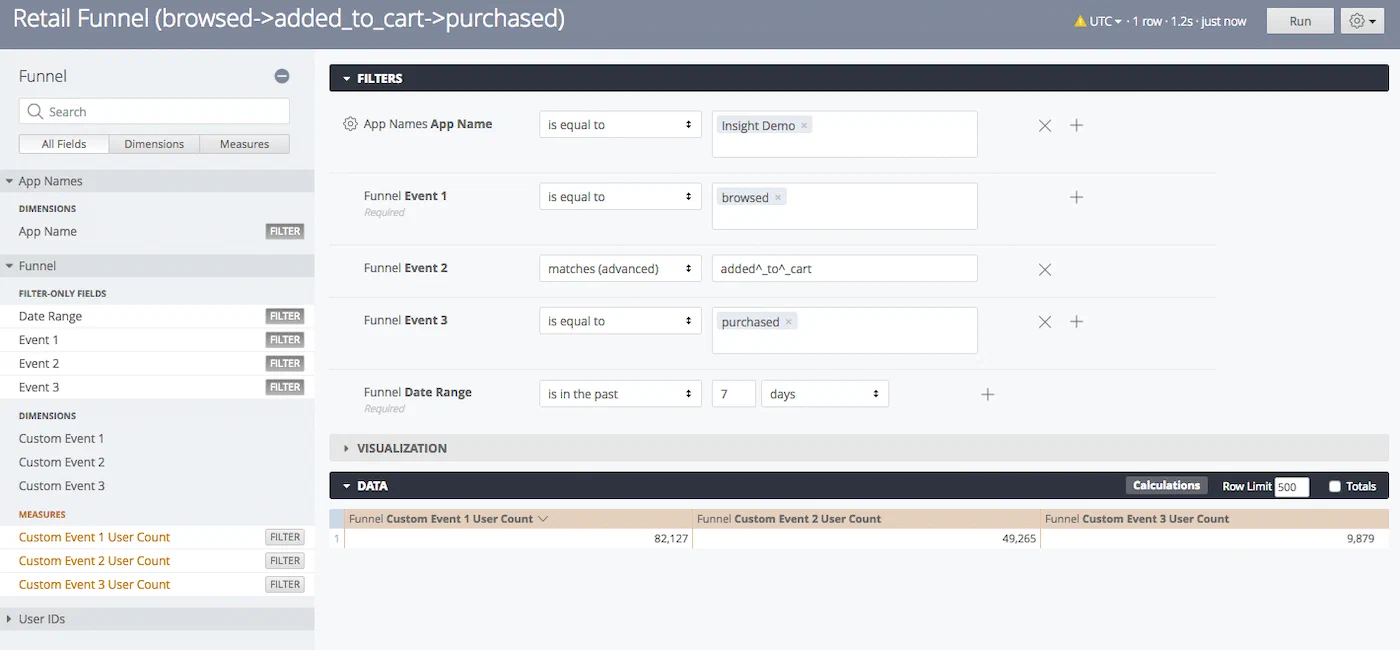
Editing Funnel Explore filters Tip To remove the mapping of the event names from the Visualization, click the Visualization row’s gear icon going to the gear icon, click Style in the top row, and delete the text in the Series Labels boxes:
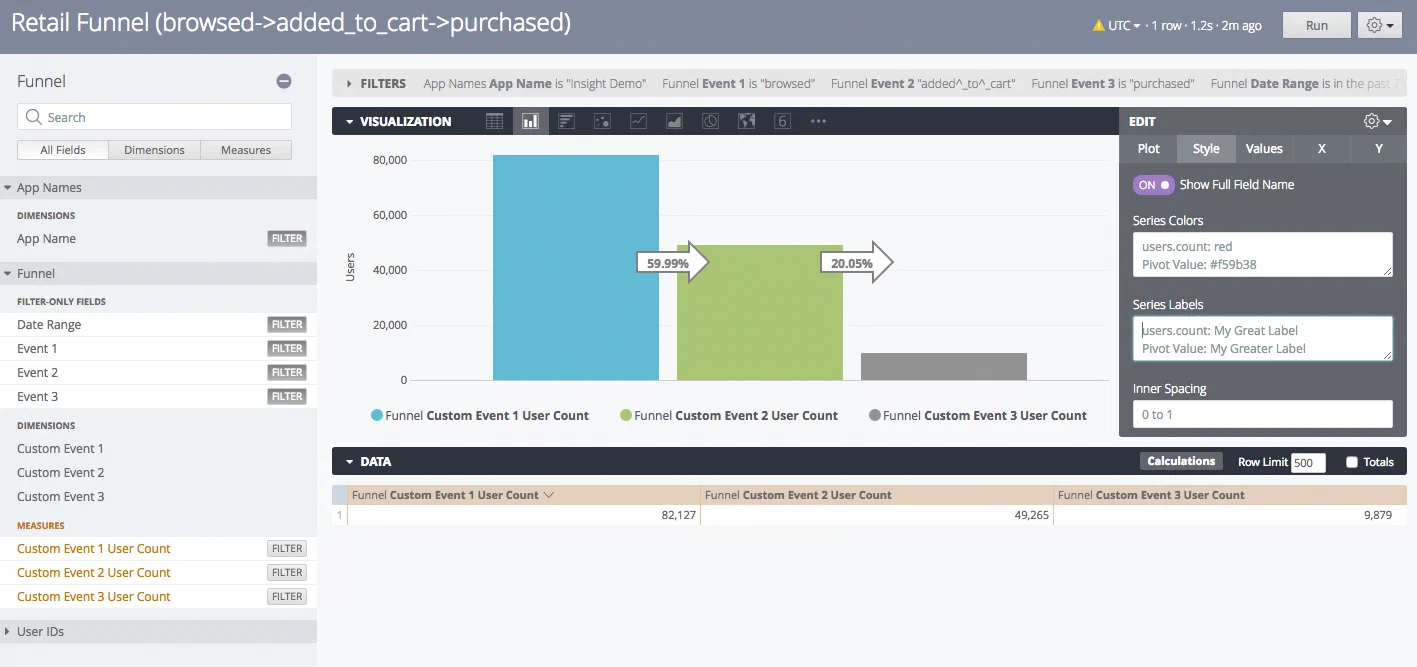
Removing Series Labels from the Visualization
See the Path of Users
To see the path of users, e.g., abandoned cart, follow these steps after completing the steps in Show Goals Achieved Over a Time Range:
- Make these changes in the left side menu:
- In Funnel » Filter-only Fields, click Filter next to Event 2 and Event 3 to remove the filters.
- In Funnel » Dimensions, click the rows for Custom Event 1, 2, and 3 to add the dimensions.
- Click Run and you will see the counts of users for each specific path:
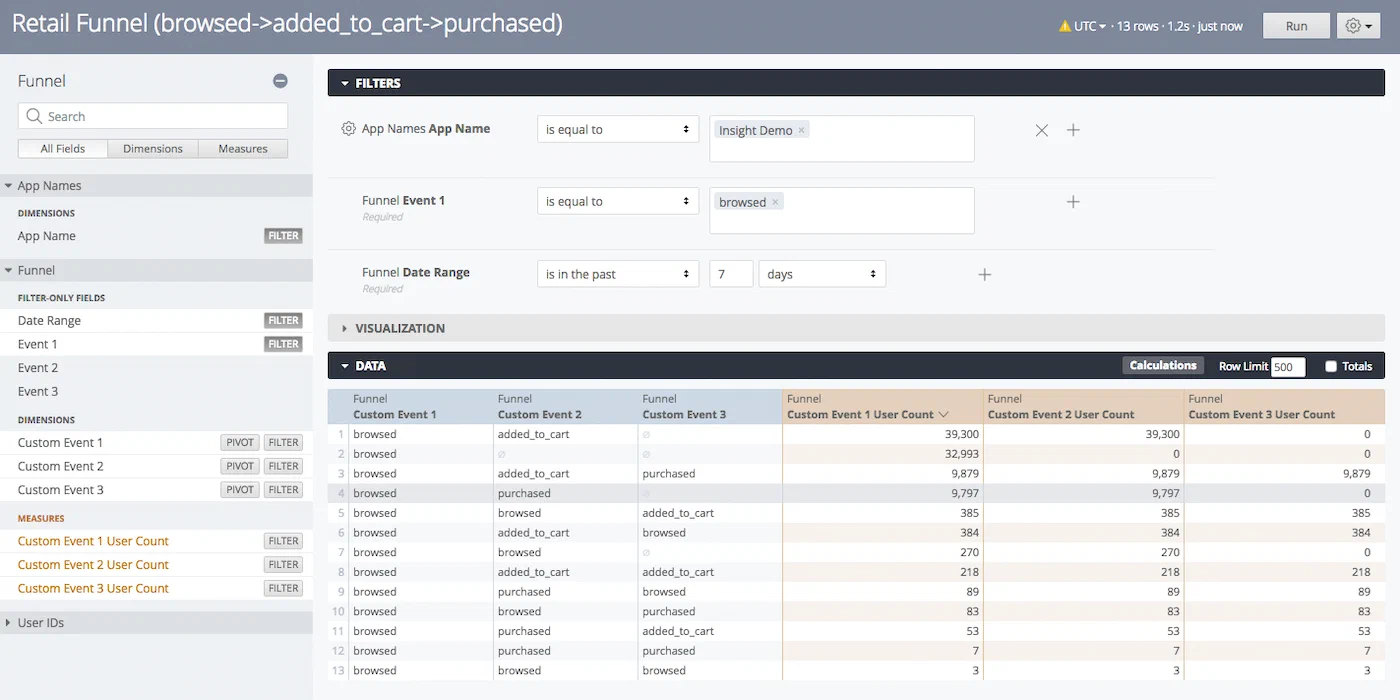
Path query results showing user counts per event sequence