Custom queries and reference for the Audience with Attributes Explore
Use the Audience with Attributes Explore to understand the state of your audience by evaluating device and user data.
You can view your users’ current and past device propertyInformation about a channel, such as language and time zone settings, OS and browser versions, and notification opt-in status. Device properties apply to a channel only, not a named user. Values come from the user’s device when an SDK is present, or are set via the API for channels without one. Each property is automatically made available as an attribute, a tag, or both for audience segmentation. tags and attributes.
Data availability depends on your Performance Analytics plan.
Navigation
To access to the Explore:
- Go to Reports, then Performance Analytics.
- Select the folder icon (), then Shared.
- Under Looks, select Explore Glossary (Explore Glossary EUCS for EU customers).
- Select Audience with Attributes, then Navigate to Explore.
For a list of all Explores in the glossary, see Predefined Explores in Exploring Performance Analytics data.
Field categories
The sidebar lists categories for various filters, Dimensions, and Measures you can use to explore your data. To see their definitions, hover over an item, then select the info icon ().
Field categories in the Audience with Attributes Explore:
| Category | Description |
|---|---|
| Attributes | Set attribute parameters for the query. |
| Device Properties | Get device property values associated with the channels at the time the report is run. |
| Query Parameters | Target all or specific projects, and specify dates and response windows, where relevant. |
| Report Over Time | Add filters and Dimensions to report historical data. |
| Tags | Get tag values associated with the channels at the time the report is run. |
| User Detail | Get information about the channel that performed the filtered event. |
Default filters
Use filters to reduce the number of records scanned and results returned. Each Explore includes filters that cannot be removed from the query.
The filter name, field category, and usage information for the default filters in the Audience with Attributes Explore:
| Filter name | Field category | Use the filter to… |
|---|---|---|
| Current Project Only | Query Parameters | Determine which projects are included in the query. Default: Yes. To include other projects, 1) select No, 2) in the sidebar, select Query Parameters, 3) under Dimensions, select the filter icon () next to Project name, and 4) in the Filters section, choose which projects to include. |
| Current Audience Only | Report Over Time | Determine whether or not to return your audience’s current values only. Default: Yes. Select No to also return historical values. |
Building custom queries
The following sections walk you through using the Audience with Attributes Explore to create custom queries that answer:
- How many mobile users can I reach with a push notificationA message that can appear on any screen on a mobile device. Push notifications appear as banners.? And how many with Email or SMS? Is my audience growing?
- Within a tag groupAn array of tags that you can associate with both channels and named users., which tag do users subscribe to the most? Among these users, how many opted out of push notifications?
Determine audience reach and growth
Follow these steps to view historical user counts you can use to analyze your audience evolution. You can filter by tag, attribute, or Device Property. In our example, we add the Device Property Filter for notification opt-ins. User counts are listed per platform.
First, open the Audience with Attributes Explore, and then configure your query:
Set up the filters:
- Leave Current Project Only set to
is Yes. - Set Current Audience Only to
is No. - In the sidebar, select Report Over Time, then the filters Number of Days, Weeks or Months to Report and Report over time by Day, Week, or Month.
Tip Instead of navigating to filters, Dimensions, and Measures, you can find them using the search box at the top of the sidebar.
- Set the Number of… and Report over time… filters to the period of time you want to query.
- In the sidebar, select Device Properties, then Notification Opt-in Filter.
- Set Notification Opt-in Filter to
is not null.
- Leave Current Project Only set to
Selecting the option to pivot data In the sidebar, specify the values and measurement to display:
- Select Report Over Time, then select the Dimension Date or Month. Our example uses Date.
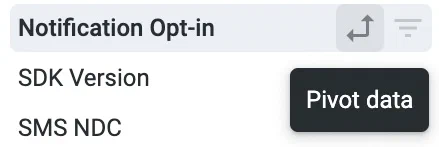
- Select User Detail, then select the Dimension Platform, then select the double-arrow icon next to Platform. The pivot option adds detailed metrics for each platform and makes it more readable. It can be helpful when using the Graph visualization.
- Select User Detail, then select the Measure User Count.
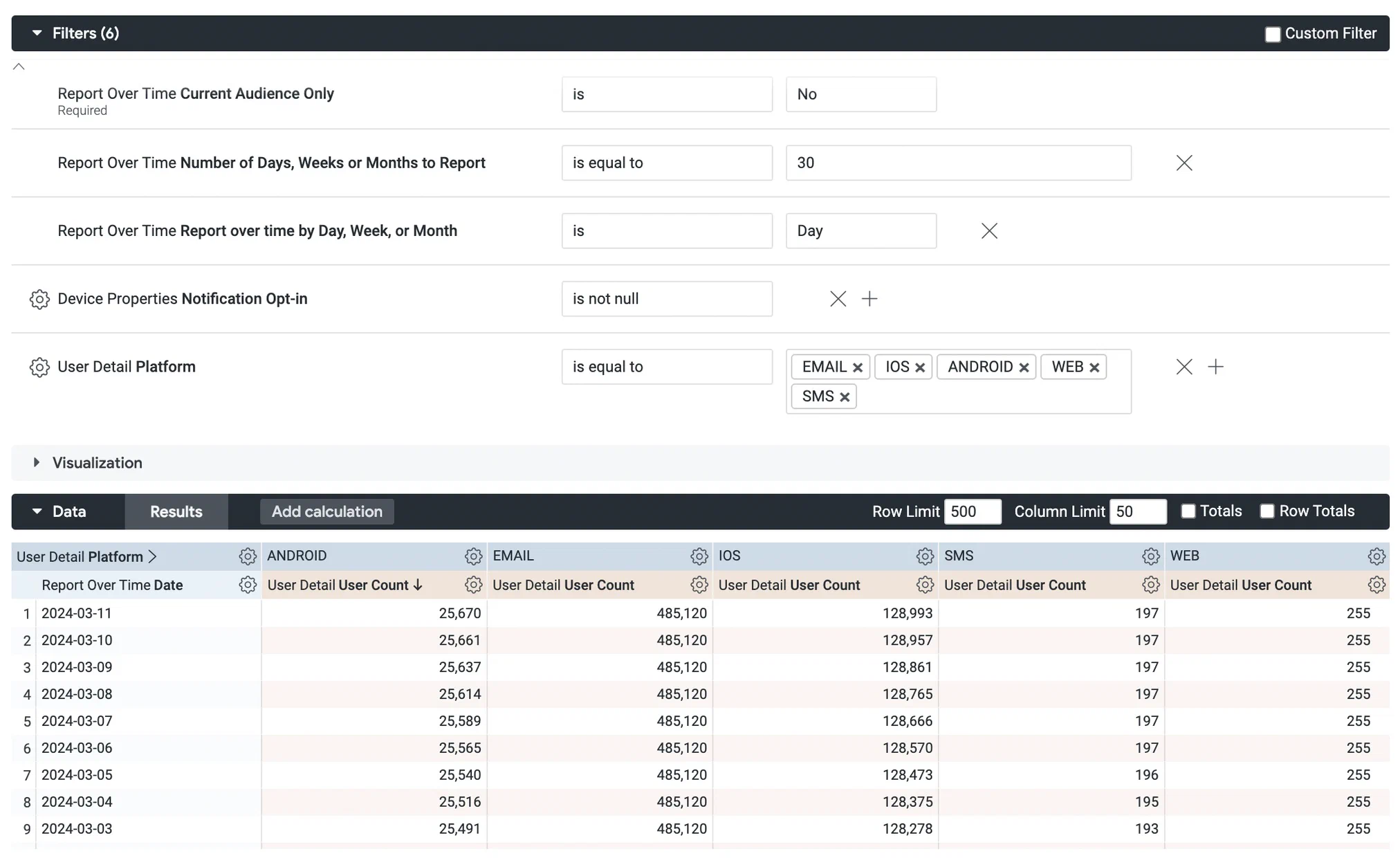
Now you are ready to get your data. Select Run, and you should see results similar to the below image. To save your custom query for later access, follow the steps in Saving Performance Analytics queries.
Find tags and opt-outs
Follow these steps to find which tags in a tag group users subscribe to the most and how many opted out of push notifications.
First, open the Audience with Attributes explore, and then configure your query:
Set up the filters:
- Leave Current Project Only set to
is Yes. - Leave Current Audience Only set to
is Yes. - In the sidebar, select Device Properties, then Notification Opt-in Filter.
- Set Notification Opt-in Filter to
is not null. - In the sidebar, select Tags, then #1 Tag Group Filter. Then set it to
is equal toand enter the name of the tag group you want to return tags for. - (Optional, to return specific tags in the filtered tag group) In the sidebar, select Tags, then #1 Tag Name Filter. Then set it to
is equal toand enter the names of tags in the tag group.
- Leave Current Project Only set to
In the sidebar, specify values and measurements to display:
- Select Tags, then select the Dimensions #1 Tag Group and #1 Tag Name.
- Select User Detail, then select the Measure User Count.
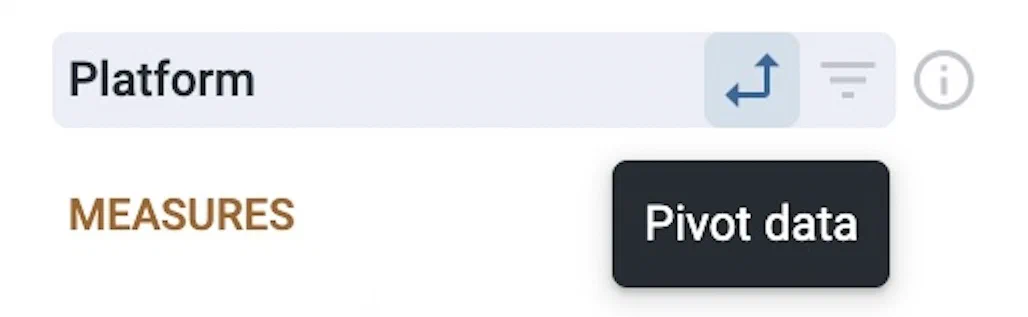
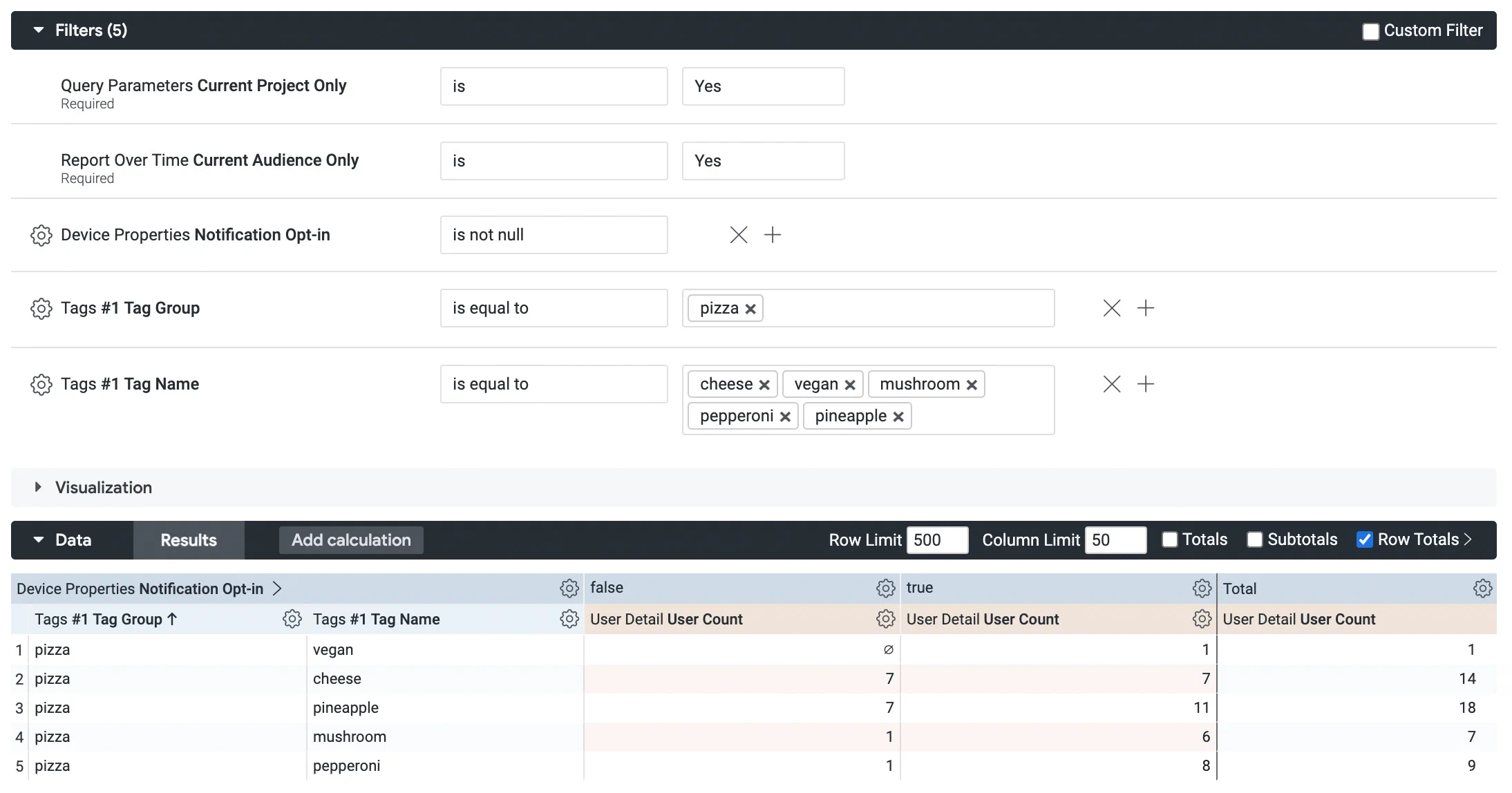
Selecting the option to pivot data Select Device Properties, then select the Dimension Notification Opt-in, then select the double-arrow icon next to Notification Opt-in. The pivot option adds detailed metrics for each platform and makes it more readable.
In the Data header, select the Row Totals check box to display the sum of opted in and opted out channels that have each tag.
Now you are ready to get your data. Select Run, and you should see results similar to the below image. To save your custom query for later access, follow the steps in Saving Performance Analytics queries.