Content templates
Use content templates to personalize messages with information specific to each member of your audience, like first name, flight number, or order status. You can even pass complicated variables to your template.
About content templates
You can create content templates for all messaging channels: app, web, SMS/MMS, email, and open channel.
Apply a template to a message by selecting it in the Content step of a Message, Automation, or Sequence in the dashboard, or by referencing it with the template property in the API.
For app, web, SMS/MMS, and open channel templates, the template content becomes the message content directly and cannot be edited in the composer. For Message Center, In-App Automation, and email templates, you can edit the content in the composer after selecting the template.
Scene templates can be used directly in Scenes and as Message Center content. For push, you can select a Scene template to open when the user taps the notification.
Message Center templates can also be used for landing page content.
For reusable message designs for ScenesA mobile app or web experience of one or more screens displayed with fully native UI components in real time, providing immediate, contextual responses to user behaviors. Scenes can be presented in full-screen, modal, or embedded format using the default swipe/click mode or as a story. Scene content can also be displayed in a Message Center message and contain survey questions., see Custom content layouts.
Content template format
Each template type has a name, optional description, and fields that make up the viewable content in a message.
These templates are available for the app channel:
| Template type | Fields |
|---|---|
| App (For push notification content) | - Message text — The text that will display in your push notification. - Title — A heading that appears above the notification text when applicable. - Summary — Supplemental text displayed with the notification. iOS: The summary appears below the push notification title. Android and Fire OS: The summary appears below the main notification text in most cases. This is the only visible text other than the title when Android Picture is visible in expanded mode, as the main notification text is suppressed. |
| Message Center | - Title — A heading that appears above the message and in the Message Center inbox. - Thumbnail image — An image that appears in the inbox. - Message body — The HTML body of your message, created using the Interactive editor. |
| Scene (For Scenes and Message Center content, or Scenes opened from a push notification) | - Title — In Message Center, a heading that appears above the message and in the inbox. - Thumbnail image — In Message Center, an image that appears in the inbox. - Message body — The native-format body of your message, created using the Scenes editor. |
| In-App Automation | - Message body — The HTML body of your message, created using the Interactive editor. Supported for modal and fullscreen messages only. |
These templates are available for all other channels:
| Template type | Fields |
|---|---|
| Web | - Alert — The text that will display in your web push notification. - Title — A heading that appears above the message. |
| SMS | - Message text — The text that will display in your SMS message. |
| MMS | - Subject — A meaningful subject to summarize your MMS message. - Message text — The text that will display in your MMS message. - Fallback SMS text — Fallback text version of your message, for use when MMS is unavailable. |
| - Subject — A meaningful subject to summarize your email. - HTML body — The HTML body of your email, created using the Interactive editor. - Plain text body — The plain-text version of your message, for use when HTML is unavailable. | |
| Open channel | - Alert — The text that will display in your open channel message. - Summary — Supplemental text displayed with the notification. - Title — A heading that appears above the notification text when applicable. - Media attachment URL — The URL for media you want to include in your message. |
Using the Interactive editor
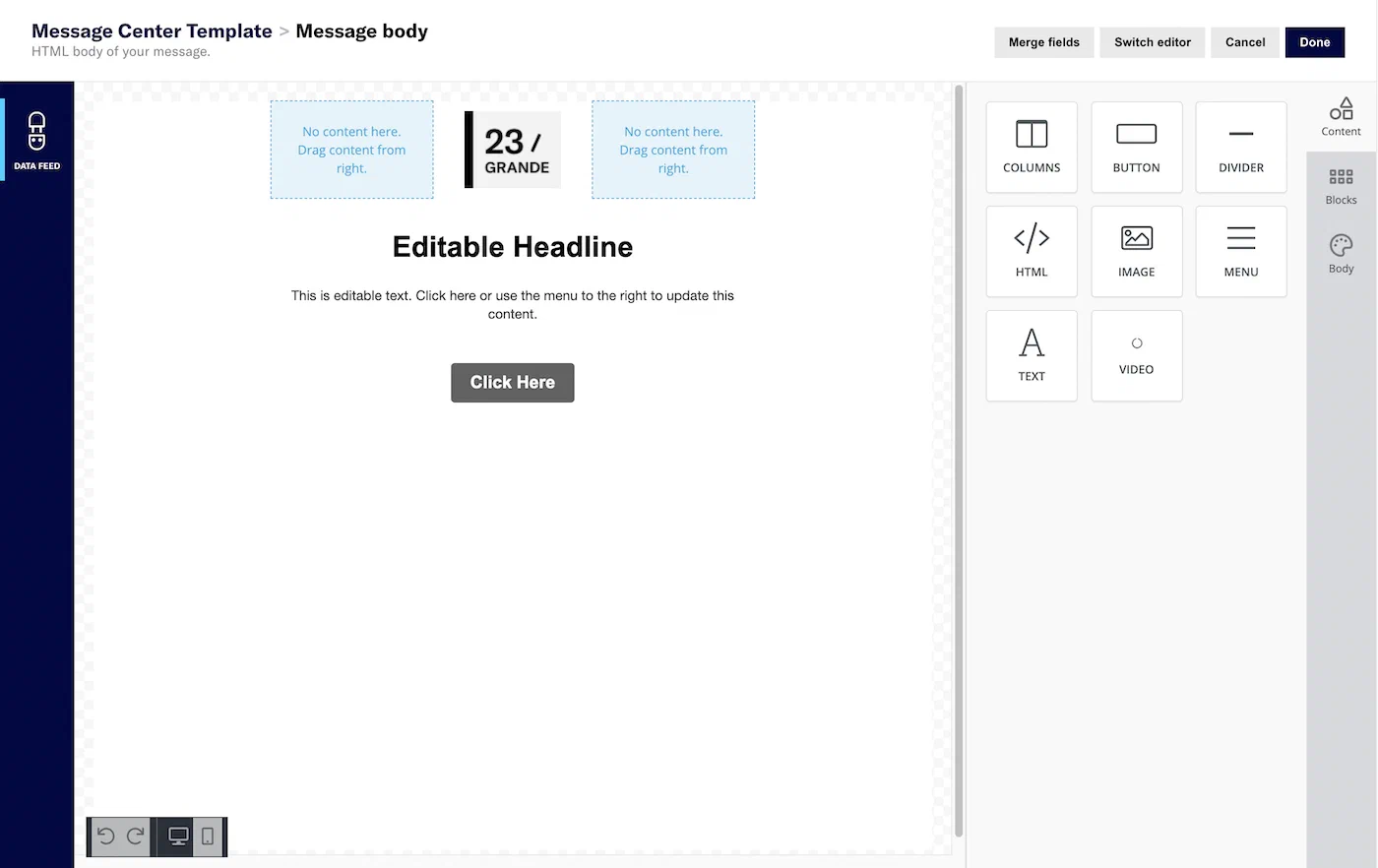
When adding the email HTML body, or In-App Automation or Message Center Message body, you can use the Interactive editor to:
- Paste or upload your own HTML.
- Design using drag-and-drop. You can start from a blank layout or select an Airship default layout or a layout you saved. The Interactive editor supports merge fieldsA variable in your message or template that you want to populate with a personalized value for each member of the audience. Merge fields use Handlebars syntax:
{{merge_field}}., so you can personalize your message for your audience.
Personalizing content templates
You can use our built-in tool to insert merge fields and logic statements for the attributesMetadata used for audience segmentation and personalization. Attributes extend the concept of tags by adding comparison operators and values to determine whether or not to target a user, helping you better evaluate your audience. in your project. Simplifying Handlebars expressions. You can also manually enter HandlebarsHandlebars is Airship’s templating language for personalization. Handlebars expressions use double curly braces wrapped around a content template, ranging from a simple variable, e.g., {{first_name}}, to complex evaluations of personalization data.. Both methods are available for all text fields in a template, including when you paste or upload HTML using the Interactive editor.
When using Handlebars to reference variables, you should define default values for your fields with {{ $def field_name "default value" }}. The template preview renders variables without default values as blank spaces, mimicking the behavior your audience will experience if they receive messages with unpopulated variables.
When personalizing messages in the Interactive editor, you must define merge fields before you can use them to personalize blocks of content unless you write your own custom HTML blocks. You can personalize custom HTML blocks using HandlebarsHandlebars is Airship’s templating language for personalization. Handlebars expressions use double curly braces wrapped around a content template, ranging from a simple variable, e.g., {{first_name}}, to complex evaluations of personalization data. like you would any other message. See Merge fields in the Interactive editor.
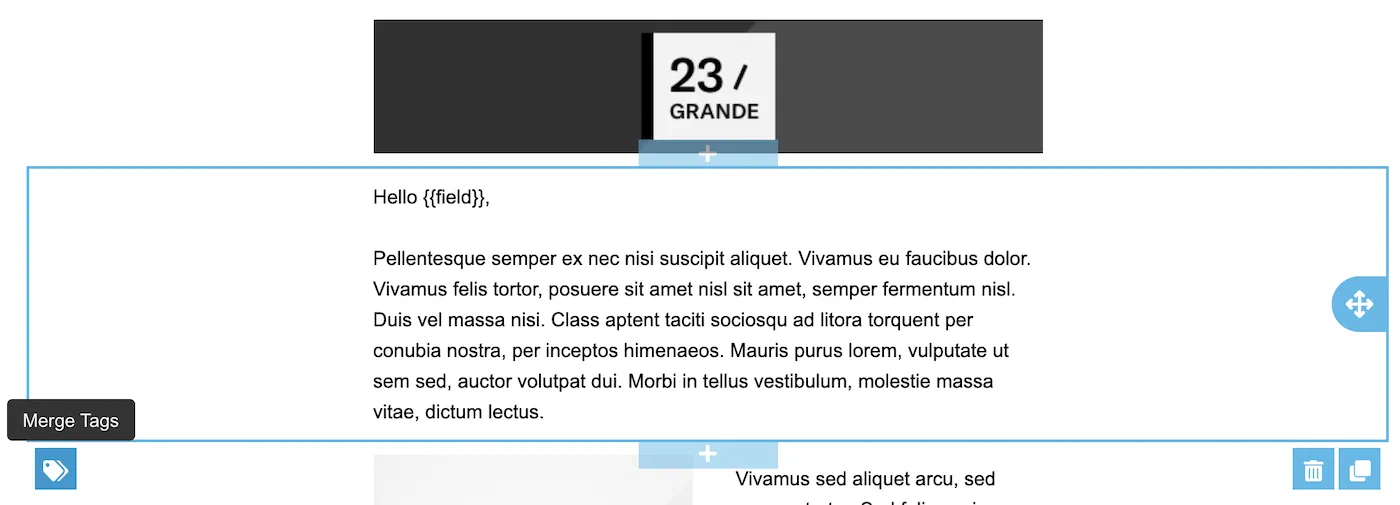
You can also take advantage of looping (#each), conditional if/else statements, and other advanced HandlebarsHandlebars is Airship’s templating language for personalization. Handlebars expressions use double curly braces wrapped around a content template, ranging from a simple variable, e.g., {{first_name}}, to complex evaluations of personalization data. inside custom HTML blocks. However, you cannot apply conditional or looping logic to block-level elements in your template without defining merge fields in the layout first.
Create a template
You can create templates in the dashboard or using the API.
Dashboard
Follow these steps to create a template for your project:
Go to Content, then Templates.
Select Create template and configure the fields and options:
- The name and a brief description help you identify the template in lists, for example, “Holiday 2020”.
- The channel is the template type.
- Keywords help organize your templates. Select from existing ones or add new ones, up to 10.
- For Scene templates only, enable API Access if you plan to reference the template in the API.
Select Save and continue.
Edit and add content for each template section, then select Done. The preview updates as you type. Open channel templates do not have a preview.
For the email HTML body and for the Message Center and In-App Automation Message body, provide your HTML or design using drag-and-drop:
- For HTML, select the paste or upload option and add your HTML.
- For drag-and-drop, select a default or saved layout, or select Blank Layout to design your own. Then you can design your content. See Styling and formatting in the Interactive editor. You can edit any layout after selecting.
For the email HTML body, you have additional options when using the drag-and-drop method:
- To change the HTML minification setting for this template, select Settings in the sidebar, and then enable or disable Minify HTML.
- After selecting Done, choose whether to save the HTML body only or also generate the plain text body.
For Scene templates, see Scenes editor for information about configuring your content.
For Message Center and Scene templates, you can add a thumbnail image that appears in the inbox. Add it when editing the title. For Message Center templates, you can also add it when editing the message body.
Select Settings in the left sidebar, and enter the HTTPS URL of an image. See Media guidelines.
If your Airship plan includes CDN support, you can also upload media or select from previous uploads in your project’s media library. See Insert media in message content in Media library.
(Optional, for email only) Preview your email in different clients:
Warning Inbox renderings are generated using Litmus. To protect the privacy of your contacts, do not include personal information in your email content when generating previews.
- Select Inbox preview.
- Select from the lists of browser, desktop, and mobile clients, then click Generate previews.
- Select a thumbnail to see the full version. Select the close icon () to close and choose another preview.
- (Optional) To add/remove clients, Select Reselect and generate previews and start over.
- When you are finished with inbox previews, select the close icon () to close the modal.
Select Save template when you are done adding content.
(Optional, for Scene templates) Select Send Test to preview the Scene on a device. See Send an immediate test in Testing tools.
Scene templates you create when composing a Scene or Message Center message are also saved to your project’s templates list.
API
Use the Content API to create, list, retrieve, update, and delete content templates. For supported template type values and fields, see the Content template object schema in the API reference. The Content API does not support creating Scene or In-App Automation templates. Create these templates in the dashboard.
OAuth client credentials can include the Content scope for these endpoints. See Content in the Airship API authorization reference.
When you create or update a template, Airship validates it using the same rules as the dashboard, including HandlebarsHandlebars is Airship’s templating language for personalization. Handlebars expressions use double curly braces wrapped around a content template, ranging from a simple variable, e.g., {{first_name}}, to complex evaluations of personalization data. syntax and reference checks. Invalid templates are not saved. You can also set an optional external_id on a template, a customer-defined string that is unique within a project. Use it to look up or update a template using dedicated endpoints and to reference the template in send and push payloads where supported, as an alternative to the template UUID.
Using templates
After you create a template, you can apply it to a message in the dashboard or reference it in an API payload. The available options depend on the channel.
Dashboard
In the dashboard, you can select a template in a message’s Content step. For Message Center and In-App Automation, select Interactive Editor and then Select template.
For Scene templates, see Template for the Content step in Create a Scene, Opening a Scene from a push notification, and Message Center Scenes.
For email templates, you can also create a new message directly from your templates list. Go to Content and select Templates, then select the more menu icon () for an email template and then Use template. This opens the Message composer with the email channel enabled and the template preselected.
API
In the API, include a template object to use a content template or to personalize your message with HandlebarsHandlebars is Airship’s templating language for personalization. Handlebars expressions use double curly braces wrapped around a content template, ranging from a simple variable, e.g., {{first_name}}, to complex evaluations of personalization data.. See Platform Overrides with Templates for exact property names and formats for your channel and operation.
Reference a content template by its ID, or by external ID when your payload and endpoint support it:
- For templates created using the Content API, it is a UUID returned in a response.
- For templates created in the dashboard, you can get the ID in your list of templates. Go to Content, then Templates, select the more menu icon () for a template, then Copy ID to clipboard.
For push, specify the template on the Notification object.
Opening a Scene from a push notification
iOS SDK 20.9+Android SDK 20.8.2+When configuring a push in the dashboard, select the Scene action, select Scenes Editor, then select a Scene template.
Using the API, reference a Scene template by its template_id in the open action of a push notification. When the user taps the notification, the Scene opens. To get a Scene template’s ID, go to Content, then Templates, select the more menu icon () for a template, then Copy ID to clipboard.
{
  "notification": {
    "android": {
      "alert": "hello",
      "actions": {
        "open": {
          "type": "scene",
          "content": {
            "template": {
              "template_id": "b295e180-bdf1-4d57-b375-f3SAMPLE7fa7"
            }
          }
        }
      }
    }
  }
}
Message Center Scenes
iOS SDK 20.10+Android SDK 20.9+When composing a Message Center message in the dashboard, select Scenes Editor, then select or create a Scene template. See Scenes editor in Message Center content.
Reference a Scene template in an API payload the same way as any other Message Center template, using a template_id in the Message Center with template object. See API above for the general pattern.
Managing content templates
Go to Content and select Templates to view the list of templates in your project. The list displays templates created in the dashboard or with the Content API. You can search by name, ID, or keyword. Templates without message content are labeled “Empty” and cannot be used until you add content.
You can manage templates from two locations:
More menu — Select the more menu icon () for a template for the options to edit, duplicate, add to a CampaignA container for organizing and coordinating related messages across channels. They provide message list and calendar views to monitor status, spot scheduling gaps, and avoid overlap., or delete. Deleting a template that is in use may impact messaging.
Drawer — Select View detail from the more menu, or select the template name, to open a drawer with the same edit and duplicate options as in the more menu, plus the ability to change its name, description, and keywords, and manage its associated Campaigns. For Scene templates only, you can enable API access. The drawer also displays any snippetsA reusable piece of content that you can define in Airship for later use in your messages and templates. Snippets support text or HTML content and can be used for commonly used elements such as a copyright, header image, or custom CSS. and external data feedsA connection to an external API. When you send a message, Airship uses a response from that API to personalize messages. used in the template.
Duplicating makes a copy of the template in the current project or in a different project. You can only duplicate to projects that are configured for the template’s channel. MMS templates are not supported.
When duplicating content to a different project, Airship does not copy segments, attributes, custom events, deep links, subscription lists, Preference Centers, brand guidelines, or Scene settings from the source project. Configure them independently in each project.
To manage keywords for multiple templates at once, select them in the list, then select Actions, and then Manage keywords.