Testing tools
Use built-in tools to verify content and workflows before sending or releasing to your live audience.
Content previews
When creating messages in the dashboard, previews show an approximation of how your content will render. Use them to check the appearance as you build.
Additional tools are available for specific message types and personalization:
- Scene preview tools — For ScenesA mobile app or web experience of one or more screens displayed with fully native UI components in real time, providing immediate, contextual responses to user behaviors. Scenes can be presented in full-screen, modal, or embedded format using the default swipe/click mode or as a story. Scene content can also be displayed in a Message Center message and contain survey questions., you can see how your content appears at different device sizes, orientations, color modes, and text scales. You can even step through interactive elements. See Preview tools in Scenes editor.
- Email inbox previews — Use inbox previews to see how your message will look in various browser, desktop, and mobile email clients. See Inbox previews in Email content.
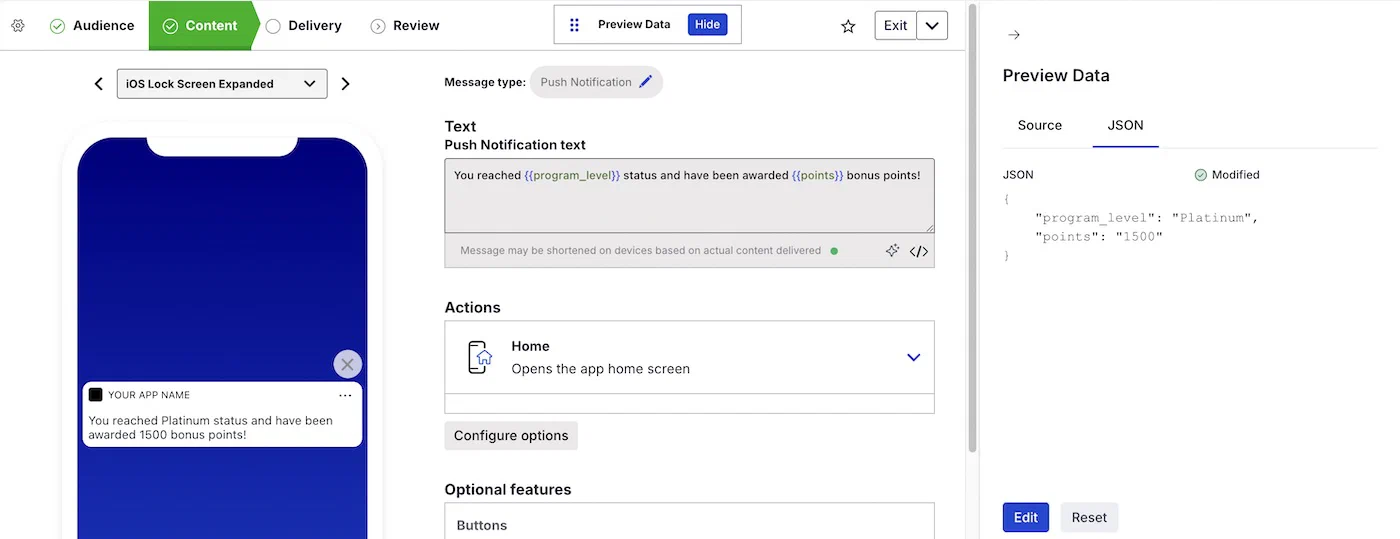
- Personalization previews — If your content contains HandlebarsHandlebars is Airship’s templating language for personalization. Handlebars expressions use double curly braces wrapped around a content template, ranging from a simple variable, e.g.,
{{first_name}}, to complex evaluations of personalization data., preview the appearance with actual values from sample data. The data can come from a member of a preview group or from a random or specific contactAny user in your project. Contacts are identified as either an anonymous contact or a named user. Airship can set targeting data on these identifiers, which are also used to map devices and channels to a specific user.. See Previewing personalized content.
Accessibility agent for Scenes
The accessibility agent automatically flags accessibility issues in your ScenesA mobile app or web experience of one or more screens displayed with fully native UI components in real time, providing immediate, contextual responses to user behaviors. Scenes can be presented in full-screen, modal, or embedded format using the default swipe/click mode or as a story. Scene content can also be displayed in a Message Center message and contain survey questions. and suggests fixes. Review, apply, and verify them to catch problems you might otherwise miss before sending. See Accessibility audit in Scenes editor.
Preview and test groups
One group, two roles. A preview and test group is an audience group used for previewing personalized content and testing messages, app and website content, and Sequence runs.
For testing purposes, create different groups for different reviewers, such as QA, product, and marketing teams.
Preview personalized content
Use a member of a preview and test group as a data source when previewing personalized content in the dashboard. The member’s real attribute data populates any Handlebars expressions in your preview.
Send to an audience of test users
Select a preview and test group in the Audience step for a Message, Scene, or In-App Automation. The message sends or displays according to its configuration.
See also About test messages below.
Send an immediate test
In a Message, Automation, Scene, or individual Sequence message, select Send Test in the Review step for immediate delivery. You can also send a test from Scene templates and from a Sequence’s Manage screen. For Sequences, select the more menu icon () for a message, then Send test message.
For Scenes and Scene templates, the test is sent as a push notification. Open the push on a device to view the Scene.
In addition to selecting preview and test groups, you can select named userA contact identified with an ID you provide, such as a customer ID from your CRM. Associating channels with that ID maps multiple devices and channels to one individual. Each named user has a unique named user ID. IDs. If your message includes email, you can also search for existing email addresses or add a new one. Airship registers the new channel for your project and opts it in to transactional messaging.
See also About test messages below.
Validate Sequence workflow and content
Test a Sequence to exercise its timing, triggers, tag conditions, and conversion or cancellation events against named usersA contact identified with an ID you provide, such as a customer ID from your CRM. Associating channels with that ID maps multiple devices and channels to one individual. Each named user has a unique named user ID. or preview and test groups. This validates the flow, not just how individual messages render.
Test app and website content
In a feature flagAn experimentation tool for controlling the availability of content or functionality in your app or website. A flag’s Configurations determine the audience, schedule, and property values to apply when the flag is enabled. Flag properties enable making immediate code updates, bypassing the need for traditional code changes and release processes. configuration, set the audience to a preview and test group. Only members of the group see the feature or A/B test variant live in your app or website, so you can verify it works as expected before releasing to another audience. When you’re ready, change the configuration audience to All Users or Target Specific Users.
Create preview and test groups
You can create up to 20 groups:
- Go to Audience, then Preview and Test Groups.
- Select Create group and enter a name. The name cannot be changed later.
- Enable Test group if you plan to send test messages to its members. This setting cannot be changed later.
- Select Save and continue.
- For each group member, select Add user, then enter a name and an identifier. If an MSISDN is associated with more than one sender IDAn originating phone number or string identifier used to indicate who an SMS message comes from. Members of your audience subscribe (opt in) to each sender ID they want to receive messages from., choose the one to use as the sender of test messages.
- Select Done.
After you add a user, you return to the list of all users in the group. The ID column shows the channel ID for each user. You cannot view the original email address or MSISDN that was entered. You can edit a group to add more users, edit a user’s name, or delete users.
Identifiers
When adding users to a preview and test group, you must enter an identifier: channelA device or address registered with Airship to receive messages, such as a mobile app, web browser, email address, or SMS number. It stores opt-in status, device-specific information, and metadata used for targeting. Each channel has a unique channel ID. ID, email address, or MSISDNA mobile phone number, including country code, in your Airship audience.. Make sure to use IDs that are valid for the group’s intended purpose. For example, if you plan to send push notifications to the group, enter a channel ID for an iOS or Android channel.
Airship validates the ID when you enter it and shows an error if any of these requirements are not met:
- Your project must already be configured for the engagement channel for an entered ID.
- Channel IDs must exist for the project.
- MSISDNs must be for SMS channels that exist for the project.
You can add any email address. Airship then registers it as an email channel for the project.
See also Finding channel IDs. The 1st Flight app also provides a channel ID without an SDK integration.
Test designation
In the Message composer, you can designate any message as a test, regardless of who you target. Once a test message is ready for your live audience, duplicate it and change the audience selection before sending. You cannot remove the designation after a message is sent.
When creating or editing a message, select the settings icon (), enable Mark this message as a test, and select outside the modal to close it.
See also the information in the next section.
About test messages
Messages sent to an audience of test users, sent as an immediate test, or with the test designation appear in the Tests view in Messages Overview.
All test messages are excluded from reporting.
Users in an active Holdout ExperimentMeasures the effects of excluding a group of audience members from all messages or messages with specific campaign categories. You can compare the performance of the two audience groups in reports for selected goal events. cannot receive test messages. You can view a user’s current holdout group status and history when viewing their channel details in Contact Management.