Create a Sequence
Create a series of messages that are initiated by a trigger. Messages are delivered according to your timing settings, and you can also set conditions that determine the continuation of the series.
Each message in a sequence counts toward your Sequences and Automation Message LimitLimits that cap the number of messages you can send within a specified time frame, preventing you from over-messaging your users. They are set at the project level..
To get started, create a new Sequence:
- In the sidebar, select the Create dropdown menu (), then select Journey.
- Select Sequence, then Start from scratch.
- Enter a name for your Sequence.
- Select Continue.
You will now configure each component from the Journey MapA visualization of messaging components that can be connected to create a continuous user experience. You can also create and edit from the map.. You can configure components in any order.
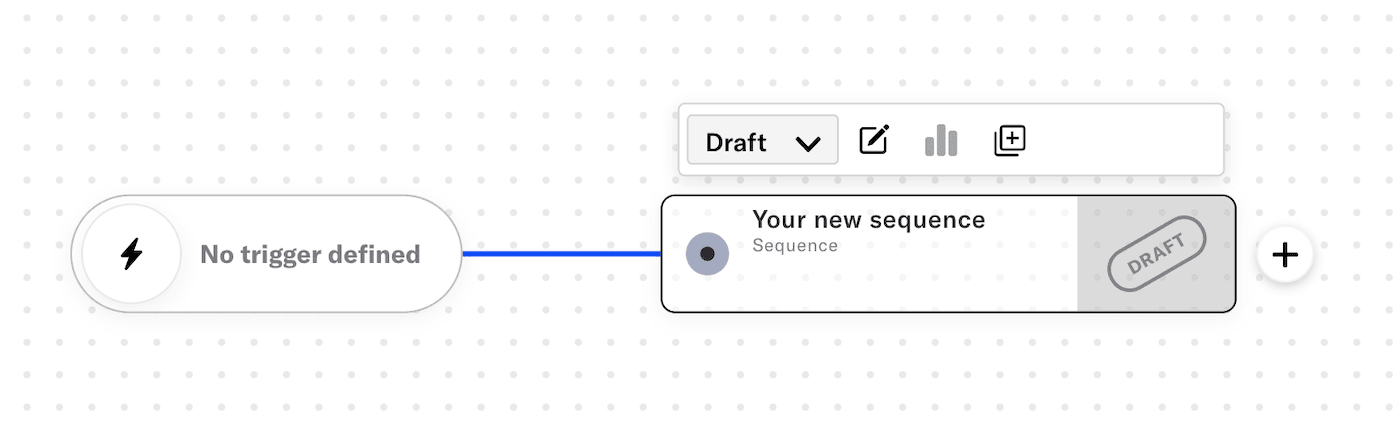
Trigger
Configure a trigger that will initiate your sequence. You can configure up to 10 triggers unless you are using the Inactivity trigger.
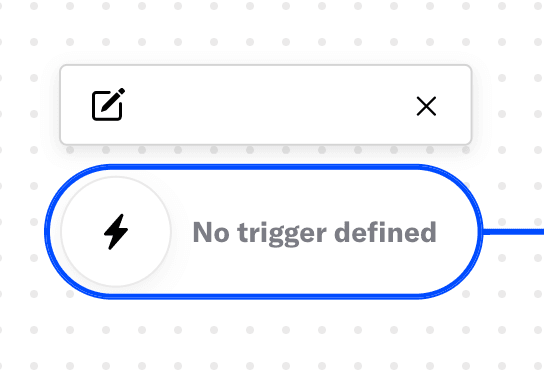
Select the trigger card and then the pencil icon (). If multiple triggers are configured, first select the trigger stack to expand it, and then select a trigger card.
Select and configure a trigger.
(Optional) Under Settings, define the times during which the trigger is active for the Sequence. Trigger start and end dates are evaluated before Sequence start and end dates.
- Enable Start Date and/or End Date.
- Set the time, time zone, and date.
(Optional) Under Conditions, build a SegmentA reusable audience group you create by selecting unique or shared user data. to filter the audience members entering the Sequence. Creating a segment here uses the same segmentation data and procedure as building Segments. You cannot set Conditions for the Inactivity or Manual Entry trigger.
Select Save.
To add another trigger, select the plus icon () below the configured triggers. Adding more triggers to an existing Sequence does not require publishing changes. To delete a trigger, select its card, and then select the trash can icon ().
You can route users to a Sequence when an In-App AutomationMessages cached on users’ devices and displayed when users meet certain conditions within your app, such as viewing a particular screen or opening the app a certain number of times. or SceneA mobile app or web experience of one or more screens displayed with fully native UI components in real time, providing immediate, contextual responses to user behaviors. Scenes can be presented in full-screen, modal, or embedded format using the default swipe/click mode or as a Story. They can also contain survey questions. displays on a device or when they select a button in an In-App Automation. See Link Journey components in the Journeys documentation.
Scheduling and frequency
Define when the sequence can deliver messages to your audience, and control the frequency of sending messages and of triggering the sequence. The settings are optional.
- Select the sequence card, then the pencil icon ().
- Select Settings in the header.
- Under Scheduling, define the times during which the Sequence can deliver messages to your audience. When its end date occurs, its status automatically changes to Completed, and you cannot restart it. Enable Start Date and/or End Date, and then set the time, time zone, and date.
Important Trigger start and end dates are evaluated before Sequence start and end dates. Verify settings in both locations before starting a Sequence or publishing changes.
- Under Limits, enable Ignore Channel Message Limits to override the project-level Message LimitsLimits that cap the number of messages you can send within a specified time frame, preventing you from over-messaging your users. They are set at the project level., ensuring that your audience will receive your message even if they’ve reached the message limit. Overriding message limits does not override your Rule limits setting.
- Under Limits, enable Rule Limits to cap the number of messages a user can receive from a Sequence within a time frame, preventing you from over-messaging your audience. Select Add a daily limit and/or Add an all-time limit and enter a number.
- Select Save & Continue.
You will return to the Sequence ManagerA preview of the messages in a Sequence, with options for editing and testing, and for running experiments.. You can start adding messages. To return to the map, select Journey view or Exit , then Save and exit.
Channels
If your account includes Channel CoordinationA group of strategies for targeting users where they are most likely to receive your message., skip this step — the section does not appear for you in the dashboard. You will instead configure channels when you add each message to the sequence.
Enable the channels you want to send the message to. Available channels are based on your selected trigger.
- Select the sequence card, then the compose icon ().
- Select Settings in the header.
- Select the Target tab.
- Enable channels.
- Select Next, then Save & Continue.
You will return to the Sequence ManagerA preview of the messages in a Sequence, with options for editing and testing, and for running experiments.. You can start adding messages, or select Exit , then Save and exit to return to the map.
Messages
Configure the message conditions and content. For details, see Add messages to a sequence. If you just saved and exited Settings, you will already be on the Manage screen and can skip to step 2.
- Select the sequence card, then the compose icon ().
- Set the message conditions.
- Set the delay period.
- Add the message content and configure its delivery settings.
- Select Save & Continue to complete adding the message to your sequence.
You will return to the Sequence ManagerA preview of the messages in a Sequence, with options for editing and testing, and for running experiments. after adding a message. From there, select Add message and repeat these steps for each message you want to add to the sequence. Select Exit , then Save and exit to return to the map.
Outcomes
You can configure outcomes in the Journey MapA visualization of messaging components that can be connected to create a continuous user experience. You can also create and edit from the map.. If using the Inactivity trigger, the outcome is pre-configured and cannot be edited.
For details about setting up each option, see Sequence outcomes.
Start sequence
When all required components are configured, you can:
Test the sequence before starting it or publishing changes.
Create a control group before starting the sequence.
Start the sequence to make it available to your audience:
- From the map: Select the sequence card and select Start from the dropdown menu.
- From the Sequence ManagerA preview of the messages in a Sequence, with options for editing and testing, and for running experiments.: Select Start.