Create an Automation
Use the Automation composer to automatically send a message to users when predefined conditions are met.
Each automation counts toward your Sequences and Automation Message LimitLimits that cap the number of messages you can send within a specified time frame, preventing you from over-messaging your users. They are set at the project level..
To get started, access the Automation composer:
- Select Create in the sidebar.
- Next to Build from scratch, select View all.
- Select Automation.
Next, enter a message name and save it. After completing a step, select the next one in the header to move on.
Setup
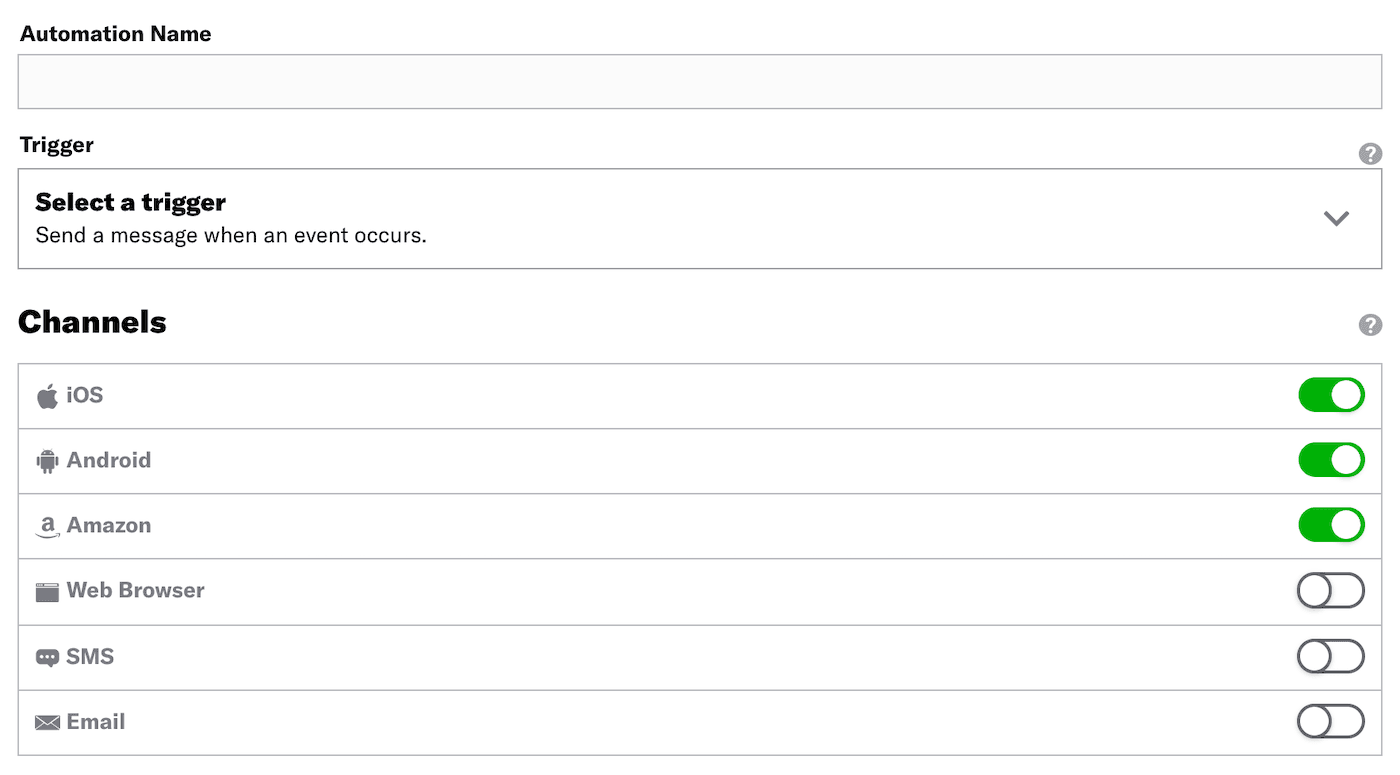
First, configure the trigger that will initiate your automation, and enable the channels you want to send the message to.
Then, configure options: Cancellation Events, Conditions, and Rule Limits. Last, set up Channel coordination.
Cancellation Events
Cancellation events are Custom Events that prevent an Automation, Sequence, In-App Automation, or Scene from sending/displaying if they occur while the Automation (or other) is in a delay period. Not supported for the Inactivity trigger.
To configure, complete the same workflow used for the Custom Event trigger. This includes the option to filter the cancellation events.
Cancellation events require a delay of at least one hour to ensure that there is time for the cancellation event to occur after the original triggering event occurs. In the Delivery step in an automation, you must specify a delay of at least one hour.
Conditions
Conditions are requirements your audience must meet in order to receive a message from an automation. You can base conditions on whether a user has or does not have a specific TagMetadata that you can associate with channels or Named Users for audience segmentation. Generally, they are descriptive terms indicating user preferences or other categorizations, e.g., wine_enthusiast or weather_alerts_los_angeles. Tags are case-sensitive., which includes Predicted to Churn statusAnalyzes your audience for users that exhibit behaviors indicating they are likely to become inactive, and tags the users as High, Medium, or Low Risk. and Device PropertyMetadata representing the default attributes and property tags of a device, such as language and time zone settings, OS and browser versions, and notification opt-in status. Device properties are used for audience segmentation. The data used for the tags and attributes is collected automatically from the Airship SDKs, and are updated daily. tags, or whether or not they are a member of a Subscription ListAn audience list of users who are opted in to messaging about a specific topic. Users can manage their opt-in status per list using a Preference Center..
If sending an SMS message, you can use conditions to restrict your message audience to a particular Sender IDAn originating phone number or string identifier used to indicate who an SMS message comes from. Members of your audience subscribe (opt in) to each sender ID they want to receive messages from.. Either search for a sender ID, or select the Sender ID filter before searching.
To configure:
Select Add a condition.
Search for the data you want to use as a condition. To filter results, select the filter menu icon () and make your selection. Search behavior varies by filter:
- All (no filter selected): Search within all condition types.
- Tags: Search for primary device tags (tags in the
devicetag group). - Tag Groups: Search for and select a tag group, then search within that tag group.
- Predicted to Churn: Search for all or part of
High,Medium,LoworPredictedonly. - Subscription List: Search subscription list names only.
To create a new tag using your search term, click Create [search term].
Select the logic for the condition:
- Has means the user must have the tag or be a member of (opted in to) the subscription list to receive the message.
- Doesn’t Have means the user must not have the tag or be a member of (not opted in to) the subscription list to receive the message.
After adding all conditions, use the Any/All Boolean selector to determine which conditions must be satisfied before the message will be sent.
Rule Limits
Rule limits cap the number of messages a user can receive from an Automation within a time frame, preventing you from over-messaging your audience, e.g., a maximum of 1 per day. Rule limits are set per Automation.To configure, select Add a Daily Limit and/or Add an All-Time Limit and enter a number.
Channel coordination
First, select a Channel CoordinationA group of strategies for targeting users where they are most likely to receive your message. strategy:
- Fan Out targets a Named User on all the channels they are opted in to, maximizing the chances they receive your message.
- Last Active targets a Named User on the opted-in channel they used most recently.
- Priority Channel targets a Named User on the first channel they are opted in to, in the priority order you set.
Then, enable the channel types to include in your audience. For Mobile Apps, also select from the available platforms. For Priority Channel, also drag the channel types into priority order.
For projects using the channel-level segmentation system, instead of channel coordination, enable the channels you want to send the message to. Available channels are based on your trigger.
Content
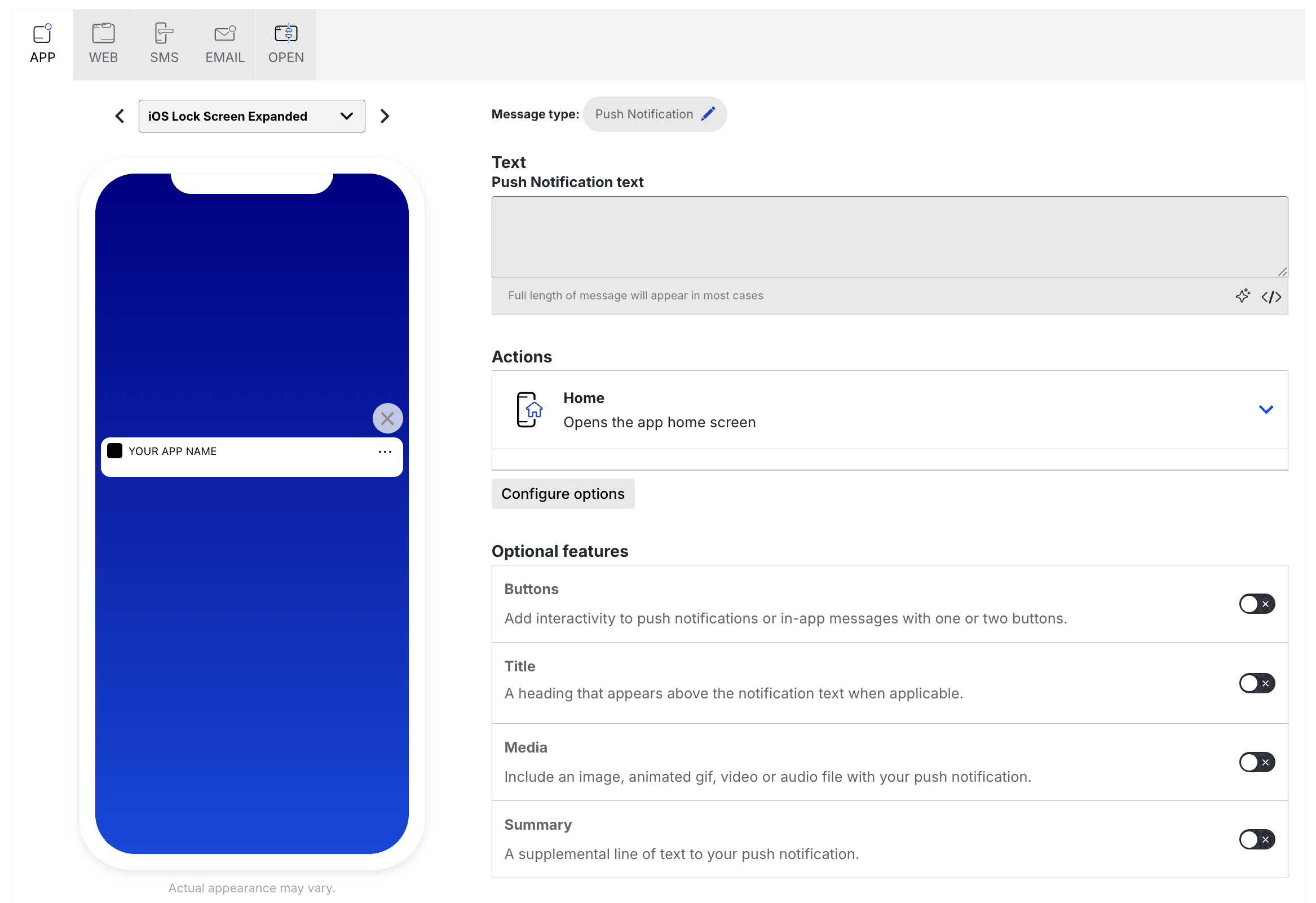
Configure the message content per enabled channel. See Content by channel.
Delivery
Configure delivery. Timing settings do not appear if you chose the Inactivity trigger.
Review
Review the device preview and message summary. Click the arrows to page through the various previews. The channel and display type dynamically update in the dropdown menu above. You can also select a preview directly from the dropdown menu.
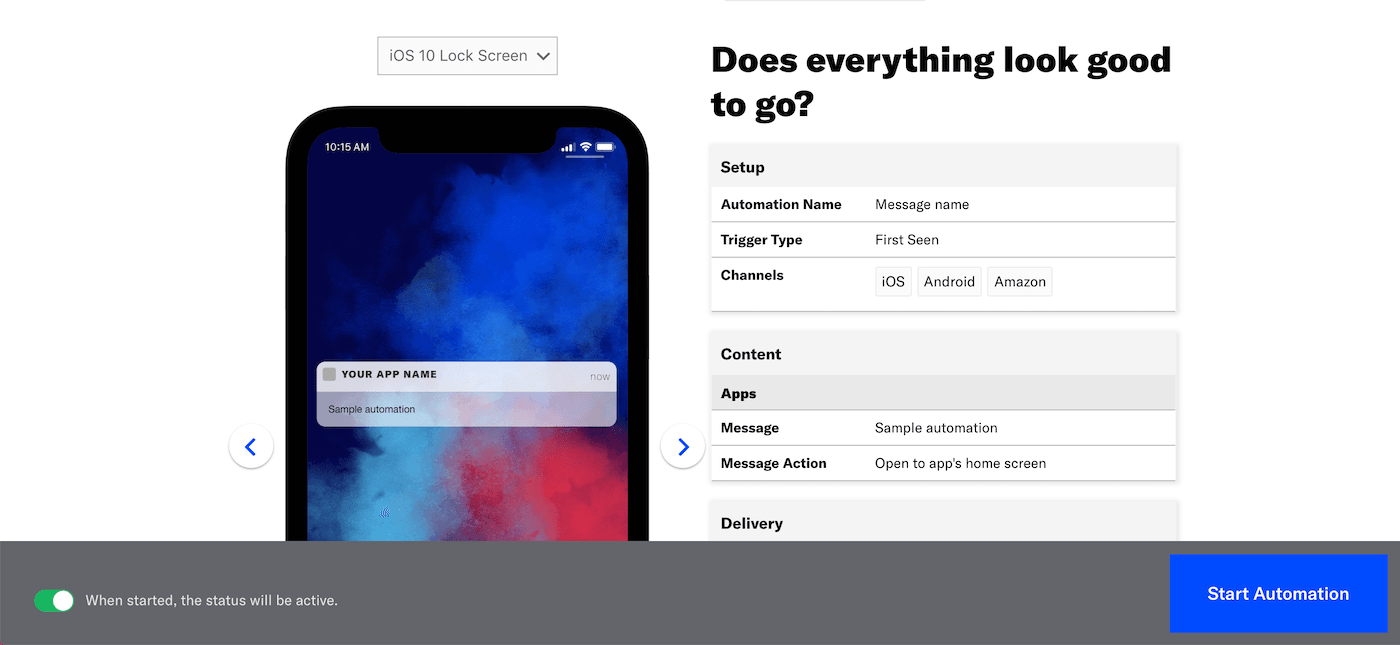
If you want to make changes, click the associated step in the header, make your changes, then return to Review.
Send a test message to verify its appearance and behavior on each configured channel. The message is sent to your selected recipients immediately, and it appears as a test in Messages OverviewA view of all your project’s messages, with options for editing their settings, content, status, and more..
- Select Send Test.
- Select Send Test.
- Under Test audience, enter at least one Named UserA customer-provided identifier used for mapping multiple devices and channels to a specific individual. or Test GroupA preview group is audience group used for previewing personalized content in the dashboard. Wherever a personalization preview is available, you can select a preview group, and its group members’ attributes will appear for any Handlebars references to attributes. You can enable any preview group as a test group so you can send test messages to its group members. These messages appear as tests in Messages Overview. and select from the results. If your message includes email, you can also search for email addresses. If no matches appear for an address, you can select Create channel for <address>, and the channel will be registered for your project and opted in to transactional messaging.
- (If your message contains HandlebarsHandlebars is Airship’s templating language for personalization. Handlebars expressions use double curly braces wrapped around a content template, ranging from a simple variable, e.g.,
{{first_name}}, to complex evaluations of personalization data.) Under Personalization, select and configure a personalization data source:Data source Description Steps Test message recipient The message will be personalized using information associated with each test audience member. n/a Preview Data tool The message will be personalized using the data currently entered in the Preview Data tool. The same values will apply to all test message recipients. You can also manually edit the JSON. (Optional) Edit the JSON data. - Select Send.
Choose whether to create this automation as Active or Paused. Select Paused if you’d like to create the message but aren’t quite ready to activate it. After starting your automation, you can change its status at any time.
Click Start Automation or Schedule Automation.
Convert an Automation to a Sequence
Convert an Automation to a Sequence so you can use features like Control Groups, Test Run, and A/B Testing. You can also add more messages.
After conversion:
- The Automation name is copied to the Sequence.
- The Automation trigger and settings are copied to the Sequence.
- The Automation message content and settings are copied to the first message in the Sequence.
- The Sequence status is the same as the Automation status at the time of conversion: Started if the Automation was active, and Paused if the Automation was paused, or Draft.
- The converted Automation is archived and cannot be un-archived.
To convert to a Sequence:
- Go to Messages, then Messages Overview.
- Click the duplicate icon () for an Automation, and select Convert to: Sequence.
The next screen will be the Sequence ManagerA preview of the messages in a Sequence, with options for editing and testing, and for running experiments. for the new Sequence.