Airship’s localization feature provides a way to send a single message with multiple localizations. You can prepare localizations based on language information or [Locale](https://www.airship.com/docs/reference/glossary/#locale) for more specific, regional localizations. Airship delivers localized messages to your audience according to language and country information gathered by the Airship SDK.
For example, if you prepared a German localization, users with their language set to German will receive the German localization of your message. If you want to make your message more regionally specific, you could add German localizations for both Germany and Austria. Users with their language preferences set to German would receive different messages depending on whether their country/region settings are set to Germany or Austria.
--- You can create localized content using: * The **Message** and **In-App Automation** composers * [Message A/B tests](https://www.airship.com/docs/guides/experimentation/a-b-tests/messages/) * The `/push` or `/schedules` APIs, with a `localizations` array in your request All message types for the App channel are supported: push notifications, in-app messages, and Message Center messages. In the Message composer and A/B tests, you also have the option of selecting a [content template](https://www.airship.com/docs/guides/personalization/content/templates/). Localization for In-App Automation includes support for Custom HTML messages. **This document is for the Message composer, A/B tests, and APIs.** See also: [Localization for In-App Automation](https://www.airship.com/docs/guides/messaging/in-app-experiences/in-app-automation/localization/). > **Note:** Localized push notifications do not generate a message report at this time. Message details are available in [Performance Analytics](https://www.airship.com/docs/reference/glossary/#pa). ## Create localized content Follow these steps to create localized content for App and Web channels in the Message composer or an A/B test variant. The process is much like creating any other message, except that you will repeat the *Content* step for each localization that you add to your message. First you will create a *Default* message — the message that Airship sends to anybody in your audience who does not match the languages or locales that you specify in your localizations. The default message helps you reach your entire audience even if you aren't able to translate your message into all of your audience's possible languages. > **Note:** These steps cover enabling localization and adding content only. In the Audience step in the Message Composer, or in the Channels step in an A/B test variant, enable **Localization**:  In the Content step, select your message type, configure you default message, then add localized versions: 1. If prompted, choose a message type or [content template](https://www.airship.com/docs/guides/personalization/content/templates/), then click **Add Content**. The message type screen appears depending on your selections in the *Audience* step. 1. Configure your message content if you did not select a template. See *Creating content* for: * [Push notifications](https://www.airship.com/docs/guides/messaging/messages/content/app/push-notifications/#creating-content) * [In-app messages](https://www.airship.com/docs/guides/messaging/messages/content/app/in-app-messages/#creating-content) * [Message Center: Interactive editor](https://www.airship.com/docs/guides/messaging/messages/content/app/message-center/#interactive-editor) * [Message Center: Visual editor](https://www.airship.com/docs/guides/messaging/messages/content/app/message-center/#visual-editor) * [Web](https://www.airship.com/docs/guides/messaging/messages/content/web/#creating-content) 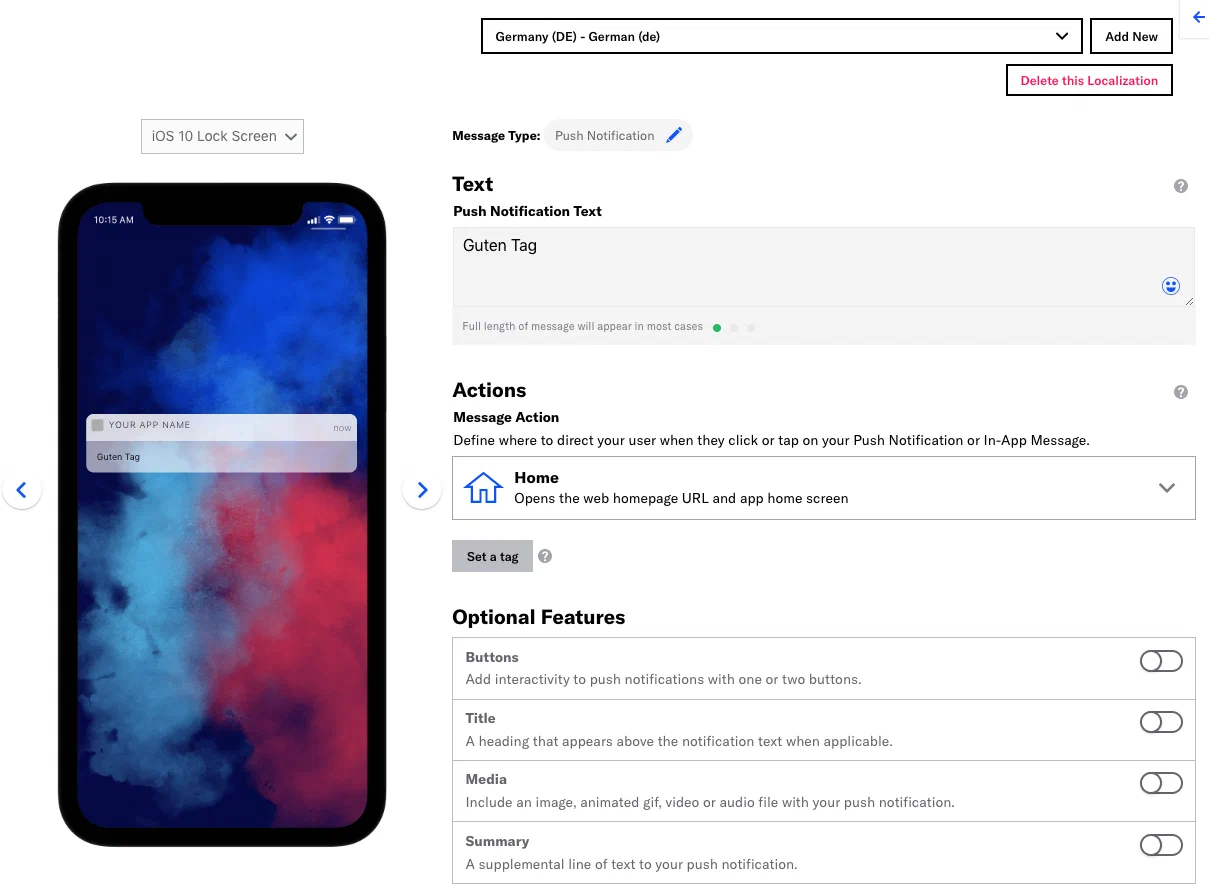 1. When you have completed configuring the content for this message, click **Add new**. 1. Select a language (required) and country (optional), click **Save**, and repeat the content configuration for the next localization. Select from the dropdown menu to view content for each localization and edit as necessary. When you have finished adding localizations, click *Delivery* in the header and complete the rest of the steps in the composer. > **Tip:** When sending a message with localizations to App or Web channels, you may want to use the [Optimize](https://www.airship.com/docs/reference/glossary/#optimal_send_time) or [Delivery By Time Zone](https://www.airship.com/docs/reference/glossary/#delivery_by_time_zone) options to make sure that users get their localized message at the time that best suits them. In the Review step, you can preview your localization content. See the [Review step](https://www.airship.com/docs/guides/messaging/messages/create/#message-review) in *Create a message*. --- You can edit or delete a localized message while it is in draft state or until Airship has sent it. 1. Go to **Messages**, then **Messages Overview**. 1. Find the message you want and select the pencil icon ( ) to edit or the trash can icon ( ) to delete. ## Send localized content using the API **Example:** Send a localized `/push` using the Airship API by adding an array of `localizations` in your request. ```http POST /api/push HTTP/1.1 Authorization: Basic