Message delivery
Configure delivery for Messages, Automations, and Sequences.
In the Delivery step of each composer, select a Timing option and configure additional settings. You can also set up Message delivery options.
Timing — Messages
The Message composer supports these timing settings:
| Timing option | Description |
|---|---|
| Send now | Send the message immediately after review. |
| Schedule | Send the message at a specific date and time. |
| Recurring | Send the message periodically at specified intervals. You can set the initial time, optional end date, and exclusions. |
| Optimize | Send the message at each user's Optimal Send TimeAn algorithm that determines the best hour for optimal engagement activity — when each individual member of your audience is most likely to receive and act on your message. iOS, Android, and Fire OS platforms only. based on predicted engagement. App channels only. |
For messages used as A/B test variants, timing settings apply after starting the test.
Optimize
In the Message composer and for A/B test variants, send the message on a specific date and at each user’s Optimal Send TimeAn algorithm that determines the best hour for optimal engagement activity — when each individual member of your audience is most likely to receive and act on your message. iOS, Android, and Fire OS platforms only.. iOS, Android, and Fire OS only.
Enter a date in YYYY-MM-DD format.
Airship recommends scheduling your message at least three days in advance due to the combination of time zones and optimal times. You can reduce the lead time if your audience is more localized, e.g., only in the United States or in a certain European region.
When your audience includes users without an optimal send time tag, those users will be dropped from delivery and will not receive the message. Since optimal send time is determined from user behavior over time, new users might not have an optimal send time determined for the first week or two after channel registration.
Recurring
In the Message composer and for A/B test variants, send the message periodically at specified intervals. You may want to send recurring messages for things like payment reminders. You can pause, resume, and cancel recurring messages in Messages OverviewA view of all your project’s messages, with options for editing their settings, content, status, and more..
Segmentation data is evaluated at send time. For example, if your recurring message targets an audience list whose members change over time, each recurring message is sent to the current version of the list when the message is sent.
Recurring messages that include multi-language localized content cannot be edited.
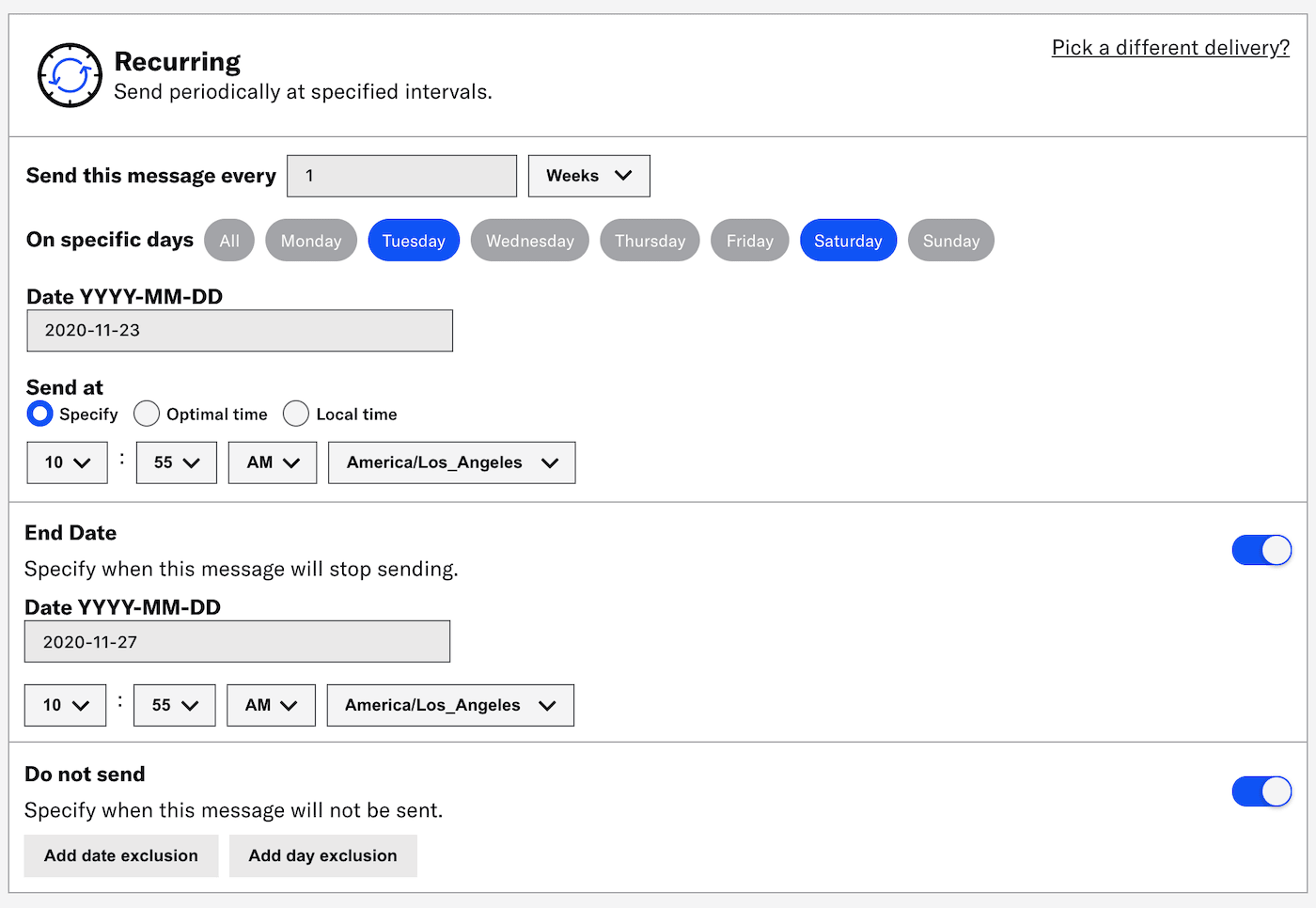
Specify the delivery interval by number of hours/days/weeks/months/years. For weeks, also specify which days of the week to send the message.
Set the initial date. This is the first day Airship will send your message.
Set the initial time. This is the time of day Airship will send each message.
- Specify: Enter the time and time zone.
- Optimal time: The message will send at each user’s Optimal Send TimeAn algorithm that determines the best hour for optimal engagement activity — when each individual member of your audience is most likely to receive and act on your message. iOS, Android, and Fire OS platforms only..
- Local time: Enter the time.
(Optional) Specify when to stop sending the message.
- Enable End date.
- Enter a date.
- Set the time and time zone.
(Optional) Specify dates or days of the week when the message should not be sent. If you select the hours interval, you can also specify which hours of the day should be excluded. If you select the weeks interval, you can only specify which dates should be excluded.
If the scheduled send falls during an excluded period, Airship waits to send the message until the next available valid send time. For example, if you scheduled delivery weekly on Thursdays but added the date for Thanksgiving Day as an exclusion, the next send would be the Thursday after Thanksgiving Day.
- Enable Do not send.
- Select Add date exclusion, enter a date, and repeat for additional dates.
- Select Add day exclusion and select days.
- Select Add time exclusion and set start and end times.
Schedule
In the Message composer and for A/B test variants, choose an exact time of day to send the message:
- Enter a date in YYYY-MM-DD format and select the time and time zone.
- (Optional) Select Delivery By Time Zone to deliver messages at the specified time in your audience’s time zones. For example, a push notification scheduled for 9 a.m. will arrive for people on the east coast at 9 a.m. Eastern Time, in the midwest an hour later at 9 a.m. Central Time, then
on the west coast two hours after that, at 9 a.m. Pacific Time.
Note Messages are only delivered by time zone to channels that have a time zone set.
App and Web channels have their time zone set automatically by the SDK.
Email, SMS, and Open channels will only have a time zone if set through the channel registration API. To do so, enter a value for the
"timezone"key in the request body. See:Tip - A message delivered by time zone includes a Delivery by Time Zone section in its message report. See View Message Detail in Message reports.
- The API equivalent of Delivery By Time Zone is Push to Local Time.
Timing — Automations and Sequences
Automations and Sequences support these timing settings:
| Timing option | Description |
|---|---|
| Send immediately | Send the message after receiving the triggering event and after the delay period elapses. |
| Schedule | Send the message at a specific date and time after receiving the triggering event and after the delay period elapses. |
| Send during available window | Send the message within a specified time range after the trigger event. |
Timing settings and application vary:
- Sequences: Timing settings apply to the first message in a Sequence only. Subsequent messages in the Sequence are sent as additional conditions are met and according to their specified delay periods.
- Automations and Sequences: Timing settings do not appear if using the Inactivity trigger.
Schedule
For Automations and messages in Sequences, Airship sends your message at the first appropriate scheduled time after receiving the triggering event and after the delay period elapses. All messages are delivered in the device’s local time zone. Choose an exact time of day to send the message:
- Select days of the week.
- Select and drag the circle on the timeline to select delivery time. Hours are in 15-minute divisions.
- (Optional) Select Add Another to create multiple schedules.
Send during available window
For Automations and Sequences, configure message delivery windows by specifying valid hours of the day and days of the week. Airship sends your message at the first appropriate time during the window after receiving the triggering event and after the delay period elapses. If no delay is configured and the triggering event falls within an available window, the message will send immediately.
- Select days of the week.
- Select and drag the circle on the timeline to constrain the delivery window. Hours are in 15 minute divisions.
- (Optional) Select Add Another to create multiple windows.
- Choose what happens if the triggering event occurs outside the available window. By default, if the triggering event (plus delay, if specified) falls outside of an available window, Airship sends the message during the next available window. Select Do not send if you want to discard the message instead of sending during the next available window.
Create multiple windows to support separate hours during weekdays versus weekends.
Additional settings
Additional settings may be available depending on your composer, project configuration, channel selection, and message configuration.
Audience limit
In the Message composer and for A/B test variants, and for App channels only, set a maximum number of audience members to send the message to. This setting can be useful for promotions with a limited number of coupons or other capped advertisements. For Recurring delivery, the limit applies to each message send.
- Enable Audience Limits.
- Set the audience size to between 100 and 1 million.
Audience Limit is not supported for:
- Optimal Send TimeAn algorithm that determines the best hour for optimal engagement activity — when each individual member of your audience is most likely to receive and act on your message. iOS, Android, and Fire OS platforms only. — This includes
- Delivery by time zone — This includes:
- Audience ListsMessaging recipient groups based on either your own data or automatically-generated app user lifecycle information. You can use audience lists to target specific users. — This includes any SegmentA reusable audience group you create by selecting unique or shared user data. that includes an Audience List
- Message CenterA place in your app where you can display persistent rich messages, including HTML, video, etc. Similar to email, Message Center represents both the medium (the in-app inbox) and the message type (the messages you send to the inbox). messages — If Message Center is combined with a Push Notification and/or In-App Message, the limit is applied to the Push and In-App Message as long as other requirements are met.
- Accounts that include Boost
Ban List
If your project has a Ban ListAn externally maintained record of users that should not be included in Airship message audiences. Before sending a message, Airship validates the audience members with the Ban List. Any matching recipients are dropped from the audience before sending the message. enabled and its request URL includes send time variables, you can override their default values for this message only. Each one is listed under the heading Default value for <variable>. Enter a new value for any variable.
This setting does not appear if Bypass Ban List is enabled.
Delay
For Automations only, you can set the time Airship should wait after receiving the triggering event before sending your message. Enable, then enter a value in minutes, hours, or days. The maximum delay period is 90 days.
A delay of one hour is required for the First Seen TriggerA trigger that initiates an Automation or Sequence when members of your audience opt in to notifications or when a channel registration event, such as when the app launches in the background or a user opens your app for the first time, occurs. and for Cancellation EventsCustom Events that prevent an Automation, Sequence, In-App Automation, or Scene from sending/displaying if they occur while the Automation (or other) is in a delay period..
Sequences also have a Delay setting, but it is set per message. See Delay in Add Messages to a Sequence.
External data feeds
If your message includes External Data FeedsA connection to an external API. When you send a message, Airship uses a response from that API to personalize messages., you must configure each feed listed in External data feed options.
Failure behavior — Determine how your message is handled if the feed fails. Select Abort sending the message or Send message without this data.
Default value for [var] — This displays the default value for each send time variable in the feed URL. You can change the value to override the default for this message only.
Purpose
Set or verify the Message PurposeA dashboard setting that designates a message as commercial or transactional.. This option only appears if Message Purpose is enabled for the project.
When Message Purpose is enabled and email and at least one other channel are selected for a message, Purpose is disabled in the Delivery step. Instead, set the purpose in the email’s Sender Information:
- Go to the composer’s Content step.
- Select the Email tab.
- Select Edit for Sender Information.
- Enable Transactional or leave disabled if the message contains commercial content only.
The commercial/transactional designation set in the email Sender Information will apply to all channels selected for the message.