Create a message
Use the Message composer to send a single message to any channel.
To get started, select the Create dropdown menu (), then select Message. Next, enter a message name and save it. Select the gear icon () to flag it as a test.
After completing a step, select the next one in the header to move on.
Audience
In this step, define who you want to send your message to, and then set Channel CoordinationA group of strategies for targeting users where they are most likely to receive your message. and which channel types to include. You can also filter channels in your audience based on user data.
For projects using the channel-level segmentation system, configure the Audience step using the following options, as well as Localization. Channel coordination and channel conditions do not appear in those projects.
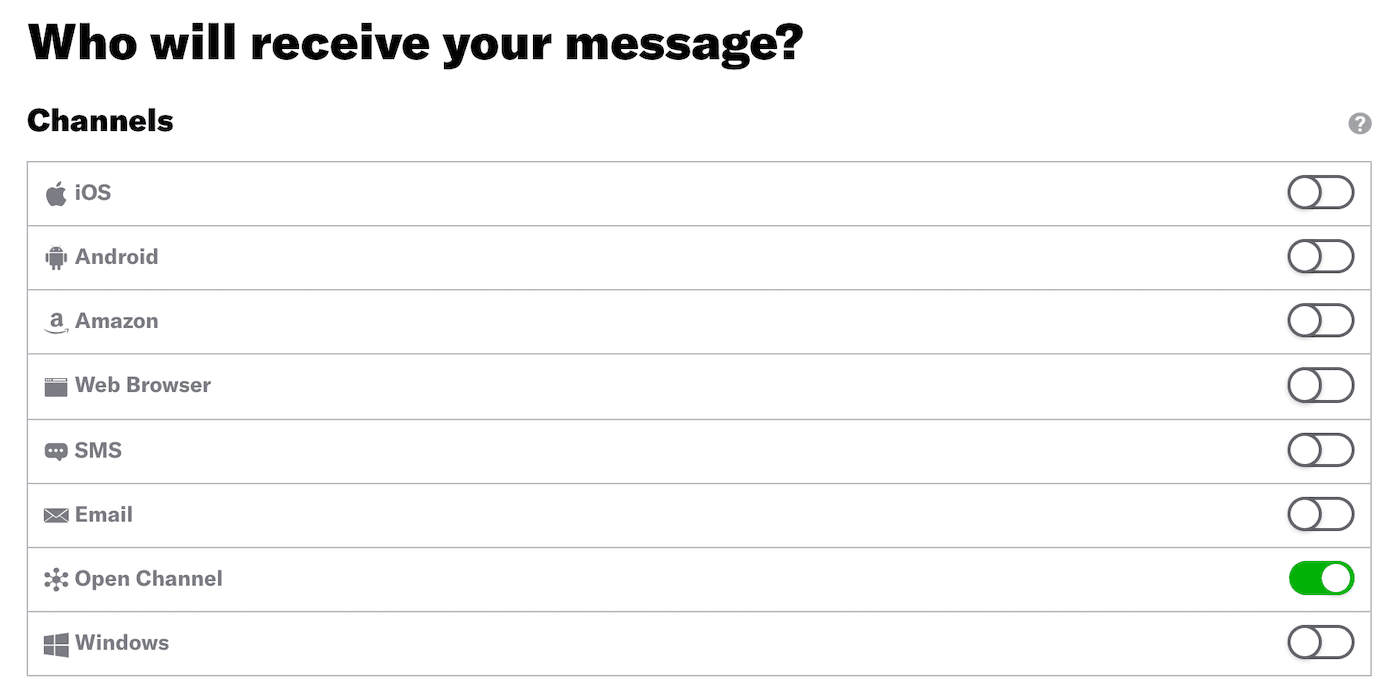
Enable the channels you want to send the message to, then choose a group of users.
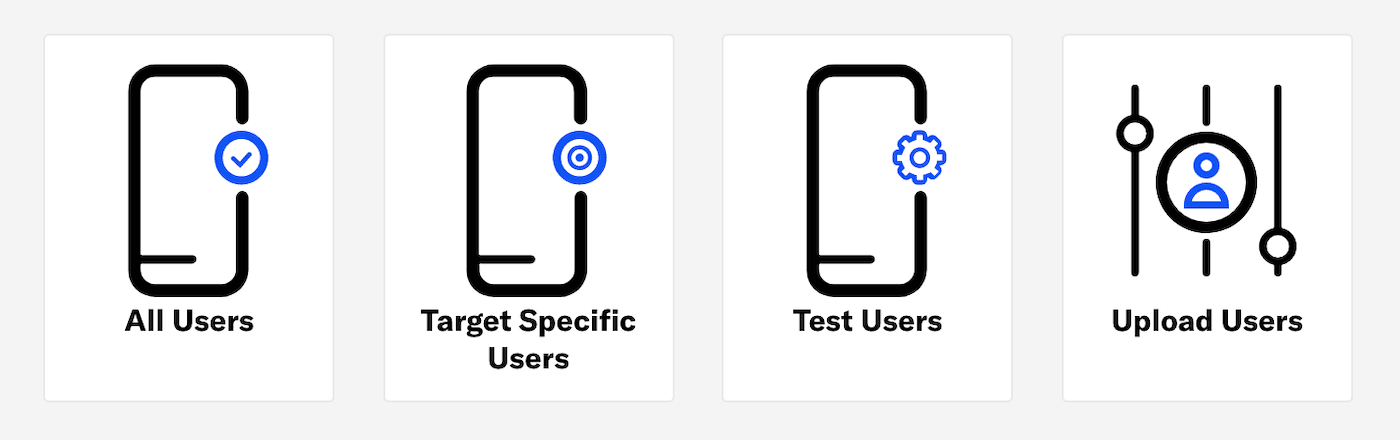
| Option | Description | Steps |
|---|---|---|
| All Users | Your entire audience for the selected channels | n/a |
| Target Specific Users | Audience members in a group you define | Use the same process as when building a SegmentA reusable audience group you create by selecting unique or shared user data.. |
| Test Users | Members of a Test GroupA preview group is audience group used for previewing personalized content in the dashboard. Wherever a personalization preview is available, you can select a preview group, and its group members’ attributes will appear for any Handlebars references to attributes. You can enable any preview group as a test group so you can send test messages to its group members. These messages appear as tests in Messages Overview. | Select a Test Group. |
| Upload Users | Upload a list of users just before sending the message. | See Bulk Sending. |
To make this audience eligible for retargeting, enable Generate retargeting segments. This option is only available when your only selected channels are app platforms, Web, and Email.

Audience selection
Choose a group of users:
| User group | Description | Steps |
|---|---|---|
| Target by conditions | Include only users who meet conditions you define based on user data. | Use the same process as when building a SegmentA reusable audience group you create by selecting unique or shared user data.. |
| Test group | Include the members of a Test GroupA preview group is audience group used for previewing personalized content in the dashboard. Wherever a personalization preview is available, you can select a preview group, and its group members’ attributes will appear for any Handlebars references to attributes. You can enable any preview group as a test group so you can send test messages to its group members. These messages appear as tests in Messages Overview.. | Select a Test Group. |
| Upload a list | Upload a list of users just before sending the message. This option is only available when you have one of Email, SMS, or an Open Channel enabled in Channel coordination. | See Bulk Sending. |
| All users | Include all users in your project for the selected channels. | n/a |
Channel coordination
First, select a Channel CoordinationA group of strategies for targeting users where they are most likely to receive your message. strategy:
- Fan Out targets a Named User on all the channels they are opted in to, maximizing the chances they receive your message.
- Last Active targets a Named User on the opted-in channel they used most recently.
- Priority Channel targets a Named User on the first channel they are opted in to, in the priority order you set.
Then, enable the channel types to include in your audience. For Mobile Apps, also select from the available platforms. For Priority Channel, also drag the channel types into priority order.
Channel conditions
Use Channel conditions to filter which channels are included in the audience. A channel must meet the conditions to remain in the audience.
For example, if your audience includes users with app, email, and SMS channels, and you set a channel condition requiring membership in an email Subscription List:
- Only email channels that meet that condition would remain in the audience.
- All app and SMS channels would be excluded.
To set channel conditions, use the same process as when building a SegmentA reusable audience group you create by selecting unique or shared user data.. You can use the following data in your conditions:
- AutogroupA default tag group. When devices are registered in Airship, they are automatically assigned a tag within the
autogrouptag group; the tag is a numeric value of 1 to 100. Some uses for autogroup tags are creating a control group, and to randomly Segment your audience. Autogroup must be enabled for your account — contact Support or your account manager. - Channel IDAn Airship-specific unique identifier used to address a channel instance, e.g., a smartphone, web browser, email address.
- Device PropertiesMetadata representing the default attributes and property tags of a device, such as language and time zone settings, OS and browser versions, and notification opt-in status. Device properties are used for audience segmentation. The data used for the tags and attributes is collected automatically from the Airship SDKs, and are updated daily.
- EventsEvents represent activities in the Airship system, as well as user behavior in your app or website. You can also send external activities (e.g., POS transactions) into the Airship system as events. Events power Airship data products and can be used in audience segments, as Automation triggers, and for partner integrations.
- Lifecycle ListAutomatically generated audience lists that capture app open, uninstall, notification, and dormancy information within the past 24 hours, one week, or 30 days.
- Predicted to Churn statusAnalyzes your audience for users that exhibit behaviors indicating they are likely to become inactive, and tags the users as High, Medium, or Low Risk.
- Subscription ListAn audience list of users who are opted in to messaging about a specific topic. Users can manage their opt-in status per list using a Preference Center.
- TagMetadata that you can associate with channels or Named Users for audience segmentation. Generally, they are descriptive terms indicating user preferences or other categorizations, e.g.,
wine_enthusiastorweather_alerts_los_angeles. Tags are case-sensitive. in thedeviceTag GroupAn array of tags that you can associate with both channels and Named Users. — See Primary device tags. - Uploaded (Static) ListA reusable audience list that you create. Uploaded lists are static and updatable. In the API, they are referred to as Static Lists.
Selected Lifecycle, Subscription, and Uploaded Lists must contain Channel IDs or Named Users as the identifier, not a mix of the two.
Localization
Enable Localization if you want to provide different content to app and web users depending on their language and country. See Localization.
Content
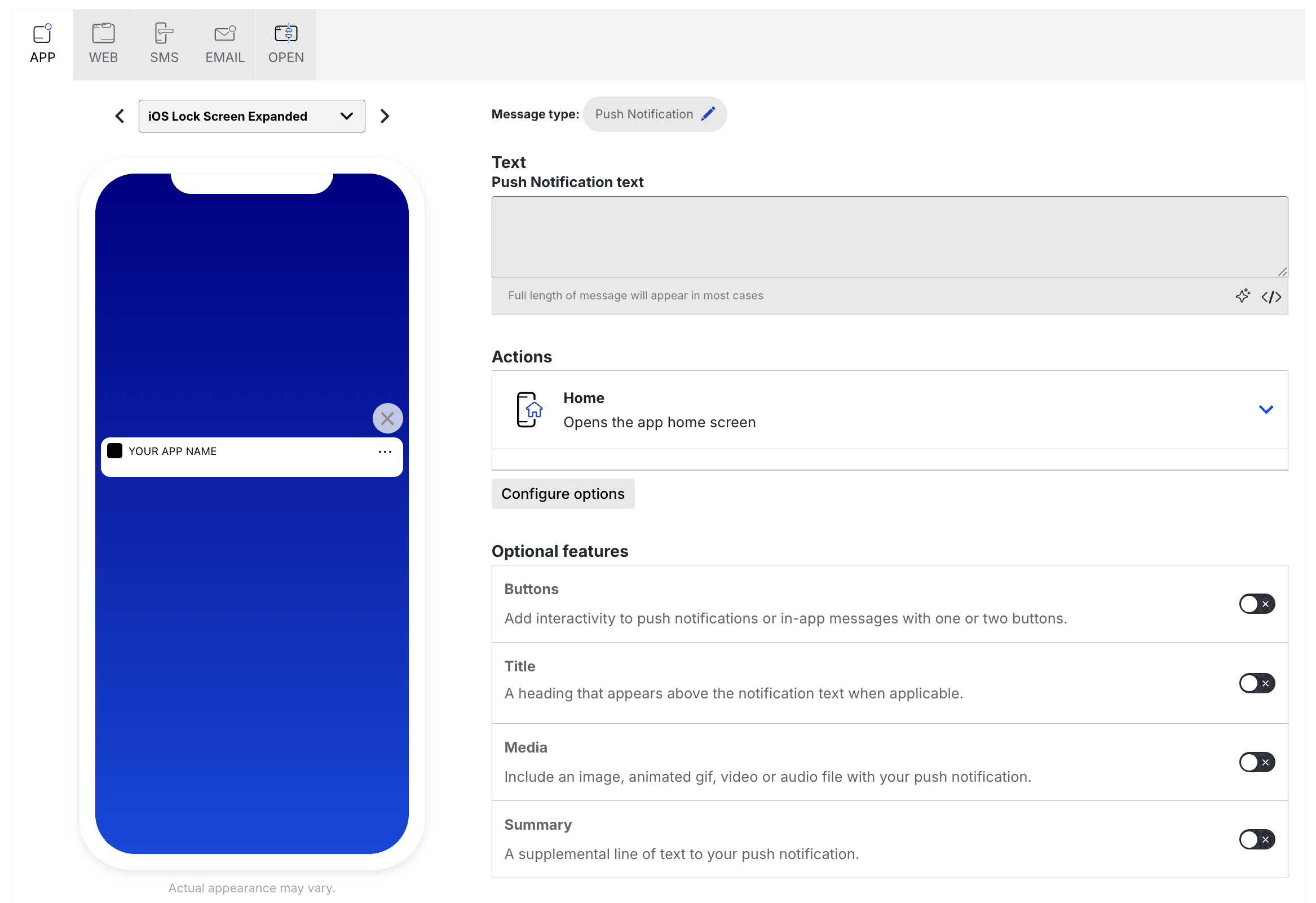
Configure the message content per enabled channel. See Content by channel and Localization.
Delivery
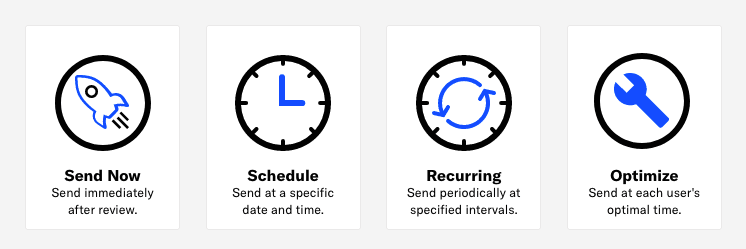
Configure delivery.
Review
Review the device preview and message summary. Select the arrows to page through the various previews. The channel and display type dynamically update in the dropdown menu above. You can also select a preview directly from the dropdown menu.
If you want to make changes, select the associated step in the header, make your changes, then return to Review.
If you chose Target by conditions in the Audience step, select Generate audience count to see the following:
- The total number of ContactsAny user in your project. Contacts are identified as either an Anonymous Contact or a Named User. Airship can set targeting data on these identifiers, which are also used to map devices and channels to a specific user. and channels in the audience
- The total number of channels and the number of opted-in channels for each Channel (Engagement)A communication medium supported by the Airship service. Supported channels include app, web, email, SMS, and Open Channels. Within some channels there may be specific platforms with individual characteristics. Example platforms include Chrome for the web channel and Android for the mobile app channel. and mobile app platform
You can also generate the audience count for the Target Specific Users legacy option, but it does not include the Contacts count.
If you chose Upload a list or Upload Users in the Audience step, select Upload & Send and select your file. Uploaded merge field names will be verified against the merge fields set in the Content step. For more information, see Bulk sending.
Send a test message to verify its appearance and behavior on each configured channel. The message is sent to your selected recipients immediately, and it appears as a test in Messages OverviewA view of all your project’s messages, with options for editing their settings, content, status, and more..
- Select Send Test.
- (If your message includes localized content) Under Localization, select a language-country pair to apply to the test message.
- Under Test audience, enter at least one Named UserA customer-provided identifier used for mapping multiple devices and channels to a specific individual. or Test GroupA preview group is audience group used for previewing personalized content in the dashboard. Wherever a personalization preview is available, you can select a preview group, and its group members’ attributes will appear for any Handlebars references to attributes. You can enable any preview group as a test group so you can send test messages to its group members. These messages appear as tests in Messages Overview. and select from the results. If your message includes email, you can also search for email addresses. If no matches appear for an address, you can select Create channel for <address>, and the channel will be registered for your project and opted in to transactional messaging.
- (If your message contains HandlebarsHandlebars is Airship’s templating language for personalization. Handlebars expressions use double curly braces wrapped around a content template, ranging from a simple variable, e.g.,
{{first_name}}, to complex evaluations of personalization data.) Under Personalization, select and configure a personalization data source:Data source Description Steps Test message recipient The message will be personalized using information associated with each test audience member. n/a Preview Data tool The message will be personalized using the data currently entered in the Preview Data tool. The same values will apply to all test message recipients. You can also manually edit the JSON. (Optional) Edit the JSON data. - Select Send.
To create an A/B test with this message as a variant, select Create A/B Test. You will leave the Message composer and go to the variants list in the new A/B test. See Message A/B tests.
Select Send Message or Schedule Message.