# Buttons
Add buttons to your push notifications, in-app messages, and web push notifications.
## About buttons
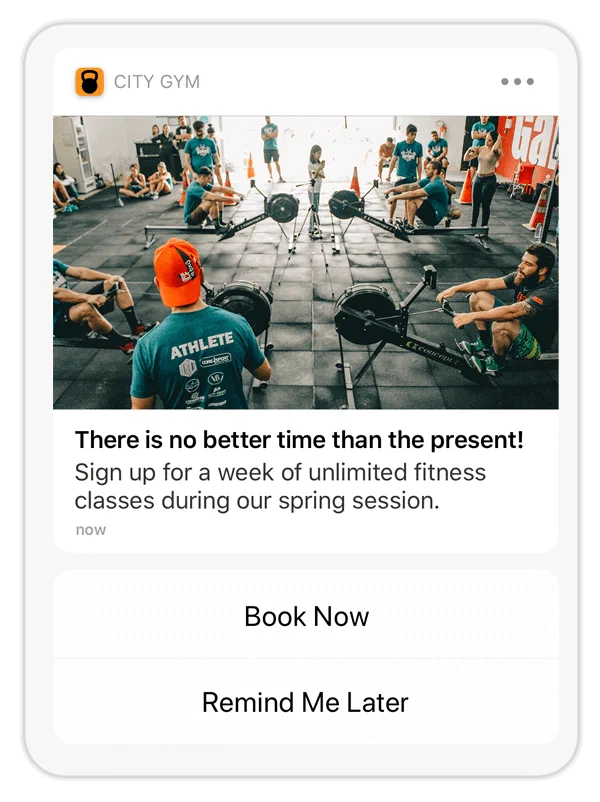
*A button pair in a push notification*
Buttons in your message content can drive users to:
* Take immediate, specific action
* Make decisions or choices
* Express preferences
Messages support a single button or a pair, such as `Opt-in` or a `Yes`/`No` pair. Each button has an associated [Action](https://www.airship.com/docs/reference/glossary/#action) that occurs when the user selects it.
When that interaction occurs, you can add or remove [Tags](https://www.airship.com/docs/reference/glossary/#tag) or opt a user in to or out of a [Subscription List](https://www.airship.com/docs/reference/glossary/#subscription_list). For push notifications, you can also emit a [Custom Event](https://www.airship.com/docs/reference/glossary/#custom_event).
### Predefined buttons
Airship provides 30+ predefined buttons for common use cases. They have preset labels and actions. Some buttons support changing their associated actions.
You can use these buttons in your messages at any time. They do not require SDK or project configuration.
### Built-in Interactive Notifications
Our SDK also
includes translations for these buttons in several languages. In addition to
text-based interactive notification types, Airship also provides
[Emoji buttons](https://www.airship.com/docs/reference/messages/built-in-interactive-notifications/#built-in-emoji).
Use emojis to track user sentiment on a certain story or offer. Learn more in
our
[iOS](https://www.airship.com/docs/developer/sdk-integration/apple/push-notifications/interactive-notifications/) and
[Android/Fire OS](https://www.airship.com/docs/developer/sdk-integration/android/push-notifications/advanced-customizations/#interactive-notifications) documentation.
For the full list, see [Built-In Interactive Notification Types
](https://www.airship.com/docs/reference/messages/built-in-interactive-notifications/).
### Custom buttons
Create custom buttons to reuse across multiple messages.
* **Web buttons:** You can create web buttons for a single message without adding them to your project, or add them to your project to reuse across messages. Web buttons can be used immediately.
* **App buttons:** Custom app buttons require a developer to register button categories in your app before you can use them in messages. You can also associate custom app buttons with custom actions instead of only Airship actions.
Custom buttons you add in your project settings appear alongside predefined buttons when selecting buttons for a message.
## Enable buttons
For the Buttons option to appear when configuring your message content, you must enable **Notification Buttons** in your project settings. By default, new projects have Notification Buttons enabled. For App buttons, you must also enable [Custom Keys](https://www.airship.com/docs/reference/glossary/#custom_keys), which send information about buttons between your app and the Airship SDK.
In the dashboard:
1. Next to your project name, select the dropdown menu (
), then **Settings**.
1. Under **Project settings**, select **Dashboard Settings**.
1. Enable **Notification Buttons**.
1. (Required for app buttons only) Enable **Custom Keys**.
## Create custom app buttons
Buttons are associated with an action within your app, so a developer must first update your app, registering new Interactive Notification types in the Airship SDK. See the platform documentation for implementation details:
* [Interactive Notifications for iOS](https://www.airship.com/docs/developer/sdk-integration/apple/push-notifications/interactive-notifications/)
* [Interactive Notifications for Android](https://www.airship.com/docs/developer/sdk-integration/android/push-notifications/advanced-customizations/#interactive-notifications)
After your developer registers the new types, you can add buttons to your project. You will need the ID for each button.
In the dashboard:
1. Next to your project name, select the dropdown menu (
), then **Settings**.
1. Under **App settings**, select **Mobile App Notification Buttons**.
1. Select **Create Notification Buttons**.
1. Enter a name and description for the button, so you can identify it in your project.
1. Enter the category name that should be passed to the mobile device to identify which notification buttons to display with a message.
1. (Optional) Clear the **Enabled** check box if you do not yet want these buttons to appear in the list of buttons when composing messages.
1. Specify the label and actions for each button. If you set up both a primary and secondary buttons, they will appear as a pair.
* **Button Label:** Identifies the button label for display purposes in the dashboard. It should match the label defined in the app. This label does not change button labels in your app.
* **ID:** Associates actions with the correct button label when passed by message.
* **Foreground** or **Background:** Controls which actions are available in the dashboard. Must match button ID defined in the app.
* **Destructive:** For iOS, indicates if button action causes the removal of data, features, etc., for display purposes in the dashboard. Must match capability defined in the app. Check the box to enable.
1. Select **Save**.
## Create custom web buttons
To add custom web buttons to your project:
1. Next to your project name, select the dropdown menu (
), then **Settings**.
1. Under **App settings**, select **Web Notification Buttons**.
1. Select **Create Web Buttons**.
1. Enter a name and description. The name helps you identify your buttons when setting up a message.
1. Enter a label for each button. These are the button labels users see in your web messages. For a single button, enter one label. For a button pair, enter two labels.
1. Select **Save**.
## Add buttons to message content
Follow these steps to add buttons to your message content:
1. Enable **Buttons**.
1. Select buttons for your message:
* If you are creating an app message, choose **Select buttons**, then select a button or pair to add it to your message. You can search for [predefined buttons](https://www.airship.com/docs/reference/messages/built-in-interactive-notifications/) by their type, or search for custom buttons by name.
* If you are creating a web message, choose **Select or add buttons**, and then:
* To add custom buttons for this message only, enter a button label, or two for a pair, then select **Add buttons**.
* To add predefined or existing custom buttons, go to **Select buttons** and choose which buttons to add to your message.
1. Set an [Action](https://www.airship.com/docs/reference/glossary/#action) for each button. Predefined buttons already have set actions, but some support selecting a different action. You cannot use [Handlebars](https://www.airship.com/docs/reference/glossary/#handlebars) to personalize actions for Web buttons.
1. (Optional) Set and/or remove [Tags](https://www.airship.com/docs/reference/glossary/#tag) when the user taps a button:
1. Select **Configure options**.
1. Select **Add tag** or **Remove tag**, then search for tags that exist in the system, or create a new tag.
1. (Optional) [AXP](https://www.airship.com/docs/reference/feature-packages/) Opt a user in to or out of a [Subscription List](https://www.airship.com/docs/reference/glossary/#subscription_list) when the user taps a button:
1. Select **Configure options**.
1. Select **Opt in to** or **Opt out of**, then search for a subscription list by name. When you first click the search field, you can select from your five most recently modified subscription lists.
For push notifications messages, you can also emit a custom event when the user taps a button. You can select an existing event or name a new one. (iOS SDK 20+) (Android SDK 20+)
You can also assign an event value and specify string, number, or boolean property values that you can use later when filtering Custom Events. If you want to use properties, you must define the event and its properties in your project in advance. See Manage Events.
- Select Configure options.
- Under Options, select Emit custom event and search for an event. If no result is found, select Use <event name> to add the event to your project.
- (Optional) Set an event value and/or specify property values to filter by in segments and triggers:
- Select Add event properties, then:
- For a value, select Add event value and enter a numeric value for the event.
- For properties, select Add property, then Search for properties, and then search for a string, number, or boolean event property and enter or select a value.
- Select Save.
## Reporting
Airship records button clicks as [Custom Events](https://www.airship.com/docs/reference/glossary/#custom_event) to help you track how your audience engages with your messages.
In [Message Reports](https://www.airship.com/docs/guides/reports/message/) and the aggregate [Event Tracking](https://www.airship.com/docs/guides/reports/engagement/#event-tracking) report, the events have the name `button--`, where button_label is either the button's label or the API ID.

*Button click events as they appear in the Event Tracking report*
In [Real-Time Data Streaming](https://www.airship.com/docs/reference/glossary/#rtds) button clicks are custom events with `button--` as the `body.name` property.
**Web button click event in RTDS:**
```json
{
"id": "11f6d751-7818-4436-8f40-6c4a343deb5e",
"offset": "1000032296503",
"occurred": "2020-07-17T18:13:49.000Z",
"processed": "2020-07-17T18:13:49.905Z",
"device": {
"channel": "21f72485-47a4-c369-a21b-c0d73698b14c",
"device_type": "WEB",
"named_user_id": "cool_person"
},
"body": {
"name": "button--hello world",
"interaction_type": "url",
"interaction_id": "https://www.airship.com",
"session_id": "45a1576f-1af3-4c8e-9d6d-44d546e1271a",
"source": "SDK"
},
"type": "CUSTOM"
}
```