Create a Scene
Set up multi-screen in-app experiences, with no development required. AXP
These steps walk you through creating a new SceneA mobile app or web experience of one or more screens displayed with fully native UI components in real time, providing immediate, contextual responses to user behaviors. Scenes can be presented in full-screen, modal, or embedded format using the default swipe/click mode or as a Story. They can also contain survey questions. using the Scene composer. You can also create a draft Scene from the Journey MapA visualization of messaging components that can be connected to create a continuous user experience. You can also create and edit from the map. then edit and complete the steps described here. See Create Journey components in the Journeys documentation.
Getting started
In the sidebar, select the Create dropdown menu (), then Scene. Next, enter a message name and save it. After completing a step, select the next one in the header to move on.
Settings
Configure optional features and set or verify the Message PurposeA dashboard setting that designates a message as commercial or transactional.. Purpose only appears if enabled for the project.
Audience
In this step, define who you want to send your message to and which channel types to include. You can also filter channels in your audience based on user data.
First, determine who can see your message:
Feature Flag access condition are excluded.Next, under Delivery channels, enable the channel types to include in your audience. Channel type selection only appears if Web Scenes are enabled for the project.
For projects using the channel-level segmentation system, use the following steps for user group and channel configuration:
(If Web Scenes are enabled for the project) Select from channels: App and/or Web.
Select and configure a user group:
Feature Flag access condition are excluded.
Channel conditions
For projects in accounts using the channel-level segmentation system, channel conditions are instead set when using the Target Specific Users option for your message audience.
Use channel conditions to filter which channels are included in the audience. A channel must meet the conditions to remain in the audience.
To set channel conditions, use the same process as when building a SegmentA reusable audience group you create by selecting unique or shared user data.. You can use the following data in your conditions:
- App version
- Device tags
- Locale
- Location opt-in status
- New users
- Platforms
- Push opt-in status
Follow the configuration steps in Targeting Specific Users.
Rollout
ADD-ON Rollouts for Scenes require the Feature Flags add-on for your Airship plan.
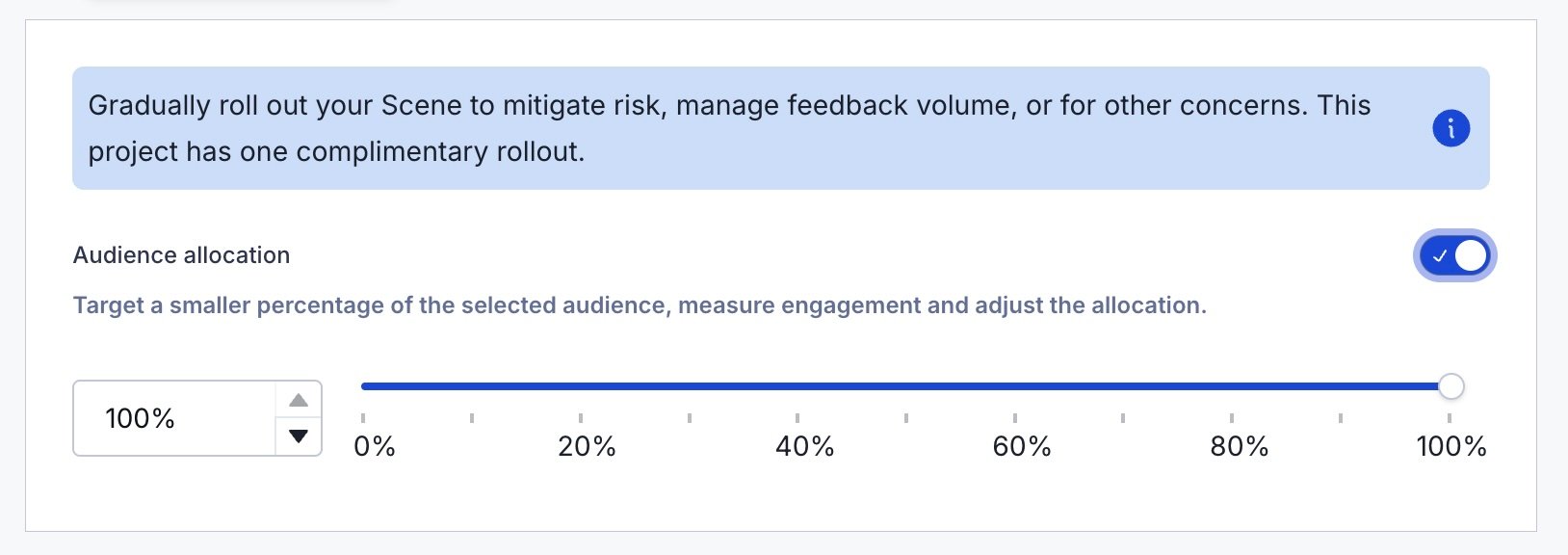
A rollout is a method of limiting a Scene’s total or targeted audience by setting an adjustable percentage. For more information, see Scene rollouts.
To set up a rollout:
- Select All users, Target by conditions, or Target Specific Users.
- Enable Audience Allocation.
- Set a percentage.
You can change the percentage at any time. For Target by conditions and Target Specific Users, the percentage applies to users who meet the set conditions.
Content
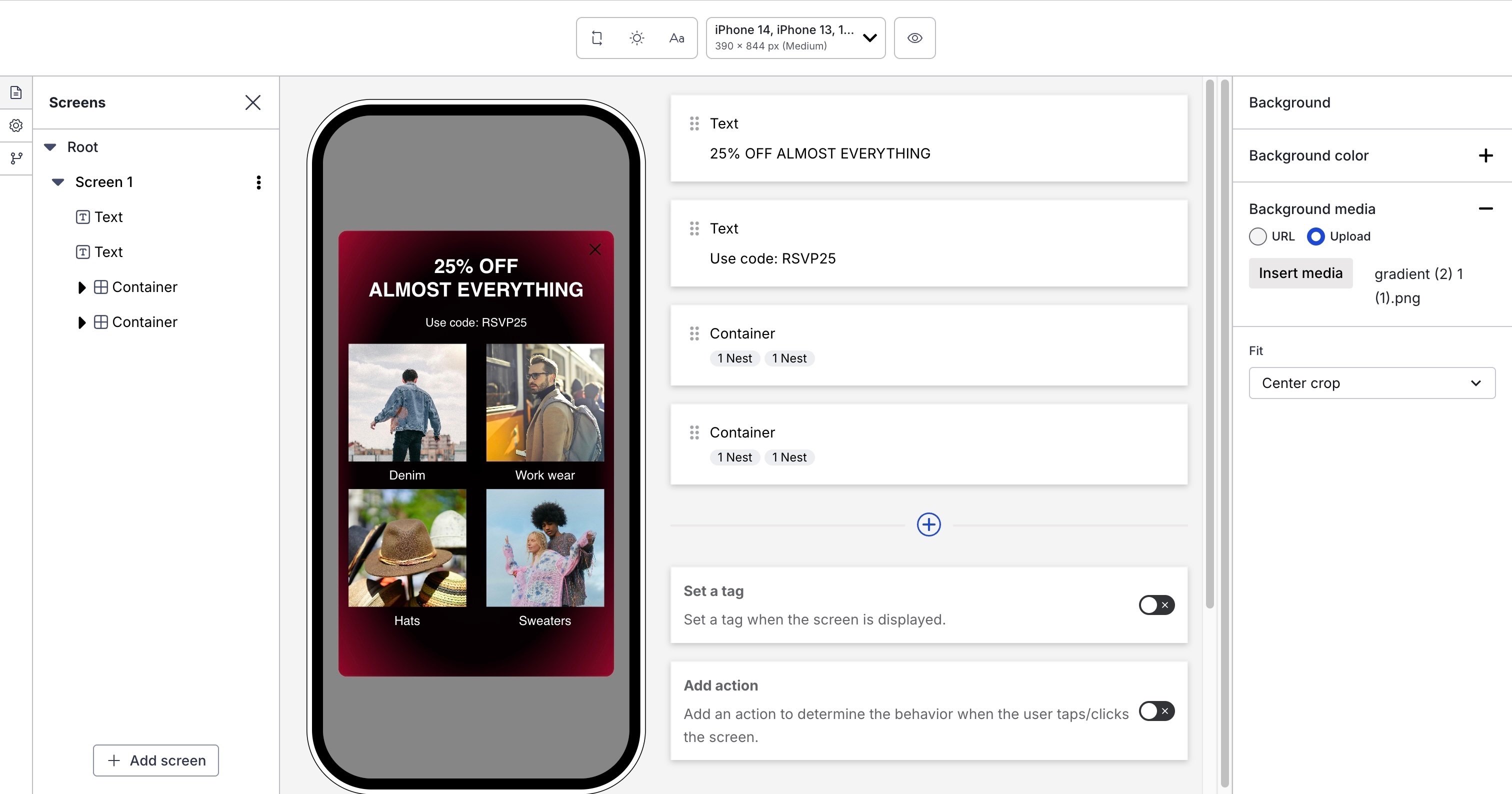
Select Start from Scratch, Custom HTML, or a content layout. Toggle Default and Custom to see available content layouts. For custom content layouts, you can search by layout name or description. After selecting a layout, it appears in the device preview. Select the arrows to page through each screen.
Select Continue with selection. You can change your selection up until selecting Done.
Configure settings for the entire Scene and the content of each screen. Follow the steps in Configuring Scene content.
Behavior
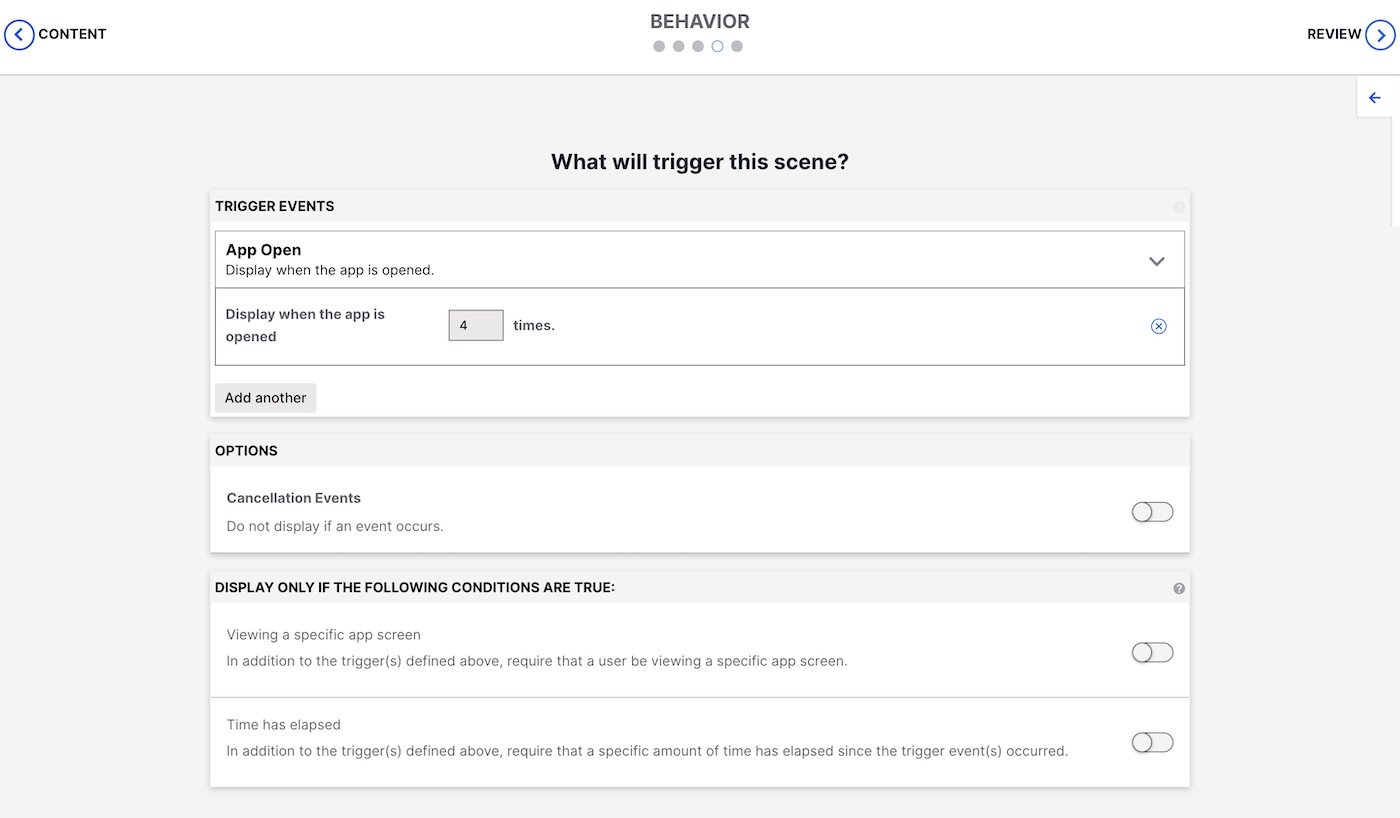
Configure the event that will cause the Scene to appear to users. You can also configure cancellation events and conditions for displaying the Scene.
Follow the steps in In-app experience triggers.
Review
Review your Scene appearance and summary.
- For Scenes with more than one screen, select the arrows at the side of the screen to page through each screen’s preview and content summary. Toggle the Light/Dark selector above the preview to see the appearance of elements with an assigned Color SetA named pair of hexadecimal color values supporting device Light and Dark modes. Color sets can be selected for any color field in a scene and when configuring the default appearance of Scenes and In-App Automations. Dark mode is supported for Scenes only.. Light Mode values appear in Dark Mode preview if no Dark Mode value was entered for a color set.
- If you selected Feature Flag Audience in the Audience step, compare the flag and Scene start and end dates in the Schedule section to make sure your intended timing is set up correctly.
- If you want to make changes, select Edit, make your changes, then either select the right arrow icon () or select the central navigation dot to return to the Review step.
Select Finish to make the Scene active. If you exit before selecting Finish, the Scene is saved as a draft.