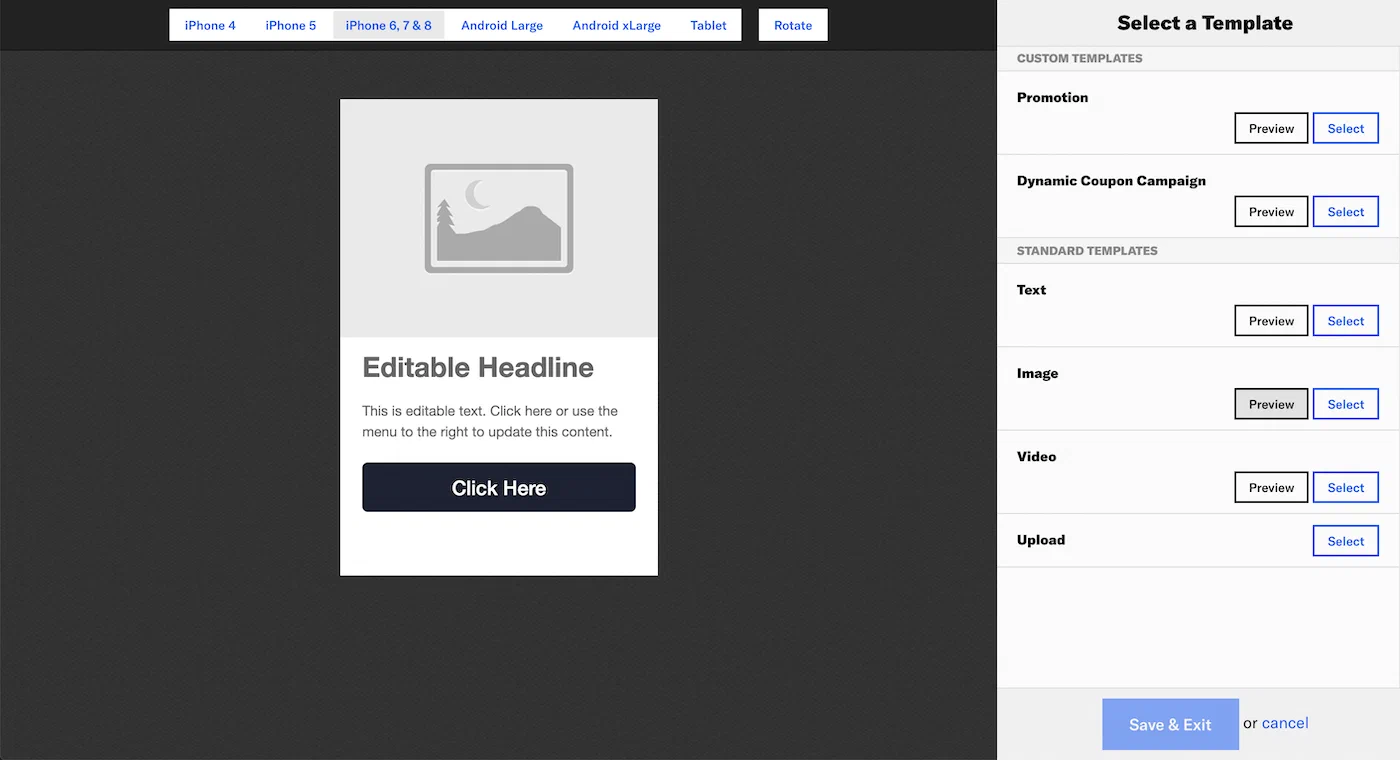
The Visual editor supports providing your own HTML or configuring a template:
HTML— Uploaded HTML is single-use. It is not saved in your project for reuse on other messages, and you cannot edit it after uploading. See also Custom HTML Templates for Rich Pages.
Templates — You can select a custom template added by Airship or default template. The default templates have simple layouts and limited configuration options.
After selecting the editor, follow these steps to configure content:
(For uploading HTML) Under Standard Templates, select the Upload option, and then:
For landing pages, select Upload and choose your HTML file.
For Message Center, go to the Content tab, and then select Upload and choose your HTML file.
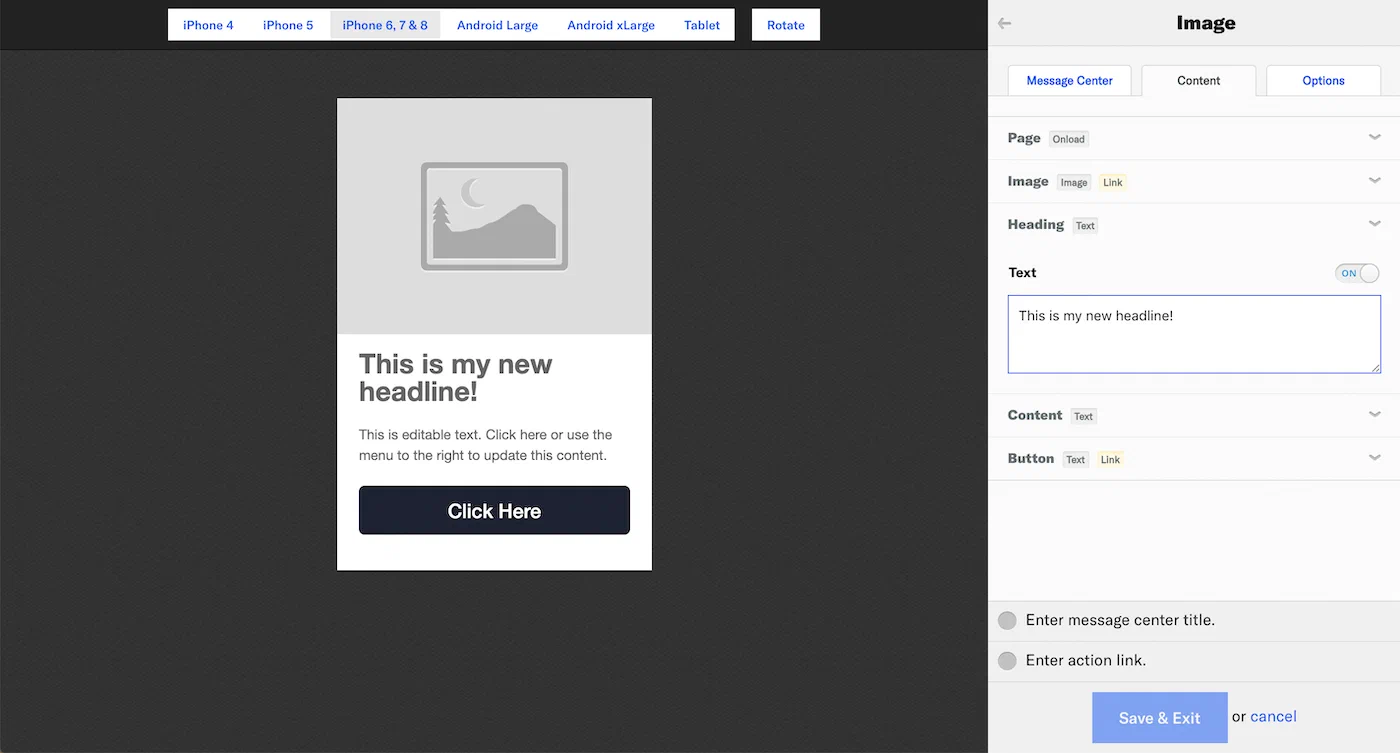
(For templates) Select a custom template or a default template. Templates added for you by Airship are listed under Custom Templates. Before making your choice, you can select Preview and a device type to see how it will appear.Selecting a template in the Visual editorNext, configure the template fields for each page element. For Message Center, the fields appear in Content. You can select fields in the preview or the sidebar. Use the ON/OFF toggle to enable or disable a field.Configuring Message Center template fields
(Message Center only) Select Message Center and configure the message preview that appears in the Message Center inbox:
Lines 1 and 2 — These lines appear below the title. Enter text.
(Message Center only, optional) Select Options to configure the following:
Remove from Message Center — By default, messages are set to never expire. To set expiration, select Specify and enter the number of minutes, hours, or days after send time when the page will expire and be removed from a user’s inbox.
Custom keysAdditional key-value pairs in your push notification payload for use by custom code in your app or website. You can use custom keys to pass additional campaign identifiers for analytics, pass user information to the device, control the look and feel of the app, provide image links, etc. — Enter the key and value. Click the add icon () for additional keys.
See information about filtering by named user in the Message Center documentation for SDK integrations.
Select Save & Exit.
You cannot save until your page meets minimum configuration requirements. Requirements are listed above Save & Exit.
If your template includes a button or image, you must configure or disable its Action Link before you can save.
Standard templates and fields
Airship provides three default (labeled “Standard”) templates: Text, Image, and Video. Each template contains various default elements, which require configuring one or more fields.
Element
Fields
Text template
Image template
Video template
Page
Onload
✓
✓
✓
Headline
Text
✓
✓1
✓
Content
Text
✓
✓
✓
Button
Text, Link
✓
✓
Image
Image, Link
✓
Video
Video
✓
1. Labeled “Heading” in the Image template.
Field configuration
Elements in a template are controlled by various fields. Both custom and standard templates use the same field types, requirements, and configuration:
Text — Displayed in a headline, message body, button label, etc. Enter text.
Image — Displayed in the body of the message. Upload an image. See: Media guidelines.
Video — Displayed in the body of the message. Enter the URL for the video source. See: Media guidelines.
Onload — Add or remove tags when the content loads.
Click Add Tags or Remove Tags.
Click Select Tag.
Enter the tag in the search field.
Matches are listed below the Create Tag button. Click to select.
If the tag is not found, click Create Tag to add it.
You can also add or remove a tag when your audience taps the button or image. Follow the process as described for Onload above.
Important
Images have Action Link enabled by default. This makes the image perform as a button. If you don’t want the image to be clickable, disable Action Link for the image.
While you can disable the Action Link for buttons, doing so does not remove the button itself. Because you must configure or disable the Action Link to save a template, you can disable it if you want to edit the message later.
Use the ON/OFF toggle to enable or disable an element.