Configure content elements
Configure content elements for Scenes, including buttons, containers, media, text, questions, NPS, and input fields.
Configure content elements after adding them to a screen. For each element, configure its settings in the center panel and its design properties in the right sidebar.
Button or Button Group
Add a single button or up to five buttons in a group. When using multiple buttons in a screen, add single buttons if you want to place content between them, and use a button group to keep buttons together.
After configuring the first button in a group, select Add button for more. One Button Group is allowed per screen.
Set for each button:
| Field or setting | Description |
|---|---|
| Text | Required. The button label. |
| Content description | Optional. Text to be announced by assistive technology such as screen readers. It is announced after the button label text. |
| Loading state text | Optional, appears only for buttons using the Validate Form or Submit Responses action. The text momentarily replaces the button label text while the action occurs. Example loading state text: “Processing”, “Processing…”, “Submitting now!”. |
| Action | Required. The behavior that occurs when a user taps/clicks the button. The button can also add or remove a tagMetadata that you can associate with a channel or named user for audience segmentation. Generally, a tag is a descriptive term indicating a user preference or other categorization, such as wine_enthusiast or weather_alerts_los_angeles., emit a custom eventA record of an action in your app, on your website, in the Airship system, or in an external system. Examples are a message send, an app open, or a purchase transaction., and/or opt a user into or out of a subscription listAn audience list users opt in to for a specific messaging topic. Users can manage their opt-in status using a Preference Center.. Follow the steps in Actions for in-app experiences. |
| Action: Scene behavior | Optional. Determines how the Scene behaves when a user taps the button: No action, Next screen, Previous screen, Dismiss (closes the Scene), or Dismiss and cancel Repeat (closes the Scene and overrides the Repeat setting). Scene behavior is not available when the action is Next, Previous, or No Action. The actions Dismiss Message, Preference Center, and Deep Link have Scene behavior options Dismiss and Dismiss and cancel Repeat only. |
| Action: Reporting label | Optional. A label to differentiate clicks/taps for the button in reporting. By default, clicks/taps on elements with a configured action are reported using the In-app button tap event in the format For example, if you enter |
For the Button Group element, set the Layout if there are two buttons total. This determines if buttons appear separate, joined, or stacked. Three or more buttons are automatically stacked.
In the sidebar, first select a button style configured in your brand guidelines, and then configure the design properties.
Container
Add a Container to group or nest other content elements, or control which parts of a screen scroll and in which direction. Every new screen includes a scrollable Container that you can keep, modify, or remove.
By default, elements are arranged vertically, and you can drag them into your preferred order. By nesting, you can do things like place images side by side.
Immediately after selecting Container, you are prompted to select an element to add to it. Use the breadcrumbs above the content elements to navigate between nested Containers and back to the root screen. Containers do not support NPS.
In the right sidebar, configure Background media using the same steps as the screen background. For all other settings, see Design properties.
Custom View
Embed a Custom ViewA native view from your mobile or web application embedded into a Scene. Custom Views can display any native content your app exposes, so you can reuse that existing content within any screen in a Scene. into a screen. Since the actual content of a native view is unknown by the device preview, the preview displays a placeholder.
Set for the Custom View element:
| Field or setting | Description |
|---|---|
| Name | The view name as registered in your mobile app or website code. |
| Content description | Optional. Text to be announced by assistive technology such as screen readers. |
| Properties | Optional. Key-value pairs to pass to the device for reference by your app’s code. Property values support HandlebarsHandlebars is Airship’s templating language for personalization. Handlebars expressions use double curly braces wrapped around a content template, ranging from a simple variable, e.g., {{first_name}}, to complex evaluations of personalization data.. |
Email Input
Email collection: iOS SDK 18.13+Android SDK 18.5+
Email registration: iOS SDK 19.1+Android SDK 19.2+
Add a field to register a submitted email address as a channel or only collect it as data. You must also configure a Button or Media (image only) using the Submit Responses action. Use a Text element to add a title for the field and provide disclosures. See also Providing disclosures and other required information.
Email addresses submitted through this element are validated, collected, and optionally registered as channels:
Validation — Email addresses are validated when the Submit Responses and Validate Form actions occur. For valid formats, see Validate Form in Actions for in-app experiences.
Collection — Collected email addresses are available in Performance AnalyticsA customizable marketing intelligence tool that provides access to reports and graphs based on engagement data..
Registration — When registering an address as a channel, the address is associated with the contactAny user in your project. Contacts are identified as either an anonymous contact or a named user. Airship can set targeting data on these identifiers, which are also used to map devices and channels to a specific user. viewing the Scene, and the channel is automatically opted in to both transactional and commercial messaging.
Registration using this field is handled the same as other email registration methods. For example, registered addresses appear in Contact Management and emit the same Real-Time Data StreamingA service that delivers user-level events in real time to your backend or third-party systems using the Data Streaming API. events.
To require double opt-inA process where users who sign up for messaging must confirm opting in before they can receive messages. before the user is opted in to commercial messaging, enable the double opt-in option and create an Automation or Sequence using the Double Opt-In trigger that sends users an email with an opt-in link. No further setup is required, but users must complete the double opt-in process by following the link in your email. You may want to add text within the Scene that informs users of the opt-in type.
For double opt-in, you can also set event property key-value pairs to differentiate opt-in sources and trigger messages depending on where users opted in. This is recommended so you can trigger a specific message. For example, in an app Scene, you could set a key-value pair to
source:appand then create an Automation or Sequence using the Double Opt-in trigger where the event propertysourceis equal toapp. In a web Scene, you could instead usesource:website, or you may want to usesource:storeor another meaningful ID.See Commercial vs. Transactional Email and Double Opt-In in the Email platform Getting Started documentation.
When collecting email addresses, record the collection or opt-in date for compliance purposes. Customers are responsible for providing their End Users with clear notice about how their email addresses will be used, in line with specific use cases and regulatory requirements in the Customer’s jurisdiction.
Set for the Email Input element:
| Field or setting | Description |
|---|---|
| Placeholder | Optional. This text appears in the field before a user selects the field. It should describe the expected input. For example, “Email address”, “sabine@example.com”, or “Please enter your work email address”. |
| Accessibility description | Required. Text announced by assistive technology such as screen readers when a user focuses on the field. Enter a description, or associate an existing Text element used as the field’s label. Selecting text requires: iOS SDK 19.8+Android SDK 19.10+ |
| Reporting label | Required. This text appears as the Survey Question for question type email in Performance AnalyticsA customizable marketing intelligence tool that provides access to reports and graphs based on engagement data.. |
| Submission type | Required. Determines whether the email address will be only collected as data or also registered as a channel and opted in to transactional messaging. For channel registration, you can also opt users in to commercial messaging. Enable Double opt-in to trigger an Automation or Sequence using the Double Opt-In trigger. Adding event property key-value pairs for double opt-in is optional but recommended to trigger a specific Automation or Sequence. |
| Required | Optional. Makes entering an email address a requirement for making the Submit Responses button or image active. Check the box to enable. |
In the sidebar, first select an input style configured in your brand guidelines, and then configure the design properties.
List
Add a bulleted list where the bullet is an image you provide. After configuring the first list item, select Add another for more.
Set for each list item:
| Field or setting | Description |
|---|---|
| Media | Required. The URL of an image to use as the bullet. URLs must be HTTPS and accessible by your mobile audience. If your Airship plan includes CDN support, you can also upload media or select from previous uploads in your project’s media library. See Insert media in message content in Media library. |
| Text | Required. The text that follows the bullet. |
| Alternative text | Optional. Text to be announced by assistive technology such as screen readers. Alternative text, also known as alt text, is a textual description of an image or video that is used when a person cannot see or access the visual image to help them understand its meaning. |
In the sidebar, first select a text style configured in your brand guidelines, and then configure the design properties.
Media
Add an image or video. 10 media elements maximum per screen.
Set for the Media element:
| Field or setting | Description |
|---|---|
| URL or Upload | Required. The URL of the image or video to display. URLs must be HTTPS and accessible by your mobile audience. If your Airship plan includes CDN support, you can also upload media or select from previous uploads in your project’s media library. See Insert media in message content in Media library. Video displays in landscape mode and does not start until a user selects the Play button. (Orientation and behavior are different for background video.) Video is not supported in story mode. |
| Alternative text | Optional. Text to be announced by assistive technology such as screen readers. Alternative text, also known as alt text, is a textual description of an image or video that is used when a person cannot see or access the visual image to help them understand its meaning. |
| Add action | Optional. The behavior that occurs when a user taps/clicks the image. The option appears after providing a URL or upload. Not supported for video. The click/tap can also add or remove a tagMetadata that you can associate with a channel or named user for audience segmentation. Generally, a tag is a descriptive term indicating a user preference or other categorization, such as wine_enthusiast or weather_alerts_los_angeles., emit a custom eventA record of an action in your app, on your website, in the Airship system, or in an external system. Examples are a message send, an app open, or a purchase transaction., and/or opt a user in to or out of a subscription listAn audience list users opt in to for a specific messaging topic. Users can manage their opt-in status using a Preference Center.. Follow the steps in Actions for in-app experiences. iOS SDK 18.12+Android SDK 18.4+ |
| Action: Scene behavior | Optional, appears only when an action is set. Determines how the Scene behaves when a user taps the image: No action, Next screen, Previous screen, Dismiss (closes the Scene), or Dismiss and cancel Repeat (closes the Scene and overrides the Repeat setting). Scene behavior is not available when the action is Next, Previous, or No Action. The actions Dismiss Message, Preference Center, and Deep Link have Scene behavior options Dismiss and Dismiss and cancel Repeat only. |
| Action: Reporting label | Required. A label to differentiate clicks/taps for the image in reporting. By default, clicks/taps on elements with a configured action are reported using the In-app button tap event in the format For example, if you enter |
NPS
Add a Net Promoter Score (NPS) survey. The survey presents a question with a 0-10 answer scale that measures how likely users are to recommend your brand or product. Use it to gauge overall sentiment (relational NPS) or feedback on a specific experience like booking a flight (transactional NPS).
Scenes support a single NPS survey. You must also configure a Button or Media (image only) using the Submit Responses action. NPS is not supported in story mode.
The device preview only displays settings for the unselected state, so you should verify the appearance of the selected state by testing on an actual device.
Set for the NPS element:
| Field or setting | Description |
|---|---|
| Question | Required. The question that should be answered by the user. The question text also functions as the content description, which is announced by assistive technology such as screen readers. |
| Labels | Required. A description of each end of the 0-10 scale. For example, “Not at all likely” and “Very likely.” |
| Required | Optional. Makes answering the question a requirement for making the Submit Responses button or image active. Check the box to enable. |
In the sidebar, first select a text style configured in your brand guidelines, and then configure the design properties.
Question
Add a question with a field where users can enter their own answers, or add a single or multiple choice question with answers users can select.
Scenes support up to 10 questions. You must also configure a Button or Media (image only) using the Submit Responses action. Questions are not supported in story mode.
Set for the Question element:
| Field or setting | Description |
|---|---|
| Question type | Required. Open questions are followed by a text field where users can enter a response. Single Choice questions are followed by radio buttons for selecting one of multiple answers you provide. Multiple Choice questions are followed by check boxes for selecting one or more answers you provide. |
| Question | Required. The question that should be answered by the user. The question text also functions as the content description, which is announced by assistive technology such as screen readers. In Performance AnalyticsA customizable marketing intelligence tool that provides access to reports and graphs based on engagement data., it appears as the Survey Question. |
| Required | Optional. Makes answering the question a requirement for making the Submit Responses button or image active. Check the box to enable. |
| Exclude from reporting | Optional, for open questions only. The response is not included in the In-app form result event. |
| Branching AI | Optional, for open questions only. Enables using AI to classify responses to open questions into categories, which you can map to paths in a branched Scene. For configuration steps, see Classify responses for branching. |
| Answers | Required for single and multiple choice questions. The options a user can select to answer the question. To reorder answers, hover over an answer, select and hold the drag handle icon (), then drag and drop to a new position. |
| Store as attribute | Optional, for single choice questions only. Enables storing answers as text or number attributesMetadata used for audience segmentation and personalization. Attributes extend the concept of tags by adding comparison operators and values to determine whether or not to target a user, helping you better evaluate your audience.. To use this feature, you must first add the attributes to your project. For configuration steps, see Store responses as attributes. |
| Randomize order | Optional for single and multiple choice questions. Presents the answers in random order when the Scene is viewed in the app. If you reordered the answers by dragging and dropping, that order is ignored when you enable randomized order. Check the box to enable. |
Classify responses for branching
AI iOS SDK 21+Android SDK 21+
Use answers to open questions for Scene branching. On-device AI interprets responses and assigns one of the categories you configure. When configuring branching, create paths to different screens based on selected categories.
For example, classify responses to a post-purchase feedback question as praise, a complaint, or a shipping issue, and route users to the matching follow-up screen.
See AI response classification in the Scene Branching feature guide for more information.
This feature is supported for iOS and Android and requires app and Scene setup. In your app, your developer must link an AI model to use for response evaluation. See On-Device AI for iOS or Android.
In your Scene, enable Branching AI for an open question and configure according to Best practices for Branching AI:
Provide context for the question:
- Prompt — Describe how the model should interpret responses. For example, “This is a response to a survey question asking about a user’s most recent purchase experience.”
- User context — Optional. Enter relevant facts about the viewer for the model to factor into its evaluation. For example, if the Scene targets specific users, you could enter “This Scene is only sent to users who purchase monthly.” The field also supports personalization using external data feedsA connection to an external API. When you send a message, Airship uses a response from that API to personalize messages. and attributesMetadata used for audience segmentation and personalization. Attributes extend the concept of tags by adding comparison operators and values to determine whether or not to target a user, helping you better evaluate your audience. in HandlebarsHandlebars is Airship’s templating language for personalization. Handlebars expressions use double curly braces wrapped around a content template, ranging from a simple variable, e.g.,
{{first_name}}, to complex evaluations of personalization data. syntax, such as{{is_cardholder}}or{{loyalty_tier}}. Airship sends resolved values to the model as additional context for classifying the response.
Important The context should not include health data, financial account numbers, government IDs, or other sensitive personal information.
Set up classification fields the model can use to categorize each response and that you’ll use to configure branching. Configure the following for each field:
- Classification key — Enter a name for the field. You’ll use this name to select the field when building branching rules, and it identifies the field in reporting.
- Description — Optional. Describe what this field represents, so the model knows what to look for when assigning a category to a response.
- Categories — Add at least two possible values for this field.
- Report on this field — Optional. Enable this option to make the classified value available in reporting.
The model classifies every response into one of the categories you provide, so include a catch-all value like
Otherif you want to capture responses that don’t fit your other categories. For example, if you only definePraiseandComplaint, every response is classified as one or the other, even one that’s neither.
Next, configure branching for the Scene. You must configure a branch for cases where AI classification isn’t available: Android devices, web users, iOS devices where the default Apple Intelligence model is unavailable or disabled, iOS devices on an older SDK version, or if the model fails or times out.
Best practices for Branching AI
Refer to this information when configuring Branching AI for open questions.
Follow these best practices when writing prompts:
- Describe a scenario in the prompt. State what the question is and what situation your users are in before giving the classification instruction itself. For example, “This is a feedback survey presented to users after a purchase.” This framing gives the model context it can’t get from the classification key alone.
- Remember your users’ answers outweigh your provided context. The model treats what someone actually typed as the primary signal for classification. Any extra context you provide only fills gaps and is ignored if it contradicts what they wrote.
Follow these best practices for classification key descriptions:
- Write a full description for each key. A key’s description is used in the evaluation, so be clear about what each possible value actually means, using real words and phrases that are likely to appear in your users’ own responses. For example, use descriptions like “happy, satisfied feedback about anything” and “frustrated or dissatisfied feedback about the product or service” rather than just “positive” and “negative.” The key itself is used only for selection when setting branching logic and in reporting.
- Resolve tie-breaks. Wherever two values could reasonably apply to the same input, say which one should win, and be specific about what makes the difference. “Reserve
shippingfor feedback that’s actually complaining about delivery” is clearer than “useshippingfor problem-focused feedback,” which leaves the model and you to guess what counts as a problem. - Set boundaries specific to your business. If there are things a category should never cover, like products you don’t sell or services you don’t offer, say so, so the model doesn’t reach for a plausible-sounding but wrong answer.
- Explicitly state what your fallback category covers. Instead of “Everything else” or similar, define what belongs there: input that’s too vague, or doesn’t fit any other category you’ve defined.
Post-purchase feedback example
For a post-purchase feedback question, you could configure Branching AI as follows:
| Field | Value |
|---|---|
| Prompt | This is a feedback survey presented to users after a purchase. Classify their feedback based on tone. Positive or satisfied feedback should always be “praise”, even if it mentions shipping or the product in passing. Reserve “shipping” and “quality” for feedback that’s actually complaining about those things. |
| Classification key | feedback_type |
| Description | praise: positive, happy, or satisfied feedback about anything (fast shipping, a great product, etc.). shipping: complaints or problems with delivery timing, tracking, lost or damaged packages. quality: complaints about product defects, wrong items, poor materials, or durability. other: neutral or negative feedback that doesn’t fit shipping or quality. |
| Categories | praise, shipping, quality, other |
With this setup, a response like “it arrived three days late but the item itself is lovely” correctly lands on shipping, not praise. The tie-break about delivery timing is what makes that call, not the prompt alone.
For comparison, a prompt like “How does the user feel about their experience?” with a key just listing happy, neutral, and unhappy will work on obvious cases, but gives the model nothing to go on for mixed or ambiguous responses, and no real fallback for anything that doesn’t fit.
Airline destination picker example
For a travel destination question, you could configure Branching AI as follows:
| Field | Value |
|---|---|
| Prompt | This is a travel inspiration tool in an airline app that helps users decide where to fly based on the kind of trip they want. Classify the destination vibe they’re describing. Use only what the text supports. When something isn’t stated, pick the most ordinary option rather than guessing at a detail. |
| Classification key | trip_vibe |
| Description | beach: ocean, sand, warm water, resorts, poolside. mountains: hiking, snow, skiing, alpine air, cabins, lakes. city: restaurants, museums, nightlife, shopping, walkable downtowns. nature: national parks, canyons, road trips, camping, wide open country. other: anything that doesn’t clearly fit one of these, or is too vague to tell. |
| Categories | beach, mountains, city, nature, other |
A response like “we want to see wildlife and maybe some open scenery, nothing too strenuous” is meant to land on nature rather than mountains, since the point is the scenery and wildlife rather than the mountains themselves. Call out that kind of distinction directly in the prompt whenever it’s a common mix up for your own categories.
Store responses as attributes
When configuring a single answer question, you can set the Scene to store the answers as attributes:
- Toggle to enable.
- Search for and select an attribute.
- Enter a value next to each answer. The value must match the attribute type (text or number). If empty, the response is not stored as an attribute. You cannot use the same attribute in multiple questions in a single Scene.
The design properties for the question and answers are in separate sections. In the sidebar, first select a text or input style configured in your brand guidelines, and then configure the design properties.
SMS Input
iOS SDK 19.6+Android SDK 19.9+Add a field to register a submitted phone number as a channel or only collect it as data. Channel registration requires selecting a sender IDAn originating phone number or string identifier used to indicate who an SMS message comes from. Members of your audience subscribe (opt in) to each sender ID they want to receive messages from. to associate with the channels. Collection requires selecting which countries can submit phone numbers. The selected countries, or the country code associated with the sender ID, are listed in a dropdown menu and represented by the country’s flag. If more than one country is available for the field, the user must select one before entering their phone number.
You must also configure a Button or Media (image only) using the Submit Responses action. Use a Text element to add a title for the field and provide disclosures. See also Providing disclosures and other required information.
Validation — Phone numbers are validated when the Submit Responses and Validate Form actions occur. For valid formats, see Validate Form in Actions for in-app experiences.
Collection — Collected phone numbers are available in Performance AnalyticsA customizable marketing intelligence tool that provides access to reports and graphs based on engagement data..
Registration — Registering a phone number as a channel automatically triggers the double opt-inA process where users who sign up for messaging must confirm opting in before they can receive messages. process, and the phone number is associated with the contactAny user in your project. Contacts are identified as either an anonymous contact or a named user. Airship can set targeting data on these identifiers, which are also used to map devices and channels to a specific user. viewing the Scene. See Register SMS Users in Getting Started and Double Opt-In in Opt-In/Out Handling in the SMS platform documentation.
Registration using this field is handled the same as other SMS registration methods. For example, they appear in Contact Management and emit the same Real-Time Data StreamingA service that delivers user-level events in real time to your backend or third-party systems using the Data Streaming API. events.
When collecting phone numbers, record the collection or opt-in date for compliance purposes. Customers are responsible for providing their End Users with clear notice about how their phone numbers will be used, in line with specific use cases and regulatory requirements in the Customer’s jurisdiction.
Set for the SMS Input element:
| Field or setting | Description |
|---|---|
| Placeholder | Optional. This text appears in the field before a user selects the field. It should describe the expected input. For example, “Phone number” or “Please enter your phone number”. |
| Accessibility description | Required. Text announced by assistive technology such as screen readers when a user focuses on the field. Enter a description, or associate an existing Text element used as the field’s label. Selecting text requires: iOS SDK 19.8+Android SDK 19.10+ |
| Reporting label | Required. This text appears as the Survey Question for question type sms in Performance AnalyticsA customizable marketing intelligence tool that provides access to reports and graphs based on engagement data.. |
| Submission type | Required. Determines whether the phone number is only collected as data or also registered as a channel. For channel registration, select at least one sender IDAn originating phone number or string identifier used to indicate who an SMS message comes from. Members of your audience subscribe (opt in) to each sender ID they want to receive messages from. to associate with the channels, one ID per country. For collection, select which countries can submit phone numbers. |
| Required | Optional. Makes entering a phone number a requirement for making the Submit Responses button or image active. Check the box to enable. |
In the sidebar, first select an input style configured in your brand guidelines, and then configure the design properties.
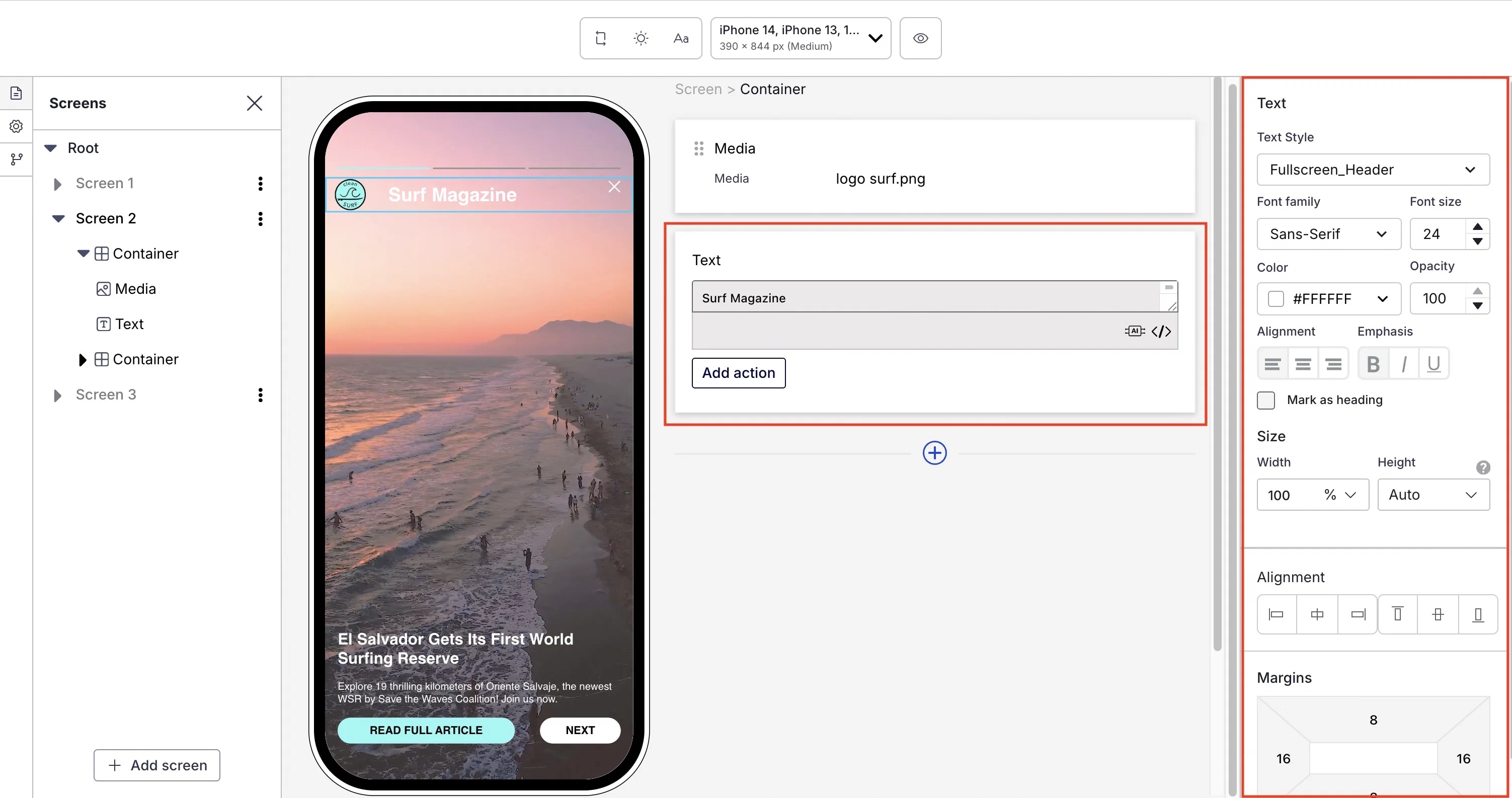
Text
Add a string of text. Scenes support up to 15 Text elements per screen.
When using a Text element as the label for an input field, set it as the field’s accessibility description. See Accessibility description in Email Input, SMS Input, and Text Input.
Set for the Text element:
| Field or setting | Description |
|---|---|
| Text | Required. The text to display. |
| Add action | Optional. Makes the text function as a link. The link can be a web URL, Adaptive LinkA vendor-agnostic, shortened mobile wallet pass link that supports templates for both Google Wallet and Apple Wallet. When a user taps the link, Airship determines the user’s platform and generates the right pass for that platform., or Deep Link. Follow the steps for Web Page, Adaptive Link, or Deep Link in Actions for in-app experiences. |
| Action: Scene behavior | Optional, appears only when an action is set. Determines how the Scene behaves when a user taps the text link: No action, Next screen, Previous screen, Dismiss (closes the Scene), or Dismiss and cancel Repeat (closes the Scene and overrides the Repeat setting). Scene behavior is not available when the action is Next, Previous, or No Action. The actions Dismiss Message, Preference Center, and Deep Link have Scene behavior options Dismiss and Dismiss and cancel Repeat only. |
| Action: Reporting label | Optional. A label to differentiate clicks/taps for the text link in reporting. By default, clicks/taps on elements with a configured action are reported using the In-app button tap event in the format For example, if you enter |
You can add a link to your privacy terms in a text footer using the Web Page action. Privacy terms can help users understand your data collection practices.
In the sidebar, first select a text style configured in your brand guidelines, and then configure the design properties.
Text Input
Add a single-line text input field. You must also configure a Button or Media (image only) using the Submit Responses action. Use a Text element to add a title for the field.
Set for the Text Input element:
| Field or setting | Description |
|---|---|
| Placeholder | Optional. This text appears in the field before a user selects the field. It should describe the expected input. For example, “Favorite film” or “Please enter your favorite film”. |
| Accessibility description | Required. Text announced by assistive technology such as screen readers when a user focuses on the field. Enter a description, or associate an existing Text element used as the field’s label. Selecting text requires: iOS SDK 19.8+Android SDK 19.10+ |
| Reporting label | Required. This text appears as the Survey Question in Performance AnalyticsA customizable marketing intelligence tool that provides access to reports and graphs based on engagement data.. |
| Required | Optional. Makes entering text a requirement for making the Submit Responses button or image active. Check the box to enable. |
| Store as Attribute | Optional. Enables storing input as a text attributeMetadata used for audience segmentation and personalization. Attributes extend the concept of tags by adding comparison operators and values to determine whether or not to target a user, helping you better evaluate your audience.. To use this feature, you must first add the attribute to your project. Toggle to enable, then search for and select an attribute. |
In the sidebar, first select an input style configured in your brand guidelines, and then configure the design properties.