Configuring screens
Configure individual screens in the Native Experience editor, including background media, tags, actions, content elements, and AI-generated content.
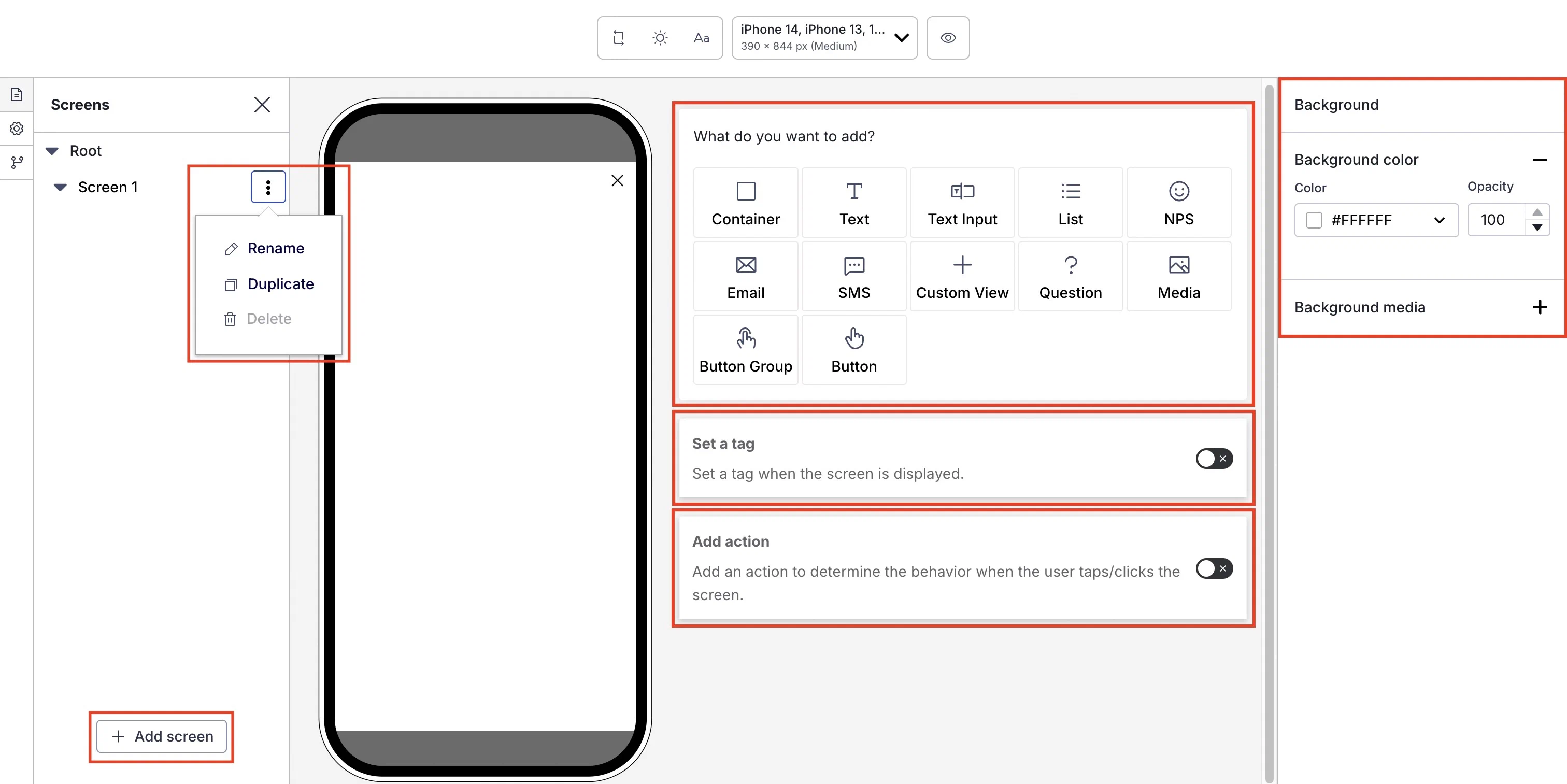
Configure screens in the Content step when creating a Scene by selecting the screens icon () in the left sidebar and then selecting one from the list. To add more, select Add screen in the left sidebar. Scenes can have up to 20 screens.
For each, you can configure the following:
- Set background color or media that appears behind the content elements.
- Add content elements.
- Set a tag on the user when it displays.
- Add an action that occurs when the user interacts with it.
Managing screens
Manage screens in the left sidebar:
| Option | Steps |
|---|---|
| Rename | Select and hold the more menu icon () for a screen, select Rename, enter a new name. |
| Reorder | Select and hold the more menu icon () for a screen, then drag and drop to a new position. |
| Duplicate or delete | Select the more menu icon () for a screen, then select Duplicate or Delete. You cannot delete the only screen in a Scene. |
Set background color and media
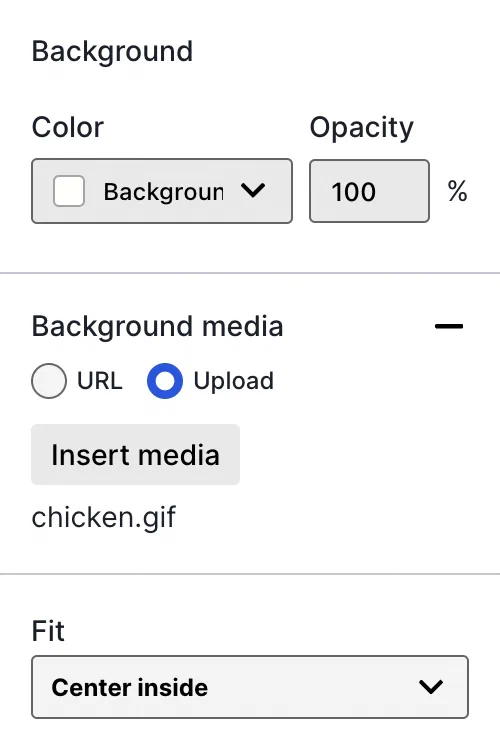
When configuring a screen, the right side sidebar displays options to set background color and media.
Background color
The background color set here overrides the default project setting.
To set a background color:
- Select the add icon () for Background color.
- Select a Color SetA named pair of hexadecimal color values supporting device Light and Dark modes. Color sets can be selected for any color field in a scene and when configuring the default appearance of Scenes and In-App Automations. Dark mode is supported for Scenes only. or enter a hexadecimal color value, and then set the opacity percentage.
Background media
Background media supports images and video. Background video displays in portrait mode, starts automatically, and plays in a loop. Orientation and behavior are different for video used in the Media element.
To set background media:
Select the add icon () for Background media, then enter a URL of an image or video to use as the background. URLs must be HTTPS and accessible by your mobile audience.
If your Airship plan includes CDN support, you can also upload media or select from previous uploads in your project’s media library. See Insert media in message content in Media library.
Select a Fit: Crop, Center crop, or Center inside. If you select Crop, also set a Position. For details about these settings, see Media properties in Design properties.
Video controls
iOS SDK 20.6.2+Android SDK 20.5+
If using background video, you can add play/pause and mute/unmute buttons to the screen, set their placement, and style their appearance. The Play control is not available in StoryA Scene set to automatically transition to the next screen without swiping or clicking. mode. Instead, use the Play control setting for the root appearance.
To add video controls:
- Select the add icon () for Video control. Both Play control and Audio control are added by default. You can select the remove icon () to hide either.
- Set the controls’ alignment within the screen, as well as the background color and opacity. For each enabled control, set the size, as well as the icon color and opacity. For details about these settings, see Media properties in Design properties.
Set a tag
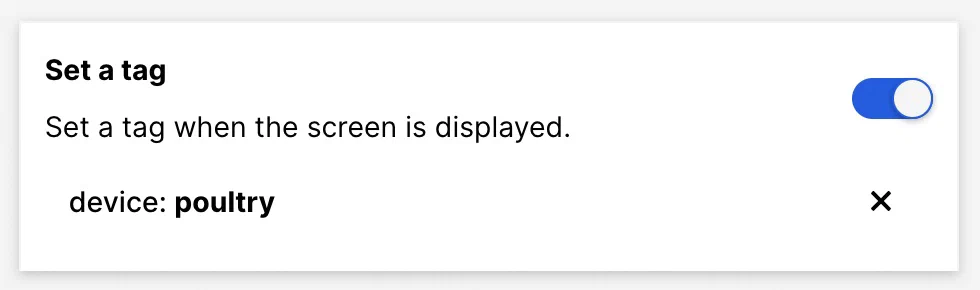
To set a tag when the screen displays, enable Set a tag, enter the tag you want to set, then select from the list of returned tags or select Create new tag.
Add an action
iOS SDK 18.12+Android SDK 18.4+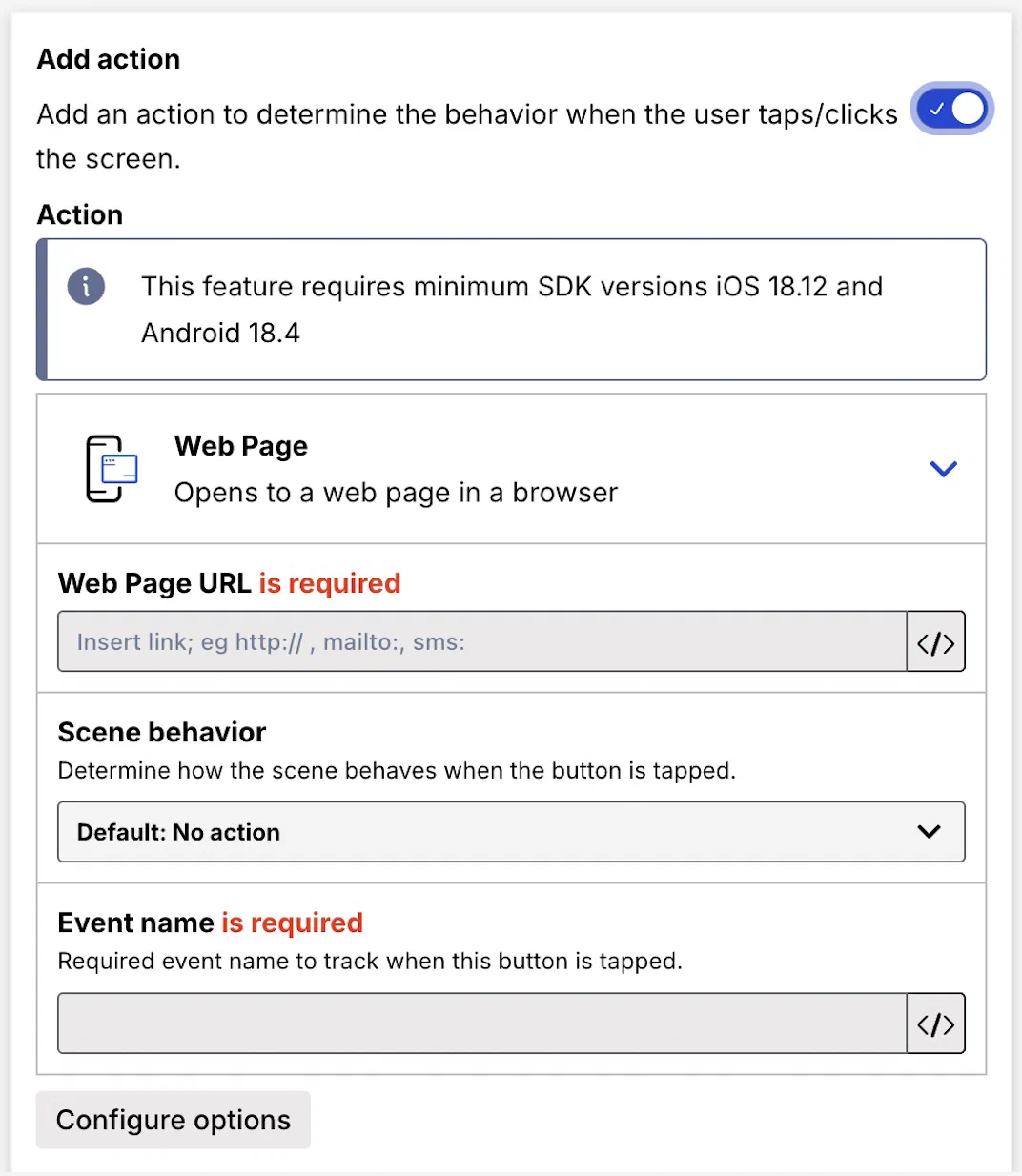
You can set a behavior that occurs when a user taps/clicks the screen. You can also:
- Set a Scene behavior
- Set or remove a tag
- Opt a user in to or out of a Subscription ListAn audience list of users who are opted in to messaging about a specific topic. Users can manage their opt-in status per list using a Preference Center.
- Emit a Custom EventEvents that indicate that a user performed a predefined action, such as adding an item to a shopping cart, viewing a screen, or clicking an Unsubscribe button. Custom Events can trigger automation, including Sequences and Scenes. You can code them into your app or website, or send them to Airship from an external source using the Custom Event API. Custom Events contain properties that you can use to personalize messages.
Tap/click events are reported using the In-app button tap event in the format button-tap-<event name>. For example, if you enter Cat socks55 for any action, the event name in reporting will be button-tap-Cat socks55. Event names also support HandlebarsHandlebars is Airship’s templating language for personalization. Handlebars expressions use double curly braces wrapped around a content template, ranging from a simple variable, e.g., {{first_name}}, to complex evaluations of personalization data..
Enable Add an action, then follow the steps in Actions for in-app experiences. Also refer to the table of supported actions for screens. An event name for the action is required.
Add content elements
To add content elements, select the add icon () and make a selection. See Configure content elements for detailed steps.
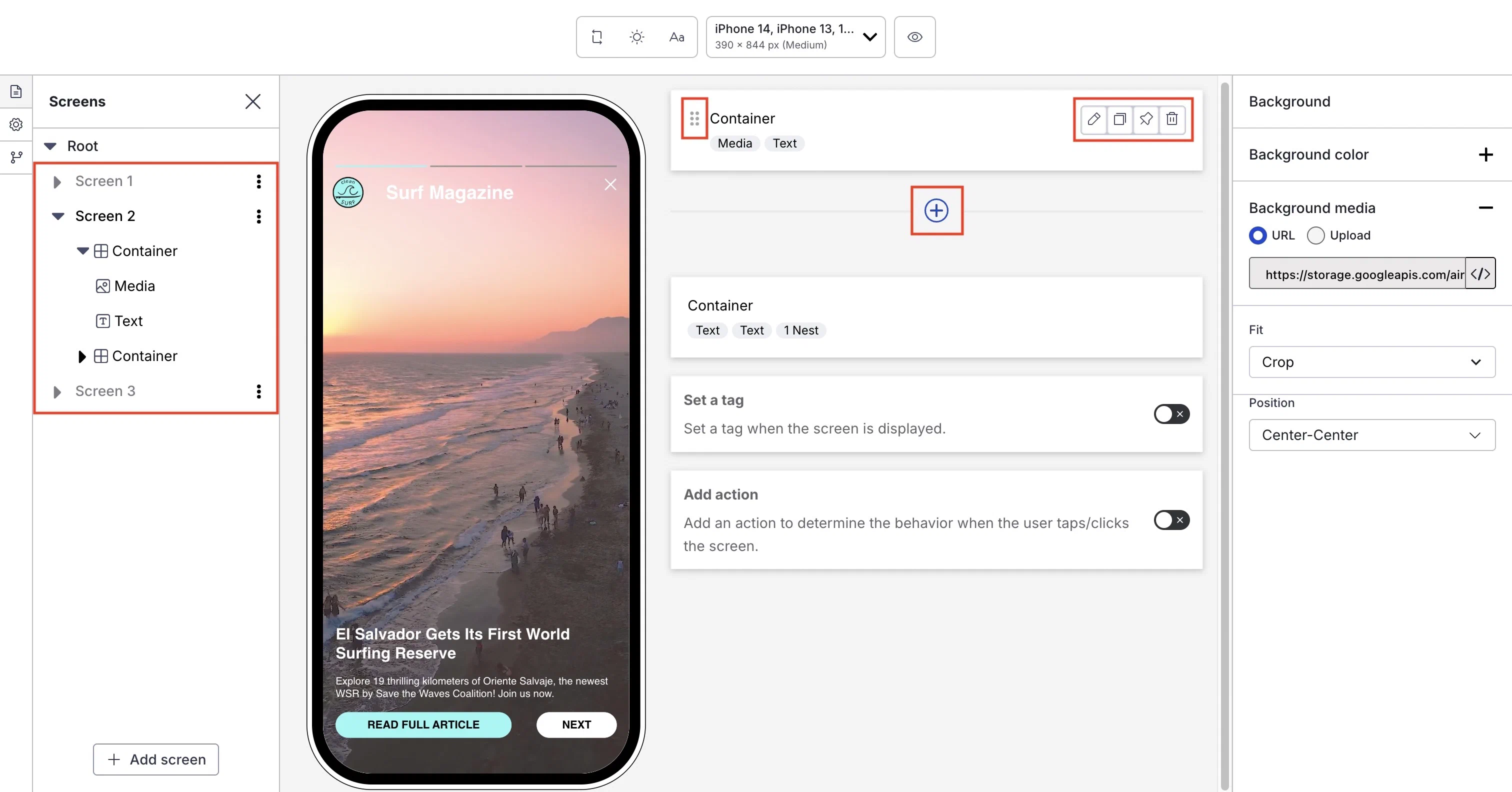
After adding content elements, you can manage them in the center panel and left sidebar:
| Option | Steps |
|---|---|
| Edit, duplicate, or remove | Hover over an element and select the edit (), copy (), or remove icon (). To go directly to editing an element, double-click its name in the left sidebar. |
| Fix container at bottom on scroll | Hover over a Container element and select the pin icon () to keep the Container visible at the bottom of the screen when the user scrolls. When pinning multiple Containers, they appear in the order set when unpinned. To change their order, first unpin them, drag to a new order, then pin again. You cannot pin Containers nested inside other Containers. |
| Reorder or move | To reorder content elements within a screen, select and hold the drag handle icon () for an element, then drag and drop to a new position. To reorder and move elements within a screen or container in the left sidebar, toggle the arrow icon () to expand and collapse the lists of each screen’s content elements and elements inside containers. Select and hold an element name and drag and drop to a new position. |
Container navigation
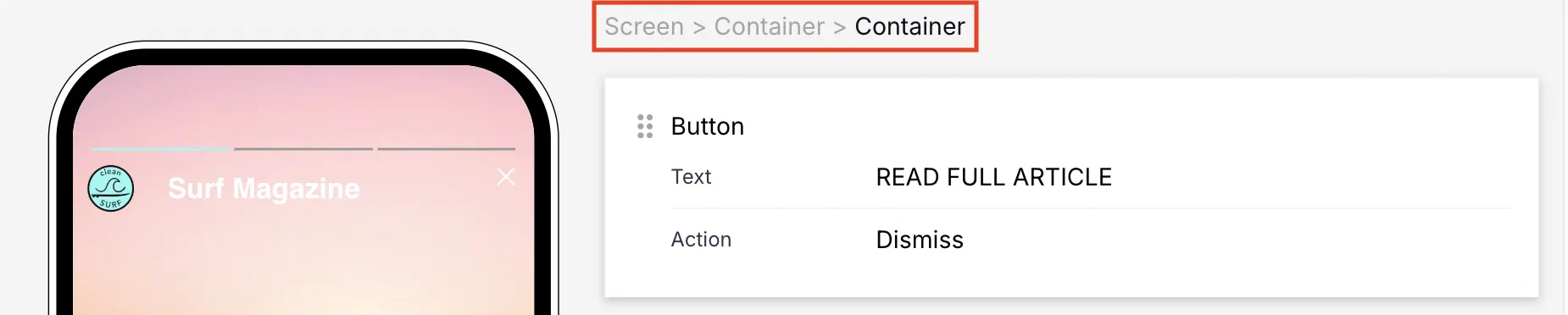
To navigate between Containers and back to the root screen, you can select them in the left sidebar or use the breadcrumbs above a screen’s content elements in the center panel. For example, when editing a container nested in another container, the breadcrumbs appear as Screen > Container > Container:
Providing disclosures and other required information
It is important to state or link to necessary disclosures and other legal information within your communications to ensure regional regulation compliance and transparency with your users. For SMS, this includes disclosure of added SMS fees. For Email, this may include disclosure requirements for email collection for marketing purposes.
While the exact placement is flexible, make sure the disclosure text and links are easily discoverable on the screen. Common and effective locations include next to an input field or prominently in the screen footer.
Use the Text element to add information that should appear on the current screen.
- To add a link for a selected portion of the text, use Markdown styling.
- To make the entire text block function as a link, select Add action when configuring the Text element, choose Web Page or Deep Link, and enter the URL for the additional information. See the following in Actions:
When collecting phone numbers or email addresses using Scenes functionality, customers are responsible for ensuring compliance with all applicable regulations. This includes providing appropriate disclosures and obtaining necessary consent as required by law. Customers should include links to their SMS program terms and/or privacy policy as applicable to their specific use case and jurisdiction.