# Native Experience editor
Use the Native Experience editor to add content to your Scene and determine appearance and behaviors.
The Native Experience editor is the built-in editor when [creating a Scene](https://www.airship.com/docs/guides/messaging/in-app-experiences/scenes/create/). It supports configuring appearance, behavior, and [Branching](https://www.airship.com/docs/reference/glossary/#branching).
## Configuration workflow
The following is the general workflow for configuring the Content step of a Scene:
1. Select the gear icon () in the left sidebar to configure behavioral settings that apply to the entire Scene. Follow the steps in [Scene behaviors](https://www.airship.com/docs/guides/messaging/editors/native/behaviors/).
1. Select the file icon () in the left sidebar to configure the appearance of your screens. Follow the steps in [Root appearance](https://www.airship.com/docs/guides/messaging/editors/native/root/) for settings that apply to all screens. For your screen content, you can choose any option:
* [Provide custom HTML](#provide-custom-html)
* Manually [Configure screens](https://www.airship.com/docs/guides/messaging/editors/native/screens/)
* [Create AI-generated screens](#create-ai-generated-screens)
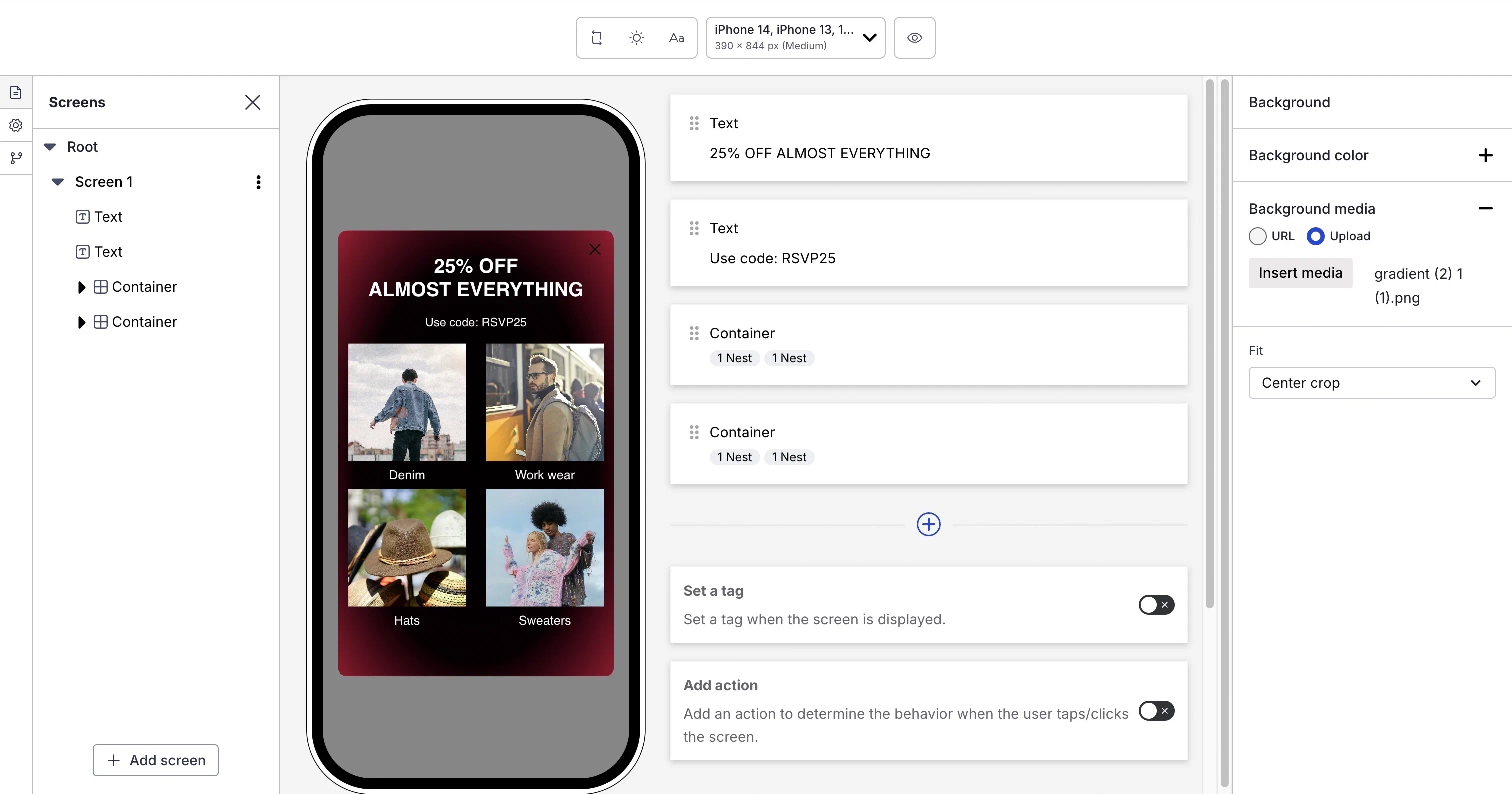
*Configuring screens in a Scene*
1. (Optional) Select the branching icon () to create a custom user path through the screens. See [Scene branching](https://www.airship.com/docs/guides/messaging/editors/native/branching/).
1. (Optional) Select the accessibility audit icon () in the left sidebar to review and address accessibility issues in your Scene. See [Accessibility agent](#accessibility-agent).
1. After completing configuration, select **Done**. You will then see a collapsed view of the screens. Select the arrows to page through each screen. Select **Expand
** to see the screens side by side. The [preview tools](#preview-tools) there are the same as when configuring content.
### Preview tools
The device preview updates as you type and make selections. Use the tools in the header to adjust the preview.

*Preview tools in the Scene composer*
Available tools:
| Tool | Description | Steps |
| --- | --- | --- |
| **App/Web format** | This tool displays the Scene as it will appear in an app or website. The buttons only appear when both App and Web are enabled. See [Audience](https://www.airship.com/docs/guides/messaging/in-app-experiences/scenes/create/#audience) in _Create a Scene_. | Select the grid icon for App or the globe icon for Web. |
| **Orientation** | This tool shows how the Scene will appear when the device or monitor is rotated. | Toggle the orientation icon. |
| **Light/Dark mode** | This tool shows the appearance of elements with an assigned [Color Set](https://www.airship.com/docs/reference/glossary/#color_set). Light Mode values appear in Dark Mode preview if no Dark Mode value was entered for a color set. | Toggle the selector. |
| **Text scaling** | This tool shows how the content will appear on devices using text size accessibility features. Scale between 70% and 200% of the current text size. | Select the text scale tool and set a scale. |
| **Device/Screen size** | This tool provides a more accurate representation of how your content will appear on a specific screen size. | Select a device or screen size. |
| **Interactive mode** | This tool enables testing the interactive elements of your Scene with all configuration panels hidden. You can swipe between screens or select buttons or other elements configured with Next or Previous actions. When [Story](https://www.airship.com/docs/reference/glossary/#story) mode is enabled, select the play icon (
) or pause icon (
) to test automatic screen transitions and background video playback. | Select the eye icon () to enter Interactive mode, then test your Scene. Select the reload icon to reset and return to the first screen. |
| **Preview Data** | For [personalized content](https://www.airship.com/docs/guides/personalization/about/), this tool displays the values for a selected user or your own JSON sample data. Otherwise, the preview displays the default values. See [Previewing personalized content](https://www.airship.com/docs/guides/personalization/previewing/). | Follow the steps in [Previewing personalized content](https://www.airship.com/docs/guides/personalization/previewing/). |
> **Tip:** For best results, always test your content on actual devices.
### Accessibility agent
[Agentic & Generative AI](https://www.airship.com/docs/guides/features/intelligence-ai/ai/)
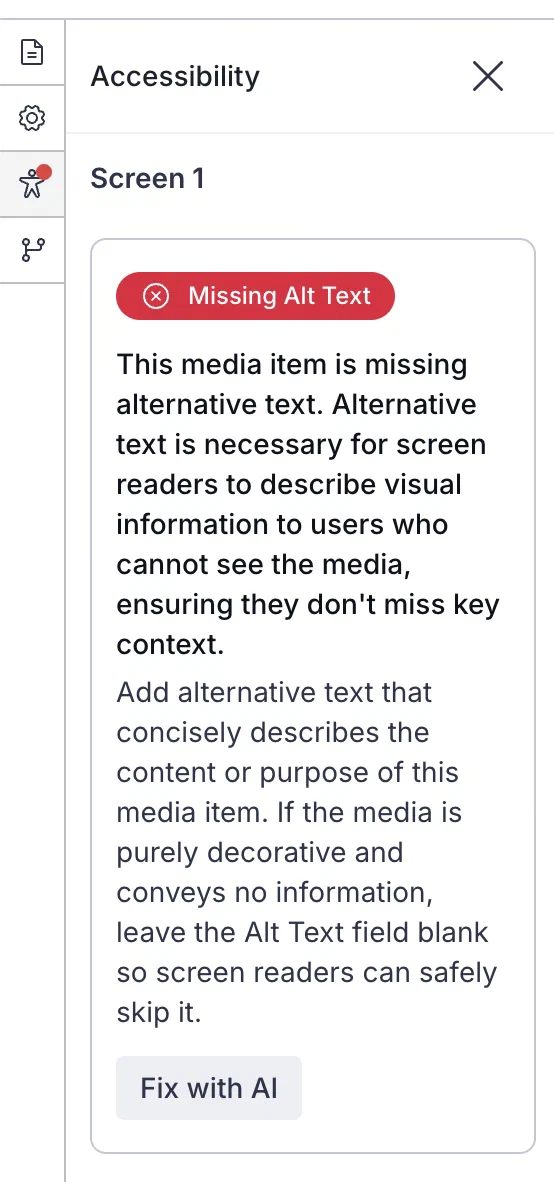
*The accessibility agent showing an issue*
The accessibility agent automatically audits your content and identifies potential accessibility issues, such as insufficient color contrast, missing alternative text, and text size that falls below recommend minimums. Addressing these issues helps ensure your content is usable by the greatest number of audience members, including those with disabilities.
While editing screens, when an accessibility issue is found, a red dot appears on the accessibility audit icon () in the left sidebar. Select the icon to view the list of flagged issues. Each issue includes:
* A description of the problem
* The screen and element where it occurs
* Guidance on how to address it
* A button labeled with the recommended correction — *AI-powered corrections are labeled "Fix with AI"*
Select the button to apply the correction, and then verify each automatically applied fix to ensure it meets your needs and maintains your intended messaging.
You are responsible for reviewing all automatically applied fixes before launching your Scene. Automated fixes may not always align with your specific content requirements or brand guidelines. For comprehensive accessibility guidance and best practices, see [Accessibility in messaging](https://www.airship.com/docs/guides/messaging/accessibility-in-messaging/).
The following issues can be automatically fixed:
| Issue type | Description |
| --- | --- |
| **Insufficient color contrast** | These are color contrast ratio issues between content elements, such as indicator colors versus background colors. The agent presents issues for both light and dark modes. The fix adjusts colors to meet WCAG contrast ratio requirements. |
| **Text not marked as heading** | These are text items that visually appear to be headings, such as bold or larger font, but are not marked with a semantic H1-H6 tag. The fix applies an appropriate heading level based on the text's position and styling. |
| **No headings in screen** | This flags content if no Text elements are designated as headings (H1-H6). The fix suggests appropriate heading levels for Text elements that appear to be headings. |
| **Heading order** | This identifies and recommends fixes for out-of-order heading structure. The fix adjusts heading levels to create a logical hierarchy. |
| **Text size below minimum** | This is text that does not meet minimum readability recommendations. The fix adjusts the font size to meet accessibility standards. |
| **Images containing text** | This is any image that contains text, which screen readers cannot interpret. The fix adds or updates the alternative text field to describe the text within the image. |
| **Missing alternative text** | This is any image that lacks descriptive alternative text. The fix uses AI to generate descriptive alternative text for the image. |
| **Missing content descriptions or accessibility label associations on inputs** | These are input fields that lack content descriptions or accessibility label associations. The fix uses AI to generate content descriptions. For accessibility labels, the fix always generates a content description but does not suggest label relationships with text inputs. |
| **Missing content descriptions on buttons** | These are buttons that lack content descriptions. The fix uses AI to generate descriptive content descriptions for buttons. |
> **Note:** **Opting In to AI Functions**
>
> If you opted out of AI usage, you must sign an updated contract to enable this feature. Contact your account manager for assistance.
>
> **Compliance Considerations in Using AI Functions**
>
> The Service incorporates AI functions, including Generative AI and Agentic AI.
>
> Generative AI generates content such as Notification copy, images, and Journeys based on your prompts.
>
> Agentic AI autonomously optimizes, personalizes, or executes cross-channel customer engagement actions, or analyzes audience and performance data, subject to the parameters and controls you set in the Service. These systems operate under human-defined parameters and do not initiate customer-facing actions without human interaction or pre-configured parameters. You are responsible for reviewing Generated Outputs for accuracy, appropriateness, and to ensure they do not violate third-party intellectual property or other rights. Airship does not publish Generated Outputs to end users without approval from the Customer.
>
> In addition to the applicable terms of your agreement with Airship (e.g., Use of Service, Customer Responsibilities sections), you must comply with the [Airship Acceptable Use Policy](https://www.airship.com/legal/acceptable-use/), which provides additional details about appropriate conduct when using the Service.
>
> The Service includes safety features to block harmful content, such as content that violates our Acceptable Use Policy. You may not attempt to bypass these protective measures or use content that violates your agreement with Airship.
>
> About the AI models:
>
> Airship utilizes Google Gemini and Imagen to generate copy and images for AI Scene screens. The content is created solely with Google's out-of-the-box models, and no customization or fine-tuning with Customer Data is applied. See [Responsible AI](https://cloud.google.com/responsible-ai?hl=en) in Google's *Google Cloud* documentation.
### Markdown styling
[Markdown](https://en.wikipedia.org/wiki/Markdown) is a markup language for formatting text. Scenes support basic Markdown. Use Markdown in text fields in any content element.
These styles [require minimum SDK versions](https://www.airship.com/docs/reference/messages/scene-sdk-minimums/#markdown-styling):
| Style | Syntax | Output |
|-------|--------|--------|
| **Bold** | `**Hello**` or `__Hello__` | **Hello** |
| **Italic** | `*Hello*` or `_Hello_` | *Hello* |
| **Strikethrough** | `~Hello~` | ~~Hello~~ |
| **Link**¹ | `[Hello](https://www.example.com/hello)` | [Hello](https://www.example.com/hello) |
| **Highlight** | `==Hello==` | Hello |
| **Subscript** | `H,{2},O` | H2O |
| **Superscript** | `x^^2^^` | x2 |
1 Links are not underlined and use the default link color for the platform: blue on web, unless overridden by CSS; the app's accent color on iOS; and the theme's `linkTextColor` on Android.
### Personalization
You can personalize Scene content using [Handlebars](https://www.airship.com/docs/reference/glossary/#handlebars) to display different text or media for each user. For example, you can display a question in different languages based on the user's locale Attribute. Common places to personalize include:
* Screen titles and descriptions
* Button labels
* Questions and NPS content
* Input field placeholders
* Media URLs
See [Personalization](https://www.airship.com/docs/guides/personalization/about/) for more information about using Handlebars in your content.
## Provide custom HTML
[iOS SDK 20.1+](/docs/docs/developer/sdk-integration/apple/ios-changelog/#20.1.0) [Android SDK 20.1+](/docs/docs/developer/sdk-integration/android/changelog/#20.1.0)
You can provide custom HTML for your Scenes instead of designing individual screens. After [selecting **Custom HTML** for your content](https://www.airship.com/docs/guides/messaging/in-app-experiences/scenes/create/#content), enter a publicly accessible URL. If your Airship plan includes CDN support, you also have the option to upload an HTML file.
Your HTML must be a single file containing all code. Any CSS, JavaScript, or images should be included inline or referenced via publicly accessible URLs.
Custom HTML Scenes have the following limitations:
* Native Scene features are not available, including [Branching](https://www.airship.com/docs/reference/glossary/#branching), [Story](https://www.airship.com/docs/reference/glossary/#story) mode, analytics tracking, or screen editing tools. All Scene logic, including multi-screen navigation, must be handled by your HTML and JavaScript.
* Outside of your code, the only onscreen element you can configure is the [Dismiss button](https://www.airship.com/docs/guides/messaging/editors/native/root/).
* Personalization is not supported.
## Create AI-generated screens
[Agentic & Generative AI](https://www.airship.com/docs/guides/features/intelligence-ai/ai/)
Use the Native Experience AI Agent to create and refine screens through a conversational chat interface. Generate individual screens or multi-screen experiences from a prompt or by uploading a mockup or wireframe. Modify your current screens by asking for edits or new content and images.
The agent supports the following capabilities:
* **Conversational editing and refinement** — Use natural language to iterate on designs. Request quick edits such as "Align the button to the left" or "Move my image below the heading," as well as more extensive edits and additions.
* **Brand and style integration** — Provide feedback to match the styles in your [brand guidelines](https://www.airship.com/docs/guides/messaging/features/brand-guidelines/), such as "Make the button use my 'Primary' button style" or "Change the background to 'Secondary'."
* **Design capabilities** — The agent handles button actions, borders, corner radius, and color matching to ensure accurate and functional output, giving you creative control when using AI to design Scenes.
* **Image generation** — Generate original images directly based on a prompt or the Scene's purpose.
Using the agent provides significant advantages, directly addressing common challenges in design and development:
* **Effortless recreation of complex designs** — AI streamlines the process of bringing intricate designs from static images or wireframes to life, aiding in accuracy and consistency.
* **Automated implementation** — AI handles the grunt work of configuring content elements, matching design layouts, styles, and interactive components.
* **Accelerated time to value** — By automating the screen generation process, AI drastically speeds up campaign development, enhancing agility and getting your projects to market faster.
You can use the agent when editing screens:
1. Select ** Native Experience AI Agent**.
1. Enter text describing your desired screen and/or select the upload icon () and choose a file. When uploading files:
* Supported file formats: PNG, JPG, JPEG, GIF, and SVG.
* The generated content attempts to recreate the uploaded file's content.
* If the text and buttons in the files match the styles in your [brand guidelines](https://www.airship.com/docs/guides/messaging/features/brand-guidelines/), those styles will be applied. Otherwise, the system will try to match the hexadecimal color values from your file.
* Explicit content is excluded.
1. Select the submit icon (
) to submit and generate the screen content.
After each generation completes, you can repeat these steps to continue editing. When you are finished using the agent, select the close icon (). Your chat history persists in the current editing session, so you can close and reopen the agent without losing your chat. Select the delete icon () to clear your chat history at any time.
When the content meets your needs, you can further refine the screens by [configuring the content elements](https://www.airship.com/docs/guides/messaging/editors/native/elements/).
> **Note:** **Opting In to AI Functions**
>
> If you opted out of AI usage, you must sign an updated contract to enable this feature. Contact your account manager for assistance.
>
> **Compliance Considerations in Using AI Functions**
>
> The Service incorporates AI functions, including Generative AI and Agentic AI.
>
> Generative AI generates content such as Notification copy, images, and Journeys based on your prompts.
>
> Agentic AI autonomously optimizes, personalizes, or executes cross-channel customer engagement actions, or analyzes audience and performance data, subject to the parameters and controls you set in the Service. These systems operate under human-defined parameters and do not initiate customer-facing actions without human interaction or pre-configured parameters. You are responsible for reviewing Generated Outputs for accuracy, appropriateness, and to ensure they do not violate third-party intellectual property or other rights. Airship does not publish Generated Outputs to end users without approval from the Customer.
>
> In addition to the applicable terms of your agreement with Airship (e.g., Use of Service, Customer Responsibilities sections), you must comply with the [Airship Acceptable Use Policy](https://www.airship.com/legal/acceptable-use/), which provides additional details about appropriate conduct when using the Service.
>
> The Service includes safety features to block harmful content, such as content that violates our Acceptable Use Policy. You may not attempt to bypass these protective measures or use content that violates your agreement with Airship.
>
> About the AI models:
>
> Airship utilizes Google Gemini and Imagen to generate copy and images for AI Scene screens. The content is created solely with Google's out-of-the-box models, and no customization or fine-tuning with Customer Data is applied. See [Responsible AI](https://cloud.google.com/responsible-ai?hl=en) in Google's *Google Cloud* documentation.