Merge fields in the Interactive editor
Add merge fields, conditionals, and looping fields in the Interactive editor.
You can add merge fieldsA variable in your message or template that you want to populate with a personalized value for each member of the audience. Merge fields use Handlebars syntax: {{merge_field}}. when using the drag-and-drop option in the Interactive editor.
When you create a merge field, you set its field logic, which determines both how you use the field and the options you have when you use the field in a message:
None applies to Text content elements. When you send a message, Airship replaces your merge field with the appropriate value. This is considered a standard merge field.
Conditional applies to rows of content in your message. When you send a message, Airship evaluates the condition and determines whether or not to insert a row of content, depending on if the Key Path is populated (true) or not (false).
Loop applies to rows of content in your message. When you send a message, Airship evaluates the condition and determines whether or not to repeat a row of content for each item in an array, or display the content, depending on whether or not an array is populated. Loop is not supported for In-App AutomationMessages cached on users’ devices and displayed when users meet certain conditions within your app, such as viewing a particular screen or opening the app a certain number of times..
Merge fields, conditionals, and looping fields make it easier to take advantage of dynamic contentVariable message content created using Handlebars syntax. The content is populated at send time, resulting in personalized messaging for each member of your audience.. Merge fields are not supported for Email Preference CentersA page where users can manage their opt-in statuses for the subscription lists in your project. Preference Centers are presented within your app or website or as an Airship-hosted web page..
You can also take advantage of looping (#each), conditional (#if), and other advanced HandlebarsHandlebars is Airship’s templating language for personalization. Handlebars expressions use double curly braces wrapped around a content template, ranging from a simple variable, e.g., {{first_name}}, to complex evaluations of personalization data. within HTML content to show or repeat text. However, you cannot apply conditional or looping logic to block-level elements in your layout without adding merge fields to your layout.
Creating and editing merge fields
Create or edit merge fields when editing layouts:
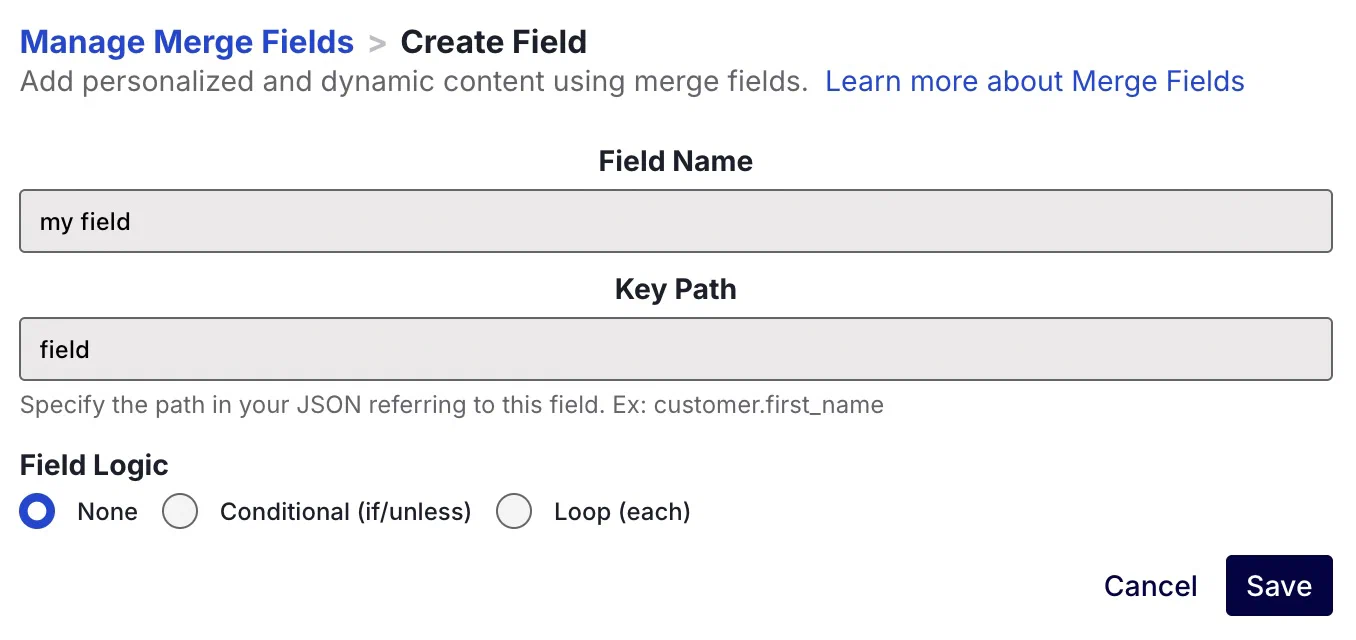
Select Merge fields in the header of the editor.
Select Create field to add a new field or the edit icon () to edit an existing field.
Enter a Field Name. This is the name you’ll see in the editor.
Enter the Key Path. This is the path to the variable that you want to use.
- For attributesMetadata used for audience segmentation and personalization. Attributes extend the concept of tags by adding comparison operators and values to determine whether or not to target a user, helping you better evaluate your audience., use the attribute name.
- For custom eventA record of an action in your app, on your website, in the Airship system, or in an external system. Examples are a message send, an app open, or a purchase transaction. properties, use JSON notation for the property in the event’s
propertiesobject that you want to use. For example, if you wanted to accessproperties.namefrom your custom event, you would entername. - For a Create and SendA way to target recipients of a single channel type by providing a list of user identifiers when creating a message. You can send to email addresses, phone numbers, or open channel addresses. Unknown identifiers are registered as new channels. CSV, use the column name for your variable.
Make a selection for Field Logic
Select Save.
Select Done to return to the editor.
Using merge fields
The way you use a merge field depends on its logic: None, Conditional, or Loop.
None
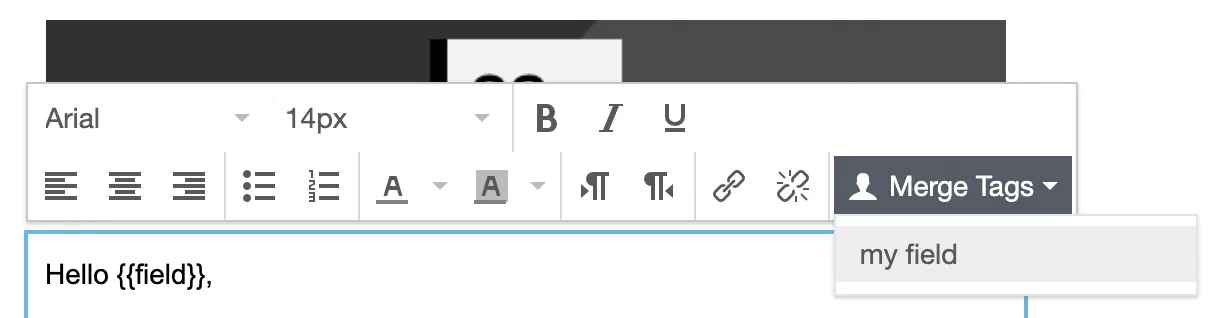
You can insert merge fields set to None into any Text content element, and Airship will add your merge field with the correct syntax in your text:
- Select the Text content element that you want to add a merge field to, and a toolbar will appear.
- Select Merge Tags from the toolbar, and select a merge field.
Conditional and Loop
Merge fields set to Conditional and Loop apply to a row. You use the merge field to determine whether you want to show, hide, or repeat the entire Text content element.
While conditions apply at the row level, you can still use merge fields within your conditional block. If you want to use a field both as a block-level condition and as a value within a block, you should save two merge fields: one to represent the conditional usage of the field, and one with field logic set to None.
When you apply a looping merge field to a content block, you can reference the current instance of the loop with the this context. For example, if looping through an array of products in your audience’s shopping cart, you might reference the price for each product in the loop with {{this.price}}.
To set conditional or looping logic:
Select the row you want to apply the logic to and select Merge Tags .
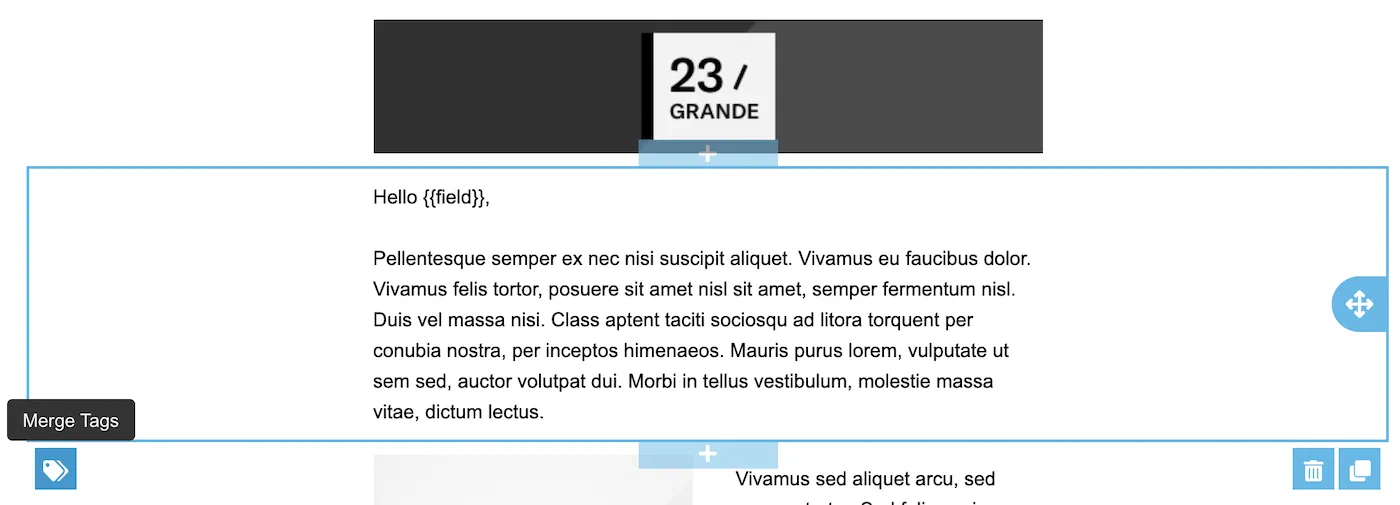
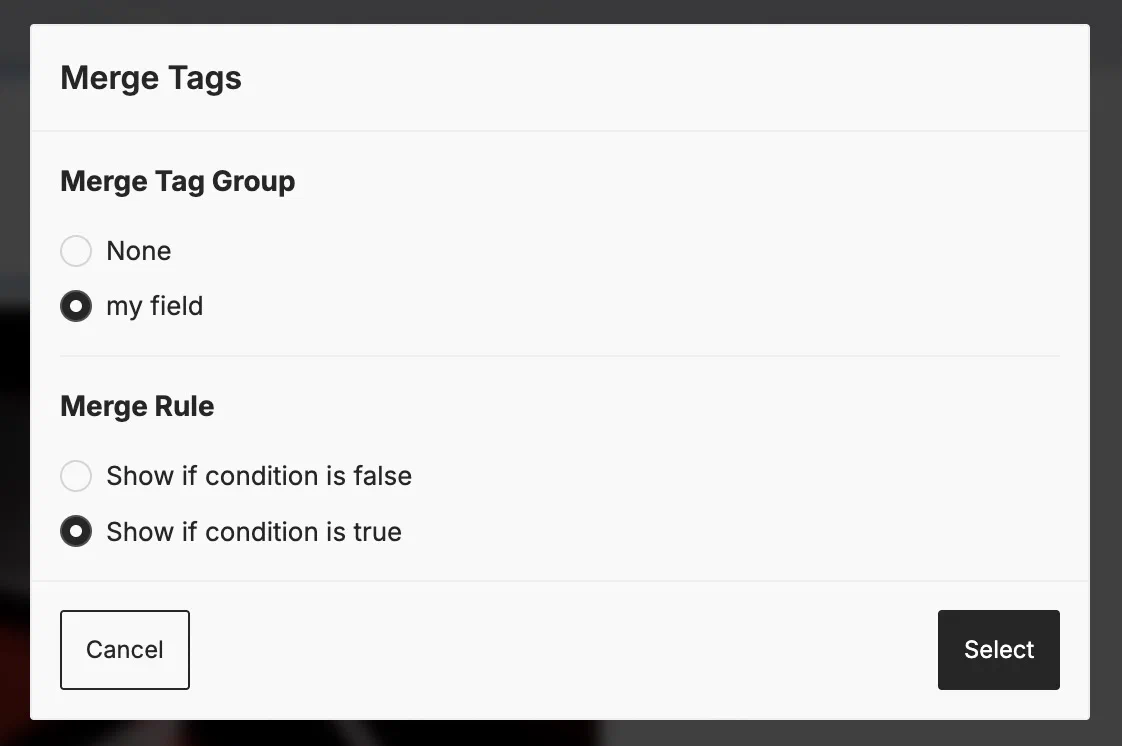
Selecting the Merge Tags option in the Interactive editor Select a merge field and select from the available options:
Conditional
- Show if condition is false — Displays the block if the field does not exist, is empty, or is
null. - Show if condition is true — Displays the block if the field exists and is not an empty string or
nullvalue.
Looping
- Repeat for each — Repeats the block for each item in an array.
- Show if there are none — Displays the block if the key path is empty or does not exist.
- Show if there are any — Displays the block if the key path exists and has at least one item in the array.
- Show if condition is false — Displays the block if the field does not exist, is empty, or is
Choose Select.