Interactive editor
Use the Interactive editor to create message and web page content using your own HTML or a drag-and-drop interface.
Use the Interactive editor to create content for email, Message CenterAn app inbox where you can display rich messages. The messages support native content, HTML, video, and more., landing pages, and In-App AutomationMessages cached on users’ devices and displayed when users meet certain conditions within your app, such as viewing a particular screen or opening the app a certain number of times., either when creating messages or templates. HTML emails created with this editor are fully compatible with email clients. You can also design email Preference CenterA page where users can manage their opt-in statuses for the subscription lists in your project. Preference Centers are presented within your app or website or as an Airship-hosted web page. web pages that match your company branding.
Capabilities
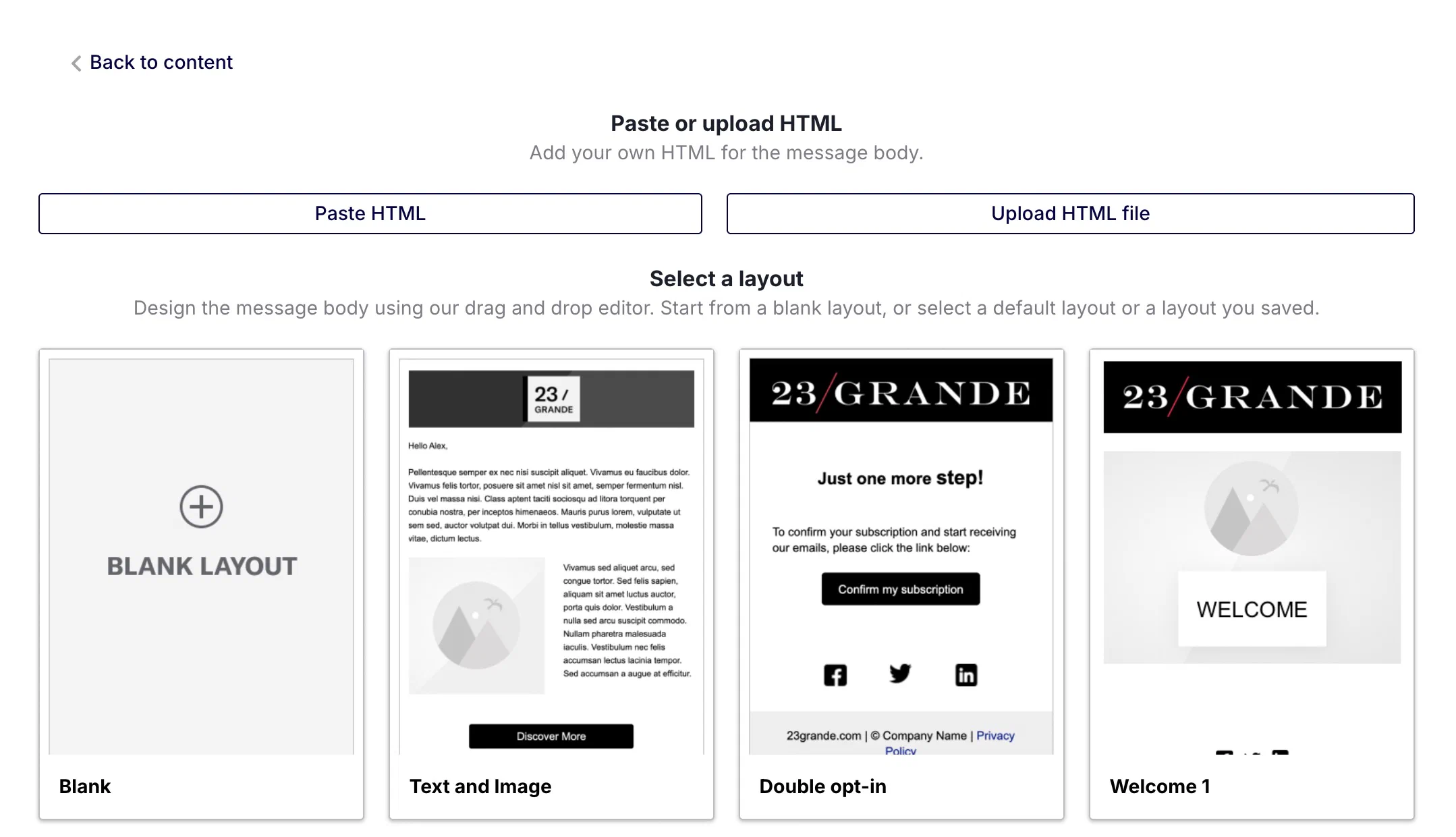
The Interactive editor supports providing your own HTML or designing using a drag-and-drop interface:
- HTML — Paste or upload your own HTML and view a content preview. The preview updates as you edit your HTML.
- Drag-and-drop — Start from a blank layout, select an Airship default layout, or select a previously saved layout. Supports merge fieldsA variable in your message or template that you want to populate with a personalized value for each member of the audience. Merge fields use Handlebars syntax:
{{merge_field}}.. - Templates — Select a previously created template. You cannot edit the message content after selecting a template.
For both HTML and drag-and-drop, you can also configure an external data feedA connection to an external API. When you send a message, Airship uses a response from that API to personalize messages. and add a Message Center thumbnail image. Email Preference Center web pages can only be designed using drag-and-drop.
Accessing the editor
For Message Center, landing pages, and In-App Automations, select Interactive editor in the Content step when creating messages. For email content and email Preference Center web pages, the Interactive editor loads automatically when you edit the HTML body.
The same applies when creating templates for the same message types.
Using the editor
Once in the editor, complete your content steps:
- For HTML, select the paste or upload option and add your HTML.
- For drag-and-drop, select a default or saved layout, or select Blank Layout to design your own. Then you can design your content. See Styling and formatting in the Interactive editor. You can edit any layout after selecting.
After completing your design, select Done.