Set up your wallet project
Create an Airship account, get access to wallet, and create your first project and template.
After mobile wallet is enabled for your account, you can create wallet projects and templates at any time. You’ll need to set up certificates and publishing access before you can create pass links.
Set up your account
New accounts start on our free plan, and you can upgrade to a more feature-rich paid plan at any time. Mobile wallet does not have self-service signup, so only messaging will be available at first.
Follow these steps to create your Airship account:
- Create an Airship account on go.airship.com or go.airship.eu. Make sure your Region selection matches the location where you want your data to be hosted.
- Check your inbox for a verification email from Airship and click Activate account to open the account setup page.
- Set up a password.
Next, contact Airship to request enabling mobile wallet for your account. Once enabled, you can create your first project.
Add team members
Adding team members is a two-step process: invite users to your Company account, then grant them access to individual wallet projects. Only Company account Owners and team members with Administrator permission can manage invitations and project access. For procedures, see Manage wallet teams and access.
Set up vendor certificates and publishing access
Apple Wallet and Google Wallet each require credentials that prove you can issue passes for your brand. Google Wallet also requires publishing access approved by Google. These steps are typically completed by a developer. See Set up Apple Wallet certificates and Set up Google Wallet certificates and publishing access.
Create a wallet project and template
Create your first project and template:
From the Airship dashboard, select Create project and select Mobile Wallet Project.
Enter a project name, select pass and barcode types, and then select Save and Continue.
Select a template type, enter the template name and description. The template name is essentially a title for the pass. It appears at the top of the pass when opened on a device, and it is also the source of the pass’s file name as it appears for installation:
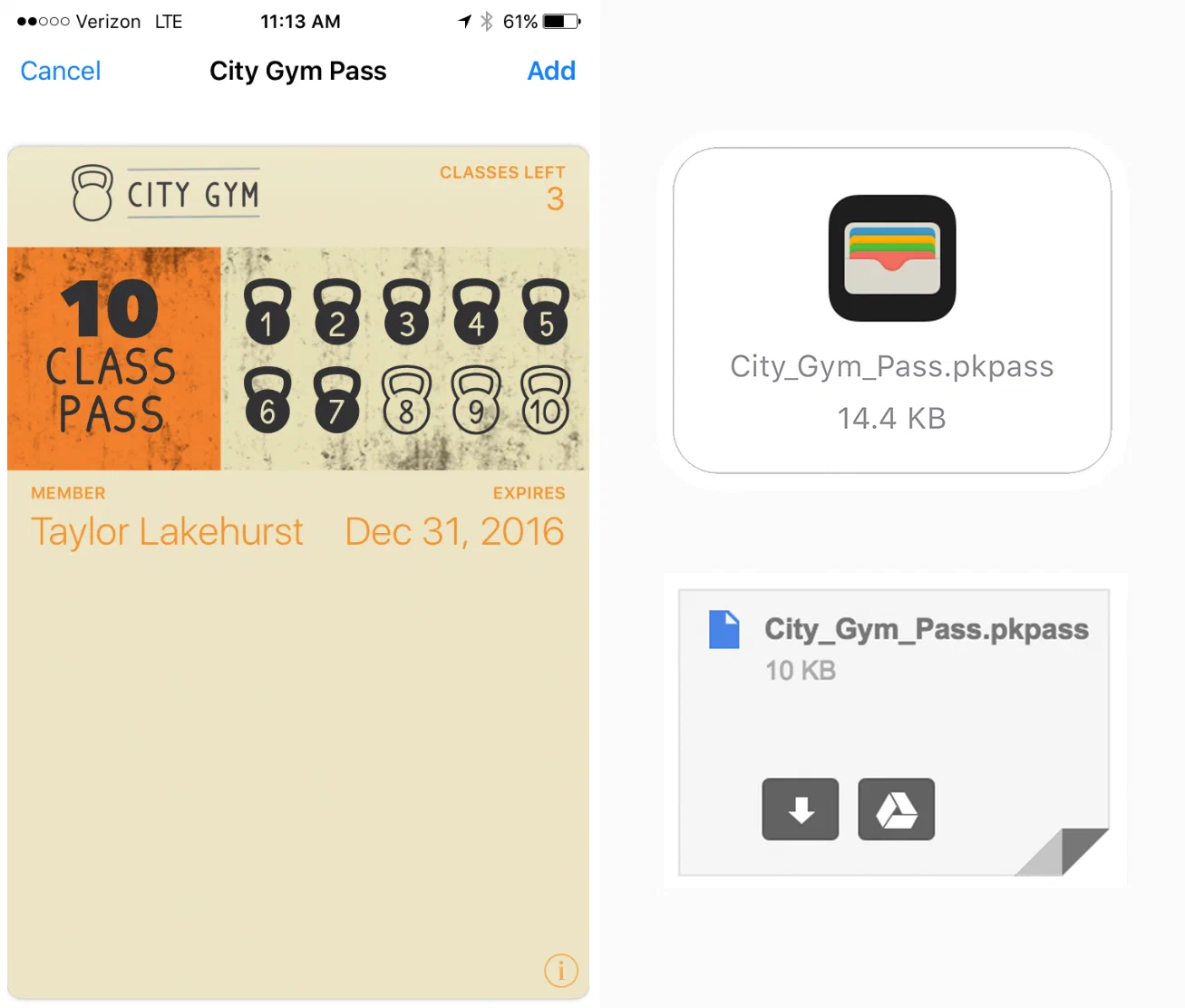
A template with name 'City Gym Pass' as it appears on the installed pass Select Start Building to save the template.
Managing projects
After creating a wallet project, go to Settings, then Project Details to view project details, edit the name, description, or custom project ID, or delete the project. Entering a custom project ID overrides the project’s auto-generated default project ID.
To edit project details, select Edit Details or Update, make your changes, and select Save.
To delete your project, select Delete Project and confirm.
Before you can delete a project, you must expire or delete all passes associated with the project.
Next steps
Continue to Create your first pass to design your template, generate a pass link, and install it on your device.