The Airship dashboard
Airship’s dashboard is our web interface at go.airship.com or go.airship.eu.
The dashboard is where you create and access projects, containers for the settings, certificates, reports, and other details related to your messages and mobile wallet passes.
The dashboard has two levels:
- A list of all your messaging and mobile wallet projects.
- An individual project after opening it from the list of all projects.
Almost everything you do with Airship happens inside a project, including creating messages and wallet pass templates.
Viewing and finding your projects
At the top level of the dashboard, tiles display each messaging and mobile wallet project. Messaging projects list their name, environment, and channels. Mobile wallet projects list their name and pass type.
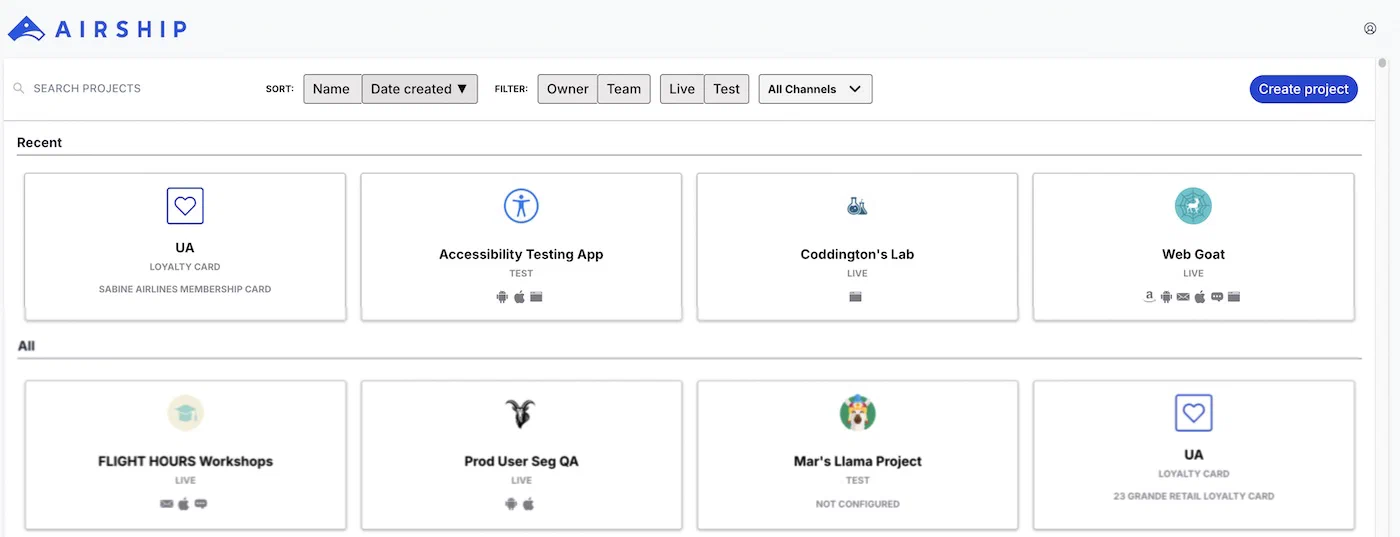
If you have more than eight projects, up to four of your most recently accessed projects appear under Recent. Recent projects are not shown when sort, filter, or search are applied.
The default view is sorted by creation date, newest projects first. Select Name or Date Created to sort. Select again to toggle ascending/descending order. You can search for projects by complete or partial name.
Use filters to toggle views:
| Filter | Description |
|---|---|
| Owner/Team | Toggle between projects you own and projects you have non-owner access to. See Manage project access in Manage Messaging teams and access. All mobile wallet projects appear for Owner. |
| Live/Test | Toggle between projects by environment type. All mobile wallet projects appear for Live. |
| Channel | Select a channel configured for your account: Mobile apps, Web, SMS, Email, and Mobile wallet. After selecting Mobile apps you can filter again by platform. After selecting Mobile wallet you can further filter by pass type and company. |
Navigating individual projects
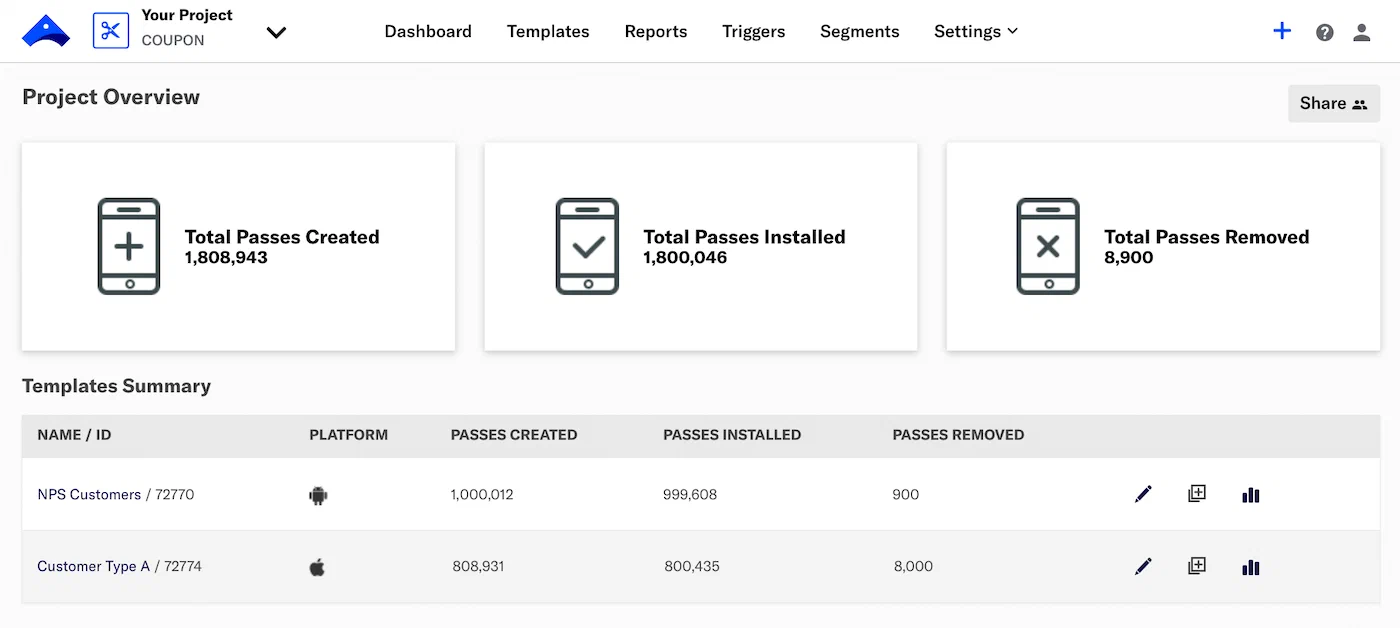
From the top-level dashboard, select a tile to open a project. The header shows the project name and the pass type name and icon.
To switch between your six most recent projects, select the down arrow () next to the project name, then select from the list. Select View all projects in the list to return to the top-level dashboard. You can also select the Airship logo in the header to return to the top-level dashboard.
Header icons
The header contains the following icons:
- Project creation icon () — Create a new template.
- Help icon () — Access resources.
- Account menu icon () — View account information.
Header menus
The header groups the main areas of a project:
| Menu | Description |
|---|---|
| Templates | Create and edit pass templates |
| Reports | Analysis of each template |
| Triggers | Set lock-screen alerts that appear on a user’s device based on location, date, or beacon proximity |
| Segments | Build reusable audience groups from tags to target template updates |
| Settings | Manage the project’s details, barcode, certificates, and Associated App IDs, and access its API key and secret |
Project Overview
Under Project Overview, counts are provided for the following:
| Count | Description |
|---|---|
| Passes Created | The pass has been created but has not yet been added or deleted. Apple Wallet passes only. |
| Passes Installed | The pass has been installed by the end user and has not been removed or deleted. |
| Passes Removed | The pass has been removed by the end user and not deleted. Deleted passes are removed from the mobile wallet platform but remain on the end user’s device. Only end users can remove the pass. If a pass has been deleted, you will not have the ability to send any updates to the pass. |
Pass counts reflect the current count of passes rather than net pass activity. For example, if a user adds a pass, then removes the same pass, then adds the pass again, the Passes Installed count increases by one, while the Passes Removed count stays constant.
The Passes Installed count may exceed the Passes Created count when passes are copied across devices, such as during iCloud backup, family sharing, or phone upgrades. Each copy counts as a separate installation, and Airship keeps each copy in the Installed state until the user removes it.
Select Notification history to view a log of notifications sent from the dashboard. See Send Notifications from the Dashboard in Wallet Push Notifications.
Select Share to grant project access to current team members. See Manage project access in Manage wallet teams and access.
Templates Summary
Under Templates Summary, each template is listed with its ID, platform, and pass counts. Each row offers these actions:
- Select the edit icon () to edit the template design.
- Select the duplicate icon () to duplicate the template.
- Select a template name or the report icon () to open its Template Report.