Create your first pass
Design your template, create a pass link, and install your first Airship mobile wallet pass on a test device.
After setting up your wallet project and template, you’re ready to design your template, generate a pass link, and install a pass on a test device.
Design your template
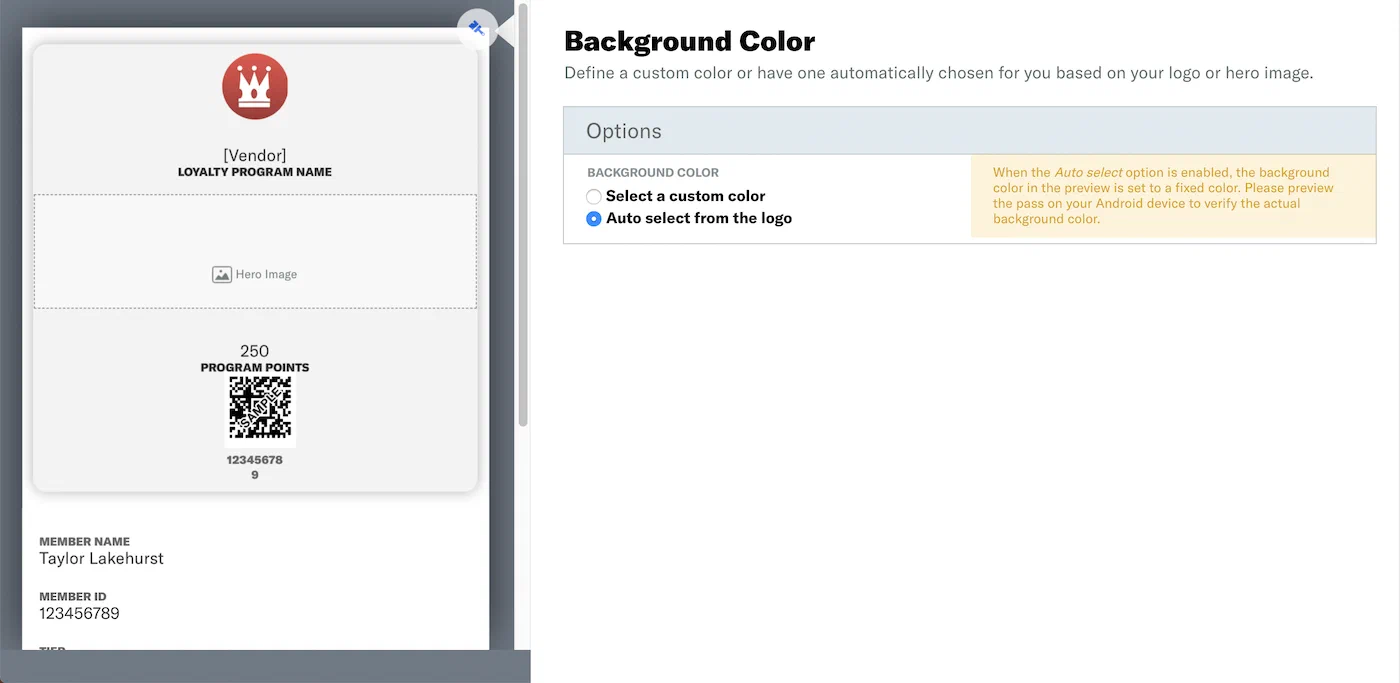
The template controls the look and content of your pass. Follow the steps in Design a template to define colors, add your brand logo, configure fields, and set default values.
Create a pass link
An Adaptive Link is a vendor-agnostic, shortened mobile wallet pass link that supports templates for both Google Wallet and Apple Wallet. When a user taps the link, Airship determines the user’s platform and generates the right pass for that platform. Adaptive Links are the recommended way to distribute a pass.
Create an Adaptive Link for your pass:
- Go to Templates.
- Select anywhere in your template’s row to expand it, then select Create an Adaptive Link.
- Enter a name for the link. The name appears in the list of all the template’s Adaptive Links. It does not appear to recipients of the link.
- Select Save.
- Copy the Adaptive Link URL.
For information about all the available settings, see Create Adaptive Links using the dashboard. For additional link creation methods, see Creating and distributing pass links.
Install your pass on a test device
Now that you have a link, send it to yourself so you can see your pass on your own mobile device. You can share through any channel that preserves URLs, such as email, SMS, or AirDrop. If you have an Airship messaging project, you can also distribute pass links when a user interacts with a message. See Distributing pass links.
Open the link on your device:
- On iOS, open the link in Safari. Tap the pass to install it in Apple Wallet.
- On Android, open the link in Chrome. Tap Save to Google Wallet to install.