# Wallet basics
Learn how wallet passes work, the pass types Airship supports, and the tools you use to create and manage them.
A wallet pass starts as a template in a mobile wallet project and reaches your audience as a link. Recipients tap it to view the pass and install it. No app required.
## How wallet works
You'll follow this general workflow to get passes into your customers' hands:
1. **Create a project** — Your project sets the type of pass you'll send, such as an event ticket or gift card, and the barcode it uses. You create one project for each pass type.
1. **Design templates** — Templates control how the pass looks and what it contains. They're specific to a vendor, so you build a separate template for Apple and Google. Their fields can display the same value for everyone or a personalized value per recipient.
1. **Generate the pass link** — The link is what turns your template into a pass people can open. When someone taps it, they see the pass with the content you configured. In most cases, use an [Adaptive Link](https://www.airship.com/docs/reference/glossary/#adaptive_link) so a single link works for everyone, delivering the right version for each recipient's device.
1. **Distribute the link** — Share it like any other URL, through email, SMS, your app, or any channel you already use. Recipients open the link, view the pass, and install it to their Apple Wallet or Google Wallet.
After a pass is installed, you can update it anytime, adding loyalty points, refreshing an offer, or changing an event time. The pass updates on the recipient's device automatically.
## Pass types
Airship supports seven pass types, each with a layout and fields suited to a specific use. Choose the type that matches your goal:
| Pass type | Use cases | Apple Wallet | Google Wallet |
| --- | --- | :---: | :---: |
| **Loyalty** | Loyalty programs, tiered status programs | ✓ | ✓ |
| **Coupon** | Discounts, special offers, ongoing engagement | ✓ | ✓ |
| **Gift card** | Gift cards, prepaid cards, return credits | ✓ | ✓ |
| **Member card** | Membership cards, photo IDs, monthly passes, claim tickets | ✓ | ✗ |
| **Event ticket** | Event and admission tracking, season tickets, invitations, movie tickets | ✓ | ✓ |
| **Boarding pass** | Airline boarding passes | ✓1 | ✓ |
| **Generic** | Everything else | ✓ | ✓ |
1. The boarding pass type also supports ferry, bus, and train tickets.
See the [Mobile Wallet Reference](https://www.airship.com/docs/guides/wallet/user-guide/reference/) for each type's layouts, fields, and other details.
### Boarding passes and event tickets
Boarding passes and event tickets work differently from other pass types. You design their templates in the dashboard like any other pass, but you can only define their flight and event details, and generate their pass links, through the Wallet API. See [Flights and boarding passes](https://www.airship.com/docs/guides/wallet/user-guide/create-links/flights-boarding-passes/) and [Event tickets](https://www.airship.com/docs/guides/wallet/user-guide/create-links/event-tickets/).
## The Wallet API
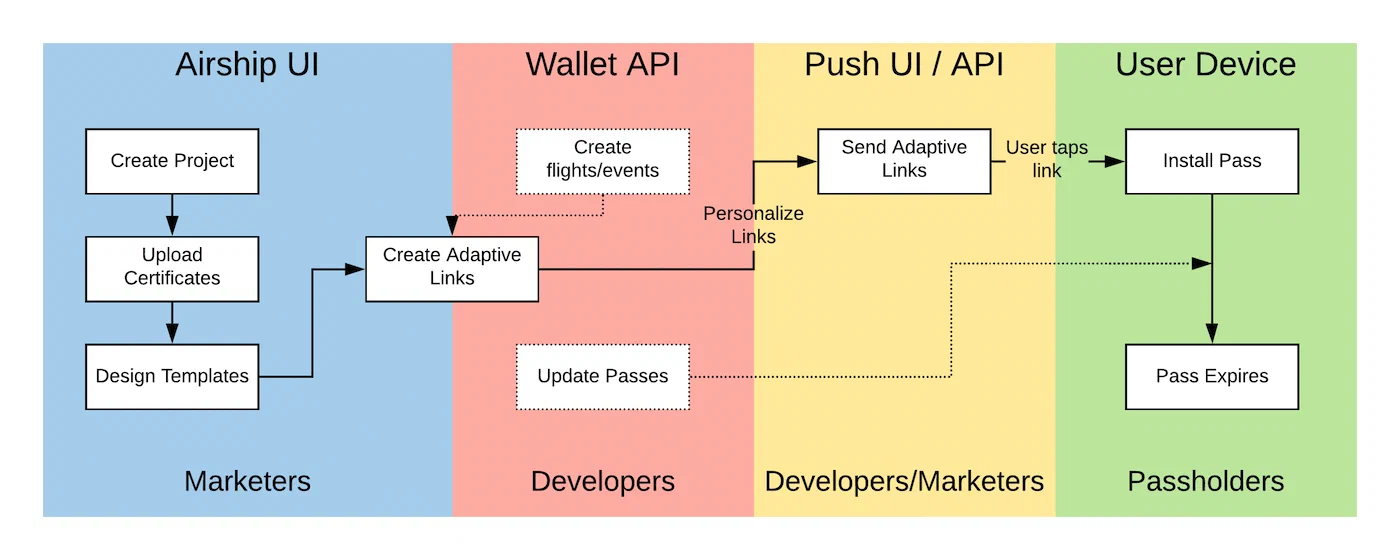
*Wallet workflow between the Airship dashboard and API*
The dashboard and the Wallet API act on the same projects, templates, and passes, so what you build in one is available in the other. In the dashboard, you design templates with a live preview and generate links without writing code. The API performs the same core operations programmatically, which is how developers automate Wallet and connect it to your other tools.
Passes often include fields that need to change after install, based on the recipient, their location, or other events. The API is built for that kind of dynamic, at-scale work:
- **Create or update passes in bulk** instead of one at a time.
- **Personalize each pass** with values pulled from your own systems, such as a CRM or loyalty database.
- **Automate updates** that fire on events, like adding loyalty points, refreshing an offer, or changing a gate.
- **React to pass activity** by registering callbacks for installs and uninstalls.
When you're ready to build, see the [Wallet API reference](https://www.airship.com/docs/developer/rest-api/wallet/) and [Wallet API Security](https://www.airship.com/docs/guides/wallet/api-security/).
## External IDs
Every asset in your Wallet project gets an automatic numeric identifier from Airship. You can also give each asset your own identifier, called an external ID, to label it with a name that matches your own data instead of Airship's generated numbers. In the dashboard, external IDs are called custom IDs.
External IDs make assets easier to recognize and to connect to your other systems. For example, give a loyalty card the same ID as its record in your CRM, or match a boarding pass to its reservation number, so you can update the right pass without first looking up its Airship ID.
Keep these things in mind when using them:
- **They're additive.** Each asset keeps its Airship-generated ID, so an external ID is an extra handle, not a replacement.
- **Use them consistently.** If you adopt external IDs, apply them to all your assets. Mixing your own IDs with Airship's makes assets harder to track.
- **Keep them unique within their parent.** A template's ID must be unique within its project, and a pass or Adaptive Link's ID must be unique within its templates.
Set custom IDs in the dashboard for [projects](https://www.airship.com/docs/guides/getting-started/wallet/set-up-project/) and [templates](https://www.airship.com/docs/guides/wallet/user-guide/design-template/manage/). Use the [Wallet API](https://www.airship.com/docs/developer/rest-api/wallet/) to assign external IDs to your other assets, including Adaptive Links and passes.
Once an asset has an external ID, most Wallet API endpoints accept it in place of the Airship ID. Add `/id/` to the path wherever an operation would normally take the asset's Airship ``, and you can manage your assets by your own IDs throughout your integration.
## Reporting
Track how your passes perform over time. Template reports show the number of passes created, installed, and removed, in the dashboard or through the Wallet API. See [Template activity](https://www.airship.com/docs/guides/wallet/user-guide/reporting/template-reports/).
To act on pass events as they happen, register a callback server that receives install and uninstall notifications. See [Wallet callbacks](https://www.airship.com/docs/guides/wallet/user-guide/reporting/wallet-callbacks/).