# Messages Overview and Calendar
List and calendar views organize the messages in your project. You can search, filter, and manage messages from both views.
The list and calendar views show messages based on retention periods that vary by message type:
* [In-App Automations](https://www.airship.com/docs/reference/glossary/#iaa) and [Scenes](https://www.airship.com/docs/reference/glossary/#scene) with a set end date or those that were cancelled appear for 386 days after the end or cancellation date.
* Messages in a Sequence, Automations, and messages with recurring delivery remain visible while active and are removed 12 months after cancellation or a set end date.
## Messages Overview
To view your messages in a list, select **Home** or go to **Messages**, then **Messages Overview**. This is also the first screen you see after opening a messaging project.
### Viewing by status
Your messages are organized into various views you can select from the top of the page:
| View | Origin composer or experiment type | Available messages |
| --- | --- | --- |
| **All** | All composers | All messages |
| **Ongoing** | Message, A/B Test1 | Messages with recurring delivery |
| **Ongoing** | Automation, Sequence, In-App Automation, Scene | Active automated messages, including paused Sequences |
| **Scheduled** | Message, A/B Test1 | Messages with a future delivery date |
| **Drafts** | All composers and A/B Test1 | Messages that are not yet sent, not yet active, or incomplete |
| **History** | All composers and A/B Test1 | Messages that have been sent, stopped, or have reached their end date, including recurring messages and any In-App Automations or Scenes that have been expired or stopped for more than 14 days |
| **Tests** | All composers and A/B Test1 | Messages that were designated as a test, sent to a [Test Group](https://www.airship.com/docs/reference/glossary/#preview_test_groups), or sent using the Send Test feature |
| **Archive** | All composers and A/B Test1 | [Archived messages](https://www.airship.com/docs/guides/messaging/manage/archive/) |
1. Message variants in a [message A/B test](https://www.airship.com/docs/guides/experimentation/a-b-tests/messages/) are listed individually and labeled as originating from the Message composer. The label **A/B Test** refers to a [legacy message A/B test](https://www.airship.com/docs/guides/experimentation/a-b-tests/messages-legacy/), whose messages are contained within the test and are not listed individually in Messages Overview.
Each view displays messages in a table, last updated first, with the following information:
| Column | Description |
| --- | --- |
| **Name** | This is the name entered when creating the message, or "Untitled". If the message is a component in a [Journey](https://www.airship.com/docs/reference/glossary/#journey), the node icon (
) appears next to the name. If the message is a variant in a [message A/B test](https://www.airship.com/docs/guides/experimentation/a-b-tests/messages/), the test name appears above the message name and links to the test. |
| **Text** | When available, this is the message text. It does not appear for A/B Tests, Scenes, or Sequences since they may contain multiple screens or messages. |
| **Channels** | These are the channels selected for delivery. |
| **Audience** | This is the audience selected for delivery. |
| **Delivery** | When available, this is the date and time when the message was sent. Information varies per composer and delivery specification. |
| **Throttle Delivery** | This is the rate of delivery, if [set for the message](https://www.airship.com/docs/guides/messaging/messages/delivery/delivery-options/#throttle-delivery). |
| **Message Details** | This is a summary of data shown for a message in its expanded view. |
Toggle **Expand All Messages** to see a full version of the message information or a summary.
### Filtering and searching the list
Apply filters to update the list:
| Filter type | Description |
| --- | --- |
| **Date** | Use the date filter to apply a predetermined range or enter a custom range. Within a time frame, you can also apply **Last Updated**, **Delivery Date**, and **Creation Date** filters. All dates and times are in UTC. |
| **Tests** | Toggle **Hide Tests** to show/hide messages that were flagged as a test or sent to a test group. This option is not present in the Tests view. |
| **Trigger** | In the Ongoing view, filter by **Automation trigger** for Automations and Sequences or **In-app automation trigger** for In-App Automations and Scenes. |
You can also apply filters when searching. Select a filter next to the search field, then enter a search term or choose from matches available when selecting the search field.
Search filters:
| Search filter | Where search is applied to |
| --- | --- |
| **Campaign Categories** | [Campaign Categories](https://www.airship.com/docs/reference/glossary/#campaign_categories) added when creating a message |
| **Channels** | [Channels](https://www.airship.com/docs/reference/glossary/#channel_engage) configured for your project |
| **Composers** | [Composers](https://www.airship.com/docs/reference/glossary/#composer) available in your project |
| **Created By** | Usernames of message creators |
| **Experience Type** | Scenes of type Branching, Embedded Content, Experiment (A/B test), NPS Survey, Survey (non-NPS), or Story |
| **Message Content** | Text in the body of messages, and message, Sequence, and legacy A/B test names |
| **Message Type** | Push notification, In-App Message (not In-App Automation), and Message Center |
| **Push ID** | [Push IDs](https://www.airship.com/docs/reference/glossary/#push_id) of messages sent from the Airship dashboard |
### Managing messages
At the end of each message row are icons for message management options:
| Option | Description | Steps |
| --- | --- | --- |
| **Edit** | [Opens the message for editing](https://www.airship.com/docs/guides/messaging/manage/edit/) | Select the pencil icon (
). |
| **Duplicate** | [Makes a copy of the message](https://www.airship.com/docs/guides/messaging/manage/duplicate/) | Select the duplicate icon (
). |
| **Archive or unarchive a message** | [Moves the message to or from the Archive view](https://www.airship.com/docs/guides/messaging/manage/archive/) | Select the archive icon (
). |
| **Delete** | [Removes the message from the project](https://www.airship.com/docs/guides/messaging/manage/delete/) | Select the trash can icon (
). |
| **Change status** | [Starts, pauses, or stops ongoing, throttled, and recurring messages](https://www.airship.com/docs/guides/messaging/manage/change-status/) | Select the play icon (
), pause icon (
), or stop icon (
). |
| **View the message in a mapped view** | For Scenes, In-App Automation, and Sequences, opens the message in the [Journey Map](https://www.airship.com/docs/reference/glossary/#journey_map) | Select the node icon (
). |
| **Collapse or expand details** | Displays a full version of the message information or a summary | Select the collapse icon (
) or expand icon (
). |
| **Open its report** | Opens a [message report](https://www.airship.com/docs/guides/reports/message/), [Scene report](https://www.airship.com/docs/guides/messaging/in-app-experiences/scenes/create/scene-reports/), Sequence [Performance report](https://www.airship.com/docs/reference/glossary/#sequence_performance), or [legacy message A/B test report](https://www.airship.com/docs/guides/experimentation/a-b-tests/messages-legacy/) | Select the report icon (
). |
### Viewing automation counts
To view your current number of automations and your project limits, go to the **Ongoing** view and select the info icon ().
* **Active and Total Automations** — The number of active and total (active plus paused) automations, which includes:
* Automations created using the [Automation composer](https://www.airship.com/docs/guides/messaging/messages/sequences/create-automation/)
* Automations created using the [`/pipelines` endpoint](https://www.airship.com/docs/developer/rest-api/ua/operations/automation/)
* Each message in [Sequences](https://www.airship.com/docs/reference/glossary/#sequence)
Archived and draft messages are not included in these counts. Automation limits are determined by your Airship package. See [Automation](https://www.airship.com/docs/reference/feature-packages/#automation) in the *Feature packages reference*.
* **In-App Automation and Scenes** — The total number of active and paused in-app experiences.
See also [Message Limits](https://www.airship.com/docs/reference/glossary/#message_limits).
## Calendar
To view your messages in a calendar, go to **Messages**, then **Calendar**.
The calendar view shows you:
* When messages are scheduled to send
* The duration of messages with start and/or end dates
* How message schedules overlap
* Send history
The calendar does not include drafts or messages designated as a test, sent to a [Test Group](https://www.airship.com/docs/reference/glossary/#preview_test_groups), or sent using the Send Test feature.
### Visual indicators
Colors identify messages by their origin composer. Each color corresponds to a Message Type filter you can use to update the view. The Message, A/B Test, and Automation composers support multiple channels and message types. See [Composers — How you can send](https://www.airship.com/docs/guides/getting-started/basics/#composers) in *Messaging basics*.
These colors correspond to the following filters and composers:
| Color | Message Type filter | Composer |
| --- | --- | --- |
| **Blue** | Message | [Message](https://www.airship.com/docs/guides/messaging/messages/create/), [Automation](https://www.airship.com/docs/guides/messaging/messages/sequences/create-automation/), and [A/B Test](https://www.airship.com/docs/guides/experimentation/a-b-tests/messages/) |
| **Purple** | Sequence | [Sequence](https://www.airship.com/docs/reference/glossary/#sequence) |
| **Green** | In-App Automation and Scene | [In-App Automation](https://www.airship.com/docs/reference/glossary/#iaa) and [Scene](https://www.airship.com/docs/reference/glossary/#scene) |
Color shading indicates message status. These shading styles correspond to the following filters and message statuses:
| Shade | Status filter | Description |
| --- | --- | --- |
| **Solid** | Active | Applicable to recurring messages and active Automations, Sequences, Scenes, and In-App Automations |
| **Solid** | Scheduled | Applicable to messages with a future delivery date |
| **Slashes** | Paused | Applicable to paused Sequences, recurring messages, and any In-App Automations or Scenes that have been expired or stopped for fewer than 14 days |
| **Lighter shade** | Done | Applicable to messages that have been sent, stopped, or have reached their end date, including recurring messages and any In-App Automations or Scenes that have been expired or stopped for more than 14 days |
### Viewing message details
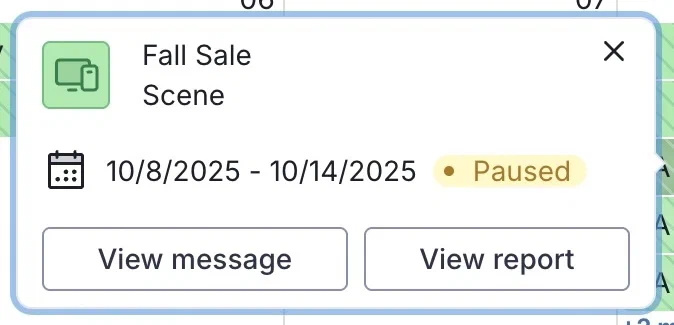
*Viewing a message's details in the project calendar*
Select a message in the calendar to view its details:
* Message name
* Associated Message Type filter
* Send, scheduled, start, and/or end dates, depending on message configuration
* Message status
Following the message details, when available, select **View message** to open the message in its origin composer. Select **View report** to open its [message report](https://www.airship.com/docs/guides/reports/message/), [Scene report](https://www.airship.com/docs/guides/messaging/in-app-experiences/scenes/create/scene-reports/), or Sequence [Performance report](https://www.airship.com/docs/reference/glossary/#sequence_performance).
### Filtering and searching the calendar
Search for a specific message by name. Use the Message Type, Status, or time range filters to update the calendar content. See the [Message Type and Status descriptions](#visual-indicators) in *Visual indicators* above.
These are the formats for the time range filters:
| Filter type | Format |
| --- | --- |
| **Month** | Sunday to Saturday, one week per row |
| **Week** | Sunday to Saturday, one hour per row |
| **Day** | One hour per row |
Select **Back** or **Next** to navigate between time periods. Select **Today** to return to the current date.
In the Month view, when a day contains more messages than can be displayed, select **+ X more** to go to the Day view and see all messages for that day.