# The Airship dashboard
{{< glossary_definition "dashboard" >}}
The dashboard is where you create and access projects, containers for the settings, certificates, reports, and other details related to your messages and mobile wallet passes.
The dashboard has two levels:
- A list of all your messaging and mobile wallet projects.
- An individual project after opening it from the list of all projects.
Almost everything you do with Airship happens inside a project, including creating messages and wallet pass templates.
Viewing and finding your projects
At the top level of the dashboard, tiles display each messaging and mobile wallet project. Messaging projects list their name, environment, and channels. Mobile wallet projects list their name and pass type.
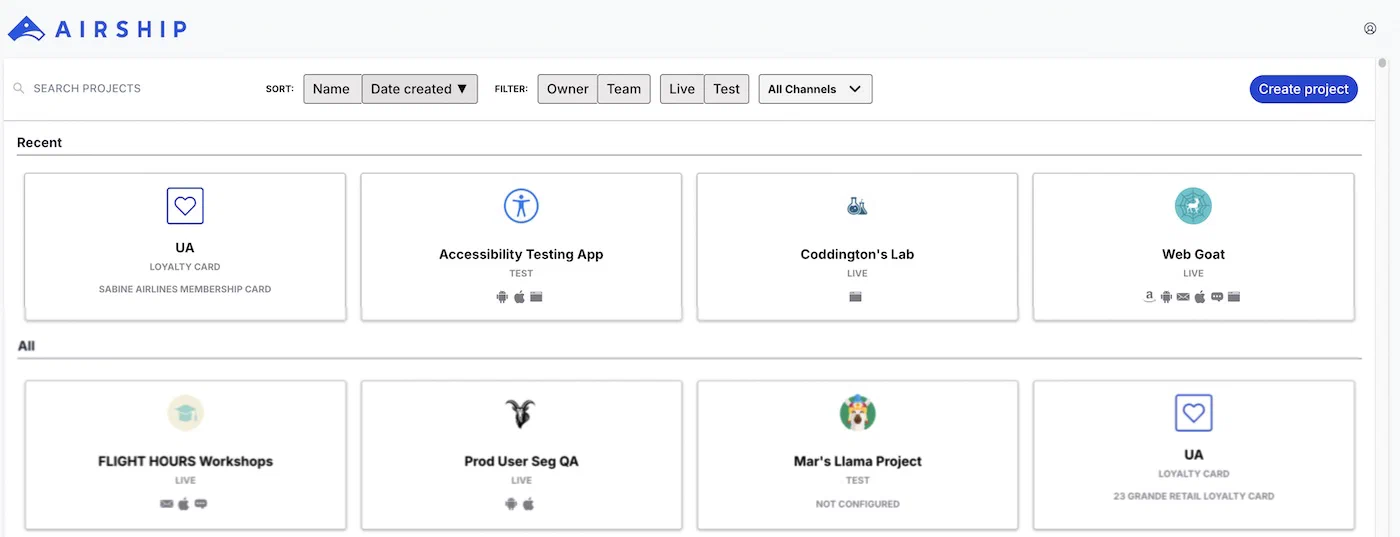
*The top-level dashboard in Airship*
If you have more than eight projects, up to four of your most recently accessed projects appear under Recent. Recent projects are not shown when sort, filter, or search are applied.
The default view is sorted by creation date, newest projects first. Select Name or Date Created to sort. Select again to toggle ascending/descending order. You can search for projects by complete or partial name.
Use filters to toggle views:
| Filter |
Description |
| Owner/Team |
Toggle between projects you own and projects you have non-owner access to. See Managing project access in Manage Messaging teams and access. All mobile wallet projects appear for Owner. |
| Live/Test |
Toggle between projects by environment type. All mobile wallet projects appear for Live. |
| Channel |
Select a channel configured for your account: Mobile apps, Web, SMS, Email, and Mobile wallet. After selecting Mobile apps you can filter again by platform. After selecting Mobile wallet you can further filter by pass type and company. |
## Navigating individual projects
From the top-level dashboard, select a tile to open a project, then navigate using the header and sidebar.

*Information and actions in the project dashboard header*
Select the help icon () for links to resources and the account menu icon () for account-related information. Select the sidebar icon in the header to toggle its visibility.
Menus in the sidebar:
| Menu | Description |
| --- | --- |
| **Favorites** | Your [bookmarked dashboard pages](#searching-and-favorites) |
| **Messages** | [Messages Overview](https://www.airship.com/docs/reference/glossary/#messages_overview), calendar, logs, tools, and more |
| **Content** | Web pages for [Preference Centers](https://www.airship.com/docs/reference/glossary/#preference_center), plus reusable content: [Templates](https://www.airship.com/docs/reference/glossary/#template), [Scene](https://www.airship.com/docs/reference/glossary/#scene) [Layouts](https://www.airship.com/docs/guides/messaging/in-app-experiences/configuration/content/#create-custom-content-layouts), [Snippets](https://www.airship.com/docs/reference/glossary/#snippet) and the [Media library](https://www.airship.com/docs/guides/messaging/features/media/) |
| **Journeys** | Opens the [Journey Map](https://www.airship.com/docs/reference/glossary/#journey_map) |
| **Audience** | Information about and tools to help you effectively target your users |
| **Experiments** | [Holdout Experiments](https://www.airship.com/docs/reference/glossary/#holdout_experiment), [Feature Flags](https://www.airship.com/docs/reference/glossary/#feature_flag), and the Experimentation Hub |
| **Reports** | Analysis of your project's messaging use |
### Project settings and details
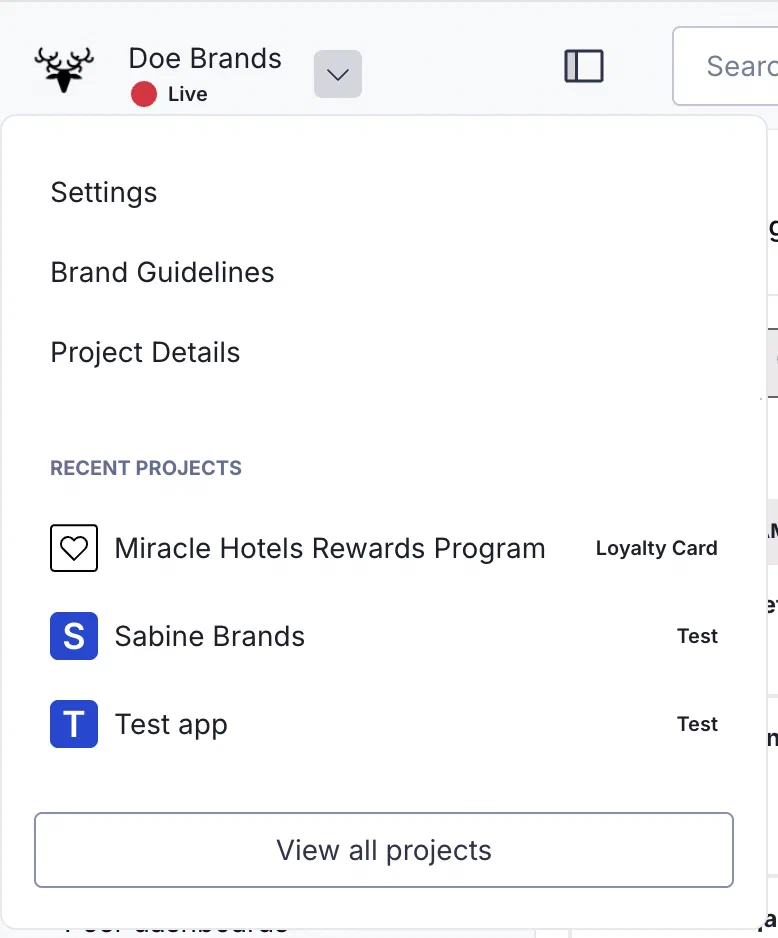
*The messaging project menu*
Select the project dropdown menu (
) to access channel, app, and project settings. You can also go to your [Brand guidelines](https://www.airship.com/docs/guides/messaging/features/brand-guidelines/) and [project details](https://www.airship.com/docs/guides/getting-started/setup/#access-project-details).
To switch to a recently-accessed project, select a name from the list. A link to return to the top-level dashboard is at the bottom of the list.
### Searching and Favorites
Use the search box to find individual pages within the dashboard. To bookmark dashboard pages for quick access:
1. Go to the page you want to bookmark.
1. Select the star icon () in the header.
1. Enter a page name as you want it to appear in the quick access menu.
1. Select **Save**.
Your saved pages are available in the **Favorites** sidebar menu. To change a page name or remove it from Favorites, select the star icon () again.
### Creating messages
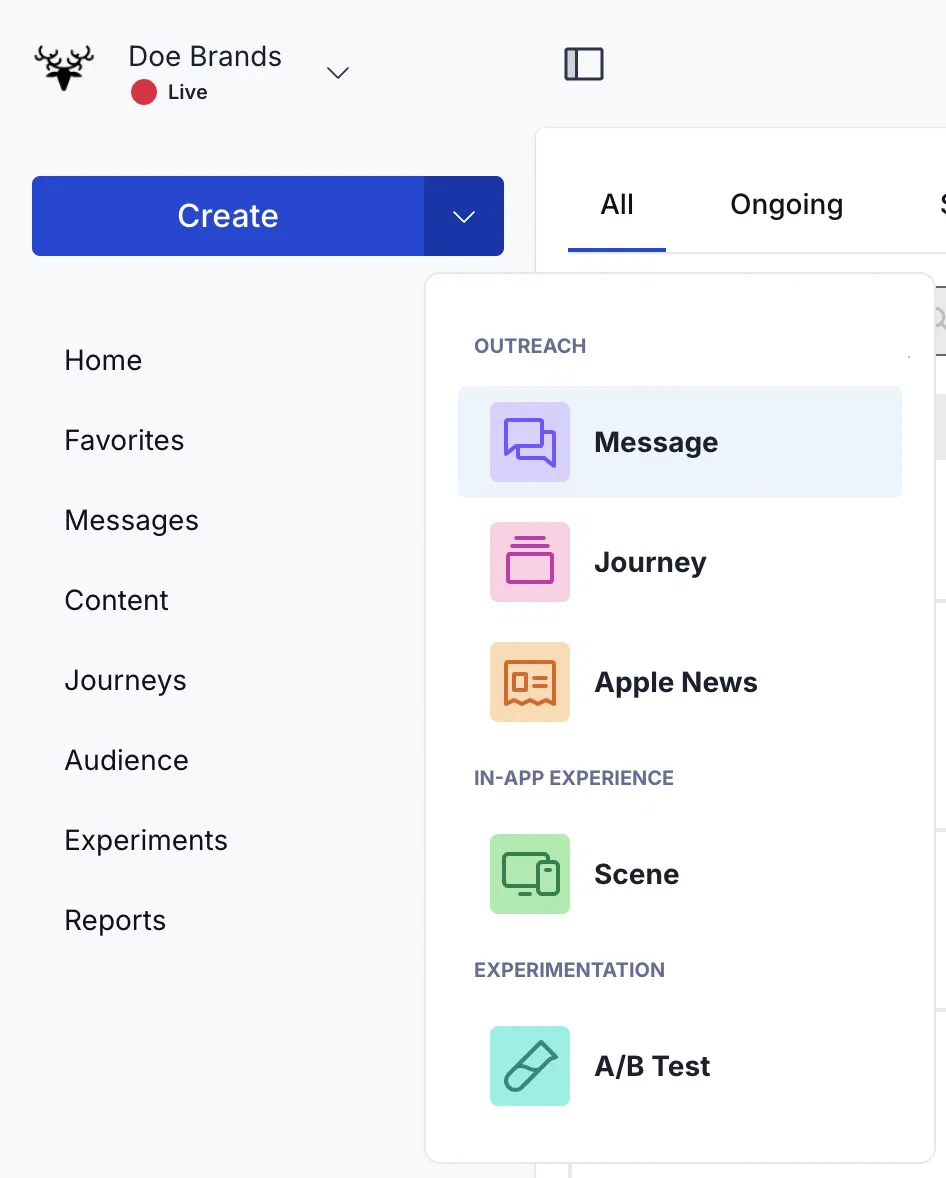
*Sidebar options in a messaging project*
Select the **Create** dropdown menu (
) to choose **Message**, **Journey**, **Apple News**, **Scene**, or **A/B Test**. Select **Create** to access all message creation options and [Composer Favorites](https://www.airship.com/docs/reference/glossary/#composer_favorites).
When the sidebar is collapsed, select the compose icon (
) in the header to access the Create dropdown menu options.