Try Airship with the 1st Flight app
Install Airship’s ready-to-use 1st Flight app and send yourself messages without writing a single line of code.
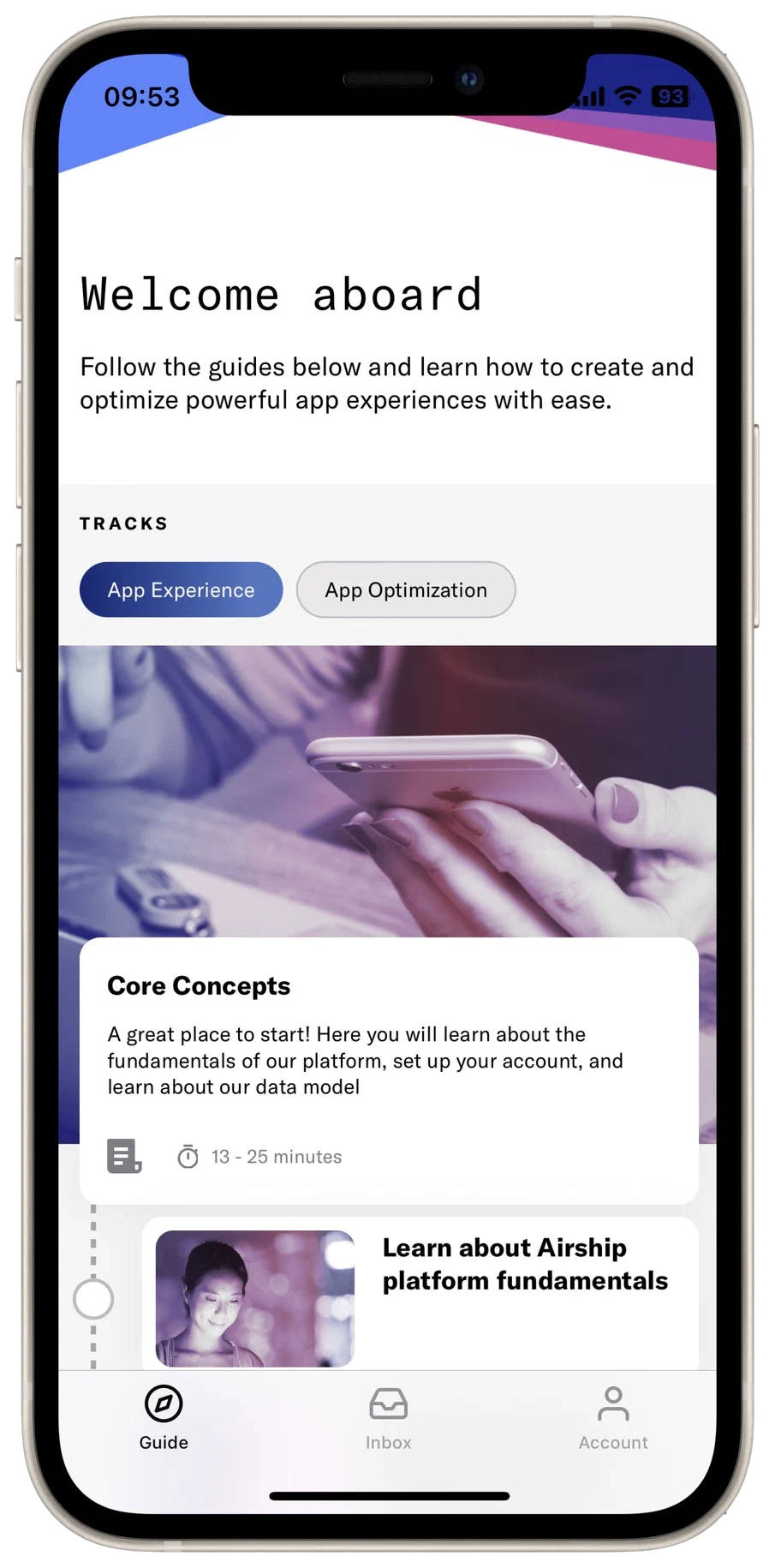
Want to see Airship work on your own device before integrating it with your own app or site? The 1st Flight app lets you create an Airship account, connect a ready-made project, and send yourself messages in minutes.
What you can learn
1st Flight pairs in-app lessons with hands-on tasks in the Airship dashboard, using your device as the audience so you see each result firsthand.
Your learning tracks:
- Core Concepts — Airship’s audience and data model, including named usersA contact identified with an ID you provide, such as a customer ID from your CRM. Associating channels with that ID maps multiple devices and channels to one individual. Each named user has a unique named user ID., tagsMetadata that you can associate with a channel or named user for audience segmentation. Generally, a tag is a descriptive term indicating a user preference or other categorization, such as
wine_enthusiastorweather_alerts_los_angeles., attributesMetadata used for audience segmentation and personalization. Attributes extend the concept of tags by adding comparison operators and values to determine whether or not to target a user, helping you better evaluate your audience., and eventsA record of an action in your app, on your website, in the Airship system, or in an external system. Examples are a message send, an app open, or a purchase transaction. - Send Your First Message — Creating and sending your first message to your device
- Persistent Messages with Message Center — Inbox messages
- In-App Experiences — Messages and multi-screen flows that display inside your app
- Your App is a Journey — Series of messages as cross-channel journeys
- App Optimization 101 — Testing and controlling how features roll out
Create an account and set up the app
First set up your Airship account, then request a magic link to install the 1st Flight app:
- Create an Airship account on go.airship.com or go.airship.eu. Make sure your Region selection matches the location where you want your data to be hosted.
- Check your inbox for a verification email from Airship and click Activate account to open the account setup page.
- Set up a password.
On the next screen, enter your email address and select Get magic link. If on a mobile device, scroll to the right to see the field and button.
Perform the next steps on your mobile device:
- Check your email for our message, and tap Install the app. Your device’s app store will open to the Airship app.
- Install and open the app.
- Tap Connect My App.
- Select your region (US or EU) and log in with your Airship username and password. Your Airship account is now associated with the 1st Flight app on your device.
- For iOS mobile devices, tap Enable Push then Allow to allow the device to receive push notifications. Push is automatically enabled for Android, so this screen will not appear for Android mobile devices.
After creating an Airship account, you can access Flight School to take training courses and complete our Certification Track.
Select the help icon () in the dashboard header, then Flight School. Or you can go directly to https://flightschool.airship.com/.
Start sending messages
Now that your device is connected with your 1st Flight project in Airship, you’re ready to send yourself messages.
Send a push notification
Send a push notificationA message that can appear on any screen on a mobile device. Push notifications appear as banners. to your mobile device. We’ll try out a few features along the way too.
Open the 1st Flight project from the dashboardThe Airship web interface at go.airship.com or go.airship.eu. and select Create a message.
Tip After sending your first message, this screen will display your Messages Overview. Select Create to create more messages.
Enter a message name and save it.
In Audience, select All Users and Fan Out, and enable Mobile Apps. Then, select Content in the header.
Select Push Notification, then Add content.
Enter your message in the text field. You will see your message appear in the device preview.
Select the Web Page action and enter a URL. We recommend http://bit.ly/IqT6zt. When your device receives the message and you tap the notification, its web browser will open the URL entered here.
Enable the Title option and enter a title in the text field. Notice its position in the preview.
Select Delivery in the header and then Send Now.
Select Review & Send in the header and review the appearance and content of your message. You can page through the images in the device preview.
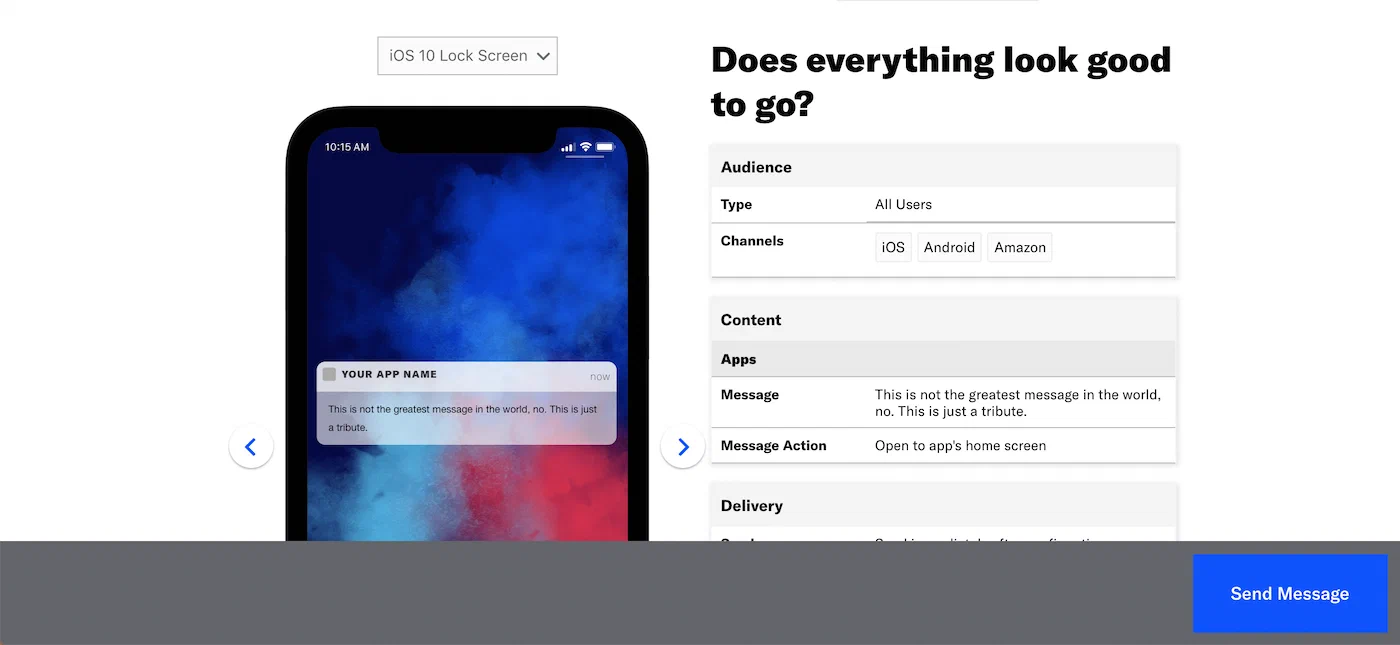
Reviewing the message summary before sending Select Send Message.
Your push notification should appear momentarily. Tap the message and the device’s browser should open the URL you entered when composing your message.
Want to send more messages? Our Message composer tutorials walk you through all the features and options.
Ready to integrate Airship with your own app? See Set up your messaging project.
Automate a push notification
After you’ve sent your first message, try setting up some automated messages. Airship’s automation features make it easy to send your audience relevant messages based on things they do in your app, changes in their preferences, or changes in their location. Learn more in About Automations and Sequences.
Automate a push notification using the Tag Change trigger:
- Follow the steps in Create an Automation, using these settings:
- In the Setup step, select the Tag Change trigger, then enter a tag in the search field (e.g.,
heyo) and select Create tag. - In the Content step, select Push Notification as your content type.
- In the Setup step, select the Tag Change trigger, then enter a tag in the search field (e.g.,
- Set the tag on your channel ID so you can trigger the message:
- In the 1st Flight app, go to Account, then Tags.
- Select Tag, you’re it!, then Set tags.
- Enter the tag you used when setting up your automation rule and select Add. This simulates how you would assign tags to your audience as they use your app and also demonstrates how you can use tags with your messages. Tags are case-sensitive.
Your push notification should appear momentarily.
Try a Scene
ScenesA mobile app or web experience of one or more screens displayed with fully native UI components in real time, providing immediate, contextual responses to user behaviors. Scenes can be presented in full-screen, modal, or embedded format using the default swipe/click mode or as a story. Scene content can also be displayed in a Message Center message and contain survey questions. are cached in your app, helping you immediately respond to your audience’s behaviors with contextual messages. Using Scenes, you can even reach users who may have opted out of traditional push notifications.
Try a Scene using the App Open trigger:
- Follow the steps in Create a Scene, using these settings:
- In the Behavior step, select the App Open trigger and leave the value set to
1. This triggers your Scene the next time your audience opens the app.
- In the Behavior step, select the App Open trigger and leave the value set to
- Close and open the 1st Flight app to see your Scene.
If you don’t see it, go to Messages, then Messages Overview, and make sure it is listed as Active. After it is Active, reopen the app.
Create your first Sequence
Where an Automation sends a single message, a SequenceA series of messages that is initiated by a trigger. Airship sends messages in the series based on your timing settings, and you can also set conditions that determine its audience and continuation. Sequences can be connected to each other and to other messaging components to create continuous user experiences in a Journey. sends a series. You control the timing between messages, set conditions that determine whether each message sends, and define outcomes that can end the Sequence early. For example, you might end a shopping-cart Sequence when the user completes a purchase. Learn more in the Sequences guide.
To get started without having to create a Sequence from scratch, try a Sequence template.
Set up a Sequence using the Tag Change trigger:
- Follow the steps in Create a Sequence, using these settings:
- For the trigger, select Tag Change, then enter a tag in the search field (e.g.,
woohoo) and select Create tag.
- For the trigger, select Tag Change, then enter a tag in the search field (e.g.,
- Set the tag on your channel ID so you can trigger the Sequence:
- In the 1st Flight app, go to Account, then Tags.
- Select Tag, you’re it!, then Set tags.
- Enter the tag you used when setting up your Sequence and select Add. This simulates how you would assign tags to your audience as they use your app and also demonstrates how you can use tags with your messages. Tags are case-sensitive.
Your audience will receive messages in the Sequence according to the schedule and conditions you set. When your audience no longer meets the conditions to continue receiving messages, or achieves a goal of the Sequence (set in Outcomes), they stop receiving messages and their Sequence ends.
You can test your Sequence now instead of waiting for scheduled messages. Send the Sequence to yourself as a named userA contact identified with an ID you provide, such as a customer ID from your CRM. Associating channels with that ID maps multiple devices and channels to one individual. Each named user has a unique named user ID.:
- Associate a named user with your channel ID:
- In the 1st Flight app, go to Account, then Named User.
- Select Say my name, then Named User.
- Enter an ID (e.g.,
julia), then tap Apply.
- Follow the steps to Test a Sequence. When you set up the Test Audience, enter the named user you set in the 1st Flight app.
Try Message Center
Message Center is an app inbox where you can display rich messages. The messages support native content, HTML, video, and more.Message Center messages support HTML messages with images and video, helping you keep your audience engaged with creative visuals. You might use the Message Center to send your audience coupons, or notify them of upcoming events, encouraging them to keep returning to your app and services.
See Message Center content to create an HTML message with images and video.
- You can send Message Center messages from the Message, Automation, and Sequence composers.
- You can send a Message Center message by itself, or you can combine it with a push notification and/or in-app message. Interacting with the push notification or in-app message sends your audience to the Message Center.
Try the API
If you’d like to try out the Airship API with your new 1st Flight app, you can use the Airship Public Workspace on Postman.com.
From the Airship public workspace, select the Airship 1st Flight collection to get started.
In the upper-right hand corner, choose the Airship 1st Flight environment and populate it with your 1st Flight app key, secret, and other variables to use the Airship API.
If you use an AI coding assistant, you can connect it to Airship with Skills and an MCP server. See Airship AI Tools.