Send your first message
Create a test group, then send your first message from the Airship dashboard.
After you have set up your messaging project and configured at least one channel, you’re ready to send your first message.
Create a Test Group
You’ll send to a preview and test groupAn audience group used for previewing personalized content and testing messages, app and website content, and Sequence runs. so you can check the experience yourself before sending to your audience.
When adding users to a group, you must enter one of these IDs: an app or web channelA device or address registered with Airship to receive messages, such as a mobile app, web browser, email address, or SMS number. It stores opt-in status, device-specific information, and metadata used for targeting. Each channel has a unique channel ID. ID, an email address, or an MSISDNA mobile phone number, including country code, in your Airship audience.. MSISDNs must already be registered SMS channels. See Preview and Test Groups for ID requirements and caveats.
For app and web, your channel ID is available once the SDK is integrated. Ask your developer for it, or find it yourself.
Once you have an ID to add, create a preview and test group in your project:
- Select Audience, then Preview and Test Groups.
- Select Create group.
- Enter a name and enable Test group.
- Select Save and continue.
- Select Add user, enter your name and your ID, then select Done.
Send the message
Follow these steps to send a message to your test group:
- In the sidebar, select the Create dropdown menu (), then Message.
- Enter a message name and save it.
- Under Audience selection, select Test group and the group you just created.
- Under Channel coordination, select Fan Out and enable the channels included in your test group.
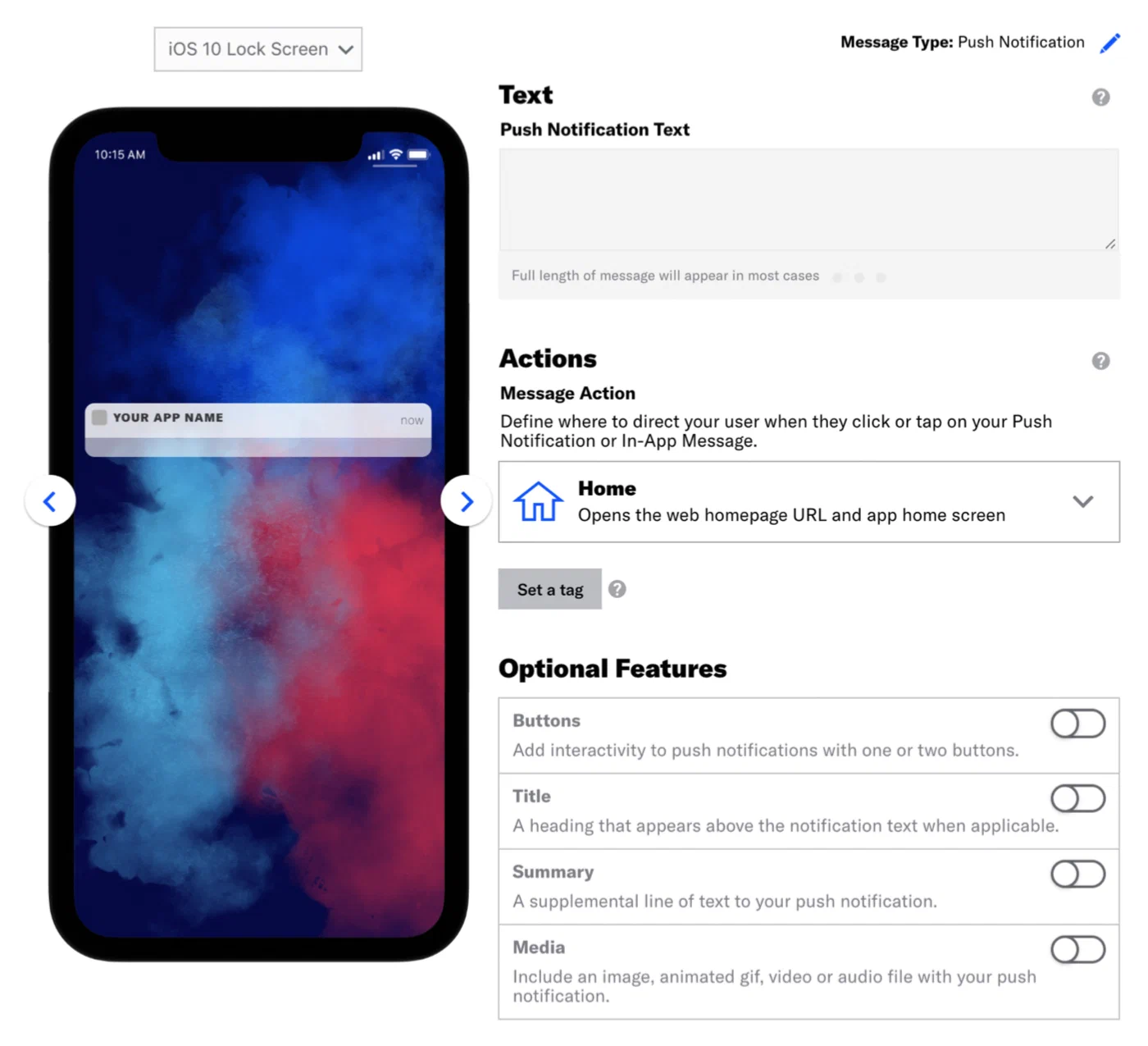
Entering push notification text Select Content in the header, then configure your message. See Content by channel for details. A device preview updates as you type and make selections.
- Select Delivery in the header, then Send Now.
- Select Review & Send in the header, then review the device preview and message summary. Use the arrows to page through the various previews. You can also select a preview directly from the menu.
- Select Send Message.
If everything is configured correctly, your message is on its way to your test group members.