Set up Apple Wallet certificates
Create an Apple Pass Type ID certificate and upload it to your Airship wallet project.
Apple Wallet requires credentials that prove you can issue passes for your brand. Creating the certificate and its password is typically completed by a developer. You must upload a valid certificate before you can create pass links.
Create an Apple Pass Type ID certificate
After registering a Pass Type ID and creating the certificate in your Apple Developer account, you export it as a .p12 file using Keychain Access on a Mac. You can then add the .p12 and its password to your Airship wallet project.
If you already have a Pass Type ID, skip registering a new one and select the existing ID when creating the certificate.
Register a Pass Type ID
Register a Pass Type ID in your Apple Developer account:
- Go to Certificates, Identifiers & Profiles.
- Select Identifiers in the sidebar.
- Select the add icon ().
- Select Pass Type IDs from the list, and then Continue.
- Enter a description and a unique identifier, and then select Continue.
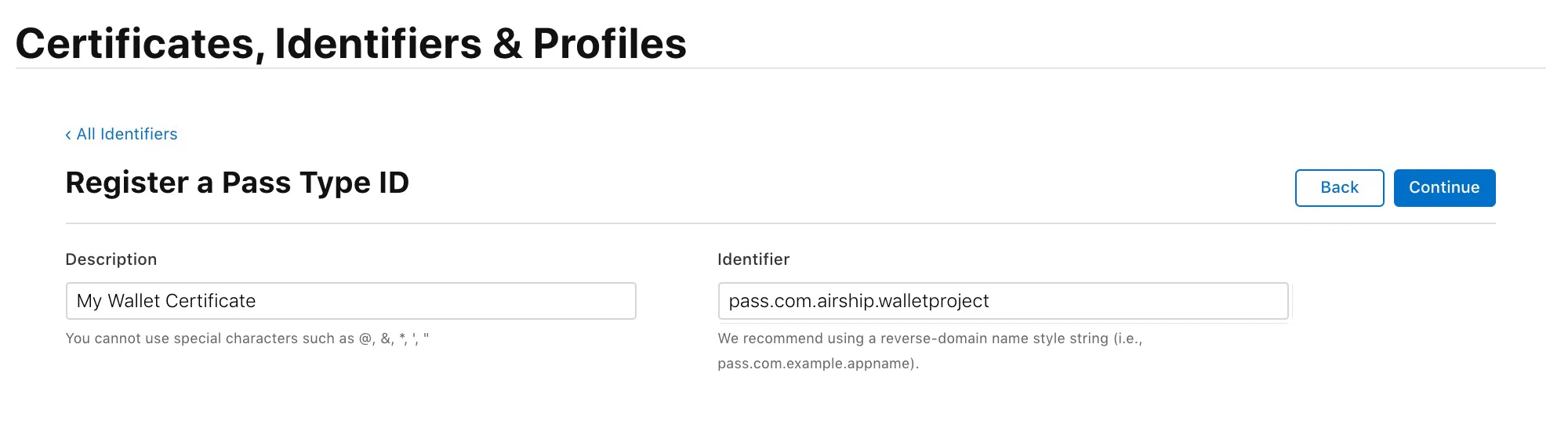
Registering a Pass Type ID in the Apple Developer console - Review the name and identifier, and then select Register.
Create the Pass Type ID certificate
Create the Pass Type ID certificate in your Apple Developer account:
- Go to Certificates, Identifiers & Profiles.
- Select Certificates in the sidebar.
- Select the add icon ().
- Under Services, select Pass Type ID Certificate, then Continue.
- Select your Pass Type ID.
- (Optional) Change the name of your certificate from the default.
- Select Continue.
- Follow Apple’s instructions to create a certificate signing request, then upload the .certSigningRequest file in the Developer console:
- Under Upload a Certificate Signing Request, select Choose.
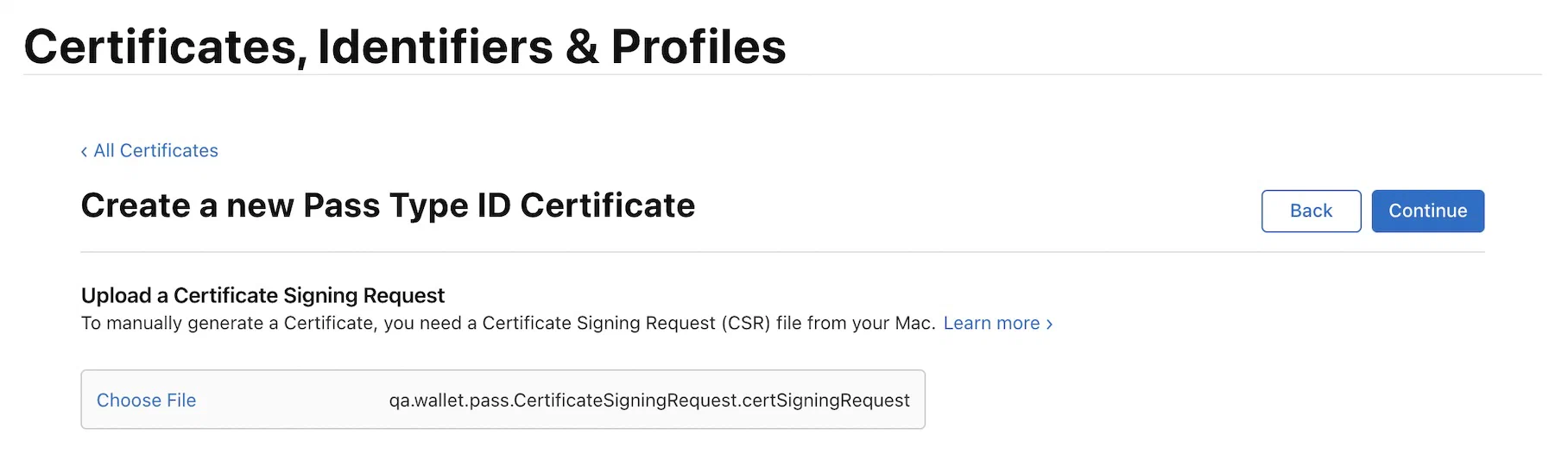
Uploading a certificate signing request in the Apple Developer console - Select your .certSigningRequest file, then select Choose.
- Under Upload a Certificate Signing Request, select Choose.
- After completing the upload, select Continue.
- Select Download to save your certificate as a .cer file.
Export the certificate as a .p12 file
Export the Pass Type ID certificate on your Mac:
- Open your downloaded .cer file. It should open in the Keychain Access app.
- Select My Certificates, then select your certificate from the list.
- From the File menu, select Export Items….
Note You must have My Certificates selected at export time. If another category is selected, the .p12 export fails because that view doesn’t include the certificate’s private key.
- Save the file in the Personal Information Exchange (.p12) format.
- Enter a password for the certificate when prompted.
Add a certificate to a wallet project
After you create a wallet project, use these steps to upload your certificate. That is usually a project you just created, but the same steps apply to any wallet project without a certificate.
Add a certificate:
- Go to Settings, then Certificates.
- Select Upload a new .p12.
- Enter the certificate password.
- Select Choose File and choose your p12 file.
- Select Save.
Select a different certificate
After initial setup, you can point a project at a different certificate that is already uploaded to your project.
If you have created any passes for a project and then change the certificate, you will be unable to interact with or update those passes. The certificate authorization will fail on those passes and they will be in an orphaned state.
Designate which previously uploaded certificate should be used for a wallet project:
- Go to Settings, then Certificates.
- Select Select an existing .p12.
- Select from the Certificate menu.
- Select Save.
You can change a project’s certificate as often as needed.
Replace a certificate
Use this option when you need to upload a new certificate to your project, typically to replace an expiring certificate. The new certificate is validated upon upload to verify it has the same basename and Team ID as the original, so existing passes remain valid. If it is not a valid replacement, you are given the option to add it as a new certificate.
Replace a certificate:
- Go to Settings, then Certificates.
- Select Replace certificate.
- Select Upload a new .p12.
- Enter the certificate password.
- Select Choose File and select your p12 file.
- Select Save.