Manage account security
Manage user sessions and set up single sign-on (SSO).
If you ever have any security concerns, immediately contact Airship Support.
Single sign-on (SSO)
Single sign-on (SSO) is a method of authentication where you use one set of credentials to access multiple accounts. If you already use SSO, you may add Airship as another service provider to enable members of your team to access your shared Airship projects without requiring dedicated credentials.
SSO is available for paid Airship pricing plans only. Please contact your account manager or Support to enable this feature if it is not already available for your account.
You must request your user metadata from your identity provider. It must be a standard SP (service provider) metadata XML file. You will upload this file in the steps below.
Once Airship enables your Company account for SSO configuration, email addresses for invited users must be:
- New to Airship — If the email address is used for an existing Airship User account, the invitation will fail.
OR
- Associated with your Company account’s projects only — If the Airship User account for the email address has access to projects for other Company accounts, the invitation will fail.
Email addresses are validated when sharing a project. See Manage messaging teams and access.
- New to Airship — If the email address is used for an existing Airship User account, the invitation will fail.
Configure a SAML connection
You must configure a new SAML connection for Airship on your identity provider. Include an attribute statement for user email addresses, which Airship uses for authentication. In order for Airship to detect it, the attribute name must be set as http://schemas.xmlsoap.org/ws/2005/05/identity/claims/emailaddress, not email or emailaddress alone.
Set up SSO in Airship
Set up SSO in your Airship messaging project:
- Select the account menu icon () in the sidebar, then select SSO configuration.
- Under Identity provider (IDP) metadata, select Choose File and upload your metadata file.
- Under Service provider (SP) metadata, select Download SP Metadata.
- Note the Entity ID and Single sign-on web address URLs on this screen. You will use them in later steps.
SSO web addresses vary by customer and are determined at the time you upload your metadata. They are generally in this format:
- US —
https://go.airship.com/accounts/login/sso/<RANDOMLY_GENERATED_POSTFIX>/ - EU —
https://go.airship.eu/accounts/login/sso/<RANDOMLY_GENERATED_POSTFIX>/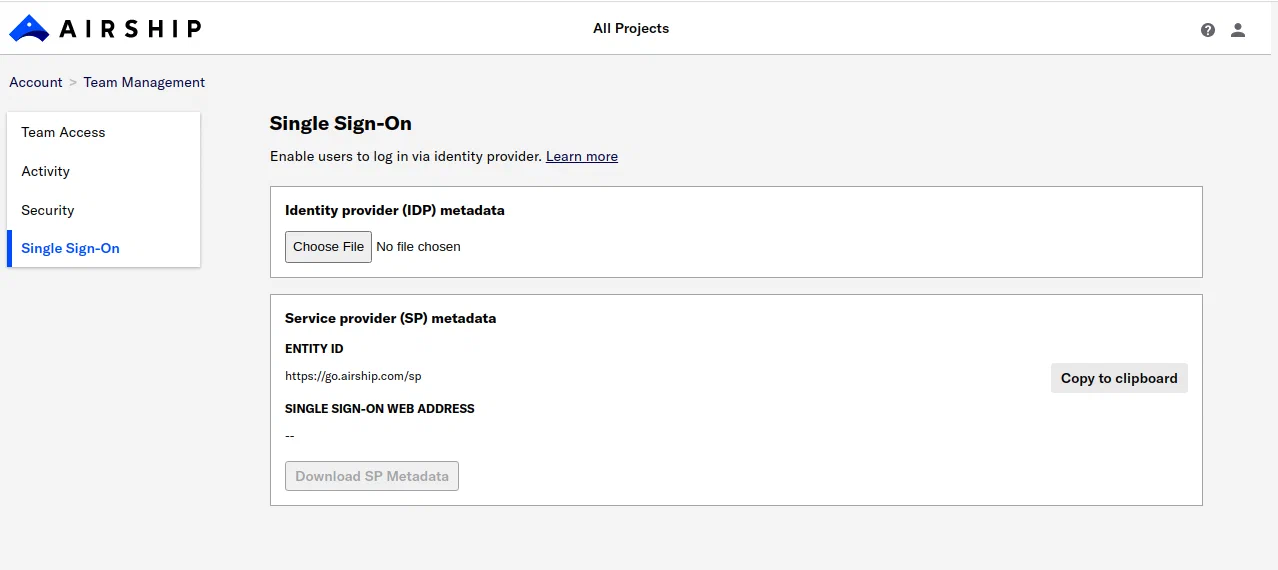
Single sign-on configuration
- US —
Next, give the SP metadata file to your identity provider, and include the Entity ID URL in case they require it.
Test SSO
After your identity provider confirms Airship has been set up as a trusted company, have your users go to your SSO web address and test logging in. If logins fail, contact Airship Support or your technical account manager for assistance.
Go live with SSO
Finally, contact Airship Support and tell them SSO login is successful for your company and they can complete setup for you. Support will:
- Set SSO as a requirement for users to access the projects your account
- Invalidate passwords for all users except the account owners and project administrators
- Notify you that SSO configuration is complete