# Learn about Airship orchestration features
Learn how to coordinate multi-step customer journeys and cross-channel messaging sequences that respond to real-time user behavior and lifecycle events.
# Journeys
> {{< glossary_definition "journey" >}} Design multi-step, cross-channel messaging workflows to onboard, retain, and re-engage users.
Create each component from scratch or use AI to create draft Journeys.
## The Journey map
Select **Journeys** in the dashboard to access the Journey map. From there you can:
* **Create and edit** the individual components of a Journey: a [Sequence](https://www.airship.com/docs/reference/glossary/#sequence), [Scene](https://www.airship.com/docs/reference/glossary/#scene), or [In-App Automation](https://www.airship.com/docs/reference/glossary/#iaa).
* **Connect** components together to form a Journey.
* **View** performance information for an individual component and a **mapped view** of its triggers, events, outcomes, and upstream and downstream connections.
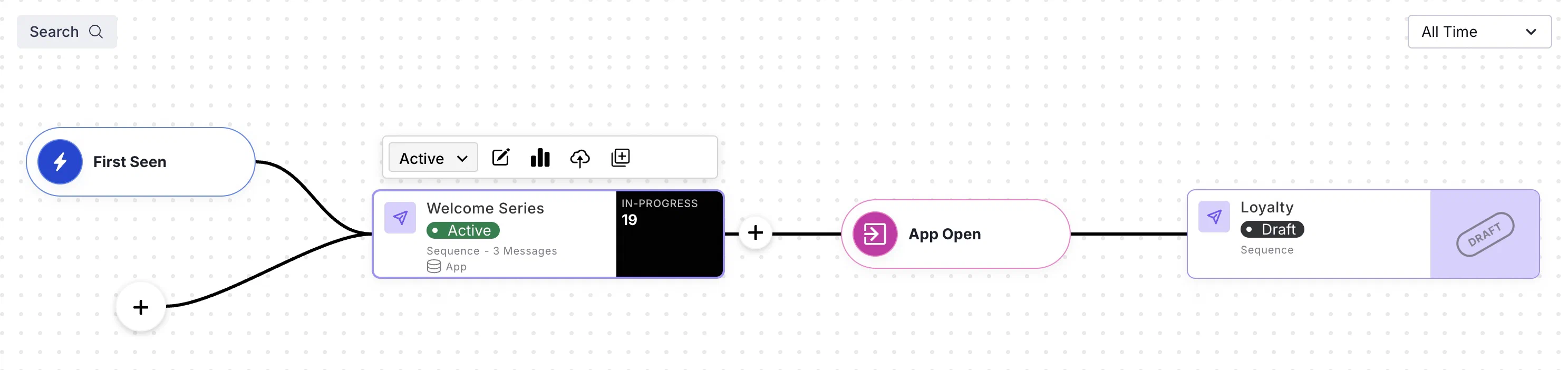
*A Journey of connected messaging components*
> **Tip:** You can access the Journey map from additional locations:
> * In the Sequence, Scene, or In-App Automation composer, select **Journey view**.
> * From [Messages Overview](https://www.airship.com/docs/reference/glossary/#messages_overview), select the map icon (
> ).
> * From the [Sequence Manager](https://www.airship.com/docs/reference/glossary/#sequence_manager) and [Performance](https://www.airship.com/docs/reference/glossary/#sequence_performance) screens, select **Outcomes**, then select **View in map**.
### Selecting a Journey component
After opening the map, all Journey components are listed by name, along with:
* **Status** — Draft, Live (Active), Paused, or Completed
* **Type** — Sequence, In-App Automation, or Scene
* **Last modified** — *Today*, or the number of days, months, etc., since the component was last edited, relative to the current date, time, and your time zone
* **Journey map icon (
)** — Appears next to the component name if it is part of a Journey
The default sort order is last modified, descending. Select the **Name** or **Last modified** column header to toggle ascending/descending order. The list filters as you enter search text, and you can manually filter by Status and Type. Archived components are not included in the list or returned in search results.
Select a component in the list to open it in the map.
### Map cards
After selecting a Journey component, it is represented as a card in the map, along with its triggers, events, outcomes, and upstream and downstream connections.
When a Journey component has multiple triggers, they appear stacked, with the most recently added on top. If a trigger requires additional configuration, the line connecting to its component appears dashed. Select the trigger stack to expand and view all triggers, or select the component card to collapse the stack.
The map displays data for all time by default. You can select a new time frame, and the map will reload with the data for that period. Select the X icon (
) in the search bar to restore the map to its initial state.
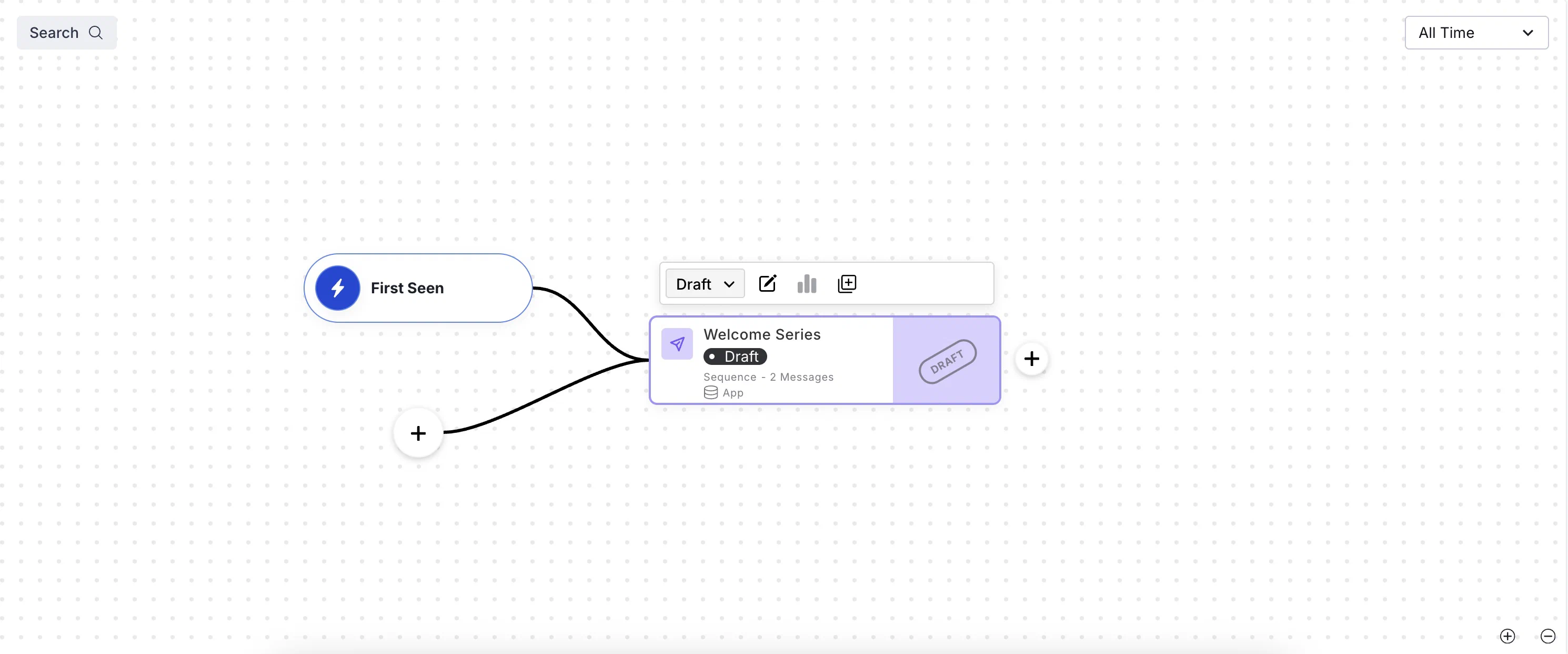
*A draft Sequence in the Journey map*
Each card in the Journey map displays its name, statistics, and status: Draft, Started, Paused, Completed, or Archived. Statistics do not appear for Draft and Archived. Sequences also display their number of messages, and Scenes also display their number of screens.
Trigger configuration appears to the left of map cards. Sequence triggers Date Attribute, Recurring Schedule, and Specific Date and Time will not appear if the specified timing is outside of the selected time frame in the map. See [Sequence Triggers](https://www.airship.com/docs/guides/messaging/messages/sequences/triggers/) and [In-App Experience Triggers](https://www.airship.com/docs/guides/messaging/in-app-experiences/configuration/triggers/).
Outcome configuration appears to the right of map cards. See [Sequence outcomes](https://www.airship.com/docs/guides/messaging/messages/sequences/create/outcomes/) and [Link Journey components](#link-journey-components).
#### Sequence statistics
After selecting a Sequence in the Journey map, these statistics appear on its card:
| Statistic | Description |
| --- | --- |
| **In Progress** | The sum of **Users eligible for message** counts for all messages in the Sequence. |
| **Conversions** | The rate of conversion, calculated by the number of users who exited the Sequence by a conversion event divided by the total number of times the Sequence was triggered. Conversions are labeled **Reactivations** for Sequences using the [Inactivity trigger](https://www.airship.com/docs/guides/messaging/messages/sequences/triggers/#inactivity). |
| **Conversion trend** | For Sequences with a [Control Group](https://www.airship.com/docs/guides/experimentation/control-groups/), the difference between the [Baseline](https://www.airship.com/docs/reference/glossary/#baseline) and current conversion rates for the selected time frame. It appears in green for a positive trend and red for a negative trend. Select the trend to see the [Lift Rate](https://www.airship.com/docs/reference/glossary/#lift_rate), baseline, and the date the baseline was set. |
#### In-App Automation and Scene statistics
After selecting an In-App Automation or Scene in the Journey map, these statistics appear on its card:
| Statistic | Description |
| --- | --- |
| **Impressions** | The total number of views by your audience |
| **Dismissals** | The total number of times your audience closed the message without engagement, such as following a link or clicking a button |
Select a Scene's **Impressions** count to view additional statistics, then select **View Detail** to open its message report. See [Scene Reports](https://www.airship.com/docs/guides/messaging/in-app-experiences/scenes/create/scene-reports/).
Scene Impressions statistics:
| Statistic | Description |
| --- | --- |
| **Completions** | For Scenes with more than one screen, the total number of times all screens in a Scene were displayed and the rate of completion |
| **NPS Score** | For Scenes containing an [NPS survey](https://www.airship.com/docs/guides/messaging/editors/native/elements/#nps), the overall Net Promoter Score. Select the score to show/hide the percentages of Promoters, Passives, and Detractors. |
| **Button Clicks** | For Scenes without an [NPS survey](https://www.airship.com/docs/guides/messaging/editors/native/elements/#nps), the total number of times your audience tapped the buttons in the Scene |
> **Note:** Impressions and dismissals include multiple views/dismissals by a single user. Button clicks include all buttons in a message, and multiple clicks by a single user.
### Actions
Select a card in the map to see available actions appear above the card. You may need to select the three dots icon (
) to expose some actions.
A message's current status is displayed in a dropdown menu. Make a selection from the dropdown menu to [change the message status](https://www.airship.com/docs/guides/messaging/manage/change-status/) or [archive the message](https://www.airship.com/docs/guides/messaging/manage/archive/).
Actions for components in the Journey map:
| Action | Description | Steps |
| --- | --- | --- |
| **Edit** | Opens the message in its composer. See also [Edit a Sequence](https://www.airship.com/docs/guides/messaging/messages/sequences/create/edit/) and [Edit a message](https://www.airship.com/docs/guides/messaging/manage/edit/). | Select the compose icon (
). |
| **Publish Sequence changes** | Applies unpublished edits to a Sequence. For Paused Sequences, it also makes the Sequence Active/Live/Started, which is the same as selecting **
Start** from the [Sequence Manager](https://www.airship.com/docs/reference/glossary/#sequence_manager). | Select the cloud upload icon. |
| **Duplicate** | Creates a copy in draft state and reloads the map with the duplicate selected. The draft has the same name as the original, with "- Copy" appended. | Select the duplicate icon (
). |
| **Unlink** | Removes a component from a Journey. The map will refresh to focus on the component you unlinked. See also [Unlink Journey components](#unlink-journey-components) | Select the unlink icon. |
| **Delete** | Deletes a draft Scene or In-App Automation from your project. Once they have been started they cannot be deleted, only archived. Sequences cannot be deleted, only archived. | Select the trash can icon (
). |
| **Open report** | For Started/Live/Active messages, opens the Sequence [Performance report](https://www.airship.com/docs/reference/glossary/#sequence_performance), the [In-App Automation message report](https://www.airship.com/docs/guides/reports/message/), or the [Scene message report](https://www.airship.com/docs/guides/messaging/in-app-experiences/scenes/create/scene-reports/) | Select the report icon (
). |
## Create Journey components
Quickly create draft Sequences, In-App Automations, and Scenes in the Journey map by entering a message name or selecting a [Sequence Template](https://www.airship.com/docs/reference/glossary/#sequence_template). After creating the draft, the map opens with the new component selected.
For a Sequence based on a template, select the plus icon () in the map, and then select a template.
For a Sequence, In-App Automation, or Scene:
1. Go to **Journeys**.
1. Select the plus icon () in the map.
1. (Sequence only) Select **Start from scratch**, and then enter a name.
1. (In-App Automation or Scene only) Select **In-App Experience**, then select **In-App Automation** or **Scene**, and then enter a name.
1. Select **Continue**.
> **Note:** The plus icon () is only available in the map when you first load the Journeys page. If you already made a selection from the sidebar list or map, select the X icon (
> ) in the search bar to restore the map to its initial state.
>
> You can also access the same menu from the sidebar: Select the **Create** dropdown menu (
> ), then **Journey**.
## Create AI-generated Journeys
[AXP](https://www.airship.com/docs/reference/feature-packages/) [Generative AI](https://www.airship.com/docs/guides/features/intelligence-ai/ai/)
Use Generative AI to create draft Journeys. After generation, the map displays all linked components. You can create up to 100 AI Journeys per project. Explicit content is excluded for all languages.
1. Go to **Journeys**.
1. Select the plus icon () in the map.
1. Configure the prompts:
| Prompt | Description | Steps |
| --- | --- | --- |
| **Generate a Journey for** | The purpose of the Journey, used to name each component and to generate message content | Enter text. |
| **include the following details** | The information you want to convey in your message content | Enter text. |
| **where we message users with** | The [message types](https://www.airship.com/docs/guides/getting-started/basics/#message-types) to include in the Journey: [Push Notification](https://www.airship.com/docs/reference/glossary/#push_notification), [Message Center](https://www.airship.com/docs/reference/glossary/#message_center), [Web Push Notification](https://www.airship.com/docs/reference/glossary/#web_push_notification), [SMS](https://www.airship.com/docs/reference/glossary/#sms), [MMS](https://www.airship.com/docs/reference/glossary/#sms), [Email](https://www.airship.com/docs/guides/messaging/messages/content/email/), [Scene](https://www.airship.com/docs/reference/glossary/#scene), [Story](https://www.airship.com/docs/reference/glossary/#story), and/or Survey (a Scene that includes an NPS survey or questions) | Select at least one message type. |
| **when they** | The user event that initiates the Journey[Supported for Scenes](https://www.airship.com/docs/guides/messaging/in-app-experiences/configuration/triggers/): App Open, App Update, Feature Flag Interaction Event, Screenview
[Supported for Sequences](https://www.airship.com/docs/guides/messaging/messages/sequences/triggers/): Contact Association, Feature Flag Interaction Event, First Seen, Location, Predicted to Churn, Subscription | Select a trigger. |
| **presented in the language of** | The language of the message content | Select a language. |
| **using the personality** | The message content voice and tone determined by a personality defined in your [brand guidelines](https://www.airship.com/docs/guides/messaging/features/brand-guidelines/) | Select a personality. |
| **users will** | The outcome of a Sequence included in the Journey: **None** ensures all triggered messages are sent, **Convert** and **Cancel** remove a user from the Journey based on their performing a specific [Custom Event](https://www.airship.com/docs/reference/glossary/#custom_event) | Select an outcome. For **Convert** or **Cancel**, also search for and select a Custom Event or select **Use <search term>** to use an event name as entered. |
| **include images of** | Descriptions of images to include in messages | Enter text. |
{class="table-col-1-20 table-col-2-40"}
1. Select **Generate**.
Next, edit each component and finalize your trigger, content, and other settings. See full documentation:
* [Sequence configuration](https://www.airship.com/docs/guides/messaging/messages/sequences/create/)
* [Scene configuration](https://www.airship.com/docs/guides/messaging/in-app-experiences/configuration/)
> **Note:** **Opting In to AI Functions**
>
> If you opted out of AI usage, you must sign an updated contract to enable this feature. Contact your account manager for assistance.
>
> **Compliance Considerations in Using AI Functions**
>
> The Service incorporates AI functions, including Generative AI and Agentic AI.
>
> Generative AI generates content such as Notification copy, images, and Journeys based on your prompts.
>
> Agentic AI autonomously optimizes, personalizes, or executes cross-channel customer engagement actions, or analyzes audience and performance data, subject to the parameters and controls you set in the Service. These systems operate under human-defined parameters and do not initiate customer-facing actions without human interaction or pre-configured parameters. You are responsible for reviewing Generated Outputs for accuracy, appropriateness, and to ensure they do not violate third-party intellectual property or other rights. Airship does not publish Generated Outputs to end users without approval from the Customer.
>
> In addition to the applicable terms of your agreement with Airship (e.g., Use of Service, Customer Responsibilities sections), you must comply with the [Airship Acceptable Use Policy](https://www.airship.com/legal/acceptable-use/), which provides additional details about appropriate conduct when using the Service.
>
> The Service includes safety features to block harmful content, such as content that violates our Acceptable Use Policy. You may not attempt to bypass these protective measures or use content that violates your agreement with Airship.
>
> About the AI models:
>
> Airship utilizes Google Gemini and Imagen to generate copy and images for AI Scene screens. The content is created solely with Google's out-of-the-box models, and no customization or fine-tuning with Customer Data is applied. See [Responsible AI](https://cloud.google.com/responsible-ai?hl=en) in Google's *Google Cloud* documentation.
> **Tip:** When creating an AI Journey, use the **include the following details** field for essential information like product features, unique selling points, or call-to-action elements to make the generated content more accurate and aligned with your goals. For example, for a Mother's Day Sale, include details such as "The sale is for 2 weeks, the offer is 30% off beauty and luxury items." You could also provide the information in a shorter, keyword format: "2 week sale, 30% off beauty and luxury."
>
> For **include images of**, make sure to describe specific visual elements. Mention key visual details like colors, objects, setting, or style to ensure the images match your Journey vision. For example, "Create a soft, pastel-colored image featuring flowers, gift boxes, and a 'Mother's Day Sale' banner." Or use keywords "flowers, gift boxes, and 'Mothers Day Sale' banner, soft-pastel background."
>
> Also add context and emotion. Including the mood or context can help capture the desired tone or feeling for each image. For example, "Generate a warm, loving image of a mother receiving a gift."
## Link Journey components
You can link Journey components in these ways:
| Link from | To | Description | Steps |
| --- | --- | --- | --- |
| **Sequence** | **Sequence** | Route users to another Sequence when Airship sends the last message in the current Sequence or when a specific event occurs. | See [Sequence outcomes](https://www.airship.com/docs/guides/messaging/messages/sequences/create/outcomes/). |
| **Sequence** | **In-App Automation or Scene** | Route users to an in-app experience when Airship sends the last message in the current Sequence or when a specific event occurs. If the downstream In-App Automation or Scene does not display on a user's device within a certain period, they will exit the Journey. As an alternative to leaving the Journey, you can route to a fallback Sequence. | See [Sequence outcomes](https://www.airship.com/docs/guides/messaging/messages/sequences/create/outcomes/). |
| **In-App Automation or Scene** | **Sequence** | Route users to a Sequence when an in-app experience displays on a device or when a user selects a button.
For Scenes, you can also route to a Sequence when a user submits answers to [questions](https://www.airship.com/docs/guides/messaging/editors/native/elements/#question), submits responses to an [NPS survey](https://www.airship.com/docs/guides/messaging/editors/native/elements/#nps), or based on a user's response to a [location opt-in](https://www.airship.com/docs/guides/messaging/in-app-experiences/configuration/button-actions/#location-opt-in) or [push opt-in](https://www.airship.com/docs/guides/messaging/in-app-experiences/configuration/button-actions/#push-opt-in) prompt. | See steps following this table. |
| **In-App Automation or Scene** | **In-App Automation or Scene**1 | [iOS SDK 18.4+](/docs/docs/developer/sdk-integration/apple/ios-changelog/#18.4.0) (Android SDK 18+)
Route users to another In-App Automation or Scene after the first one displays on a device or when a user selects a button.
For Scenes, you can also route to an In-App Automation or Scene when a user submits answers to [questions](https://www.airship.com/docs/guides/messaging/editors/native/elements/#question), submits responses to an [NPS survey](https://www.airship.com/docs/guides/messaging/editors/native/elements/#nps), or based on a user's response to a [location opt-in](https://www.airship.com/docs/guides/messaging/in-app-experiences/configuration/button-actions/#location-opt-in) or [push opt-in](https://www.airship.com/docs/guides/messaging/in-app-experiences/configuration/button-actions/#push-opt-in) prompt.
**Not supported for Web Scenes.** | See steps following this table. |
{class="table-col-1-20 table-col-2-20 table-col-3-40"}
1. To hide this option in the dashboard, see [Enabling features](https://www.airship.com/docs/guides/messaging/project/enable-features/#enabling-features) in *Enable dashboard features and set behavioral defaults*.
To link from an In-App Automation or Scene to a Sequence, In-App Automation, or Scene:
1. Go to **Journeys** and [select an In-App Automation or Scene](#selecting-a-journey-component).
1. Select the plus icon () to the right of its map card. A configuration drawer will open.
1. Select **Impression**, **Survey Submission**, **Button Tap**, or **Opt-in**.
1. (For Button Tap only) Select a button.
1. (For Opt-in only) Select the opt-in response for a button.
1. Select **Create New** or **Insert Existing**.
1. Select **Sequence**, **In-App Automation**, or **Scene**.
1. Search for and select an existing message or enter a name for a new draft. In search results, the node icon (
) appears next to items that are already part of a Journey.
1. Select **Save**.
The map will update to show the link to the downstream component.
## Unlink Journey components
Unlinking an In-App Automation or Scene disconnects it from all upstream Sequences. When unlinking a Sequence, you can view all its upstream components and select which ones to unlink from. Anything downstream of the unlinked component will remain unchanged. After unlinking, the map reloads to focus on the unlinked component.
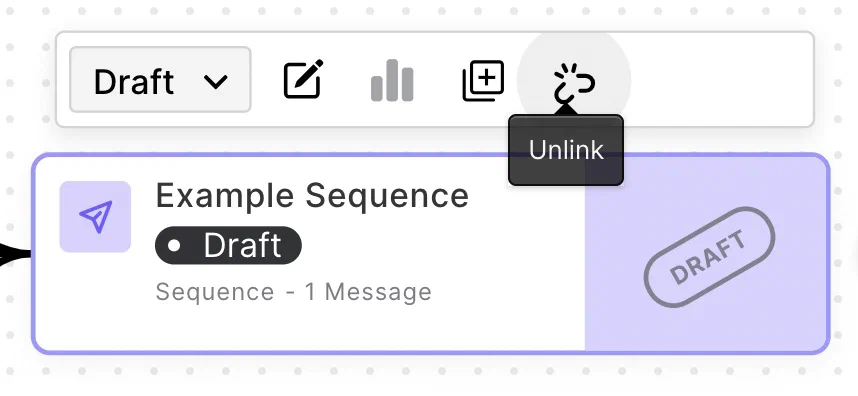
*Unlinking a Sequence from a Journey*
To unlink an In-App Automation or Scene from a Sequence:
1. Go to **Journeys**.
1. [Select an In-App Automation or Scene](#selecting-a-journey-component).
1. Select the three dots icon (
) on its card, then select **Unlink**.
To unlink a Sequence from any Journey component:
1. Go to **Journeys**.
1. [Select a Sequence](#selecting-a-journey-component), and then select the unlink icon. A modal displays a list of upstream components the Sequence is connected to. The top-level list items are each component by name. Under each component name is a list of its connections to the Sequence you want to unlink:
| Component | Connection types |
| --- | --- |
| **In-App Automation or Scene** | Impression, Survey Submission, Button Tap, or Opt-in |
| **Sequence** | Continuation, Conversion, or Cancellation
Conversion and Cancellation are followed by the outcome type (Contact Association or Subscription Event) or the actual Custom Event name or Tag ("<Event name or Tag>"). |
{class="table-col-1-30"}
1. Select which upstream components the Sequence should be unlinked from.
1. Select **Unlink Sequence**.
# Channel Coordination
> {{< glossary_definition "channel_coordination" >}}
Channel Coordination helps you target [Contacts](https://www.airship.com/docs/reference/glossary/#contact) who are opted in to multiple notification channels to maximize engagement. Choose an approach based on your message type, its urgency, and your specific use case.
## How Channel Coordination works
Airship listens for activity such as opens, custom events, and uninstalls, and automatically assigns Tags in the `ua:orchestration` [Tag Group](https://www.airship.com/docs/reference/glossary/#tag_group) to reflect each user's channel activity and availability. Each Tag-based strategy uses one of these Tags to determine message delivery.
When you send a message to a user who is opted in on multiple channels, Channel Coordination determines which channel receives it based on the strategy you've selected.
You can set a strategy in the dashboard or API.
For [Sequences](https://www.airship.com/docs/reference/glossary/#sequence), [Fan Out](#fan-out) is the default behavior when targeting Named Users, and [Originating Channel](#originating-channel) is used for all accounts not enabled for Channel Coordination.
> **Note:** For projects using the [channel-level segmentation system](https://www.airship.com/docs/guides/audience/segmentation/segmentation/#channel-level-segmentation), the strategies target a [Named User](https://www.airship.com/docs/reference/glossary/#named_user), not a Contact, so you must implement Named Users for your project. For [User Preference](#user-preference), you must also set user preference Tags on the Named User. Follow the steps in [Associating Channels with Named Users](https://www.airship.com/docs/guides/audience/named-users/#associate).
## Strategies
Each strategy determines which channel receives your message when a user is reachable on multiple channels.
### Fan Out
*Fan Out* is a Channel Coordination strategy that targets a Contact on all the channels they are opted in to, maximizing the chances they receive your message. This strategy is suitable for highly urgent messages, where the user will not be sensitive to over-messaging. This is the default strategy when a Sequence does not have a triggering channel, e.g., a message sent as a result of a Named User Custom Event or Tag change, which equally applies to all channels.
### Last Active
*Last Active* is a Channel Coordination strategy that targets a Contact on the opted-in channel they used most recently. In many cases user recency is the best indicator of preference. Last Active is supported for App, Web, and Email channels only.
Last Active is based on the following events for each channel:
* **App** — [App open](https://www.airship.com/docs/reference/data-collection/events/#app-open)
* **Web** — [Web session](https://www.airship.com/docs/reference/data-collection/events/#engagement)
* **Email** — [Email open](https://www.airship.com/docs/reference/data-collection/events/#delivery-and-opens), [Email click](https://www.airship.com/docs/reference/data-collection/events/#link-clicks)
A device that is opted-in will have higher priority than an opted-out device even if the opted-out device was active more recently. For example, if the Contact has two devices, iOS and Android, and the iOS device is opted-in while the Android device is opted-out, even if the Android device's app is opened more recently than the iOS device's app has been used, the iOS device will remain the "last active" because it is the only one that is still opted-in.
For example, when a user clicks a link in an email:
* If they are directed to a web page and are registered for web push, Last Active will be Web. Otherwise, it will be Email.
* If they are directed through a deep link to an app and are registered for mobile push notifications, Last Active will be App. Otherwise, it will be Email.
If there is more than one opted-in device for a particular Contact, the device that has most recently had activity will receive any push targeted to the last active device. Examples of possible activities are a registration event, opt-in event, open event, or a custom event.
### Originating Channel
*Originating Channel* is a Channel Coordination strategy that targets a Contact on the channel that triggered a Sequence. Messaging users on the channels they use to engage your brand can help ensure a consistent user experience. This strategy is used for all accounts not enabled for Channel Coordination.
Originating Channel will not work if the triggering behavior is a custom event applied to the Contact. In that case, there is no channel associated with the behavior. Airship will instead use the Fan Out strategy for delivery.
### Priority Channel with Fallback
*Priority Channel* is a Channel Coordination strategy that targets a Contact on the first channel they are opted in to, in the priority order you set. Use this strategy to drive engagement toward one strategic channel, such as directing users to the app to save SMS or email cost. For Sequences, you set priority order for each message.
The priority channel system actively monitors events such as app opens and opt-in status changes to track where your audience is reachable for messaging. However, not all channel state changes are received in real time:
* **Limitation** — On iOS and Android, push providers (APNs and FCM) do not send signals when a user uninstalls an app. Airship only learns of an uninstall when it attempts to send a push notification.
* **Handling** — When an uninstall is detected, Airship automatically redirects the message to the next available channel in the priority list in real time. The Priority Channel Tag is also reassigned at the same time.
> **Note:** For projects using the [channel-level segmentation system](https://www.airship.com/docs/guides/audience/segmentation/segmentation/#channel-level-segmentation), before you can use the Priority Channel strategy, you must set the priority order for your project. This setting determines the default channel order after selecting the Priority Channel strategy. You must have at least two channels configured and enabled.
>
>
Set the priority order of your project’s configured and enabled channels:
>
> - Next to your project name, select the dropdown menu (
> ), then Settings.
> - Under Project settings, select Channel Priority.
> - Enable the channels you want to send the message to.
> - Drag your selected channels into priority order.
> - Select Save.
>
>
> After setting priority order for your project, additional processing time may be required to set the Priority Channel Tag for larger audiences. The Tag will be available for use after several minutes for smaller audiences and up to several hours for audiences of one million or more.
>
>
### User Preference
*User Preference* is a Channel Coordination strategy that targets a Contact on their preferred channel. This is understood to provide the optimal customer experience. This strategy is supported for projects using the [channel-level segmentation system](https://www.airship.com/docs/guides/audience/segmentation/segmentation/#channel-level-segmentation) only and is not supported for [Sequences](https://www.airship.com/docs/reference/glossary/#sequence).
#### Set channel priority
Before using the User Preference strategy, you must first set channel priority in your Airship project. This initializes the Tag class used for User Preference and makes it available to use.
Set the priority order of your project’s configured and enabled channels:
- Next to your project name, select the dropdown menu (
), then Settings.
- Under Project settings, select Channel Priority.
- Enable the channels you want to send the message to.
- Drag your selected channels into priority order.
- Select Save.
You can then remove the settings and save again or keep them in place if you intend to also use the [Priority Channel with Fallback](#priority-channel-with-fallback) strategy.
#### Apply channel preference Tags
In order to set a preferred channel for a user, they must be opted in on at least two messaging channels, such as iOS and Web. Before you can target users based on their channel preference, you first need to set Tags expressing that preference.
For a user that is opted in on multiple channels and has provided an explicit communication preference, first add a `user_preferred` Tag to the preferred channel, then target that Tag in your messaging.
You will set a `"user_preferred"` Tag in the `"ua:orchestration"` Tag Group on one channel per Named User.
* List all channels for your Named User by using the [Named User Lookup API](https://www.airship.com/docs/developer/rest-api/ua/operations/named-users/).
* Once you parse the results to gather the [Channel IDs](https://www.airship.com/docs/reference/glossary/#channel_id), maintain the `"user_preferred"` Tag on each channel using our [Tags API](https://www.airship.com/docs/developer/rest-api/ua/operations/tags/):
```http
POST /api/channels/tags HTTP/1.1
Authorization: Basic
Accept: application/vnd.urbanairship+json; version=3
Content-Type: application/json
{
"audience": {
"ios_channel": "b8f9b663-0a3b-cf45-587a-be880946e881"
},
"add": {
"ua:orchestration": [
"user_preferred"
]
}
}
```
## Setting a strategy in the dashboard
You can set Channel Coordination in the following locations in the dashboard:
| Strategy | Message composer | Automation composer | Sequence messages | A/B test variants |
| --- | --- | --- | --- | --- |
| **Fan Out** | Yes | Yes | Yes | Yes |
| **Last Active** | Yes | Yes | Yes | Yes |
| **Priority Channel** | Yes | Yes | Yes | Yes |
| **Originating Channel** | No | No | Yes | No |
In the Message composer and A/B test variants, set Channel Coordination in the **Audience** step. In the Automation composer and each message in a Sequence, set it in the **Setup** step. Configuration is the same in all locations:
1. Under **Channel coordination**, select a strategy.
1. Enable the channel types to include in your audience. For Mobile Apps, also select from the available platforms.
1. For Priority Channel, drag the channel types into priority order.
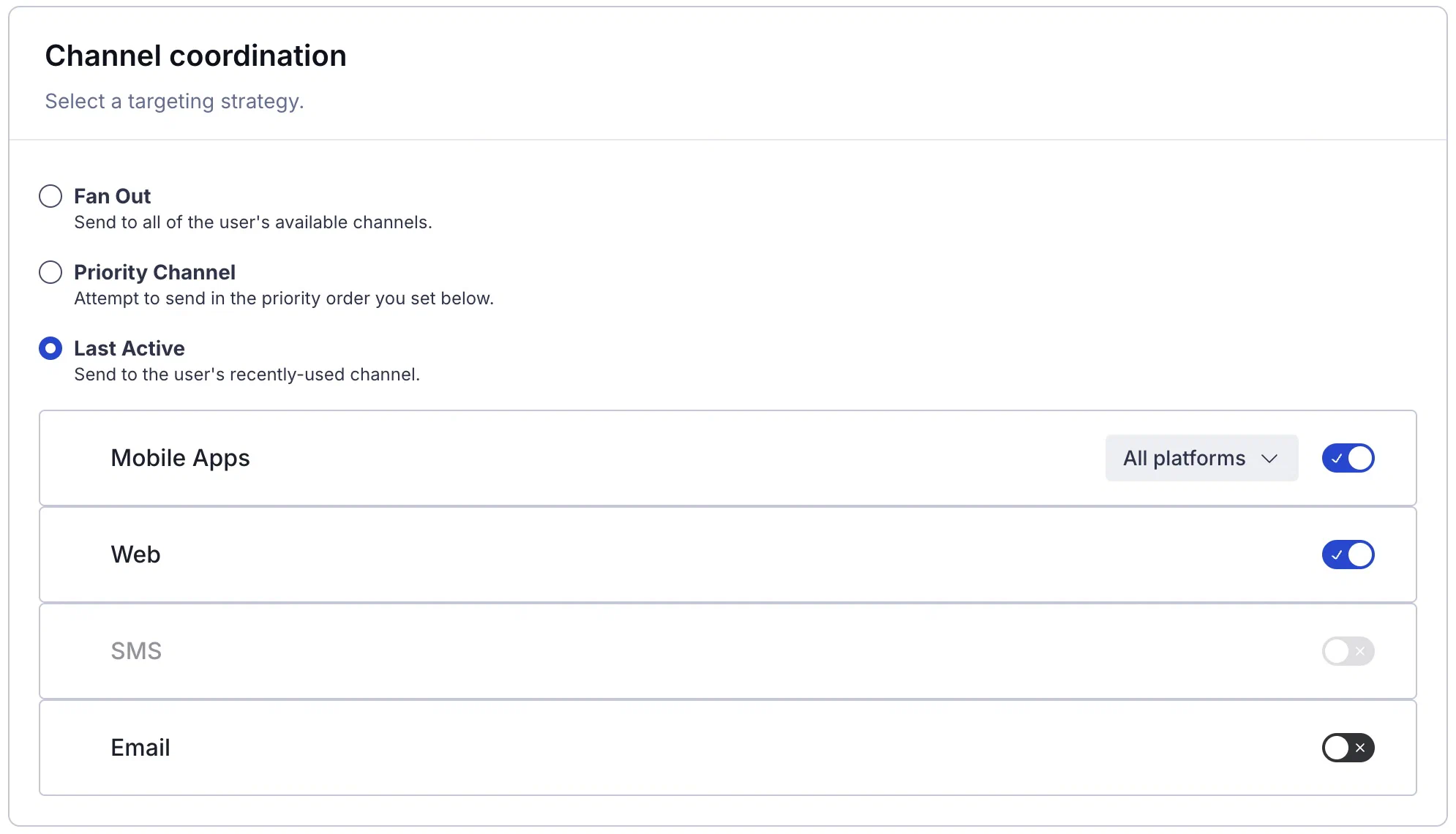
*Setting a Channel Coordination strategy in the Message composer*
### Channel-level segmentation
For projects using the [channel-level segmentation system](https://www.airship.com/docs/guides/audience/segmentation/segmentation/#channel-level-segmentation), you can set Channel Coordination in the following locations in the dashboard:
| Strategy | Message composer | Sequence messages | A/B tests | A/B tests (legacy) | Feature Flag Configurations |
| --- | --- | --- | --- | --- | --- |
| **Fan Out** | Yes | Yes | Yes | Yes | Yes |
| **Last Active** | Yes | Yes | Yes | Yes | Yes |
| **Priority Channel** | Yes | Yes | Yes | Yes | Yes |
| **User Preference** | Yes | No | Yes | Yes | Yes |
| **Originating Channel** | No | Yes | No | No | No |
In the Message composer, A/B tests, legacy A/B tests, and Feature Flag Configurations, configure Channel Coordination in the **Audience** step:
1. Select **Target Specific Users**.
1. (In Feature Flag Configurations only) Select **Segments**.
1. For Fan Out, search for a Named User and select from the listed results.
1. For Last Active, Priority Channel, and User Preference:
1. Search for and select the `Orchestration` Tag Group.
1. Search for the specific tag within the Tag Group:
* `last_active` for Last Active
* `priority_platform` for Priority Channel
* `user_preferred` for User Preference
1. Set the **True** operator to include users for whom the condition is true.
For Sequences, set Channel Coordination after selecting **Add message content** for a new message:
1. Select a strategy.
1. Enable the channel types to include in your audience.
1. For Priority Channel, drag the channel types into priority order.
> **Note:** For Priority Channel, when the App channel is enabled, Airship will send to any iOS, Android, or Fire OS devices that are opted-in to notifications.
In addition to audience configuration, you can also include Tags for Last Active, Priority Channel, and User Preference in a [Segment](https://www.airship.com/docs/reference/glossary/#segment):
1. Search for and select the `Orchestration` Tag Group.
1. Search for the `last_active`, `priority_platform`, or `user_preferred` Tag within the Tag Group.
1. Set the **True** operator to include users for whom the condition is true.
## Setting a strategy using the API
To set [Fan Out](#fan-out) using the API, enumerate all configured messaging platforms using the `device_types` selector.
**Setting the Fan Out strategy**
```http
POST /api/push HTTP/1.1
Authorization: Basic
Content-Type: application/json
Accept: application/vnd.urbanairship+json; version=3
{
"audience": {
"named_user": "ozymandias"
},
"notification": {
"alert": "Look upon which works now?"
},
"device_types": [
"ios",
"android",
"sms",
"web"
]
}
```
To set [Last Active](#last-active), [Priority Channel](#priority-channel-with-fallback), and [User Preference](#user-preference) using the API, use the `last_active`, `priority_platform`, or `user_preferred` Tag in the `ua:orchestration` Tag Group.
**Setting the Last Active strategy**
```http
POST /api/push HTTP/1.1
Authorization: Basic
Content-Type: application/json
Accept: application/vnd.urbanairship+json; version=3
{
"audience": {
"tag": "last_active",
"group": "ua:orchestration"
},
"notification": {
"alert": "Hi, last active!"
},
"device_types": [
"ios",
"android",
"sms",
"web"
]
}
```