Channel Coordination
Channel Coordination is a group of strategies for targeting users where they are most likely to receive your message.
Channel Coordination helps you target ContactsAny user in your project. Contacts are identified as either an Anonymous Contact or a Named User. Airship can set targeting data on these identifiers, which are also used to map devices and channels to a specific user. who are opted in to multiple notification channels to maximize engagement. Choose an approach based on your message type, its urgency, and your specific use case.
How Channel Coordination works
Airship listens for activity such as opens, custom events, and uninstalls, and automatically assigns Tags in the ua:orchestration Tag GroupAn array of tags that you can associate with both channels and Named Users. to reflect each user’s channel activity and availability. Each Tag-based strategy uses one of these Tags to determine message delivery.
When you send a message to a user who is opted in on multiple channels, Channel Coordination determines which channel receives it based on the strategy you’ve selected.
You can set a strategy in the dashboard or API.
For SequencesA series of messages that is initiated by a trigger. Airship sends messages in the series based on your timing settings, and you can also set conditions that determine its audience and continuation. Sequences can be connected to each other and to other messaging components to create continuous user experiences in a Journey., Fan Out is the default behavior when targeting Named Users, and Originating Channel is used for all accounts not enabled for Channel Coordination.
For projects using the channel-level segmentation system, the strategies target a Named UserA customer-provided identifier used for mapping multiple devices and channels to a specific individual., not a Contact, so you must implement Named Users for your project. For User Preference, you must also set user preference Tags on the Named User. Follow the steps in Associating Channels with Named Users.
Strategies
Each strategy determines which channel receives your message when a user is reachable on multiple channels.
Fan Out
Fan Out is a Channel Coordination strategy that targets a Contact on all the channels they are opted in to, maximizing the chances they receive your message. This strategy is suitable for highly urgent messages, where the user will not be sensitive to over-messaging. This is the default strategy when a Sequence does not have a triggering channel, e.g., a message sent as a result of a Named User Custom Event or Tag change, which equally applies to all channels.
Last Active
Last Active is a Channel Coordination strategy that targets a Contact on the opted-in channel they used most recently. In many cases user recency is the best indicator of preference. Last Active is supported for App, Web, and Email channels only.
Last Active is based on the following events for each channel:
- App — App open
- Web — Web session
- Email — Email open, Email click
A device that is opted-in will have higher priority than an opted-out device even if the opted-out device was active more recently. For example, if the Contact has two devices, iOS and Android, and the iOS device is opted-in while the Android device is opted-out, even if the Android device’s app is opened more recently than the iOS device’s app has been used, the iOS device will remain the “last active” because it is the only one that is still opted-in.
For example, when a user clicks a link in an email:
- If they are directed to a web page and are registered for web push, Last Active will be Web. Otherwise, it will be Email.
- If they are directed through a deep link to an app and are registered for mobile push notifications, Last Active will be App. Otherwise, it will be Email.
If there is more than one opted-in device for a particular Contact, the device that has most recently had activity will receive any push targeted to the last active device. Examples of possible activities are a registration event, opt-in event, open event, or a custom event.
Originating Channel
Originating Channel is a Channel Coordination strategy that targets a Contact on the channel that triggered a Sequence. Messaging users on the channels they use to engage your brand can help ensure a consistent user experience. This strategy is used for all accounts not enabled for Channel Coordination.
Originating Channel will not work if the triggering behavior is a custom event applied to the Contact. In that case, there is no channel associated with the behavior. Airship will instead use the Fan Out strategy for delivery.
Priority Channel with Fallback
Priority Channel is a Channel Coordination strategy that targets a Contact on the first channel they are opted in to, in the priority order you set. Use this strategy to drive engagement toward one strategic channel, such as directing users to the app to save SMS or email cost. For Sequences, you set priority order for each message.
The priority channel system actively monitors events such as app opens and opt-in status changes to track where your audience is reachable for messaging. However, not all channel state changes are received in real time:
- Limitation — On iOS and Android, push providers (APNs and FCM) do not send signals when a user uninstalls an app. Airship only learns of an uninstall when it attempts to send a push notification.
- Handling — When an uninstall is detected, Airship automatically redirects the message to the next available channel in the priority list in real time. The Priority Channel Tag is also reassigned at the same time.
For projects using the channel-level segmentation system, before you can use the Priority Channel strategy, you must set the priority order for your project. This setting determines the default channel order after selecting the Priority Channel strategy. You must have at least two channels configured and enabled.
Set the priority order of your project’s configured and enabled channels:
- Next to your project name, select the dropdown menu (), then Settings.
- Under Project settings, select Channel Priority.
- Enable the channels you want to send the message to.
- Drag your selected channels into priority order.
- Select Save.
After setting priority order for your project, additional processing time may be required to set the Priority Channel Tag for larger audiences. The Tag will be available for use after several minutes for smaller audiences and up to several hours for audiences of one million or more.
User Preference
User Preference is a Channel Coordination strategy that targets a Contact on their preferred channel. This is understood to provide the optimal customer experience. This strategy is supported for projects using the channel-level segmentation system only and is not supported for SequencesA series of messages that is initiated by a trigger. Airship sends messages in the series based on your timing settings, and you can also set conditions that determine its audience and continuation. Sequences can be connected to each other and to other messaging components to create continuous user experiences in a Journey..
Set channel priority
Before using the User Preference strategy, you must first set channel priority in your Airship project. This initializes the Tag class used for User Preference and makes it available to use.
Set the priority order of your project’s configured and enabled channels:
- Next to your project name, select the dropdown menu (), then Settings.
- Under Project settings, select Channel Priority.
- Enable the channels you want to send the message to.
- Drag your selected channels into priority order.
- Select Save.
You can then remove the settings and save again or keep them in place if you intend to also use the Priority Channel with Fallback strategy.
Apply channel preference Tags
In order to set a preferred channel for a user, they must be opted in on at least two messaging channels, such as iOS and Web. Before you can target users based on their channel preference, you first need to set Tags expressing that preference.
For a user that is opted in on multiple channels and has provided an explicit communication preference, first add a user_preferred Tag to the preferred channel, then target that Tag in your messaging.
You will set a "user_preferred" Tag in the "ua:orchestration" Tag Group on one channel per Named User.
- List all channels for your Named User by using the Named User Lookup API.
- Once you parse the results to gather the Channel IDsAn Airship-specific unique identifier used to address a channel instance, e.g., a smartphone, web browser, email address., maintain the
"user_preferred"Tag on each channel using our Tags API:POST /api/channels/tags HTTP/1.1 Authorization: Basic <master authorization string> Accept: application/vnd.urbanairship+json; version=3 Content-Type: application/json { "audience": { "ios_channel": "b8f9b663-0a3b-cf45-587a-be880946e881" }, "add": { "ua:orchestration": [ "user_preferred" ] } }
Setting a strategy in the dashboard
You can set Channel Coordination in the following locations in the dashboard:
| Strategy | Message composer | Automation composer | Sequence messages | A/B test variants |
|---|---|---|---|---|
| Fan Out | Yes | Yes | Yes | Yes |
| Last Active | Yes | Yes | Yes | Yes |
| Priority Channel | Yes | Yes | Yes | Yes |
| Originating Channel | No | No | Yes | No |
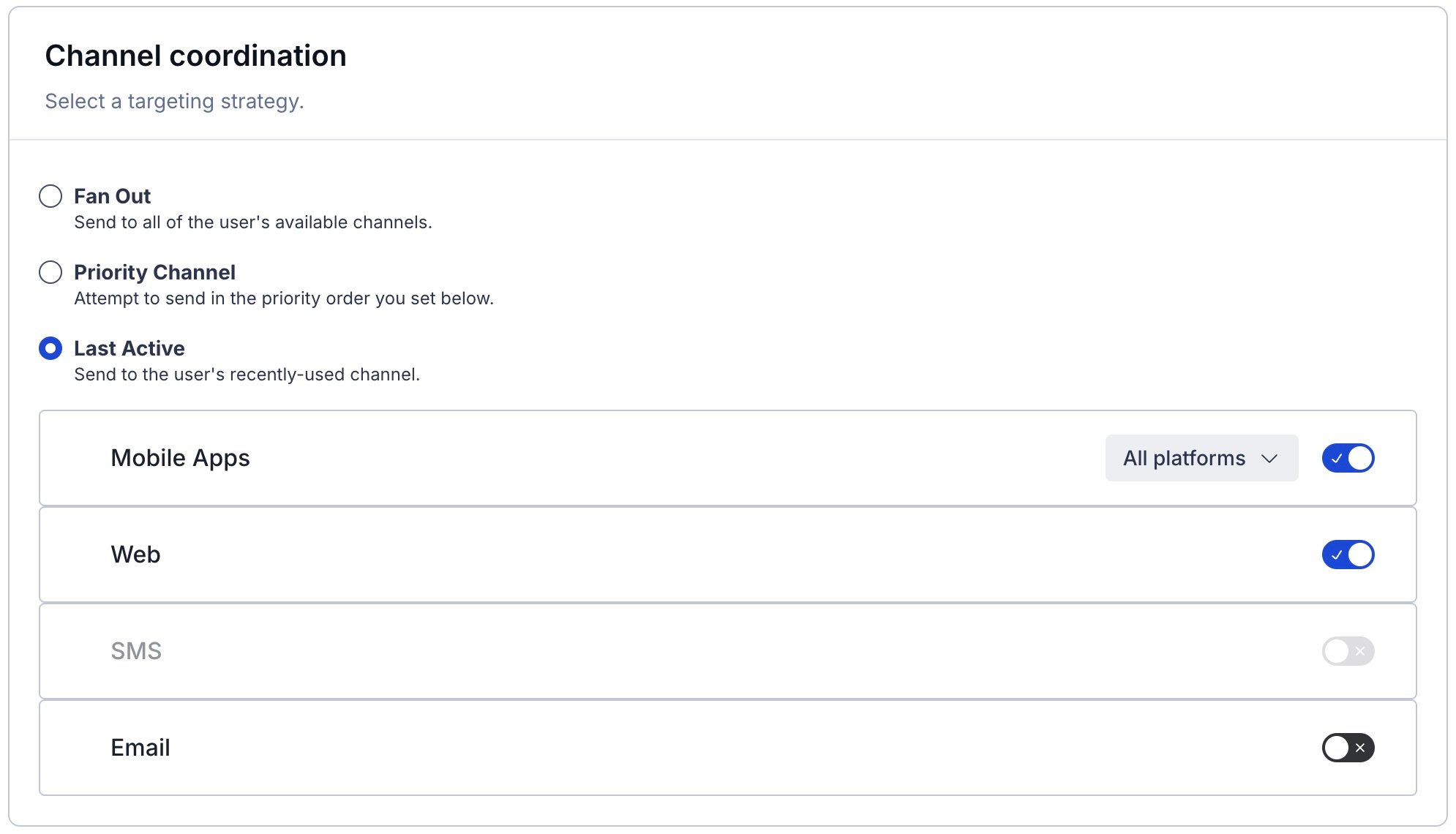
In the Message composer and A/B test variants, set Channel Coordination in the Audience step. In the Automation composer and each message in a Sequence, set it in the Setup step. Configuration is the same in all locations:
- Under Channel coordination, select a strategy.
- Enable the channel types to include in your audience. For Mobile Apps, also select from the available platforms.
- For Priority Channel, drag the channel types into priority order.
Channel-level segmentation
For projects using the channel-level segmentation system, you can set Channel Coordination in the following locations in the dashboard:
| Strategy | Message composer | Sequence messages | A/B tests | A/B tests (legacy) | Feature Flag Configurations |
|---|---|---|---|---|---|
| Fan Out | Yes | Yes | Yes | Yes | Yes |
| Last Active | Yes | Yes | Yes | Yes | Yes |
| Priority Channel | Yes | Yes | Yes | Yes | Yes |
| User Preference | Yes | No | Yes | Yes | Yes |
| Originating Channel | No | Yes | No | No | No |
In the Message composer, A/B tests, legacy A/B tests, and Feature Flag Configurations, configure Channel Coordination in the Audience step:
- Select Target Specific Users.
- (In Feature Flag Configurations only) Select Segments.
- For Fan Out, search for a Named User and select from the listed results.
- For Last Active, Priority Channel, and User Preference:
- Search for and select the
OrchestrationTag Group. - Search for the specific tag within the Tag Group:
last_activefor Last Activepriority_platformfor Priority Channeluser_preferredfor User Preference
- Set the True operator to include users for whom the condition is true.
- Search for and select the
For Sequences, set Channel Coordination after selecting Add message content for a new message:
- Select a strategy.
- Enable the channel types to include in your audience.
- For Priority Channel, drag the channel types into priority order.
For Priority Channel, when the App channel is enabled, Airship will send to any iOS, Android, or Fire OS devices that are opted-in to notifications.
In addition to audience configuration, you can also include Tags for Last Active, Priority Channel, and User Preference in a SegmentA reusable audience group you create by selecting unique or shared user data.:
- Search for and select the
OrchestrationTag Group. - Search for the
last_active,priority_platform, oruser_preferredTag within the Tag Group. - Set the True operator to include users for whom the condition is true.
Setting a strategy using the API
To set Fan Out using the API, enumerate all configured messaging platforms using the device_types selector.
POST /api/push HTTP/1.1
Authorization: Basic <master authorization string>
Content-Type: application/json
Accept: application/vnd.urbanairship+json; version=3

{
   "audience": {
      "named_user": "ozymandias"
   },
   "notification": {
      "alert": "Look upon which works now?"
   },
   "device_types": [
      "ios",
      "android",
      "sms",
      "web"
   ]
}
To set Last Active, Priority Channel, and User Preference using the API, use the last_active, priority_platform, or user_preferred Tag in the ua:orchestration Tag Group.
POST /api/push HTTP/1.1
Authorization: Basic <master authorization string>
Content-Type: application/json
Accept: application/vnd.urbanairship+json; version=3

{
   "audience": {
      "tag": "last_active",
      "group": "ua:orchestration"
   },
   "notification": {
      "alert": "Hi, last active!"
   },
   "device_types": [
      "ios",
      "android",
      "sms",
      "web"
   ]
}