See [Getting Started for the Web SDK](https://www.airship.com/docs/developer/sdk-integration/web/getting-started/) in our developer documentation. Once your project is set up, you can start creating slideshow [Scenes](https://www.airship.com/docs/guides/messaging/in-app-experiences/scenes/create/). To set default values for all new Scenes, see [In-App Experience Defaults](https://www.airship.com/docs/guides/messaging/in-app-experiences/configuration/defaults/). # Embedded Content > Embed Scene content inline within your app or web screens to create seamless, contextual experiences. {{< badge_sdk_min ios="18.7+" android="18.1.4+" >}} {{< badge "axp" >}} ## About Embedded Content 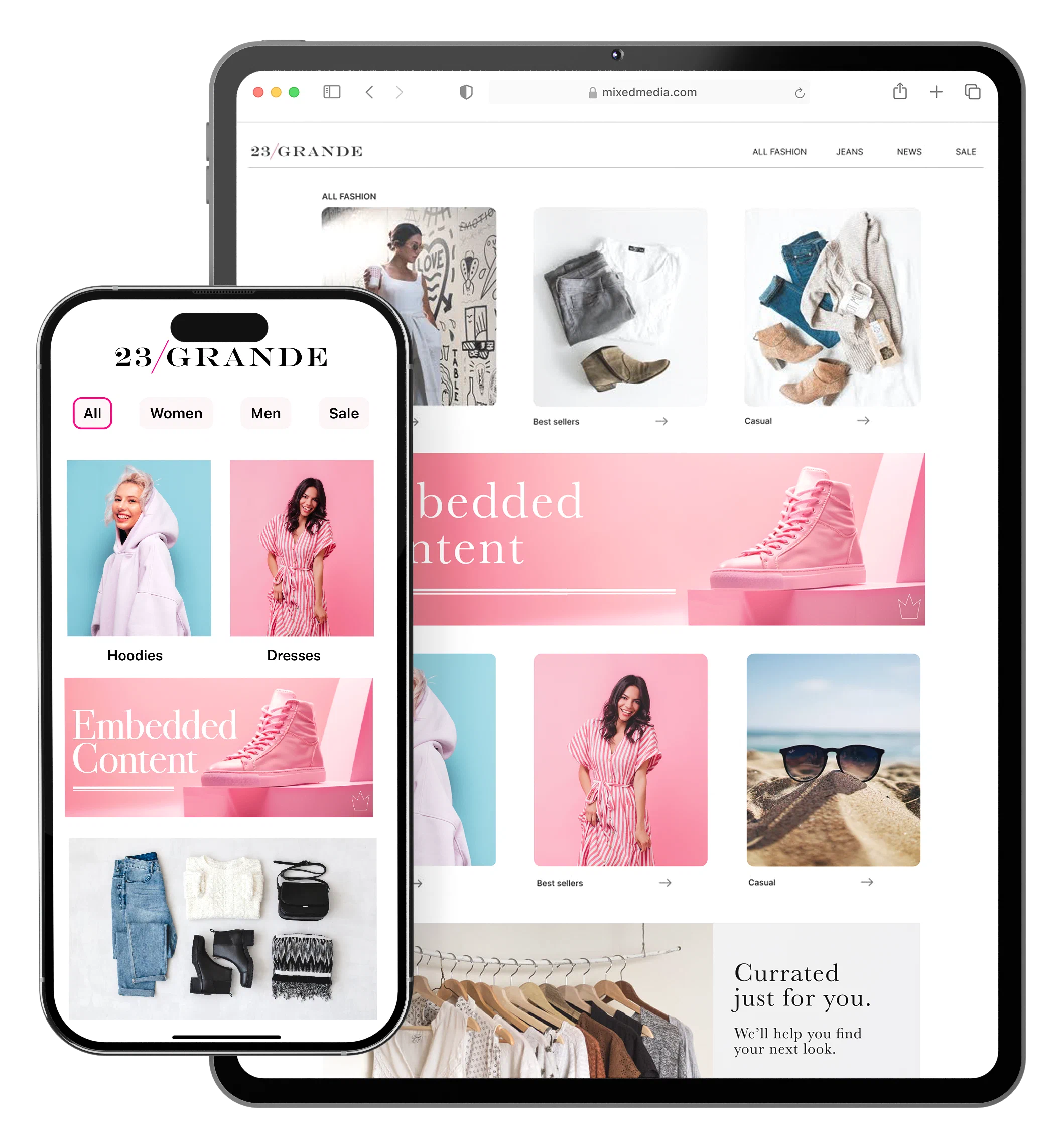 *Embedded Content* Embedded Content is an alternative Scene format that can be displayed on any app or web screen in a view defined by a developer. It can also be presented in Story format. * **Seamless inline experiences** — Present Scene content within your app or website screens, naturally fitting into your existing flow. * **Integrated display** — Unlike modal or fullscreen Scenes that appear as overlays, Embedded Content appears directly within your existing views, making it ideal for promotional banners, contextual messaging, and personalized content cards. Use Embedded Content to: * **Display contextual messages** — Show relevant content inline with your existing UI, such as promotional banners on a home screen or product recommendations within a shopping flow. * **Personalize content** — Use audience targeting and Scene capabilities to show different content to different users in the same view location. * **Test and iterate** — Update content remotely without requiring app updates, allowing you to test different messages and layouts quickly. Consider using modal or fullscreen Scenes instead when you need to: * Capture immediate attention with an overlay * Display important announcements or critical actions * Show content that requires full user focus ### How Embedded Content works There are three primary components that work together to display Embedded Content. Components 1 and 2 can be created in any order, as long as their IDs match: 1. **A "view" in your app or website where Scene content will display** — An app developer creates an embedded view component, such as `AirshipEmbeddedView` for iOS, that controls the dimensions of the content and its location. A web developer creates an HTML container where Scene content will be rendered. For both, they also determine what content can be displayed in the view by setting a value for the view's `embeddedId` that matches the ID of an Embedded Content view style. 1. **A view style in your project settings** — A marketer creates an Embedded Content view style and assigns an ID for reference in the app or web view's `embeddedId`. 1. **A Scene using an Embedded Content view style** — This is the source of the content that will be displayed in the view. Once the Scene is triggered for display and matches the specified audience conditions, its content is available to users when visiting an app screen or web page that contains the view. The view is populated with the content from all active Scenes with the matching ID, sorted based on priority. When an embedded view loads content, the highest priority Scene that is queued for display will be shown. The same content will be shown across app and web sessions until it is dismissed by the user or is no longer available. The view will then show the next Scene with the highest priority from the display queue. Airship first prepares the content when the triggering event occurs and then refreshes it upon every app open or web session start. This ensures that users always experience the most up-to-date message. So, after updating active Embedded Content, users will see the latest version the next time they visit an app screen or web page containing the view. ## Getting started with Embedded Content Follow these steps to start using Embedded Content with Airship: * link **Create a "view" in your app or website where Scene content will display** → See the [Embedded Content](https://www.airship.com/docs/sdk-topics/embedded-content/) developer documentation for mobile app and web. * link **Create an Embedded Content view style with an ID matching the app or web view's `embeddedId`** → See [Set Embedded Content view styles](https://www.airship.com/docs/guides/messaging/in-app-experiences/configuration/defaults/#set-embedded-content-view-styles) in *In-App Experience Defaults*. With the above in place, you can create a slideshow [Scene](https://www.airship.com/docs/guides/messaging/in-app-experiences/scenes/create/). In the Content step, select your Embedded Content view style when [setting the Scene's root appearance](https://www.airship.com/docs/guides/messaging/editors/native/root/). # Custom Views for Scenes > {{< glossary_definition "custom_view" >}} {{< badge_sdk_min ios="19.2+" android="19.4+" >}} ## About Custom Views Bridge the gap between no-code flexibility and **advanced custom capabilities**. You can embed native mobile app views or custom web components registered via the Airship SDK directly into a Scene. This allows you to include: * **Authentication** — Embed login, sign-up, or biometric prompts directly within an onboarding flow. * **Commerce** — Embed shopping carts or checkout flows directly within the message. * **Existing UI components** — Reuse complex interfaces you've already built, such as video players, product cards, or AR experiences. * **Interactive maps** — Embed store locators or delivery tracking. * **Live data** — Display real-time stock quotes, flight status, or sports scores. You can add key-value pairs for the view so your app can serve a more specific or granular view. For example, a map view can reference a specific place, or a score widget can reference specific teams. Values can be personalized using [Handlebars](https://www.airship.com/docs/reference/glossary/#handlebars). ### Use cases Custom Views enable these use cases: * **Native maps** — Direct users to their local store or embed a store locator component in a Scene. * **Shopping cart** — Embed a user's shopping cart contents in a Scene advertising a promotion or coupon. * **Ads** — Embed ad views from your native ad SDK to serve that content in a Scene. * **Retail** — Embed product wishlists and shopping carts, and complete checkout flows directly within a Scene. * **Travel** — Display real-time flight status information and gate changes or allow users to book travel. * **Sports** — Show live scores, game statistics, or personalized highlights. * **Finance** — Display a user's transaction history, investment portfolio, or real-time stock quotes. 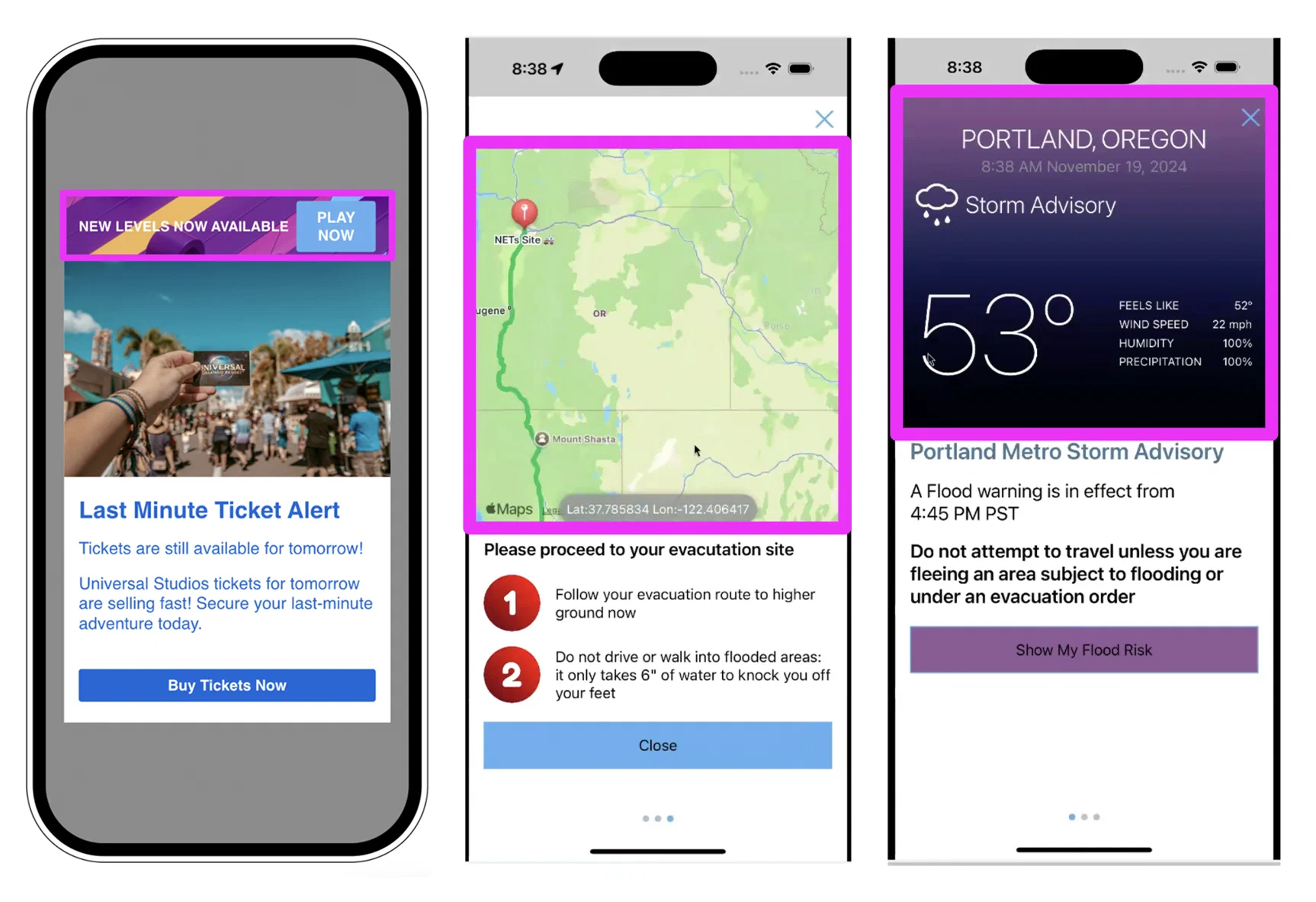 *Custom Views in Scenes* ## Getting started with Custom Views Follow these steps to start using Custom Views for Scenes: * link **Register the native view in your mobile application using the Airship SDK.** → See the [Mobile Custom Views](https://www.airship.com/docs/sdk-topics/custom-views/) developer documentation. * link **Register the native view in your web application using the Airship SDK.** → See [Web Custom Views](https://www.airship.com/docs/developer/sdk-integration/web/in-app-experiences/#custom-views) in our developer documentation. Once a Custom View is registered with the Airship SDK, you can add it to a Scene. When configuring a screen, add the + [Custom View content element](https://www.airship.com/docs/guides/messaging/editors/native/elements/#custom-view) and enter the view name as defined by your developer. # Surveys and Stories > Configure a Scene as a survey to collect user feedback. Enable Story mode for auto-advancing experiences. ## Surveys 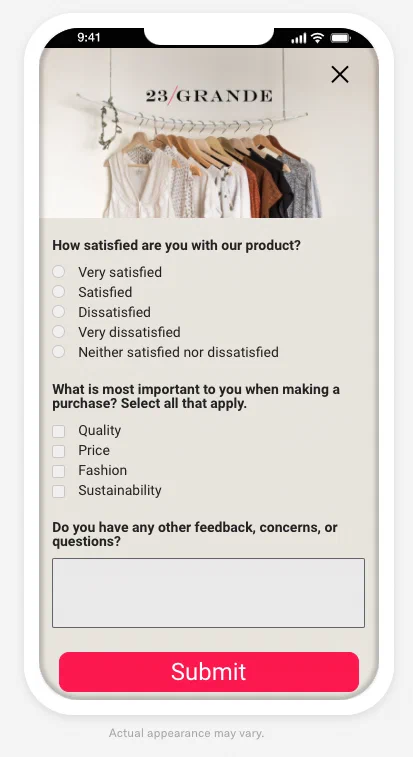 *Fullscreen user feedback survey* Respond to user behaviors instantly by presenting a survey at the best time, giving you precise control of the user experience. You can add [questions](https://www.airship.com/docs/guides/messaging/editors/native/elements/#question) and/or the [Net Promoter Score (NPS) element](https://www.airship.com/docs/guides/messaging/editors/native/elements/#nps) to create a survey. An NPS survey is based on the [net promoter score](https://en.wikipedia.org/wiki/Net_promoter_score) metric, which measures how likely it is that your users would recommend your brand or product to a friend or colleague. This can be used to measure their overall sentiment about your brand or product (known as relational NPS) or about a specific experience or transaction such as booking a flight (known as transactional NPS). The survey format is a question with answer scale 0-10. You can also create a confirmation screen that appears when a user submits their answers. Instead of starting from scratch, you can select the NPS or User Feedback default content layout. After selection, you can customize the questions and design. ### NPS segmentation For NPS surveys, Airship automatically generates [Attributes](https://www.airship.com/docs/reference/glossary/#attributes) based on the following data: * **NPS Score** is the score submitted by the user: 0-10. * **NPS Category** is one of three categories based on the NPS Score. Ratings 9 and 10 have category Promoter, 7 and 8 are Passive, and 6 or lower are Detractor. ## Story mode  *A Scene presented in Story format* The default behavior of a Scene requires the user to swipe between screens. Story mode enables automatic transitions to the next screen without requiring swiping. When configuring Story mode, you set how long each screen is displayed (1-60 seconds) and determine what happens after the story ends: Loop, display the last screen, or dismiss the Scene. When viewing a story, a progress bar indicates the number of screens and their remaining duration. Users can navigate between screens, pause playback, and close the Scene using tap, swipe, and hold gestures: * Tap the right side of a Scene to go to the next screen and tap the left side to go to the previous screen * Tap and hold anywhere on the Scene to pause * Tap the play/pause button to pause or resume automatic transitions and background video playback * Tap outside of a non-fullscreen Scene to close * Swipe down within the Scene or tap the Dismiss button (×) to close Story mode does not support: * Scrolling — Make sure to design screens for small device dimensions to eliminate the appearance of a non-functional scroll bar. * [Questions](https://www.airship.com/docs/guides/messaging/editors/native/elements/#question) or [NPS](https://www.airship.com/docs/guides/messaging/editors/native/elements/#nps) * [Branching](https://www.airship.com/docs/reference/glossary/#branching) * Background video play controls — Since the screen-level control is not available in Story mode, use the [Play control setting for the root appearance](https://www.airship.com/docs/guides/messaging/editors/native/root/) instead. Set Story mode in the Content step of a Scene. See [Scene behaviors](https://www.airship.com/docs/guides/messaging/editors/native/behaviors/). # Scene Branching > {{< glossary_definition "branching" >}} {{< badge_sdk_min ios="19.6+" android="19.9+" >}} Use branching in Scenes to create personalized and dynamic experiences tailored to user behavior. ## About branching Branching expands a Scene's capabilities by ensuring users only see and interact with content according to the rules you create to guide them to specific screens. Design paths between screens using a visual map and conditional logic to create an adaptive experience that is aligned with your desired goals and outcomes. Branching is essentially a decision tree, and its logic uses conditional *if/then/else* statements. You define rules where *if* a user performs one or more actions, *then* which screen to go to based on the action, and an *else* alternative if none of those actions were taken. You can add multiple *if* conditions for each rule and multiple rules per statement.  *Configuring Scene branching* Implementing branching in your Scenes offers several benefits: * **More interactive experiences** — Create adaptive flows that change based on user interactions to make your in-app content more customized and engaging. * **Reduced drop-offs** — Present specific content to streamline the user experience and decrease abandonment rates. * **Improved data collection** — Ask follow-up questions in surveys for more accurate, in-depth data and increased submission rates. * **Better ROI on campaigns** — Drive more targeted interactions for more effective campaigns. You can set up branching for the maximum 20 screens in a Scene. Branching is not available for [Stories](https://www.airship.com/docs/guides/features/messaging/scenes/surveys-stories/#story-mode) or when using [Custom HTML](https://www.airship.com/docs/guides/messaging/in-app-experiences/scenes/create/#provide-custom-html). ### Use cases Example use cases for various industries: * **Understand what's driving your NPS** — Uncover deeper customer insights on customer loyalty and identify key areas of improvement. Prioritize product, content, or experience enhancements based on real feedback. * **Increase loyalty with a customer-centric loyalty program** — Drive adoption, loyalty, and referrals by offering unique incentives and offers based on what your customers want. * **Prevent and convert abandoned carts** — Reduce cart abandonment and increase conversions with targeted interventions. * **Fix FAQs before they lead to support tickets** — Reduce costs and encourage self-service by enhancing FAQ pages. Measure their effectiveness through real user insights. * **Understand and improve in-store experiences** — Find out how your restaurant customers rate their experience and which branches shine the most. * **Increase conversions by optimizing your booking process** — Gather customer feedback on preferences, the booking process, and the ease of finding information and payment options. * **Refine your subscription model to drive growth** — Uncover customer and prospect satisfaction with your subscription model and its perceived value to guide pricing strategy and retention efforts. * **Increase social media engagement with a data-driven strategy** — Grow your number of followers by directing interested users to your social media page. Measure which proposition resonates best to tailor your social media content strategy. * **Provide personalized learning paths** — Adapt a learning experience to the user's level of understanding, ensuring they grasp the material before moving on. ### Testing and reports You can test your branching logic as you build, and you can send the Scene to a [Test Group](https://www.airship.com/docs/reference/glossary/#preview_test_groups) to test on actual devices. Message reports for Scenes includes a flow chart that displays a visual representation of the user progression between screens and metrics associated with each screen and branch.  *Branching represented in a Scene message report* ## Getting started with Scene branching See the [Scene branching](https://www.airship.com/docs/guides/messaging/editors/native/branching/) messaging guide to learn how to configure branching and for an example implementation. # Conditional design overrides > Optimize your Scenes across devices with conditional design overrides that automatically adjust your content based on screen size and orientation. Sometimes a Scene that looks great on a phone screen in portrait orientation doesn't deliver the same impact on a tablet in landscape. Using conditional overrides, you can be sure your Scenes display as fullscreen on smartphones and modal on tablets, along with the orientation that best represents your content.  *Set conditional overrides to control how your Scenes are rendered on different devices and in different orientations* Using a fullscreen view style as an example, without overrides the Scene is displayed as fullscreen on all devices in any orientation. On a large device, such as a 12.9" iPad Pro, this can be overwhelming. For a better experience, you could add overrides for these display scenarios: * Large device in landscape orientation: Set height and width to 80%. * Large device in portrait orientation: Set height to 60% and width to 70%. These overrides ensure that when viewed on large devices, the Scene is reduced to a comfortable viewing size. It displays as fullscreen on all other devices. You can add overrides for modal and fullscreen view styles in your project settings or when setting the root appearance for a Scene. See: * [Set fullscreen and modal view styles](https://www.airship.com/docs/guides/messaging/in-app-experiences/configuration/defaults/#set-fullscreen-and-modal-view-styles) in *In-App Experience Defaults* * [Root appearance](https://www.airship.com/docs/guides/messaging/editors/native/root/) While creating a Scene, you can use the orientation and device/screen size [preview tools](https://www.airship.com/docs/guides/messaging/editors/native/about/#preview-tools) to see how your content will appear when a device is rotated and when viewed on specific devices and screen sizes. # Scene rollouts > {{< glossary_definition "scene_rollout" >}} {{< badge "addon" >}} ## About rollouts Gradually roll out your Scenes so you can effectively manage feedback volume, server constraints, or other concerns. For example, retailers can put this to work when announcing a new loyalty program or sales offer. Start with a limited audience, then increase it as your customer service team adapts to the changed workflow or as you add staff to handle the increased workload. When configuring your audience, you can limit by percentage. For example, with a limit of 10%: * When targeting all users, 10% of your total number of users are included in the audience. * When [targeting by conditions](https://www.airship.com/docs/guides/messaging/in-app-experiences/scenes/create/#audience), 10% of the users who meet the set conditions are included in the audience. Audience members are randomly selected. You can change the percentage at any time.  *Configuring a rollout for a Scene* ### Reports The day's percentage appears in the Scene's message report. If the setting was changed that day, it appears as a percentage range. See [Engagement Over Time](https://www.airship.com/docs/guides/messaging/in-app-experiences/scenes/create/scene-reports/#performance) in the Performance section of *Scene Reports*. Usage data is available in the dashboard. See [View Feature Flag and Scene Rollout usage](https://www.airship.com/docs/guides/getting-started/admin/usage-payment/#view-feature-flag-and-scene-rollout-usage). ## Getting started with rollouts Rollouts for Scenes require the Feature Flags add-on for your Airship plan. However, all [AXP](https://www.airship.com/docs/reference/feature-packages/) plans include one complimentary rollout to try the feature. You can sliders-horizontal [set up a rollout](https://www.airship.com/docs/guides/messaging/in-app-experiences/scenes/create/#rollout) in the Audience step of a Scene.