# Custom Views for Scenes
{{< glossary_definition "custom_view" >}} {{< badge_sdk_min ios="19.2+" android="19.4+" >}}
## About Custom Views
Bridge the gap between no-code flexibility and **advanced custom capabilities**. You can embed native mobile app views or custom web components registered via the Airship SDK directly into a Scene. This allows you to include:
* **Authentication** — Embed login, sign-up, or biometric prompts directly within an onboarding flow.
* **Commerce** — Embed shopping carts or checkout flows directly within the message.
* **Existing UI components** — Reuse complex interfaces you've already built, such as video players, product cards, or AR experiences.
* **Interactive maps** — Embed store locators or delivery tracking.
* **Live data** — Display real-time stock quotes, flight status, or sports scores.
You can add key-value pairs for the view so your app can serve a more specific or granular view. For example, a map view can reference a specific place, or a score widget can reference specific teams. Values can be personalized using [Handlebars](https://www.airship.com/docs/reference/glossary/#handlebars).
### Use cases
Custom Views enable these use cases:
* **Native maps** — Direct users to their local store or embed a store locator component in a Scene.
* **Shopping cart** — Embed a user's shopping cart contents in a Scene advertising a promotion or coupon.
* **Ads** — Embed ad views from your native ad SDK to serve that content in a Scene.
* **Retail** — Embed product wishlists and shopping carts, and complete checkout flows directly within a Scene.
* **Travel** — Display real-time flight status information and gate changes or allow users to book travel.
* **Sports** — Show live scores, game statistics, or personalized highlights.
* **Finance** — Display a user's transaction history, investment portfolio, or real-time stock quotes.
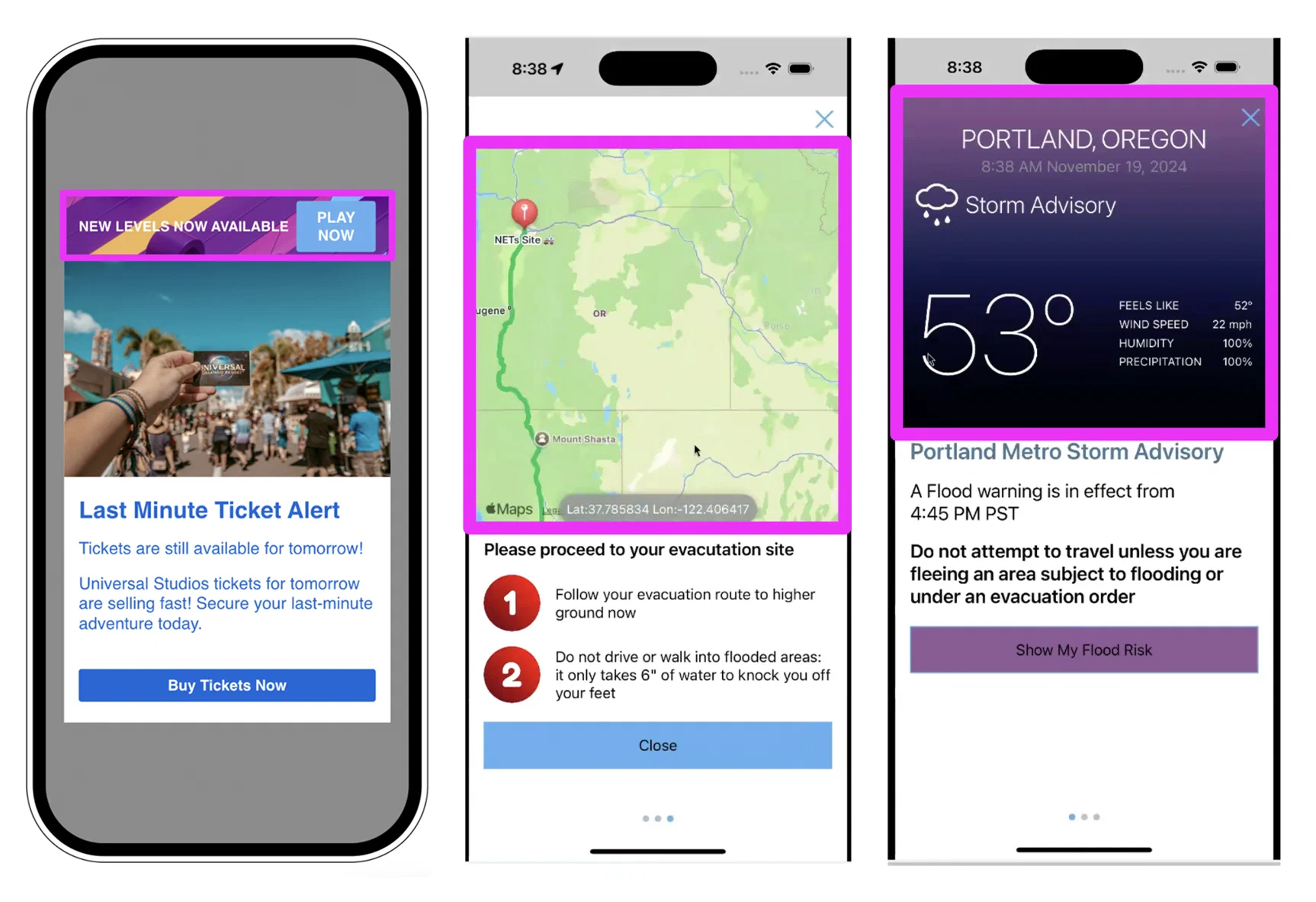
*Custom Views in Scenes*
## Getting started with Custom Views
Follow these steps to start using Custom Views for Scenes:
* **Register the native view in your mobile application using the Airship SDK.** See the [Mobile Custom Views](https://www.airship.com/docs/sdk-topics/custom-views/) developer documentation.
* **Register the native view in your web application using the Airship SDK.** See [Web Custom Views](https://www.airship.com/docs/developer/sdk-integration/web/in-app-experiences/#custom-views) in our developer documentation.
Once a Custom View is registered with the Airship SDK, you can add it to a Scene. When configuring a screen, add the [Custom View content element](https://www.airship.com/docs/guides/messaging/in-app-experiences/configuration/content/#custom-view) and enter the view name as defined by your developer.